
Launching a QR menu at your venue: a checklist for the first week
A launch checklist for your WebQRMenu QR menu: check the menu and translations, print and place QR codes, place a test order and a test waiter call from a phone, brief your staff, and watch analytics and guest feedback in the first days. With screenshots.
The menu is filled in, the QR code is downloaded, and it feels like all that's left is putting the table cards out. But the first week matters: if a guest scans the code and sees a dish card with no price, or a waiter misses an order, you may not get a second chance. The good news is that almost every problem like this can be found in a single evening of checks.
In this article we get Aurora Garden, a seasonal garden café in Rustavi, ready to open and go all the way from checking the menu and translations to the first guest feedback. Every screenshot comes from the live WebQRMenu dashboard and the real guest menu on a phone.
In short: open the menu on a phone and check every dish card in every language; check the translations in the dashboard and how price option names read in each language; make sure the right order types are on and your opening hours are set; print and test the QR codes; place a test order and make a test waiter call; show your staff where orders and calls appear; in the first days, watch analytics and guests' survey answers.
If you haven't created your venue yet, start with How to create a new store in WebQRMenu, and How to Create a QR Menu on WebQRMenu will help you build the menu from scratch.
1. The day before launch: look at the menu as a guest
Start on your phone, not in the dashboard. Open your venue's short link (ours is webqrmenu.io/auroragarden) or scan the QR code, ideally on a phone that has never been signed in to the dashboard: that way you see exactly what a guest sees.
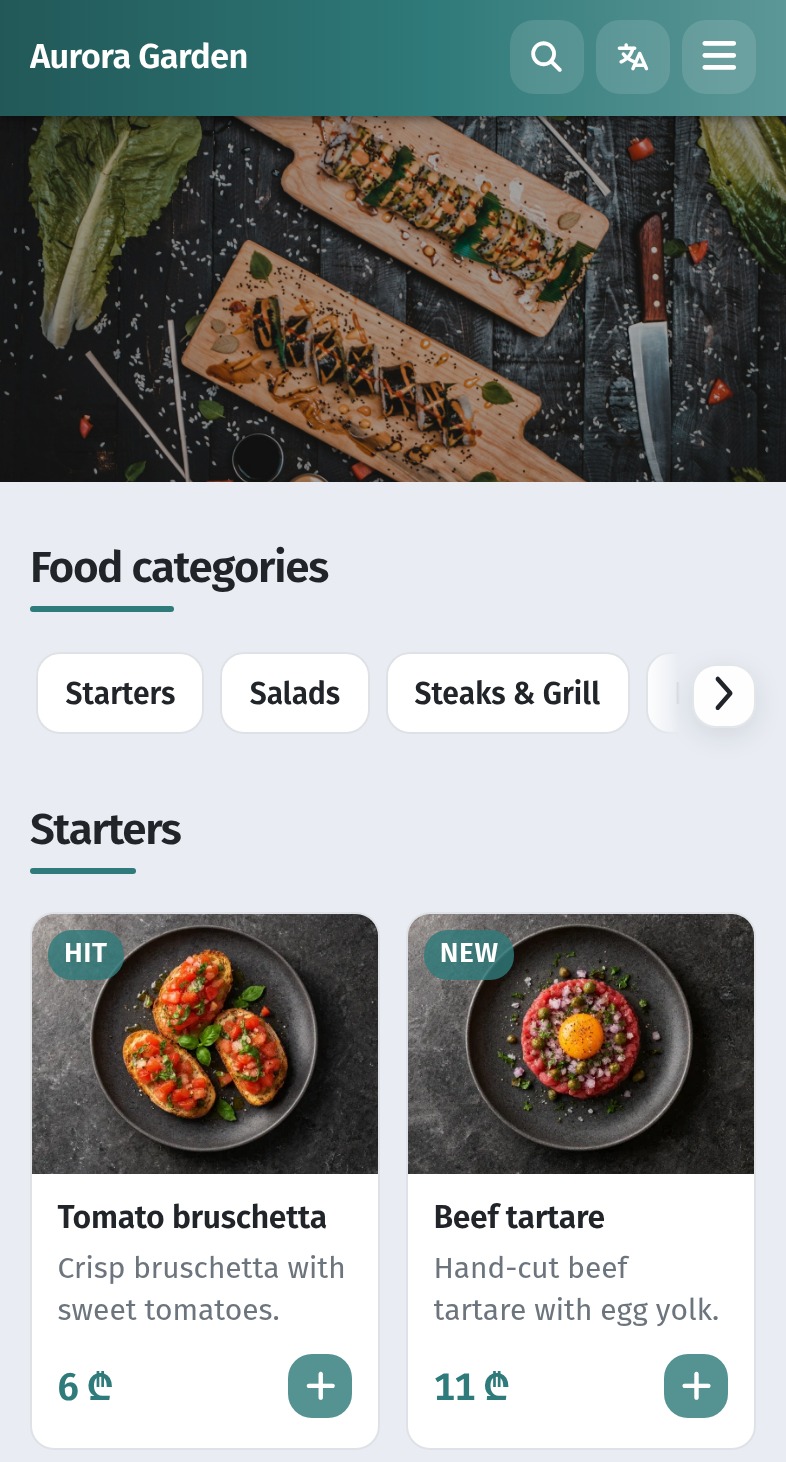
What to check on the first screen:
- Name and cover. The name matches your sign, and the cover picture really fits your venue.
- Food categories. The sections come in a sensible order: starters before mains, drinks and desserts at the end.
- The first cards. Every dish has a photo, a short description and a price. A card without a photo in the first row looks unfinished.
Now open a few cards, ideally one from each section. The card shows the guest everything you filled in: badges, description, cooking time, order type, weight, portion, calories, ingredients and allergens.
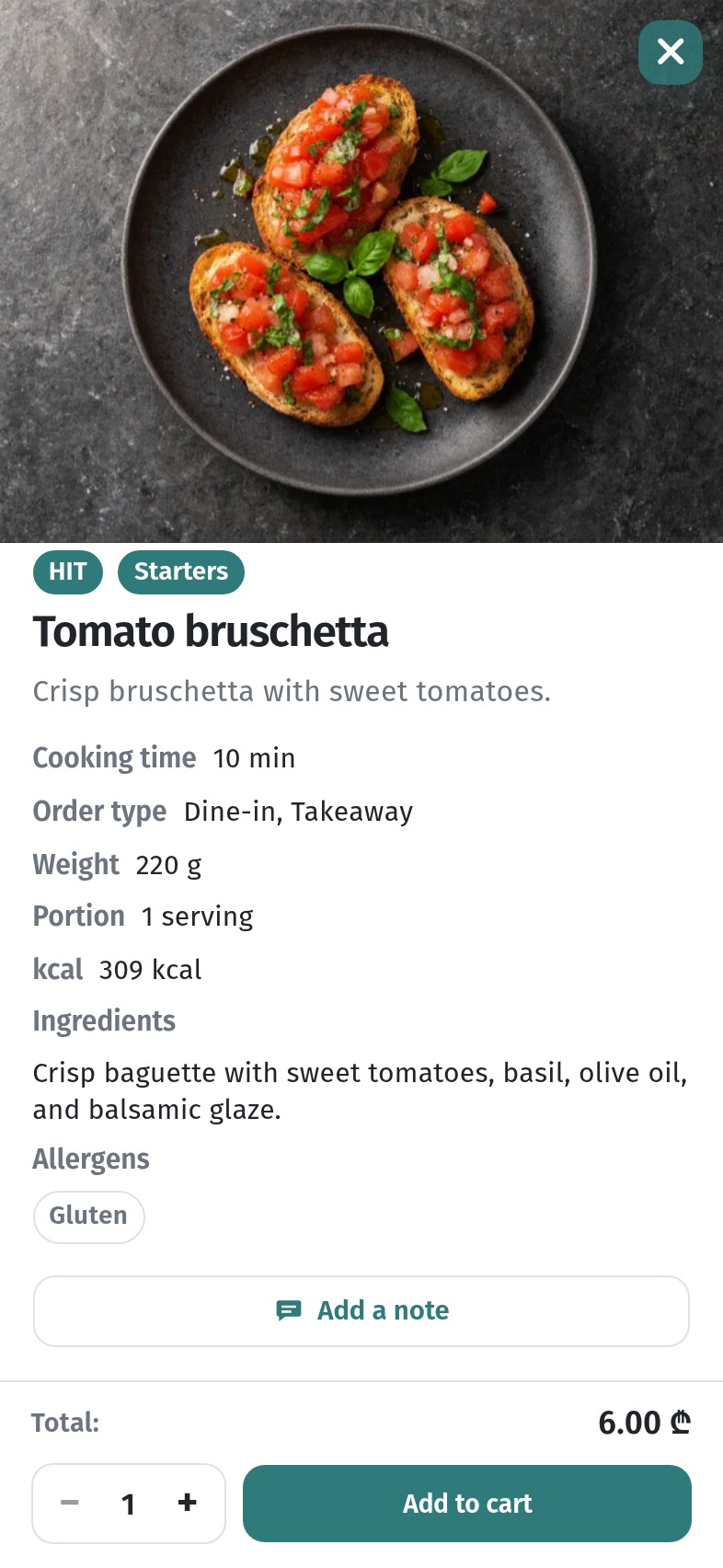
Go through this list:
- the price matches your till and your printed menu, if you keep one;
- weight and portion are given wherever guests will ask (steaks, salads, drinks);
- allergens are marked honestly, especially gluten, nuts and milk;
- dishes you don't have right now are marked Sold out or hidden, instead of waiting for someone to order them.
How to fill in a dish card properly is covered in detail in The dish card in WebQRMenu, and photos in Dish photos in WebQRMenu.
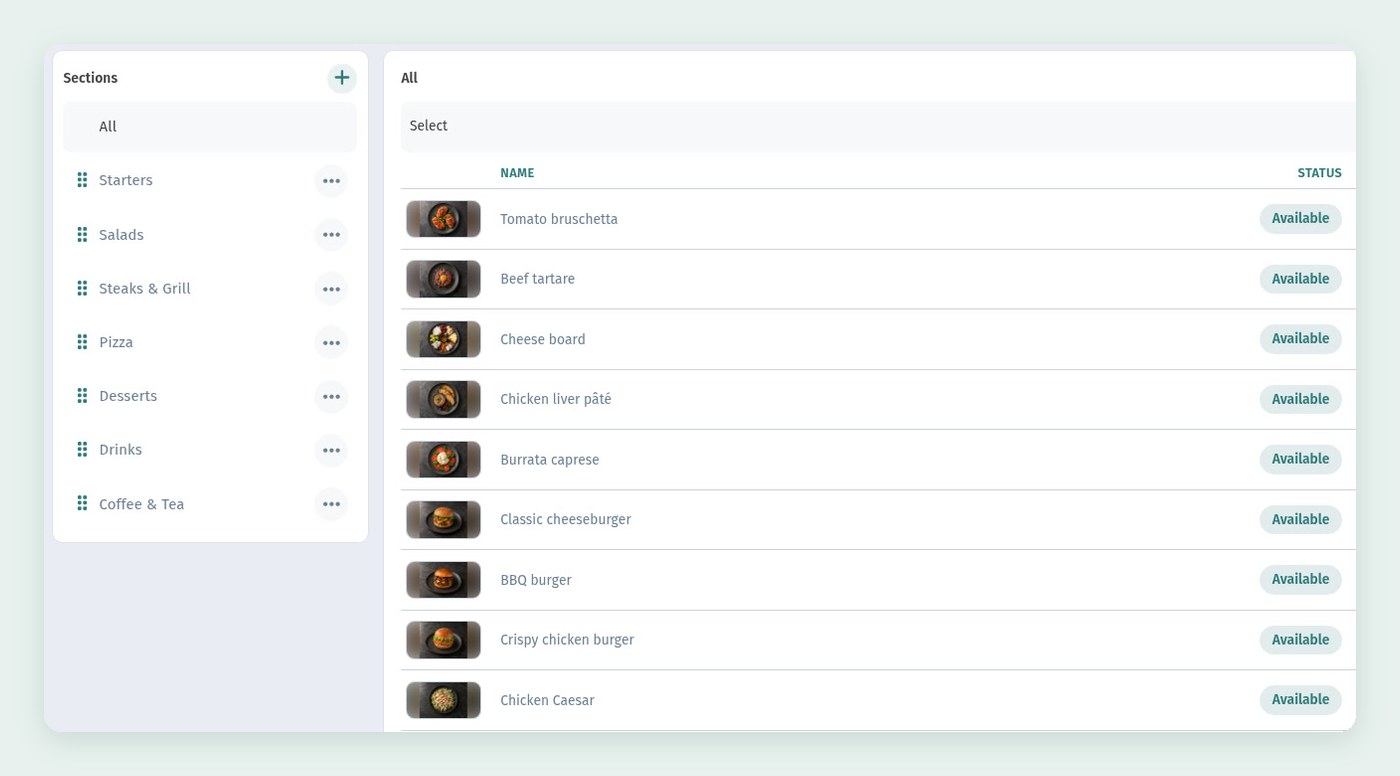
Fix whatever you find in Menu content: the list shows the names, photos, prices and statuses of your dishes at a glance, for the whole menu or one section at a time.
2. Check the translations in every language
If your menu runs in several languages, check each one separately. The language button in the menu header opens the list, and the guest switches with one tap.
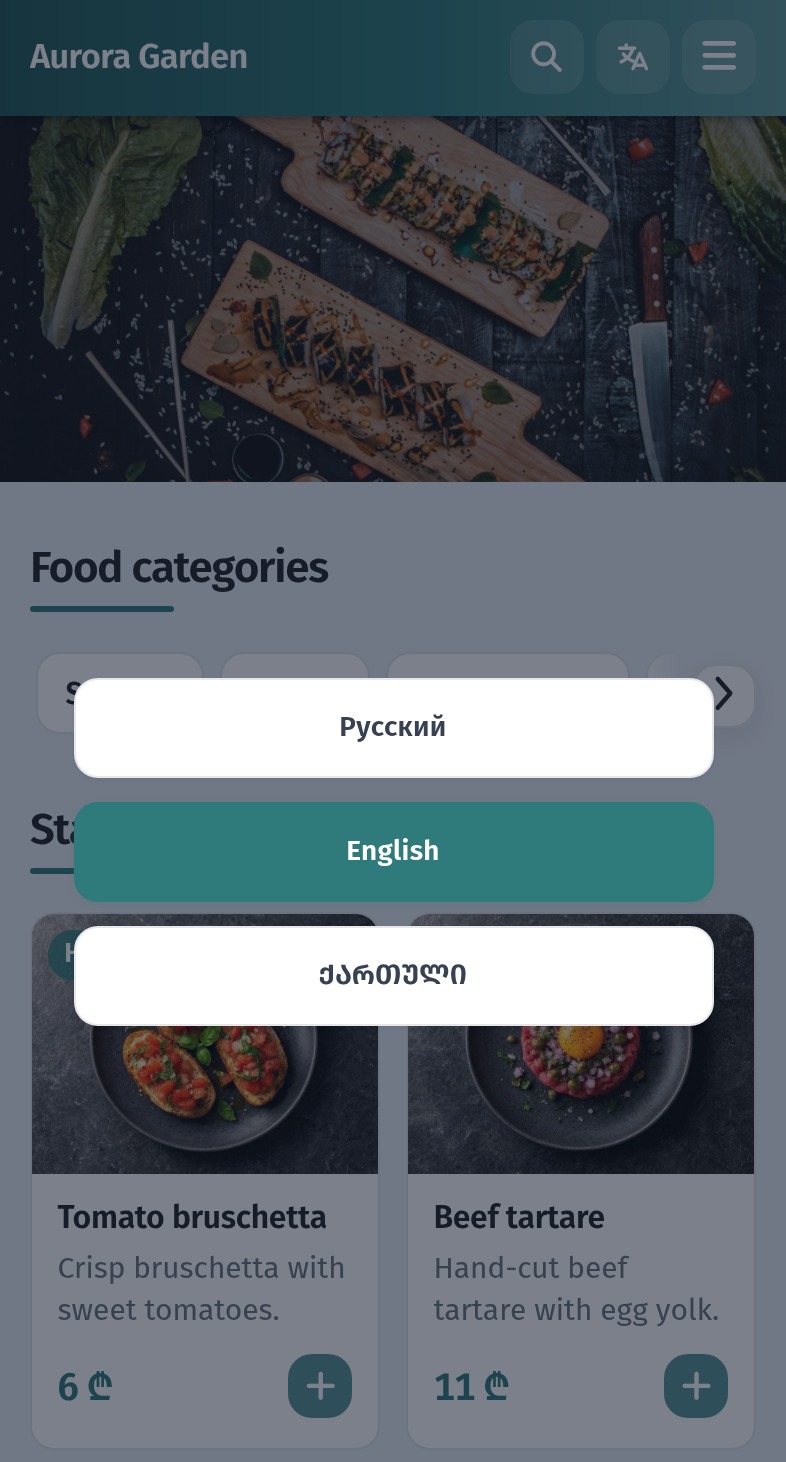
Scroll each language all the way to the end. The same things tend to slip through:
- Section names. A typo in a category name shows up on every screen.
- Price option names. The guest sees a size name exactly as you typed it, in every menu language. Write sizes in Latin units, like "250 g", "30 cm" or "330 ml", so they read the same for everyone.
- The venue description in the menu footer and under "About".
- Long translations. On a narrow screen a long name wraps onto three lines and a description gets cut short. Shorter is better.
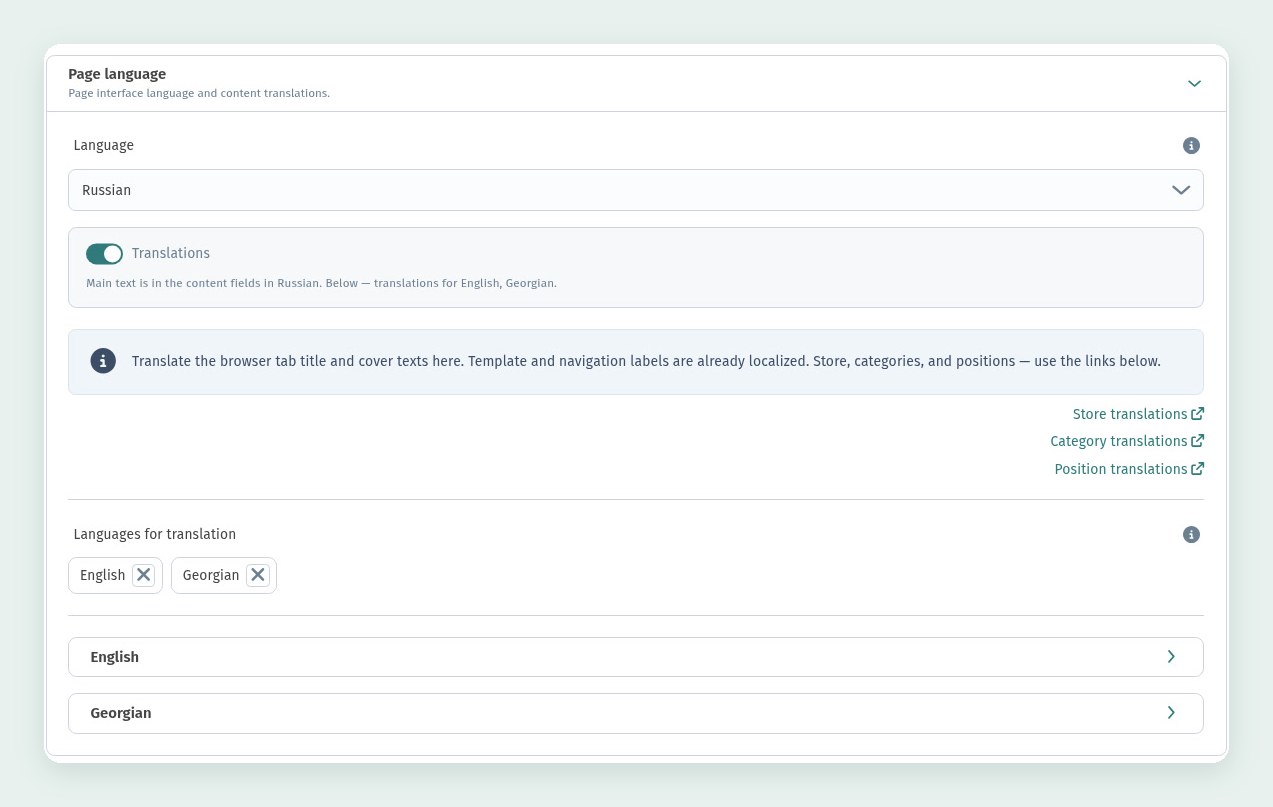
The general language settings are in the Page language block on the Page layout tab of your store settings, in the Template section. This is where you turn translations on and pick the languages under Languages for translation; the Store translations, Category translations and Position translations links lead to the rest of the texts.
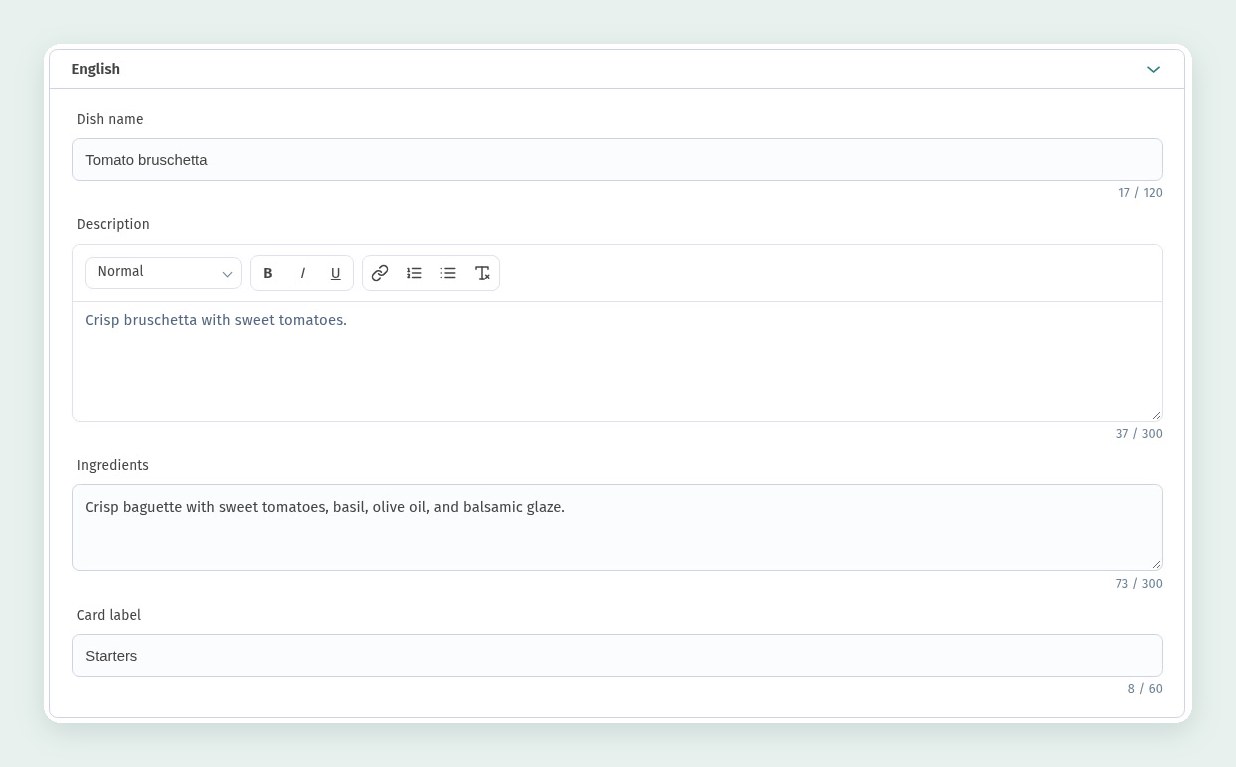
A dish's translations are filled in in the dish editor, in the Translations block: each language has its own block with the dish name, description, ingredients and card label.
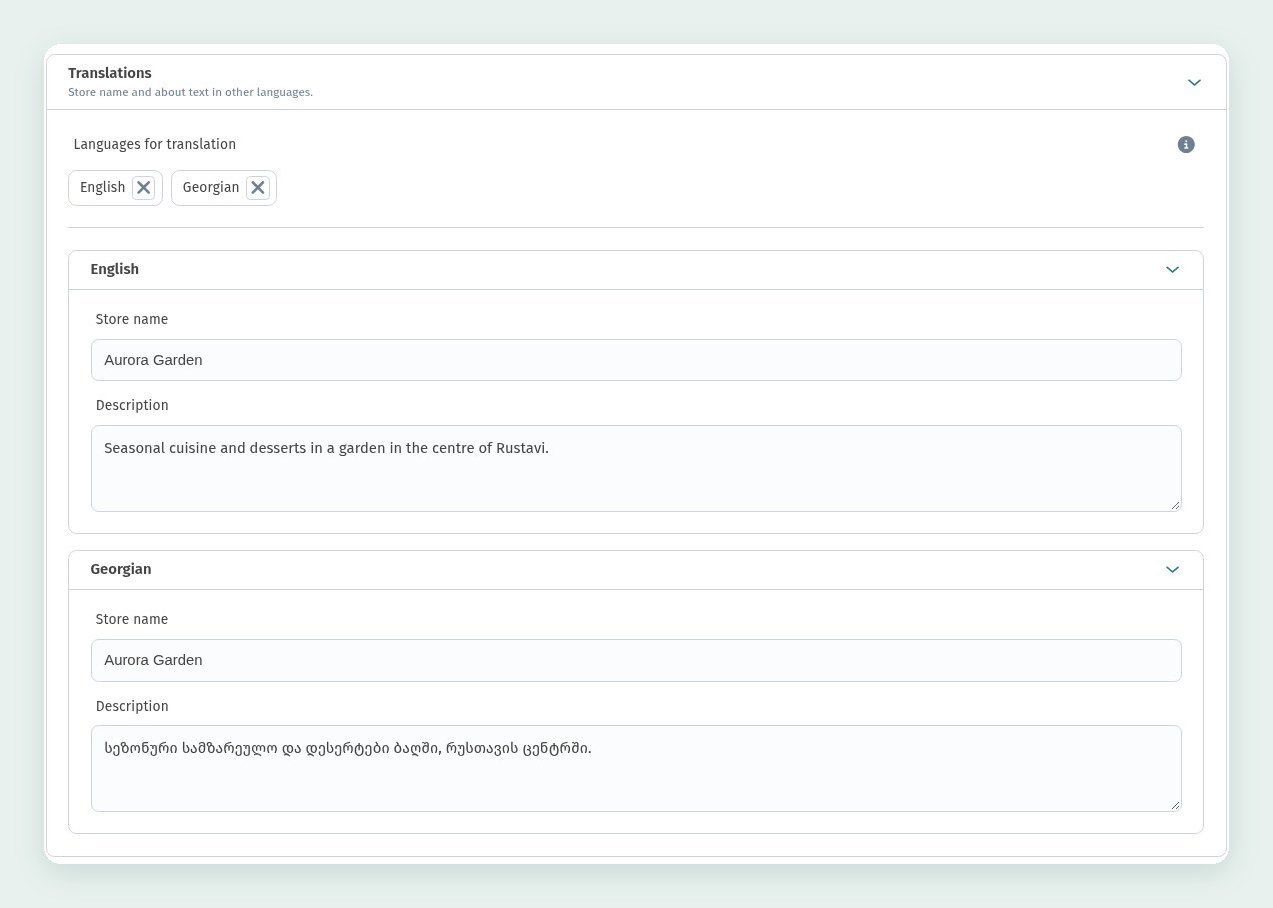
The venue name and the "About the restaurant" text in other languages are set on the Information tab, in the Translations block: first pick the languages under Languages for translation, then fill in the venue name and description for each one. At Aurora Garden both are translated into English and Georgian.
Translations are covered step by step in A Menu in Three Languages. A handy trick for checking: a link ending in ?lang=en or ?lang=ka opens the menu straight in that language.
3. The settings an order can't get through without
Before you open, look at the Settings tab of your store. The Acceptance and checkout section has three switches.
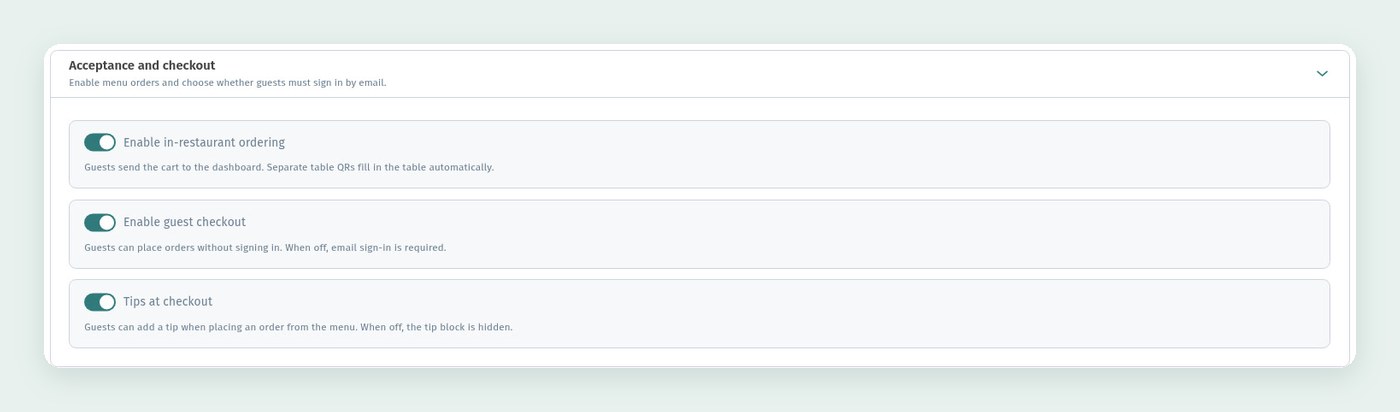
- Enable in-restaurant ordering. Guests send their cart straight to the dashboard, and a menu opened from a table's QR code fills in the table number automatically.
- Enable guest checkout. When it's on, guests order without signing in. When it's off, the menu asks them to sign in by email before ordering. For the first week guest checkout is usually the easier choice: fewer steps to the first order. More about guest accounts in Guest Sign-Up and Your Client Base.
- Tips at checkout. Guests can add a tip right in the cart. When it's off, the tip block is hidden.
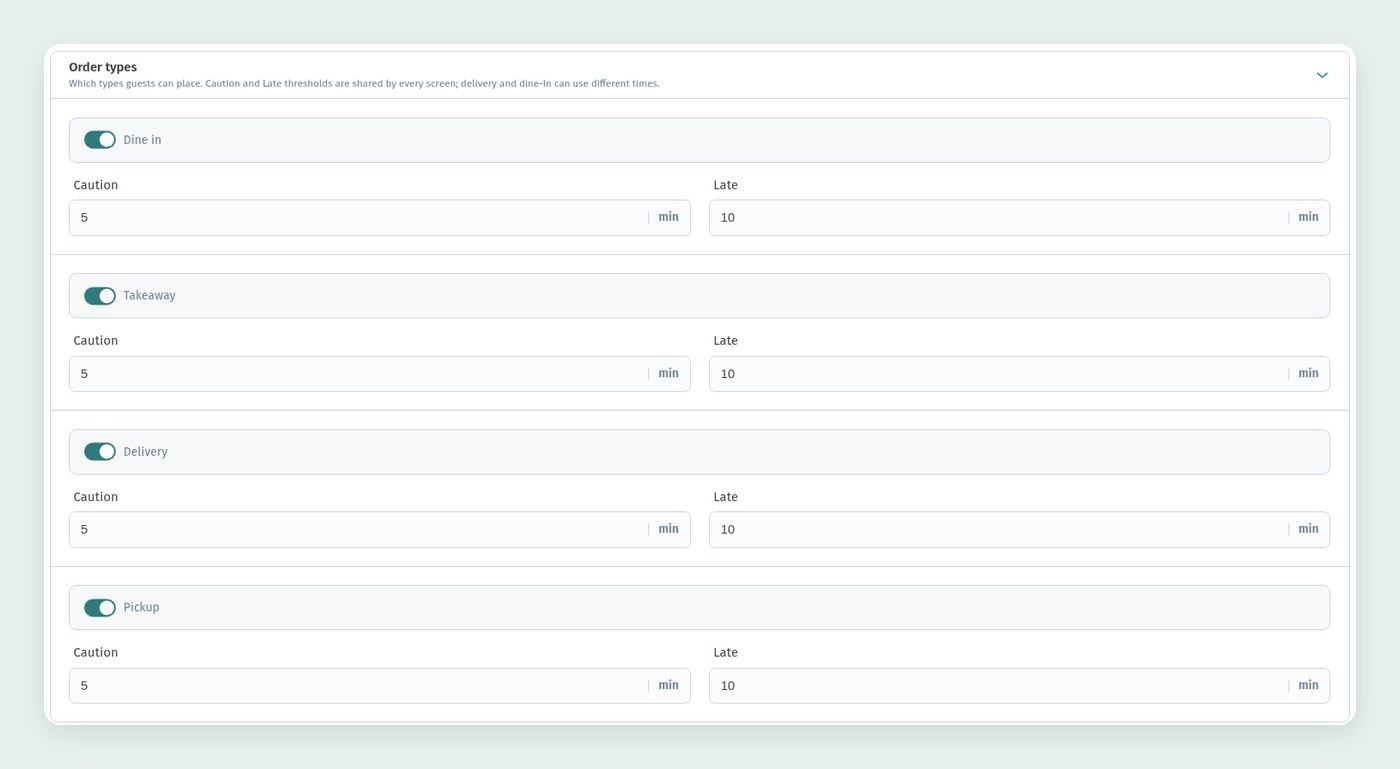
Below it, in Order types, keep only the options you actually serve: Dine in, Takeaway, Delivery, Pickup. If you don't have a courier yet, it's better to turn delivery off than to cancel orders later. Each type has its own Caution and Late thresholds in minutes: after how long an order counts as running late on your staff screens. Delivery and dine-in usually need different times, so set the thresholds for each type.
Opening hours. Orders are only accepted during opening hours, so check the schedule for every day of the week. Aurora Garden is open 09:00–22:00, seven days a week. How to set hours, Wi-Fi and contacts is explained in Wi-Fi, opening hours and contacts in your menu.
The rest of the appearance and store settings are in Store appearance and settings.
4. QR codes: download, print, test
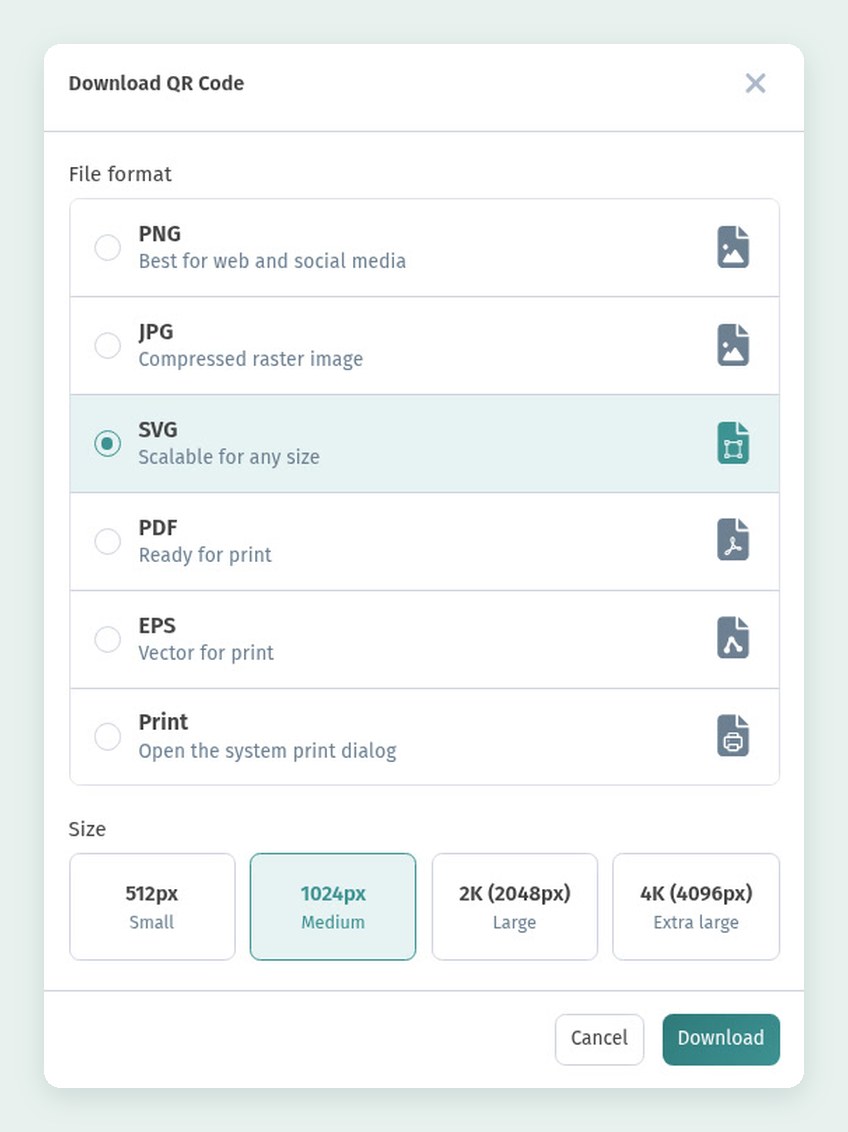
To download the QR code, click the QR button next to "Open menu" in the store overview and choose Download. In the Download QR Code window, pick a format and a size. PNG is best for the web and social media, JPG is a compressed raster image, SVG scales to any size, PDF is ready for print, EPS is a vector format for print shops, and Print opens your system's print dialog. Sizes go from 512 px to 4K (4096 px). For table cards, use SVG, PDF or EPS: they stay sharp at any size. If your print shop wants a raster file, download a 4K PNG. The code is dynamic: it points to your short link, so you can change the menu as often as you like without reprinting.
If guests should order to a specific table or call a waiter, create your tables under Tables: each one gets its own QR code, and orders arrive with the table number. We created three tables for Aurora Garden.
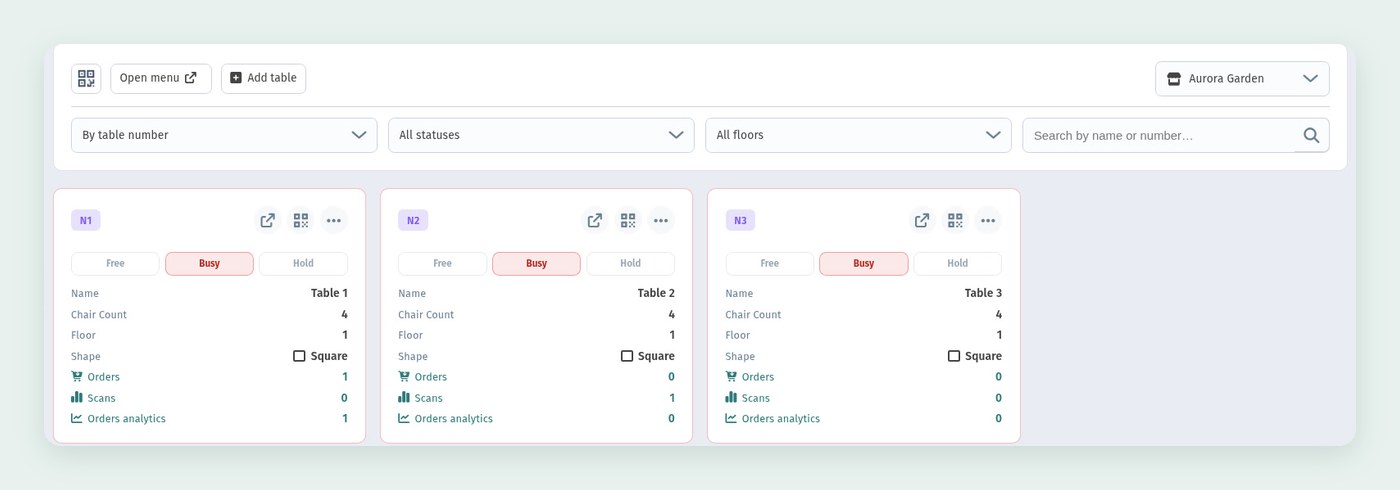
The QR button on a table's card shows that table's code, and Download saves it for printing. Print the table codes separately and mark which one goes where.
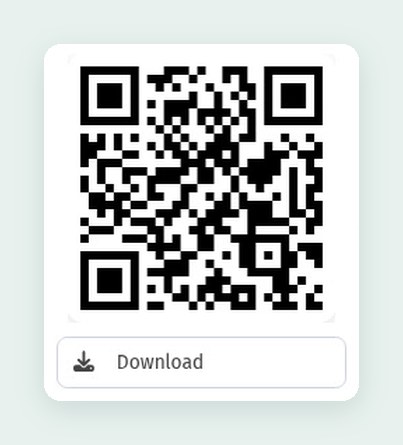
How to design the code (colours, logo, frame, file format) is described in detail in How to Design a QR Code in WebQRMenu, where to put it in Where to place QR codes in a restaurant or cafe, and table codes in Tables and a separate QR code for every table. Here's only what matters right before launch:
- One trial copy first. Print a single card, put it on a table and scan it with two or three different phones, from the distance a guest will scan from, and in evening light.
- Check where the code leads. The code on table 5 should open table 5's menu, not the general code from the entrance.
- Label the card. A short line like "Menu and ordering: point your camera here" and the short link under the code help guests whose camera doesn't pick up the code right away.
- Spare cards. Keep a couple in reserve: in the first week cards get lost and dirty more than ever.
5. A test order from a phone
The most important check is to go through the whole ordering path yourself. Take a phone, scan the code on a table and order one or two dishes. We did exactly that at table 2: a tomato bruschetta and a berry cheesecake.
Add the dishes to the cart and open it. The cart shows the items with their quantities, a note for each item, the Total, tips and the Place order button.
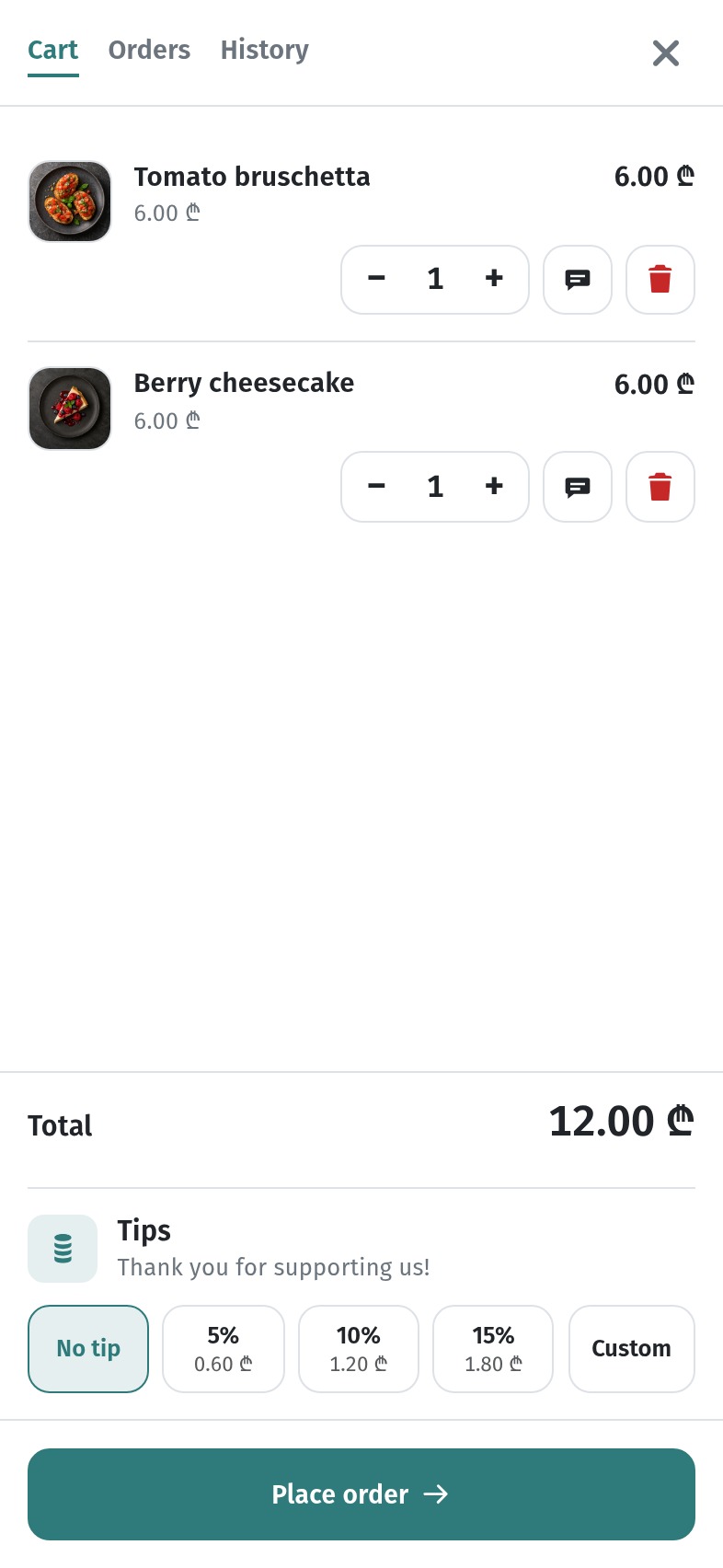
If the menu was opened from a table's QR code, Place order sends the order straight away: it's a dine-in order and arrives with the table number. The guest sees a Success notice with the order number, for example Order #261008455 sent, and lands on the Orders tab.
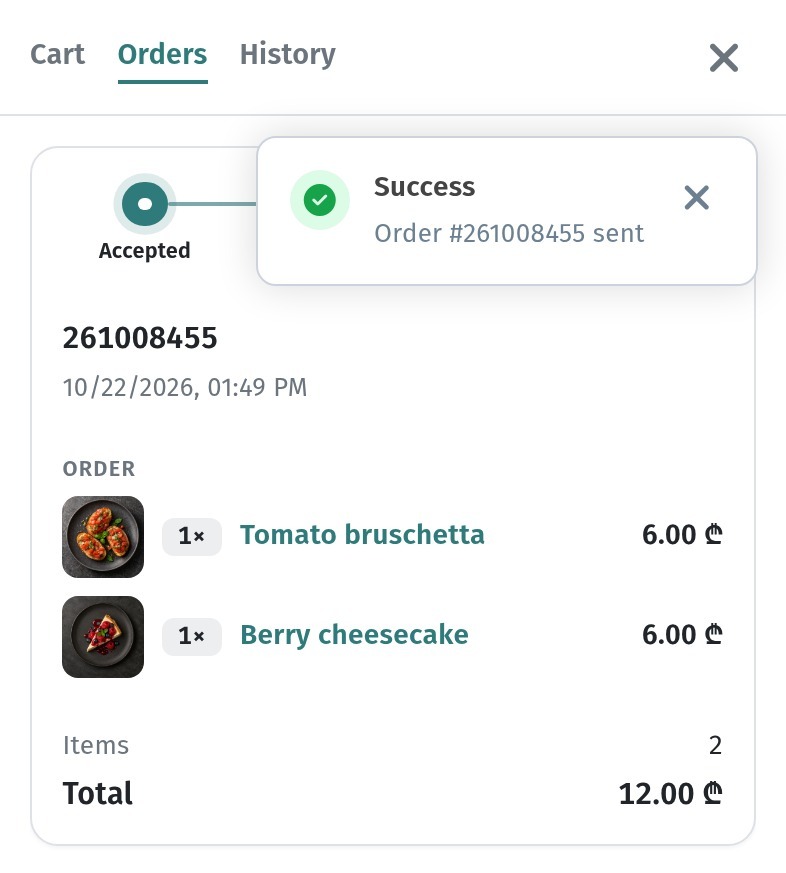
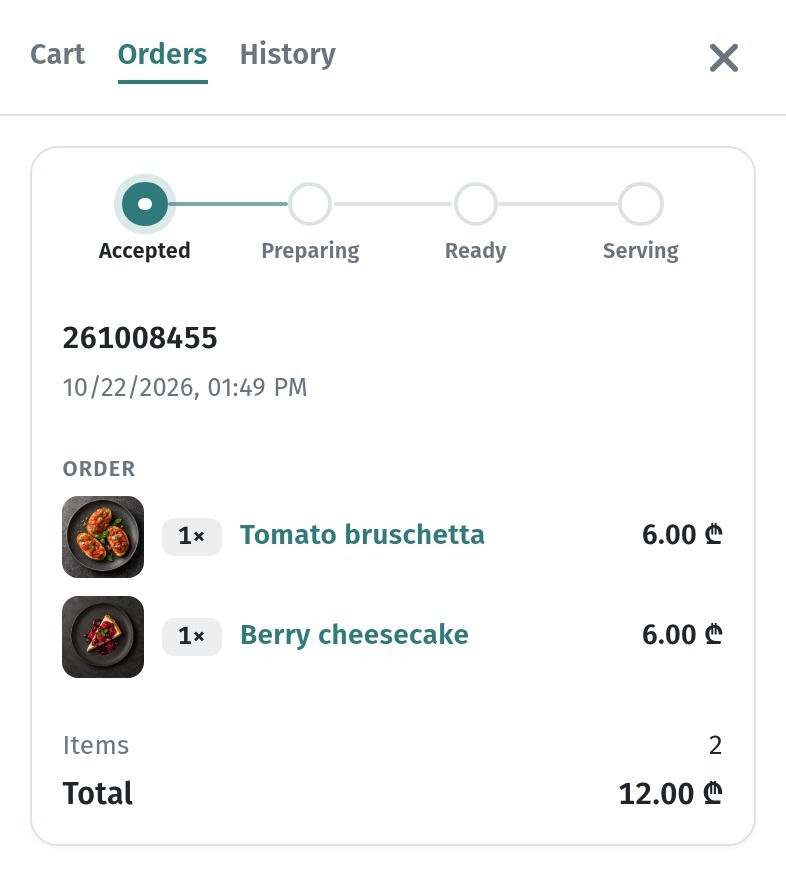
On the Orders tab the order has its own card with a status bar, Accepted → Preparing → Ready → Serving, plus the number, time, items and total. The bar moves on as your staff work on the order.
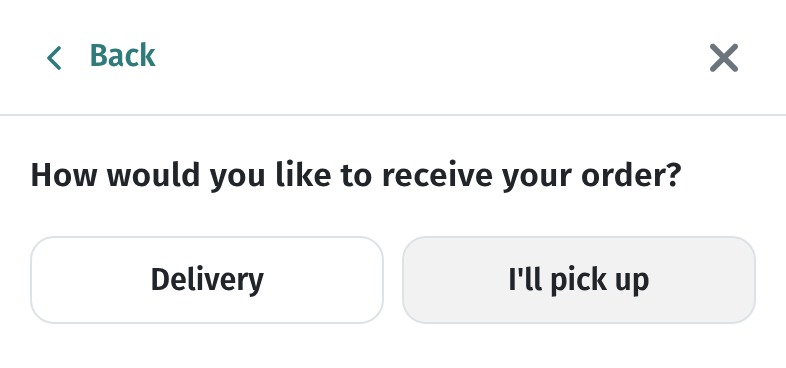
If the guest opened the menu from the general link or the code at the entrance, Place order asks How would you like to receive your order? Only the options you turned on in settings appear here: at Aurora Garden that's Delivery and I'll pick up.
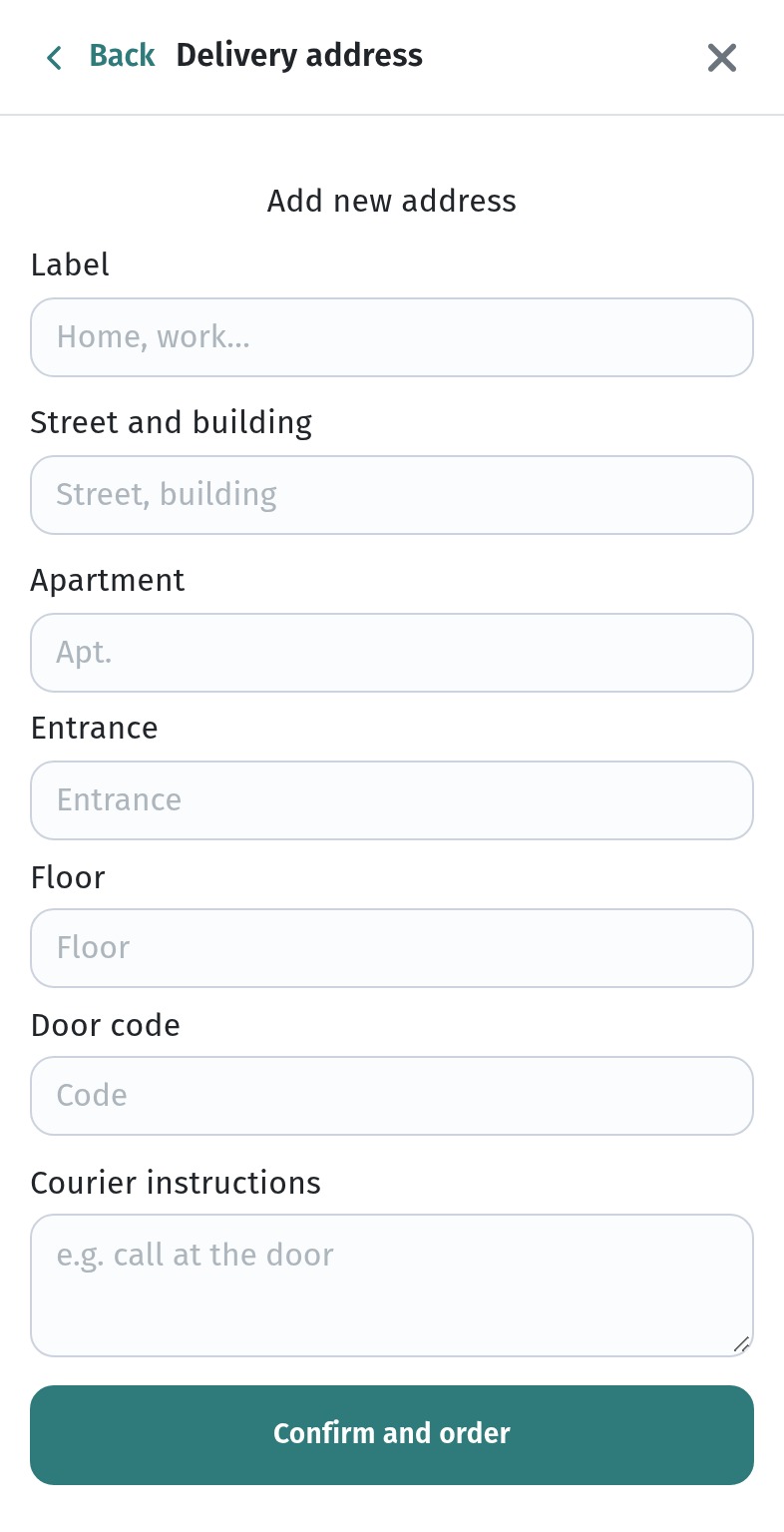
For delivery, a Delivery address form opens: an address name, street and building, apartment, entrance, floor, intercom and a note for the courier. Confirm and order sends the order. Test this path too if you offer delivery.
The guest's whole path is described in detail in How a guest orders through the cart.
Now check the other side: the order should appear under Orders in the dashboard, newest first.
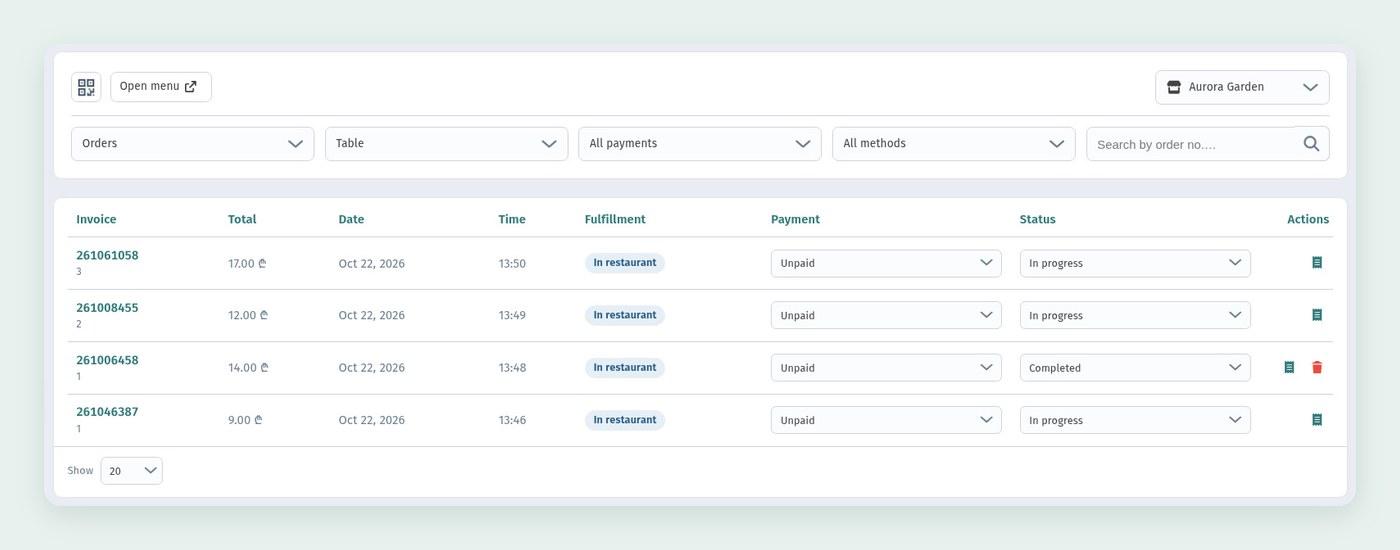
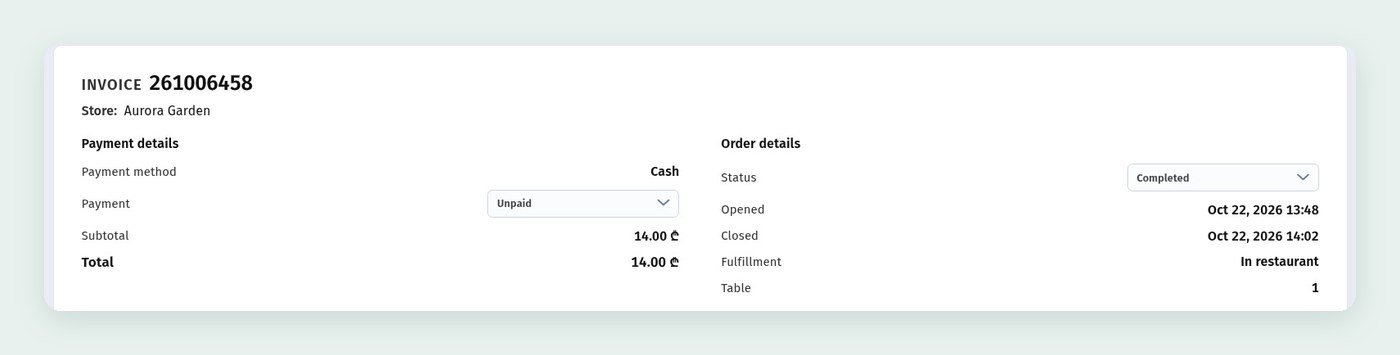
Open the order: it shows the payment method and payment status, the order status, when it was opened, the fulfillment type, the table, the items and the total. You can also download it as a PDF or print it from here.
New orders come in as In progress. Once the order is served, set the Status to Completed; if the guest changes their mind, cancel it in the same field.
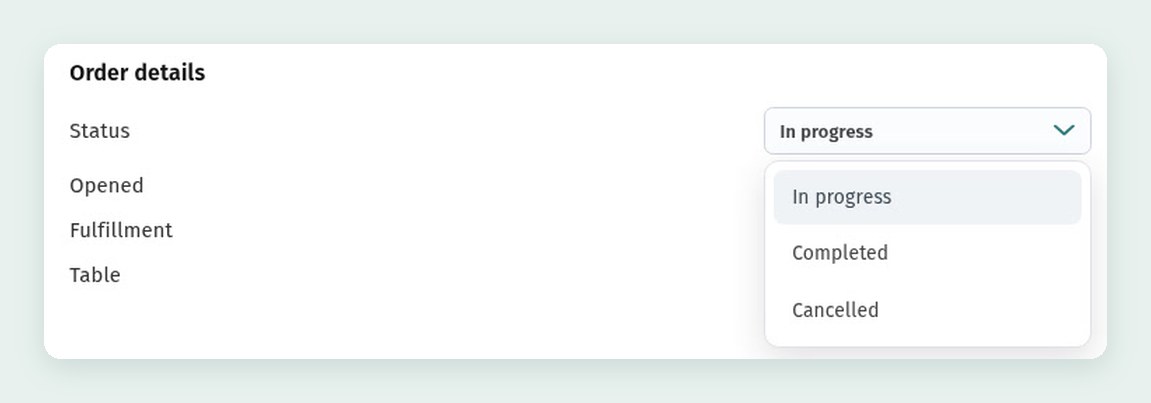
A completed order also shows when it was Closed. Check that the status changes smoothly and shows up in the order list right away.
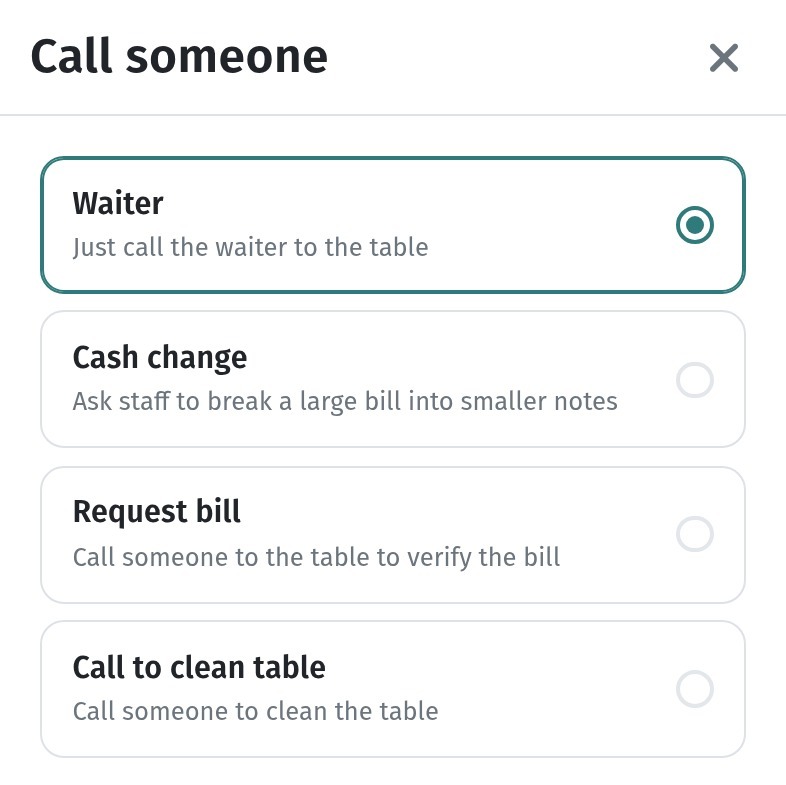
While you're at it, test the waiter call. At the bottom of a table's menu there's a Call someone button. It opens a list of reasons: Waiter, Cash change, Request bill and Call to clean table. Pick one and tap Call.
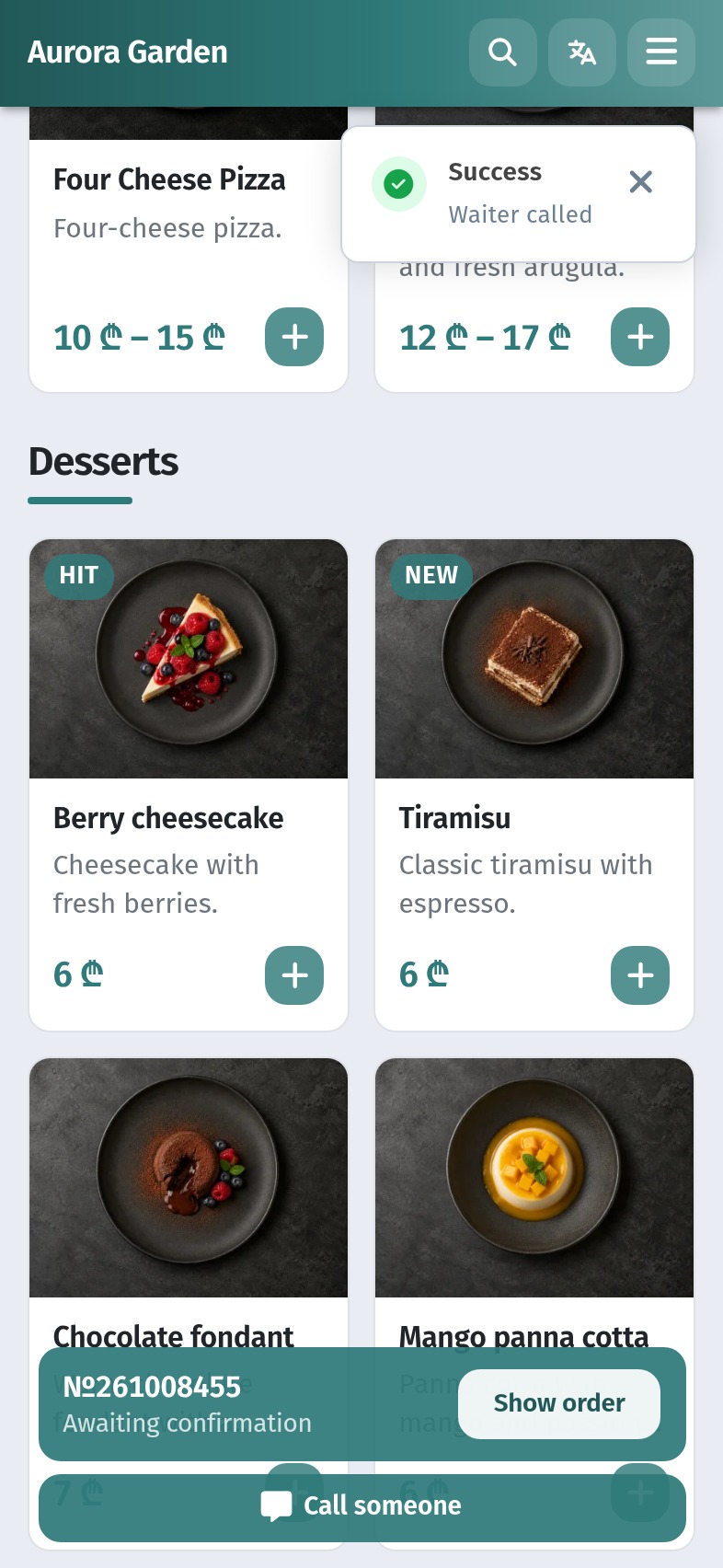
The guest sees the confirmation Success: Waiter called. Note the bar at the bottom: it shows the number of the order just sent with the status Awaiting confirmation and a Show order button, with the Call someone button below it.
The call goes to the waiter assigned to that table, on their Waiter board. So before testing, invite at least one waiter and assign tables to them (more on that in section 6).
Tip: place a test order for every option you've turned on: at a table, for delivery, for pickup. And one at an "awkward" time, 10 minutes before closing, to see how the menu behaves at the edge of your opening hours.
6. Briefing your staff: 15 minutes before the first shift
Your staff don't need to know the whole dashboard. Three screens and a clear split of who does what are enough.
Who opens what:
- The manager or cashier keeps Orders open: new orders, their statuses and payment are here.
- Cooks work with the Kitchen line screen: orders arrive as cards with timers. How it works is covered in Kitchen line in WebQRMenu.
- Waiters keep the Waiter board open on a phone or tablet: it shows the calls from their tables.
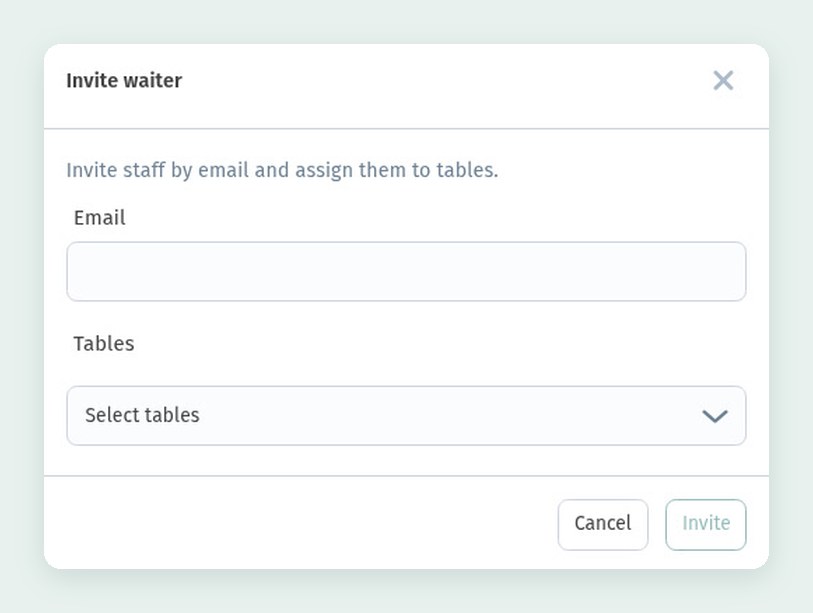
You invite waiters by email under Staff → Staff. In the Invite waiter window, enter their email and pick the tables they're responsible for right away.
The call reasons guests see are set up under Staff → Waiter calls. Aurora Garden has four: Waiter, Cash change, Request bill and Call to clean table, each with its own hint for the guest. Before launch, remove the ones you don't need and add your own, for example "Bring a high chair".
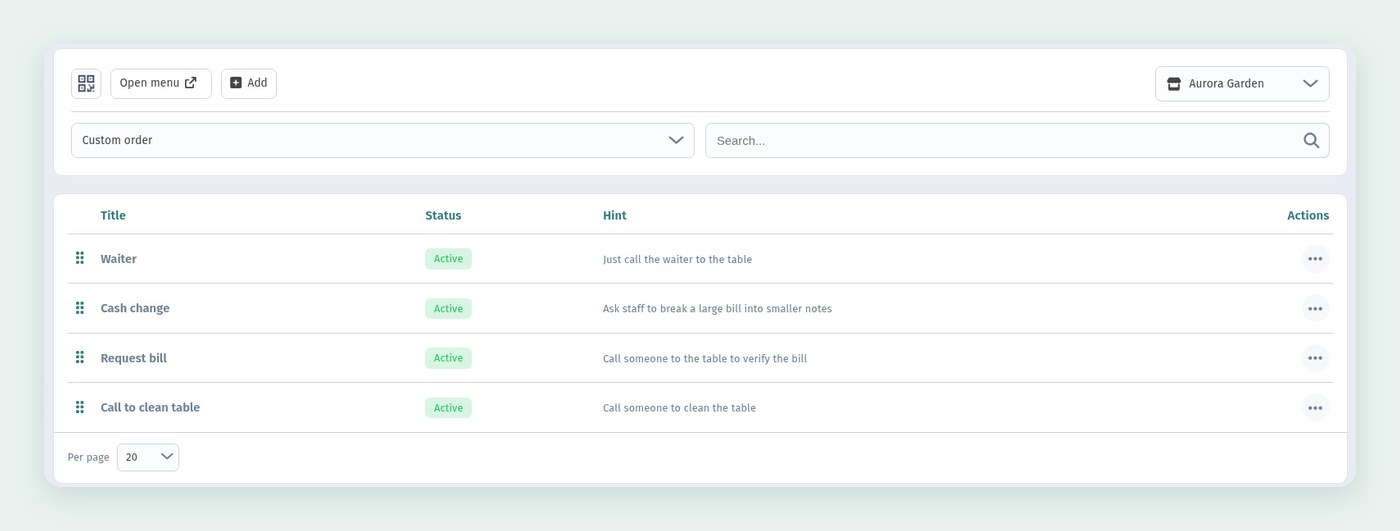
What to agree on with the team:
- Who takes orders. One person per shift makes sure every new order is noticed within a minute.
- How the status changes. A new order comes in as In progress; once it's served it becomes Completed, and if the guest changes their mind it's cancelled. Guests follow their order on their phones, so an order left "in progress" leads to questions.
- What to do with a call. The waiter taps Claim, goes to the table and then taps Complete. If they can't make it, Release hands the call back so a colleague can take it.
- What to tell guests. Short and the same every time: "The menu and ordering are on the QR code on your table; tap the button in the menu and a waiter will come over."
- What to do when a dish runs out. Mark it Sold out straight away so nobody orders it again.
7. The first days: analytics and guest feedback
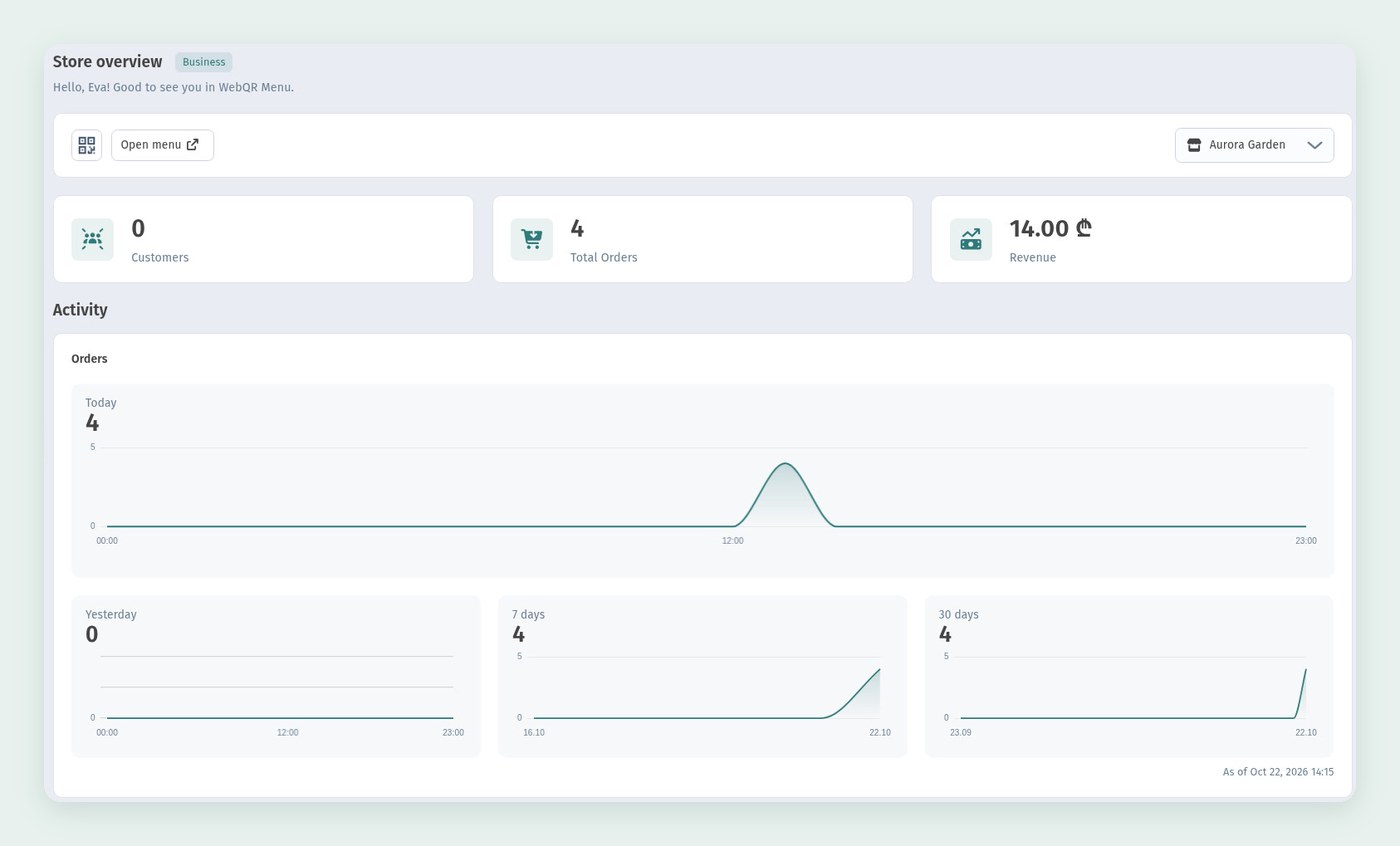
Two or three days after launch you'll already have your first numbers. Start with the Overview page: at the top you see customers, total orders and revenue, and the Activity block shows orders for today, yesterday, 7 and 30 days.
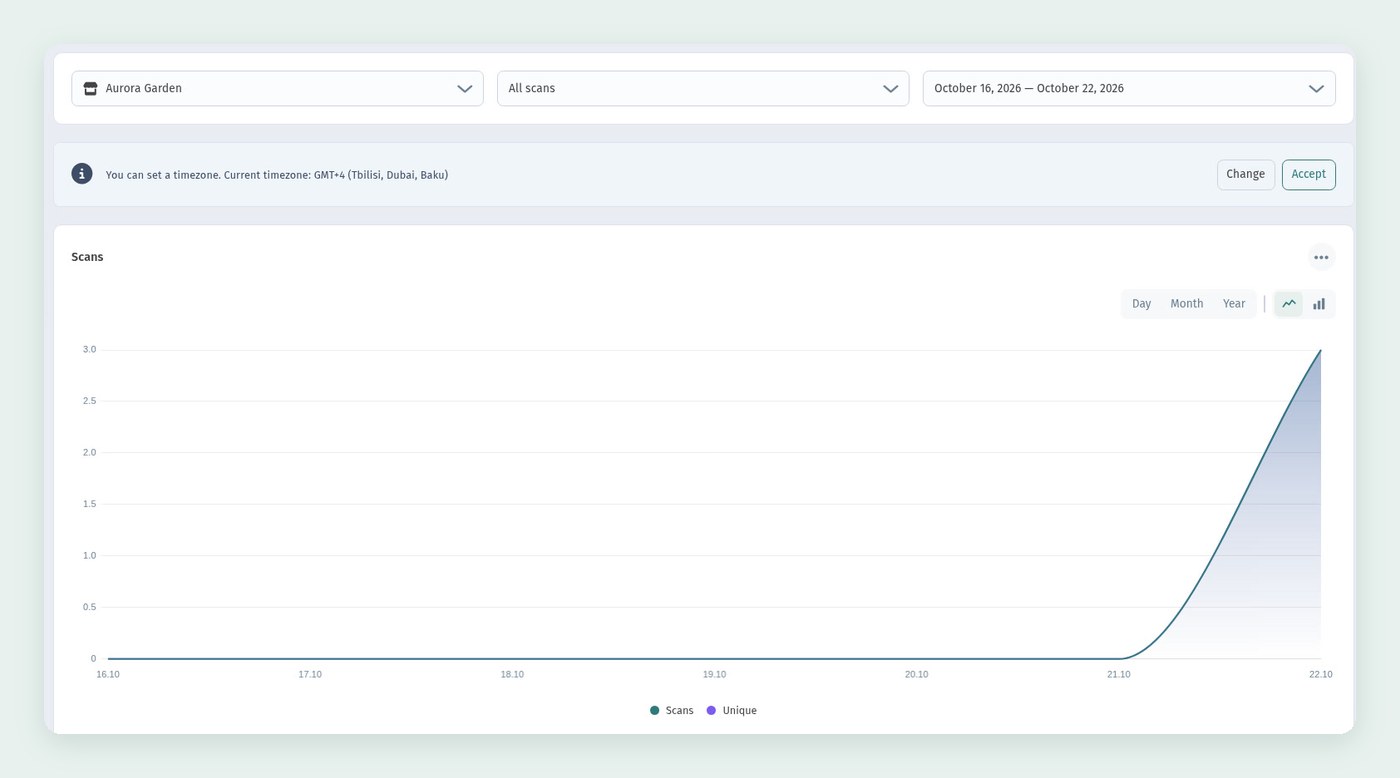
Then open Analytics → Scan analytics. The source switch shows scans of the main code and of table codes separately, so you can see which table cards are really working. You can also pick the period and the time zone the scans are counted in.
In Orders analytics, compare orders with scans for the same period. Lots of scans and few orders means guests are looking at the menu but something stops them from ordering: prices, photos, a long checkout.
Every report is covered in detail in Analytics in WebQRMenu: QR scans, guests and orders. If you're connecting Google Analytics or Meta Pixel, see How to connect Google Analytics 4, Google Tag Manager and Meta Pixel.
Guest feedback. The guest menu has a Survey item: it's in the burger menu in the header, next to "About", "Contact" and "Sign in".
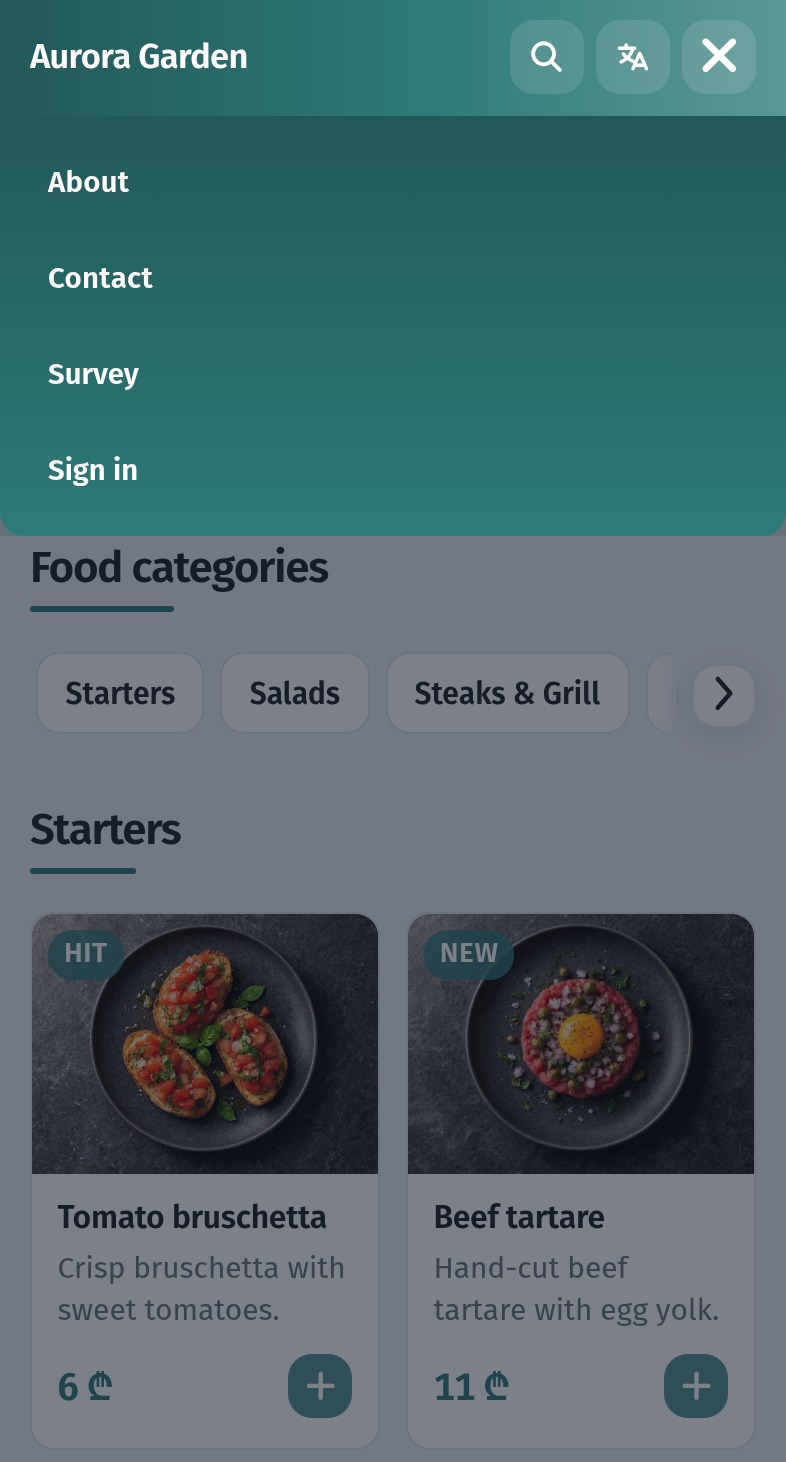
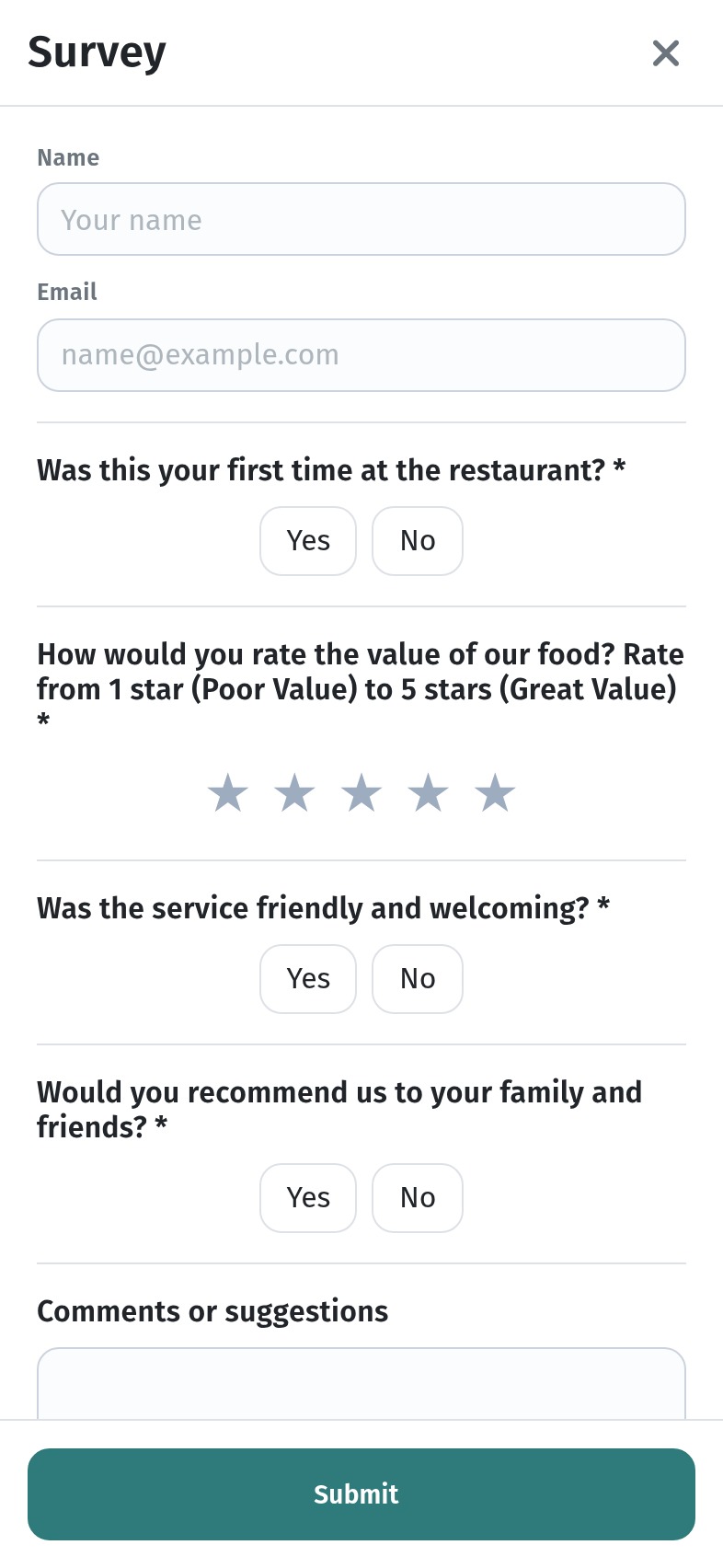
The survey opens right inside the menu: the guest can leave a name and email, answer "Yes" or "No", give a star rating and write a comment. At Aurora Garden the survey is called "Visit feedback" and has five questions, translated into every menu language.
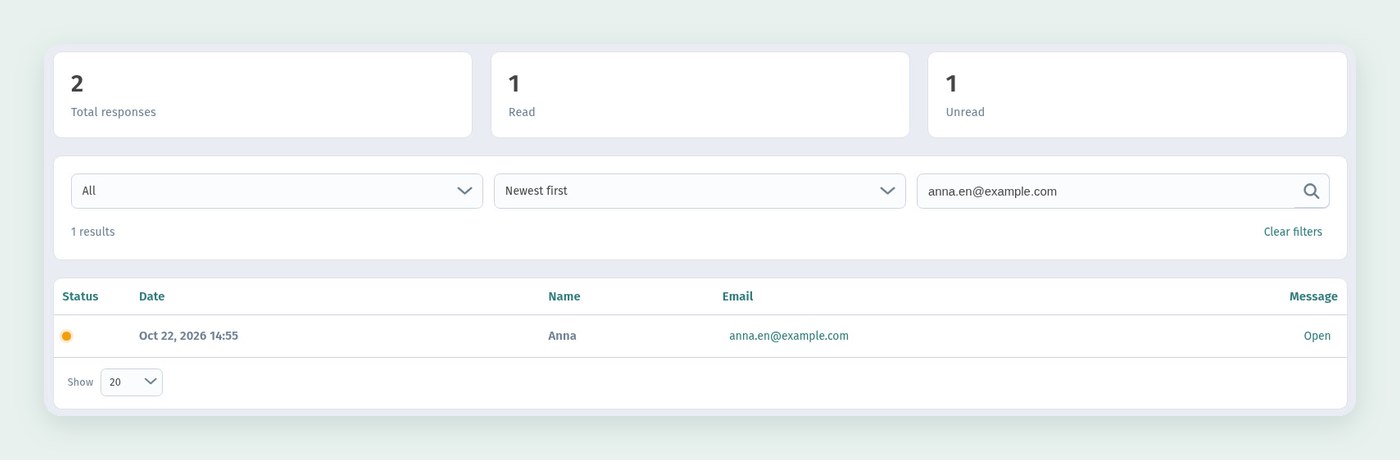
The answers are collected in the dashboard under Marketing → Surveys: counters for total, read and unread responses at the top, and below them a list with the date, name and email.
Open shows a response in full: every "Yes" or "No", the stars and the guest's comment. Read them every day of the first week: this is where guests write about what the staff didn't notice.
You can change the survey in its editor: the survey title, a Translations block for the question prompts in other languages, the list of Questions and an Add question button. Keep three to five short questions that take one tap to answer, plus one open question for comments, and make sure every question is translated into each menu language. Here's the English translation of the first question:

Remind your staff about the survey too: "We'd love it if you rated your visit, it's under Survey in the menu", said along with the bill, gets noticeably more answers than a sign on the wall.
The first-week checklist
Before opening
- The menu is opened on a guest's phone and every card is checked: photo, description, price, weight, allergens.
- Dishes you don't have are marked Sold out or hidden.
- The menu is checked in every language: sections, dishes, price options, the venue description.
- Only the order types you need are on, and you've decided whether ordering needs sign-in.
- Opening hours match the real ones.
- QR codes are printed after a trial copy and tested on several phones.
- A test order of each type and a test waiter call are done.
- Staff know where Orders, the Kitchen line and the Waiter board are, and who does what.
The first days
- Every day: orders are closed with Completed, calls with Complete.
- Every day: new survey answers are read.
- Day 3: scans by source show which table cards work.
- Day 7: scans versus orders, and a list of what to change in the menu in week two.