

How to connect Google Analytics 4, Google Tag Manager and Meta Pixel to your WebQRMenu QR menu
Step-by-step: turn on WebQR analytics, connect Google Analytics 4, Google Tag Manager or Meta Pixel to your QR menu, find each ID, choose between GTM and GA4 alone and check that data arrives.
WebQRMenu already counts scans and orders for you. But if you run ads, retarget guests on Instagram and Facebook, or keep all your marketing numbers in Google Analytics, you will want your QR menu to send data there as well. You do not need a developer or any code for this: paste one, two or three IDs into your store settings and WebQRMenu loads the right scripts on the menu page for your visitors.
This guide covers the Stats section of the store settings switch by switch, where to find each ID, when you need Google Tag Manager and when Google Analytics 4 alone is enough, and how to check that data is really arriving. At the end we take a short look at the Integrations page.
What you need: a WebQRMenu store and access to the accounts you want to connect: a Google Analytics 4 property, a Google Tag Manager container or a Meta Pixel (dataset) in Meta Events Manager.
Where the settings are
Go to Store → Stores in the sidebar and open your store (in our examples it is the demo restaurant Aurora Prime). At the bottom of the store page there are three tabs: Information, Page layout and Settings. Open Settings and expand the Stats section.
The section contains two switches.
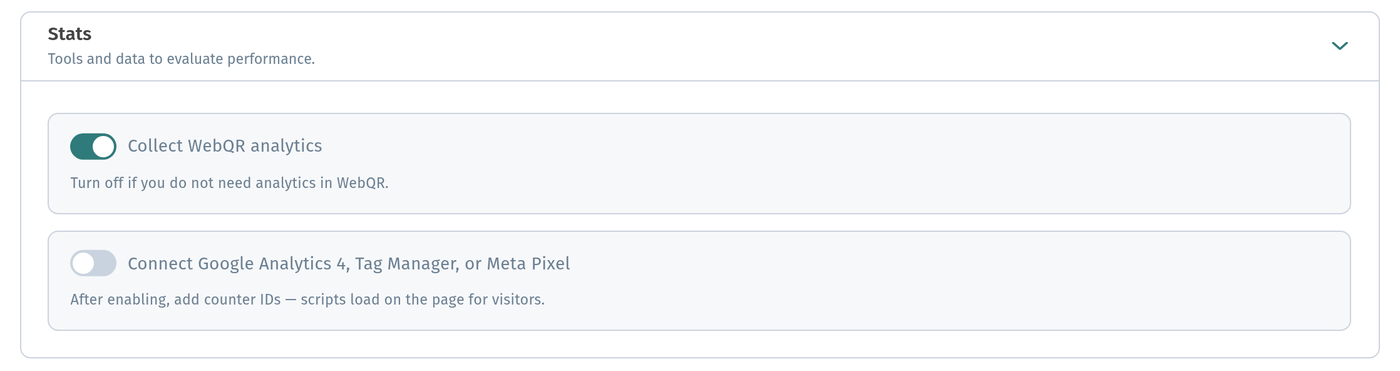
Collect WebQR analytics
The first switch, Collect WebQR analytics, controls WebQRMenu's own analytics, the data you see under Analytics in the sidebar. The hint under it says: "Turn off if you do not need analytics in WebQR."
Keep it on if you want to see scans and orders right in the dashboard. This switch is separate from the external tools below: you can keep WebQR analytics and add Google or Meta on top, or use only one of them.
Connect Google Analytics 4, Tag Manager, or Meta Pixel
The second switch, Connect Google Analytics 4, Tag Manager, or Meta Pixel, is for external tools. While it is off, the hint reads: "After enabling, add counter IDs — scripts load on the page for visitors."
Turn it on and three fields appear below, and the hint changes to "Enter IDs below. Empty fields are not connected."
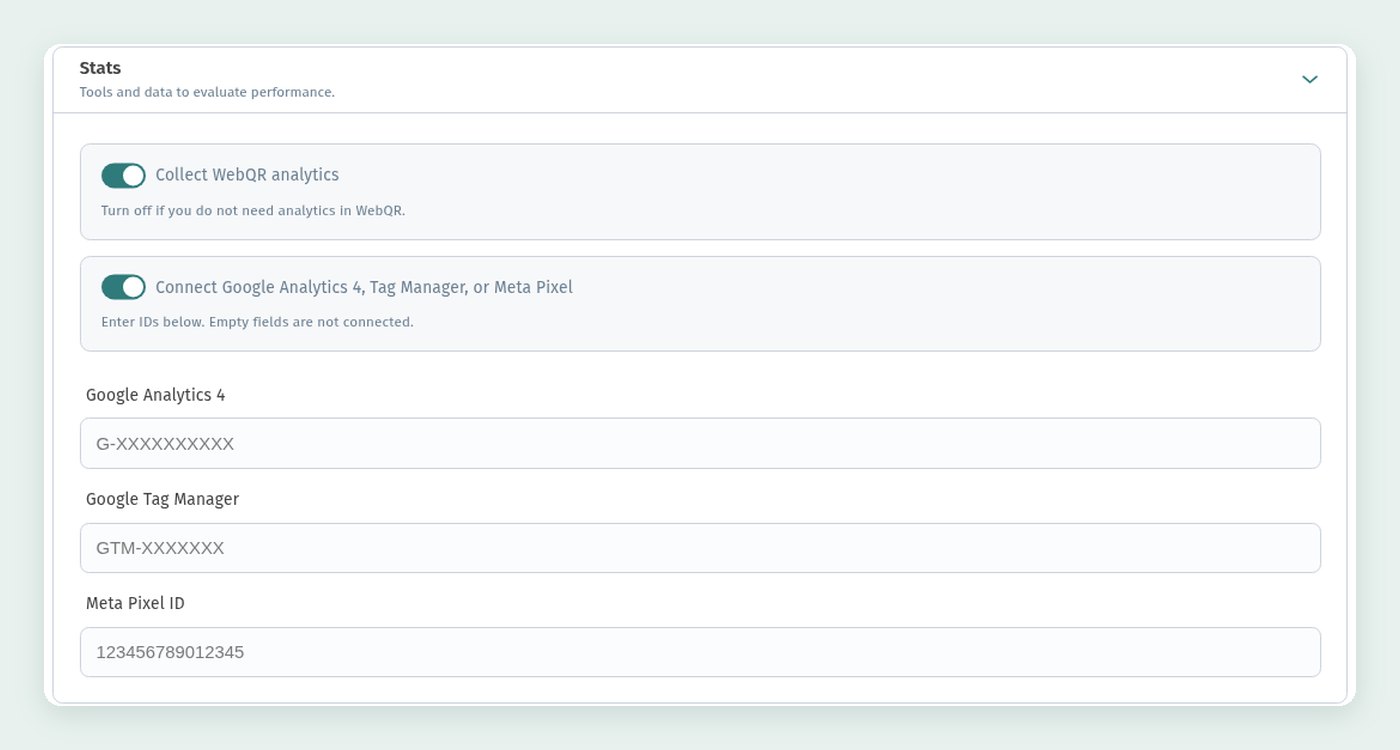
The fields are:
- Google Analytics 4: the measurement ID of your GA4 web stream. It starts with
G-. - Google Tag Manager: the ID of your Tag Manager container. It starts with
GTM-. - Meta Pixel ID: the ID of your Meta Pixel. It is made up of digits only.
You do not have to fill in all three. Only the fields with an ID are connected, and an empty field is simply ignored. For example, you can connect only a Meta Pixel for Instagram ads, or only Google Analytics 4.
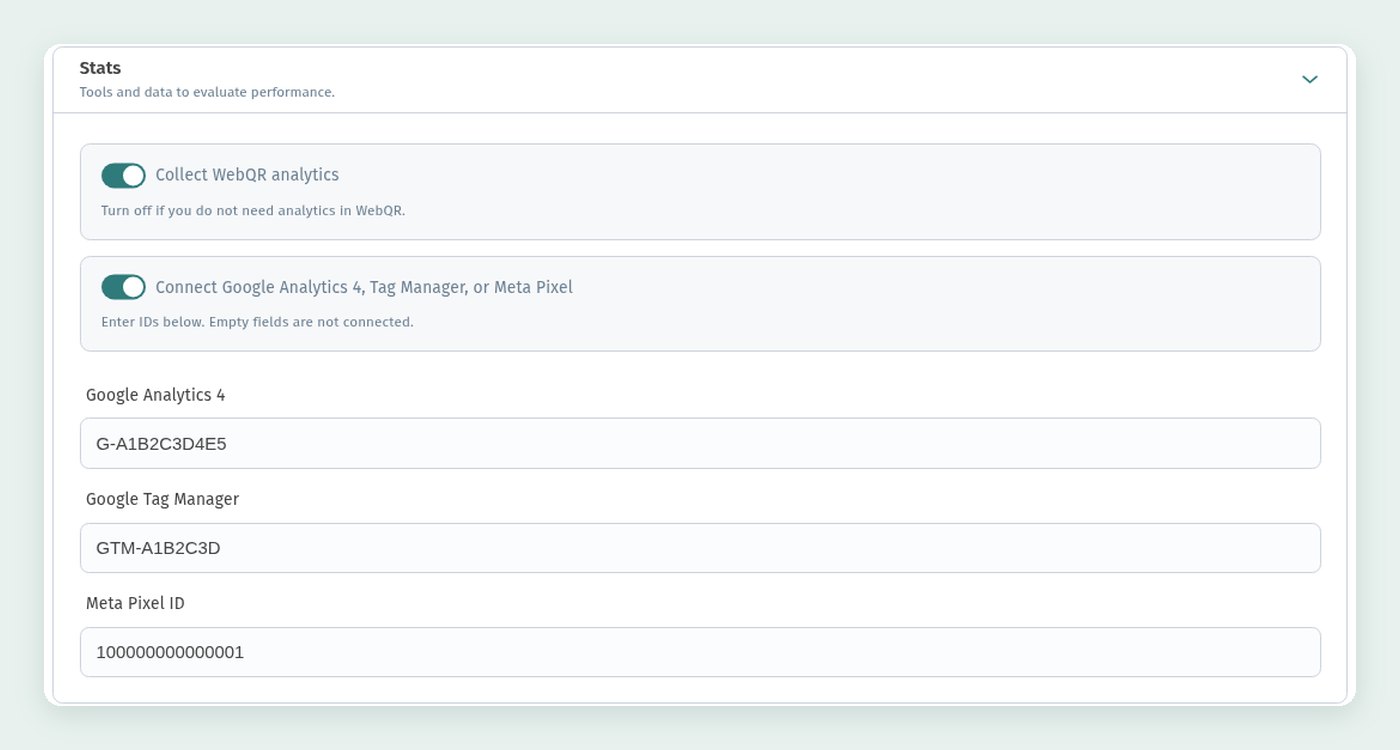
Here is how the section looks with all three fields filled in. The IDs in the screenshot are made-up examples: G-A1B2C3D4E5, GTM-A1B2C3D and 100000000000001. Use your own.
Where to find each ID
All the steps below follow the official Google and Meta help pages, linked in each section.
Google Analytics 4: measurement ID (G-…)
Per the official Google Analytics help:
- In Google Analytics, open Admin.
- Under Data collection and modification, click Data streams.
- Select the Web tab.
- Click your web data stream.
- The measurement ID is in the first row of the stream details.
The ID is "G-" followed by a combination of letters and numbers, for example G-A1B2C3D4E5. According to Google, you need the Editor role or higher to see it.
Google Tag Manager: container ID (GTM-…)
Per the official Tag Manager help:
- Go to tagmanager.google.com and sign in.
- Open the container you want to use.
- The container ID, which starts with "GTM", is shown in the Workspace tab.
The ID is the prefix GTM- followed by letters and numbers, for example GTM-A1B2C3D. Clicking it in Tag Manager opens the installation instructions with the code snippet. You do not need the snippet, because WebQRMenu adds it for you. Copy only the ID.
Make sure you copy the GTM- container ID and not a Google tag ID starting with G-. They are different things, and Google explains that only a GTM- container can hold all tag types.
Meta Pixel ID (dataset ID)
Per the Meta Business Help Center, you create a pixel like this:
- Go to Meta Events Manager.
- Click Connect data and select Web.
- Click Connect.
- Enter a name for your pixel and click Create pixel.
Meta notes that this "creates a new ID, viewable in Events Manager". Meta now groups website, app and offline data into datasets. According to Meta, you can use your dataset ID just like a pixel ID, and if an existing pixel is linked to a dataset, the two IDs are the same. So if Events Manager shows you a dataset ID, that is the number to paste into the Meta Pixel ID field.
The ID is numeric. If you already have the pixel code from a developer, the Meta developer docs say that the pixel ID appears in two places in it: inside fbq('init', '…') and in the tr?id= address. Copy just those digits, for example 100000000000001.
GTM or Google Analytics 4 alone?
Google describes both options in its official comparison Google Tag Manager vs. gtag.js. In short:
- The Google tag alone is enough if you only need the default metrics: page views, clicks, scrolls and so on. Google calls this option "great for marketers who don't have a web development team readily available". For a QR menu, this simply means filling in the Google Analytics 4 field.
- Google Tag Manager is for when you need more control: several Google tags, tags from other services and custom tags, all managed in one place at tagmanager.google.com without changing site code, with workspaces and version history. Google recommends it to marketers who manage both Google tags and tags from other parties.
Also, if your team already works in Tag Manager, Google's advice is to keep using it.
Do not connect the same GA4 property twice
If your GTM container already sends data to Google Analytics 4 with the same G- ID, leave the Google Analytics 4 field in WebQRMenu empty. Google states in its Google tag management help that "if the same Google tag is configured two or more times on the same page, it may cause duplicate data or mixed settings". Google also notes that there is no need to add separate gtag.js code when Tag Manager is already in use.
The rule is simple: connect each tool in one place only, either directly in its own WebQRMenu field or inside your GTM container. The same applies to the Meta Pixel. If the pixel is already set up in GTM, do not paste its ID into the Meta Pixel ID field as well.
Save your changes
At the bottom of the store page there is a bar that stays in view while you scroll: the Information, Page layout and Settings tabs are on the left, and the Cancel and Save buttons are on the right. Click Save. It stores the whole store page at once, so you do not need to save each section separately. Cancel discards changes you have not saved yet.

How to check that data is arriving
After saving, open your menu the way a guest does: scan the QR code or follow the menu link. Then check each tool.
Google Analytics 4: Realtime and DebugView
In Google Analytics, go to Reports → Realtime (official help). The report shows activity from the last 30 minutes: active users in the last 5 and 30 minutes, views by page title, event count by event name and more. Google lists "verify that the measurement code is working" among its uses. The Data freshness help says Realtime data typically appears within a few minutes, while the standard reports can take 24–48 hours to process. So do not worry if yesterday's numbers have not shown up in the regular reports yet.
For a closer look there is DebugView: Admin → Data display → DebugView (official help). It shows events from a device with debug mode turned on. The easiest way to turn it on for yourself is through Google Tag Assistant (see below). The middle column shows events from the last 60 seconds, and you can click an event to see its parameters. Note that events will not appear if consent mode is in use and the visitor has not agreed to analytics cookies.
Google Tag Assistant
Tag Assistant checks the tags on a live page:
- Go to tagassistant.google.com.
- Click Add domain.
- Enter your menu address, starting with
https://. - Click Connect.
Your menu opens in a debug session. The Summary view gives an overview of events and tags, and Output shows where hits were sent. If the page has more than one Google tag or container, you can select each one and see its hits separately. Tag Assistant also adds a _dbg parameter to the address, so the same visit appears in GA4 DebugView.
If you use Google Tag Manager, start the same check from the container: click Preview in the Workspace tab, enter the menu address and click Connect (official help). Tag Assistant then shows which tags fired and in what order. Regular guests see none of this.
Meta Ads Data Advisor (formerly Meta Pixel Helper)
Meta's browser extension for checking the pixel has been renamed. It is now Meta Ads Data Advisor (formerly Meta Pixel Helper), available for Chrome and Edge (developer docs).
Open your menu with the extension installed. When the page has a Meta Pixel, the extension icon gets a badge with a dot or the number of events fired. No badge means no pixel on the page. Click the icon to open the side panel: it lists the pixels found and whether they loaded, and selecting a pixel shows its events.
How to read the statuses:
- Active: the pixel or event works correctly.
- Warning: something is not set up correctly or may affect performance.
- Inactive: no data is being sent.
- Error: a critical configuration issue, for example duplicate events.
Turn off your ad blocker for the menu page before testing, as Meta recommends.
Test events in Meta Events Manager
For a more detailed check, Meta recommends the Test events tool (official help):
- Go to Events Manager.
- Click Data sources in the left menu.
- Select your pixel or dataset.
- Open Test events.
- Enter your menu address and click Open website.
Browse the menu, and your events appear in the Test events tab. Activity is only recorded while the Test events page is open. Meta also warns that data may take 30 minutes or more to appear in your analytics, so use Test events for a quick check in the meantime.
The Integrations page
In the sidebar, expand the Integrations group and click Service integrations (the other item in the group, My domains, is for connecting your own domain). The page has four tabs: POS, Payments, Printers and Automation. The store selector at the top right lets you choose which store you are working with.
WebPos on the POS tab
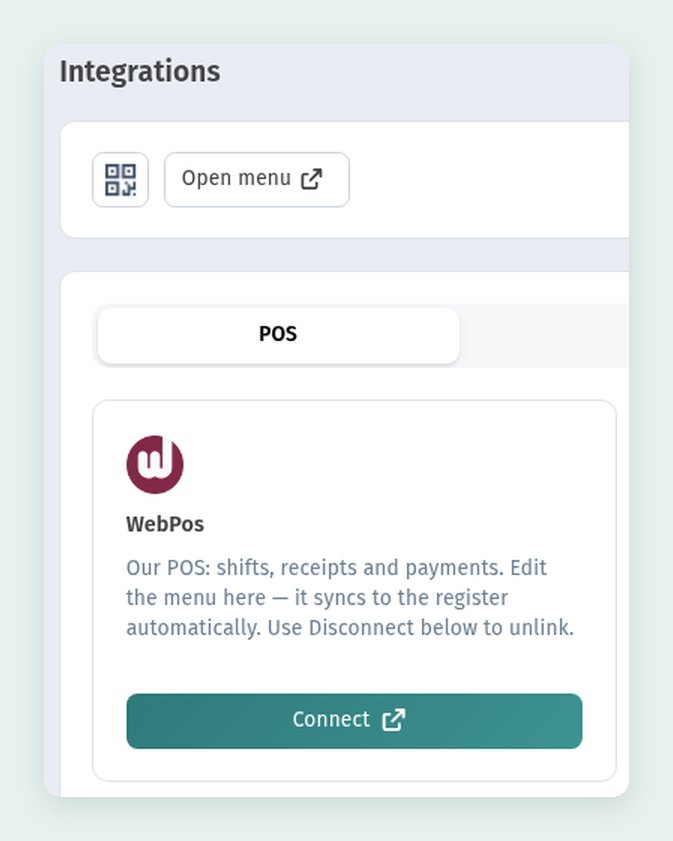
The first card on the POS tab is WebPos, our own POS: "Our POS: shifts, receipts and payments. Edit the menu here — it syncs to the register automatically." You keep a single menu in WebQRMenu, and the register always shows the same dishes and prices. The Connect button opens WebPos.
Cash on the Payments tab
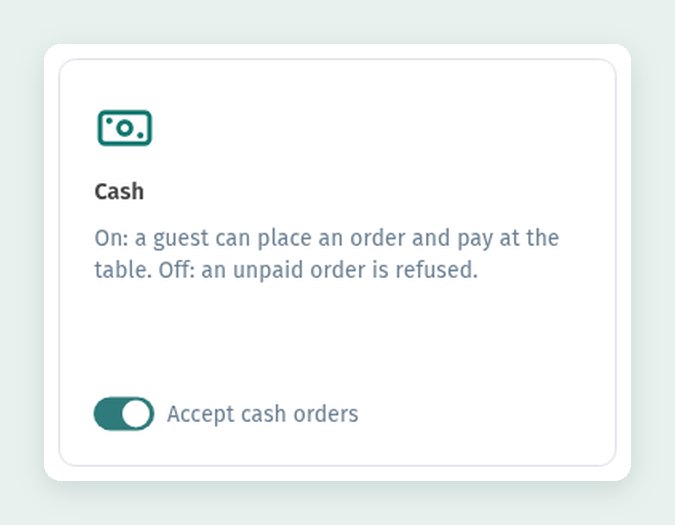
On the Payments tab there is a Cash card with the Accept cash orders toggle:
- On: a guest can place an order and pay at the table.
- Off: an unpaid order is refused.
Keep it on if guests can pay your staff in person. Turn it off if every order from the menu must be paid before it is accepted.
The list of integrations keeps growing, so it is worth checking this page from time to time.
Quick checklist
- Store → Stores → your store → Settings → Stats.
- Keep Collect WebQR analytics on if you want stats in the dashboard.
- Turn on Connect Google Analytics 4, Tag Manager, or Meta Pixel and paste only the IDs you need.
- Do not connect the same GA4 ID or the same pixel both in its own field and inside GTM.
- Click Save in the bottom bar.
- Open the menu and check the data in Realtime, Tag Assistant, Meta Ads Data Advisor and Test events.