

A Menu in Three Languages (RU/EN/KA) on WebQRMenu
How to make your WebQRMenu menu multilingual: set the base language, add English and Georgian, translate dishes and let guests pick their language.
Tbilisi and Batumi welcome guests from all over the world, and the same table can host a local family, a Russian-speaking couple and a group of tourists who only read English. With WebQRMenu you do not need three printed menus or three separate QR codes. One menu, one QR code, and every guest reads it in their own language. In this guide we set up a menu in Russian, English and Georgian step by step. As an example we use Aurora Prime, our demo restaurant.
How it works in short: you write the menu once in the base language, then add translations for the other languages. Guests switch the language themselves with one tap in the menu.
1. Choose the language of your dashboard
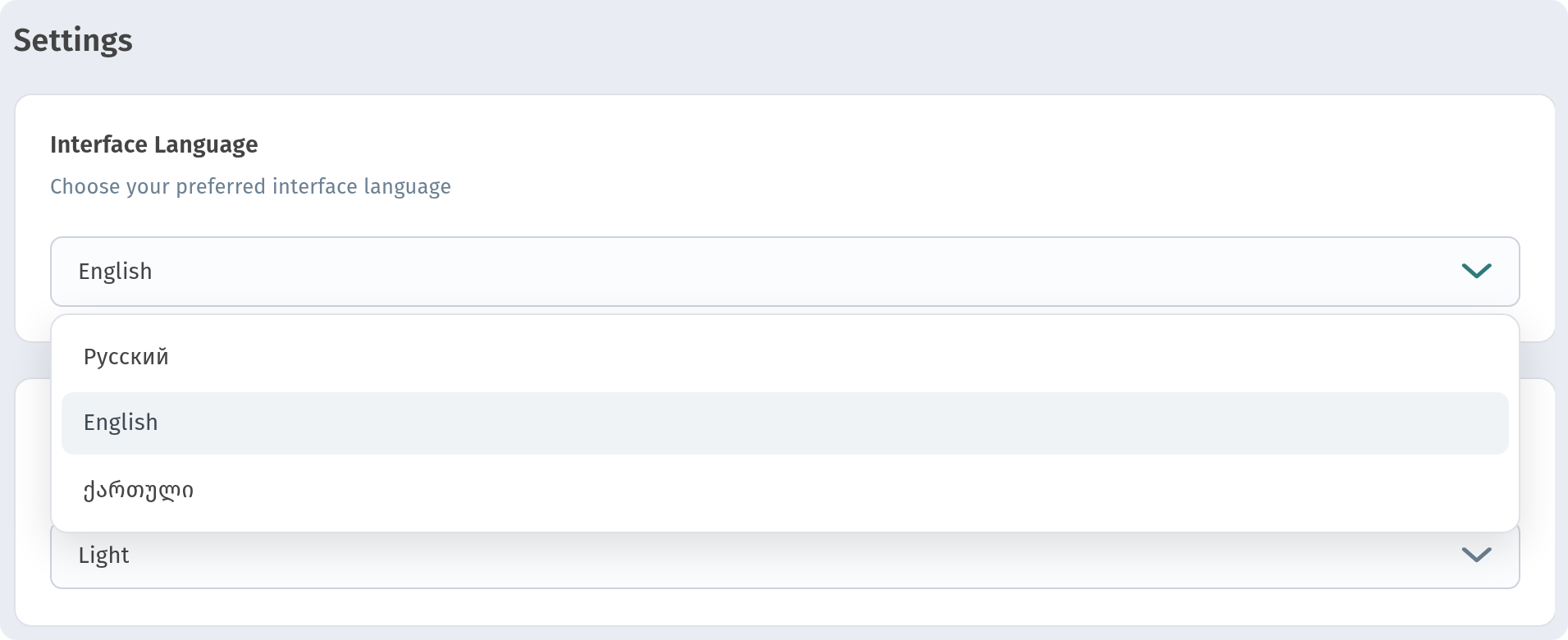
Before you start, pick the language you are most comfortable working in. Click ⋯ next to your name, open Settings and choose it under Interface Language: Русский, English or ქართული. This only changes the dashboard you see. It does not change the language of your guest menu, so every member of your team can work in their own language.
2. Open the Page language block
Go to Store → Stores, open your venue and switch to the Page layout tab. Scroll down and open the Page language block. Everything about the languages of your menu starts here:
- Language is the base language of the menu (more on it in the next step).
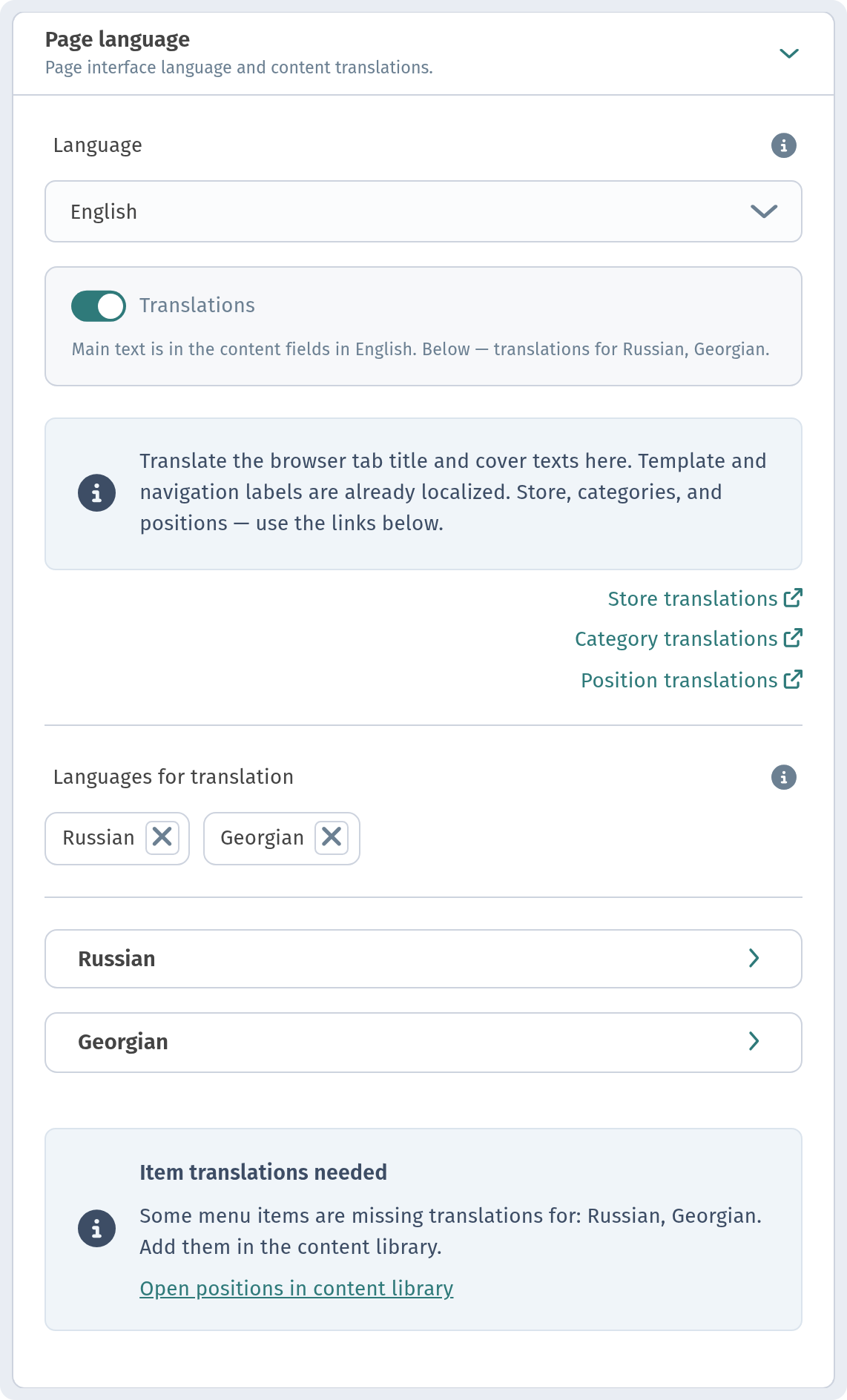
- The Translations switch turns the multilingual menu on. Under it you see a short summary: the main text is in English, and below are the translations for Russian and Georgian.
- The blue hint explains what is translated in this block: the browser tab title and the cover texts. Template and navigation labels (buttons, cart, headings) are already localized for you, so you do not need to translate them.
- Languages for translation lists the extra languages of your menu, with a row for each of them below (Russian, Georgian). Open a row to enter the browser tab title and the cover texts in that language.
3. Choose the base language
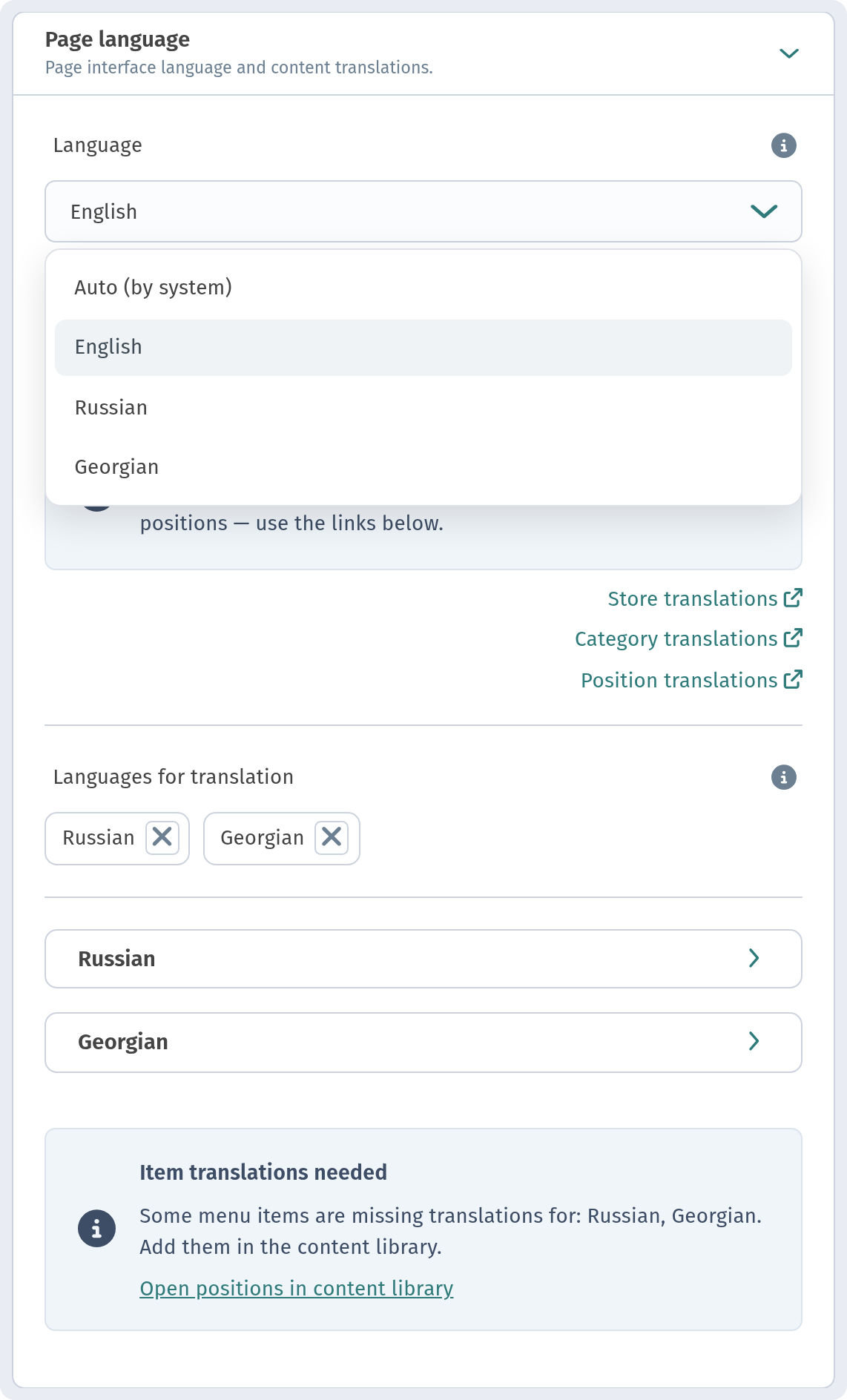
The base language is the language in which your dish names, descriptions and sections are written in the content fields. Open the Language dropdown. You can choose Auto (by system), English, Russian or Georgian. Aurora Prime is written in English, so we choose English.
4. Add the translation languages
Make sure the Translations switch is on. Then, under Languages for translation, open Add language and pick the languages you want to offer. We add Russian first and then Georgian. Each language appears as a chip, as you can see in the screenshot in step 2, and you can remove it with the ✕. Click Save at the bottom of the page when you are done.
5. Store translations
The store itself has texts too: its name and the "about" text shown on the menu page. Switch to the Information tab and open Translations ("Store name and about text in other languages"). Add the languages under Languages for translation with Add language, then fill in the store name and description for each of them. The Store translations link in the Page language block leads to the same place.
6. Dish translations
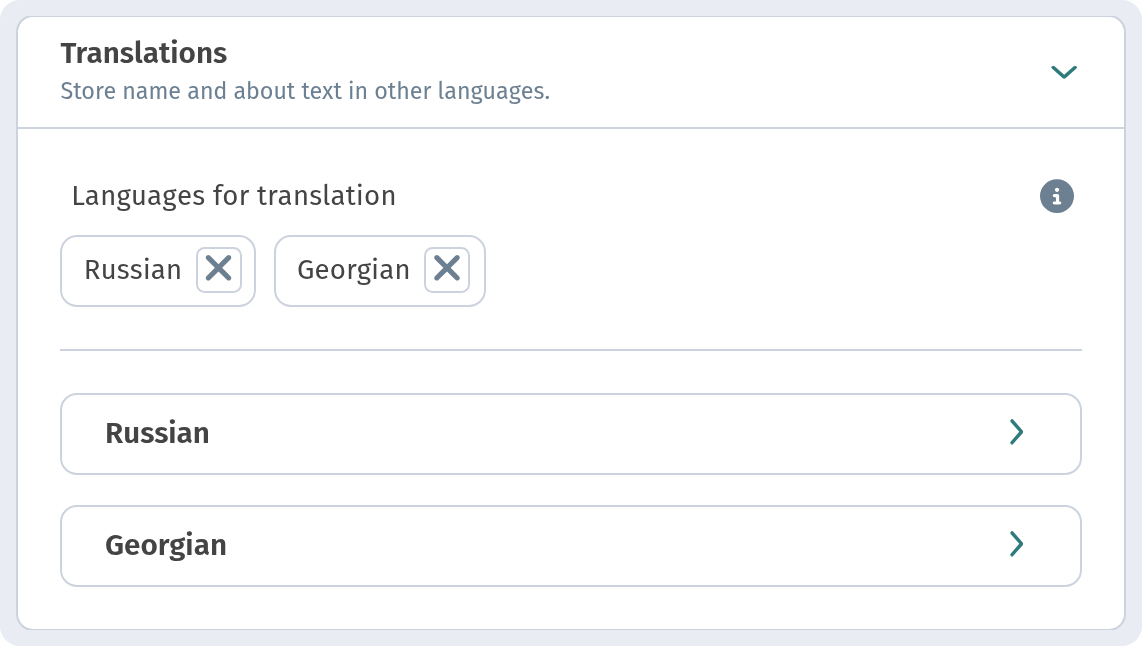
Now the most important part: the dishes. Open Menu content, click a dish (we use the Cappuccino) and scroll down to Translations ("Name and description in other languages"). At the top, under Languages for translation, you see the chips Russian and Georgian. Below there is a block for each language. The Position translations and Category translations links in the Page language block lead to the same list, Menu content.
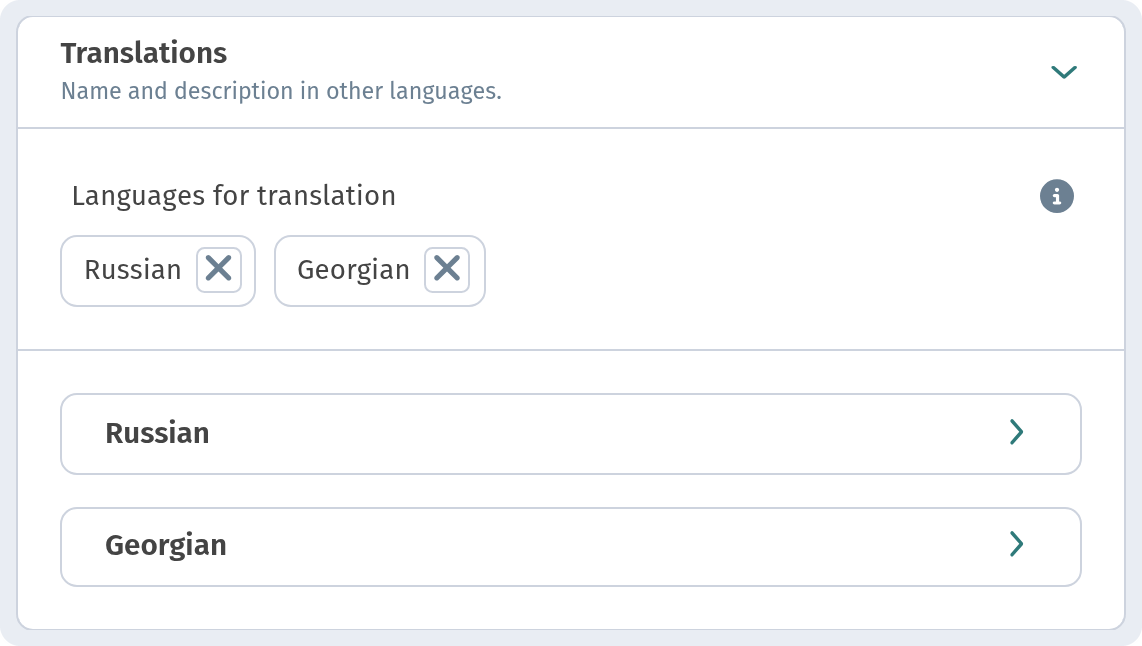
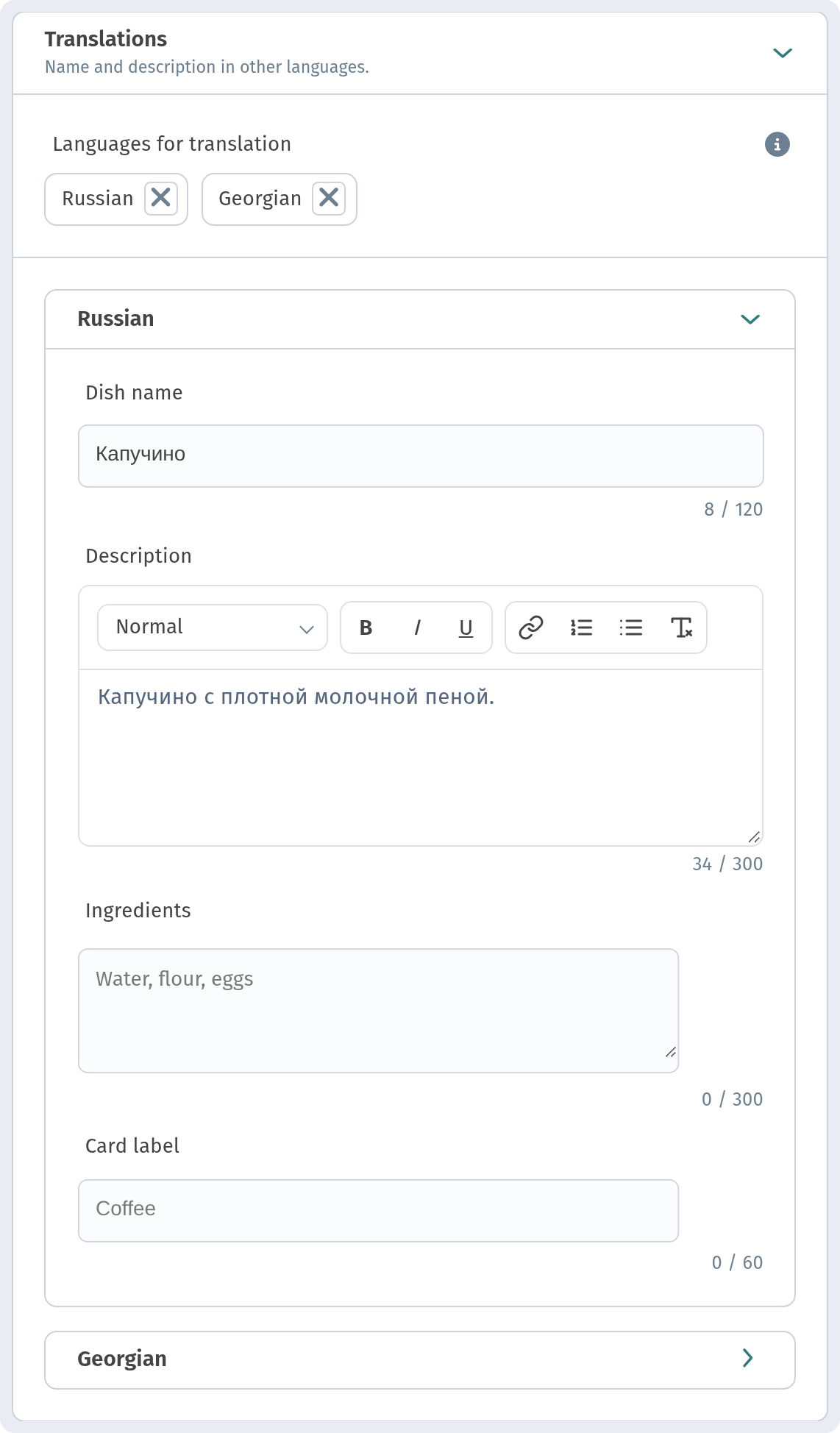
Open the Russian block. It has these fields:
- Dish name, here "Капучино";
- Description, the short text shown on the dish card, with simple formatting;
- Ingredients, the full composition of the dish;
- Card label, the small label on the card.
The Georgian block works the same way: "კაპუჩინო" as the dish name, a Georgian description, the ingredients and the card label.
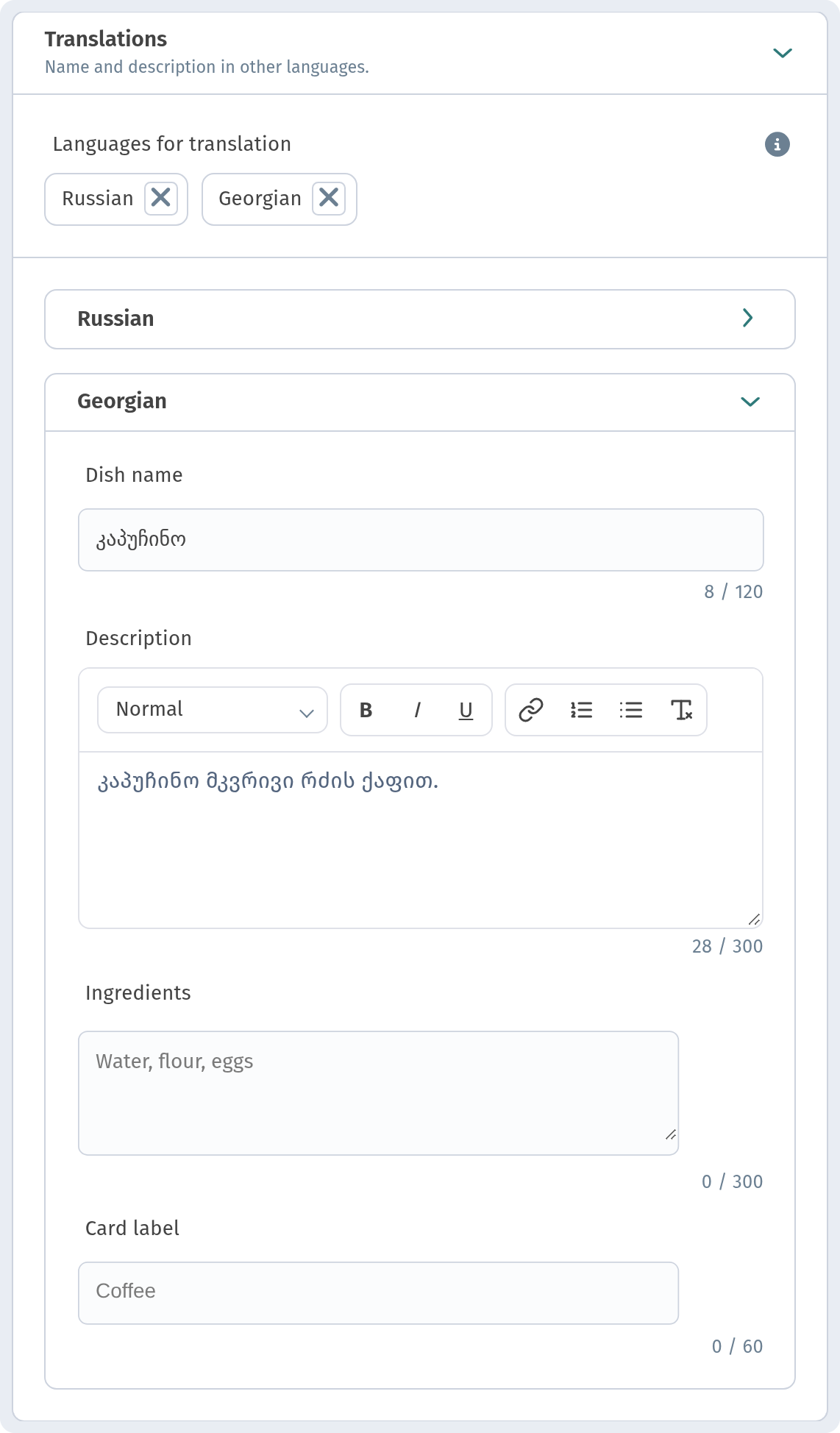
Every field shows a character counter, so you can see right away whether the text fits. If you leave a field empty, guests see the text in the base language instead, so nothing ever disappears from the menu. Click Save, and repeat for the other dishes.
7. How guests switch the language
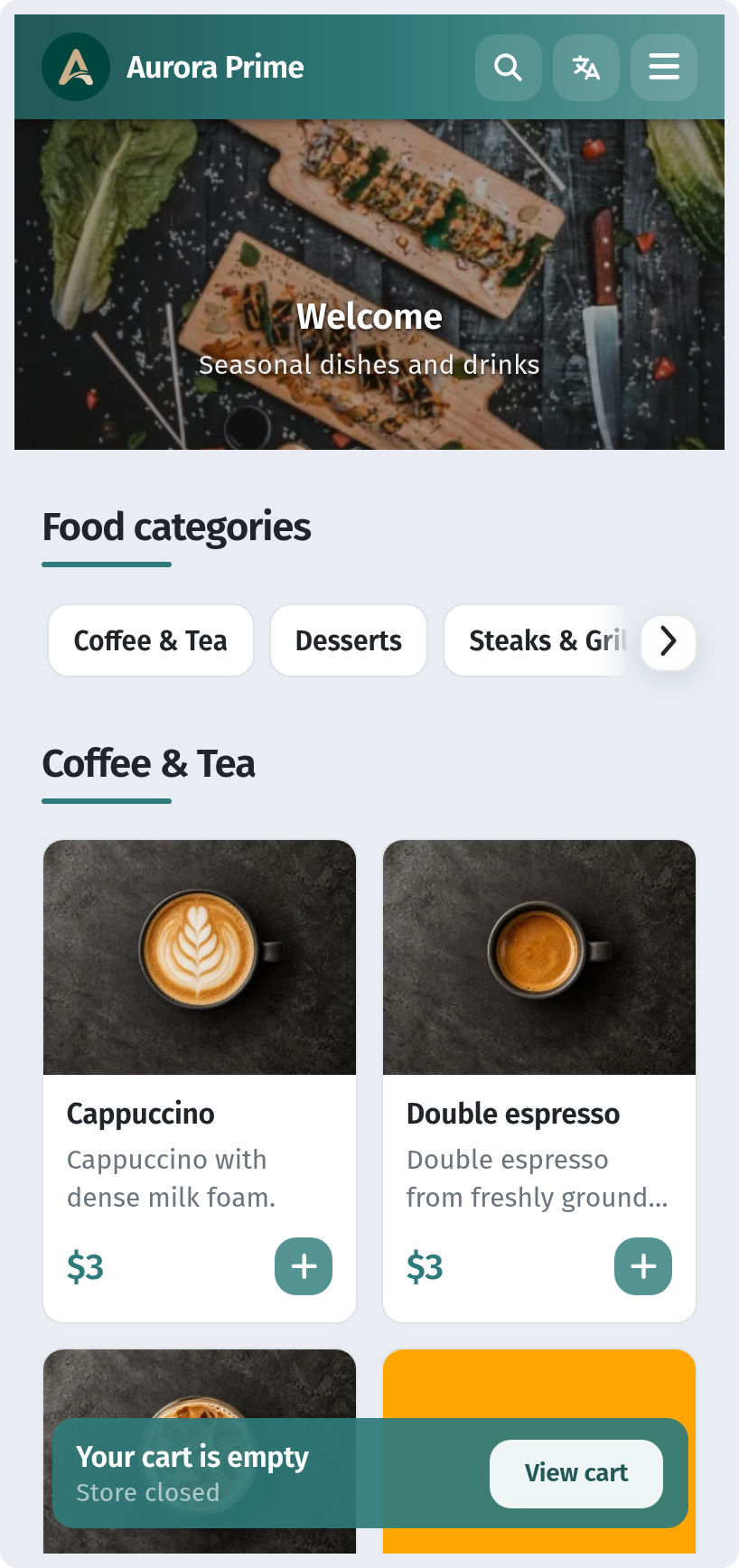
Here is the result on a guest's phone. In the menu header, next to search, there is a language button. One tap opens the list of languages: English, Русский and ქართული, with the current language highlighted. The guest picks one, and the whole menu switches: section names, dishes, descriptions, buttons and the cart.
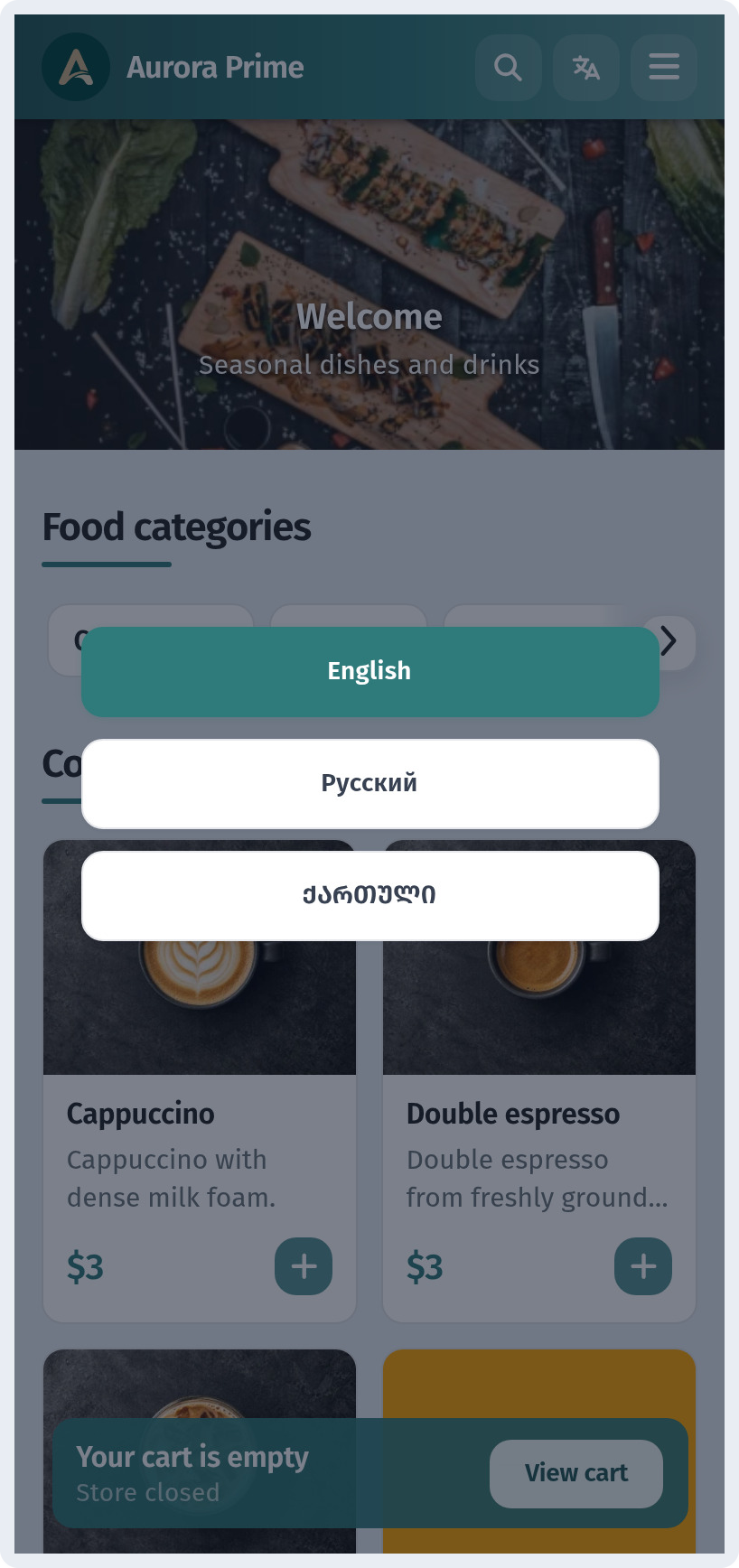
This is the Aurora Prime menu in English: "Food categories", "Coffee & Tea", "Cappuccino" and the "View cart" button.
You can also share a link that opens straight in the right language by adding ?lang=en, ?lang=ru or ?lang=ka to your menu address. This is handy for an English-language website, a tourist booking page or a social media post.
Tips for a good multilingual menu
- Write the base language first. Finish names and descriptions in the base language, then translate. That way the translations never fall behind.
- Keep names short. Long translations get cut on small phone screens. Use the character counters as a guide.
- Check it like a guest. Open the menu on your phone, switch between the three languages and look through every section.
- One QR code is enough. The same code on the table works for every language, because guests choose the language themselves.
With base language, translations and a language switch in the menu, Aurora Prime now talks to every guest in their own language, and so can your venue.