
Where to place QR codes in a restaurant or cafe
A practical guide to QR code placement in restaurants and cafes: tables, entrance, bar, print rules, and how to make table QR codes in WebQRMenu.
A QR menu only works if guests notice the code and can scan it on the first try. A great menu behind a code that hides under a salt shaker, reflects the ceiling lights or is too small to read from the doorway is a menu nobody opens. This guide covers where to put QR codes in a restaurant or cafe, how big to print them, which colours and materials work, and how to create a separate QR code for every table in WebQRMenu. We use our demo restaurant Aurora Prime as the example.
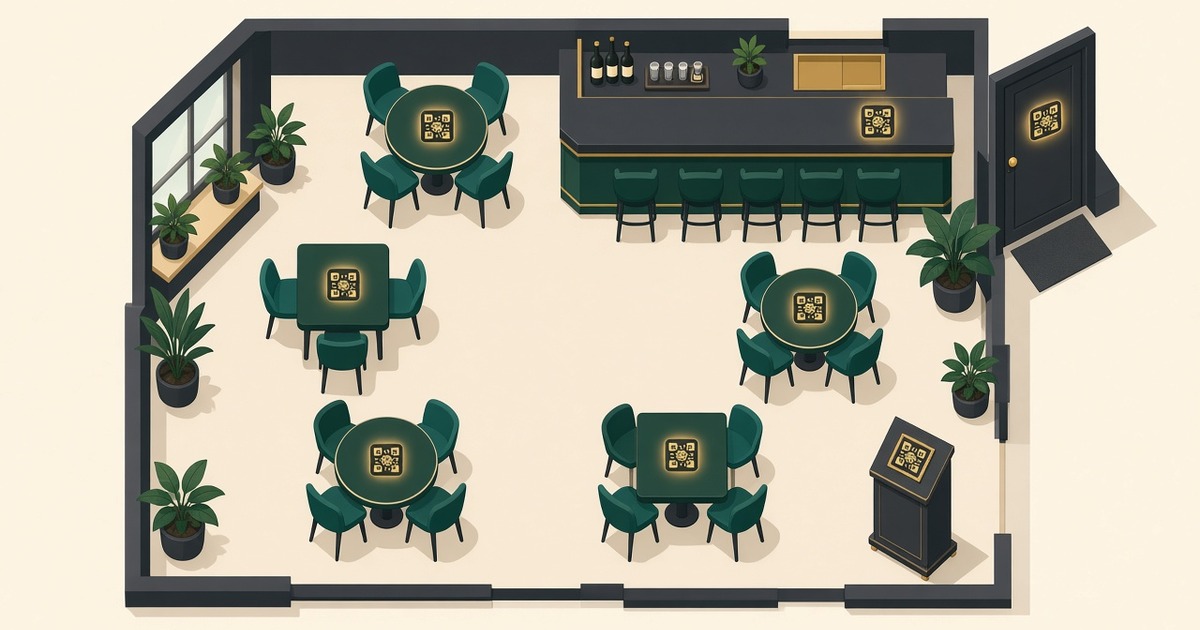
Where to place QR codes
On every table
The table is where most scans happen, so this is your main placement. Guests should see the code as soon as they sit down, without asking a waiter.
- Table tents. A folded card or acrylic stand in the middle of the table can be seen from every seat. It is easy to replace and doesn't get wet or dirty as fast as a sticker.
- Table stickers. A sticker in the corner of the table or next to the napkin holder is always in place and can't be carried away. Choose a laminated or vinyl sticker that survives wiping with a cloth.
- One QR code per table. The best setup is a separate code for each table. The guest opens the same menu, but the system knows which table the order or waiter call comes from. That's exactly what the Tables section in WebQRMenu is for, and we cover it below.
Put the code where a phone can reach it easily: not under glasses or a plate, and not on the edge facing the wall. On large tables, use two tents at opposite ends.
At the entrance and on the door
A QR code at the entrance lets people browse the menu before they come in, and while they wait for a free table. Hang it at eye level (roughly 120–160 cm from the floor), next to the door handle or on a stand beside the door. Add a short call to action, such as "Scan to see the menu".
Menu stands and the host desk
If you have a host or hostess area, a stand with a QR code lets guests study the menu while they wait. A stand next to a queue or in a waiting area works the same way.
At the bar counter
People at the bar want to order quickly. Place a code on the counter (a small stand or a sticker under a protective sheet) or on the wall behind the bar, at a height where it can be scanned from a bar stool. Don't hide it behind bottles or the coffee machine.
Takeaway and delivery packaging
A sticker or print on a bag, box or cup brings the guest back to your menu for the next order. Place it on a flat side of the package (a box lid or the side of a bag), not on a curve or a fold.
Windows
A code on the window works around the clock, even when you're closed. Passers-by look from a distance, so the code has to be big (see the size rule below). Put it on the inside of the glass at eye level and check for glare from the sun and the street lights.
Receipts
A QR code at the bottom of the receipt is one more chance to bring the guest back: to the menu, to a review or to a future order. Most receipt printers can print a code. Keep it at least 2–3 cm wide and test it on real thermal paper.
How big should a QR code be
The 10:1 rule
A simple rule of thumb: the scanning distance should be no more than about 10 times the width of the code. In other words, the code should be about one tenth of the distance it will be scanned from.
- Table, scanned from 20–30 cm: at least 2–3 cm, and 3–4 cm is more comfortable.
- Menu stand or bar counter, 40–60 cm: about 4–6 cm.
- Entrance and door, 1–1.5 m: 10–15 cm.
- Window viewed from the pavement, 2–3 m: 20–30 cm.
These are minimums. If there is room, make the code a little bigger: it will be scanned faster, in dim light, and by older phones too.
Contrast: dark dots on a light background
Scanners read a code best when the dots are dark and the background is light. Black or deep brand colours (dark green, navy, graphite) on a white or very light background work well.
- Don't invert the code. Light dots on a dark background are read by some apps, but not by all of them, and not every time.
- Avoid light and pastel dots, yellow on white and red on green. If you use a gradient, keep both ends of it dark.
- If you place the code on a photo or a pattern, put it on a solid light background.
Quiet zone
Leave an empty light margin around the code, called the quiet zone. It helps the scanner find where the code starts. Its width should be about four modules (four "squares" of the code). Don't put text, patterns or the edge of a sticker right up against the code.
A frame isn't required. A clean code with a good quiet zone scans perfectly well. A frame is only worth it if you want to add a call to action such as "Scan the menu".
Material: matte, no glare
- Matte paper or matte lamination. Gloss reflects lamps and windows, and the glare "burns out" part of the code in the camera.
- Flat surfaces. On curved surfaces (cups, bottles, cylindrical stands) the code distorts and is harder to read. If you have to print on a cup, make the code smaller relative to its curve, or put it on a flat sleeve or lid.
- Protection from wear. Lamination or a protective film keeps stickers on tables and the bar from rubbing off. Replace codes that are scratched or faded.
Test scan before printing
Before you print a whole run, print one copy at actual size and scan it:
- with two or three different phones (both iPhone and Android);
- from the real distance and at the angle the guest will see it;
- under the restaurant's evening lighting, not just in the office.
Make sure the code opens the right menu (and the right table, if it's a table code).
Vector formats for print
For printing, download the code in a vector format, SVG, PDF or EPS. Vector images stay sharp at any size, from a 2 cm sticker to a 30 cm window poster. PNG and JPG are fine for screens, social media and quick tests. If you do need a raster file for print, pick the largest size.
Your store QR code in WebQRMenu
Every store in WebQRMenu has its own QR code that leads to the menu. Open your store via Store → Stores. On the store page, next to the "Open menu" button, there is a QR icon.

Click it to open a popover with a preview of the code and three buttons: Download, Edit and Tables. Download saves the code, and Tables takes you to the per-table codes.
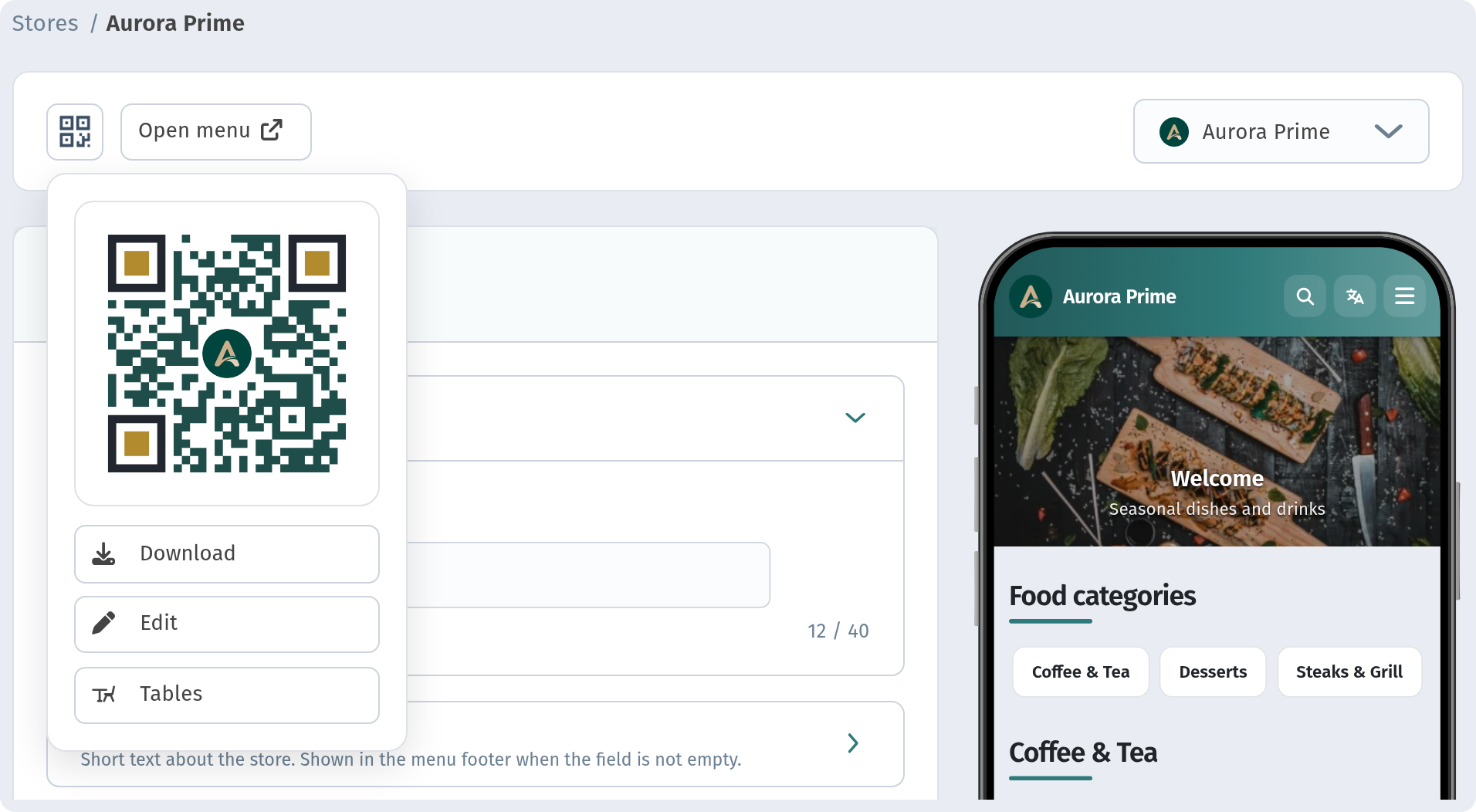
The store code downloads in the same dialog as the table codes (more on the formats below). This code is ideal for the entrance, the window, packaging and receipts, anywhere that isn't tied to a particular table.
A QR code for every table
Add tables
Open Tables in the sidebar and choose your store. While the list is empty, you'll see a hint and the Add table button.
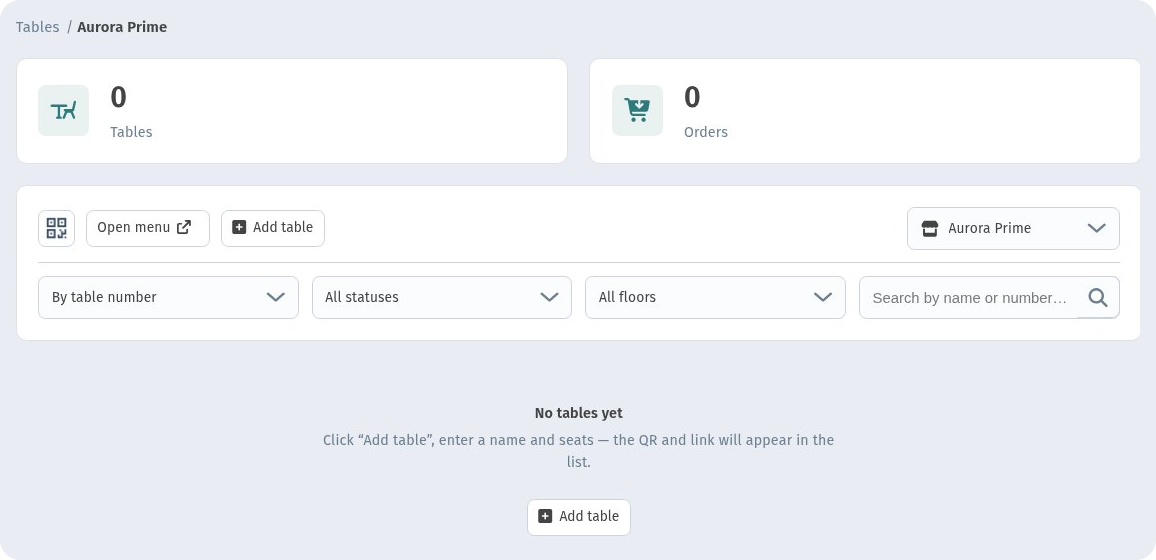
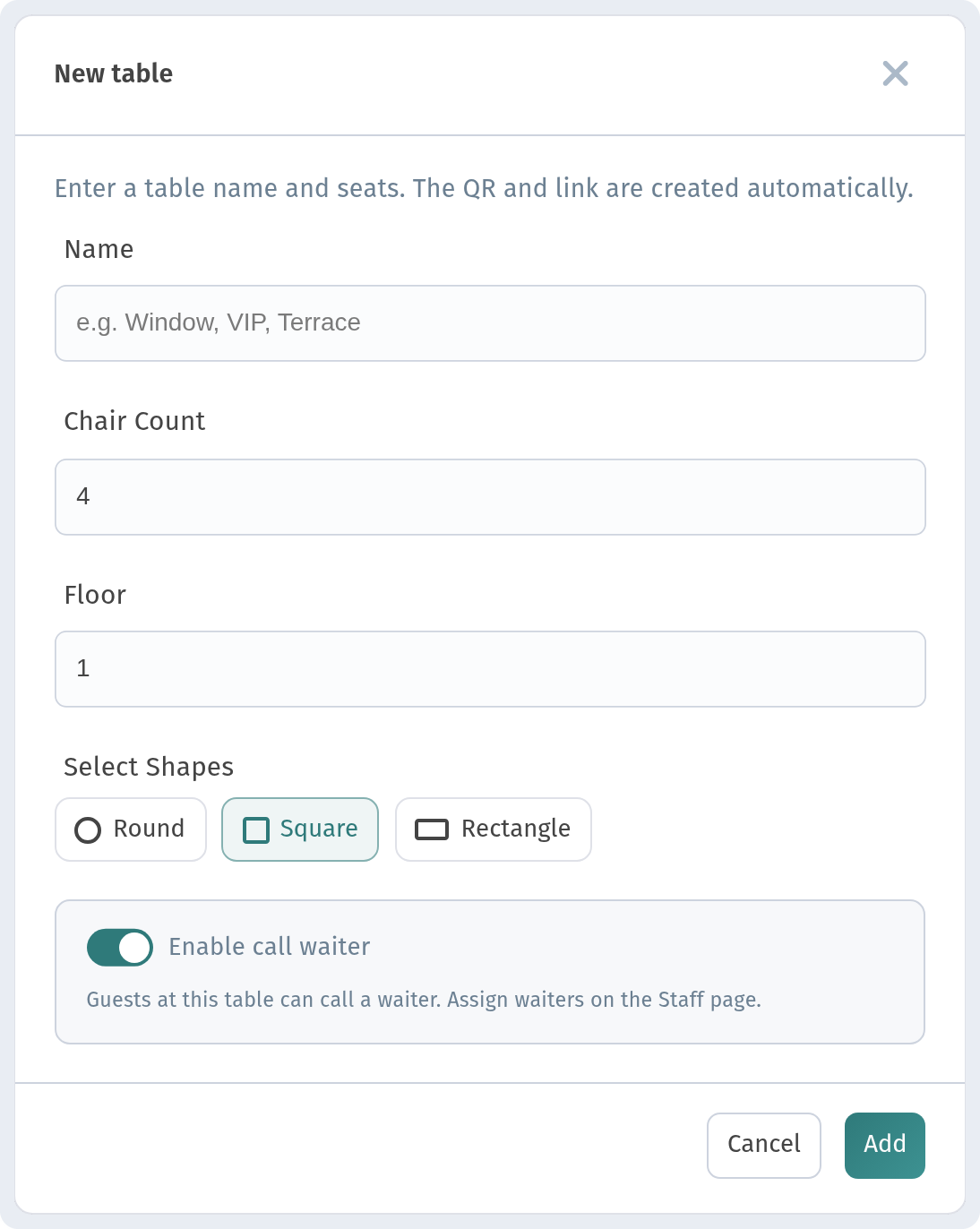
Click Add table. In the New table dialog, fill in:
- Name, for example "Window", "VIP" or "Terrace";
- Chair Count, the number of seats;
- Floor;
- Select Shapes, the table shape: Round, Square or Rectangle;
- Enable call waiter, which lets guests at this table call a waiter from the menu.
The QR code and link are created automatically when you add the table.
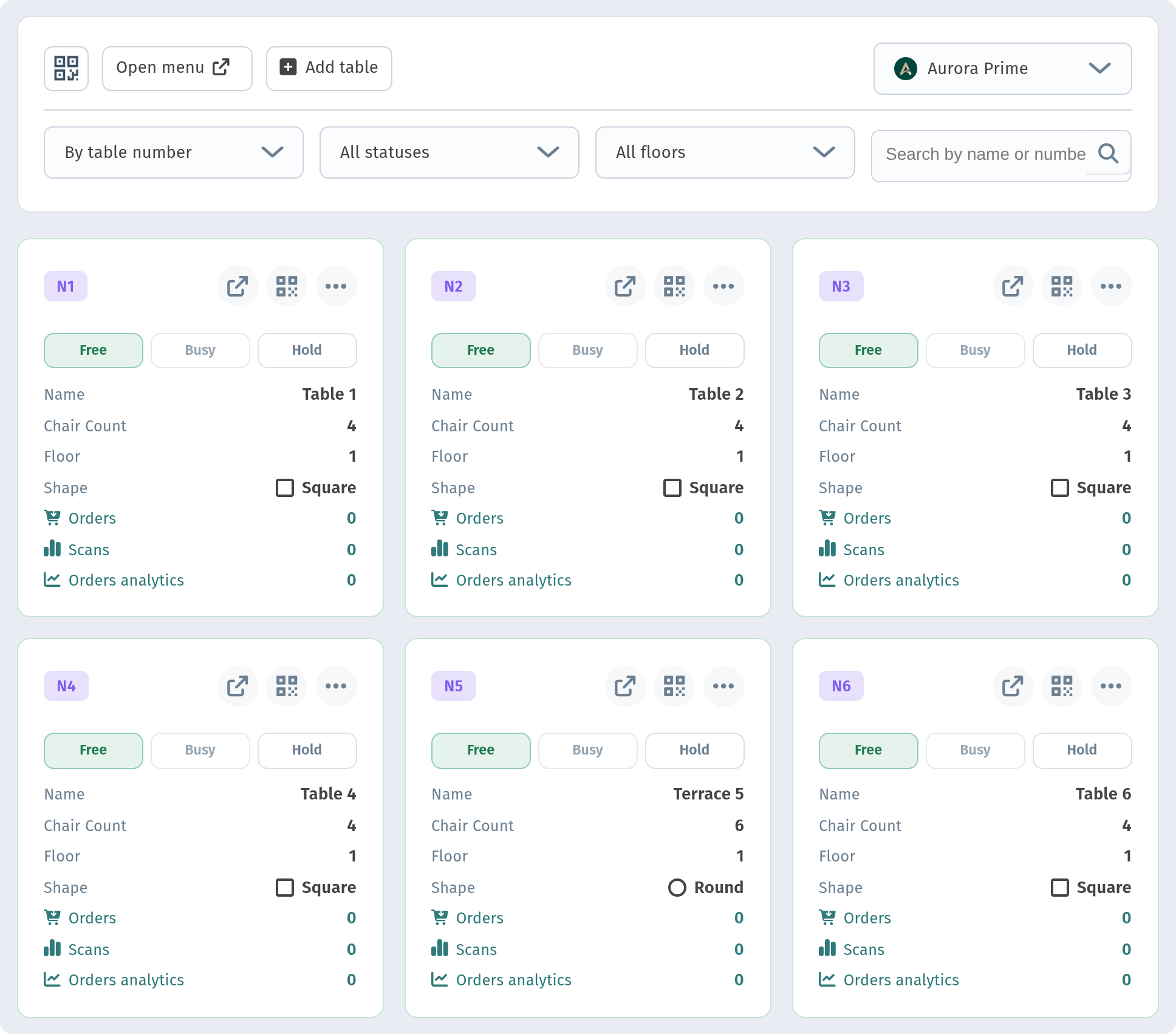
Each table gets its own card with its number, seats, floor, shape, status (Free, Busy or Hold) and order and scan counters. At the top there are filters by status and floor, and a search by name or number.
Open and download a table's QR code
Click Show QR on a table card to see that table's code and the Download QR code button.
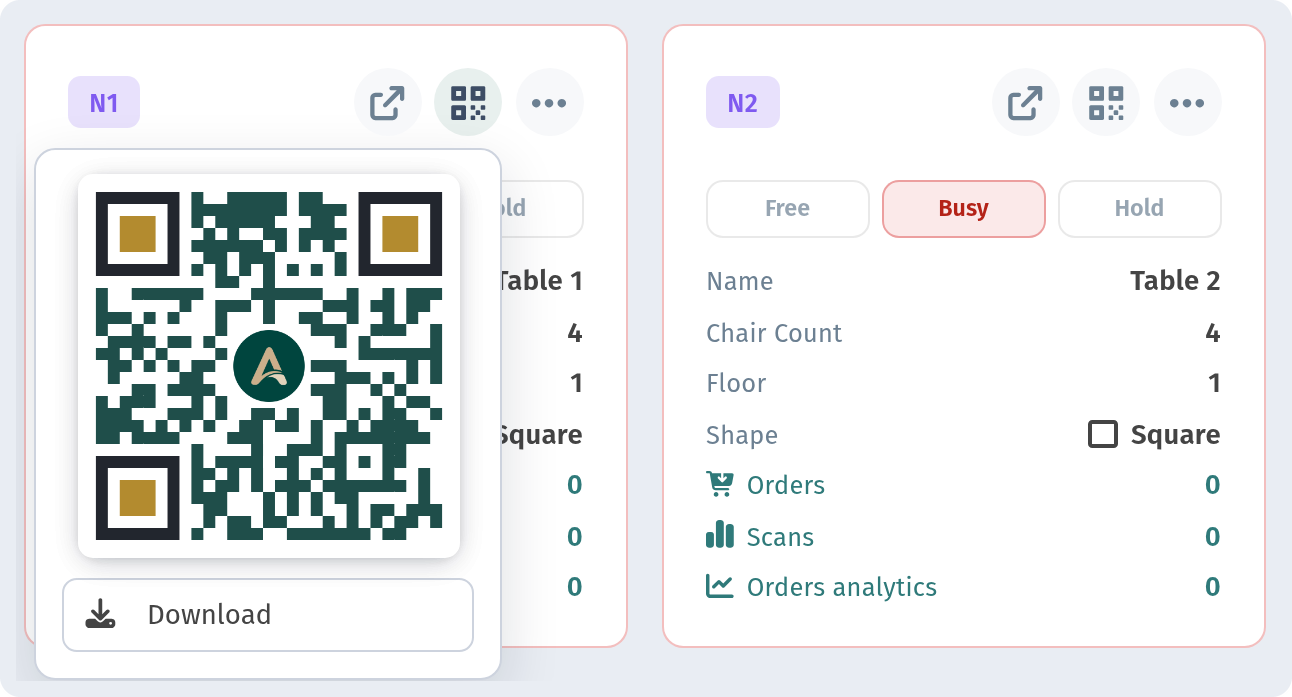
Each table has its own short link, for example https://webqrmenu.io/hb70q6. The guest scans the code at the table and goes straight to your menu, and the order or waiter call is tied to that table.
The download dialog: formats and sizes
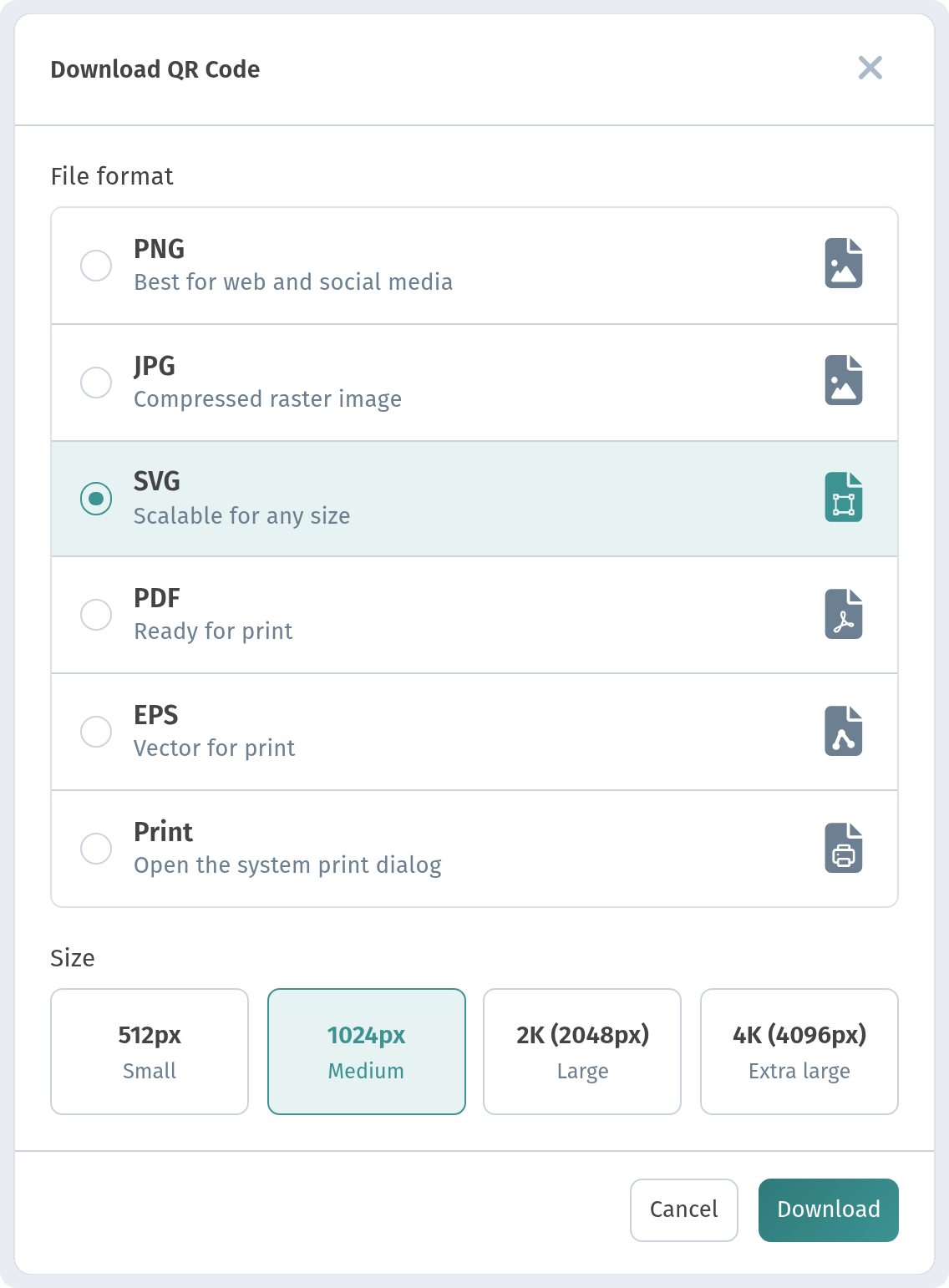
The download dialog lets you choose:
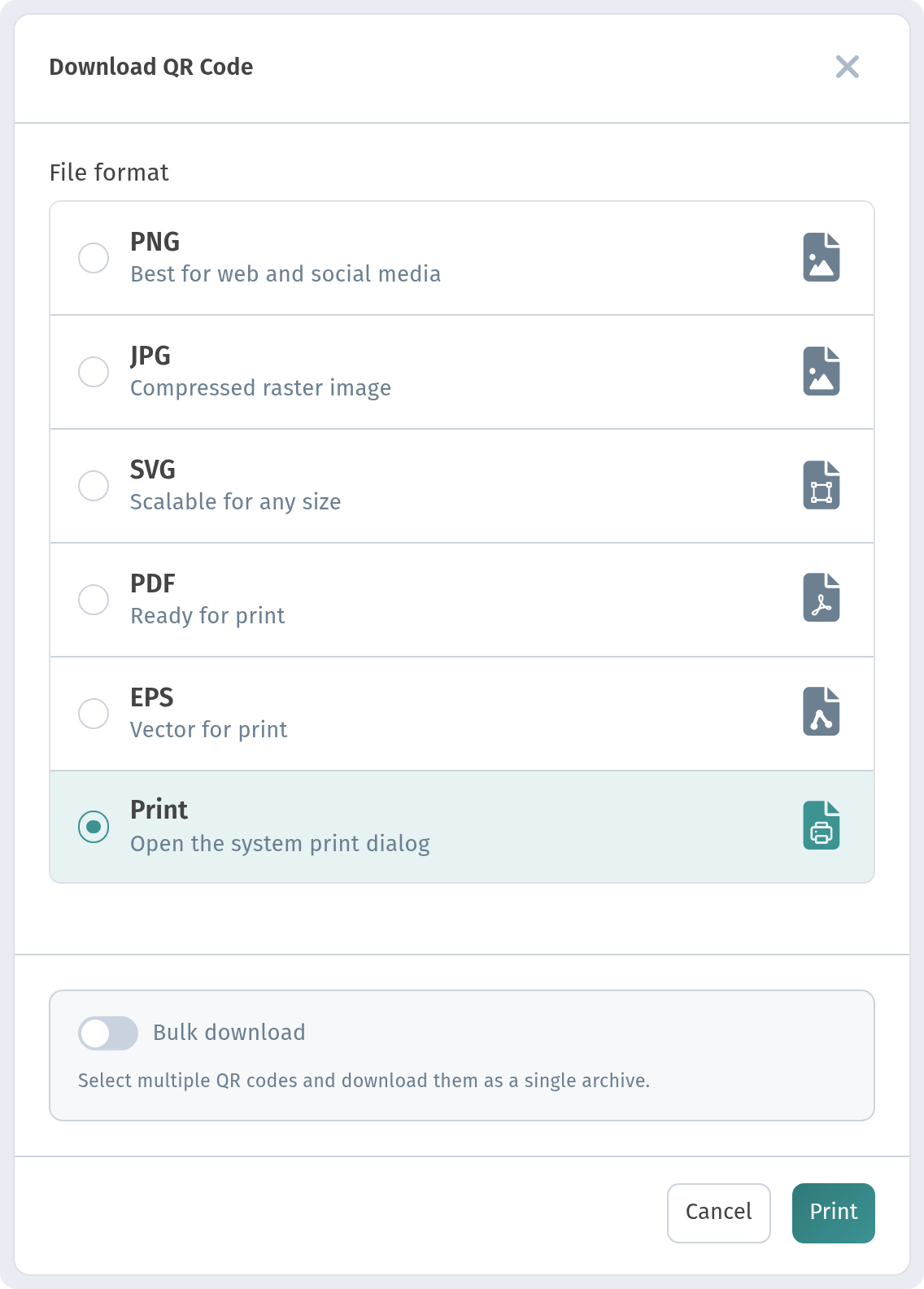
- File format: PNG (for web and social media), JPG (compressed image), SVG (scales to any size), PDF (ready for print), EPS (vector for print), or Print;
- Size: 512px, 1024px, 2K (2048px) or 4K (4096px).
For print, choose SVG, PDF or EPS. If you need PNG, take 2K or 4K. In the dialog opened from a table card, the Bulk download switch lets you select several QR codes at once and download them as a single archive, which is handy when you have a dozen tables.
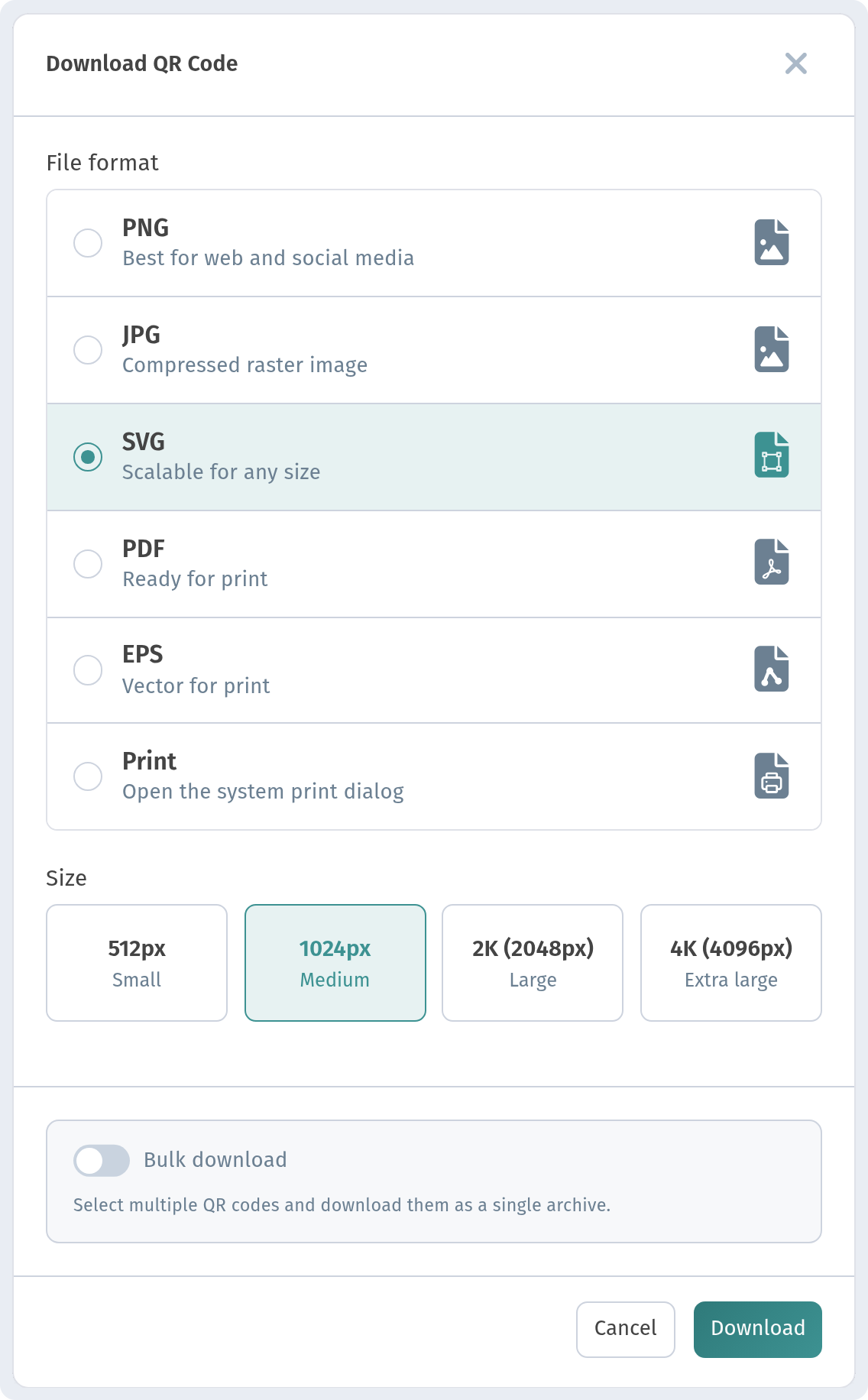
To print a code straight away without saving a file, select Print. It opens the system print dialog.
Designing your QR code
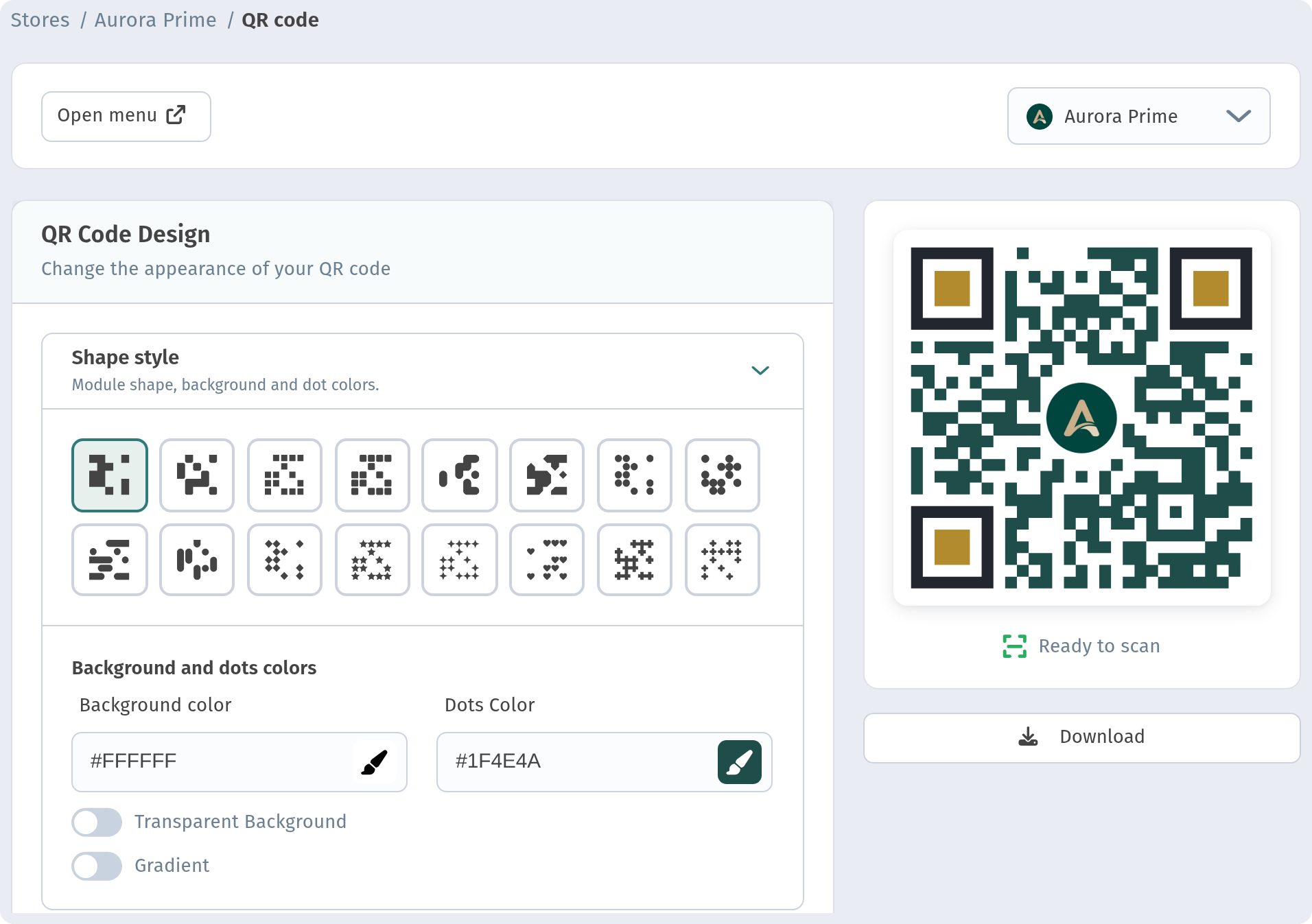
The code can match your brand without losing readability. Open QR-code → My QR code in the sidebar. The QR Code Design page has the settings on the left and a live preview with the Download button on the right.
Shape style
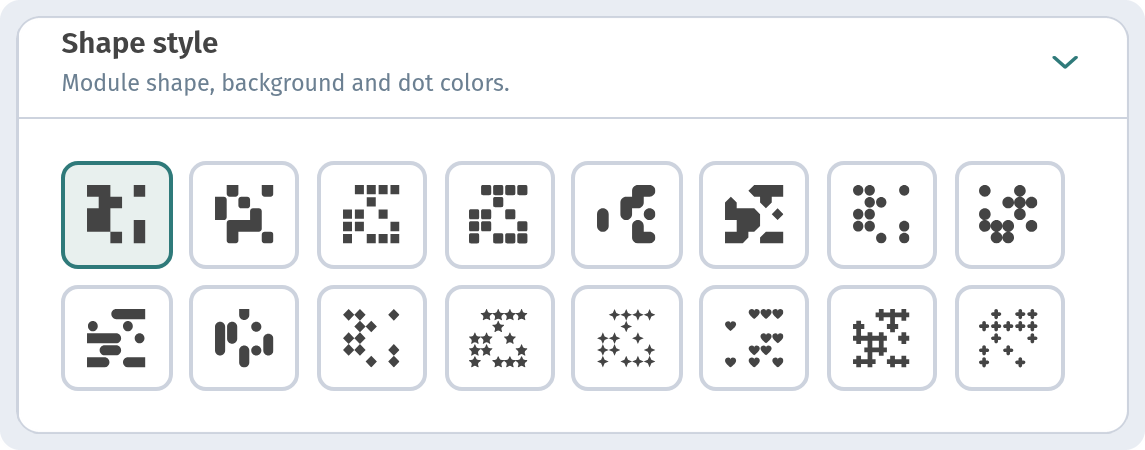
In Shape style, choose the module shape: classic squares, dots, rounded and other variants. For tables and small sizes, simple, dense shapes are more reliable.
Colours
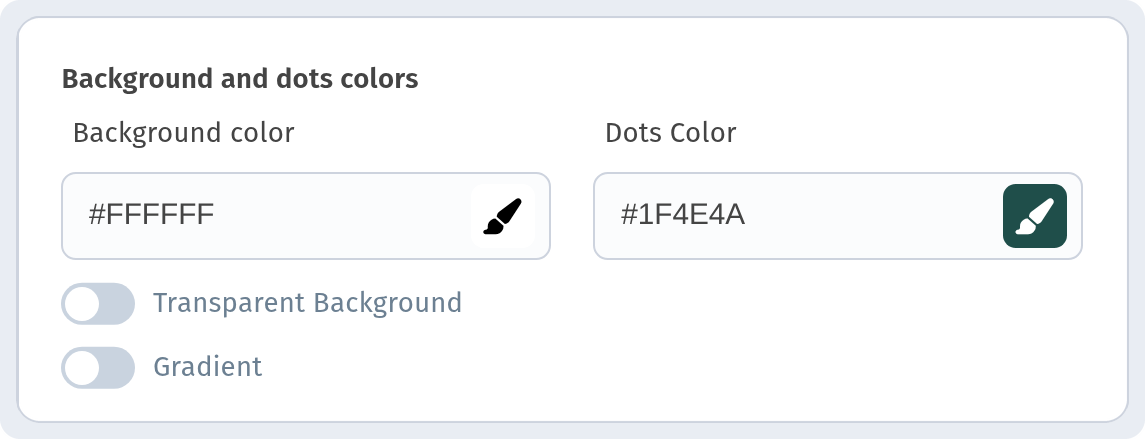
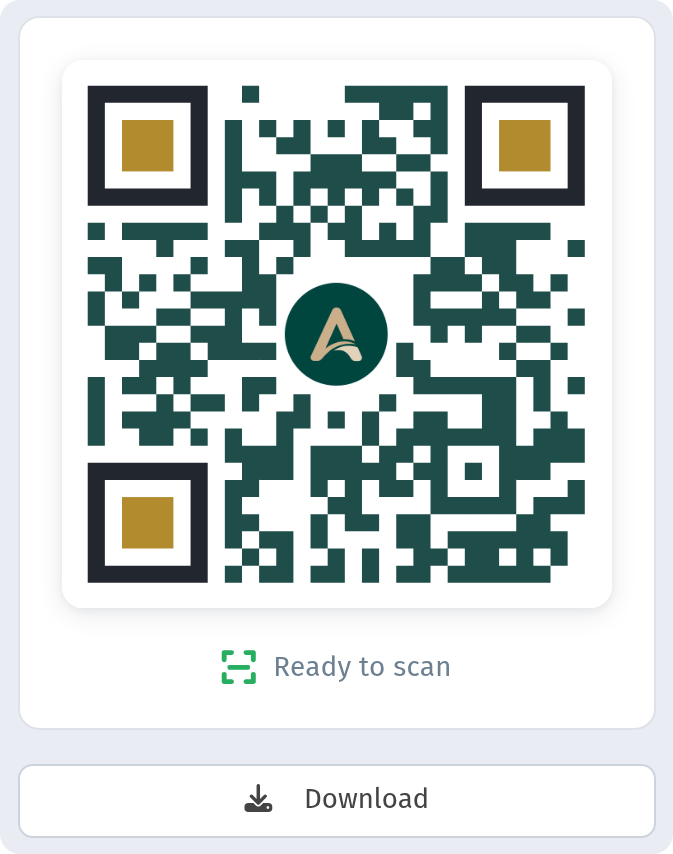
Under Background and dots colors you set the Background color and the Dots Color. For Aurora Prime we used a dark green, #1F4E4A, on a white background (#FFFFFF): a brand colour that still contrasts well. The Transparent Background and Gradient switches stay off. A transparent background is only useful if you'll place the code on a light surface yourself.
Eyes
The Eyes section controls the three corner squares. Under Outer Eye Style and Inner eye style we kept the default square shapes.
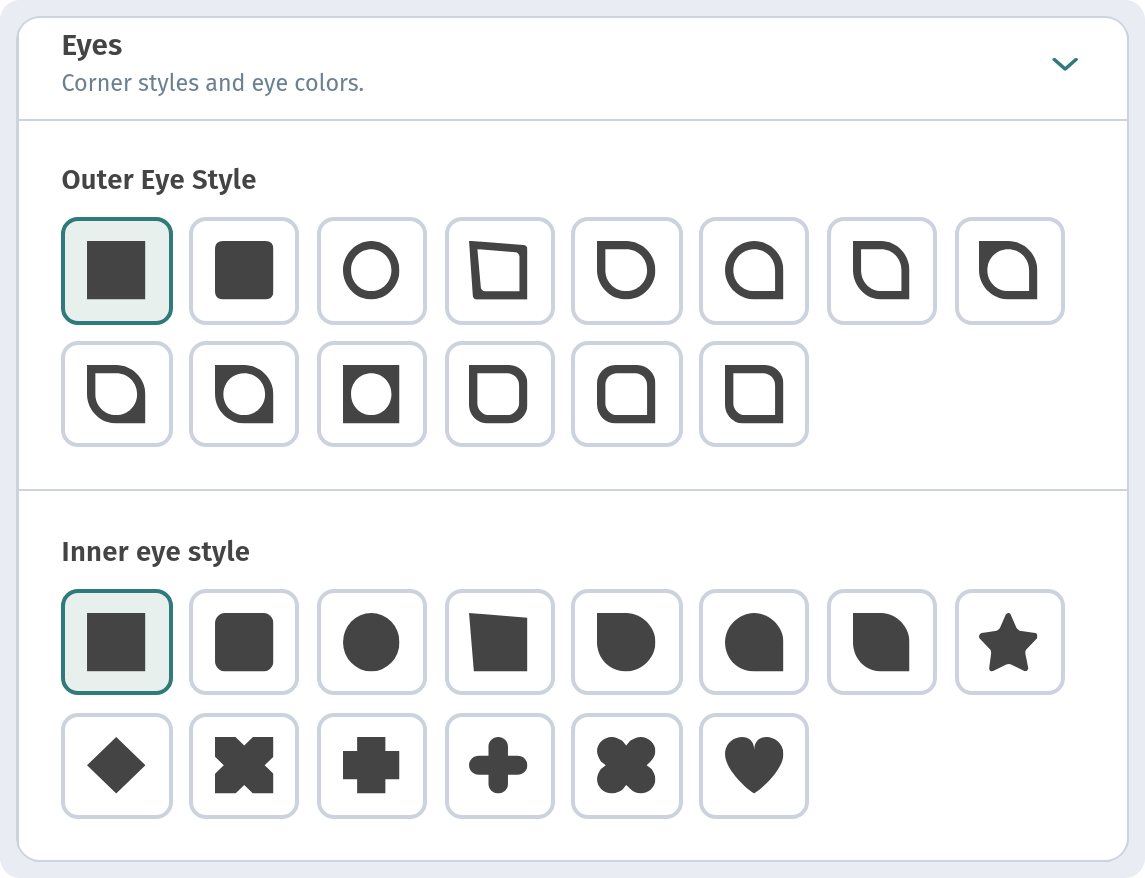
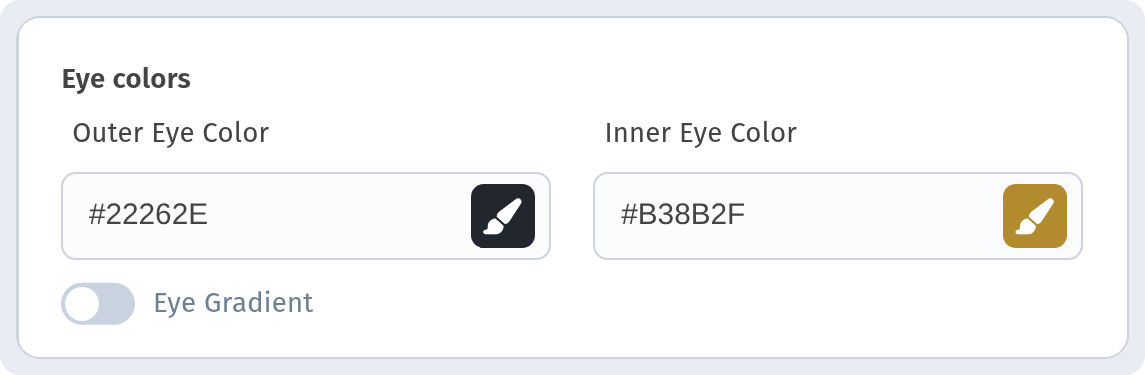
Under Eye colors you set the Outer Eye Color and the Inner Eye Color. We used graphite #22262E for the outer eyes and gold #B38B2F for the inner ones. The eyes stay dark and the code reads reliably.
Logo
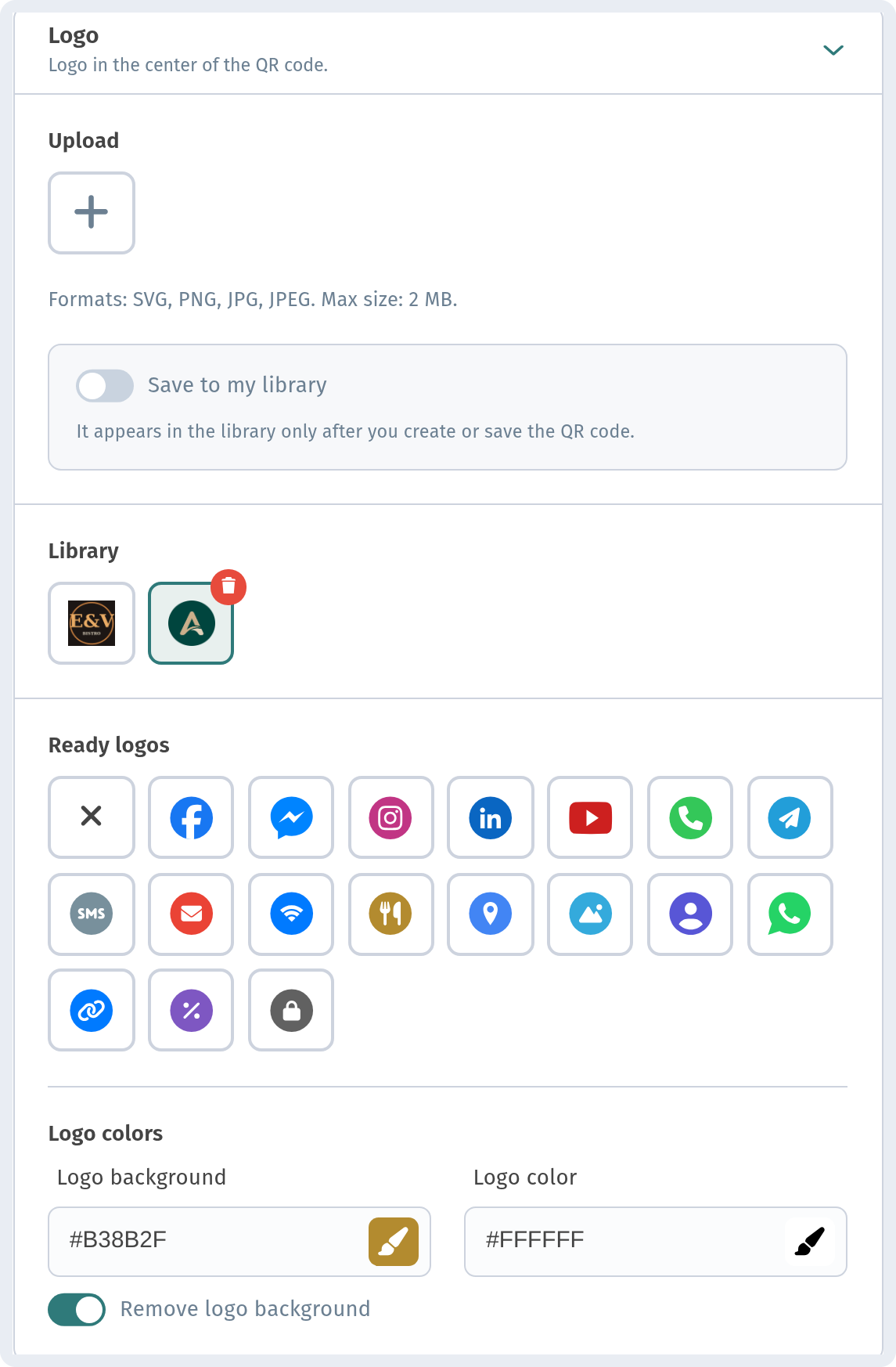
In the Logo section you can Upload your own image (SVG, PNG, JPG or JPEG, up to 2 MB) or choose from the Ready logos. For Aurora Prime we added our round "A" logo. For small table codes you can leave the logo off (the first, crossed-out option), because small codes scan better without one. If you add a logo, keep it small and test the code.
Frame
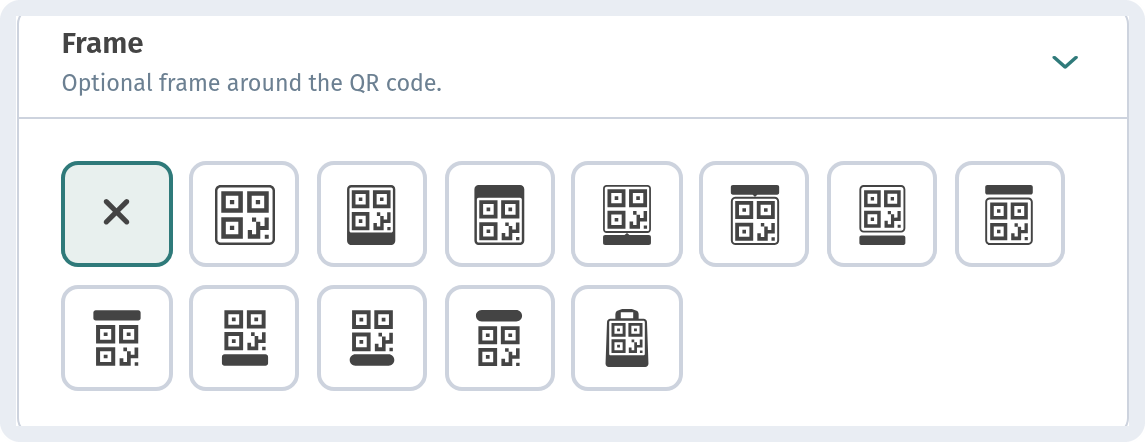
In the Frame section, select No Frame. As we said above, a frame isn't required. The quiet zone around the code matters more.
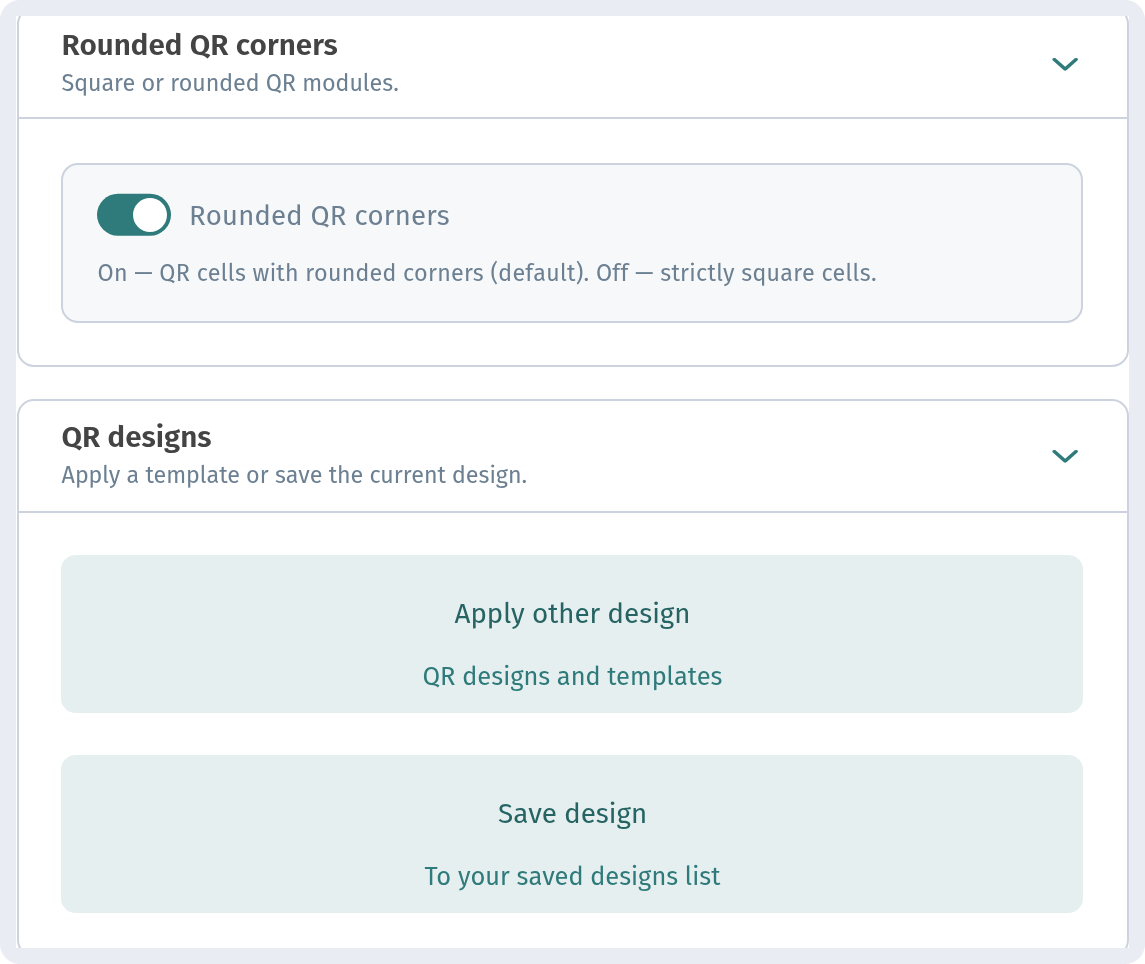
Rounded corners and saving
The Rounded QR corners switch rounds the code's modules. It's on by default, and we left it on. In the QR designs block, Apply other design lets you pick a ready-made template, and Save design adds the current design to your saved designs list.
Here is the result in the preview: dark green dots, graphite eyes with gold centres, no frame and the "A" logo. Click Save in the bottom bar to save it, and download the code with the Download button under the preview.
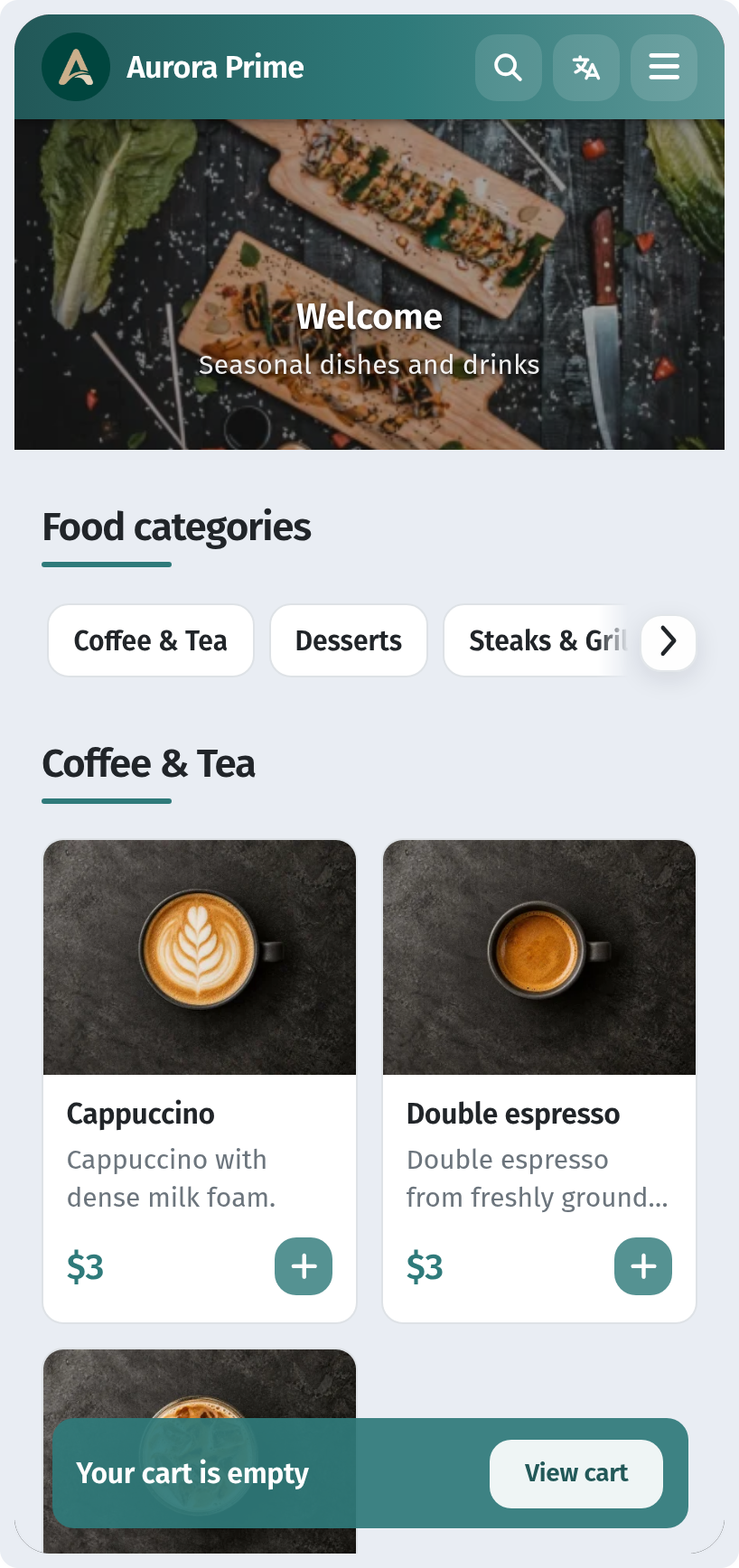
What the guest sees
After scanning, the guest's phone opens the store menu straight away, with no app to install. At the top is the cover, then the food categories and dishes.
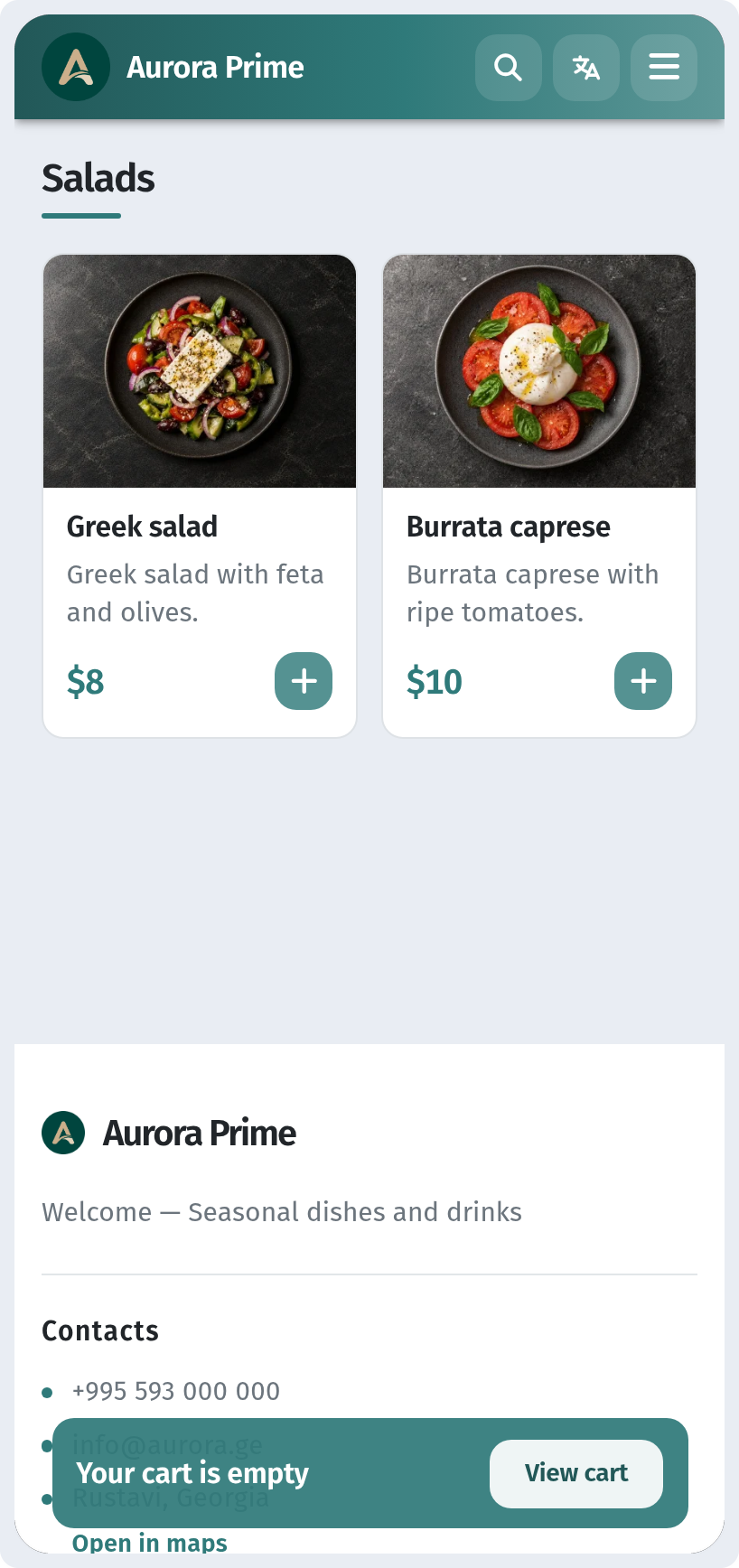
A tap on a category, such as Salads, jumps to that section with photos, descriptions and prices.
Quick checklist
- A separate code on every table (tent or sticker), at least 2–3 cm.
- A code at the entrance at eye level, a large code in the window, codes on the bar, packaging and receipts.
- Size: no smaller than one tenth of the scanning distance.
- Dark dots on a light background, no inversion.
- A clean quiet zone around the code. The frame is optional.
- Matte paper or matte lamination, a flat surface.
- A test scan with several phones before printing.
- For print: SVG, PDF or EPS.