
How to create a new store in WebQRMenu and what to set up first
Step by step: how to create a new store (venue) in WebQRMenu — name, empty or demo menu, address, currency, tax, languages, order types, short link and QR code, and switching between venues. With screenshots.
Opening a second café, a takeaway spot or a summer terrace with its own menu? In WebQRMenu every such place is a separate store: it has its own name, address, currency, languages, order types, short link and QR code. All stores live in one account, and you can switch between them in a couple of clicks.
In this article we create a new venue from scratch, Aurora Garden, a seasonal garden café in Rustavi, and go through every setting worth filling in right away, before the first guest arrives.
In short: Store → Create store; on the Information tab set the name, choose an empty or a demo menu, add a description, the address, currency and tax; on the Page layout tab choose the main language and the translation languages; on the Settings tab turn on the order types you need and set a short link; click Create, download the QR code and check the menu on your phone.
Some of the settings of a new store already have their own articles, so here we only mention them: Wi-Fi, opening hours and contacts are covered in Wi-Fi, opening hours and contacts, the look of the page in Store appearance and settings, and menu translations in A menu in three languages.
1. Where to create a new venue
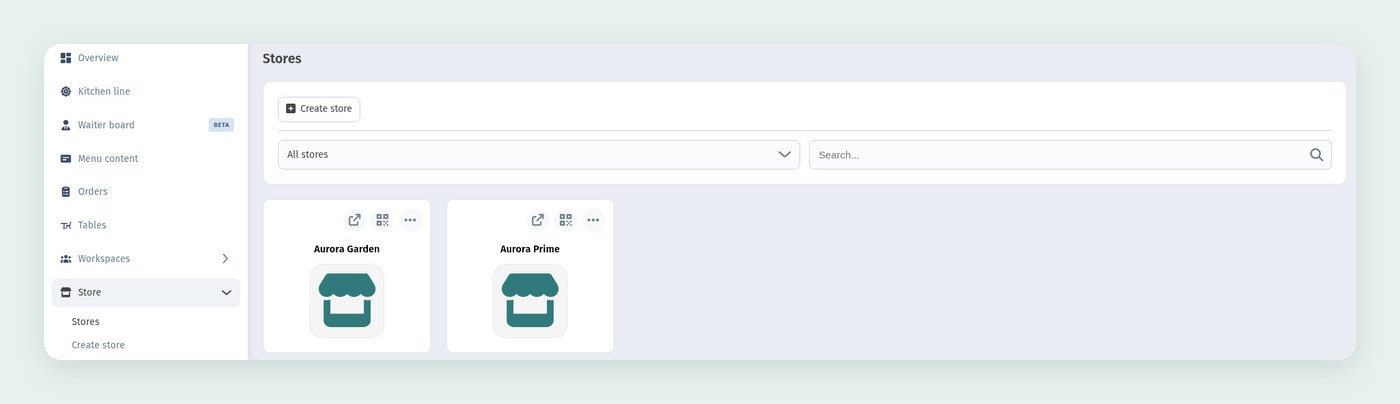
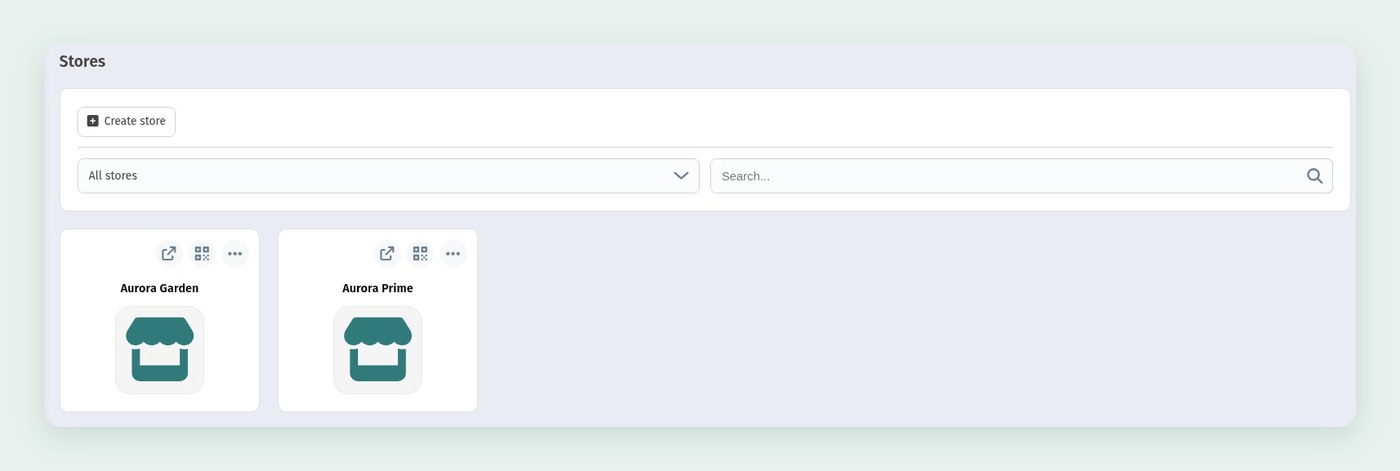
All your venues are in Store → Stores. Each store has a card with buttons to open the menu, show the QR code and a "•••" actions menu. To add a new venue, click Create store above the list or choose Create store in the side menu.
The form has three tabs: Information, Page layout and Settings. You can switch between them at the bottom of the screen or with the Next and Back buttons. On the right you always see a phone preview of the page: every change shows up straight away, the way a guest will see it.
2. Name
The first field is Name. It appears in the menu header, in the page footer and in your list of stores. The limit is 40 characters.
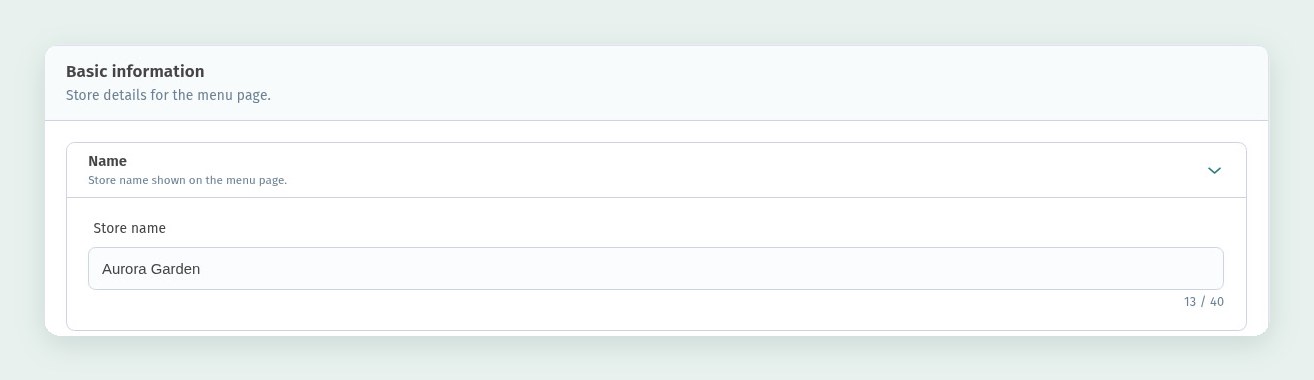
Write the name the way guests know it: "Aurora Garden", not "Café 2 (garden)". If you run several locations, add the district or the street: "Aurora Garden Rustavi".
3. Menu content: empty or demo
The next block is Menu content. Here you choose how the catalogue starts:
- Empty menu: no categories or dishes yet, you add your own items.
- Demo menu: the store gets a ready example with categories, dishes and photos, so it is easier to learn how the menu is structured. Your contacts, Wi-Fi and social links stay your own.
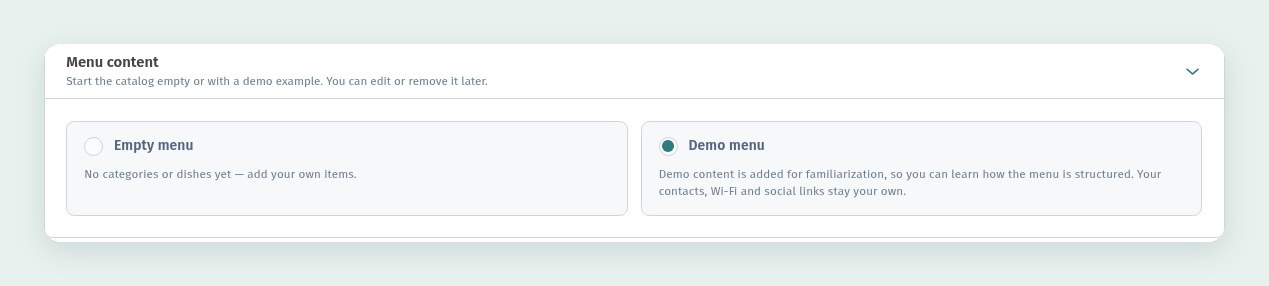
The demo menu is handy if you are new to WebQRMenu: you can see how sections and dish cards work and then edit or remove what you don't need. If your menu is already on paper, choose the empty menu and build it step by step, as in How to Create a QR Menu on WebQRMenu.
4. Description
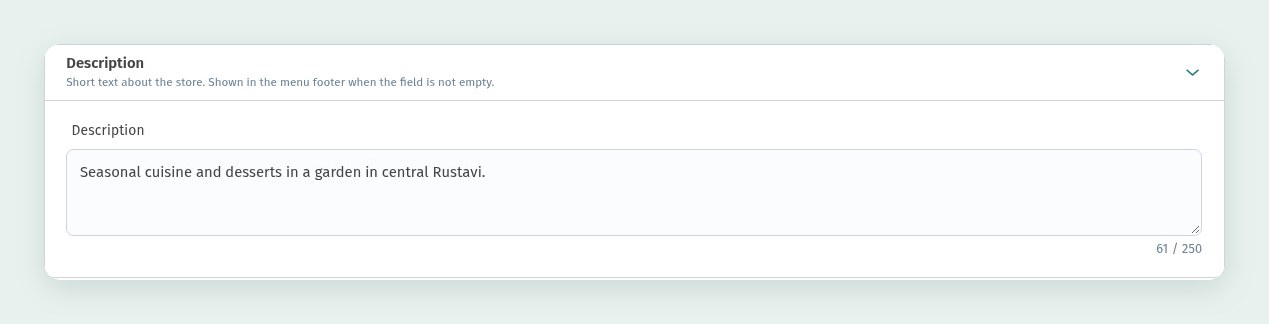
Description is a short text about the venue. Guests see it at the bottom of the menu page, in the venue information block right under the name; the About item in the side menu (☰) takes them there too. If the field is empty, nothing is shown under the name. If your menu has several languages, translate the description in the Translations block on the same tab: without a translation, guests in other languages see the text in the language you wrote it in. One or two sentences are enough: what kind of place it is and what makes it different.
5. Address and map
In the Address block, start typing in Search address and pick the right suggestion: street, number, postal code, city, region and country are filled in for you. You can also fill in or correct the fields by hand. If the house number goes before the street in your country, tick Street number first.
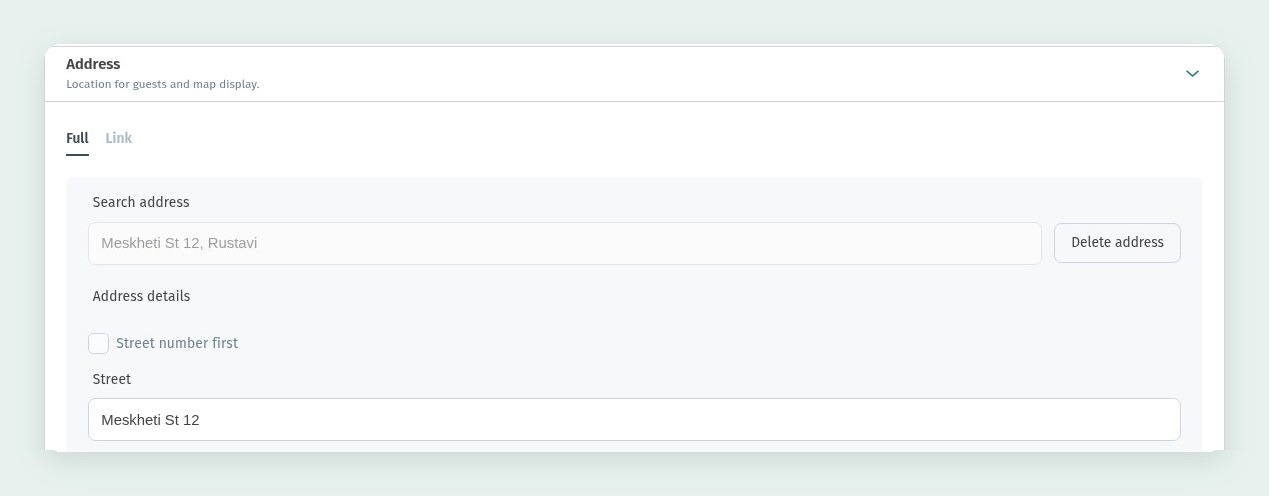
Below the address fields there is the Show map on the menu page switch. When it is on, the contacts show an embedded map. When it is off, guests see the address and an "Open in maps" link that opens the map on their phone.

Next come Contacts, Wi-Fi and Opening hours. They are worth filling in right away, and we covered them in detail in Wi-Fi, opening hours and contacts, including the venue's time zone.
6. Currency and tax
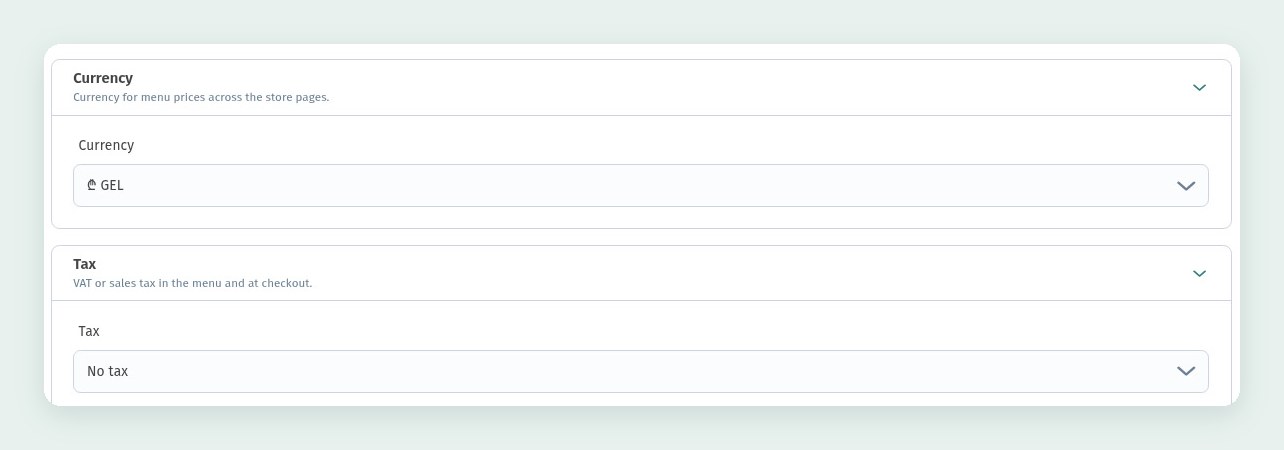
Currency sets the currency of menu prices across all the store's pages. The default is the Georgian lari (₾ GEL), and the list has other currencies too.
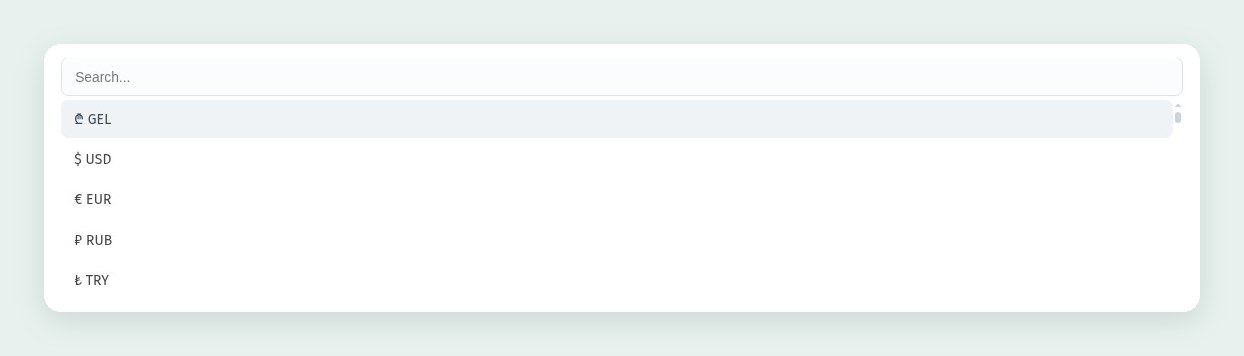
If you run venues in different countries, each store can have its own currency.
Tax is VAT or sales tax in the menu and at checkout. If your menu prices already include tax, leave No tax.
The last blocks on the tab are Social networks and Translations: links to your social pages and translations of the store name and texts into other languages. Don't confuse this block with the Translations switch for the menu itself: that one is in Page language on the Page layout tab, see below.
7. Page layout and menu language
The second tab is Page layout. It holds everything about how the menu looks: the layout, browser tab title, colours, theme, corner radius, cover, information blocks, logo and welcome screen. To start, you can leave it all as it is: the default layout already looks tidy. How to adapt the design to your style is shown in Store appearance and settings.
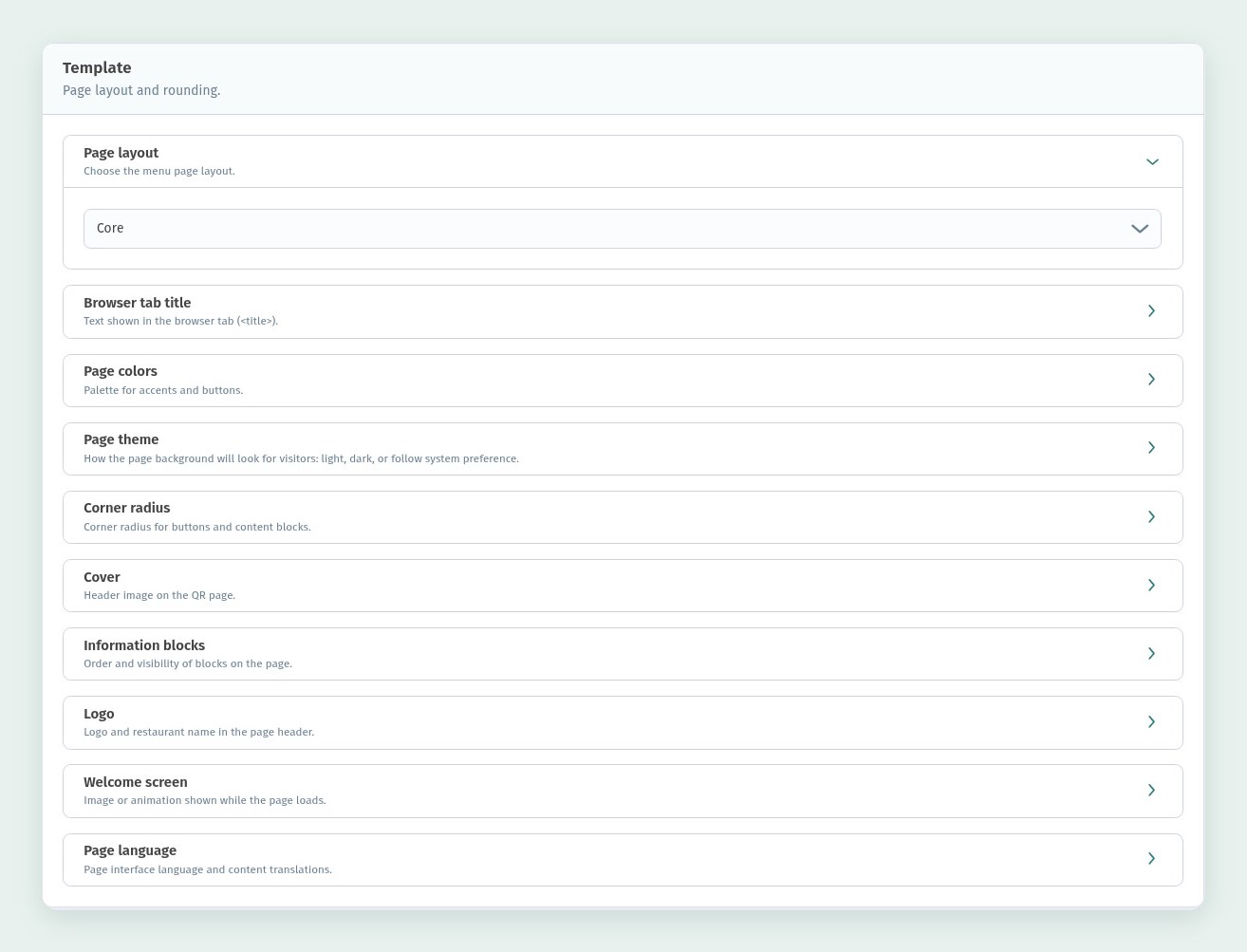
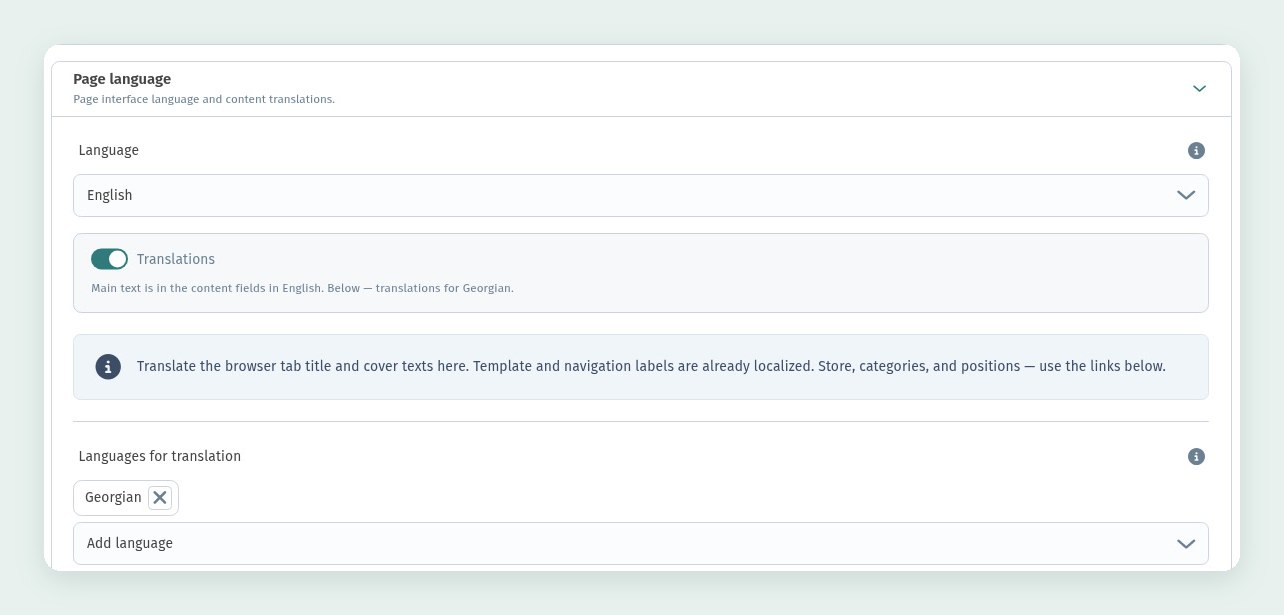
One block on this tab is worth opening right away: Page language. In Language choose the main language of the menu: you will write dish names and descriptions in it. Then turn on Translations and use Languages for translation to add the languages your guests will see the menu in.
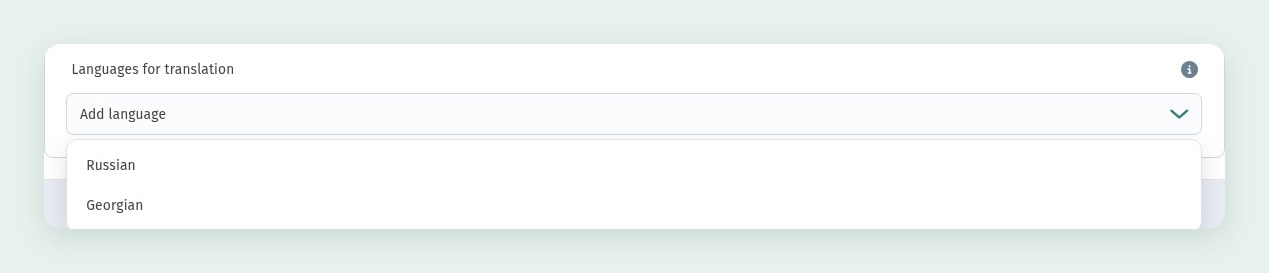
The list offers every language except the main one. In our example the main language is English, so Russian and Georgian are offered; we added Georgian, and Russian is added the same way. Template buttons and navigation are already translated; dish names, categories and descriptions you translate yourself.
How to translate dishes and how guests switch languages is described in A menu in three languages.
8. Settings: orders
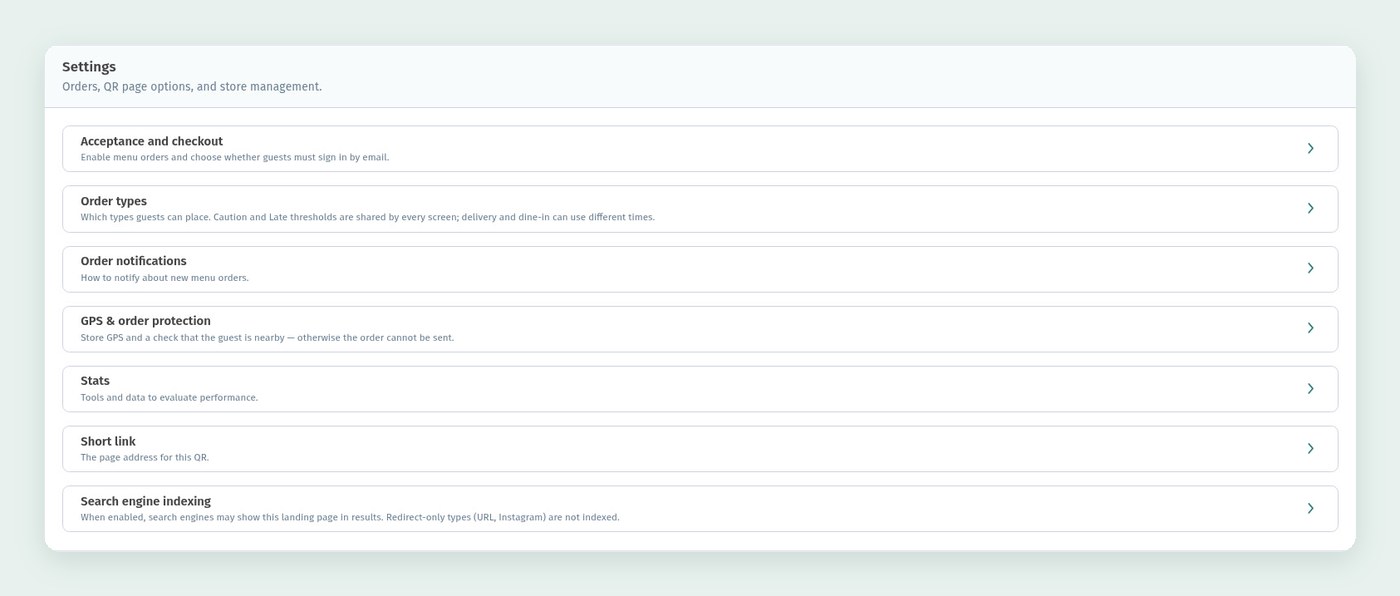
The third tab is Settings: orders, QR page options and store management:
- Acceptance and checkout: turn on orders from the menu and decide whether guests must sign in by email.
- Order types: which kinds of orders guests can place.
- Order notifications: how you are told about new orders.
- GPS & order protection: the venue's GPS location and a check that the guest is nearby.
- Stats: tools and data to evaluate performance.
- Short link: the address of the page the QR code leads to.
- Search engine indexing: whether search engines may show the menu page.
Open Order types. WebQRMenu has four: Dine in, Takeaway, Delivery and Pickup. Keep only the ones your venue really offers. A summer terrace, for example, doesn't need delivery.
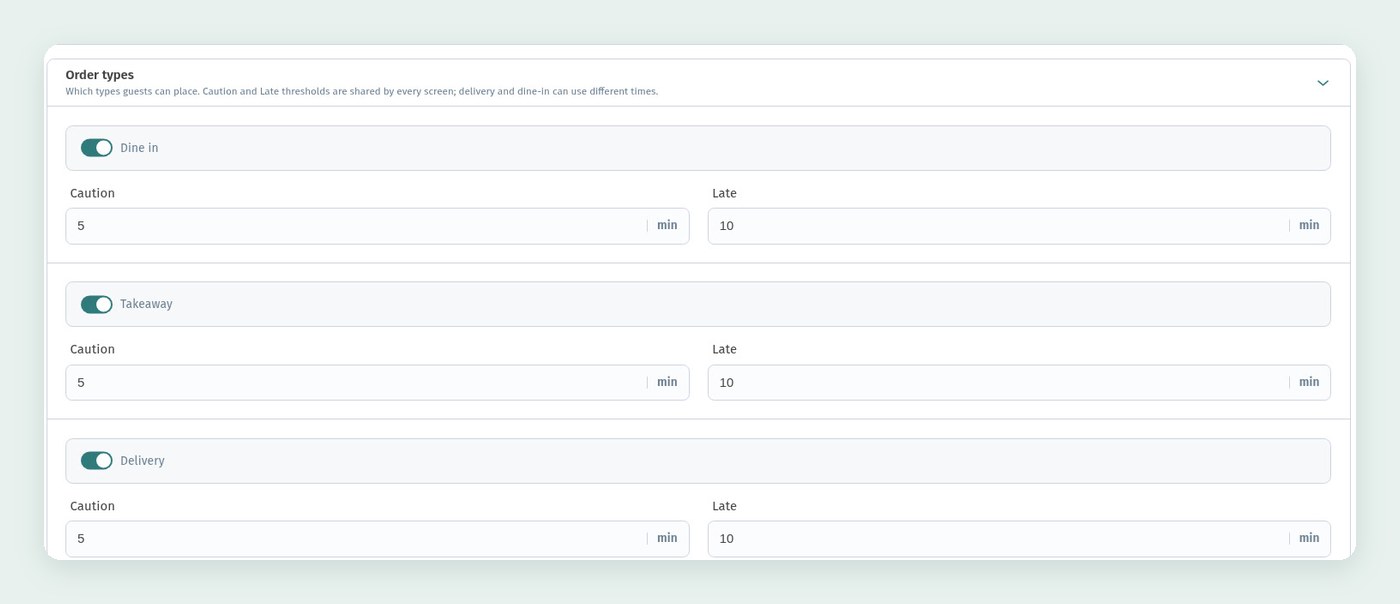
Each type has two thresholds in minutes, Caution and Late. When an order waits longer than the first, it is highlighted as needing attention; after the second, as late. The defaults are 5 and 10 minutes; delivery usually gets more time than the dining room. How these thresholds look in the kitchen is shown in The kitchen line.
You can connect Google Analytics, GTM or Meta Pixel later in Stats; see Google Analytics, GTM and Meta Pixel.
9. Short link
The Short link is the menu address encoded in the QR code. By default Automatic domain selection and Automatic link generation are on: the domain and the link code are picked for you when you save.
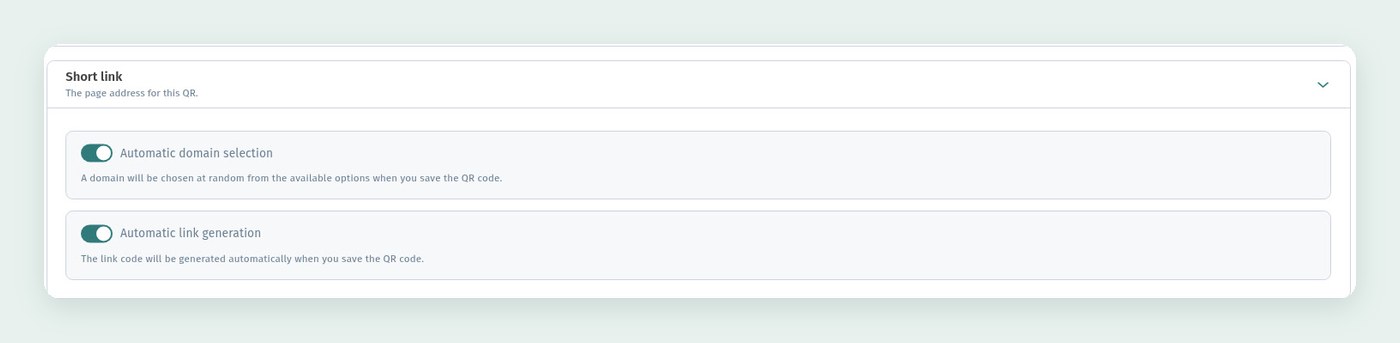
We recommend setting the link yourself. Turn off Automatic link generation and type a clear address in the URI field: letters and digits only, 4 to 24 characters. The green tick next to URI shows the address is accepted. The simplest choice is the venue's name. This is how the short link of Aurora Garden looks in the store settings: the webqrmenu.io domain and the address https://webqrmenu.io/auroragarden.
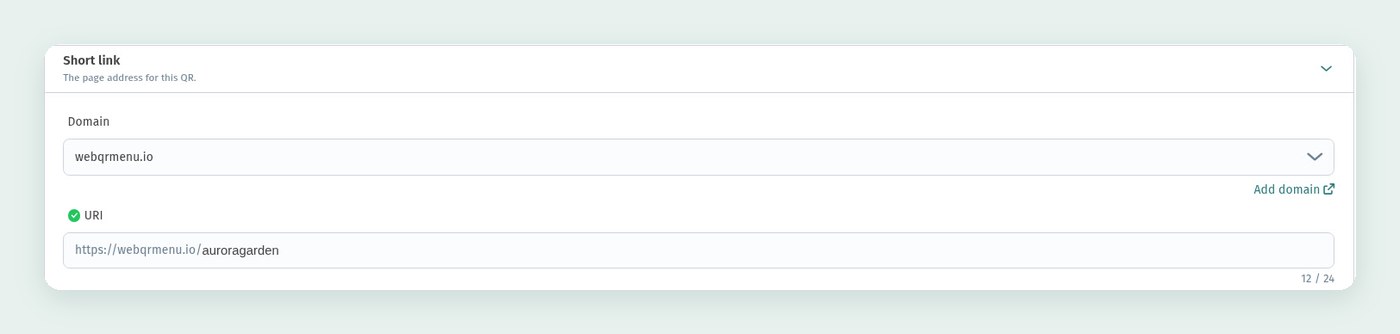
A link like this is easy to say over the phone, put in your Instagram bio or print on a receipt.
10. Create the store
When everything is filled in, click Create in the bottom right corner.
You will see a message that the store has been created, and the overview of the new venue opens.
11. The QR code of the new venue
On the store page, click the QR button next to Open menu in the top bar. It shows the QR code of your short link and three actions:
- Download: save the QR code for printing.
- Edit: change the QR code design. Choose calm colours with good contrast: such a code is easy to scan.
- Tables: create a separate QR code for each table, so orders arrive with the table number.
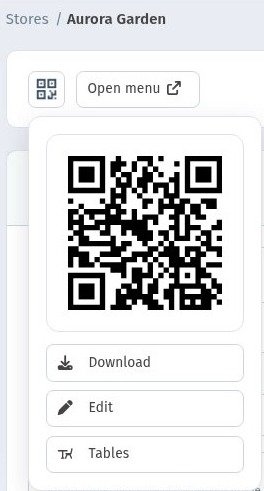
QR codes for tables are covered in Tables and a QR code for every table, and where to put them in Where to place QR codes in a restaurant or café.
12. Switching between venues
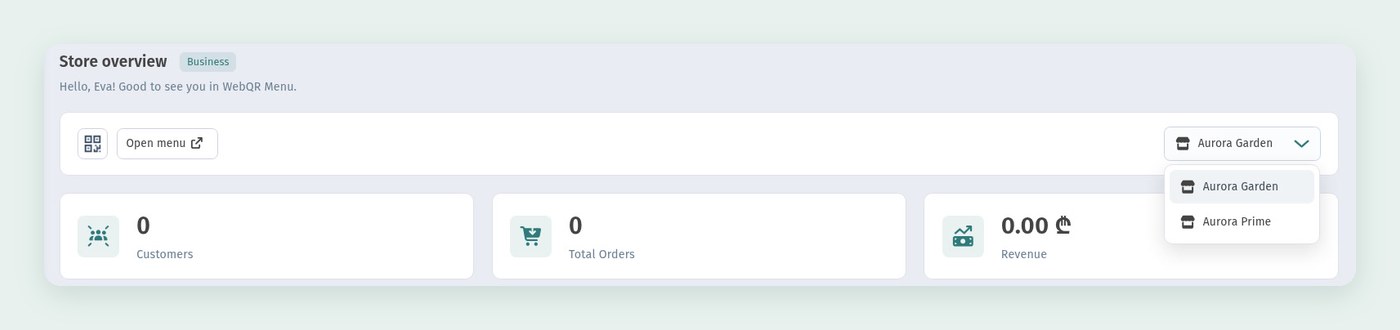
When the account has several stores, the switcher in the top right of the overview shows which one you are working with. Choose another store, and the overview switches to it.
Store → Stores now has two cards: Aurora Garden and Aurora Prime. The "•••" menu on a card opens the store's actions, including editing: there you can change any setting you made when creating the store.
For example, in the Short link block of an existing store you can choose the domain and change the address at any time. Keep in mind: if your QR codes are already printed, you will have to replace them after changing the link.
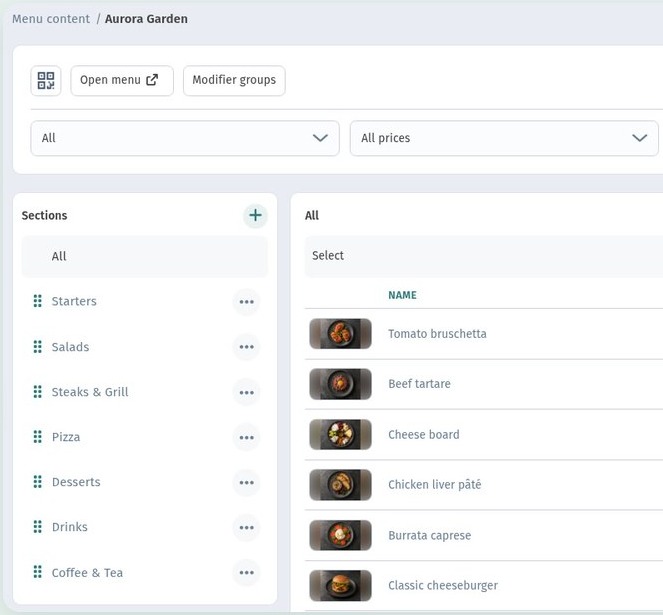
Each store has its own menu set. Menu content shows which set is connected to which store and how many categories and items it has. Open a set to edit its sections and dishes.
13. Check the menu as a guest
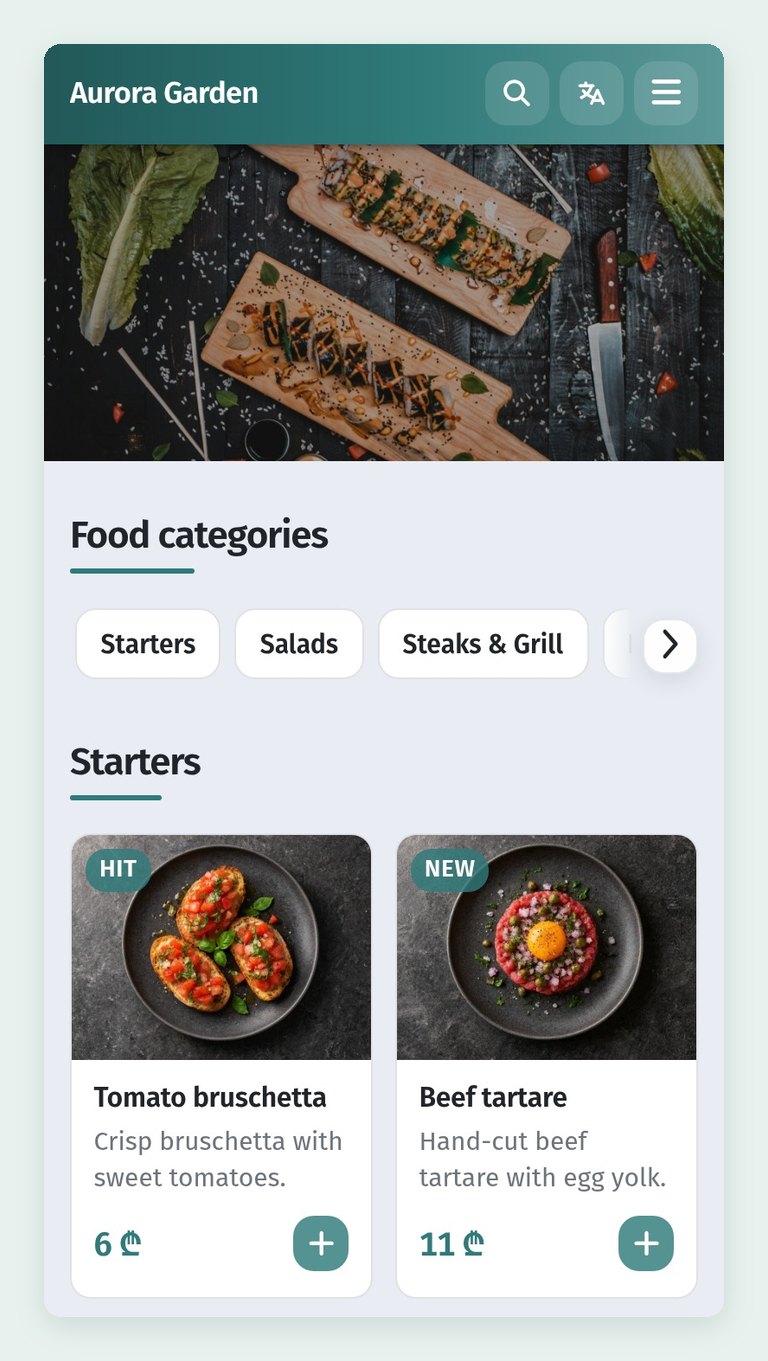
The last step is to open the short link on a phone or scan the QR code. The guest sees the header with the name, the cover, the food categories and the first dish cards.
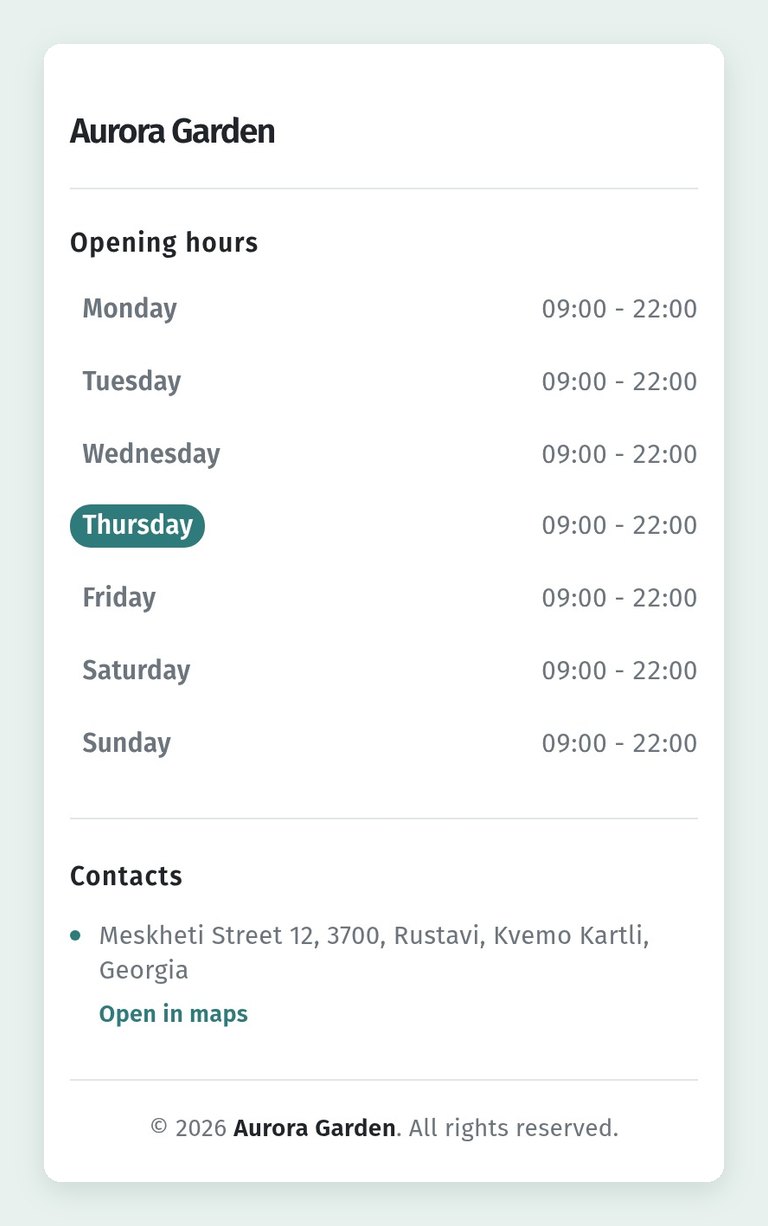
Scroll to the end of the page and check the footer: the name, opening hours and the address with a link to the map.
Switch the language with the button in the header and make sure the menu looks good in every language.
New venue checklist
- The store is created via Store → Create store, and the name is clear to guests.
- You chose an empty menu or the demo menu.
- The description and address are filled in, and you decided whether to show the map.
- Contacts, Wi-Fi and opening hours are filled in.
- Currency and tax are set.
- In Page language the main language is chosen and translation languages are added.
- Only the order types you need are on, and the Caution and Late thresholds suit your venue.
- The short link is clear and easy to read.
- The QR code is downloaded, and table QR codes are created if you need them.
- The menu is checked on a phone in every language.