
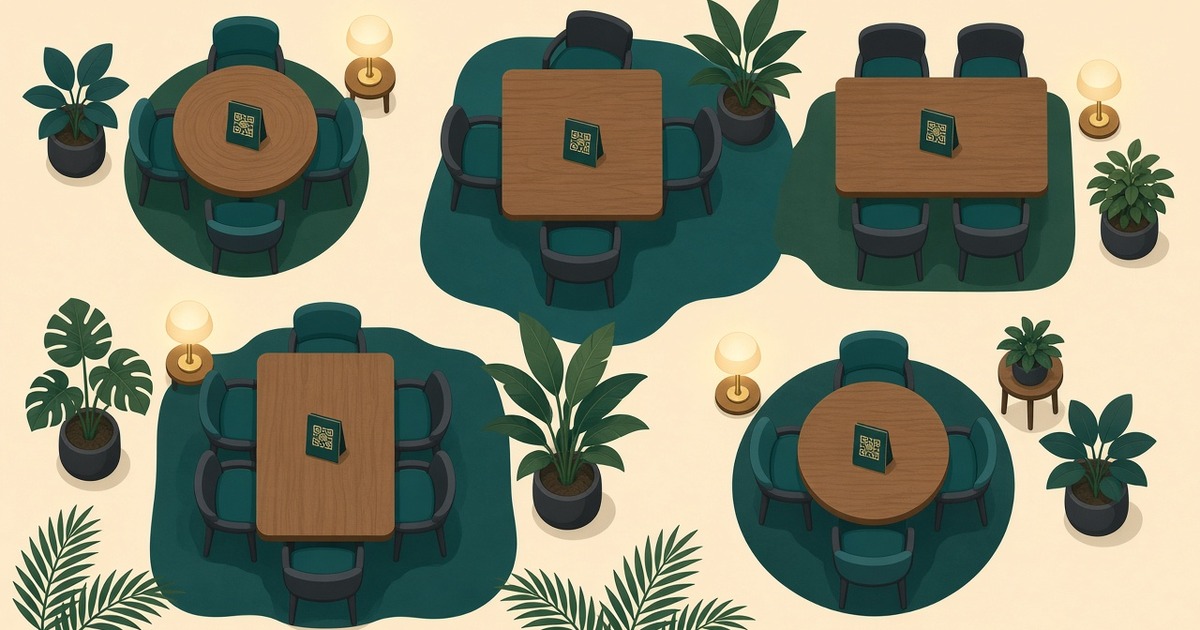
Tables and a separate QR code for every table in WebQRMenu
How to create tables in WebQRMenu, track their status, and download a separate QR code for each table, one at a time or all at once.
When every table has its own QR code, you know exactly where each order comes from. Guests don't need to tell the waiter their table number. The order already shows it, and staff can see straight away which tables are free and which are busy. This guide covers the whole Tables section, from adding the first table to printing QR codes for the entire room.
The Tables page
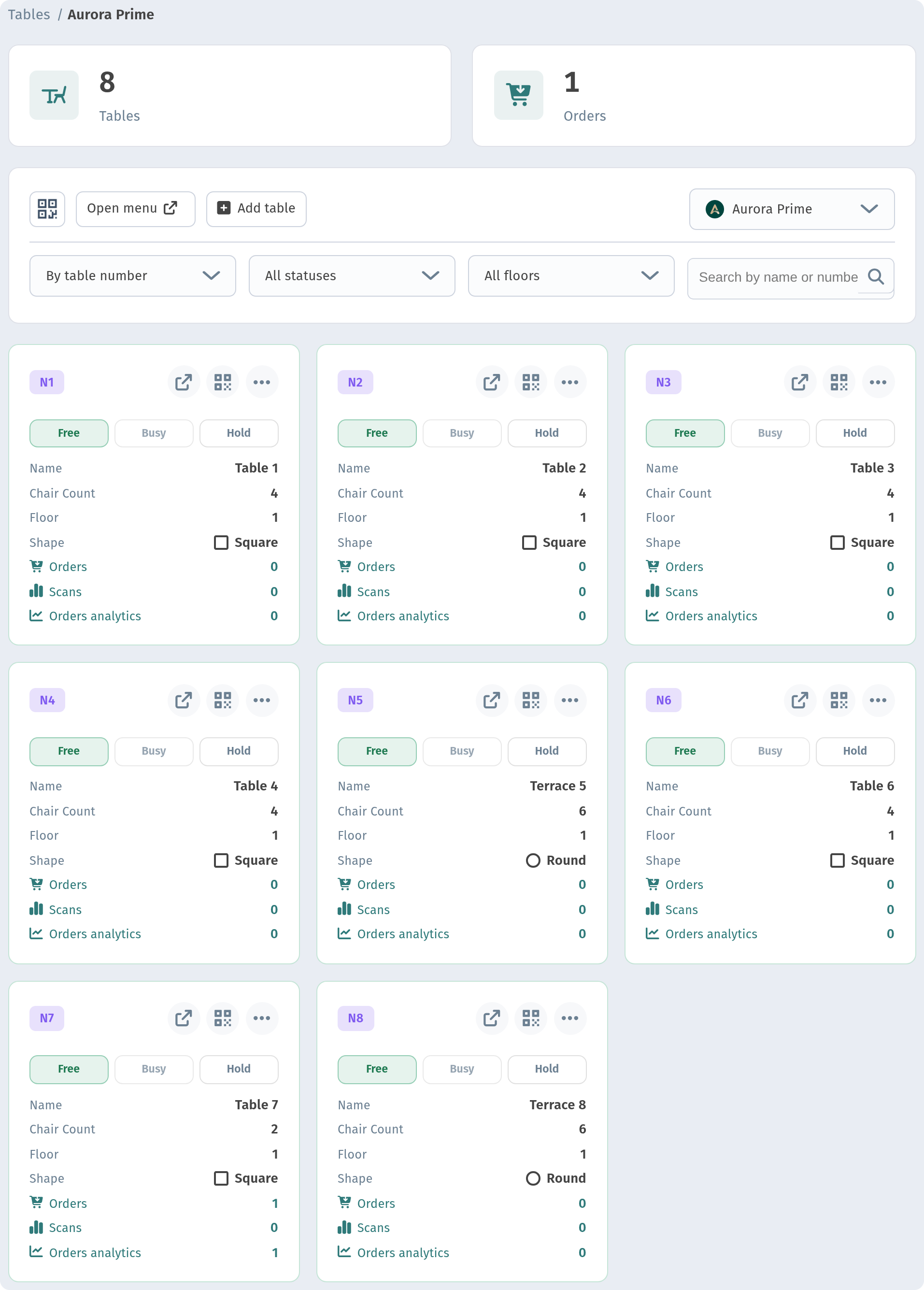
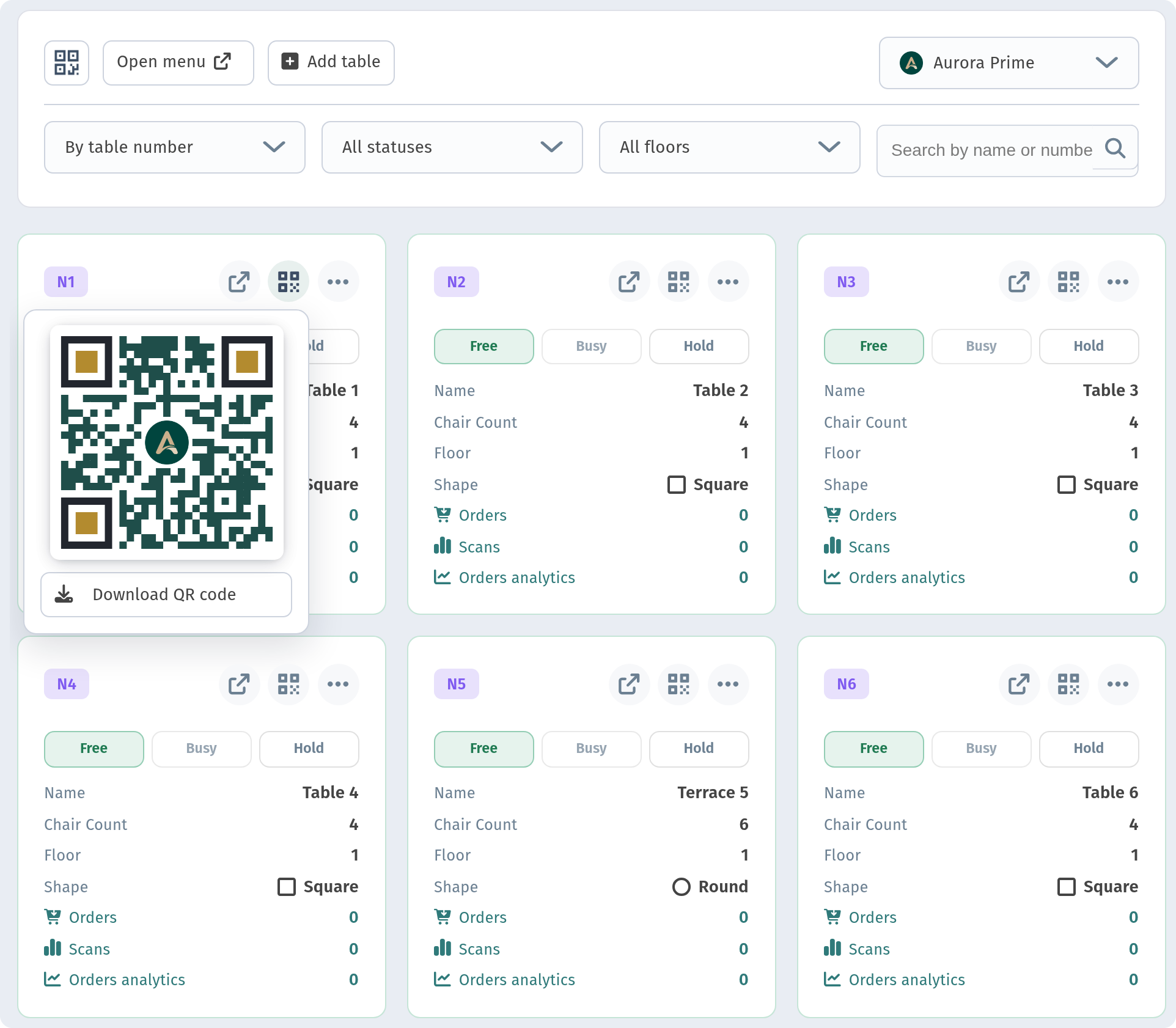
Open Tables in the sidebar. The page has three parts:
- Summary tiles at the top, showing how many tables you have and how many orders they have received.
- A toolbar with buttons to open the menu, to add a table and a QR code button (it opens the store's main QR code with Download, Edit and Tables), a store switcher, and the filters.
- Table cards, one card for each table.
Sorting, filters and search
If you have many tables, the toolbar helps you find the right one quickly.
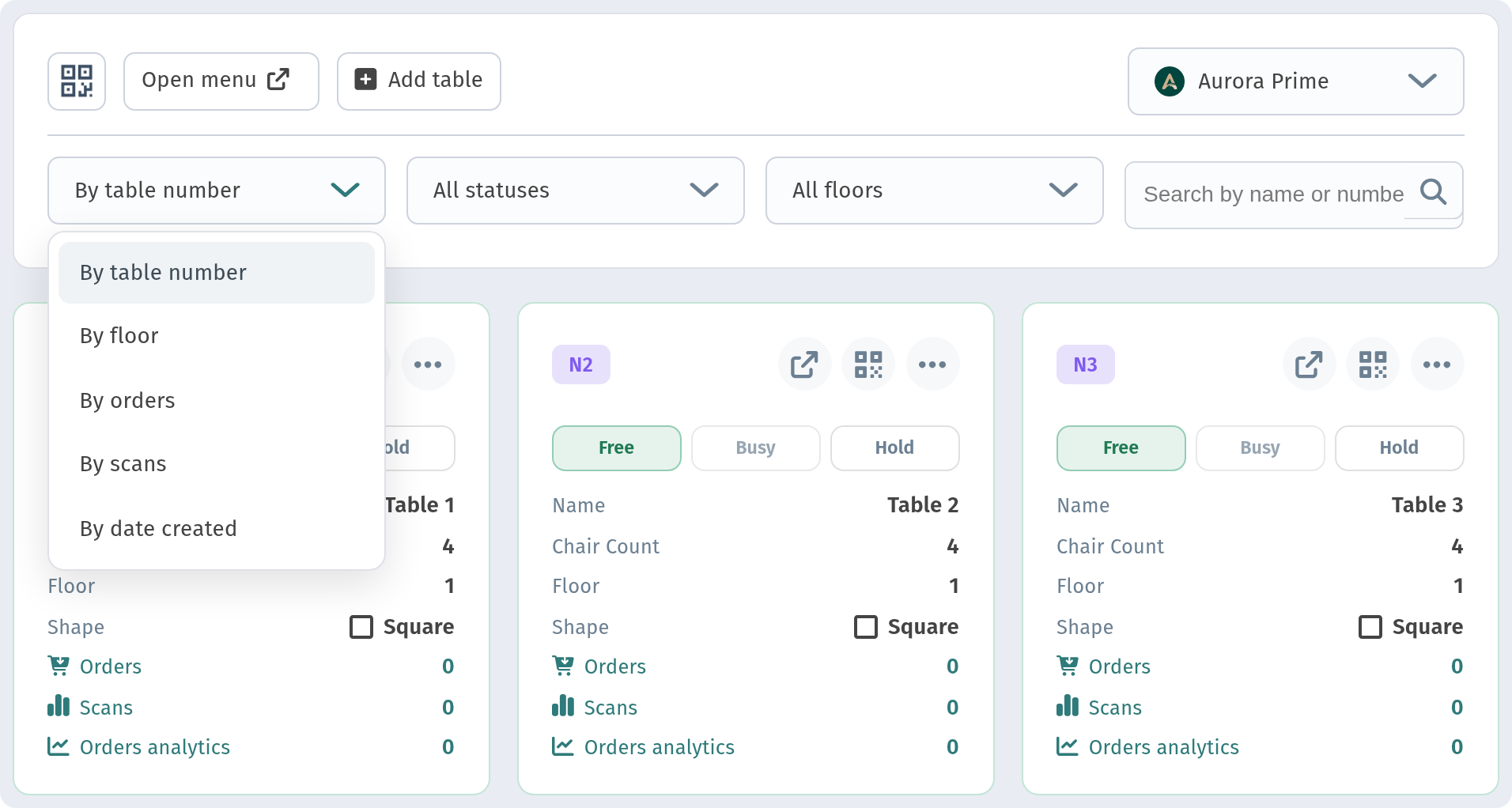
Sorting. You can sort by table number, floor, number of orders, number of scans, or creation date.
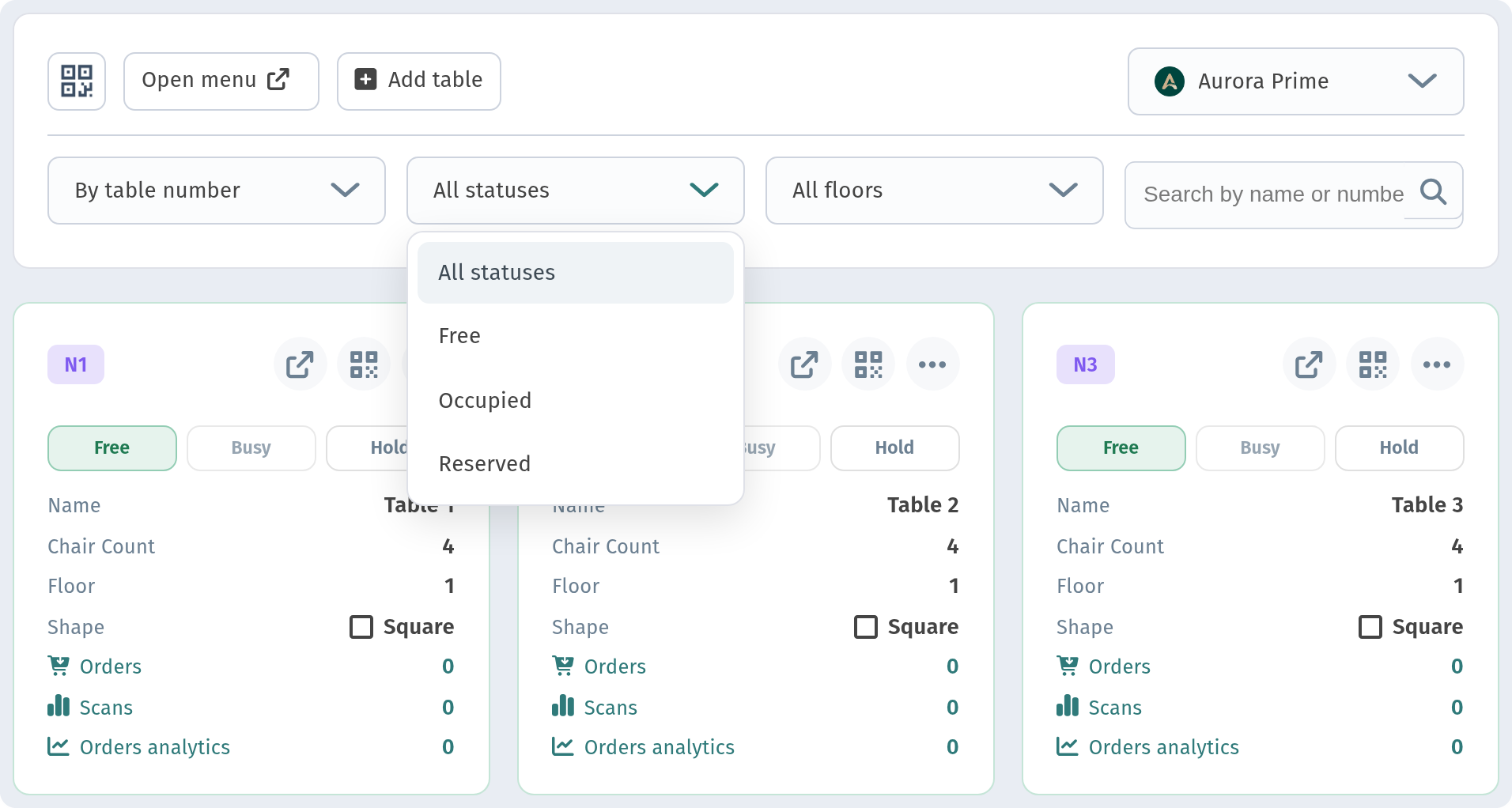
Status filter. You can show all tables, or only the free, occupied or reserved ones. This is handy during a busy evening.
Floor filter. This is useful if the venue has several floors or zones, such as a hall and a terrace.
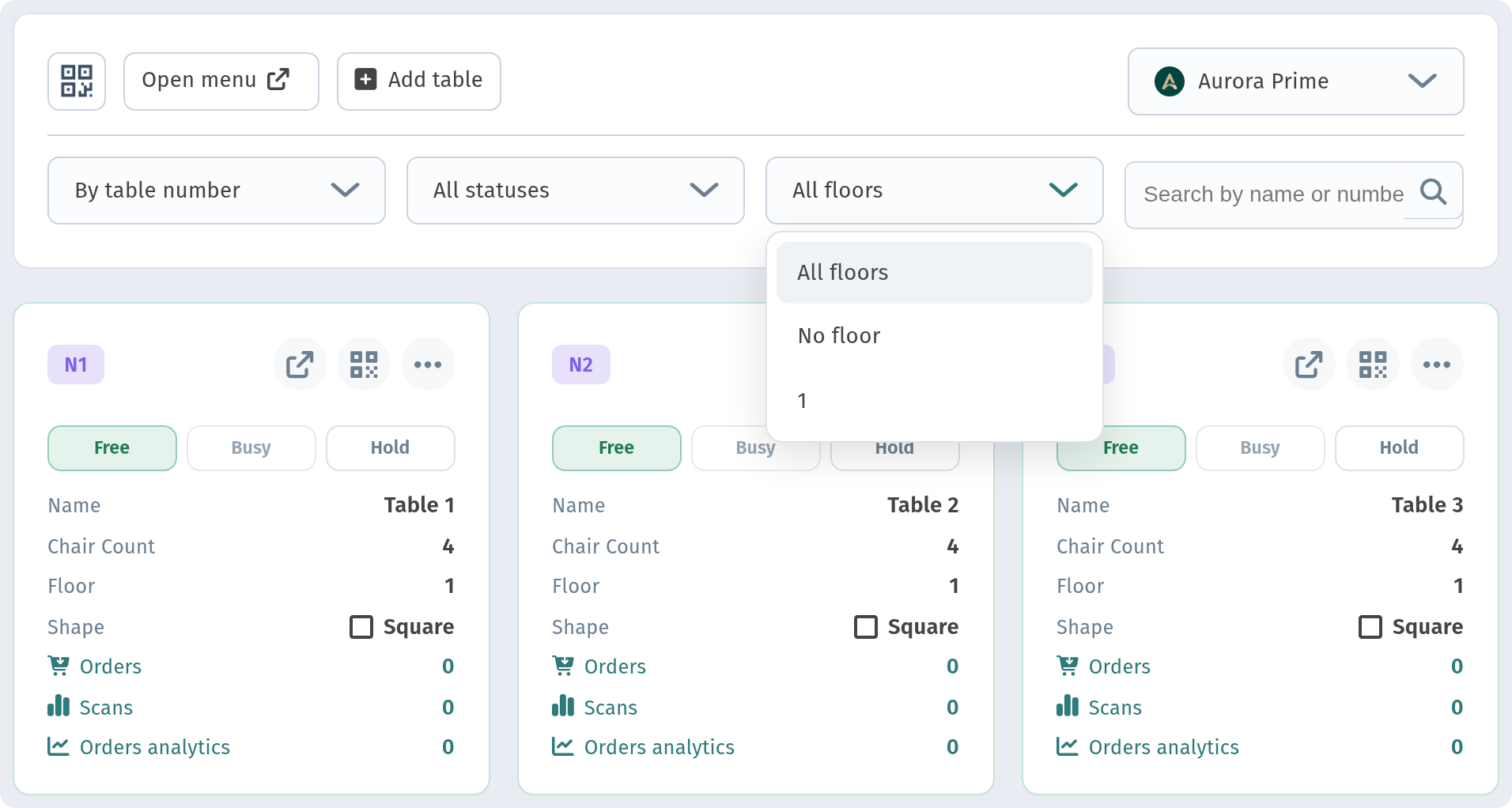
Search. Type a table name or number and press Enter.
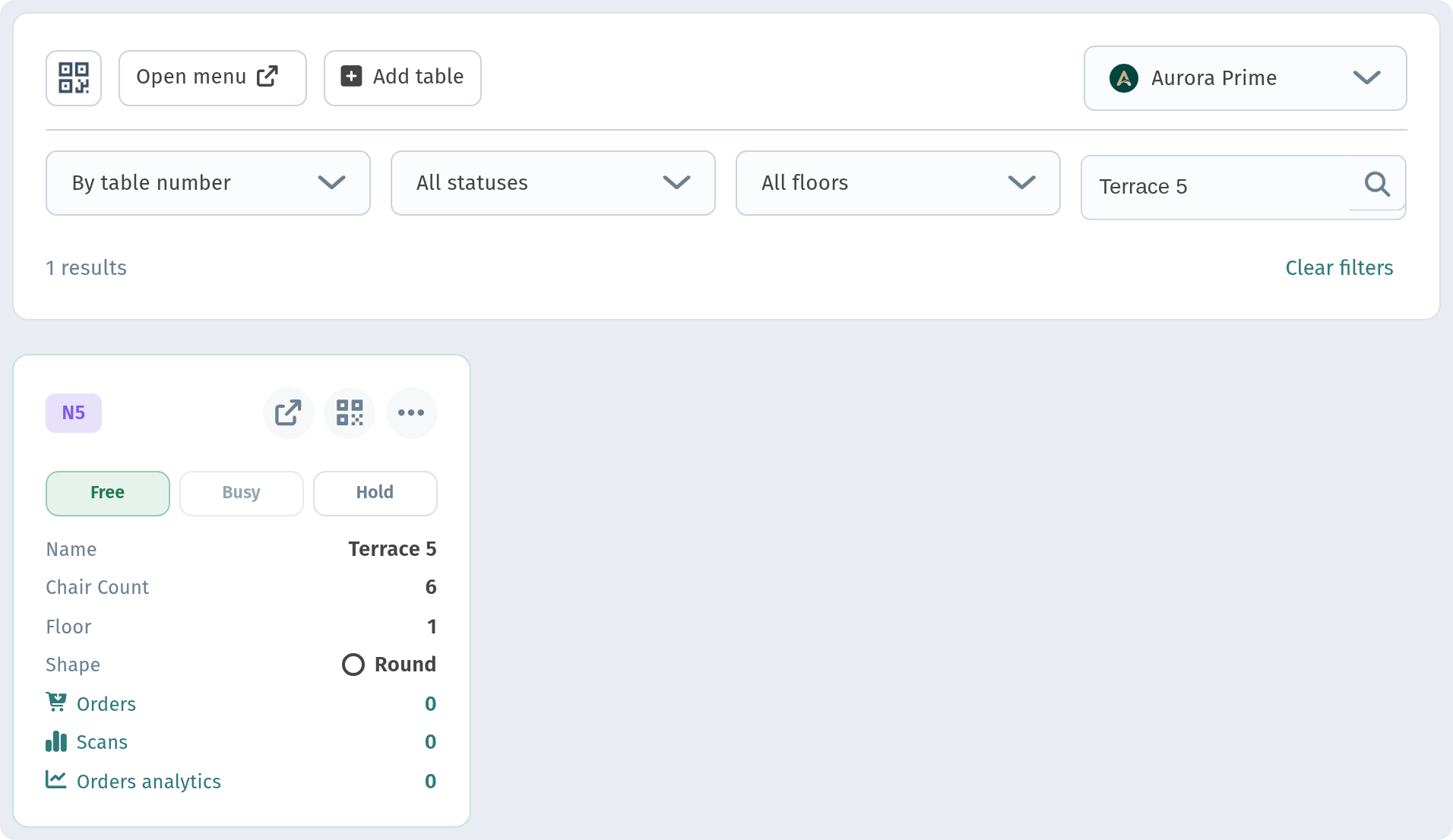
What a table card shows
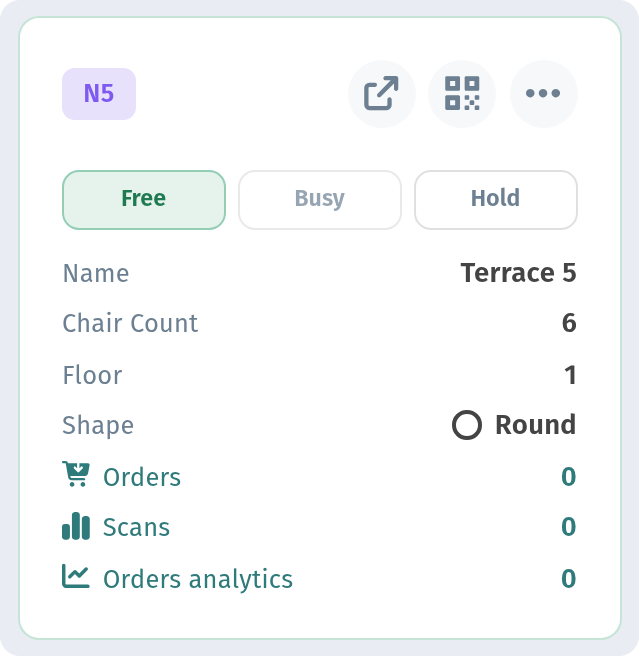
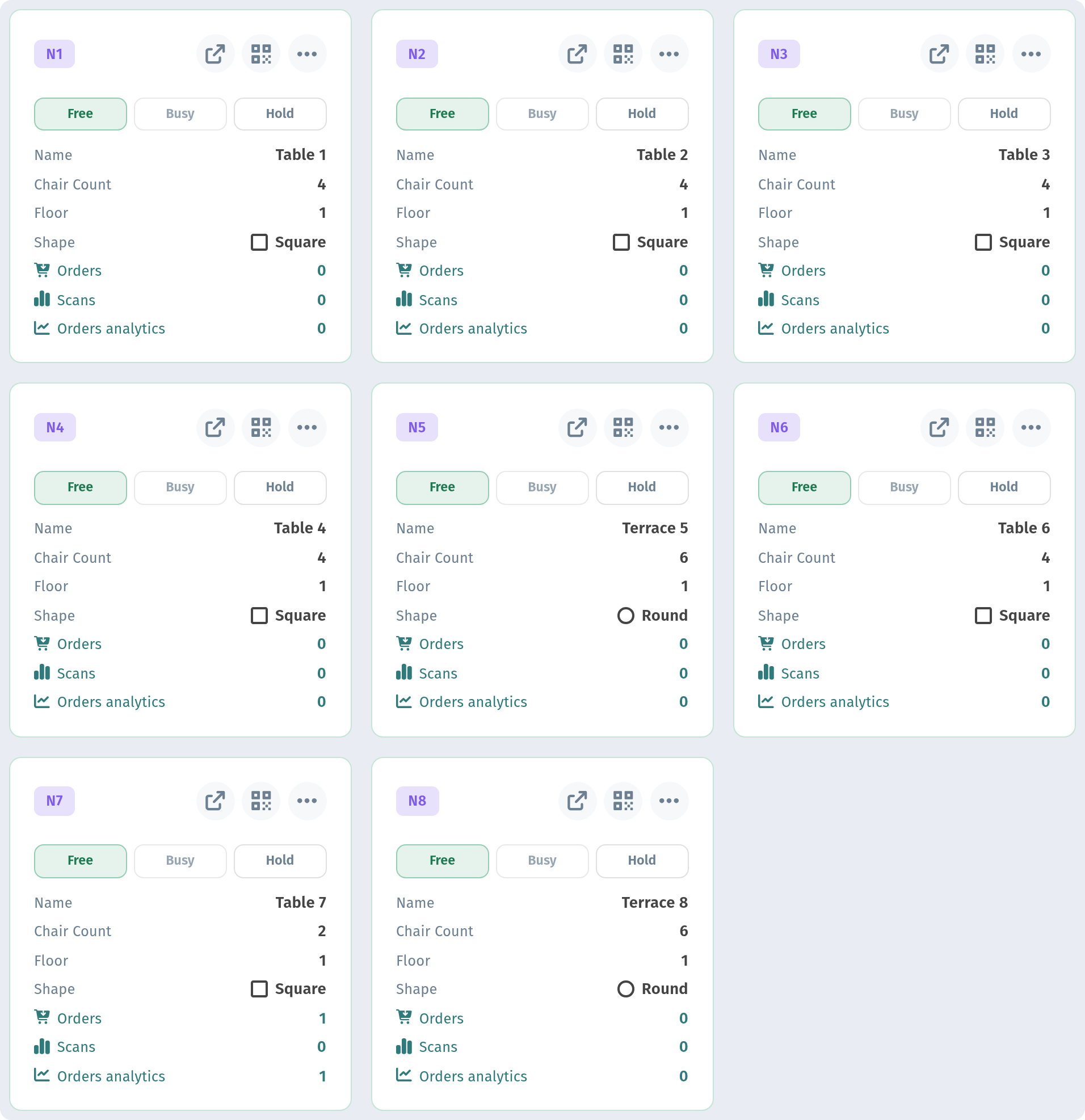
Each card has:
- The table number (the N1, N2… badge). It is assigned automatically.
- The open-link icon, which opens the menu exactly as a guest at this table will see it.
- The QR icon, which shows the QR code for this table.
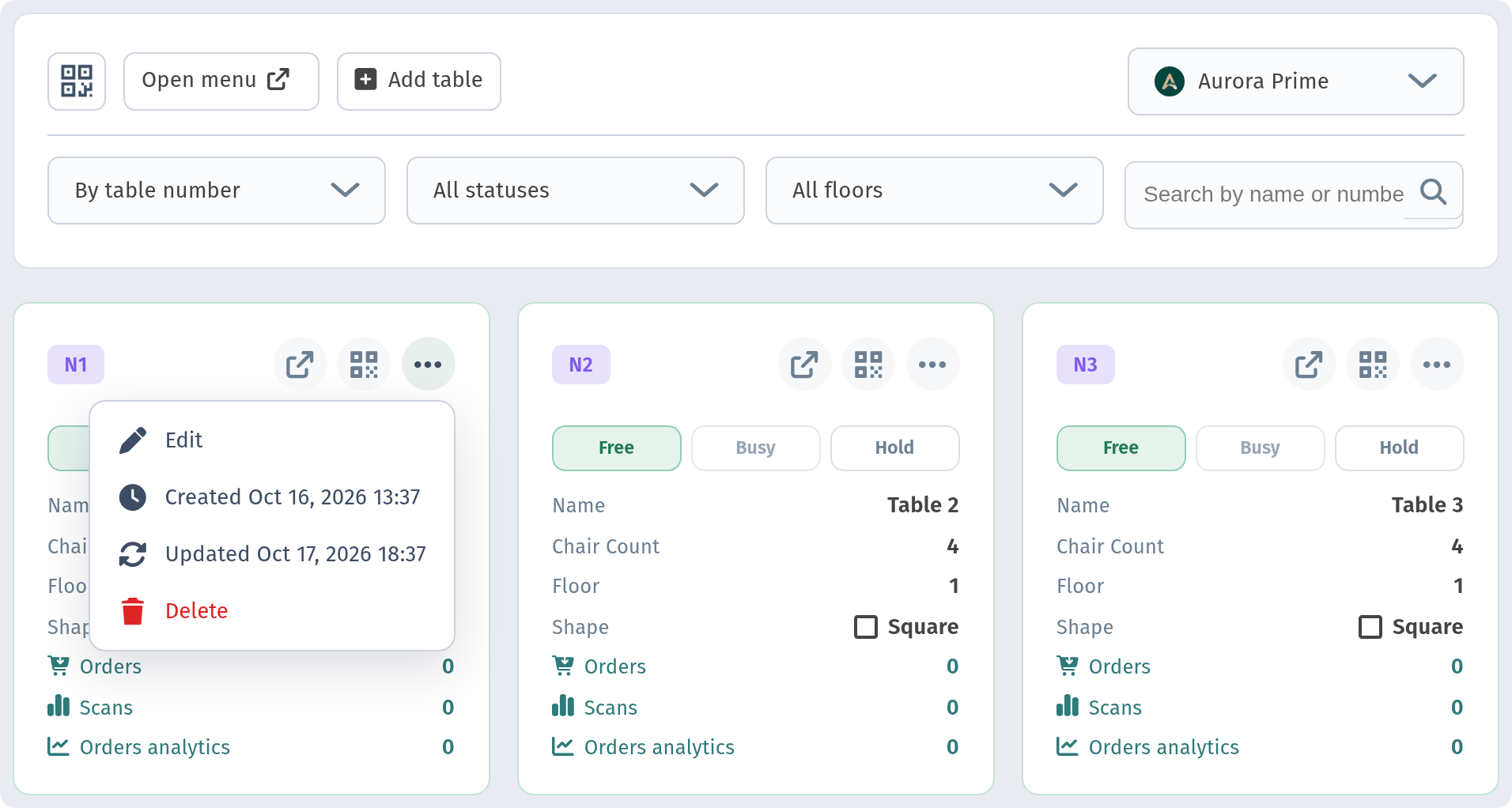
- The "…" menu, which holds Edit, the created and updated dates, and Delete.
- The status switch, with three states: Free, Busy and Hold.
- The details: the name, number of chairs, floor and shape.
- The statistics: orders, scans, and a link to the order analytics.
About the statuses. The labels in the filter and on the card differ slightly: the filter offers Free, Occupied and Reserved, while the card switch offers Free, Busy and Hold. Busy turns on automatically while the table has an open order and cannot be set by hand. Hold is a manual reservation: you set it yourself when a guest has booked the table in advance. When the table is free again, switch it back to Free.
Creating a table
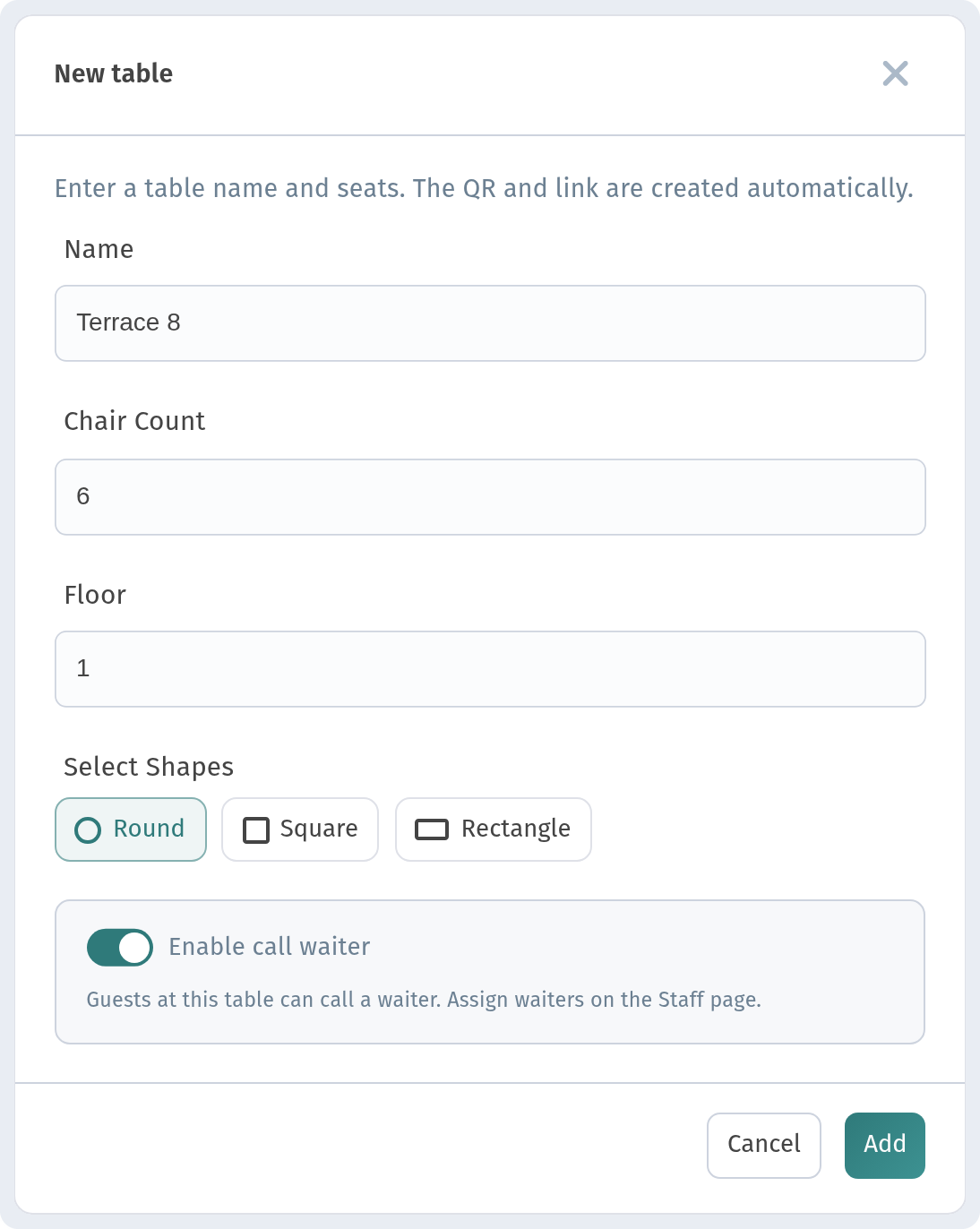
Click Add table. A short form opens:
- Name — anything that helps staff: "Window", "VIP", "Terrace 5". You can leave it empty.
- Chair Count — 4 by default.
- Floor — 1 by default.
- Shape — round, square or rectangle. Square is selected by default.
- Enable call waiter — lets guests call a waiter from this table. You assign waiters to tables on the Staff page. Guests' calls appear on the Waiter board (sidebar → Waiter board), where a waiter can claim a call and mark it complete.
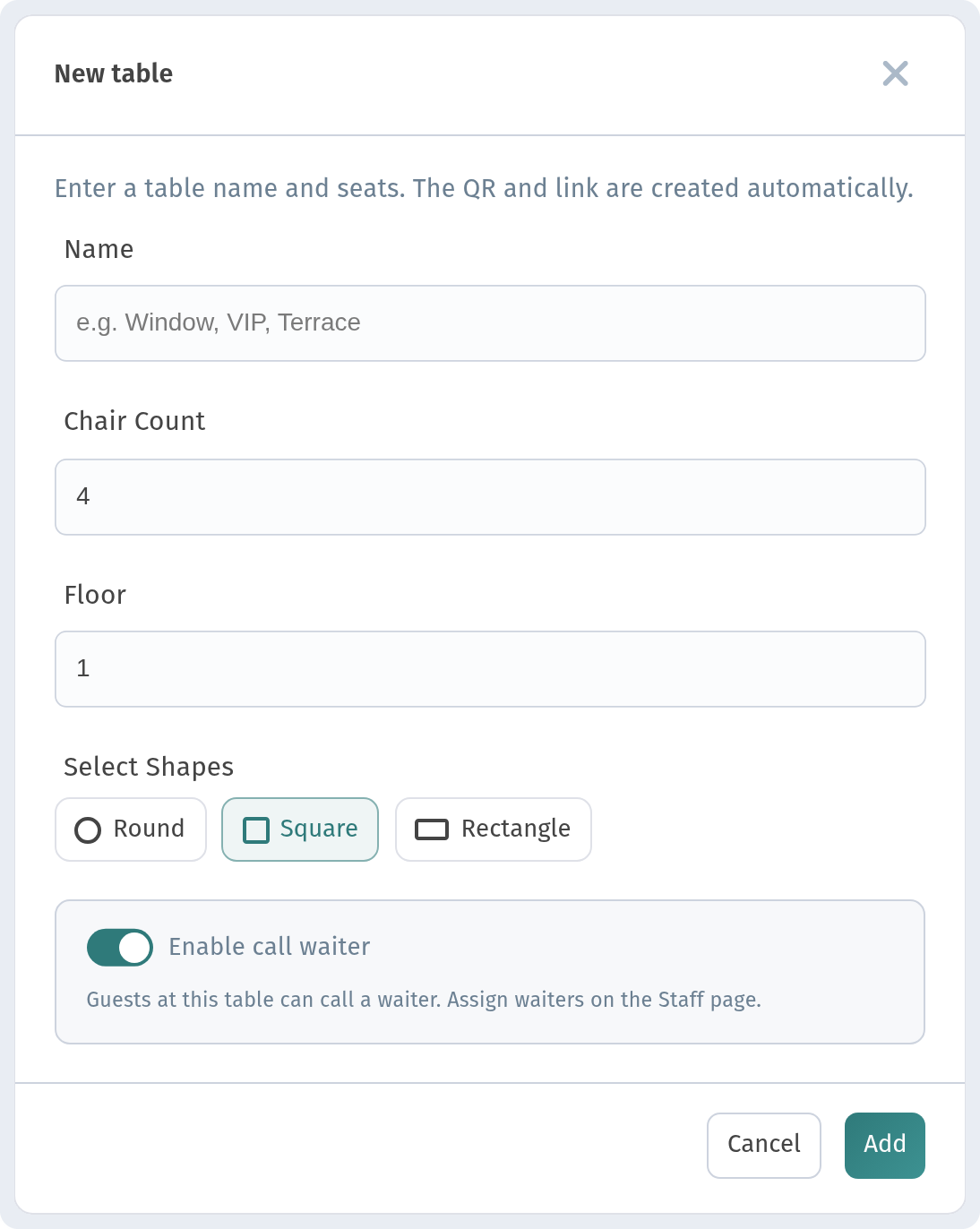
You don't need to set the QR code, the link or the table number. They are created automatically when you save. Fill in the fields and click Add.
The new table appears in the list straight away, with its own number and QR code.
Editing and deleting a table
Open the "…" menu on a card. It shows when the table was created and last updated, plus two actions: Edit and Delete.
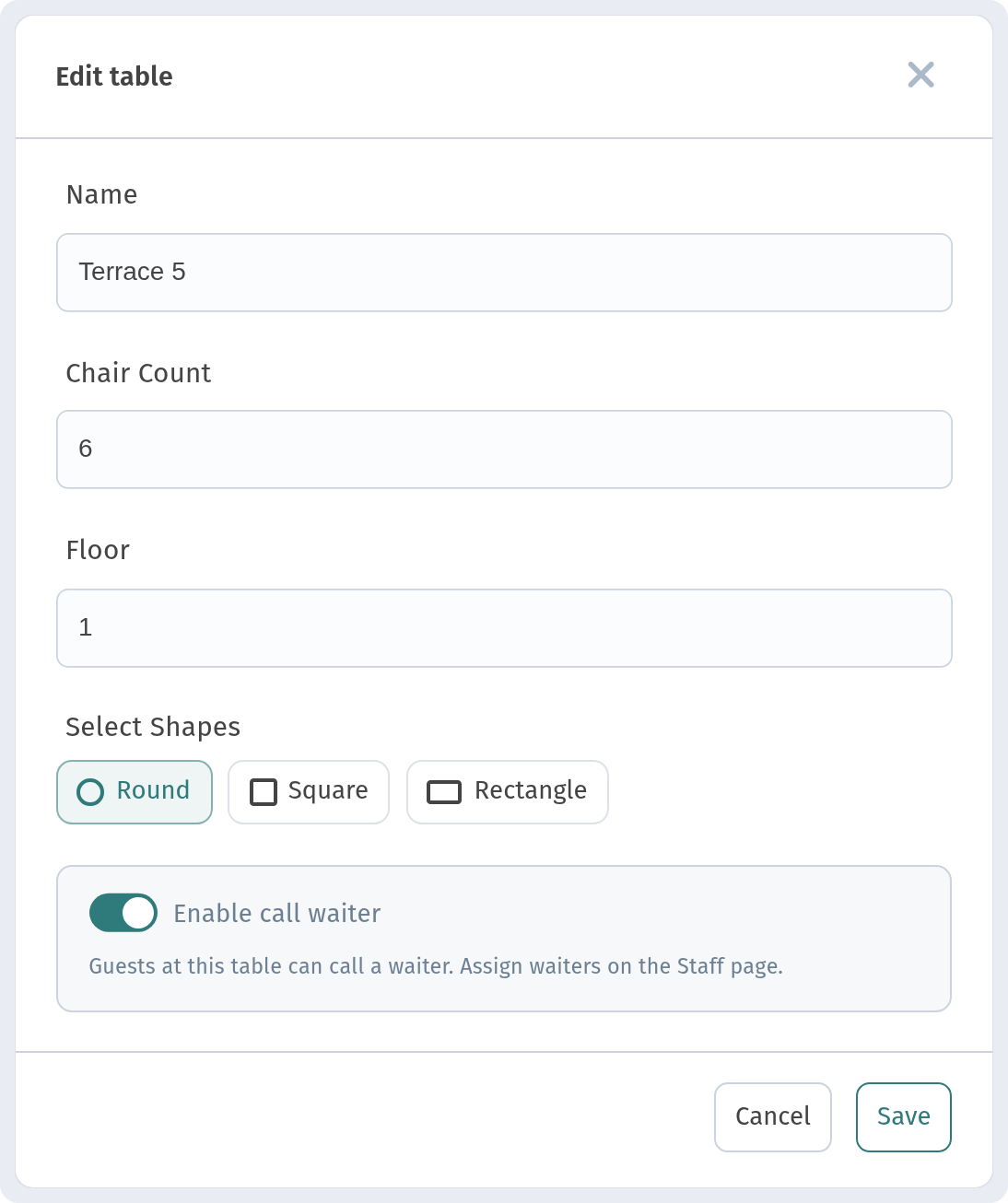
Edit opens the same form, already filled in. Change the name, chairs, floor or shape, then save.
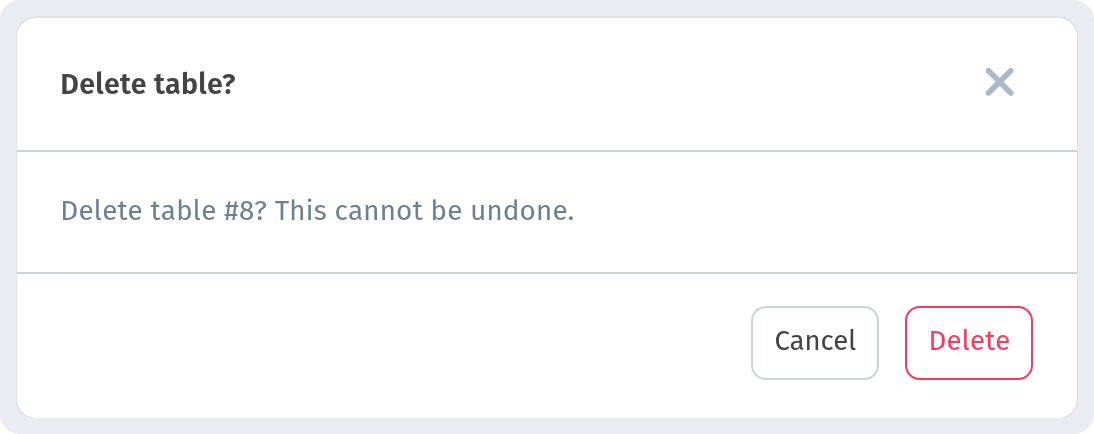
Delete asks you to confirm first, because this cannot be undone. Remember to also remove the printed code from that table.
The QR code for one table
Click the QR icon on a card. A small window opens with this table's QR code and a Download button.
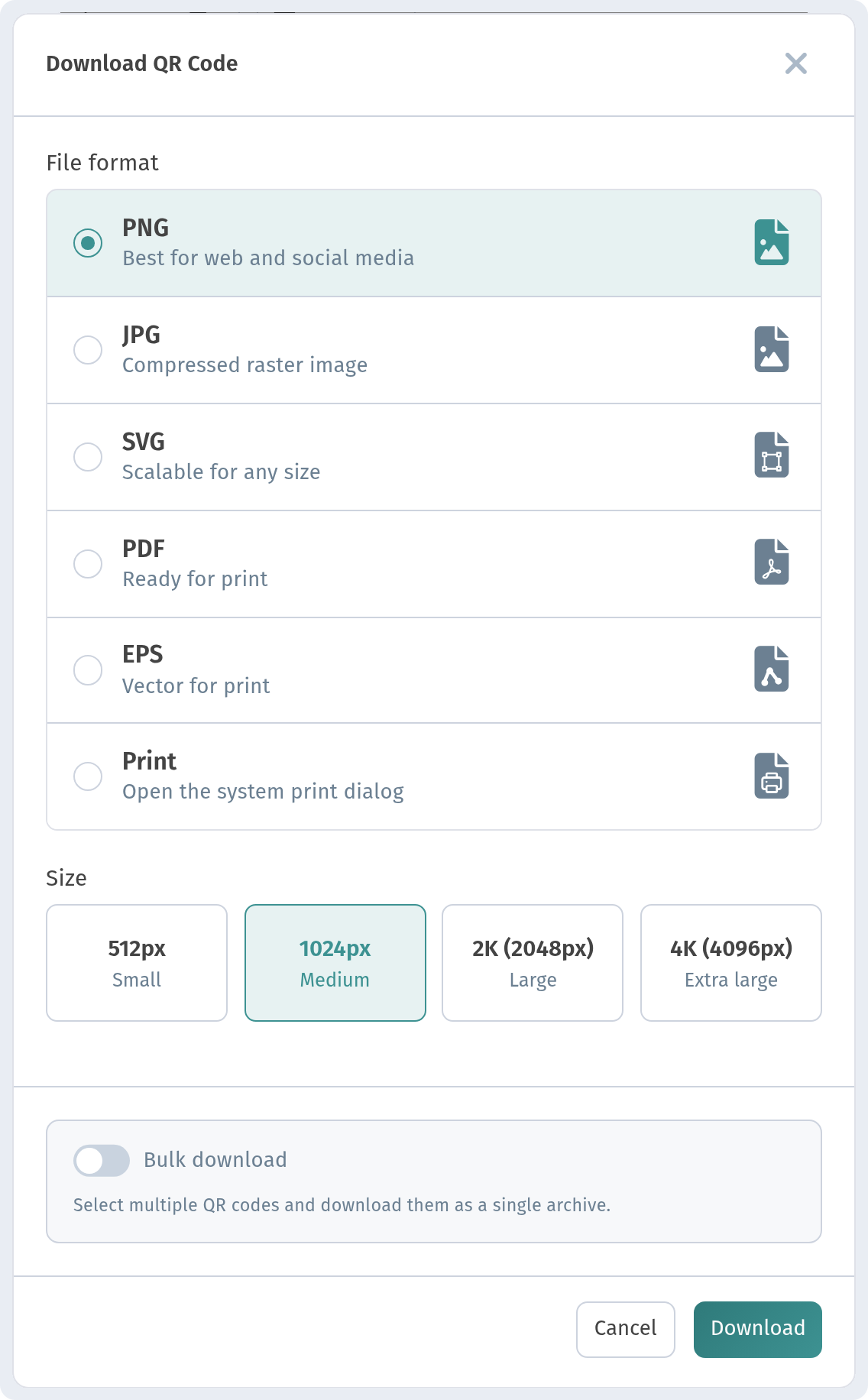
The download dialog lets you choose:
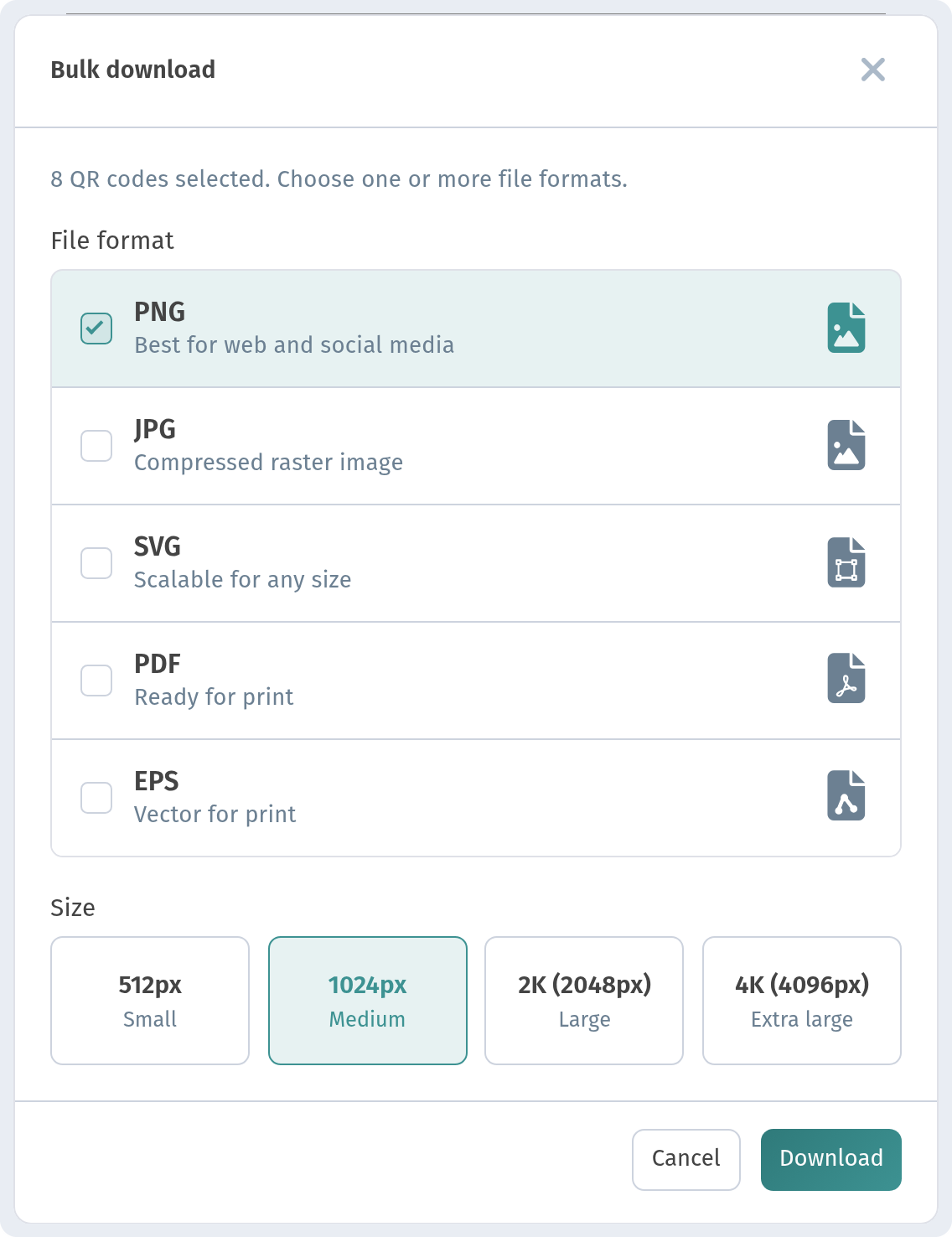
- The format: PNG (for the web and social media), JPG, SVG (scales to any size), PDF (ready for print), EPS (vector, for a print shop) or Print (opens the system print dialog straight away).
- The size: 512, 1024, 2048 or 4096 px. For table tents and stickers, 2048 px or larger is a good choice.
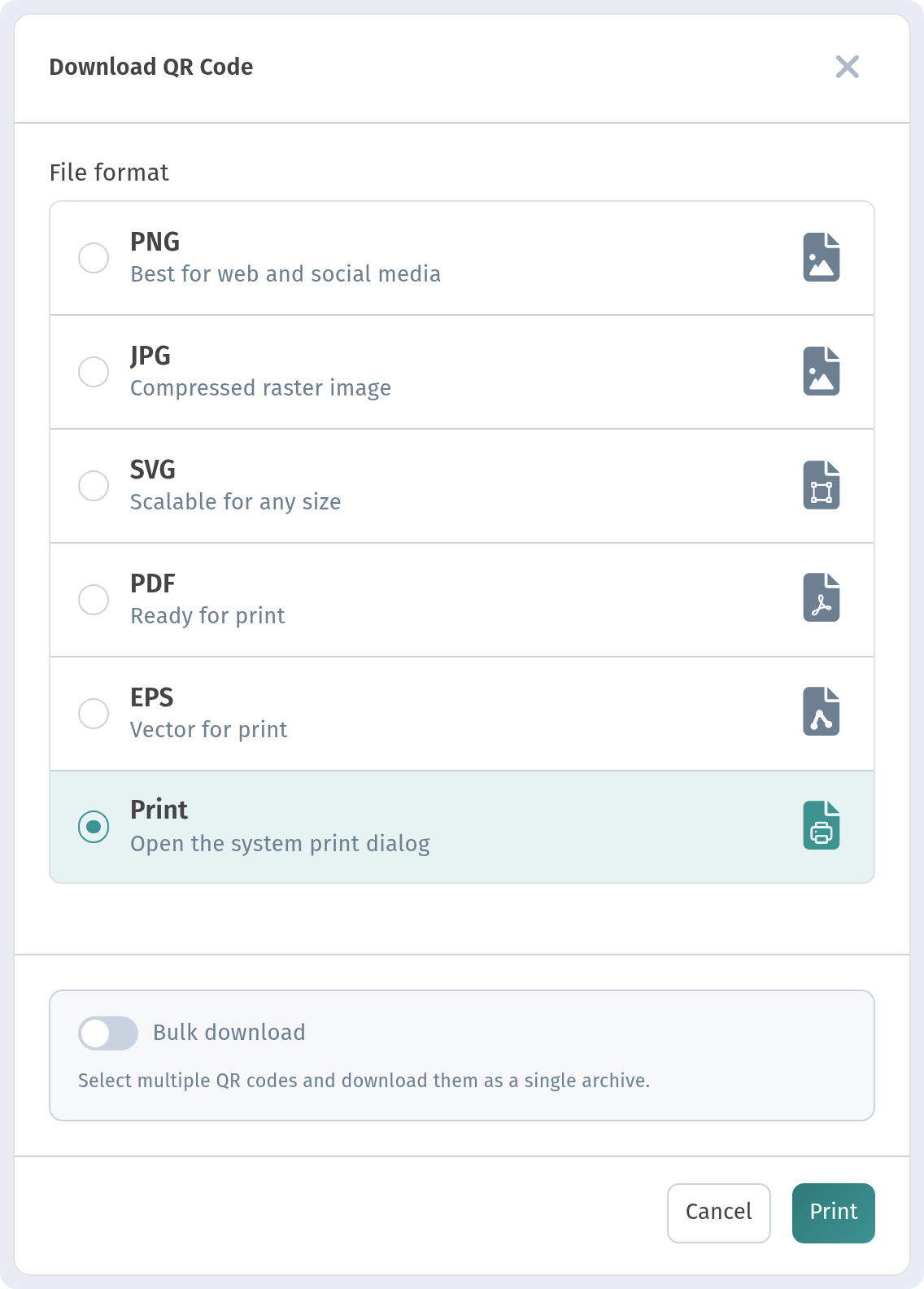
If you choose Print, you can send the code straight to a printer without saving a file.
Downloading QR codes for every table at once
You don't have to download codes one table at a time. On a table card, click Show QR → Download QR code, then turn on Bulk download in the dialog. Checkboxes appear on the cards, and you can tick the tables you need.
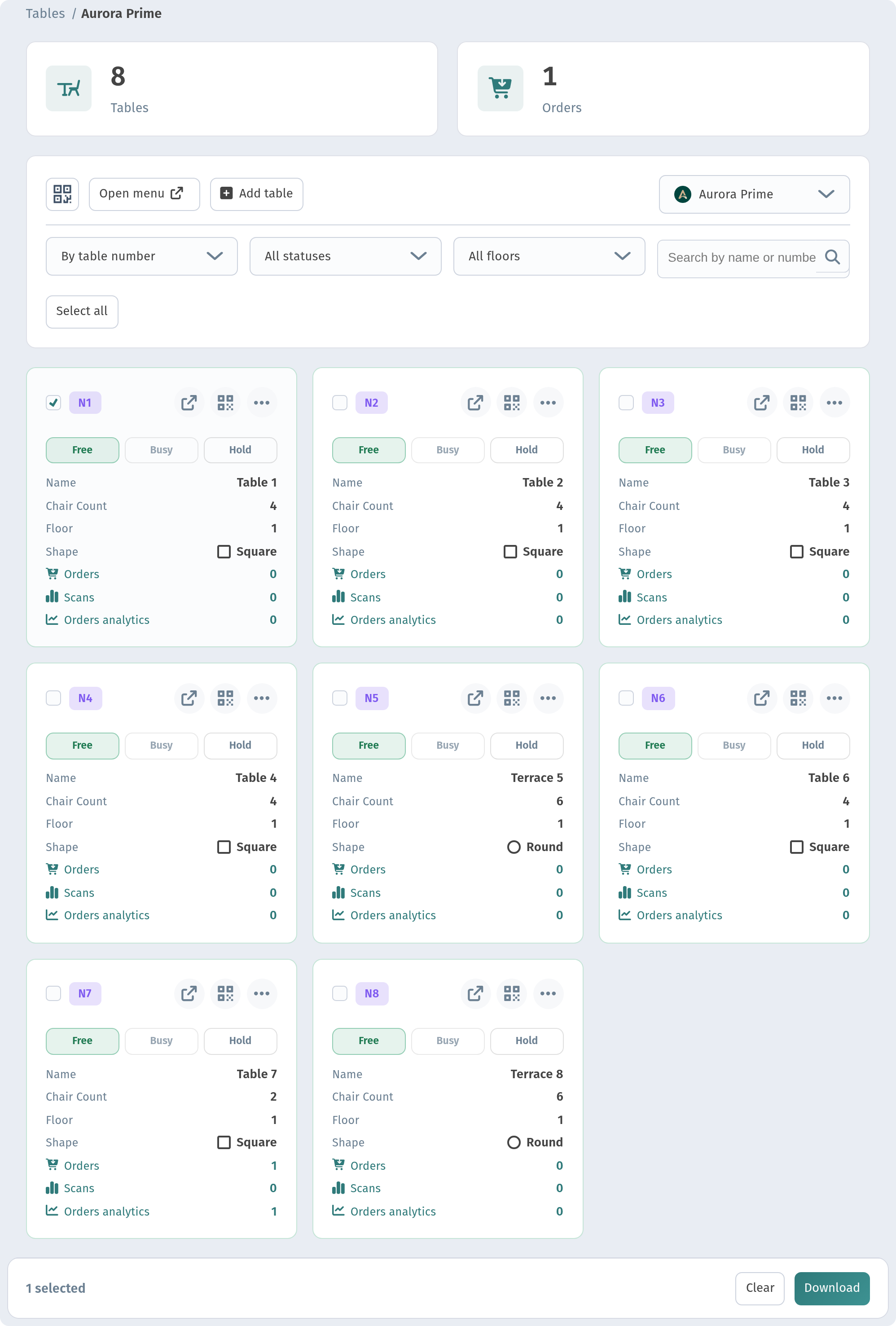
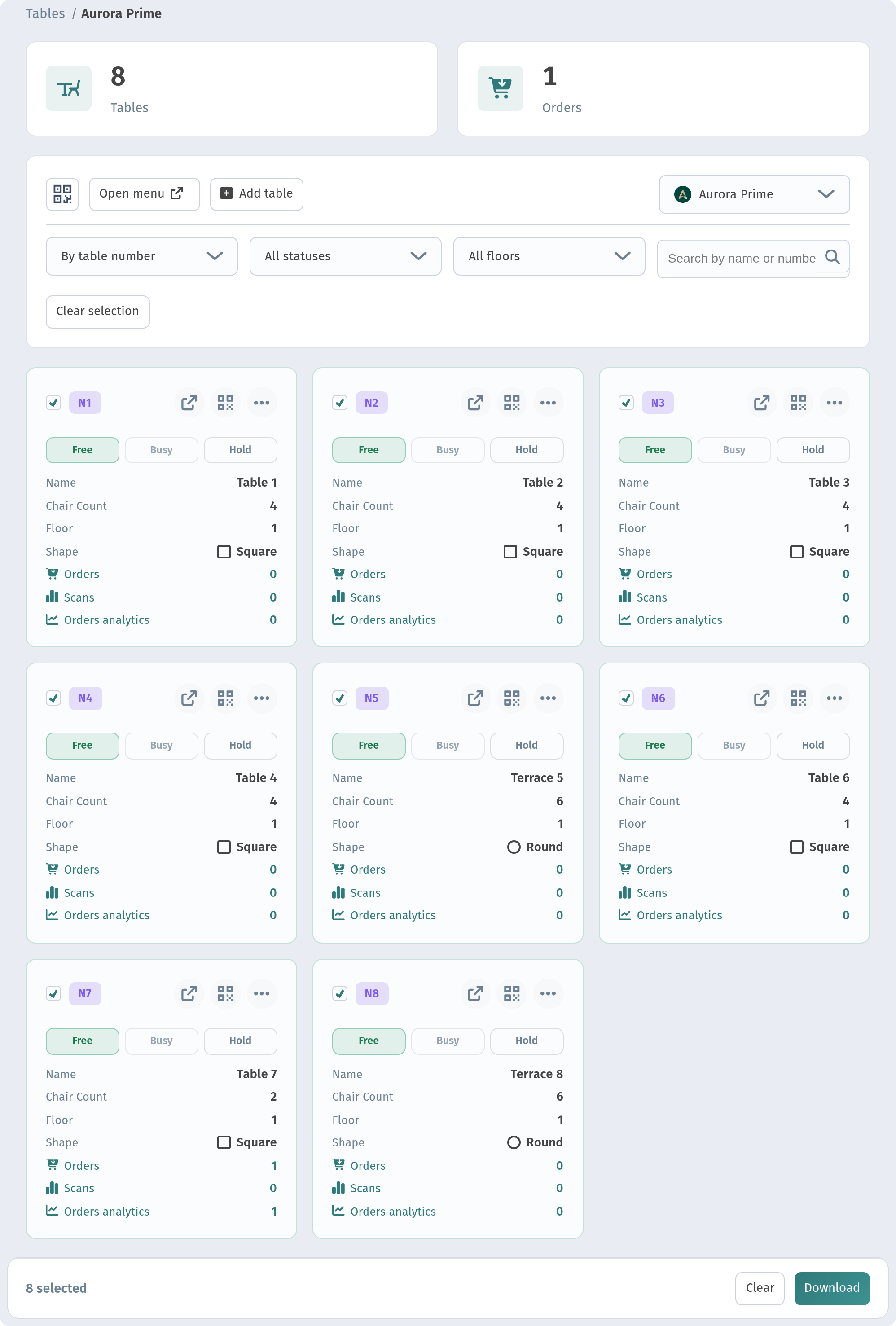
You can also select all tables at once. This is convenient when you are setting up a new venue.
Click Download and choose a format and a size. All the codes are downloaded together.
One QR design for the whole store
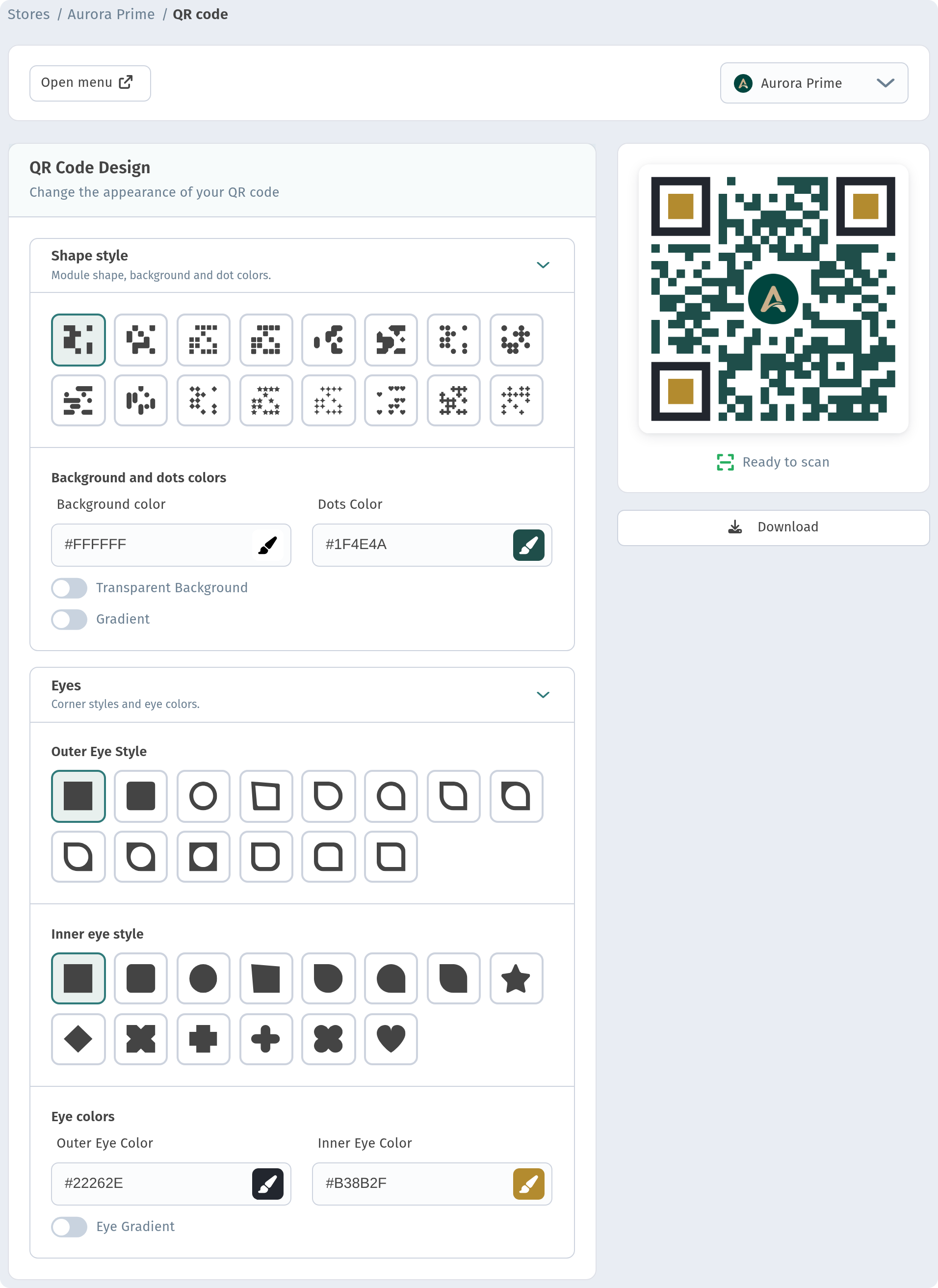
The colours, the dot and corner shapes and the logo are set once for the whole store. In our example the frame style is set to None, so every table gets a plain QR code with no frame or label around it. Every table code uses this design automatically. If you change the design, newly downloaded table codes will show the change. Our separate guide explains how to set up the design: How to design a QR code in WebQRMenu.
Short links
Each table also has its own short link, such as webqrmenu.io/hb70q6. It leads to the same place as that table's QR code. You can use it for online orders, on stickers, or to test the menu yourself. The open-link icon on the card takes you to it.
Conclusion
- Create your tables under Tables and give them names your staff will recognise.
- Download a QR code for each table, or all of them at once, in the format you need.
- Put the codes on the tables. Orders will arrive already tagged with the table number, and the statuses will show you the state of the room.