
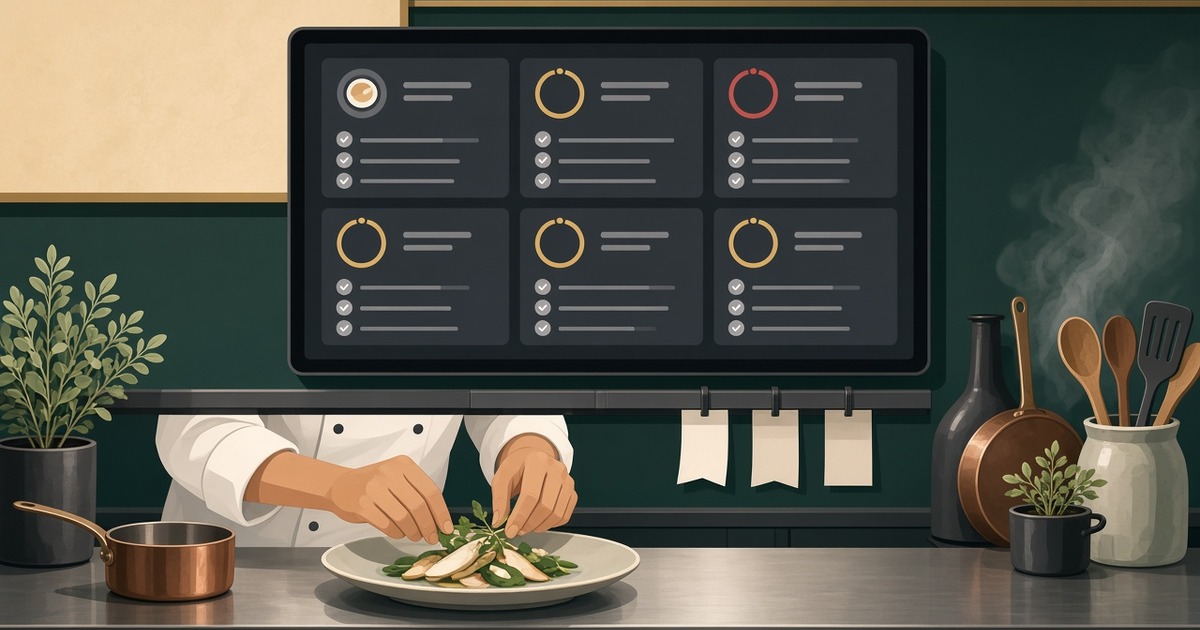
Kitchen line in WebQRMenu: the kitchen screen for QR orders
How the WebQRMenu Kitchen line works: order sections, cards with timers, Caution and Late thresholds, Hold and Recall, and screen settings.
When guests order from the QR menu, the kitchen needs to see those orders right away, know what to cook first and mark what is ready. That is what the Kitchen line is for: a live screen for the cooks or the bar that you can open on a tablet, a monitor or a laptop in the kitchen. This guide covers every part of it: the sections, the order cards, the timer, holding and recalling orders, full-screen mode and all the settings.
Opening the Kitchen line
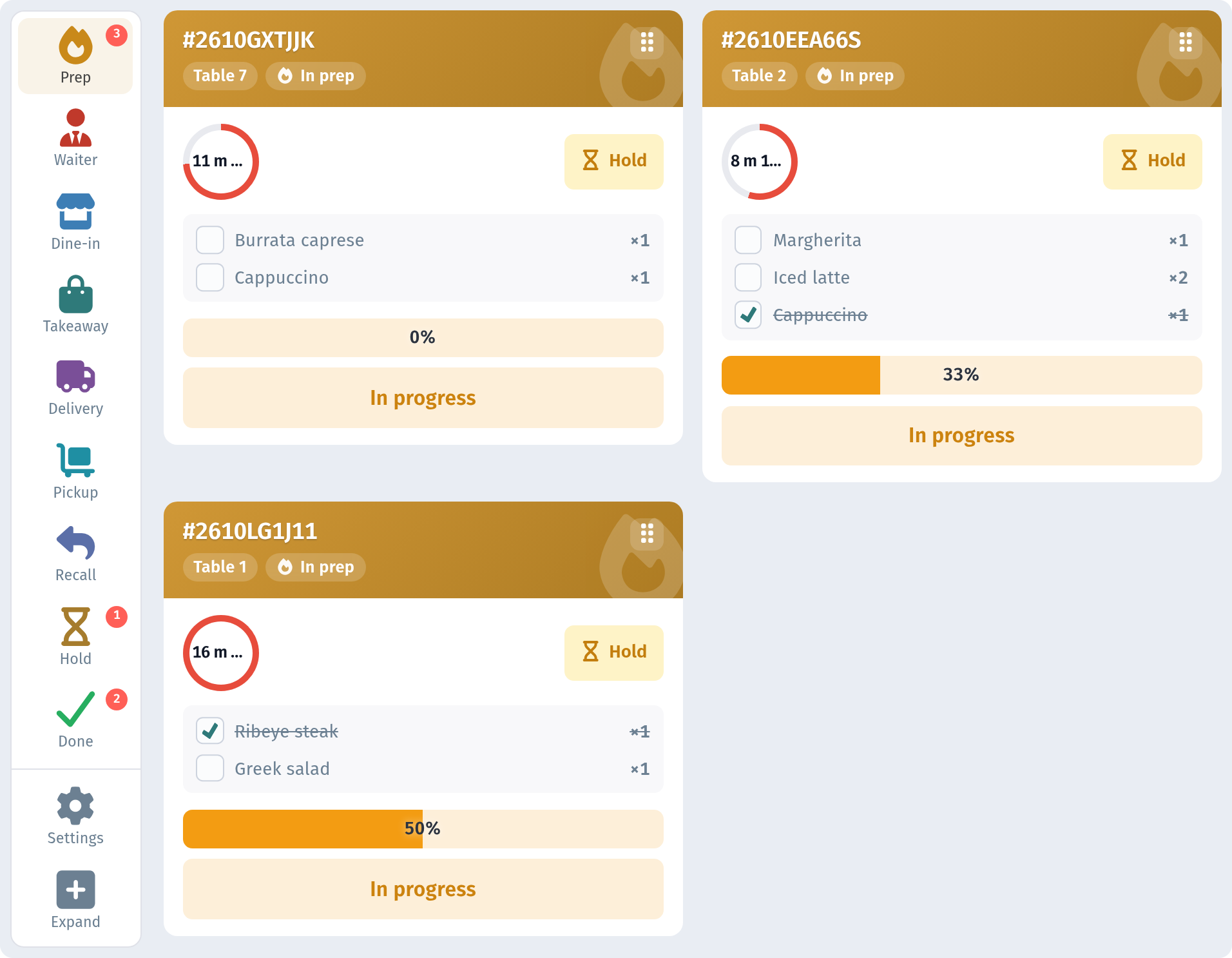
The Kitchen line is available on the Business and Enterprise plans. Open Kitchen line in the sidebar. On the left of the screen is a narrow rail with sections, and on the right are the order cards of the selected section. The store name sits at the top of the rail. Small red badges next to the sections show how many orders each one holds.
Sections on the rail
Each section is a ready-made filter, so the cook sees exactly the orders they need:
- Prep: orders that are being prepared right now. This is the main working section.
- Waiter: waiter calls from guests.
- Dine-in: orders for guests seated in the restaurant.
- Takeaway: orders that guests take with them.
- Delivery: orders that go out for delivery.
- Pickup: orders that guests collect themselves.
- Recall: orders that were brought back to work from Done.
- Hold: orders that are paused for now.
- Done: finished orders.
At the bottom of the rail are two more buttons: Settings opens the screen settings, and Expand switches to full-screen mode. Both are described below.
The order type sections (Dine-in, Takeaway, Delivery and Pickup) are handy when different people handle different flows. For example, one person packs takeaway and pickup orders while the rest of the kitchen works through the whole Prep list.
What an order card shows
Every order is a separate card:
- Header: the order number and badges. For orders placed at a table, there is a table badge such as Table 1, plus the current status, for example In prep.
- Timer: a ring on the left that shows how long the order has been cooking.
- Hold: a button that puts the order on pause.
- Items: each dish with its quantity (×1, ×2…) and a checkbox.
- Progress: a bar with a percentage that shows how much of the order is ready.
A new order has a Start button. When the cook takes the order, they tap Start: the timer starts and the button changes to In progress. As each dish is ready, the cook ticks its checkbox. The dish is crossed out and the progress bar grows, so everyone near the screen can see how far along the order is.
The timer: Caution and Late
The ring counts the minutes since Start. Until the order is started, it shows zero.
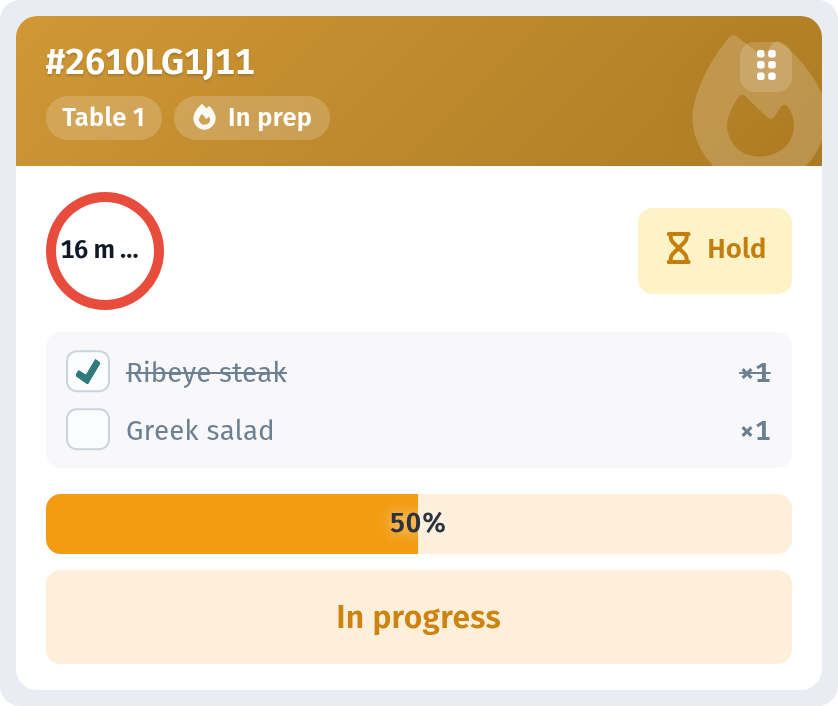
Every order type has two thresholds in the store settings: Caution and Late. As the time passes the first threshold and then the second, the timer looks more and more urgent. The cook does not need to read the numbers on each card: orders that are running late stand out on the screen at a glance.
Here is an order that has already passed the Late threshold:
And here is an order in the Caution zone. It has passed the first threshold but is not late yet:
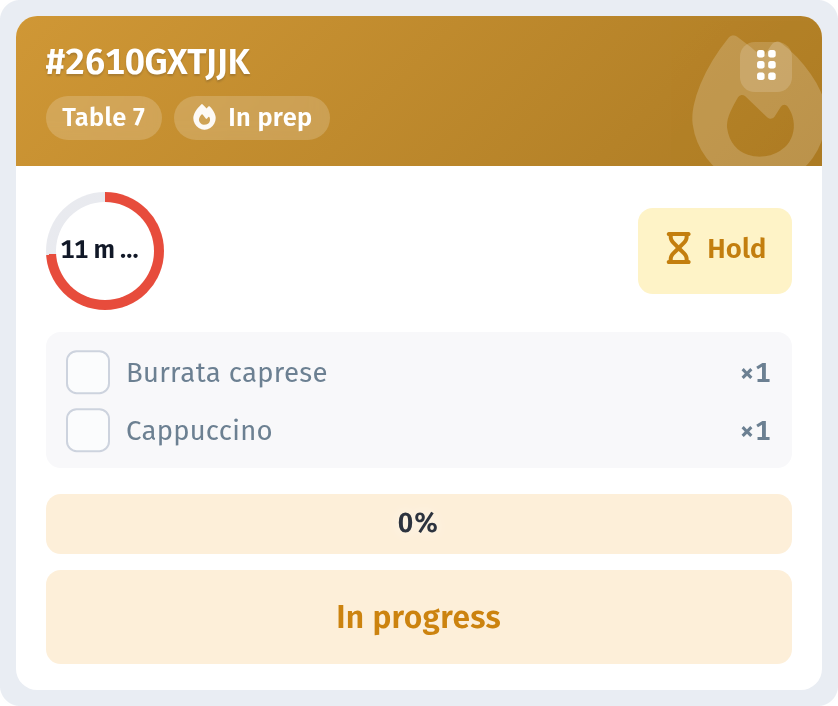
By default Caution is 5 minutes and Late is 10 minutes. You can change both for each order type; see "Caution and Late thresholds" below.
Hold and Resume
Sometimes an order has to wait: the guest has not arrived yet, or the table asked to bring the dishes later. Tap Hold on the card. The order leaves the working list and moves to the Hold section with the status On hold. The card shows the reason, so the whole shift knows why the order is waiting.
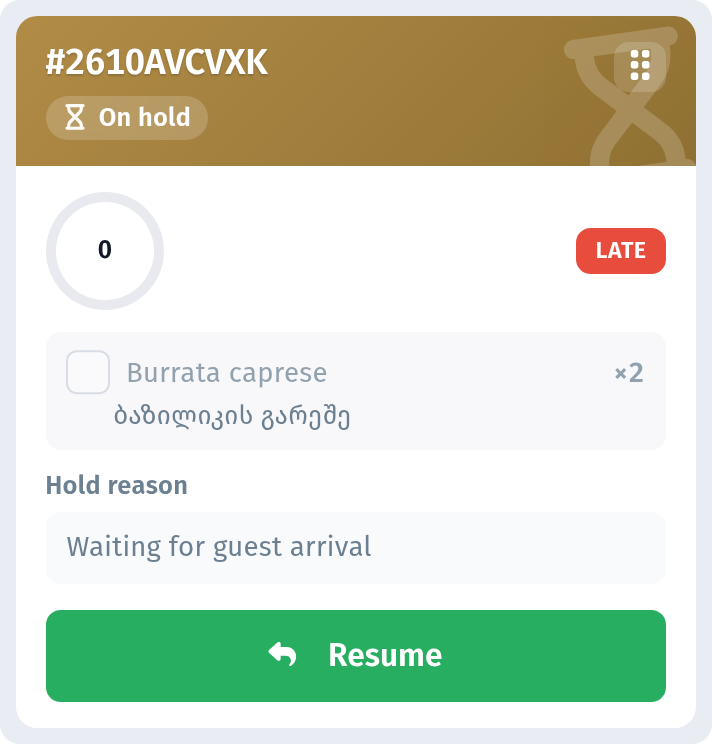
When it is time to continue, open Hold and tap Resume. The order returns to work.
Done and Recall
Finished orders go to the Done section. All their dishes are crossed out and the progress bar is full, so it is easy to check what has already gone out.
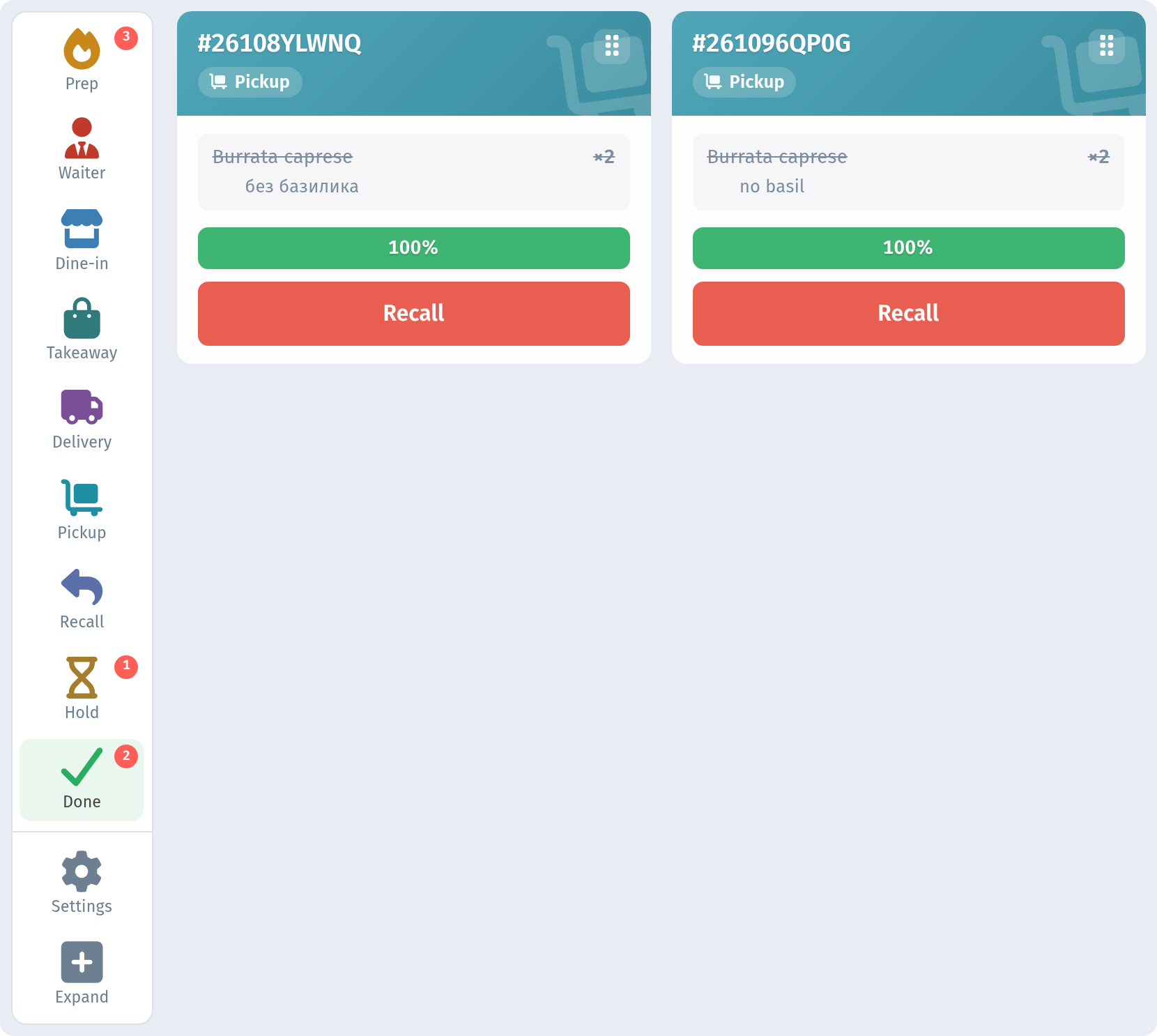
If an order was closed by mistake, or the guest asks to remake a dish, tap Recall on its card. The order goes back to work and appears in the Recall section, so it does not get lost among new orders.
Expand mode
On a kitchen monitor, every centimetre of the screen matters. Tap Expand at the bottom of the rail. The cabinet sidebar and the top bar disappear, and the cards take up the whole width of the screen, so many more orders fit side by side in a single row. The rail with the sections stays, so you can still switch between Prep, Hold, Done and the rest.
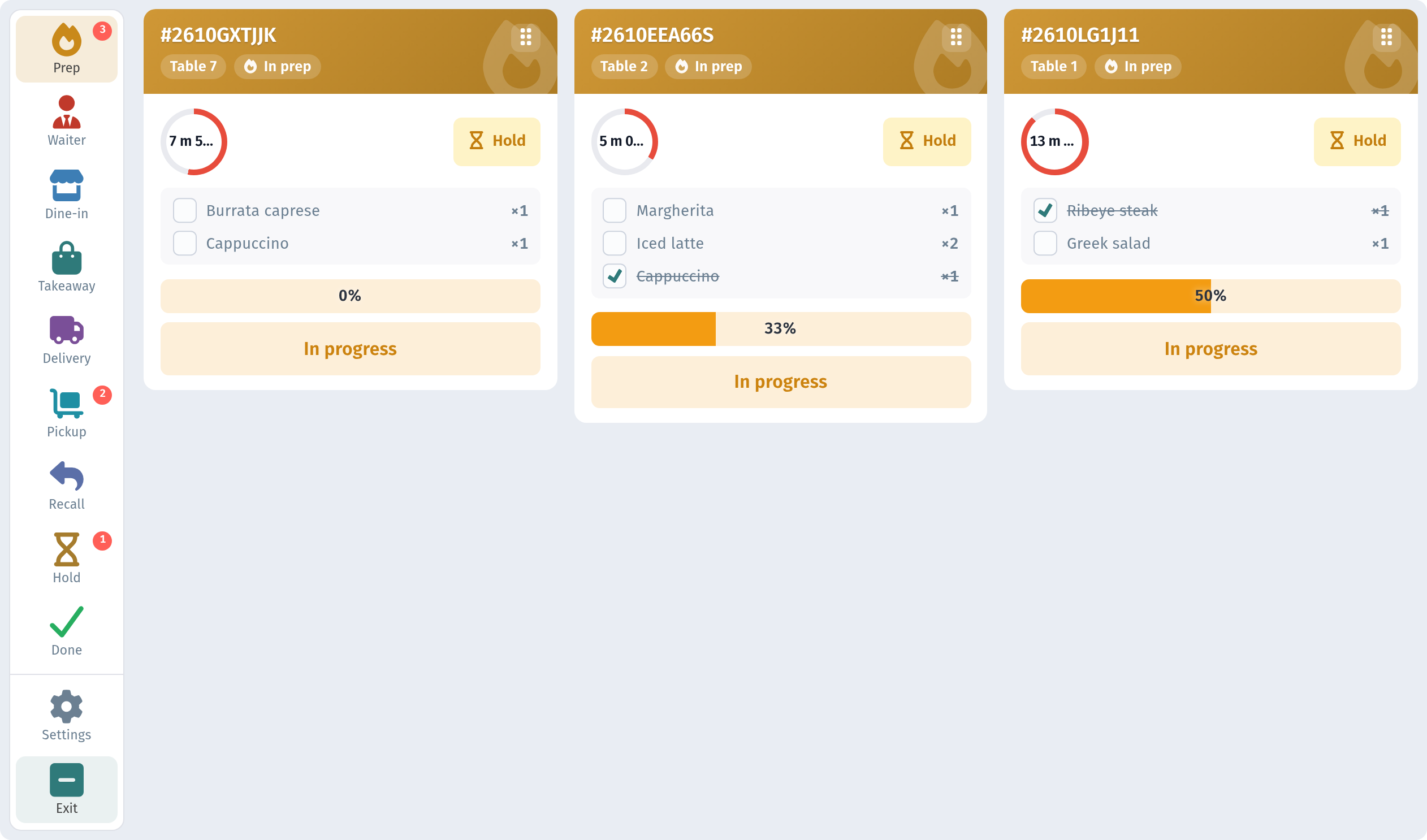
To leave this mode, tap Exit at the bottom of the rail or press Esc on the keyboard.
Screen settings
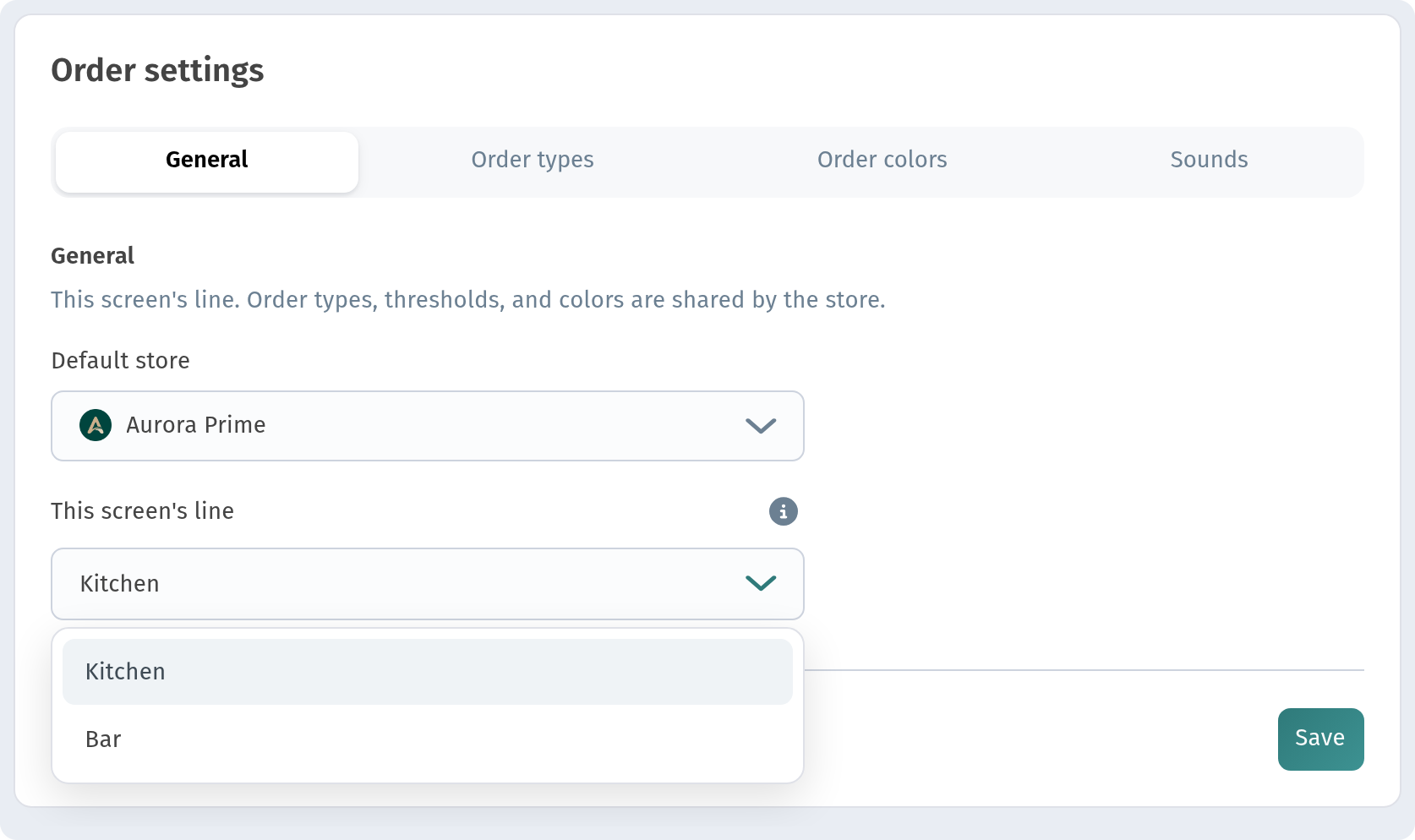
Tap Settings on the rail. The Order settings panel opens with four tabs: General, Order types, Order colors and Sounds.
General
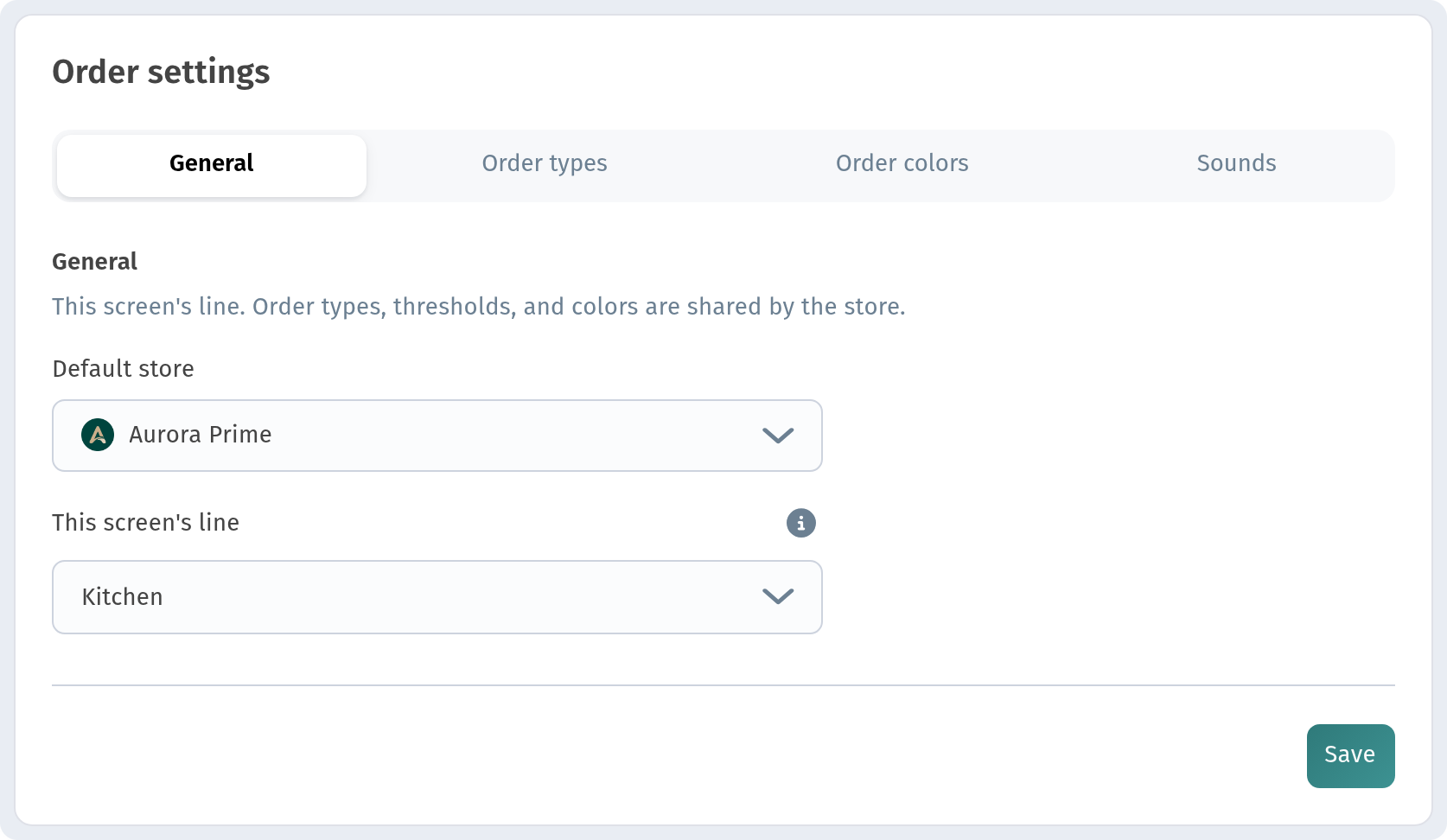
- Default store: the store whose orders this screen shows.
- This screen's line: Kitchen or Bar.
The line is chosen separately on each device. This lets you put one screen in the kitchen and another at the bar: each shows its own line, and the cooks and bartenders do not get in each other's way. Order types, thresholds and colours, on the other hand, are shared by the whole store.
Order types
This tab chooses which order types this particular screen shows. A type that is switched off does not appear on this screen and does not play sounds here. At least one type always stays on.
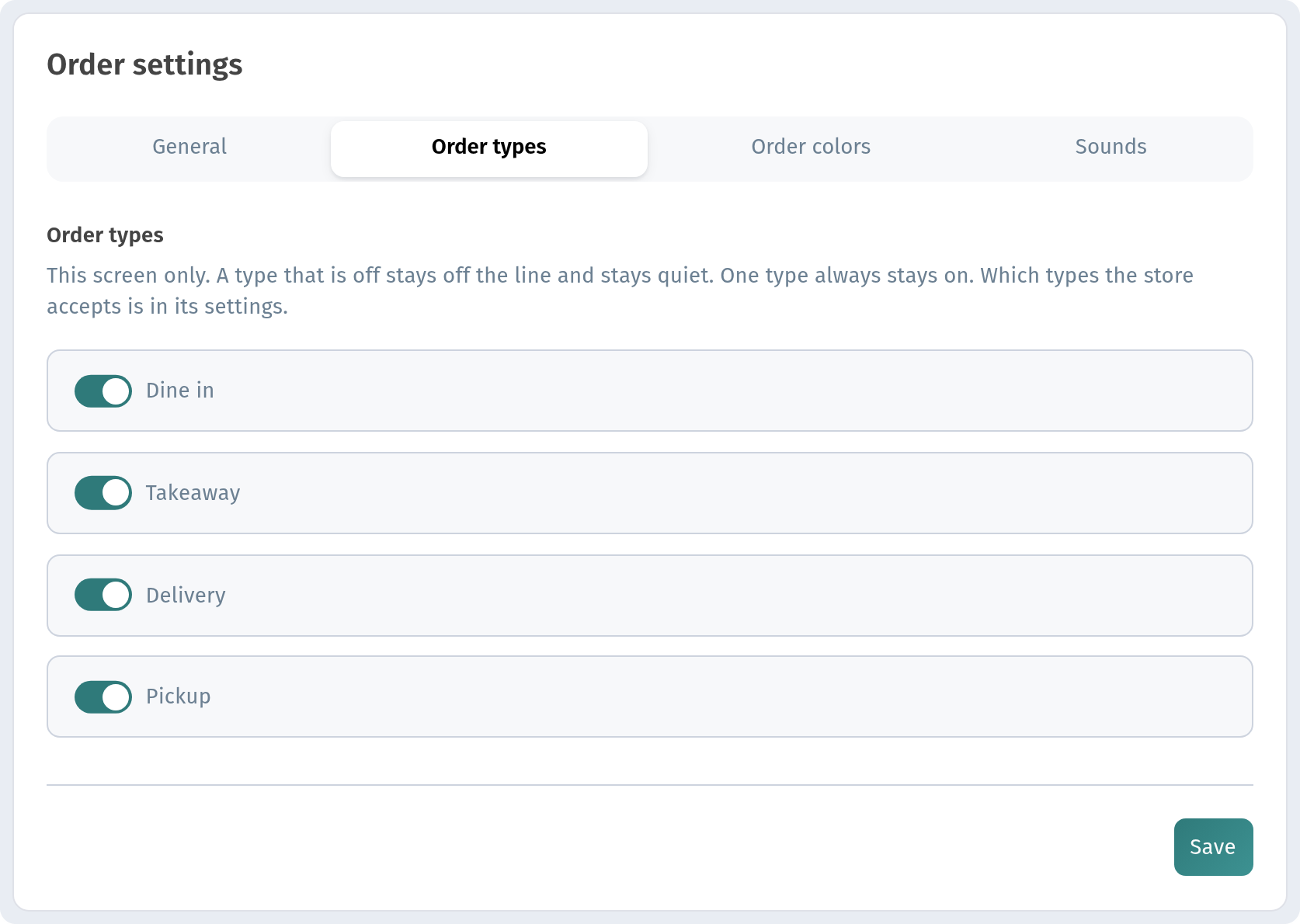
These switches only change what this screen shows. Which order types the store accepts at all is set in the store settings.
Order colors
Colours help the kitchen tell orders apart at a glance: they are used for badges and card accents on every screen. These colours are shared by the whole store, so if you change one, it changes on all the store's screens.
The list includes In prep, Bar, Waiter call, In restaurant, Takeaway, Delivery, Pickup, Recall, On hold and Completed. Each one has a field with a hex code (for example, In prep is #C9891A) and a button with a brush.
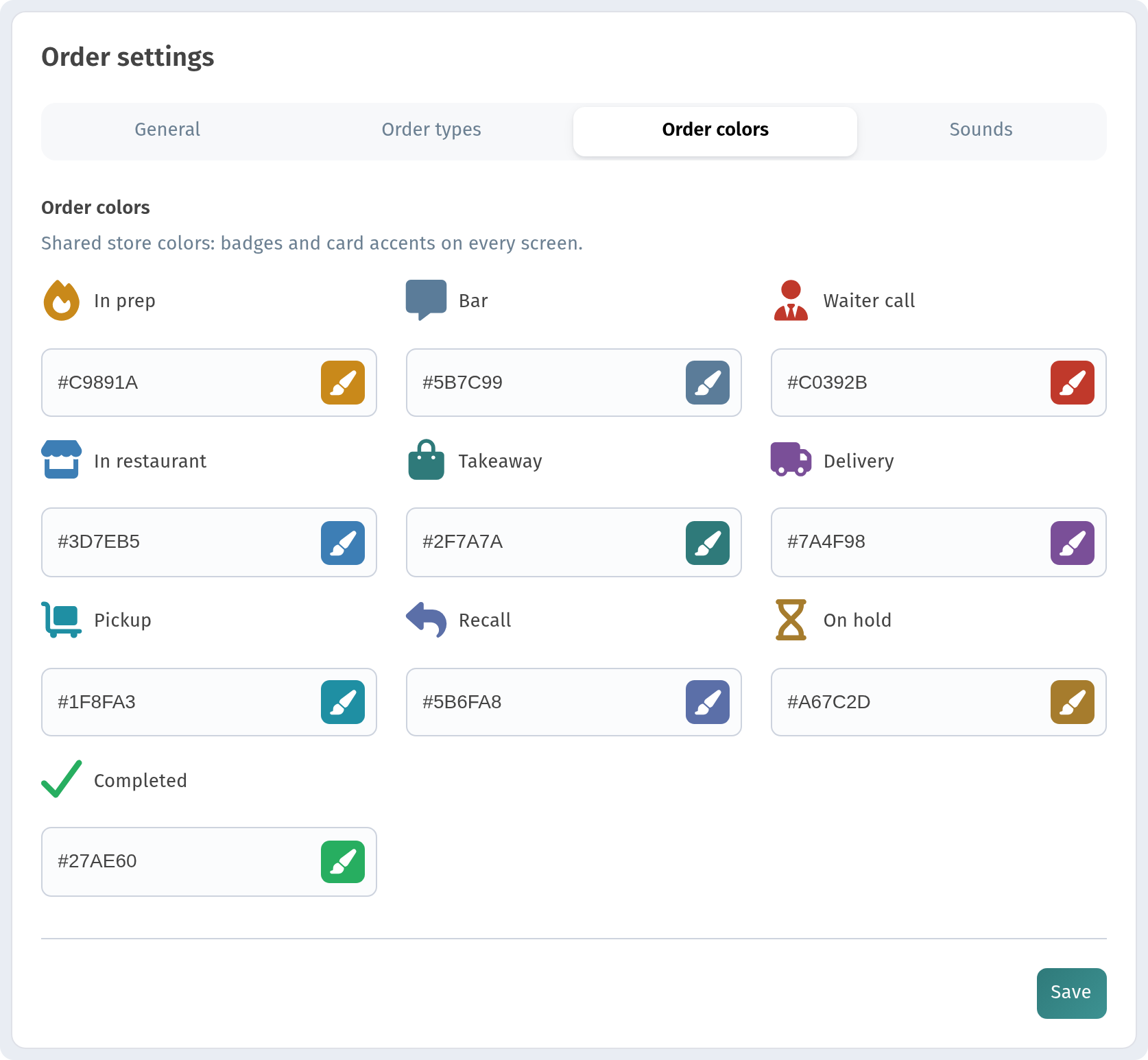
You can type a hex code or click the brush button and pick a colour in the palette.
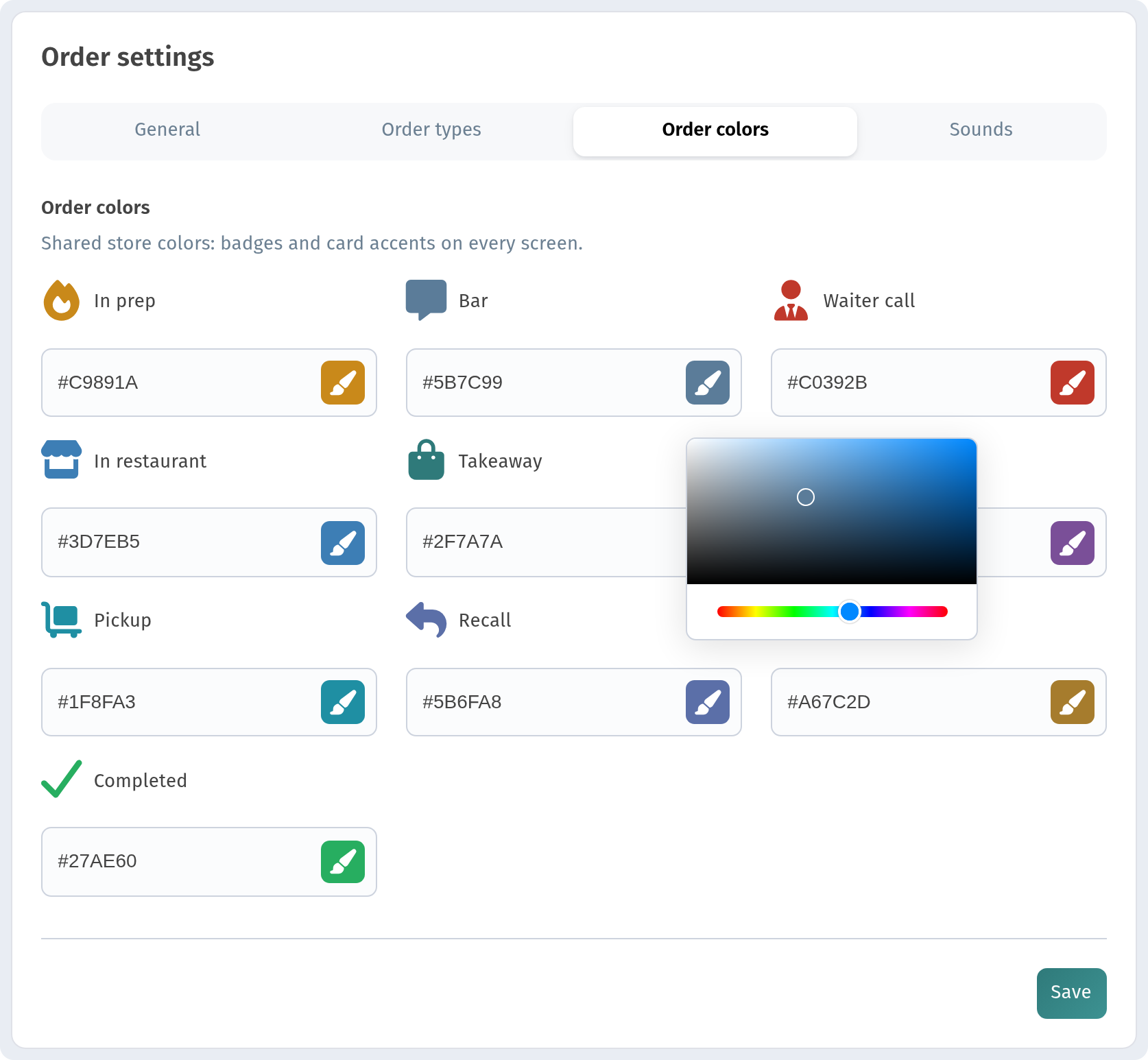
Tip: keep colours that are easy to tell apart, especially for Takeaway, Delivery and Pickup. In a busy kitchen it is the colour, not the text, that people notice first.
Sounds
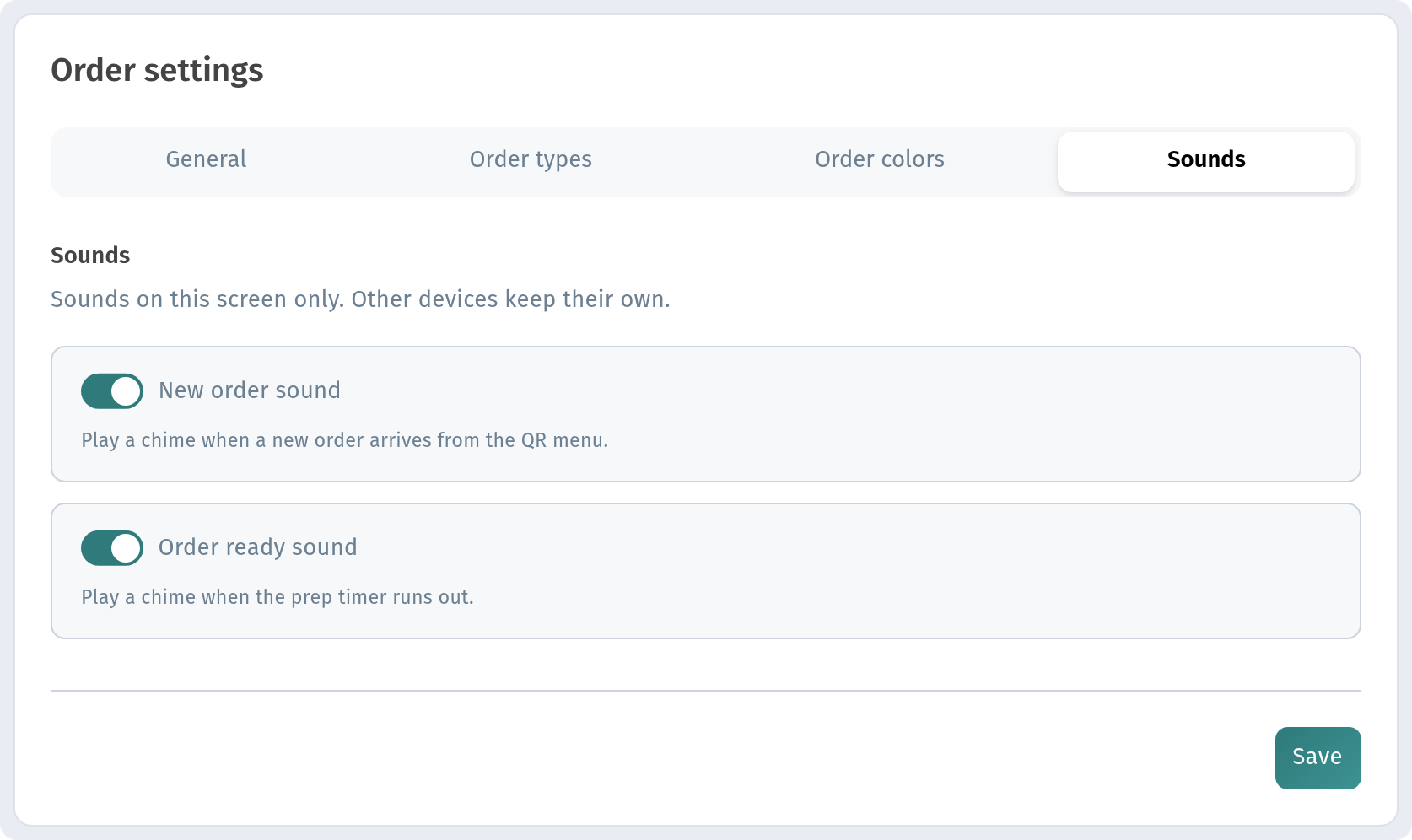
- New order sound: a chime when a new order arrives from the QR menu.
- Order ready sound: a chime when the prep timer runs out.
Sounds are set separately on each device. You can turn the sound on for the main kitchen screen and keep a quieter screen at the bar.
Remember to click Save after changing settings on any of the tabs.
Caution and Late thresholds
The thresholds that control how urgent the timer looks are set for the whole store. Go to Stores, open the store and go to the Settings tab. Expand Order types.
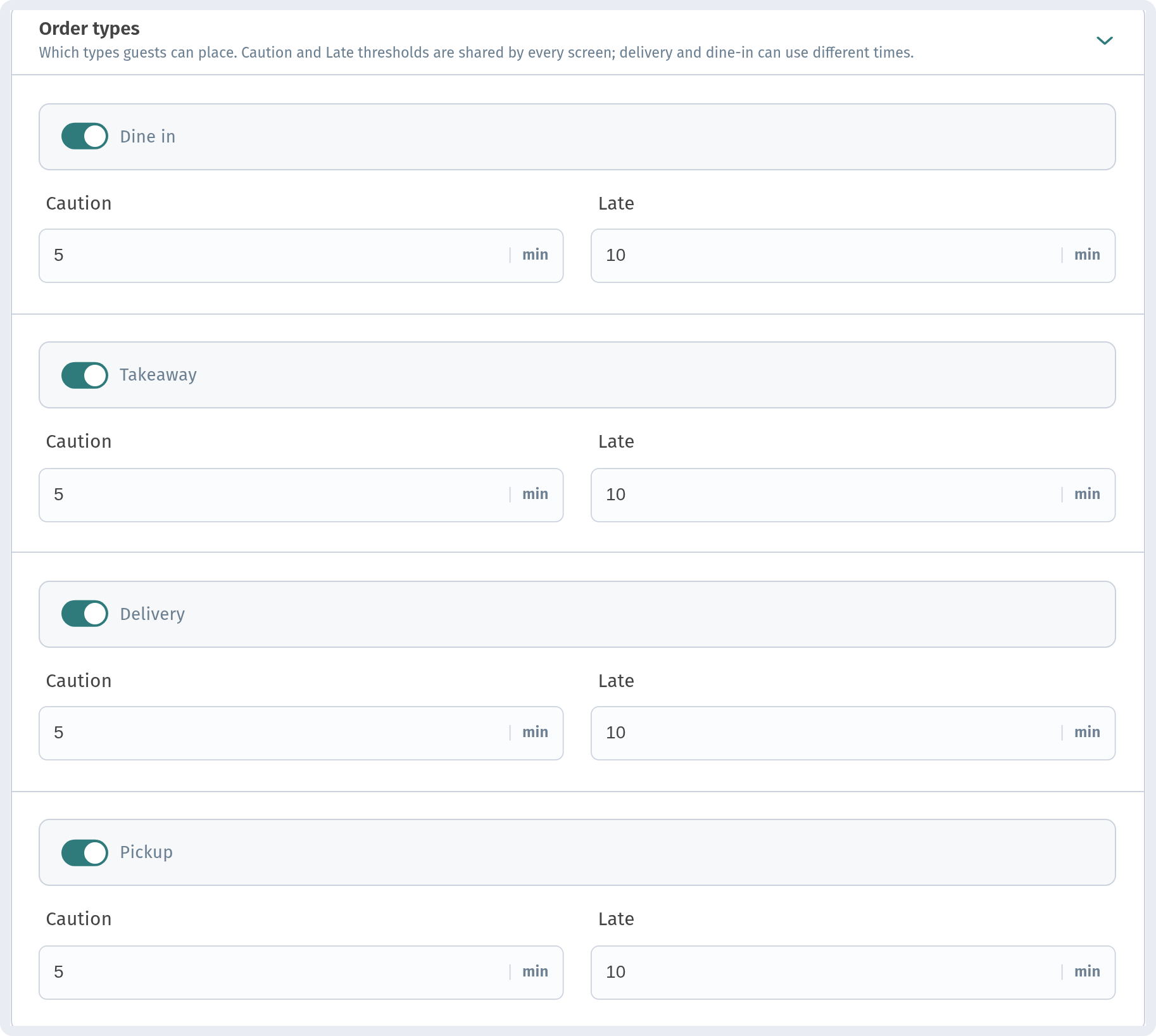
Each order type (Dine in, Takeaway, Delivery, Pickup) has its own switch, which decides whether guests can place that type of order, and two fields in minutes:
- Caution: after this many minutes, the order is considered to need attention.
- Late: after this many minutes, the order is considered late.
The defaults are 5 and 10 minutes. The thresholds apply to every screen of the store, and different types can have different times. For example, you might give dine-in orders less time and delivery orders a bit more.
Push notifications about new orders
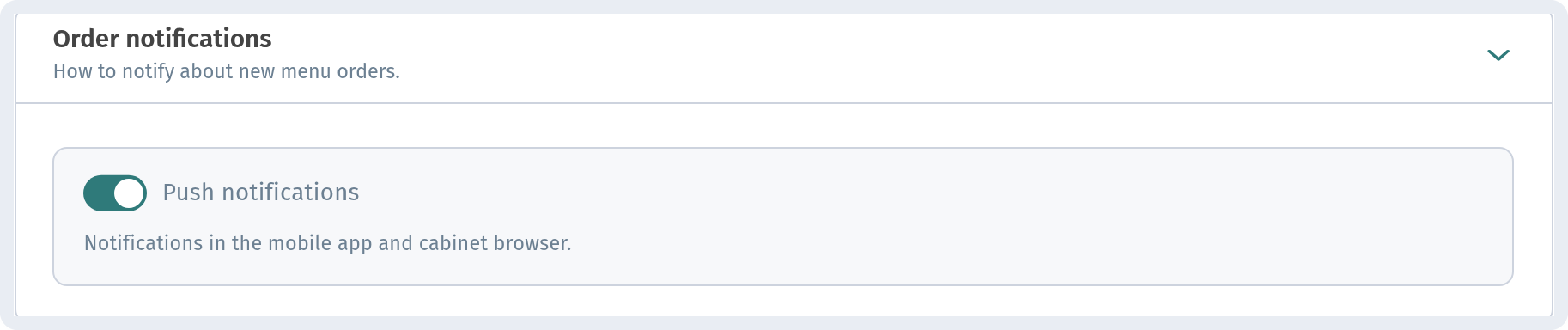
To make sure no order is missed even when nobody is looking at the Kitchen line, check notifications. In the same store Settings, expand Order notifications and turn on Push notifications. Notifications come to the mobile app and to the cabinet in the browser.
Tips for a smooth shift
- Put the screen where the cooks can see it without leaving their station, and switch on Expand mode.
- Tap Start as soon as you take an order: the timer counts from that moment, and Caution and Late only work properly if orders are started on time.
- Tick each dish as soon as it is ready. Then the waiter and the other cooks can see the progress without asking.
- Use Hold instead of leaving an order untouched in the list. This keeps Prep clean, and the reason is right on the card.
- Set Caution and Late to match your real cooking times. Thresholds that are too tight make every card look urgent, and thresholds that are too loose hide real delays.
- If the kitchen and the bar have separate screens, set This screen's line on each device and turn on the sounds where they are needed.