
10 reasons guests don't use your QR menu, and how to fix each one
Why guests ignore the QR code on the table and ask for a paper menu: a small or low-contrast code, no call to action, the wrong spot, a slow or endless menu, no photos, the wrong language, no prices or sizes, no way to order or call a waiter, an outdated menu. Ten reasons, each with a concrete fix in WebQRMenu and screenshots.
You've set up a QR menu, printed the table cards, and still half the tables ask the waiter for "the normal menu". It's rarely about guests being old-fashioned. Usually something on the way from the table card to the dish gets in the way: the code doesn't scan, the guest doesn't realise what it's for, the menu takes forever to load, or it opens in a language they can't read.
The good news is that almost every one of these problems takes minutes to fix. Below are the ten most common reasons guests skip the QR menu, and for each one, what to change in WebQRMenu. The screenshots come from our demo restaurant, Aurora Prime.
In short: make the code big, dark-on-light and frame-free; put a clear call to action next to it; place a code on every table, not only at the entrance; keep the menu light, sorted into sections and searchable; add photos, translations, prices and sizes; let guests order and call a waiter from their phone; and keep the stop-list up to date.
1. The QR code is too small or low-contrast
If a guest has to lean over the table, move their phone back and forth and wait for the camera to focus, most will give up after the second try. The usual culprits are a code that's too small, light dots on a light background, a busy gradient, or a code printed on glossy paper that catches the lamp.
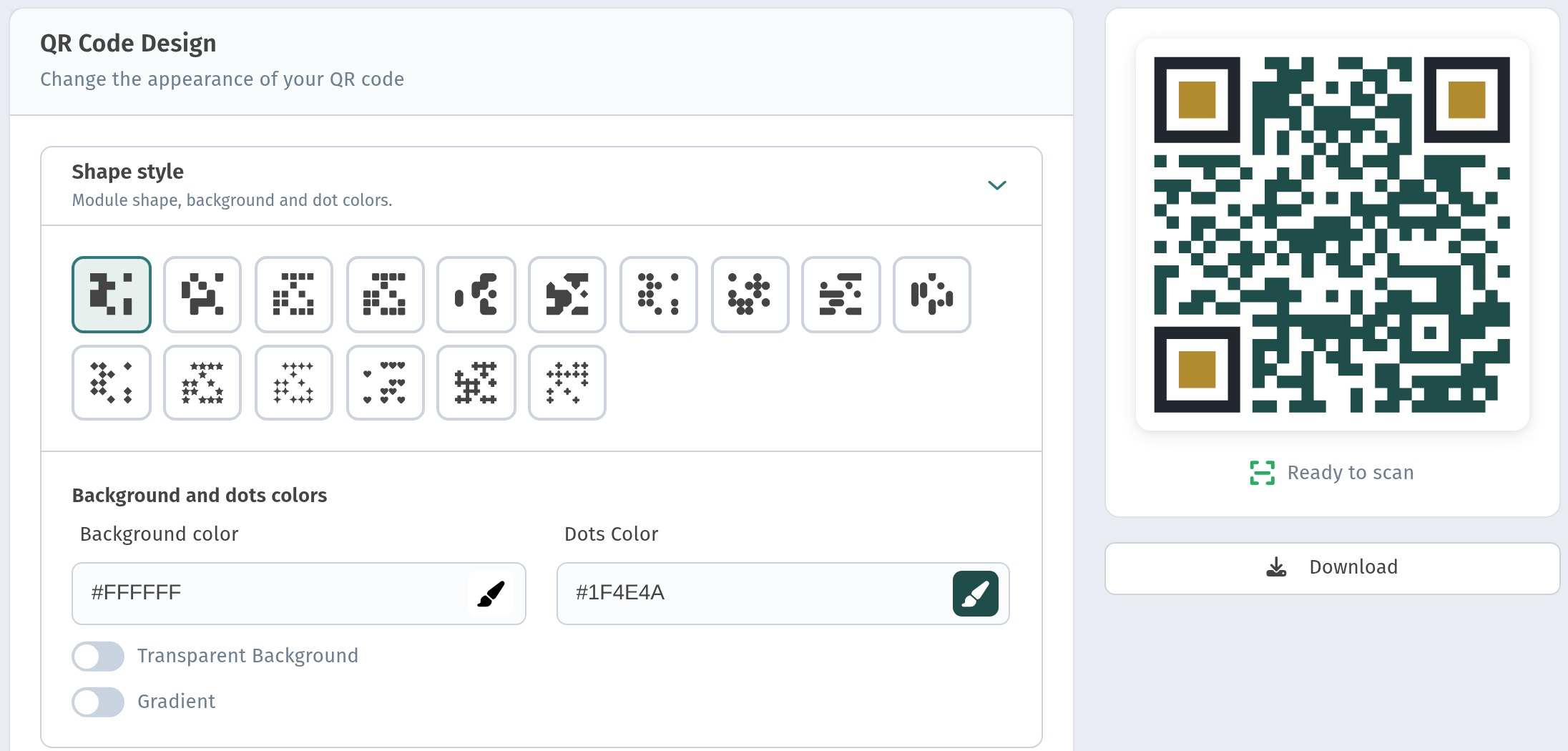
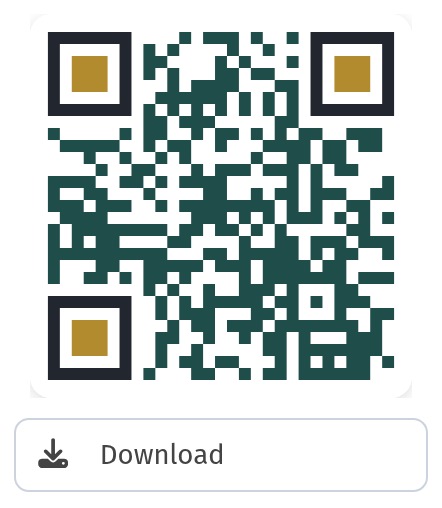
How to fix it in WebQRMenu. Open the store's QR code design: in the store overview, click the QR button next to Open menu and choose Edit. In Shape style, keep a simple dot shape, and in Background and dots colors use dark dots on a white background. For Aurora Prime we use dark green dots (#1F4E4A) on white, dark graphite outer eyes (#22262E) and calm gold inner eyes (#B38B2F), with no frame. The preview on the right shows Ready to scan when the code is easy to read.
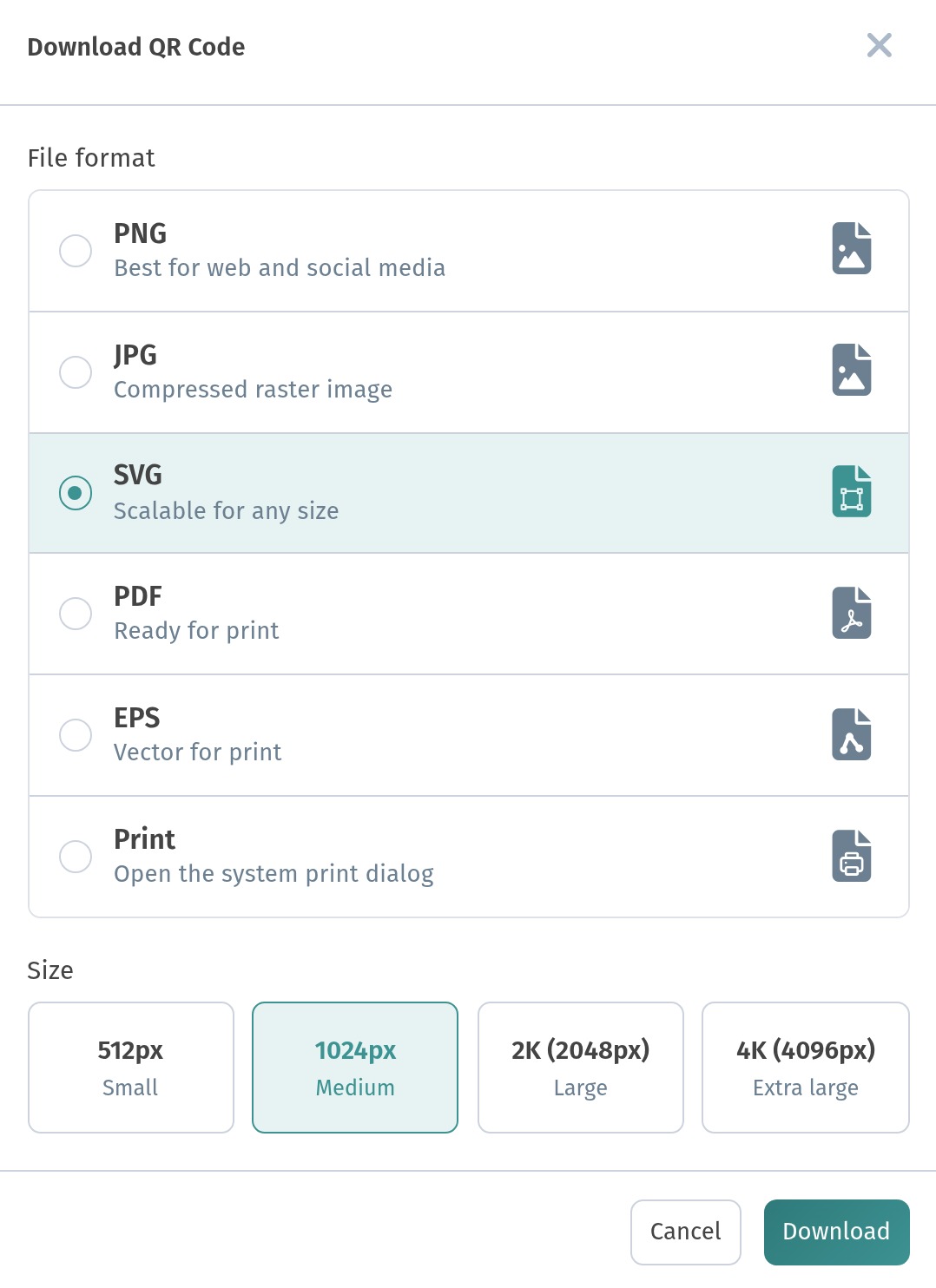
Then click Download and pick a format for print. SVG, PDF and EPS are vector formats, so they stay sharp at any size; if your print shop needs a raster image, take PNG at 4K (4096px).
Rules of thumb for print:
- At least 3 × 3 cm on a table card, larger on a poster or at the entrance;
- dark on light, never the other way round, and no pale colours for the dots;
- a white margin around the code, so it doesn't merge with the card design;
- matte paper or a matte laminate, so the lamp doesn't create a glare spot.
Every design setting, from dot shapes to logos, is covered in How to design a QR code in WebQRMenu.
2. There's no call to action next to it
A bare black-and-white square on the table says nothing. Some guests think it's for Wi-Fi, some for payment, some for a loyalty programme. If the guest doesn't know what's behind the code, they won't scan it.
How to fix it. Put a short, clear line right next to the code on the table tent or sticker itself: "Scan for the menu and order from your phone". A few things that help:
- say what happens: "Menu", "Menu and ordering", "Menu, waiter call and bill";
- say it in your guests' languages: in Georgia, for example, a line in Georgian and in English;
- mention that there's no app: "Opens in your phone's camera, no app needed";
- a small icon of a phone camera next to the code.
The staff are part of the call to action too. When a waiter greets the table, one phrase is enough: "The menu is on the QR code, and you can call me from there too."
3. The QR code is in the wrong spot
A single code at the entrance or on the counter means the guest has to get up, find it, scan it and remember it. Codes under a vase, at the edge of a long table or on the side of a napkin holder facing the wall don't get scanned either.
How to fix it in WebQRMenu. Put a code on every table. In Tables, every table has its own QR code: the QR button on the table's card opens it, and Download saves it for print. A table code opens the same menu, but orders and waiter calls from it arrive with the table number.
Where codes work best: in the middle of the table at eye level when seated, on a stand or a tent card, plus one large code at the entrance for guests who are still deciding, and one at the bar. How to choose spots and sizes is described in Where to place QR codes in a restaurant or cafe, and table codes in detail in Tables and a separate QR code for every table.
4. The menu opens slowly or is too heavy
The guest scanned the code, and then a white screen for five seconds, or a request to install an app, or a 20 MB PDF. That's where many guests put the phone down and wave to the waiter.
How to fix it in WebQRMenu. A WebQRMenu menu is a web page: it opens straight in the phone's browser from the camera, with no app and no PDF. The guest sees the venue name, the search, the language switch and the menu button right away.
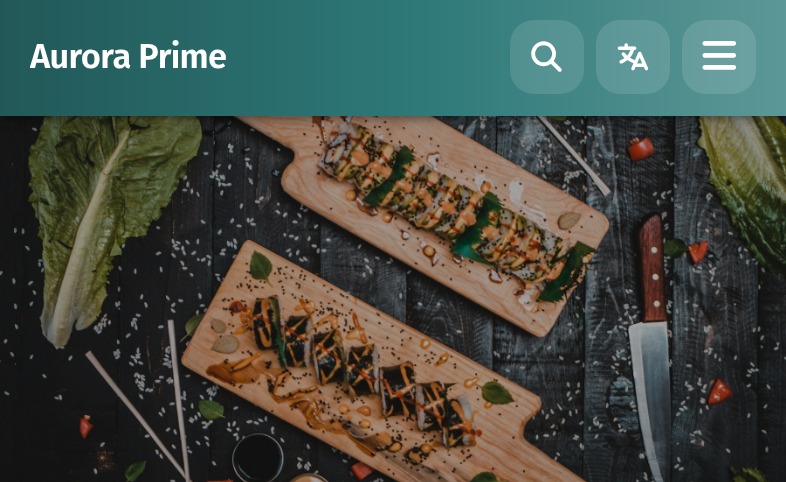
What you can do on your side:
- don't upload huge photos: a dish photo doesn't need to be 8000 px wide; a normal well-lit photo, cropped to 4:3, is enough;
- one cover image at the top, not a slideshow;
- check the menu on mobile data, not only on the restaurant's Wi-Fi, and on an older phone;
- give guests your Wi-Fi on the table card if mobile coverage in the hall is weak.
5. The menu is too long or has no structure
Sixty dishes in one long list, with the desserts somewhere between the salads and the soups, is hard to read even on paper. On a phone screen it's worse: the guest scrolls, loses their place and gives up.
How to fix it in WebQRMenu. Split the menu into sections: starters, salads, mains, desserts, drinks. In the guest menu, sections become category chips at the top, so the guest can jump straight to what they want. And for guests who already know what they want, there's search: they tap the magnifier, type "pizza" and see how many dishes match, with the matching dishes right below.
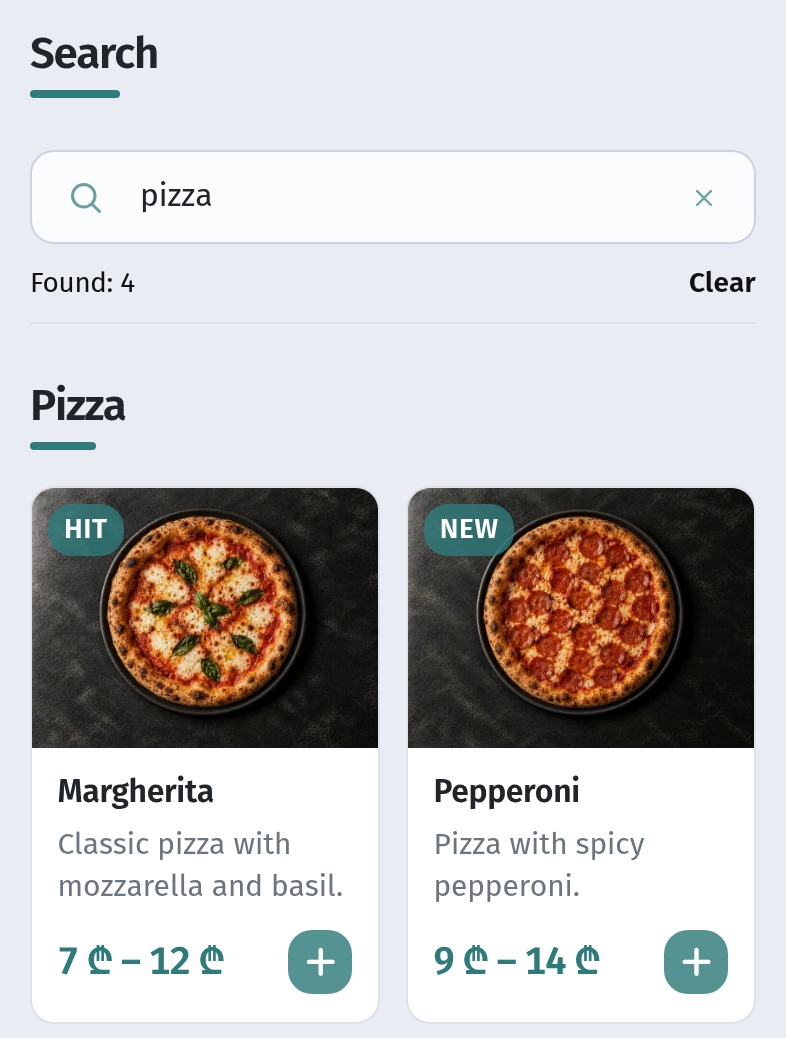
A few rules:
- 8–10 dishes per section at most; if a section is longer, split it;
- section order follows the meal: starters, mains, desserts, drinks; a coffee shop starts with coffee;
- short dish names, with the details in the description and the card.
How to add a new section is shown in Updating your menu without reprinting.
6. There are no photos
A list of names without pictures is a paper menu on a small screen. The guest has to imagine what "Napoleon cake" looks like at your place, and asks the waiter instead.
How to fix it in WebQRMenu. Give every dish a photo. In the guest menu, each section is a grid of tiles with a photo, the name, a short description and the price, and the HIT and NEW badges sit right on the photo. This is the desserts section of Aurora Prime:
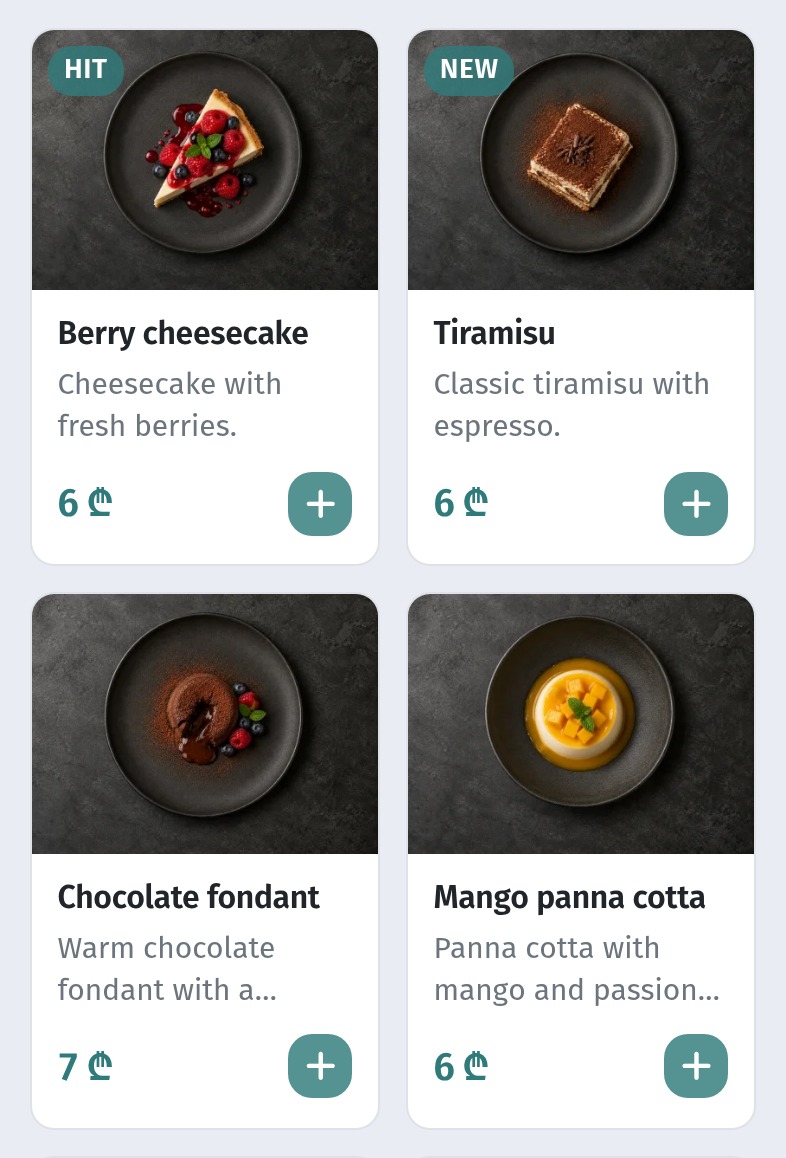
What matters is consistency: the same background, the same light and the same angle for the whole section. One dish without a photo stands out next to the others and looks unfinished. How to shoot and upload dish photos is described in Dish photos in WebQRMenu.
7. The menu is in the wrong language
A tourist scans the code and sees text they can't read. Even with a phone translator, it's easier to ask for an English paper menu, if you have one.
How to fix it in WebQRMenu. Add translations, and guests switch the language themselves: the language button at the top of the menu opens the list of your menu's languages.
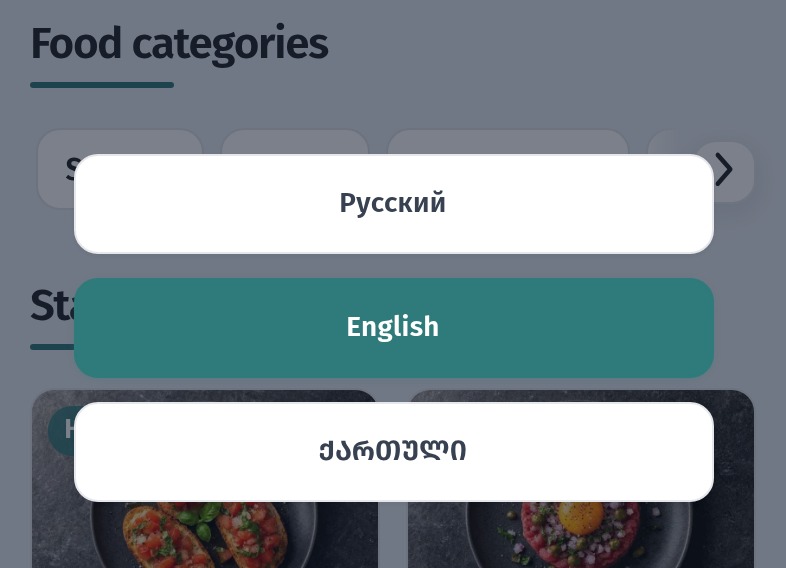
Once a guest picks a language, dish names, descriptions, ingredients and the interface switch to it. Every card in the screenshots in this article is in the language of the article, from the same menu. How to set the base language, turn on translations and fill them in is described in A menu in three languages.
Two tips: translate everything the guest reads, not only the names, and ask a native speaker to read the translations once before launch.
8. No prices or unclear sizes
"Market price", a dish with no price at all, or three sizes of juice with no clue which price goes with which: the guest isn't sure what they'll pay and orders less, or nothing.
How to fix it in WebQRMenu. Every dish has a price, and sizes are price variants in one card. The tile shows the range (for example, "4 ₾ – 7 ₾"), and in the card the guest sees every size with its own price under Options. When they pick a size, the Total updates. Here's our fresh orange juice, 200 ml, 300 ml and 450 ml:
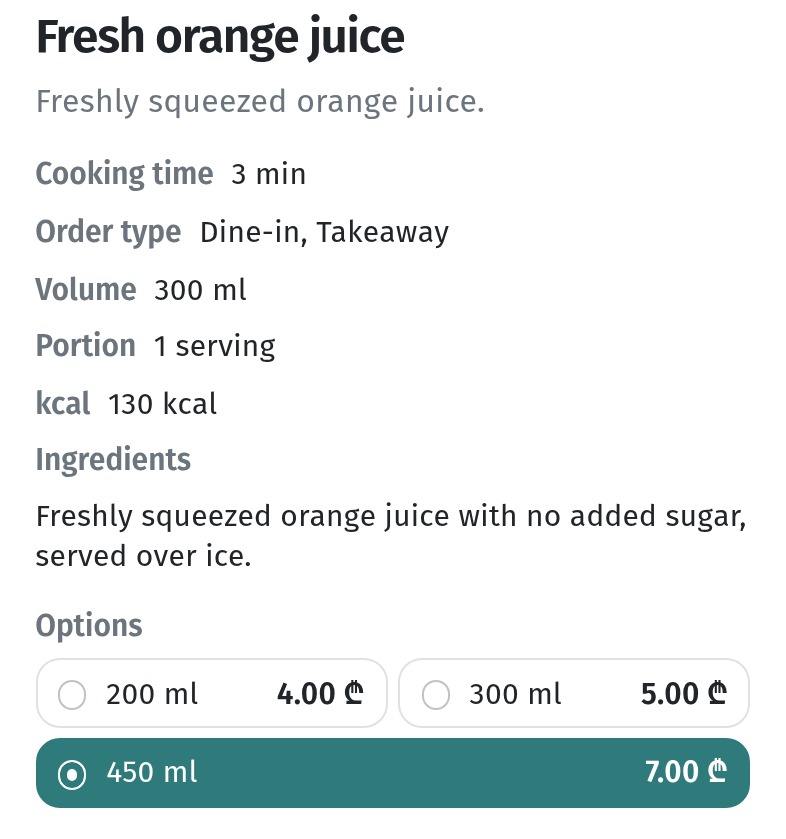
Name sizes so every guest understands them: 200 ml, 0.5 l, S / M / L, Glass / Bottle. For dishes, put the weight and the portion in the card's specifications. More about variants in The dish card in WebQRMenu, and about drink sizes in Drinks and bar menu in a QR menu.
9. There's no way to order or call a waiter from the phone
If the QR menu is only for reading, the guest still has to catch the waiter's eye to order, and many prefer to wait for the paper menu right away. The QR menu becomes useful when it saves the guest a step.
How to fix it in WebQRMenu. Turn on ordering: the guest picks a dish and a size, taps Add to cart, then sends the order from the cart. And if the menu was opened from a table's QR code, there's a Call someone button at the bottom of the menu. It opens a list of reasons: Waiter, Cash change, Request bill and Call to clean table.
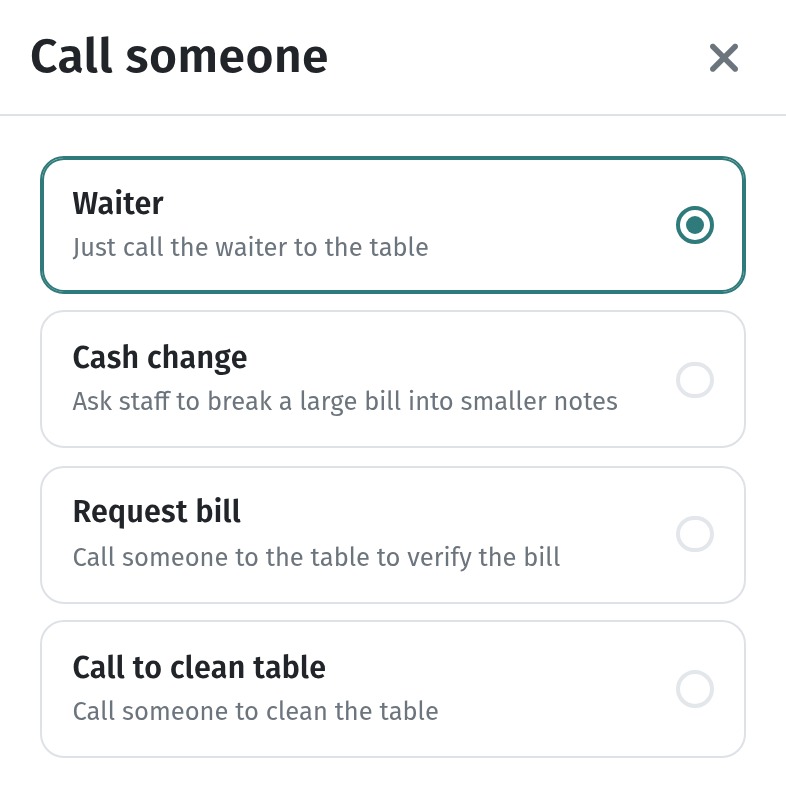
The call arrives with the table number on the Waiter board, and the order in the dashboard. How the cart and ordering work for the guest is shown step by step in How a guest orders through the cart.
10. The menu is out of date
The guest picks a dish, and the waiter says it's finished. After the second time, the guest stops trusting the QR menu and asks the waiter what's actually available. Old prices are even worse: an argument at the bill.
How to fix it in WebQRMenu. Update the menu the moment something changes, with no reprinting. In Menu content, click the status of a dish in the list: the Status window has Available, Sold out and Hide. Sold out keeps the dish in the menu, greyed out, so guests see it but can't order it; Hide removes it from the menu until you bring it back. Click Save, and guests see the change at once, through the same QR code.
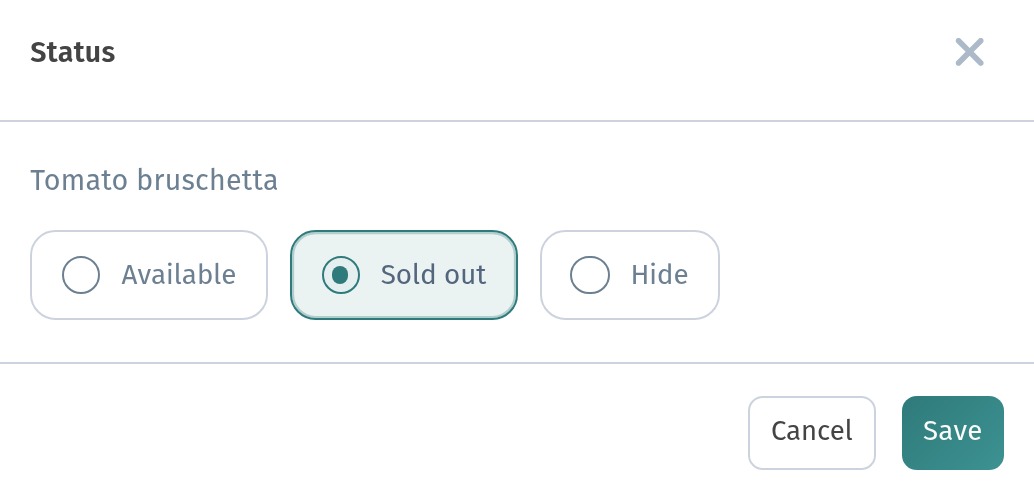
Make it a routine:
- before opening, the kitchen tells the manager what's missing today, and the manager sets Sold out;
- during service, whoever takes the last portion marks the dish, not "someone later";
- once a week, check prices and remove seasonal dishes that are over.
The stop-list, price changes and seasonal sections are covered in detail in Updating your menu without reprinting.
Checklist: is your QR menu ready for guests?
- The code is at least 3 × 3 cm, dark on white, with no frame, printed on matte paper.
- Next to the code there's a line saying what it is: "Menu and ordering, no app needed".
- Every table has its own code, and there's a large code at the entrance and at the bar.
- The menu opens in a couple of seconds on mobile data; photos aren't huge.
- Sections of 8–10 dishes in a logical order; search works.
- Every dish has a photo in one consistent style.
- Names, descriptions and ingredients are translated into your guests' languages.
- Every dish has a price; sizes are variants with clear names.
- Ordering is on, and the waiter call works from table codes.
- The stop-list is updated before and during service; prices are checked weekly.
Go through this list once with a phone in hand, sitting at a table as a guest would. Most problems show up in the first five minutes.