
Drinks and bar menu in a QR menu: volumes, sizes, sections and descriptions
How to build the drinks and bar part of a QR menu in WebQRMenu: separate drink sections, volumes and sizes as price variants (250 ml / 350 ml / 500 ml, 0.33 l / 0.5 l, glass / bottle), descriptions for wine and cocktails in three languages, and what the guest sees on the phone. Step by step, with screenshots.
Drinks are where a menu gets messy fastest. The same lemonade comes in three sizes, beer in two, wine by the glass and by the bottle. On paper this turns into long columns of near-identical lines: "Lemonade 250 ml – 3", "Lemonade 500 ml – 5", "House red 150 ml – 12", "House red 750 ml – 55". The guest has to compare rows, and you have to keep every one of them up to date.
A QR menu lets you do it properly: one card per drink, sizes as options inside the card, a description that actually helps the guest choose, and all of it in every language your guests read. In this article we show how to set up the drinks and bar menu in WebQRMenu, using the drinks from our demo café: lemonade, fresh juice, smoothie, coffee and tea.
In short: give drinks their own sections (soft drinks, coffee and tea, bar). Make one card per drink and put the sizes in the Price block as variants named in international units: 250 ml, 500 ml, 0.5 l, Glass, Bottle. Write a short, specific description, translate it in Translations, and check the result on a phone.
If you haven't set up a dish card before, start with The dish card in WebQRMenu: it covers every block of the editor. Here we focus on what's specific to drinks.
1. Structuring drink sections
A guest who wants a drink shouldn't have to scroll past the steaks to find it. Drinks get their own sections, and those sections get a sensible order.
Which sections to create
A structure that works for most cafés and restaurants:
| Section | What goes in it |
|---|---|
| Soft drinks | Lemonades, fresh juices, smoothies, water, soda |
| Coffee and tea | Espresso drinks, iced coffee, tea, hot chocolate |
| Wine | By the glass and by the bottle; red, white, rosé, sparkling |
| Beer | Draught and bottled |
| Cocktails | Signature cocktails, classics, non-alcoholic cocktails |
| Spirits | If you serve them by the shot or by the bottle |
Two rules of thumb:
- Split by how the guest thinks, not by how you buy. A guest is looking for "something cold" or "a glass of wine", not "goods from supplier X".
- Don't over-split. If the bar only has four cocktails and three beers, one Bar section is better than two half-empty ones. Split it when a section grows beyond 8–10 items.
In our demo menu the drinks live in two sections: soft drinks (mint lemonade, fresh orange juice, berry smoothie, hot chocolate) and coffee and tea (cappuccino, flat white, iced latte, bergamot tea).
You create sections in the dashboard under Menu content → Sections, with the + button next to the heading.
Section order
Sections appear in the guest menu in the same order as in your dashboard list; drag a section by the handle to the left of its name to move it. Where to put the drinks depends on your venue:
- Restaurant: drinks after the food, but before desserts if your guests order dessert with coffee;
- Café or coffee shop: coffee and tea first, the food after;
- Bar: cocktails and beer at the very top, snacks below.
What the guest sees
On the phone, the guest can jump to any section from the category chips at the top of the menu, or simply scroll. Each section is a grid of tiles with a photo, the name, a short description and the price. This is the soft drinks section:
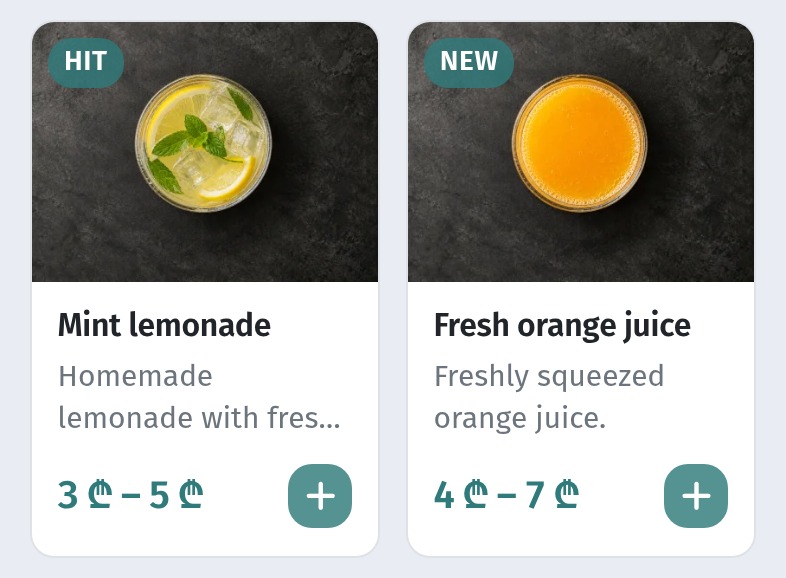
Notice the prices: "3 ₾ – 5 ₾" on the lemonade, "4 ₾ – 7 ₾" on the orange juice. That's a range, because each of these drinks comes in more than one size. That's the next topic.
2. Volumes and sizes as price variants
The most common mistake in a drinks menu is a separate card for every size: "Mint lemonade 250 ml", "Mint lemonade 350 ml", "Mint lemonade 500 ml". It triples the number of tiles, the guest has to compare them, and when the price of limes goes up you have to edit all three.
In WebQRMenu a size is a price variant. One card, several sizes, one price per size.
How to set up the sizes
- Open the drink in the dashboard: Menu content → the section → click the drink.
- Expand the Price block.
- In the first row, enter the name of the first size and its price.
- Press Add variant and fill in the next size. Repeat for as many sizes as you have.
- Press Save at the bottom of the page.
Here's our mint lemonade with three sizes: 250 ml for 3 ₾, 350 ml for 4 ₾ and 500 ml for 5 ₾.
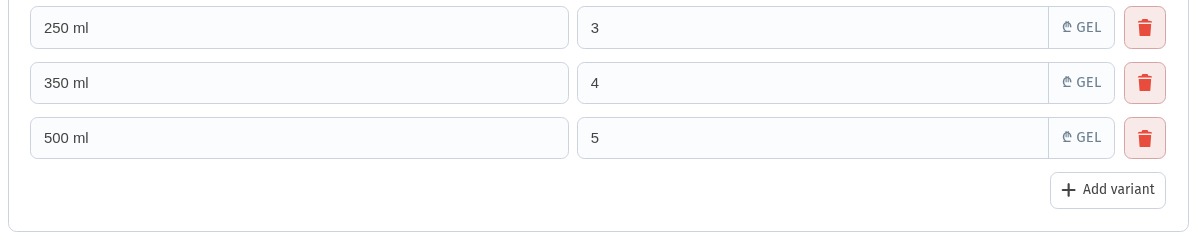
To remove a size, use the red bin at the end of its row. To change one price, edit only that row: the others stay as they are.
Name variants in international units
The variant name is exactly what the guest sees on the size button, in every language of your menu. So name variants in a way that reads the same for everyone:
- volumes in Latin units: 250 ml, 350 ml, 500 ml, 0.33 l, 0.5 l;
- wine and spirits: Glass, Bottle, or with the volume: Glass 150 ml, Bottle 750 ml;
- portions: S, M, L, or Single, Double for espresso drinks.
Avoid units written in a local script, such as Cyrillic "мл" or "л": an English or Georgian guest will see them as they are. "500 ml" and "Glass" are understood by everyone.
That's how our whole demo drinks menu is set up: every size is written in ml. Mint lemonade is 250 / 350 / 500 ml, fresh orange juice 200 / 300 / 450 ml, berry smoothie 300 / 400 / 500 ml, iced latte 300 / 450 ml. The guest sees the same buttons whether the menu is open in Russian, English or Georgian.
Common sets of variants:
| Drink | Variants |
|---|---|
| Draught beer | 0.33 l / 0.5 l |
| Wine | Glass 150 ml / Bottle 750 ml |
| Coffee | 250 ml / 350 ml / 450 ml |
| Lemonade | 250 ml / 350 ml / 500 ml |
| Spirits | 40 ml / 50 ml / Bottle |
Keep the order logical: from small to large, the glass before the bottle.
The volume field in Specifications
The dish editor also has a Specifications block with a Weight / volume field and a unit selector (ml for drinks), plus Portion. The guest sees this value in the card as "Volume". Here it is for our iced latte, which comes in 300 ml and 450 ml: its volume is 300 ml, the standard serving.
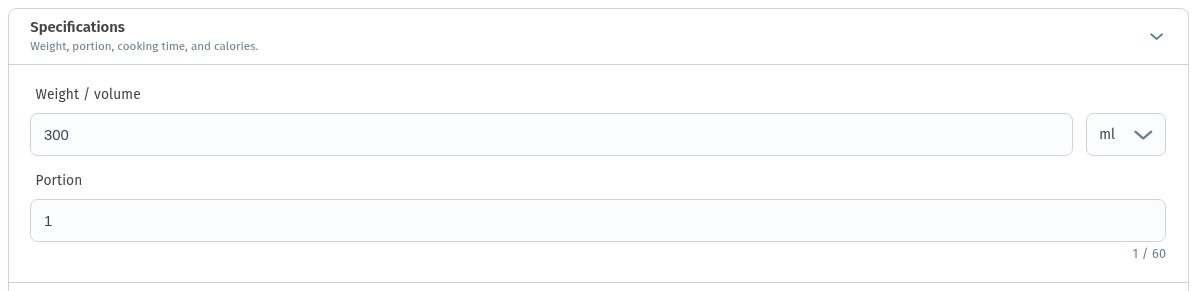
For a drink that comes in one size, this is where its volume goes, and you don't need variants at all: a 330 ml bottle of lemonade or a 40 ml espresso is a single price plus a volume in Specifications. For a drink with several sizes, the sizes are in the variant names, so fill in Specifications for the standard serving, and make sure the number doesn't contradict the variants.
How the guest chooses a size
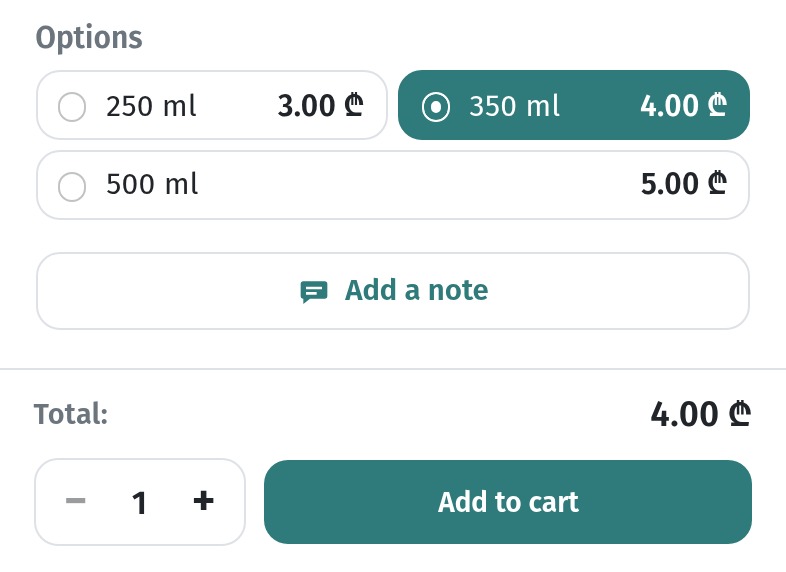
In the drink card, the guest sees all the sizes under Options, each with its own price. The card opens with one size already selected (for our lemonade, 350 ml), and the total at the bottom shows its price, 4.00 ₾:
The guest taps 500 ml and the total updates by itself, to 5.00 ₾:
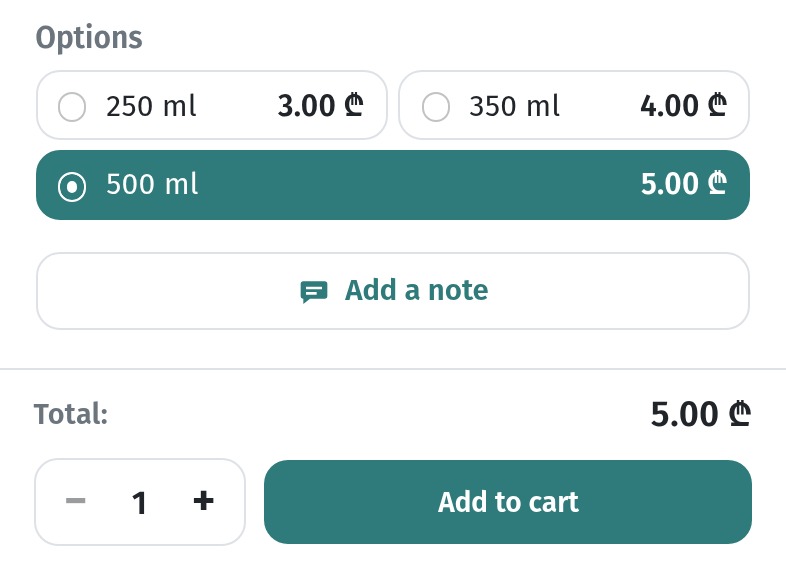
There's no need to explain anything to the guest or the waiter: the chosen size travels with the order.
3. Descriptions for wine and cocktails
For food, a photo does half the selling. For drinks it often doesn't: two glasses of red look the same, and a cocktail photo says nothing about how strong or sweet it is. The description is what helps the guest choose. Here's what to write specifically for drinks.
Wine: what to write
A good wine description answers four questions in one or two lines:
- grape and region: Saperavi, Kakheti; Rkatsiteli, Kartli;
- style: dry, semi-dry, semi-sweet; light or full-bodied;
- taste: two or three clear notes, not a sommelier's essay;
- pairing: what it goes with on your menu.
Example:
Saperavi, Kakheti. Dry red, full-bodied, with notes of cherry and plum. Pairs well with grilled meat and cheese.
Cocktails: what to write
For a cocktail, the guest wants to know:
- base: gin, rum, tequila, or no alcohol at all;
- taste: sour, sweet, bitter, fresh;
- strength: light, medium, strong;
- serving: short or long, over ice, in what glass.
Example:
Gin, cucumber, lime and tonic. Fresh and slightly bitter, light. Long drink served over ice.
For non-alcoholic drinks, say so clearly at the start: "Non-alcoholic." It saves the waiter a question at every table.
Coffee, tea and soft drinks
These need less: what's inside and how it's served. On our mint lemonade card, the guest reads "Homemade lemonade with lime, fresh mint, cane sugar, and soda over ice." That's enough.
Translating descriptions
A wine description only helps if the guest can read it. Every drink card has a Translations block. In Languages for translation, pick the languages of your menu (we have en and ka), then expand each language row and fill in the Dish name, Description and Ingredients. Here's the English row of our iced latte:
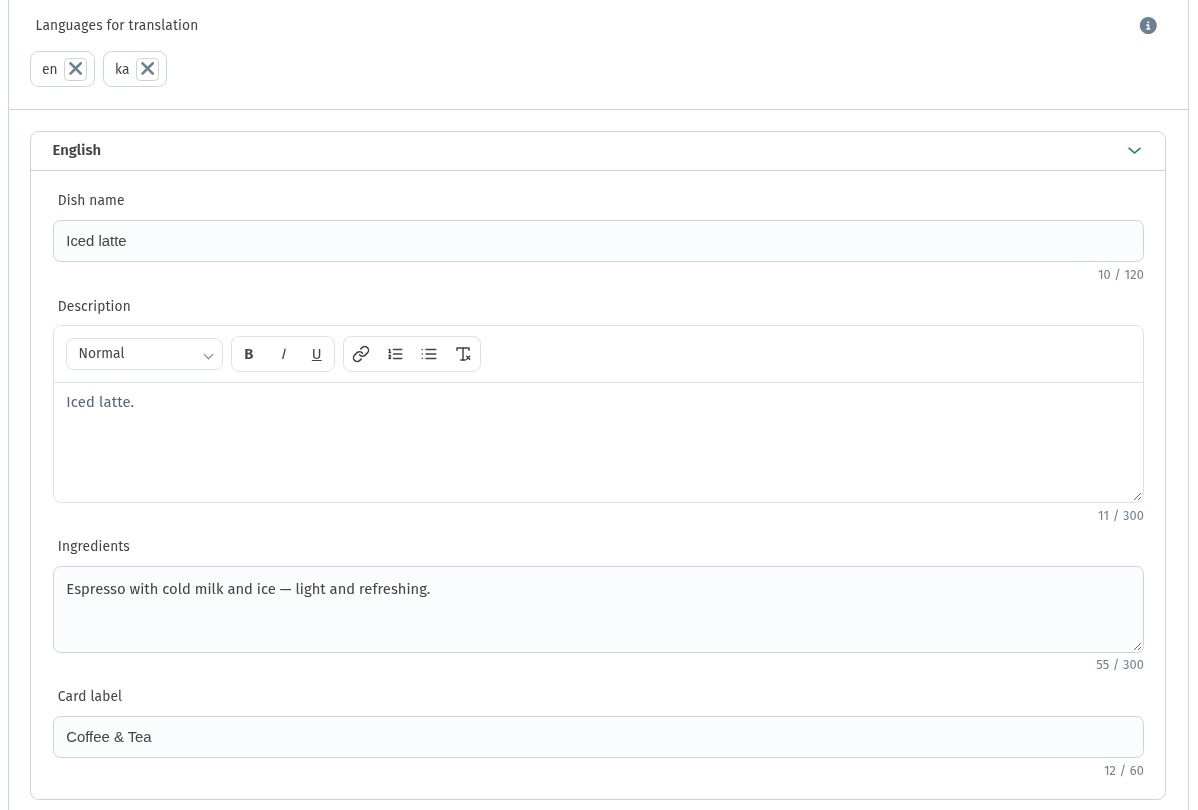
The guest who opens the menu in English or Georgian sees the drink in that language. Example of the same wine in three languages:
- EN: Saperavi, Kakheti. Dry red, full-bodied, with notes of cherry and plum. Pairs well with grilled meat and cheese.
- RU: Саперави, Кахетия. Сухое красное, насыщенное, с нотами вишни и сливы. Хорошо к мясу на гриле и сырам.
- KA: საფერავი, კახეთი. მშრალი წითელი, სხეულიანი, ალუბლისა და ქლიავის ნოტებით. კარგად უხდება შემწვარ ხორცს და ყველს.
How to set up a menu in several languages from scratch is in A menu in three languages.
4. What the guest sees on the phone
Put together, the guest's path through the drinks menu looks like this:
- Scans the QR code on the table and opens the menu in their language.
- Jumps to the drinks with a category chip, or scrolls down to them.
- Sees the tiles: photo, name, a line of description and the price range, so it's clear at once whether a drink comes in sizes.
- Opens the card and reads the details.
- Picks the size under Options, watches the total update, and taps Add to cart.
This is the mint lemonade card in the guest menu: the name, the description, the volume from Specifications (350 ml, the standard serving) and the ingredients. Below it are the size options you saw above.
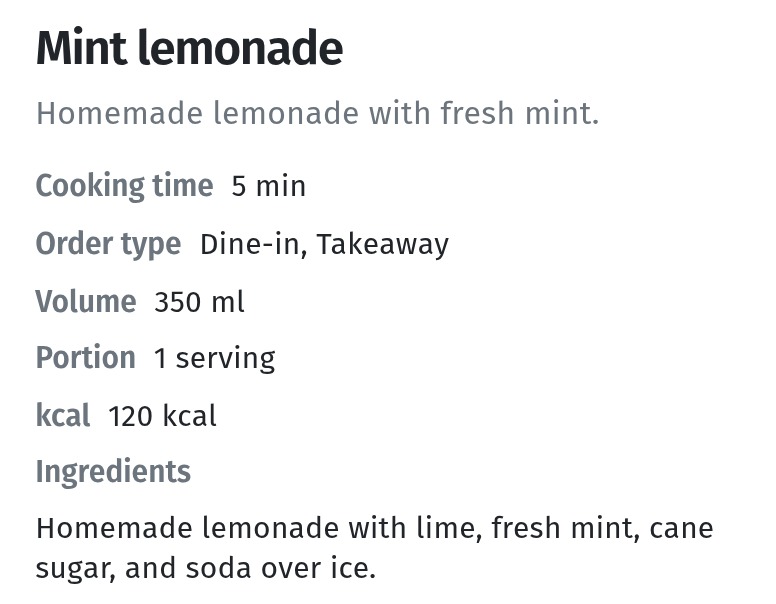
Everything the guest sees comes from the fields you filled in. If something in the card is missing or reads oddly, the fix is in the dashboard, not in a reprint.
5. Practical tips
Use consistent units
Pick one way of writing volumes and stick to it across the whole menu: either "0.33 l / 0.5 l" or "330 ml / 500 ml", not a mix. In our demo menu every drink uses ml, from the 200 ml orange juice to the 500 ml smoothie. Keep the order of variants consistent too (always small to large), and for wine always put "Glass" before "Bottle".
Check the price range on the tile
The tile shows the price from the cheapest to the most expensive variant. After you add or change a size, glance at the tile: if a lemonade suddenly reads "3 ₾ – 50 ₾", a price was probably typed with an extra zero.
Photograph drinks properly
A drink photo should show the drink, not the glass in an empty bar. Shoot from above or at 45°, on a plain background, with the drink filled to the line and the garnish in place. And use one style for the whole section: the same table, the same light. Every tile in our drink sections that has a photo looks consistent, and the section looks finished. A drink without a photo looks noticeably weaker next to them. More in Dish photos in WebQRMenu.
Use the stop-list for drinks too
The bar runs out as often as the kitchen: a keg empties, a wine is sold out, the mint for the lemonade didn't arrive. Don't delete the drink: set its status to Sold out for the day, or Hide it until it's back.
Keep wine lists short and current
A wine list of 60 positions is hard to read on a phone. Put the wines you actually pour by the glass up front, and hide the bottles that are out of stock rather than leaving guests to order and be disappointed.
Drinks menu checklist
- Separate sections for soft drinks, coffee and tea, and the bar; split the bar when it grows.
- Section order that matches your venue; the drinks are reachable from the category chips.
- One card per drink; sizes as variants in the Price block, via Add variant.
- Variant names in international units: 250 ml, 500 ml, 0.33 l, 0.5 l, Glass, Bottle.
- Single-size drinks: one price and the volume in Specifications.
- Wine: grape, region, style, pairing. Cocktail: base, taste, strength, serving.
- Names and descriptions translated in Translations.
- A photo for every drink, in one style.
- After every change, open the menu on a phone and check the tiles, the cards and the totals.