
Table QR vs general menu link: what the guest sees
How a table QR differs from the general menu link in WebQRMenu — call-waiter button, delivery/pickup step, automatic table fill-in, and where to place each QR.
One venue, two guest links. The general menu link opens your store’s public menu. A table QR opens the same menu already tied to one table. The guest gets a different bottom bar, a different step after Place order, and a different set of service actions. Below: where each link lives in the dashboard, what changes for the guest, where to put which QR, and how to read per-table scans.
Related reading: Tables and a separate QR code for every table, Calling a waiter and requesting the bill, Where to place QR codes in a restaurant or cafe, Order types: dine-in, takeaway, delivery and pickup, How a guest orders through the cart, Staff, waiters and shifts.
In short: on the Tables page each table card has Show QR (code + Download) and Open table link. The general link is the store menu link (Open menu / the page’s shared QR). With a table QR the guest gets Call someone; the order goes straight for that table. From the general link, after Place order the app asks how to receive the order (Delivery / I’ll pick up). On Acceptance and checkout, the in-restaurant-ordering hint reads: Guests send the cart to the dashboard. Separate table QRs fill in the table automatically.
1. Where each link comes from
In the dashboard open the store → Tables. On each table card header:
- external-link icon — Open table link (that table’s short guest URL);
- QR icon — Show QR: popover with the code and Download;
- ⋯ menu — table actions (edit / delete).
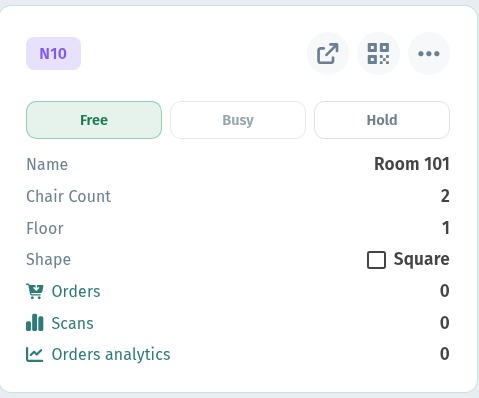
The general menu link is the store’s public URL (same entry as Open menu / the shared QR on the Tables page). Use it for the entrance, window, social posts, and takeaway. Print the table QR and put it on that table.
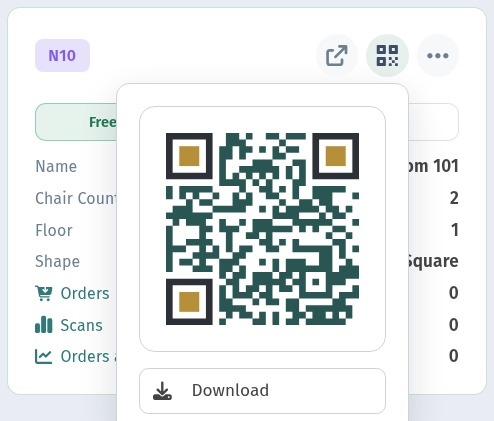
The card also shows Orders and Scans — how often that table link was opened and how many orders came from it. Free / Busy / Hold on the card is a hall marker you set by hand; this article is about links, not that toggle.
2. What the guest sees: bottom of the screen
Dishes and categories match. The bottom chrome differs.
General link: cart bar only (Your cart is empty / View cart). No call-waiter control.
Table QR: cart bar plus a teal Call someone button under it.
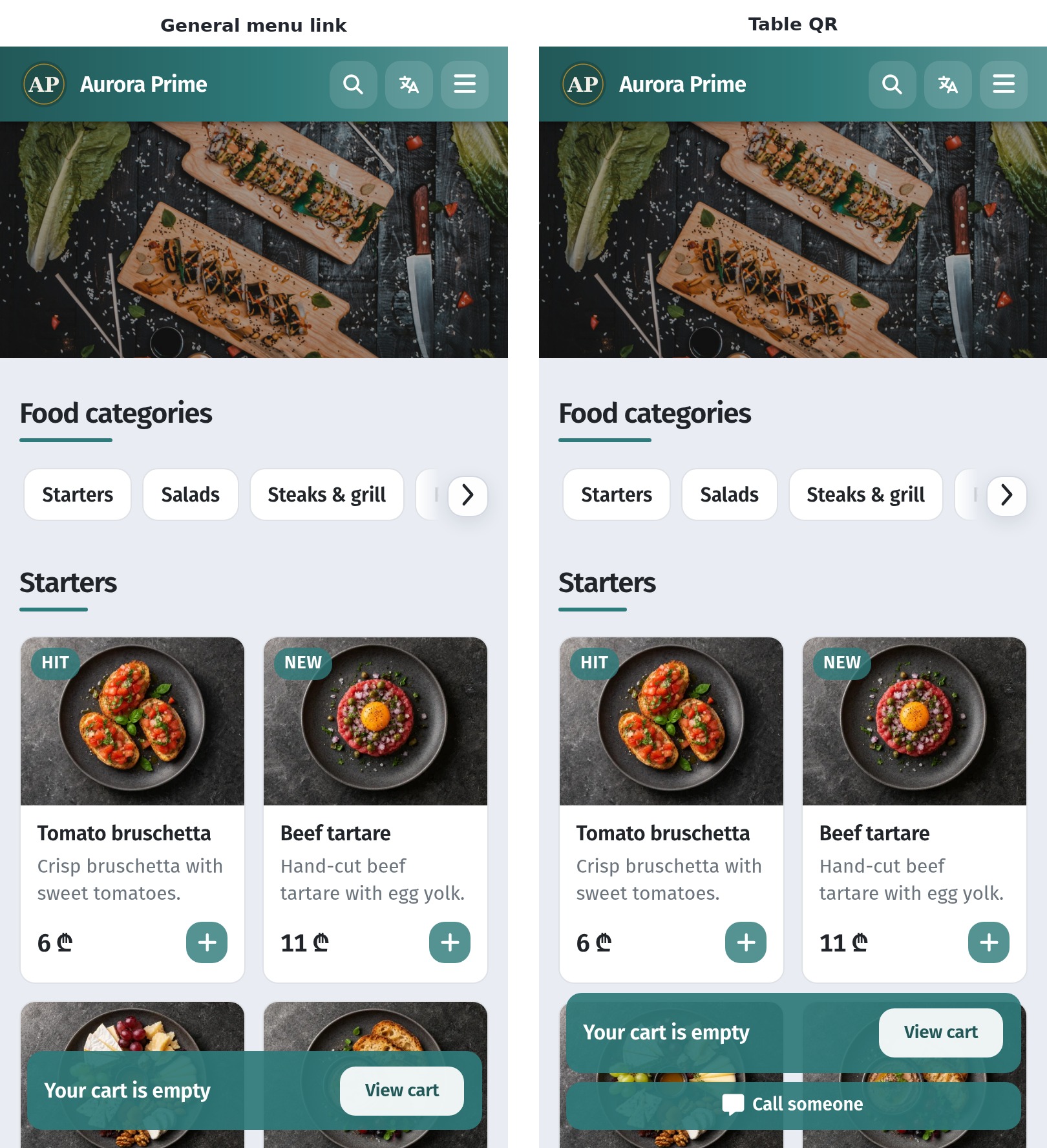
The table name usually does not appear in the guest header — the table is already locked from the QR. More on calls: Calling a waiter and requesting the bill.
3. After Place order
The cart path is shared (items, tips, Place order) — see How a guest orders through the cart. Then the flows split.
General link. The app asks: How would you like to receive your order? — Delivery or I'll pick up. That is fulfillment without a hall table; details in Order types.
Table QR. No delivery/pickup step: the order submits at once and the Orders tab opens with status (for example Awaiting confirmation). The table is filled from the QR — same idea as the Acceptance hint: Guests send the cart to the dashboard. Separate table QRs fill in the table automatically.
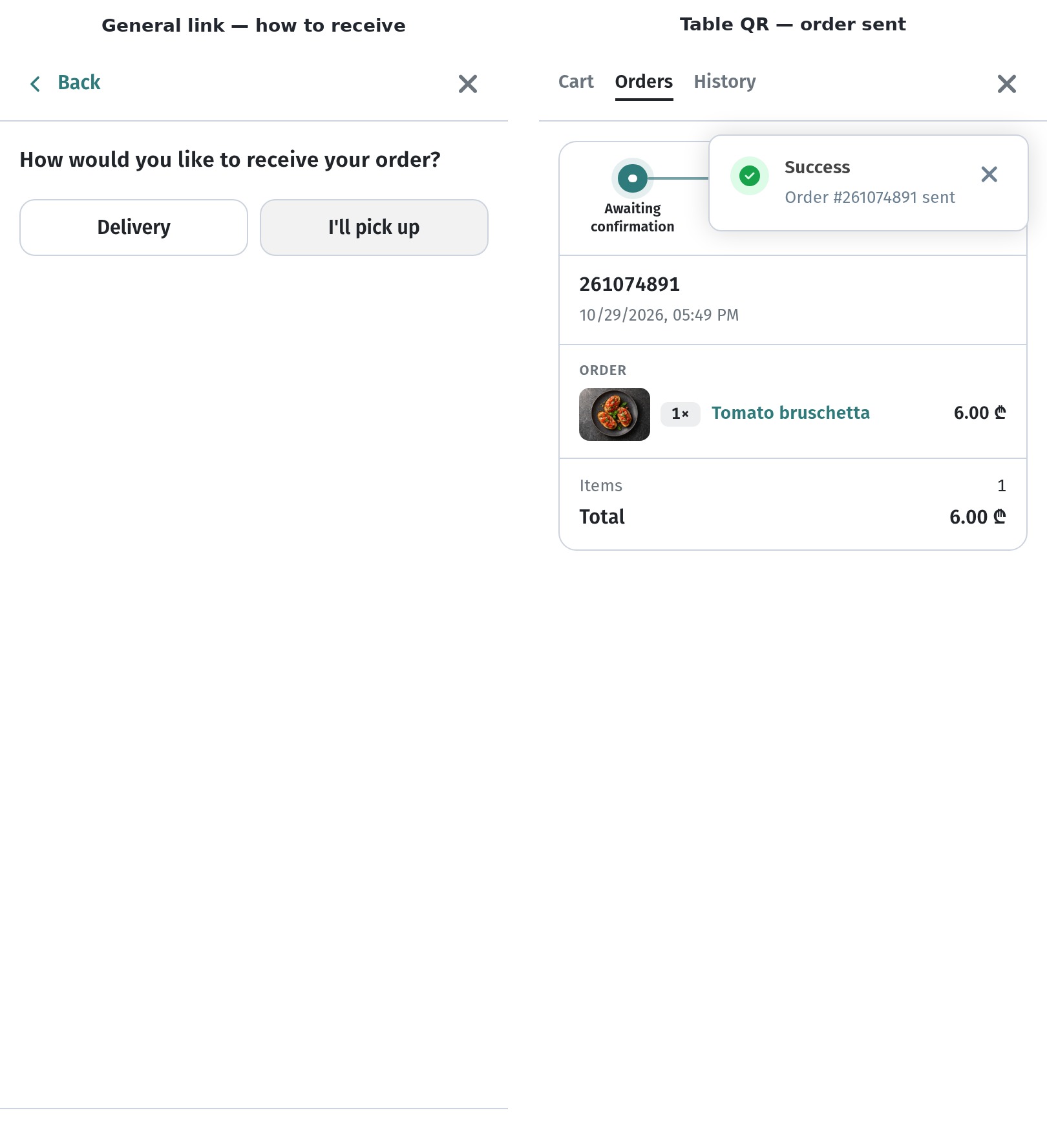
4. Call someone sheet — table QR only
From a table QR the guest opens the call sheet: Waiter, Cash change, Request bill, Call to clean table — then Call. From the general link that sheet is not reachable in the UI: there is no button.
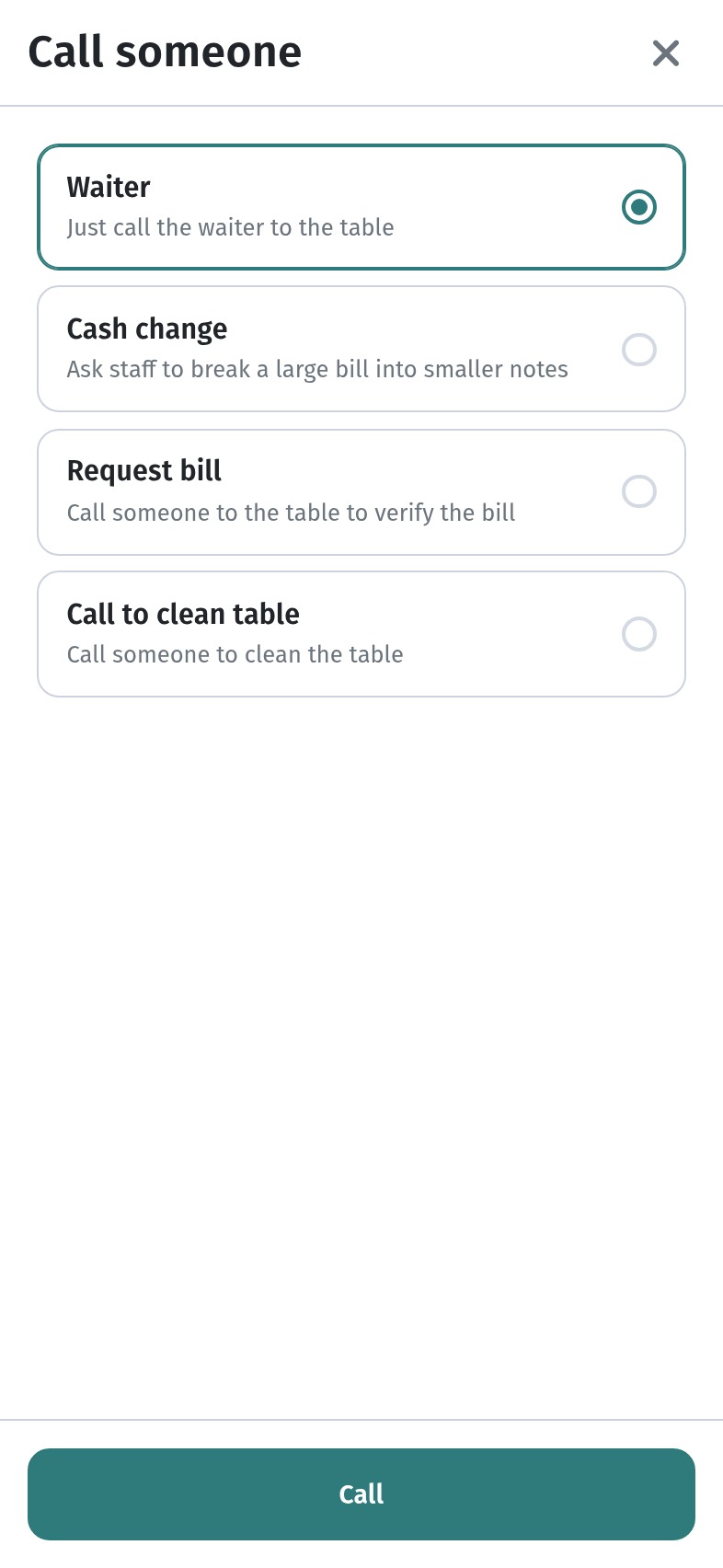
Signals land on the waiter board / staff tools — see Staff, waiters and shifts.
5. Where to place which QR
| Link | Place it |
|---|---|
| Table QR / link | On the table, table tent, stand at the seat |
| General menu link | Entrance, window, social, business cards, takeaway, delivery |
Rule of thumb: guest already seated and should order “here” and call staff — table QR. Guest not at a table yet, or ordering for pickup/delivery — general link. Placement ideas: Where to place QR codes. Setup and print: Tables and a separate QR.
6. Scans and orders per table
On the table card:
- Scans — how many times that table’s link was opened;
- Orders — how many orders came from that table;
- plus a link to that table’s order analytics.
Compare tables after a shift: few scans in a full room — QR missing or unreadable; scans without orders — guests browse but check out elsewhere (or use the general link).
7. Checklist before service
- On Tables, for each live table open Show QR → Download; spot-check Open table link on a phone.
- Table QR on the table; general menu link at the door / on social.
- From the table QR: Call someone visible at the bottom; call sheet opens.
- From the general link: no call button; after Place order — How would you like to receive your order? (Delivery / I'll pick up).
- From the table QR after Place order the ticket goes straight in; the table is filled automatically (dashboard hint above).
- Watch Scans and Orders on the cards after the first wave of guests.