
Staff, Waiters and Shifts in WebQRMenu
Invite waiters by email, assign tables, create shifts and use the Waiter board. Kitchen and bar work through Kitchen line screens.
How to invite waiters by email and assign them tables, set up morning, day and evening shifts, what the Waiter board shows, and how kitchen and bar staff work through Kitchen line screens.
As a restaurant grows, one owner account isn't enough: waiters need to see the orders and calls of their own tables, and the kitchen needs its own order screen. In WebQRMenu this is split into two simple parts: Staff for floor staff and Kitchen line screens for the kitchen and bar.
Let's be honest up front: the only staff role in the dashboard today is Waiter, and the feature is labelled Beta: Waiter board. There are no separate cashier, cook or manager roles; the kitchen and bar work through Kitchen line screens.
In short: Staff → pick a store → Invite waiter (email + tables) → Shifts → Add shift → the waiter opens the Waiter board → the kitchen and bar open Kitchen line and choose Kitchen or Bar in Settings → General.
1. The Staff section
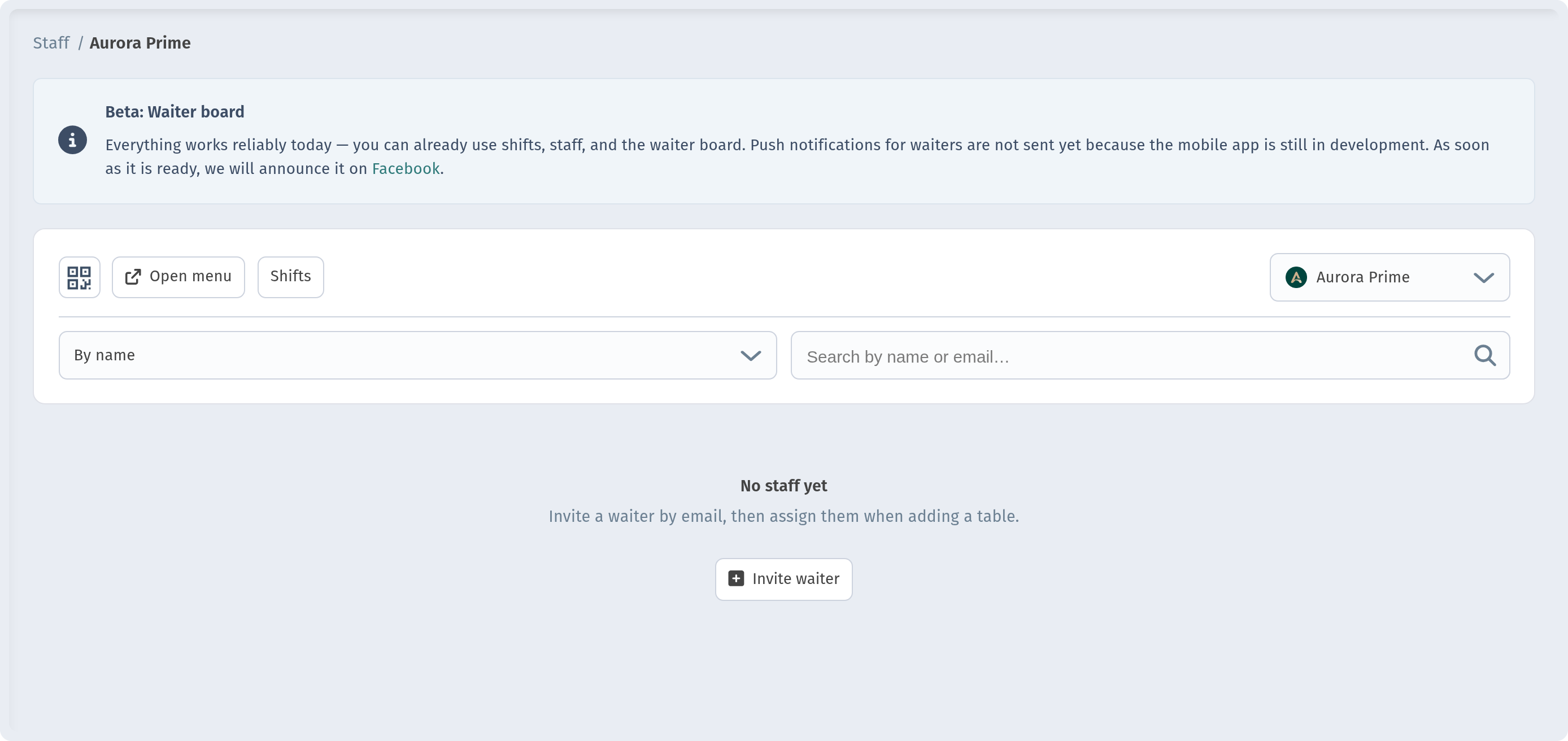
Open Staff in the dashboard sidebar. You first see "My staff" with a card for each store; pick one, for example "Aurora Prime". The breadcrumb changes to "Staff / Aurora Prime".
The toolbar has a QR icon, Open menu, Shifts and a store switcher, plus a filter and search by name or email. A Beta banner explains that shifts, staff and the waiter board already work reliably, while push notifications for waiters are not sent yet because the mobile app is still in development.
2. Inviting a waiter
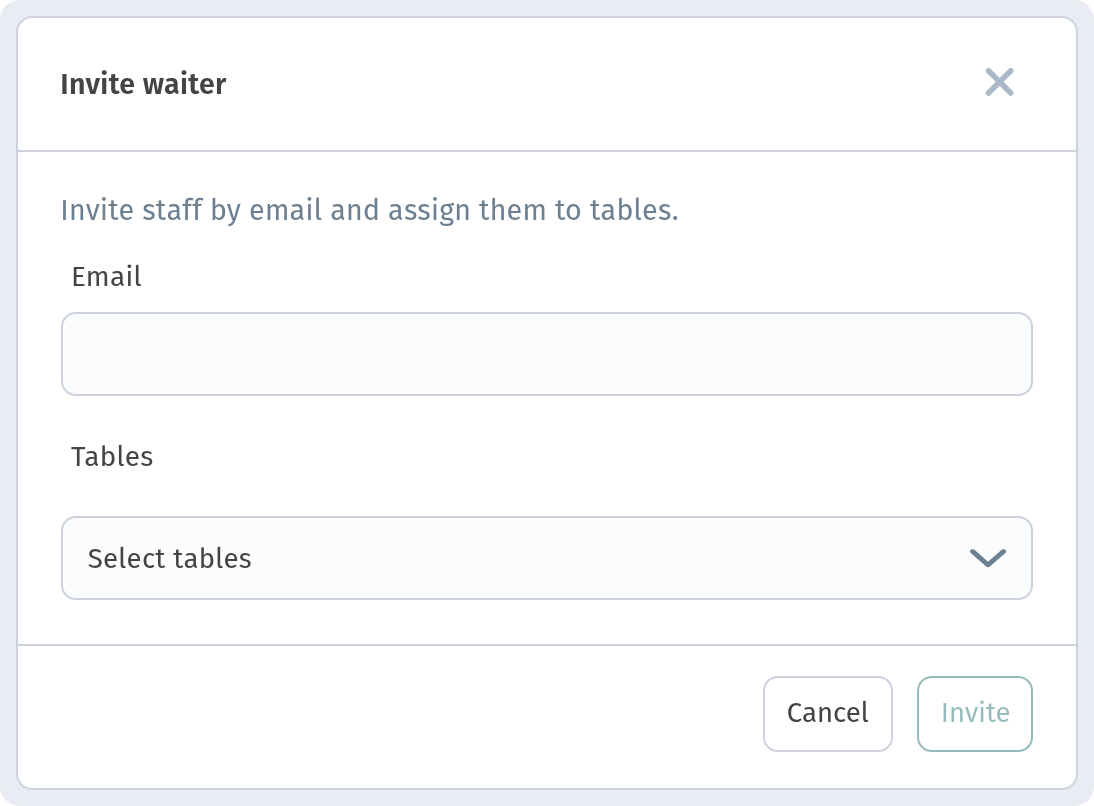
Click Invite waiter. The dialog is short: "Invite staff by email and assign them to tables."
- Email — the waiter's address;
- Tables — pick one or more tables in "Select tables".
Click Invite. There's no role picker — every invitee is a waiter. You can assign tables right here or later in each table's settings.
3. Tables and calls
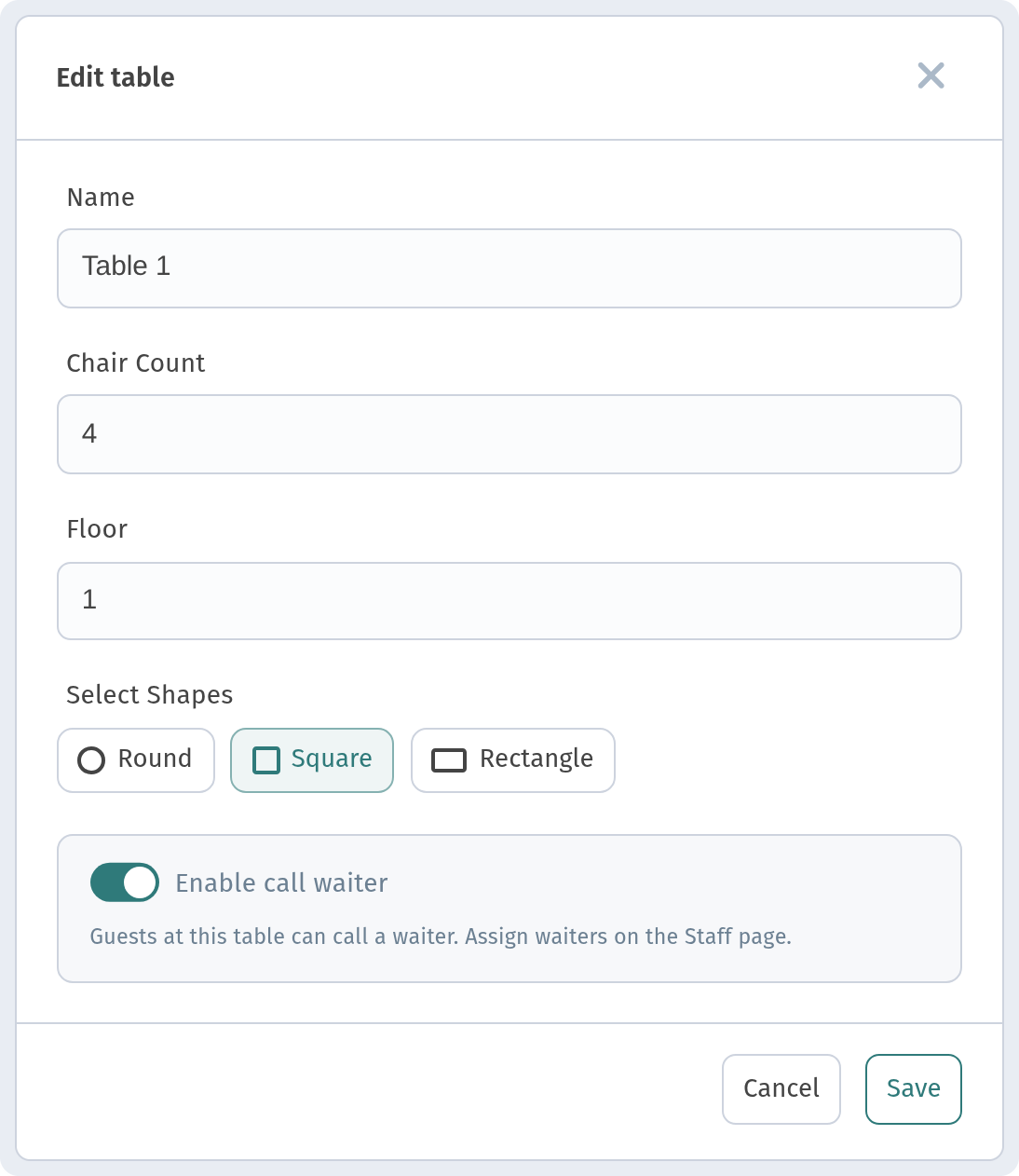
For guests at a table to call a waiter, open Tables, click "..." on the table card → Edit and turn on Enable call waiter. The caption reminds you: "Guests at this table can call a waiter. Assign waiters on the Staff page." How call types such as Request bill are configured is covered in Calling a waiter and requesting the bill.
4. Shifts
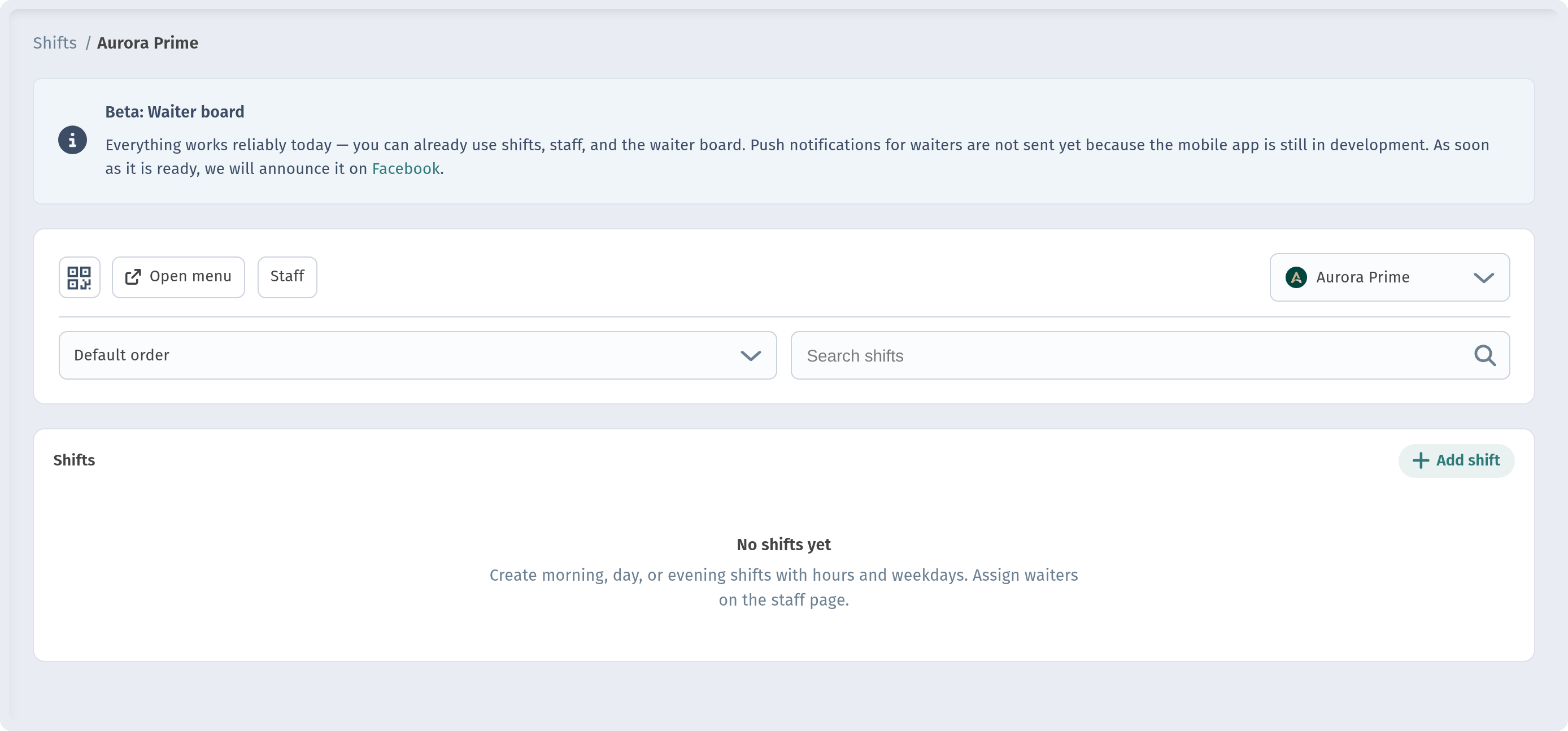
Click Shifts on the staff page. While empty, it suggests: "Create morning, day, or evening shifts with hours and weekdays. Assign waiters on the staff page."
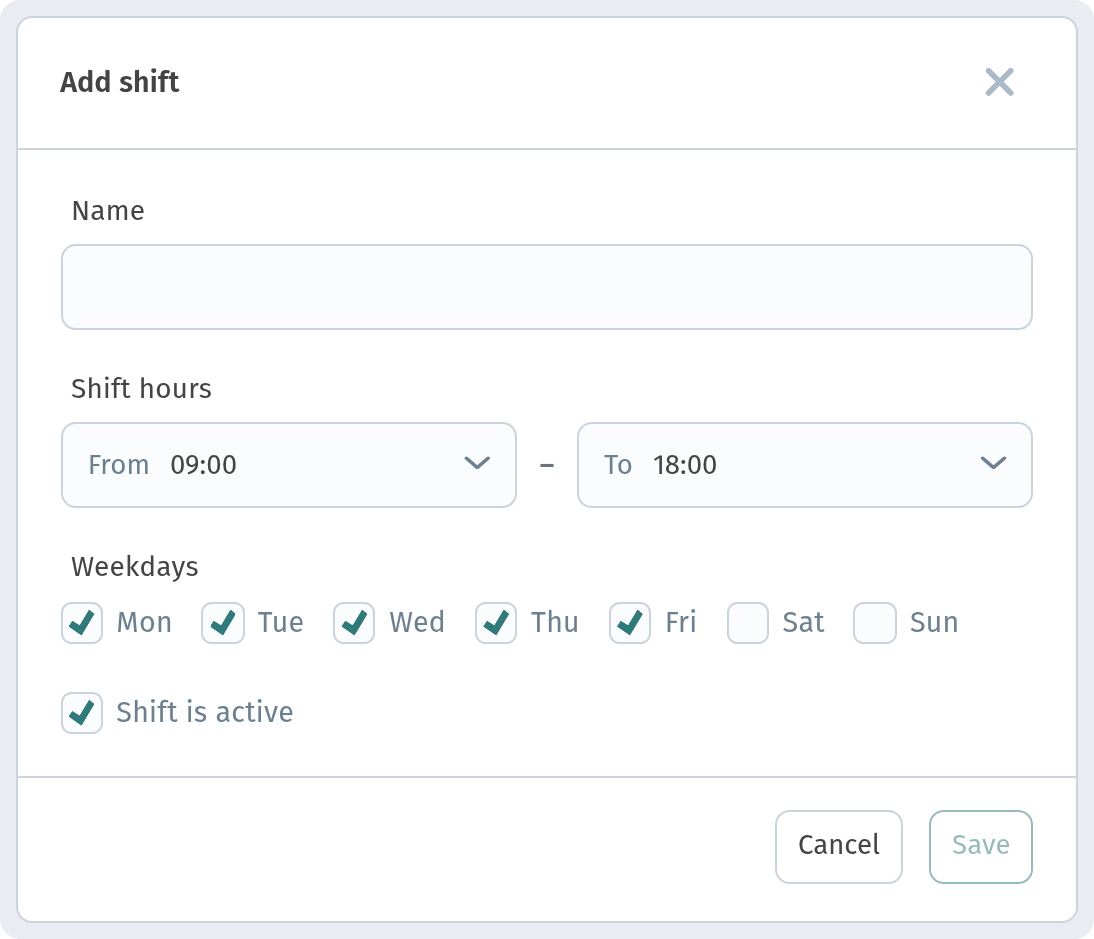
Click Add shift and fill in:
- Name — for example "Morning";
- shift hours From and To, for example 09:00–18:00;
- weekdays Mon to Sun;
- the Shift is active switch.
Click Save. Then assign waiters to shifts on the staff page.
5. The Waiter board
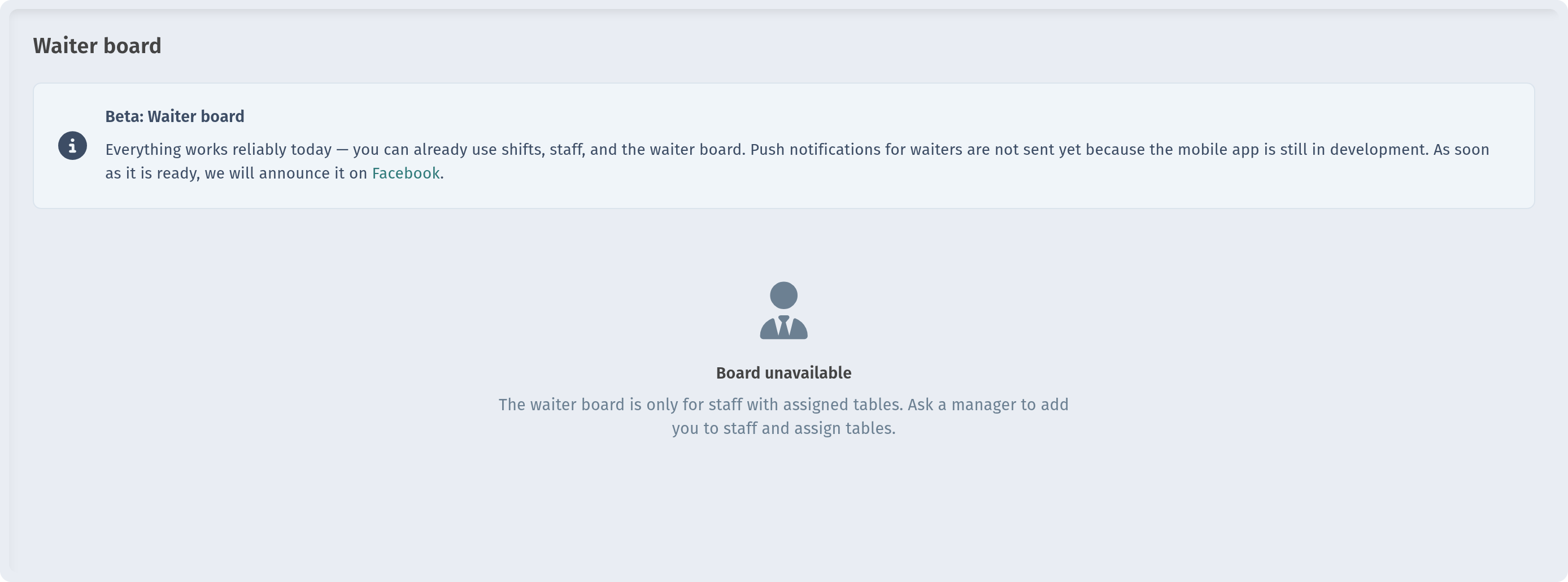
A waiter works on the Waiter board — orders and calls from their assigned tables. The board is only for staff with assigned tables: if an owner without tables opens it, they see "Board unavailable" with a hint to ask a manager to add them to staff and assign tables.
Since push notifications aren't sent yet, keep the waiter board open on a work phone or tablet.
6. Kitchen and bar: Kitchen line screens
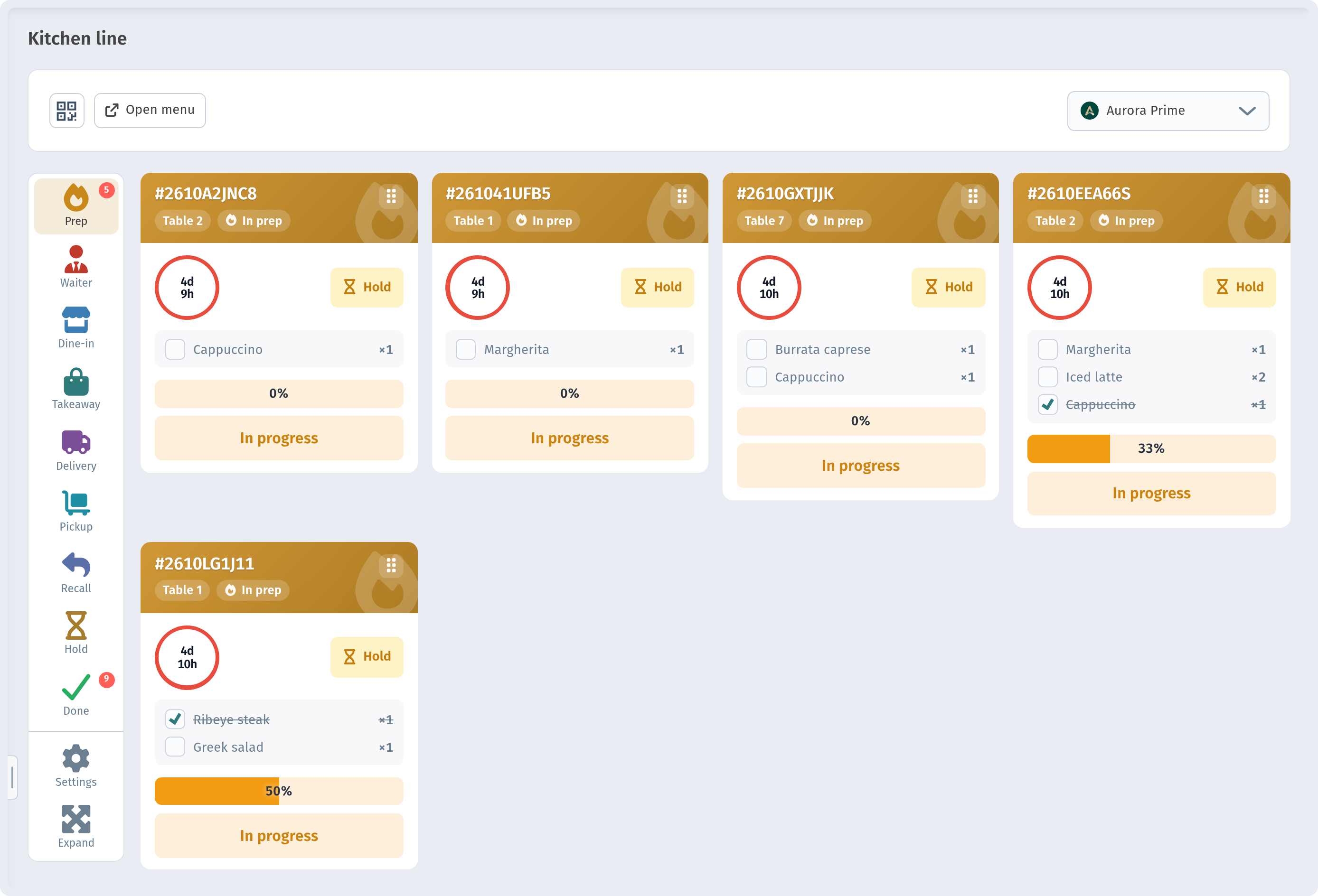
There is no separate cook or bartender role. The kitchen and bar use the Kitchen line screen: any device where someone opens the dashboard can become a line screen.
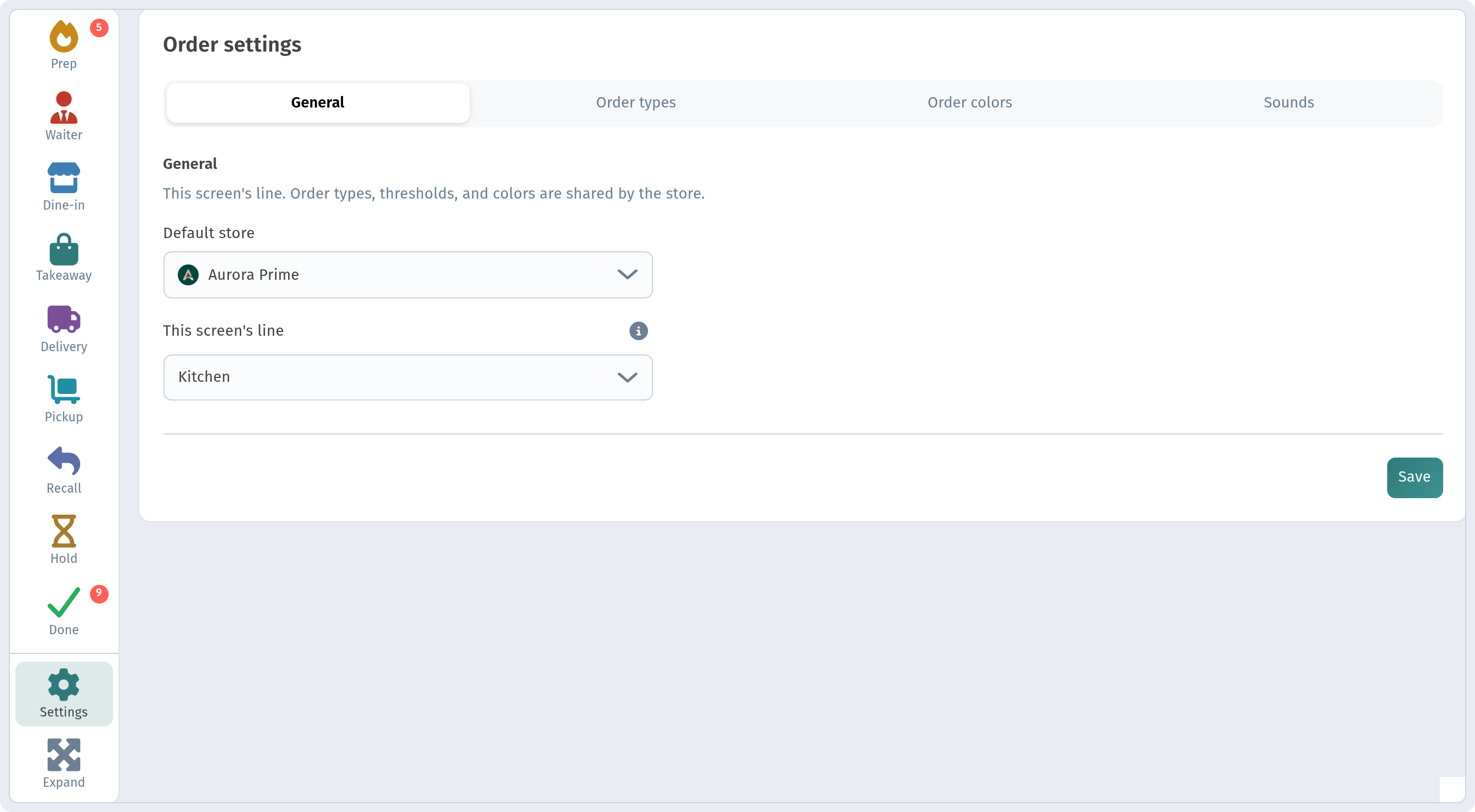
On the left rail there are sections Prep, Waiter, Dine-In, Takeaway, Delivery, Pickup, Recall, Hold and Done. Order cards show the number, table, an "In prep" chip, an elapsed timer, the item checklist with progress and a Hold button.
7. Kitchen or Bar: Settings → General
To split screens between kitchen and bar, open Settings on the Kitchen line rail → General tab. In "This screen's line" choose Kitchen or Bar, and in "Default store" pick the store. Put one screen in the kitchen and another at the bar.
The same settings also have Order types (which types this screen shows), Order colors and Sounds. All of it is covered in detail in Kitchen line in WebQRMenu.
Why it matters for your restaurant
- Everyone sees their own work. A waiter sees their tables; the kitchen and bar see their own line.
- Fast onboarding. One email and a list of tables are enough to add a waiter.
- Planning. Shifts with hours and weekdays keep the schedule in one place.
Quick checklist
- Open Staff and pick a store.
- Invite a waiter with Invite waiter and assign tables.
- Turn on Enable call waiter for those tables.
- Create shifts in Shifts → Add shift.
- Open Kitchen line on kitchen and bar devices and set Kitchen or Bar in Settings → General.