
QR Design Folders in WebQRMenu: Keep Your Saved QR Codes Organized
How to organize QR designs: saved designs, color-coded folders, moving a design to a folder, favorites, filters and moving designs to a workspace.
Once you have several stores, seasonal campaigns and QR codes for table tents, flyers and window stickers, designs pile up fast. Here's how to keep them in order with folders, favorites and filters.
Every QR code you design in WebQRMenu is saved to your account. The QR designs group in the sidebar has two items: Saved designs and Design Folders.
In short: Design Folders → Create folder → enter a name and pick a color → Create. Then, on a design card, choose "…" → Move to folder → select the folder → Move.
1. Saved designs
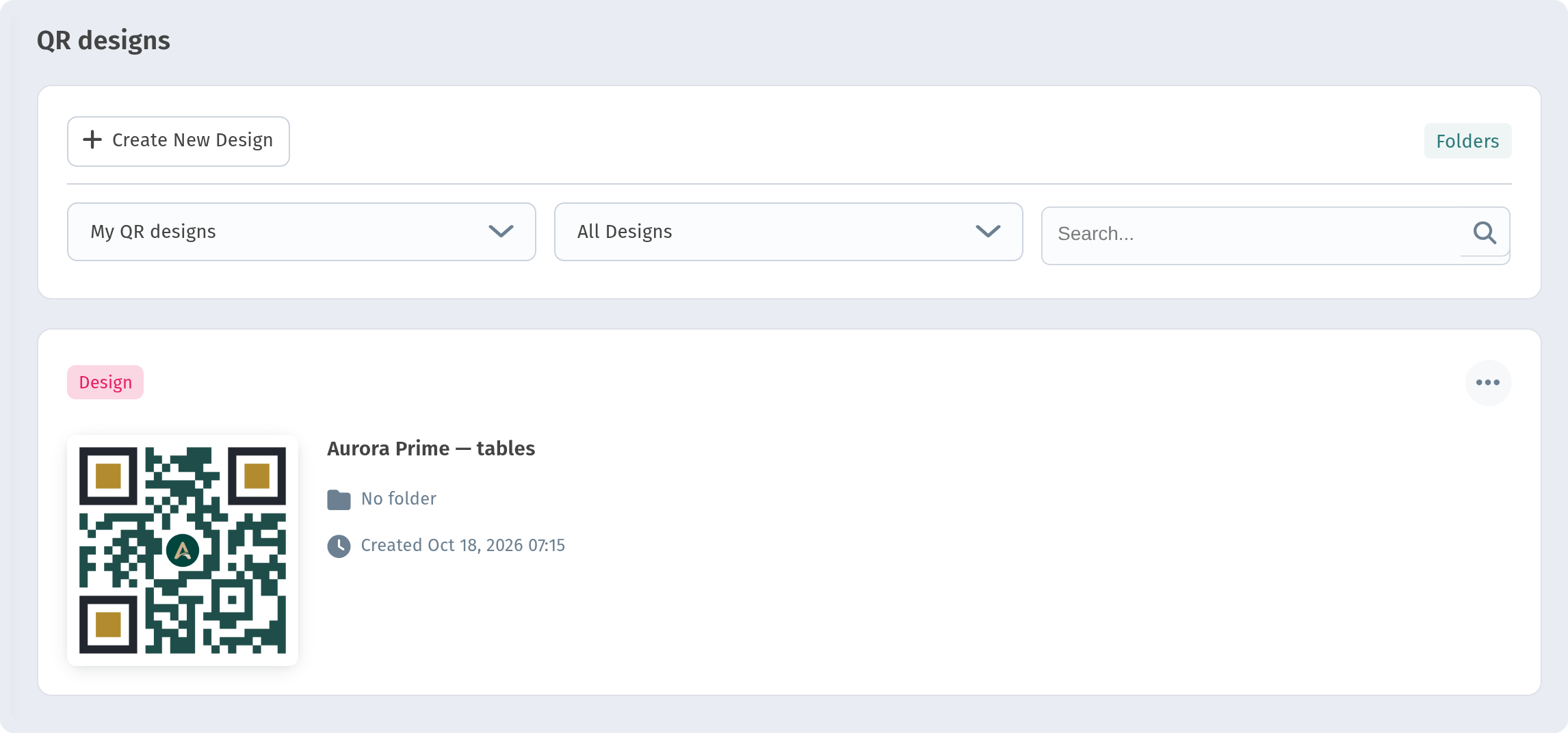
Saved designs opens the QR designs page with all your designs. Click + Create New Design to make a new one. The editor covers shape style, eyes, logo and frame, as described in How to design a QR code.
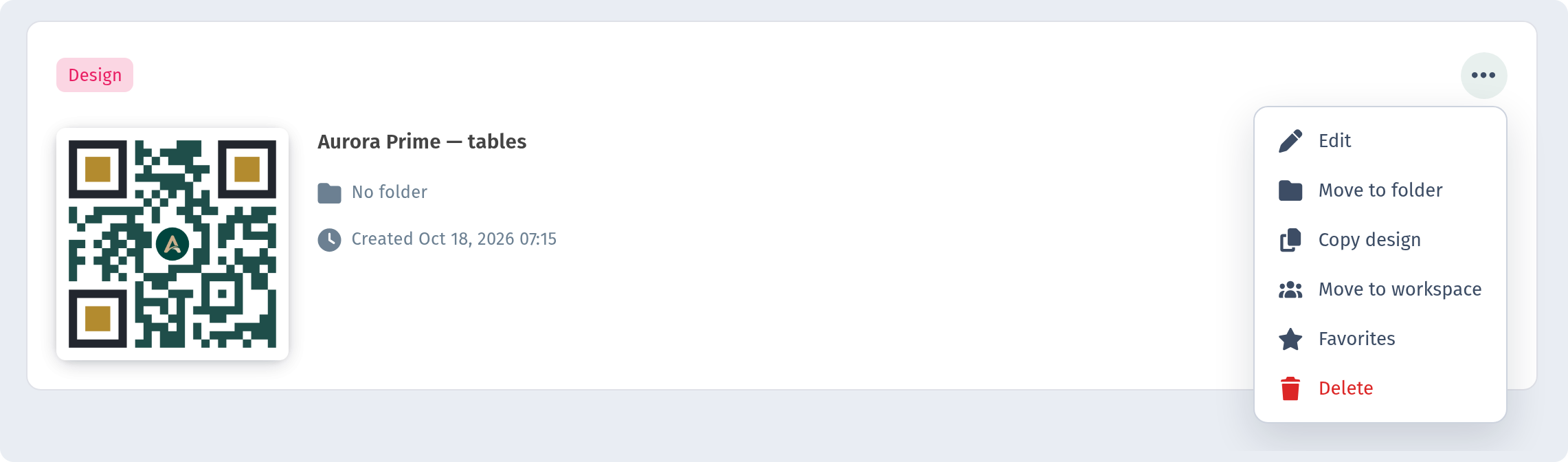
Each design card, such as "Aurora Prime — tables" in our demo, shows a QR preview, the design name, its folder (or No folder) and the creation date. Use the filters at the top to narrow the list:
- My QR designs / Workspaces: your personal designs or those in workspaces.
- All Designs / Favorites Only / By Folder.
- Search... by name.
The Folders link in the top right leads to your folders.
2. Creating a folder
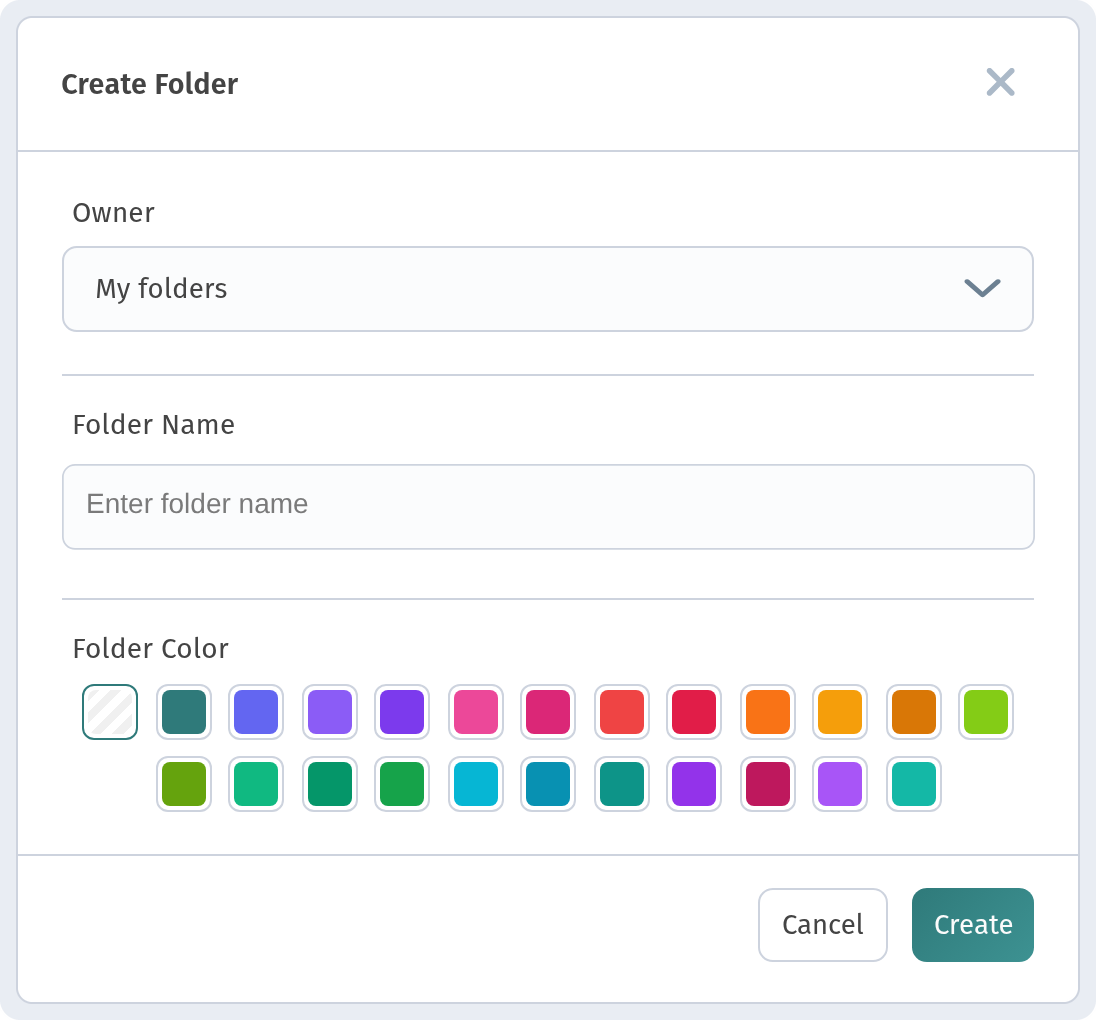
Open Design Folders and click Create folder. In the Create Folder dialog:
- Owner: who owns the folder (My folders for personal ones).
- Folder Name: for example "Tables" or "Summer menu".
- Folder Color: pick one of the swatches so folders are easy to tell apart.
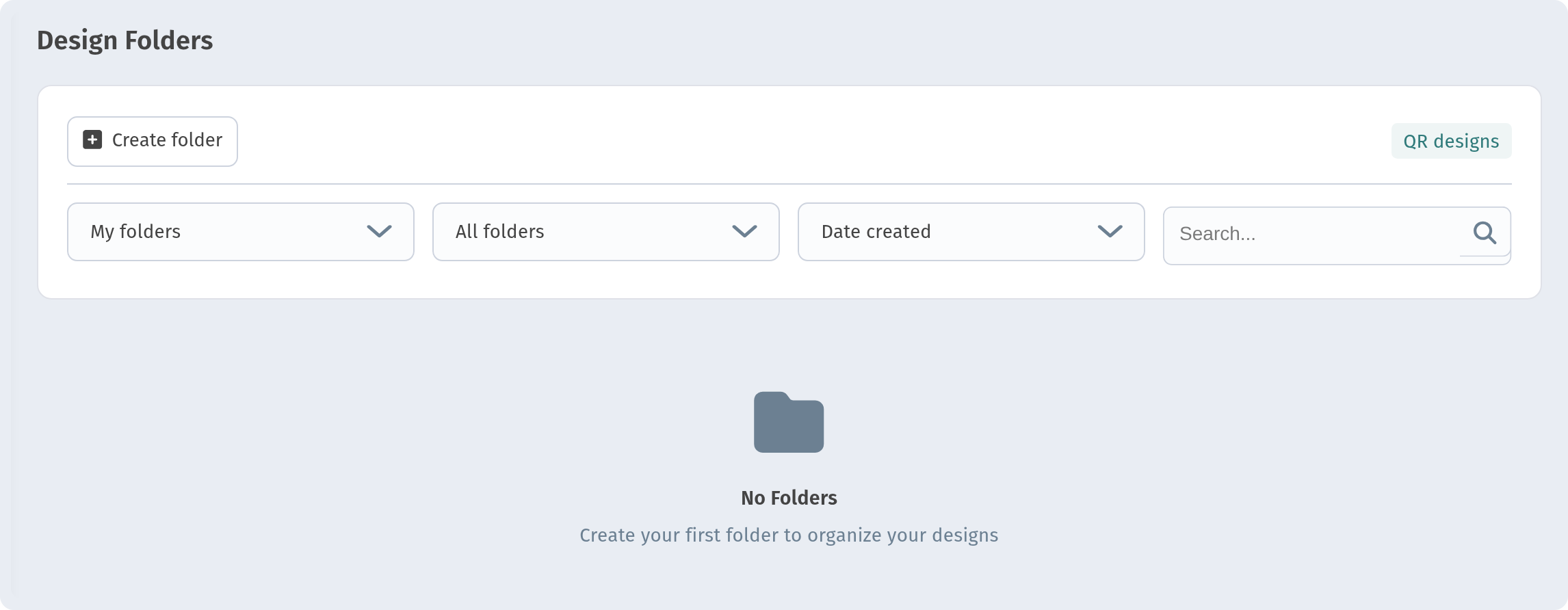
Click Create. Until you have folders, the page shows "No Folders – Create your first folder to organize your designs".
Ways to organize:
- By store: one folder per location, plus a matching color.
- By purpose: table QR codes, window stickers, flyers.
- By campaign: a seasonal menu or an event.
On the folders page, you can filter All folders, favorites, folders with designs or empty ones, sort by Date created, name, last update or number of designs, and search.
Folders can also be renamed or removed later as your setup changes.
3. Moving a design to a folder
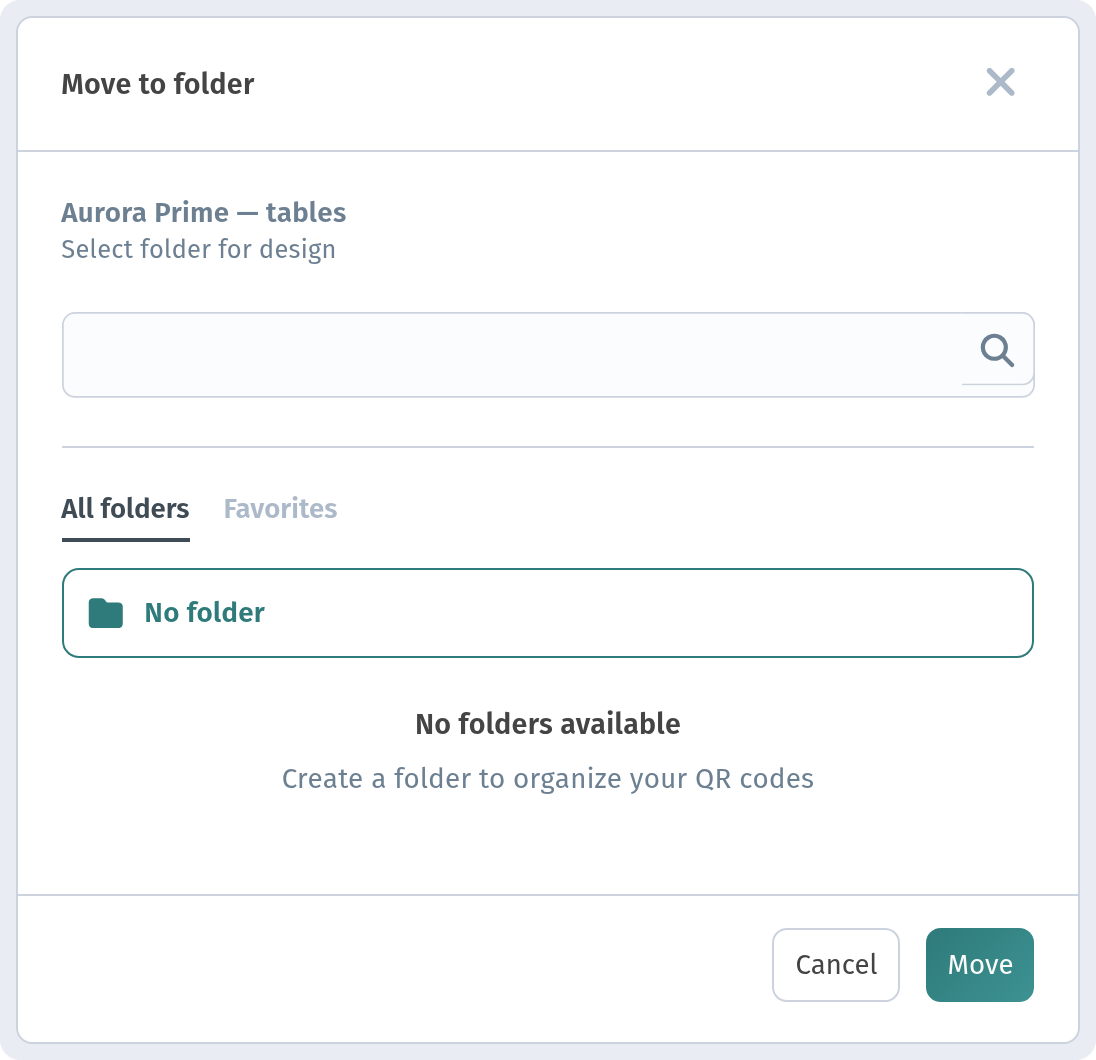
On a design card, open the "…" menu and choose Move to folder. In the dialog, select a folder from the list (or No folder to take it out of any folder) and click Move. A design belongs to at most one folder at a time, and the card shows which.
The same "…" menu also has Edit, Copy design, Favorites and Delete. Copying is handy for seasonal variations of the same QR, and Favorites keeps the codes you reprint most at hand.
4. Personal designs and workspaces
Designs and folders are personal by default (My QR designs, My folders). If your team works in workspaces, choose Move to workspace in the design's "…" menu to hand a design over to a workspace, and switch the filter to Workspaces to see shared designs. The Owner field in the folder dialog works the same way.
For per-table QR codes, see Tables and QR codes per table, and for placement tips, Where to place QR codes.
Why it matters for your restaurant
- Find the right QR in seconds when it's time to reprint.
- No mix-ups between locations: each store's codes live in their own colored folder.
- Easier teamwork: shared designs live in the workspace, not in one person's account.
Quick checklist
- Design Folders → Create folder → name + color → Create.
- On each design: "…" → Move to folder → Move.
- Mark the most-used codes as Favorites.
- Move team designs to a workspace with Move to workspace.