
GPS and order protection in WebQRMenu: keep menu orders near the venue
Turn on geolocation for WebQRMenu orders: store point and radius, what guests see inside, outside and when denied — and when to leave the check off.
A public QR menu link is easy to open from home, another district or “from the street” — and to send a pickup order nobody will collect. GPS and order protection in WebQRMenu asks for the guest’s location at confirm time and accepts the order only inside a radius you set around the store. Below: dashboard setup, then the phone flow.
Related reading: the wider store panel in Store appearance and settings, how the cart works in How a guest orders through the cart, fulfillment choices in Order types: dine-in, takeaway, delivery and pickup, table links in Tables and a separate QR code for every table, and the back-office order card in Order management.
In short: open Store → Settings → GPS & order protection, turn on Require geolocation for orders, set latitude/longitude (or My location on site / the Address block), choose a radius (often 50–200 m), save — then test from your phone at the venue edge.
1. Where the setting lives
In the dashboard open the store, go to the Settings tab (next to Information and Page layout). The page lists collapsed blocks: Acceptance and checkout, Order types, Order notifications, then GPS & order protection — with the hint Store GPS and a check that the guest is nearby — otherwise the order cannot be sent.
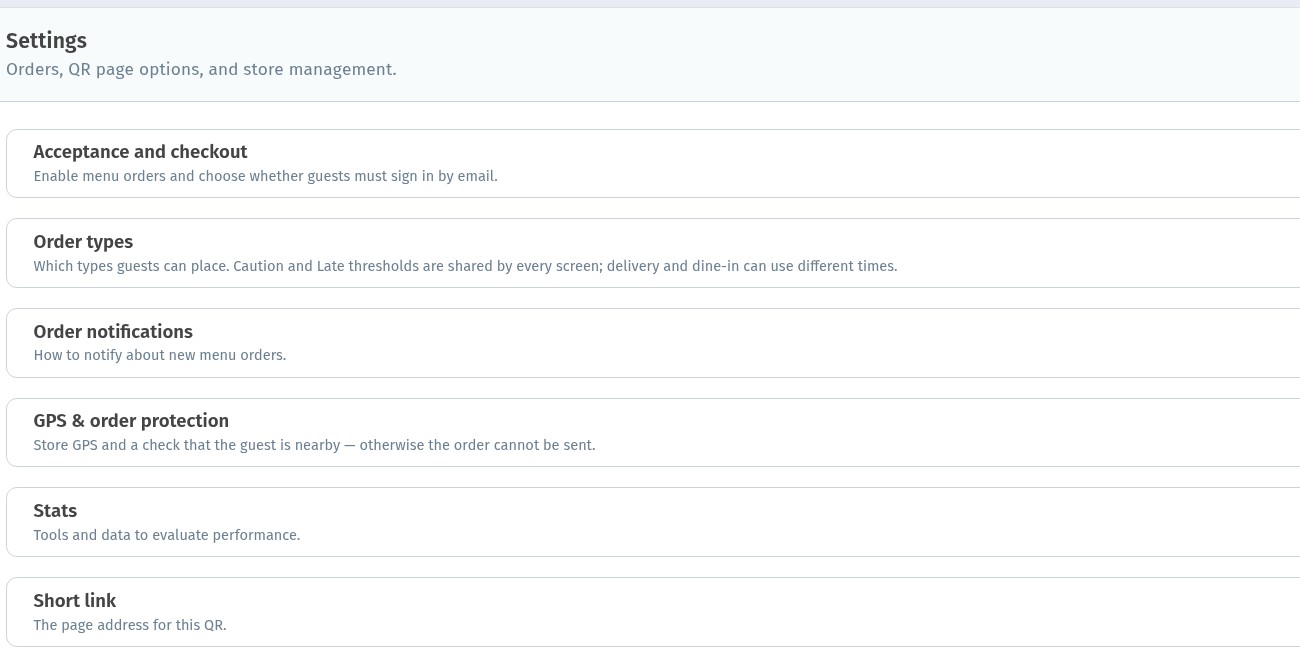
Tap the block to expand it. Everything for this feature sits in that one card; you do not need a separate map product.
2. Turn the check on and set the store point
Expand GPS & order protection. Switch on Require geolocation for orders. The hint under the switch: Turn off if orders can be accepted without checking the guest’s location. Leave it on when you want nearby guests only; turn it off when a location check would get in the way of how you take orders.
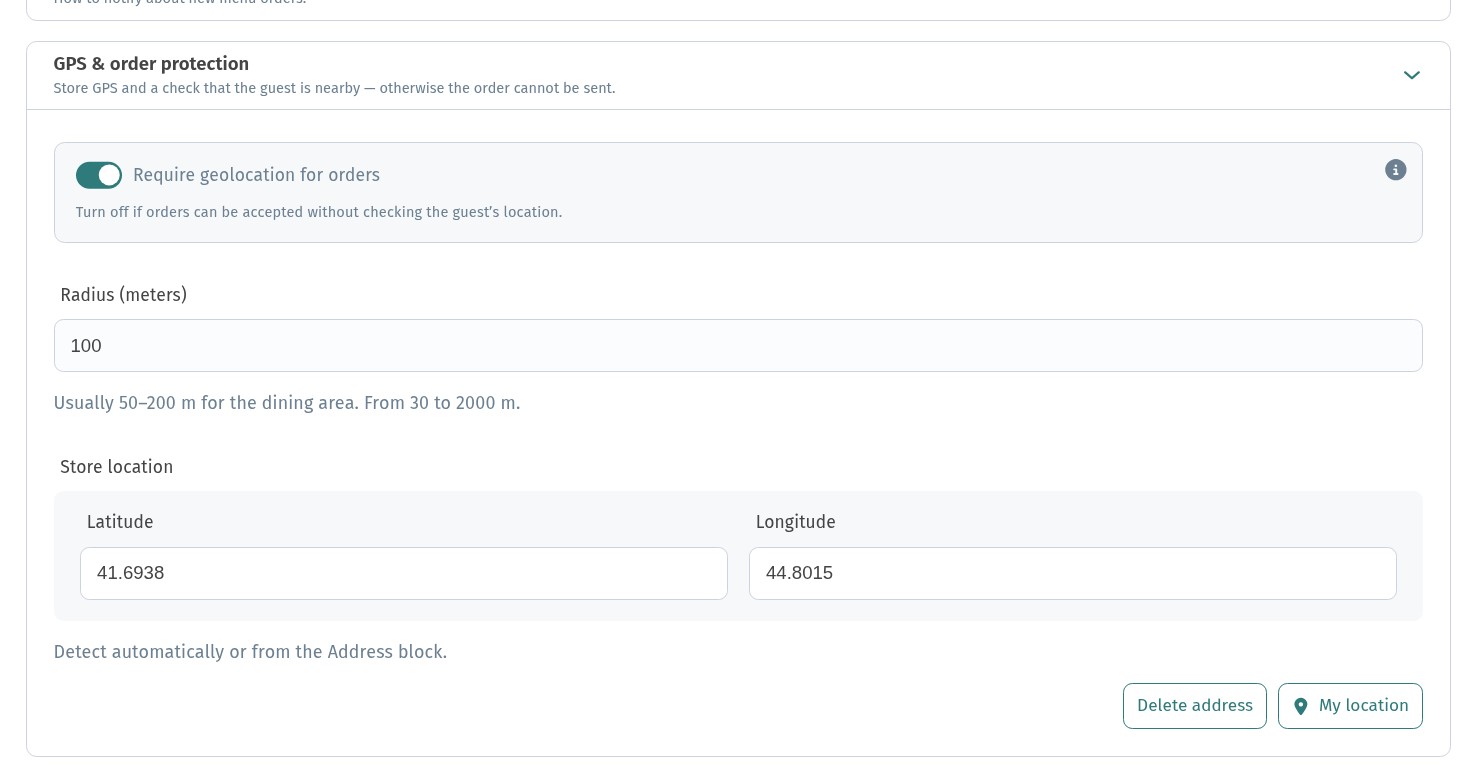
The info icon next to the switch opens a short explanation: Why location is required. Guests confirm GPS when placing an order. The order is accepted only if they are within the set radius around the store — this blocks orders from elsewhere.
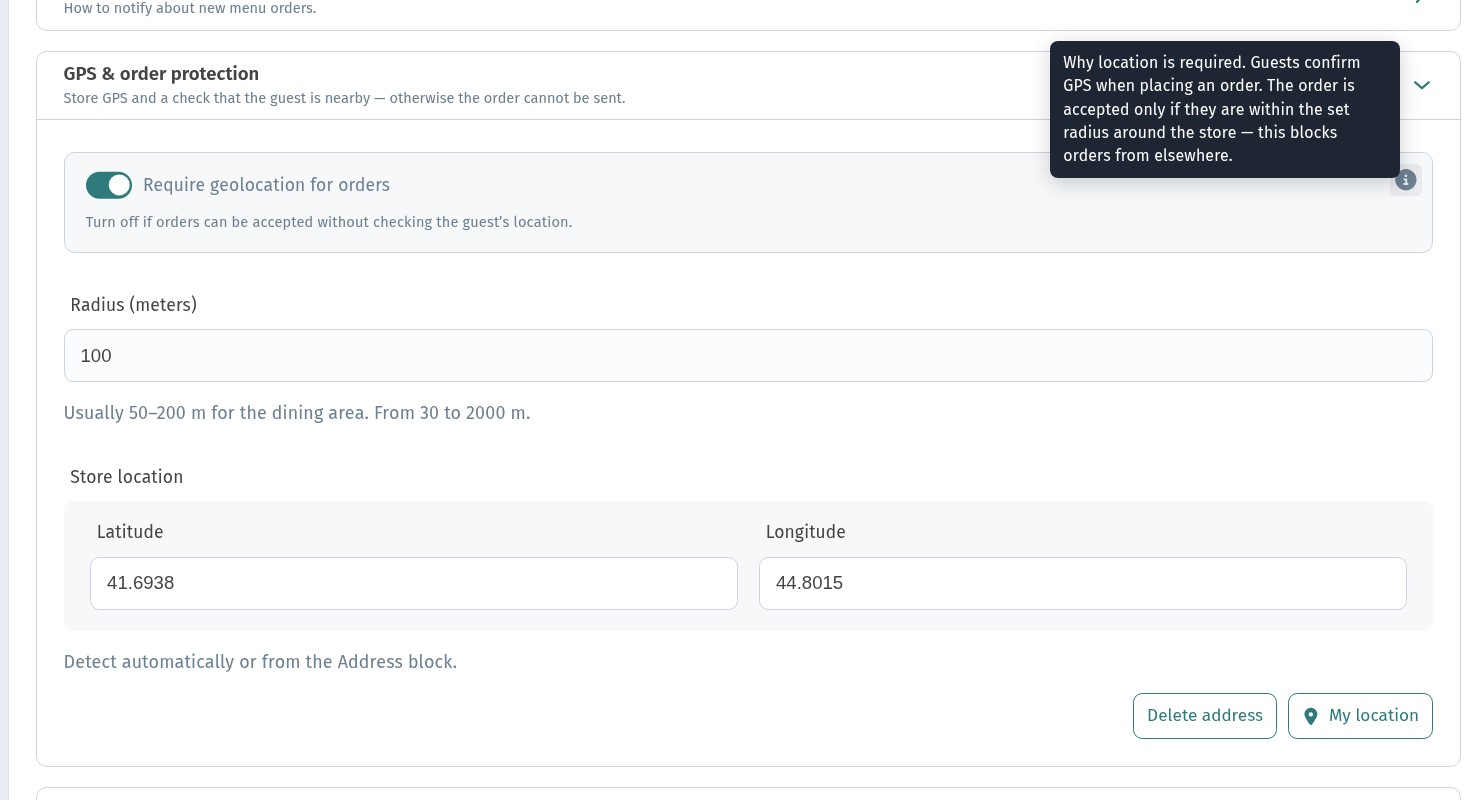
Under Store location fill Latitude and Longitude. You can:
- stand physically at the venue and press My location so the browser fills the fields from your device GPS, or
- take coordinates from the Address block on the Information tab (hint on the card: Detect automatically or from the Address block.).
Address itself has tabs Full and Link: under Full you get Search address (placeholder Street, city, country) and Manual entry — useful so the guest menu also shows a clear venue location, not only the geofence point.
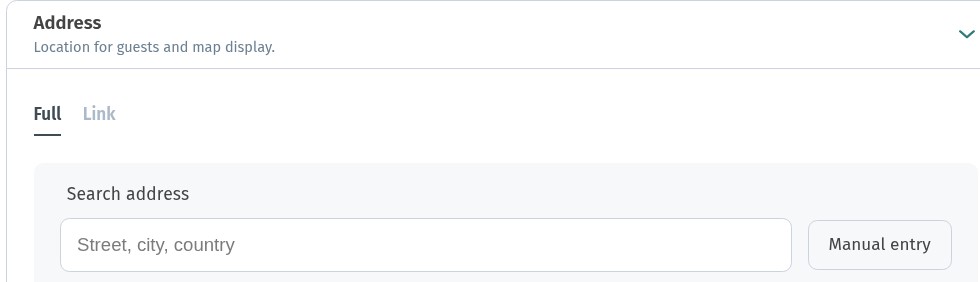
Delete address clears the stored point if you need to reset.
3. Choose the radius
Radius (meters) accepts values from 30 to 2000. The UI tip: Usually 50–200 m for the dining area. That range fits a hall plus terrace for most cafés and restaurants. Use a wider radius for a large plaza, a mall food court where guests walk farther from the kitchen, or when indoor GPS wobbles and a tight circle rejects people who are actually inside. Keep it tight for a small counter where “nearby” really means at the door. After you change the number, press Save.
4. What the guest does on the phone
GPS is not asked when the guest opens the menu or adds dishes. The guest adds an item, opens the cart, taps Place order, chooses how to receive the order, then taps Confirm and order. Location is requested at that confirm step.
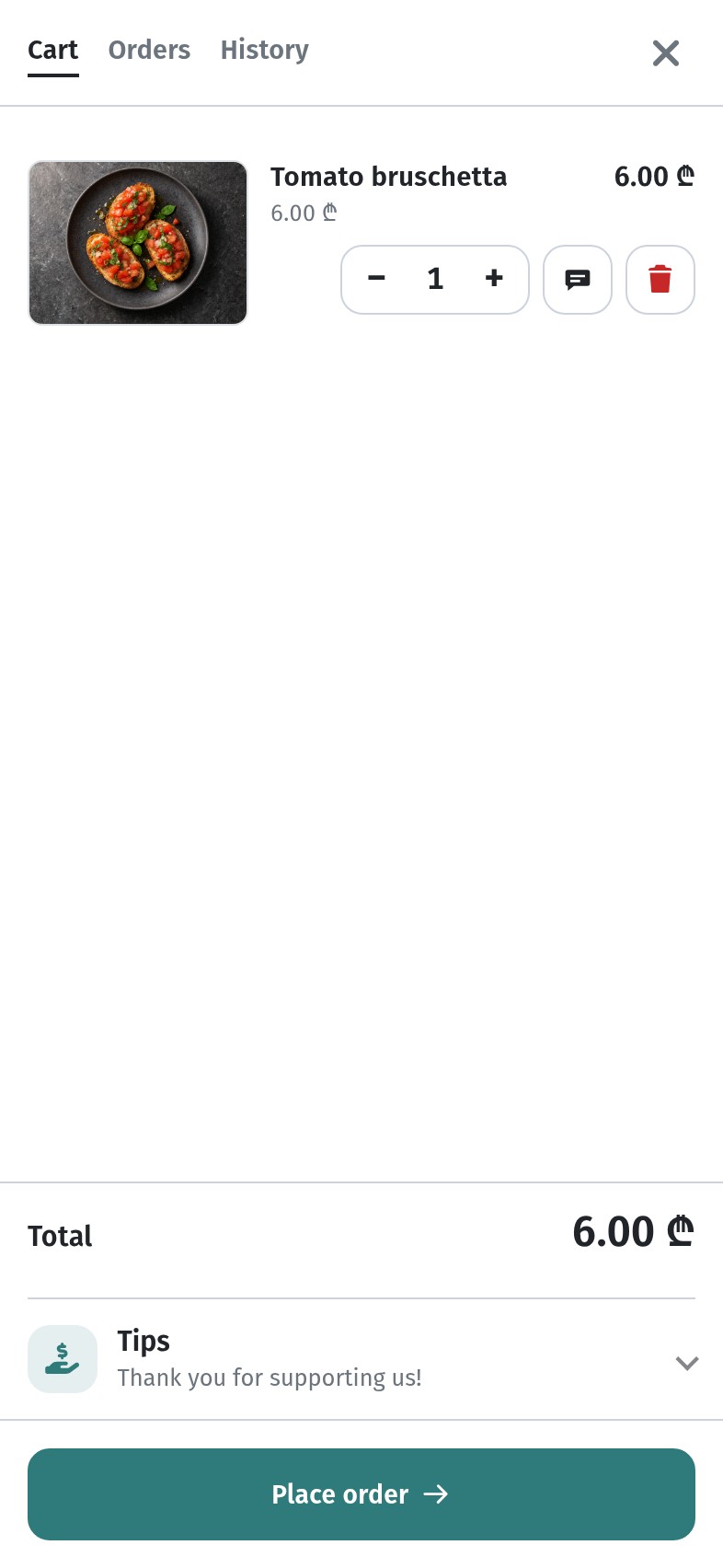
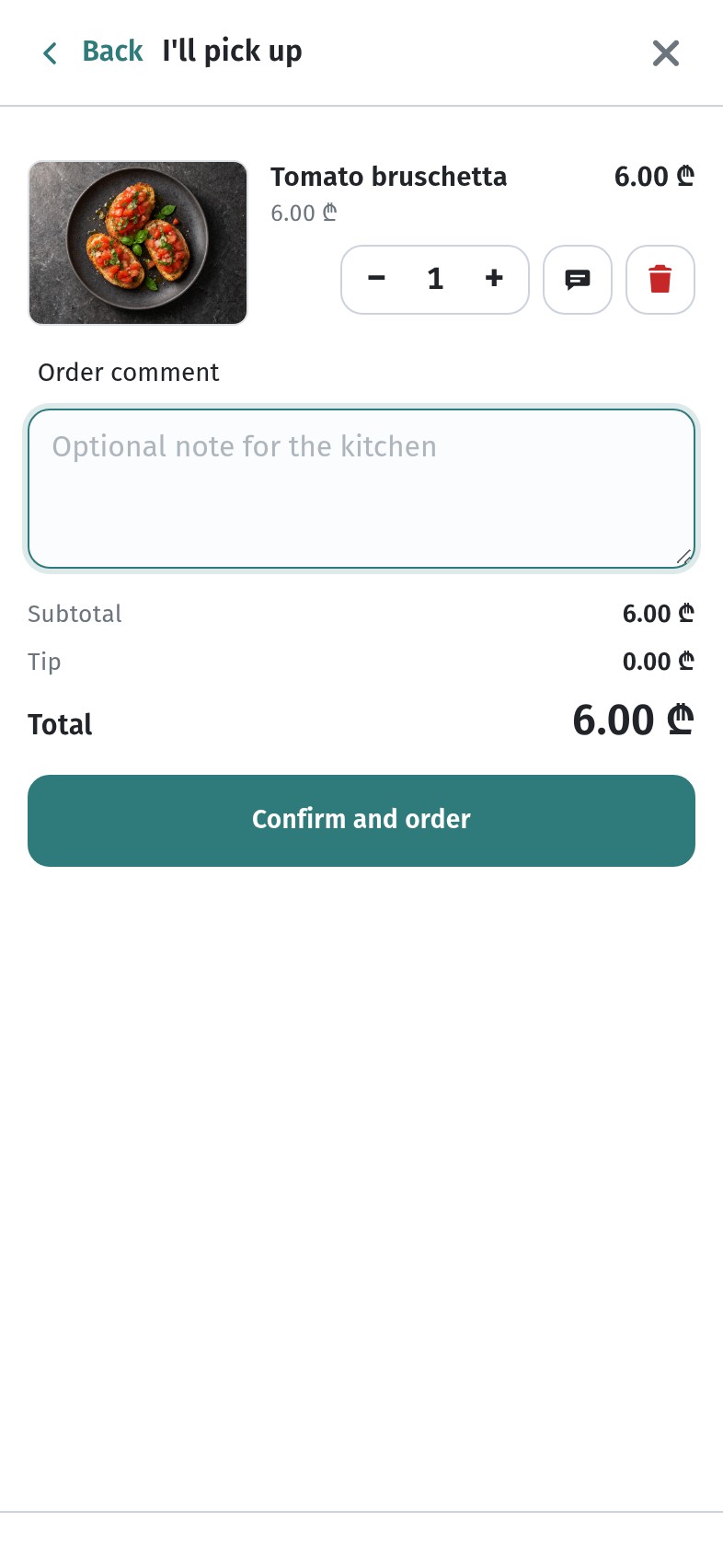
Three outcomes:
Inside the radius (location allowed). Coordinates go with the order; the order is created and appears for the store (see order management).
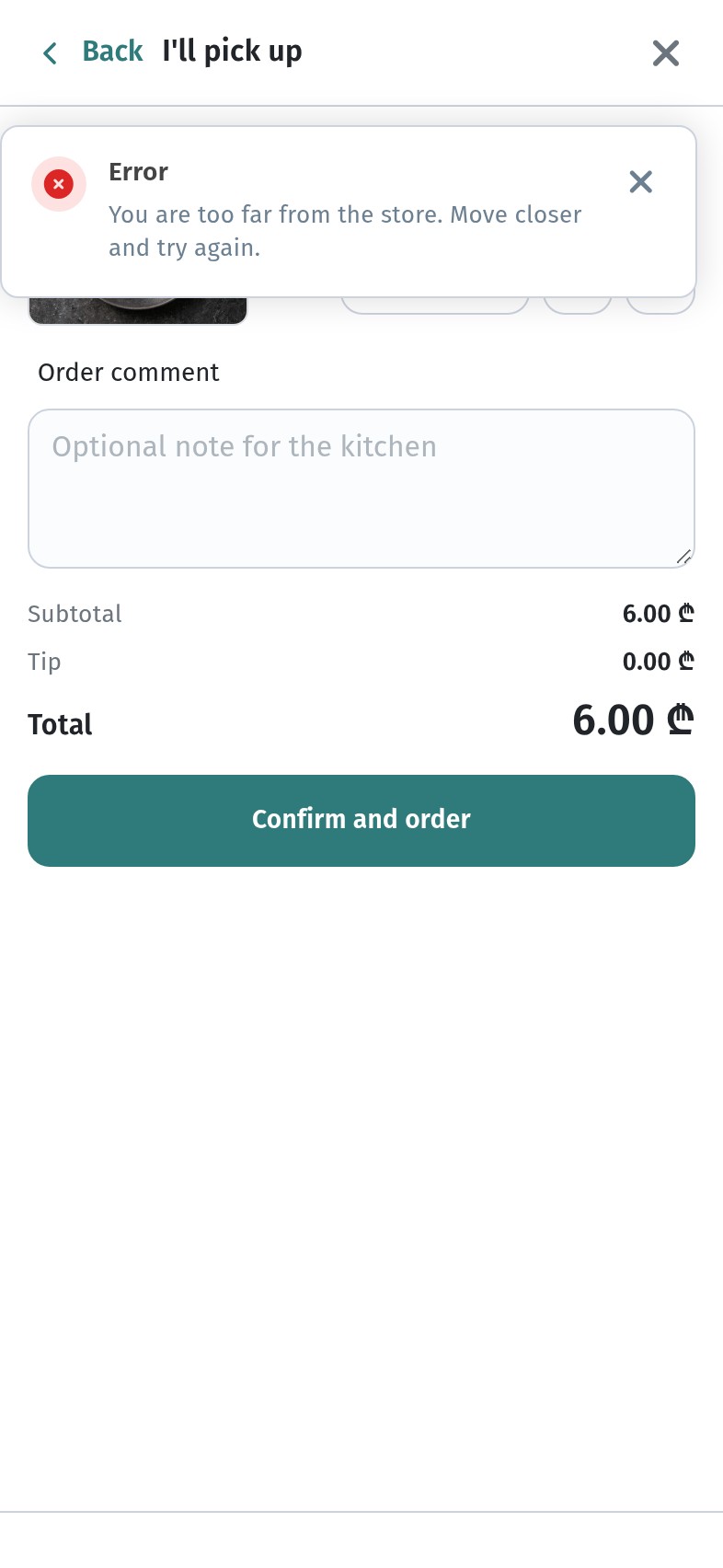
Outside the radius (location allowed). The order is not created. The guest sees an error toast: You are too far from the store. Move closer and try again. The confirm button stays available so they can retry after moving closer.
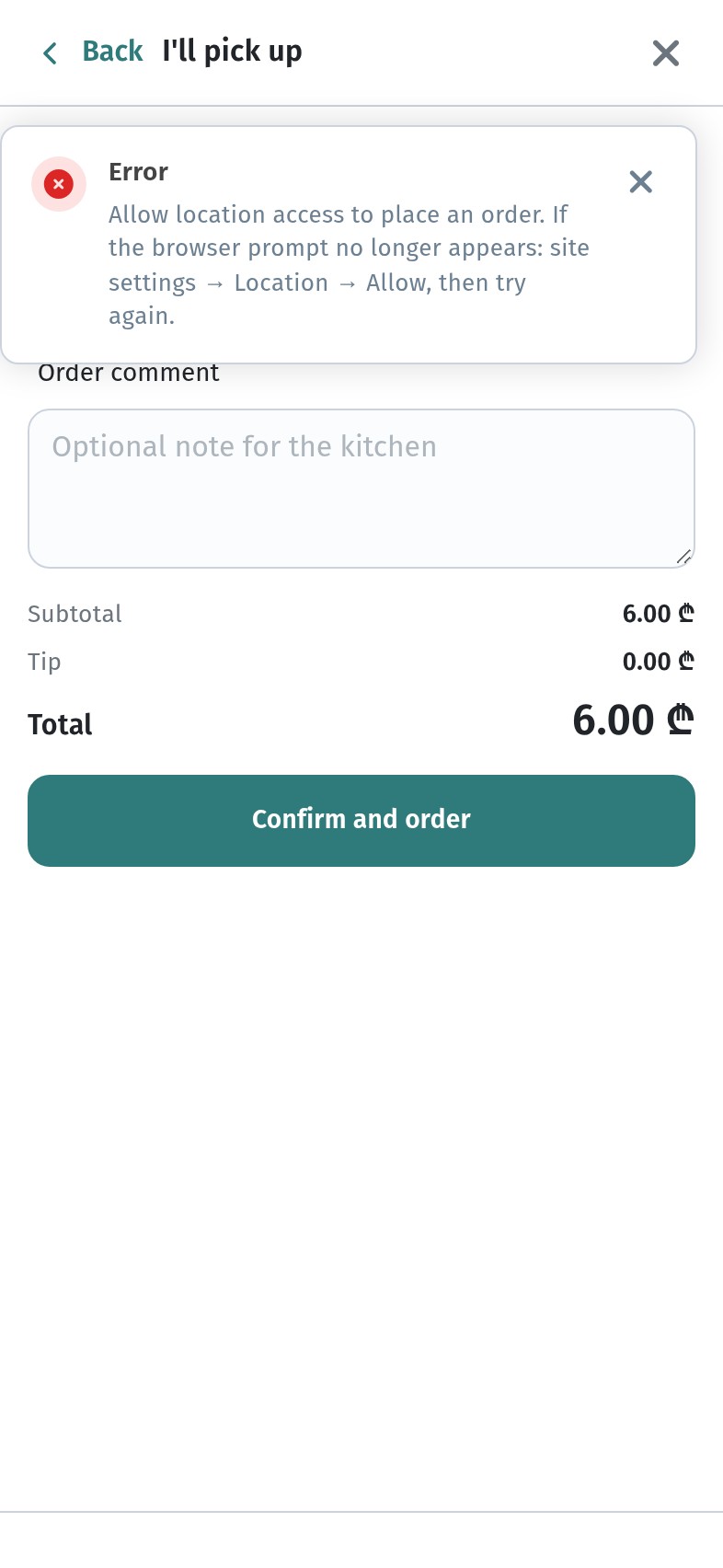
Location denied. No order is sent. Toast: Allow location access to place an order. If the browser prompt no longer appears: site settings → Location → Allow, then try again. The guest re-enables location for your site in the browser (or OS) settings, returns to the cart and confirms again.
The interface also has copy for unsupported browsers, imprecise GPS and a generic “confirm your location” prompt.
5. When to turn it on or off
Turn it on when orders should come from people already at or next to the venue — hall, terrace, counter pickup — and you want fewer prank or remote pickup tickets. Pair it with clear order types.
Turn it off when the switch hint applies: you accept orders without checking guest location.
Table QR and dine-in locking: tables guide.
6. Checklist before service
- GPS & order protection opened under Store → Settings
- Require geolocation for orders on (or deliberately off)
- Store latitude/longitude set — My location at the venue or from Address
- Radius chosen (start 50–200 m for hall/terrace; adjust for size and indoor GPS)
- Save pressed
- Test on a real phone: confirm from inside the venue, from outside the radius, and with location denied
- Staff know the guest messages and how to ask someone to allow location
With the point and radius set once, every confirm on a protected menu runs the same nearby check — without changing how guests browse the catalog.