

Calling a Waiter and Requesting the Bill from a WebQRMenu QR Menu
Let guests call a waiter, request the bill or a table clean-up from the QR menu. Set up call types in Waiter calls and enable calls per table.
How guests call a waiter, ask for the bill or a table clean-up right from the QR menu, and how your restaurant sets up call types in Waiter calls and turns calling on for the right tables.
A guest raises a hand, and the waiter is looking the other way. Sound familiar? In WebQRMenu, guests can call staff straight from their phone: open the menu from the table's QR code, pick what they need (a waiter, the bill, change or a clean-up) and tap one button.
This article covers how to set it up in the dashboard and what the call looks like for the guest.
In short: in the dashboard open Waiter calls → pick your store → check or add call types → in Tables turn on Enable call waiter for the table → the guest scans the table QR and taps Call someone.
1. Where calls are configured
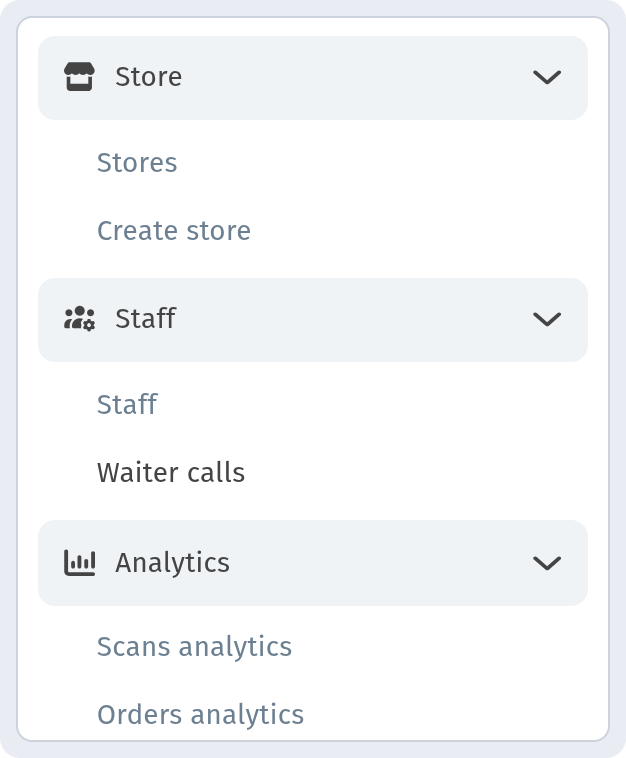
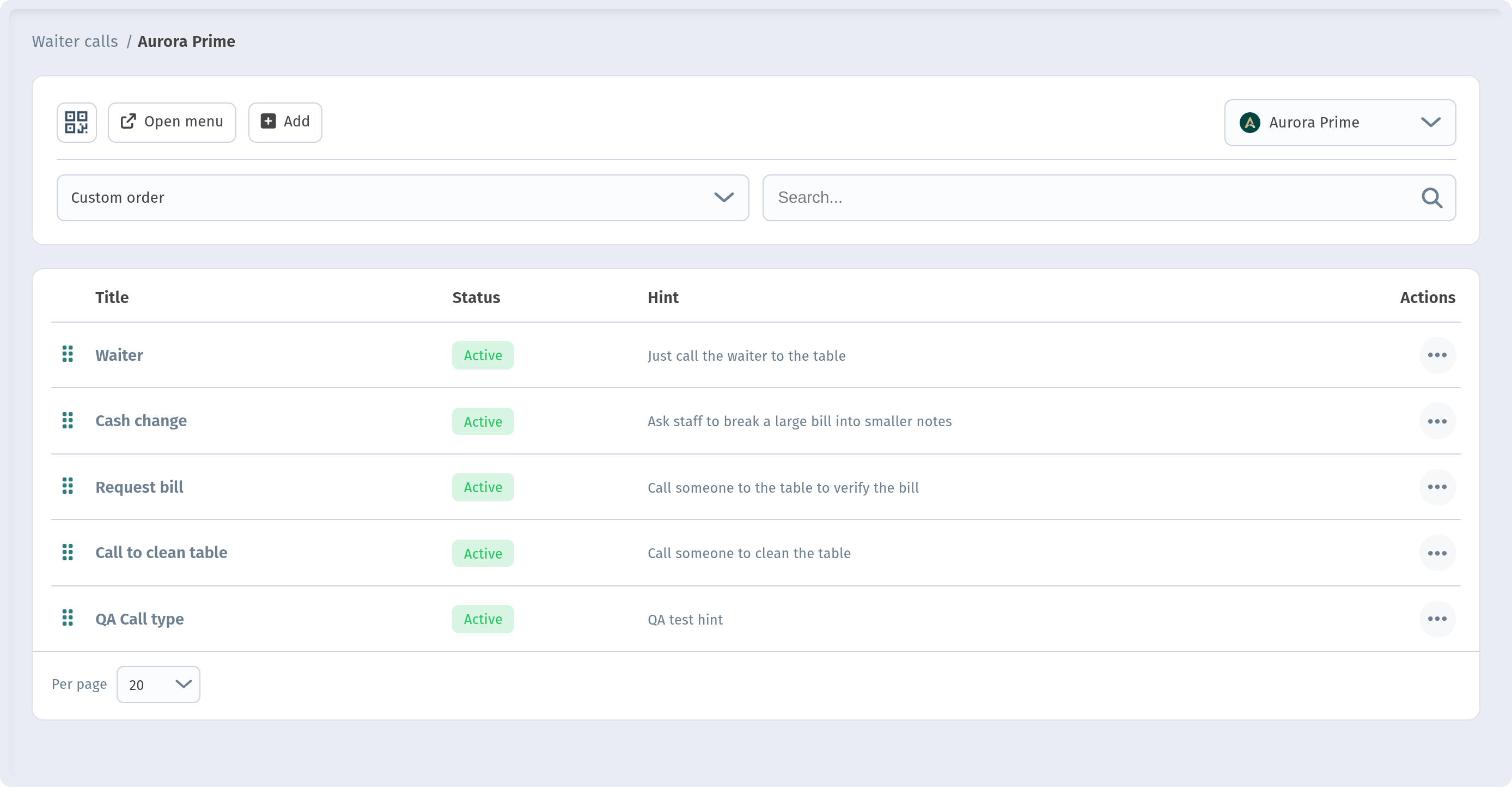
The dashboard sidebar has a Waiter calls section. You first see a list of your stores; pick one, for example "Aurora Prime". The breadcrumb changes to "Waiter calls / Aurora Prime".
This is where call types live — the options guests see in the menu. The table has the columns Title, Status, Hint and a "..." actions menu.
2. Ready-made call types
The list already includes useful options, all of them Active:
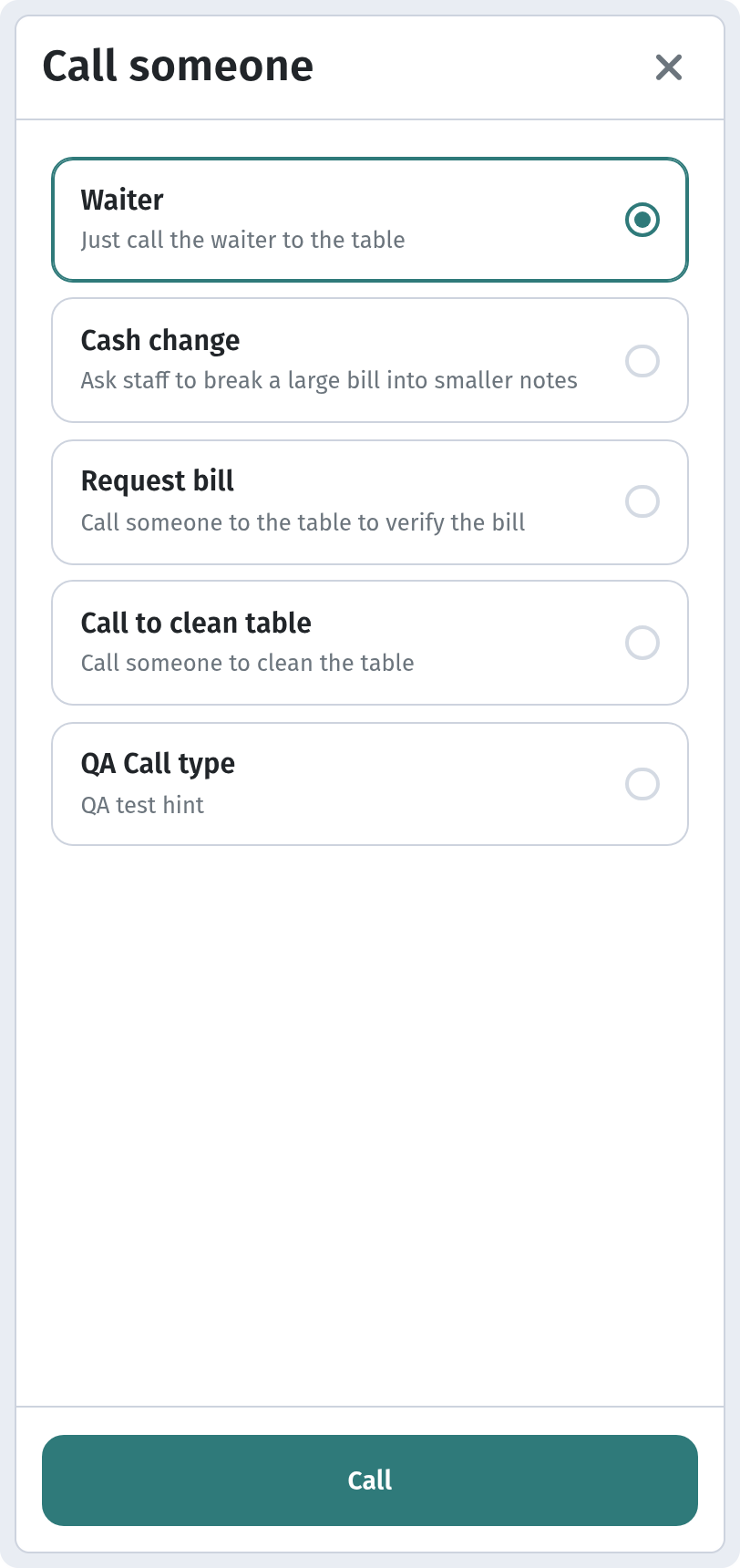
- Waiter — "Just call the waiter to the table".
- Cash change — "Ask staff to break a large bill into smaller notes".
- Request bill — "Call someone to the table to verify the bill".
- Call to clean table — "Call someone to clean the table".
Note that there is no separate "bill" button. Requesting the bill is a regular call type, just like the others, so you can rename it, change its hint or hide it.
3. Your own call type
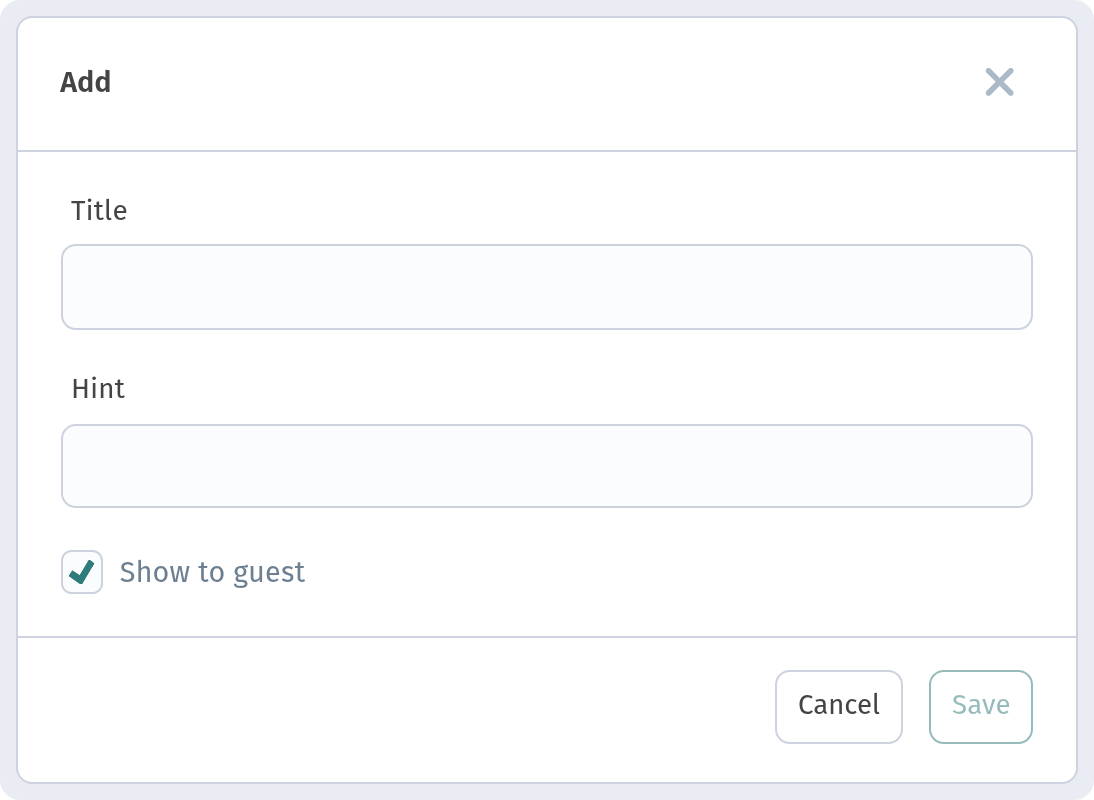
Need something specific, like "Bring a high chair" or "Call the sommelier"? Click Add. The dialog has three fields:
- Title — the name the guest sees;
- Hint — a short line under the name;
- the Show to guest switch — whether this option appears in the menu.
Click Save and the new type joins the list.
4. Ordering the options
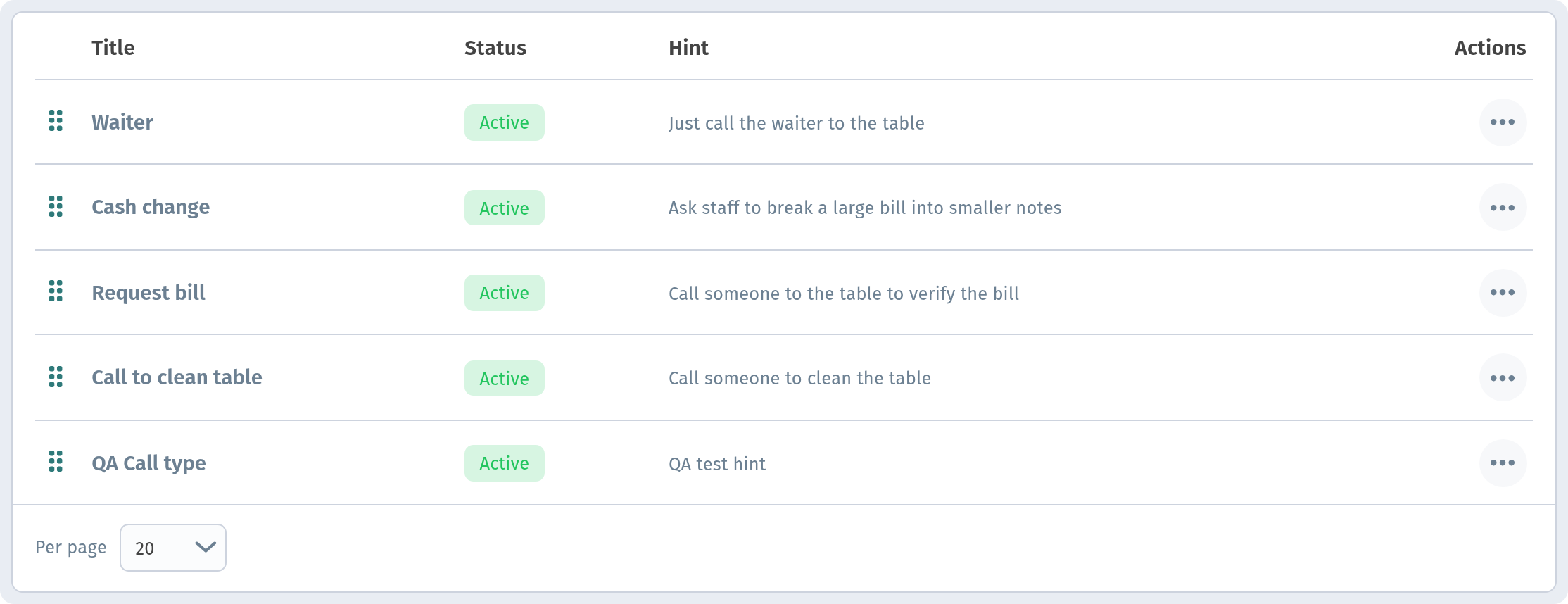
The list uses "Custom order": every row has a drag handle. Move the most common calls, such as Waiter and Request bill, to the top so guests find them instantly.
5. Turn calling on for a table
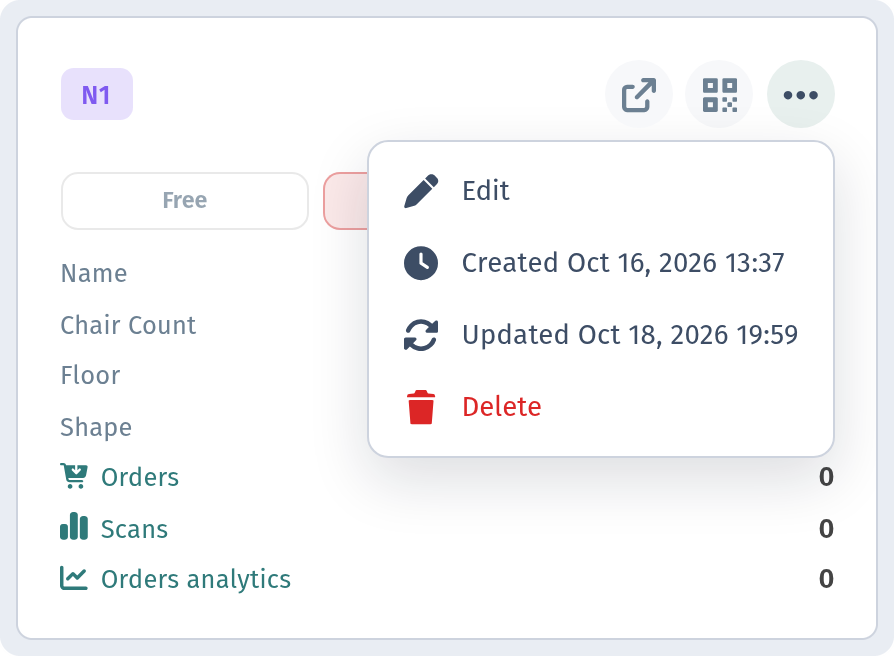
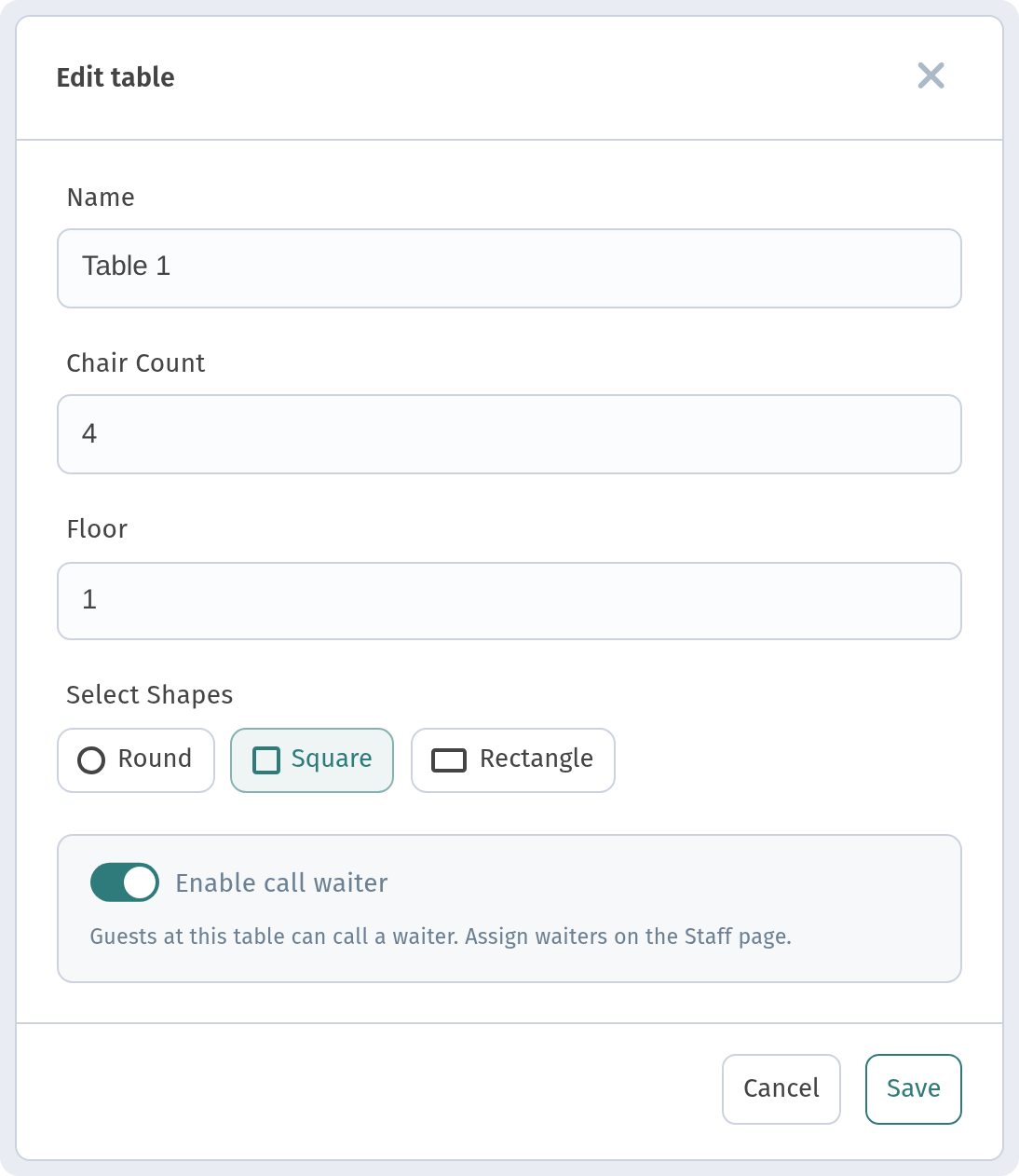
With call types ready, allow calls at specific tables. Open Tables, click "..." on a table card and choose Edit. Turn on Enable call waiter — the caption reads "Guests at this table can call a waiter. Assign waiters on the Staff page."
The same switch is available when you create a new table.
6. What the guest sees
The guest scans the table's QR code — the table one, not the general store QR. The store-level page only shows restaurant info (About, contacts, hours, Wi-Fi) and isn't meant for ordering or calls.
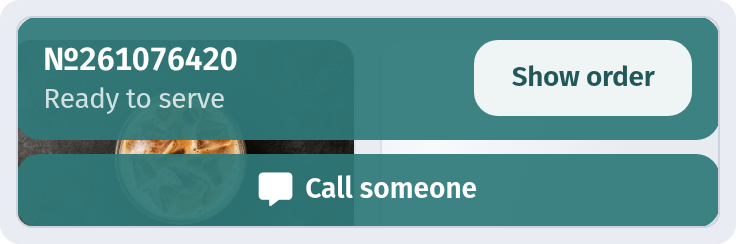
In the table menu, the bottom bar has a Call someone button. It opens a sheet with the same title listing your call types and their hints. The guest picks an option, for example Request bill, and taps Call.
Important: calling works while the store is open. If the restaurant is closed and the menu shows when it opens, the call button isn't there.
7. Who receives the call
Calls reach the waiters assigned to that table, on their Waiter board. In the Kitchen line Order colors, waiter calls have their own red "Waiter call" colour, so they never get mixed up with orders.
Push notifications to waiters aren't sent yet, because the mobile app is still in development. Keep the waiter board open on a work device. To invite waiters and assign tables, see Staff, waiters and shifts in WebQRMenu.
Why it matters for your restaurant
- Less waiting. Guests don't have to catch a waiter's eye.
- Clear reason for every call. The waiter knows in advance whether to bring the bill, change or a cloth.
- Flexibility. You set the names, hints and order of calls yourself.
Quick checklist
- Open Waiter calls and make sure the types you need are active.
- Drag the common calls to the top.
- Turn on Enable call waiter for tables in Tables.
- Assign waiters to those tables in Staff.
- During opening hours, scan a table QR and check the Call someone sheet.