
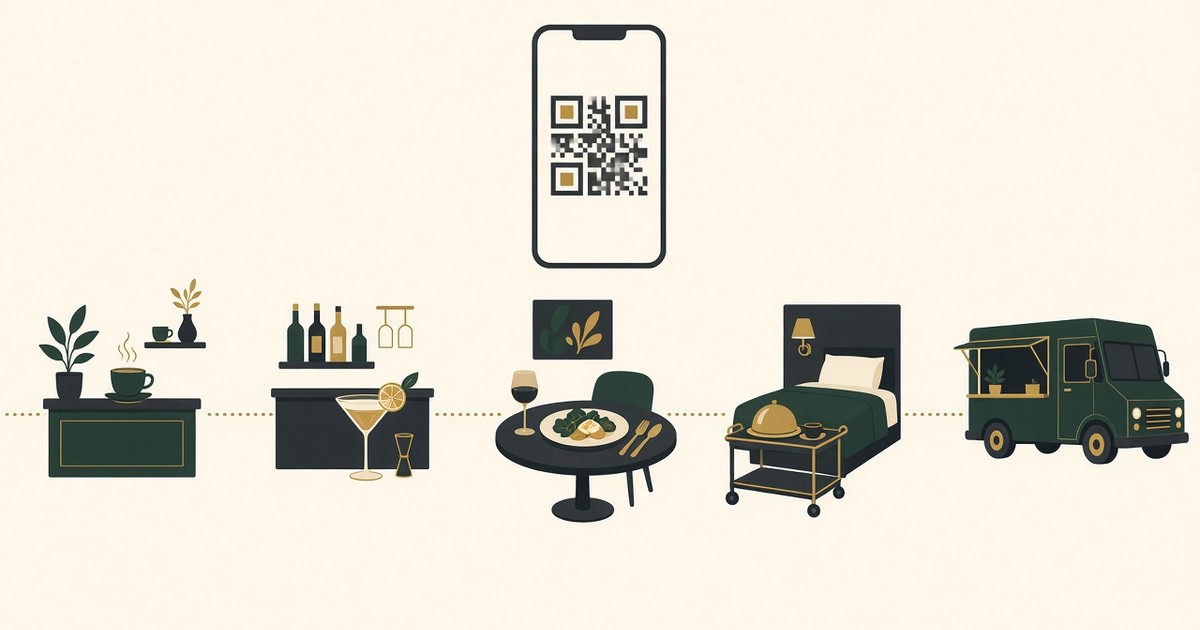
QR menu for every format: coffee shop, bar, restaurant, hotel room service, food truck
How to set up a WebQRMenu QR menu for a coffee shop, a bar, a restaurant, hotel room service and a food truck: which order types to turn on, how to structure the sections, where to put the QR codes and what to watch out for.
A QR menu in a coffee shop and in a hotel room look the same at first: the guest scans a code and sees the menu on their phone. But the rest differs. A coffee shop guest usually stands at the counter and wants to leave quickly, a bar guest orders a second round, a restaurant guest asks for the bill, a hotel guest is in their room, and a food truck guest is on the street.
WebQRMenu has one set of tools for all of them: order types, order acceptance, opening hours, tables with their own QR codes, and the guest's call button. What changes is which ones you turn on and how you arrange them. Below we go through each format, with screenshots from our demo venue Aurora Prime.
In short: a coffee shop and a food truck mostly use the general menu link with Takeaway and Pickup. A bar and a restaurant need tables with their own QR codes and Dine in. A hotel can use the same tables, named after rooms. Opening hours, time zone and the order type of each dish apply to every format.
1. The tools every format uses
Order types
Open the store card and go to the Settings tab, then the Order types block. There are four types: Dine in, Takeaway, Delivery and Pickup. Each has its own toggle and two thresholds in minutes: Caution (the order needs attention) and Late (the order is late). Staff see them on the order screens, so different formats can get different timings.
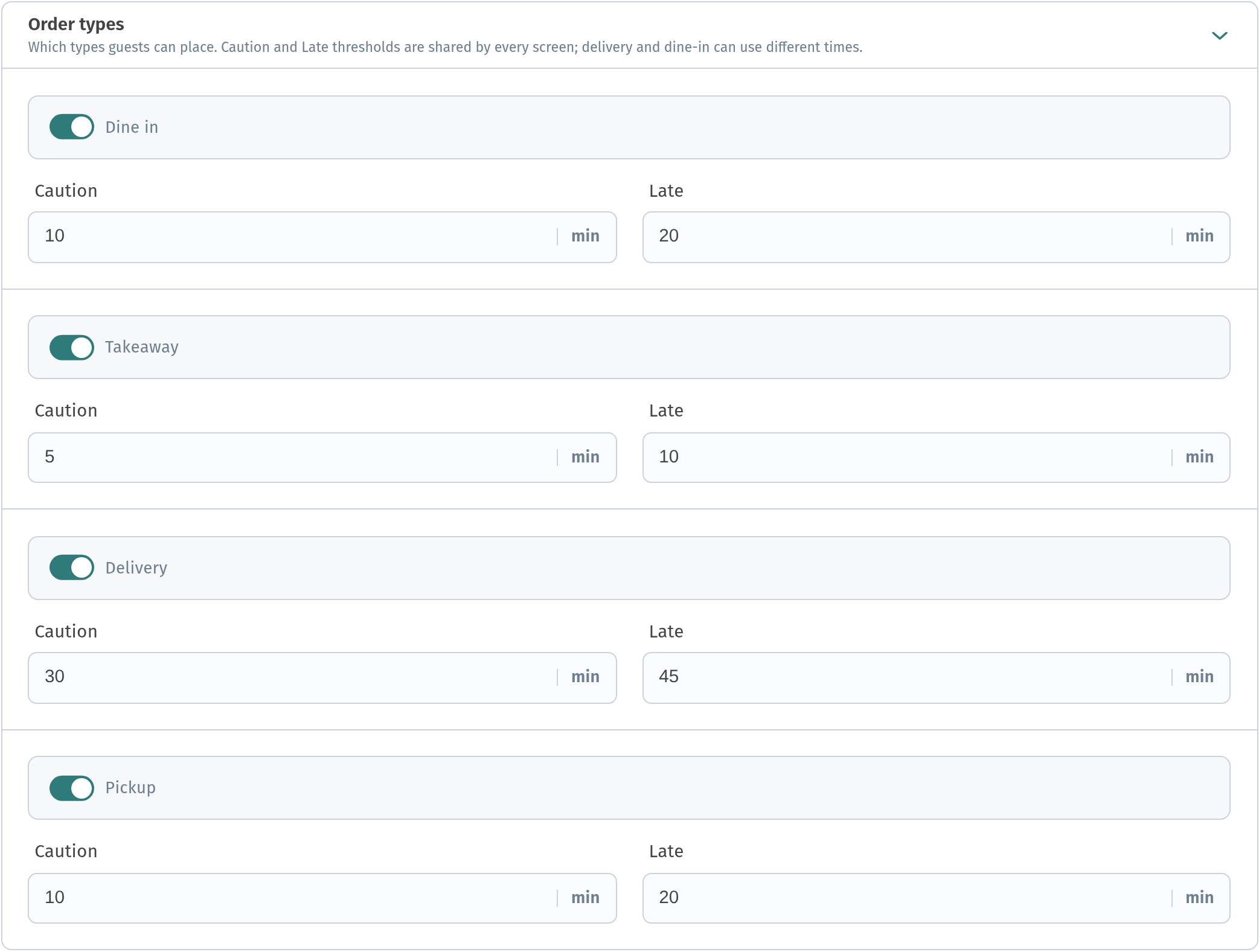
At Aurora Prime we set: Dine in 10 / 20, Takeaway 5 / 10, Delivery 30 / 45, Pickup 10 / 20 minutes. Use your own real timings: an espresso is ready faster than a steak.
Order acceptance
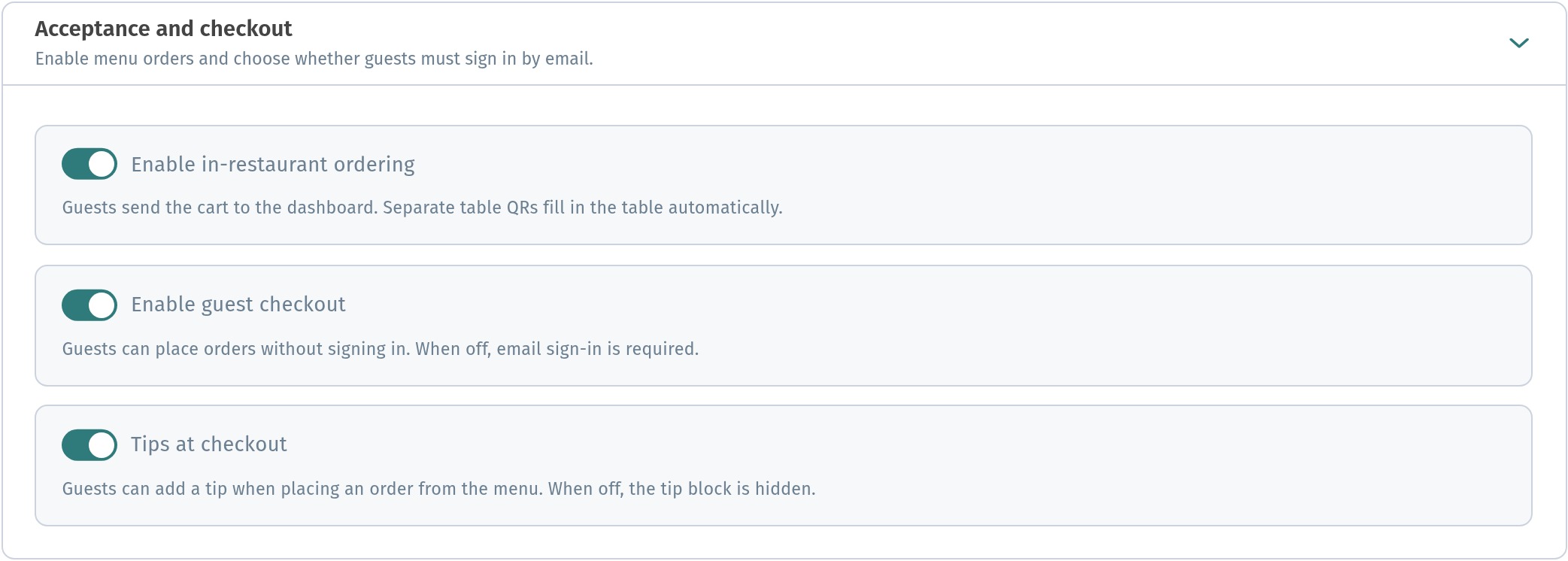
The Acceptance and checkout block on the same tab has three toggles:
- Enable in-restaurant ordering: guests send their cart to the dashboard. Separate table QR codes fill in the table automatically.
- Enable guest checkout: guests can order without signing in. When it's off, they sign in by email first.
- Tips at checkout: guests can add a tip to the order.
If you only want a menu to browse, without ordering, leave ordering off. That suits, for example, a hotel lobby bar where the waiter takes the order anyway.
Opening hours and time zone
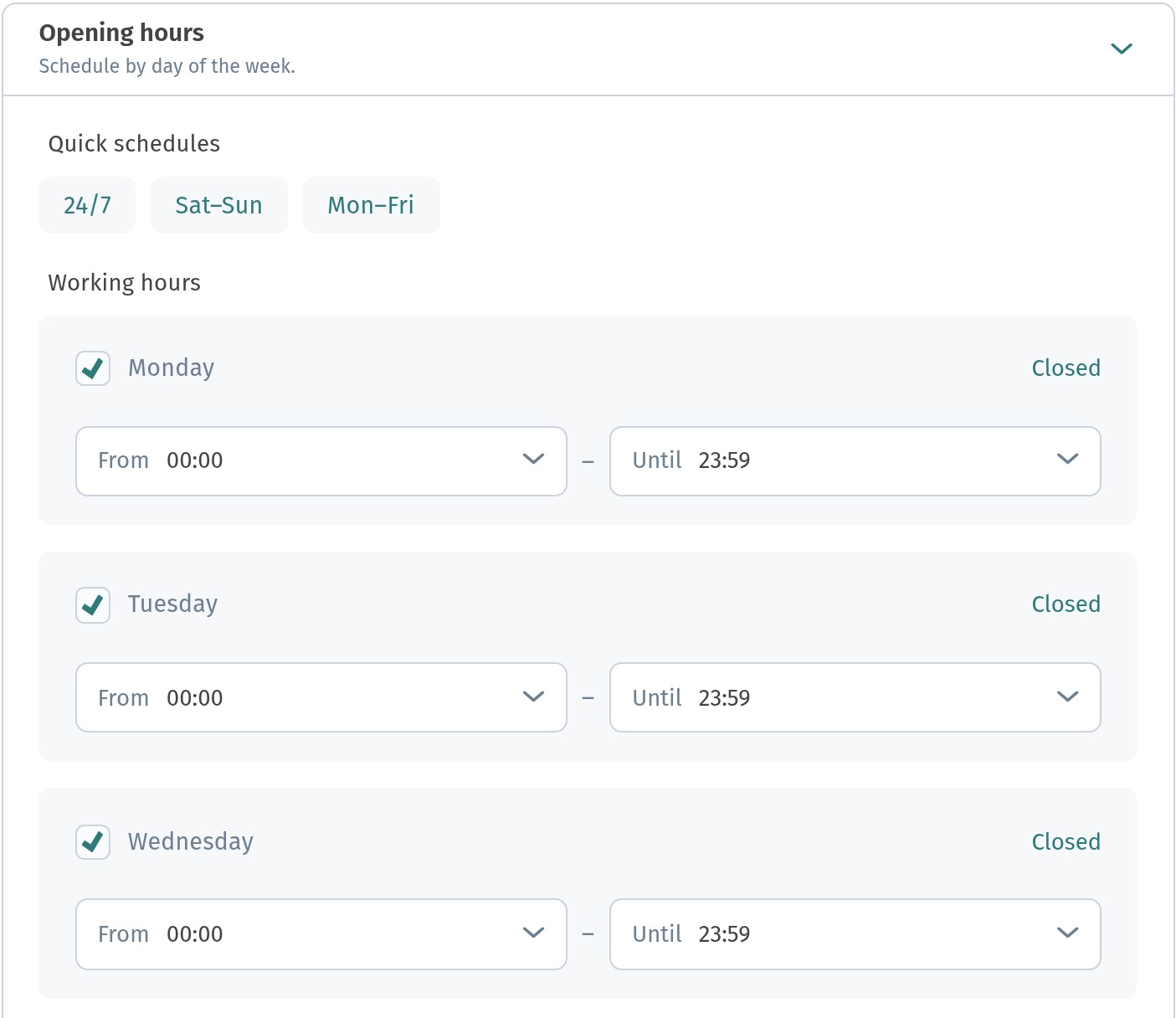
Opening hours are on the Information tab, in the Opening hours block. There are quick schedules (24/7, Sat–Sun, Mon–Fri), and for each day you set From and Until or mark it Closed. Below them are the time format and the time zone: the dashboard explains that the time zone decides when the store counts as open or closed and when guests can place orders. Aurora Prime is open 24/7 in the Tbilisi time zone.
More on hours, Wi-Fi and contacts in Wi-Fi, opening hours and contacts in your WebQRMenu menu.
Which dishes can be ordered to go
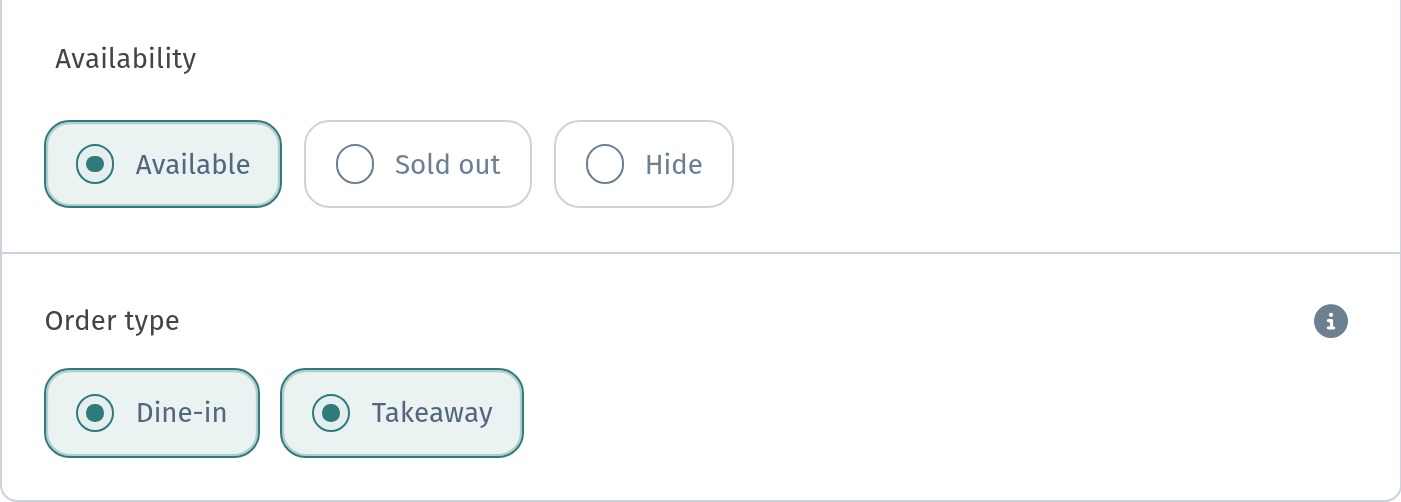
In the dish editor, the Placement block has Availability (Available, Sold out, Hide) and Order type with Dine-in and Takeaway. You can tick both. This matters for every format with takeaway: mark as Takeaway only what you are actually ready to pack.
2. Coffee shop
What to turn on. Enable in-restaurant ordering, Takeaway and Pickup, and Dine in if you have seats. Keep the thresholds short: in a coffee shop a 10-minute wait already feels long. Tips at checkout works well with baristas.
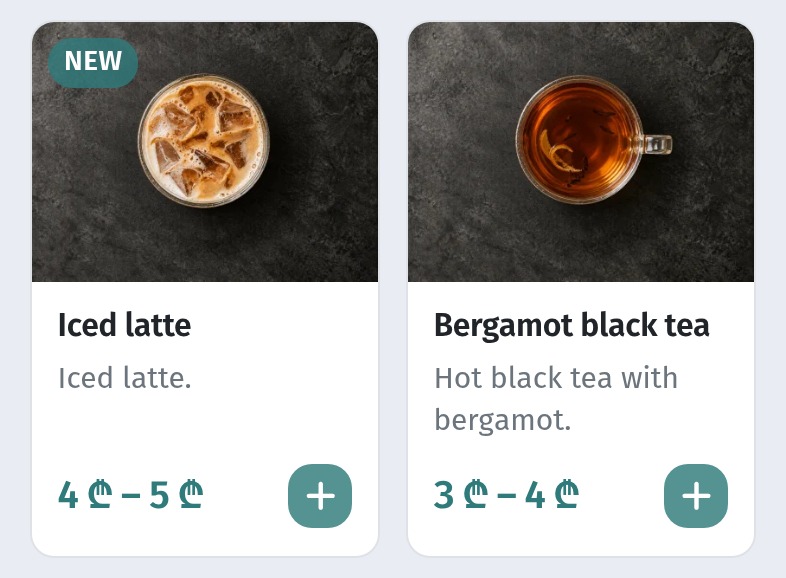
Sections. Few and clear: coffee, tea, other drinks, desserts, breakfast. A coffee shop guest decides in seconds, so put the most popular drinks first. Mark sizes and volumes in the drink cards so the guest sees the price range right on the tile. How to set volumes and sizes is covered in Drinks and bar menu in a QR menu.
Where to put the QR. At the counter, by the till and the pickup point, on the tables and on the window if people pass by. The general menu link fits here: whoever scans it can order to go.
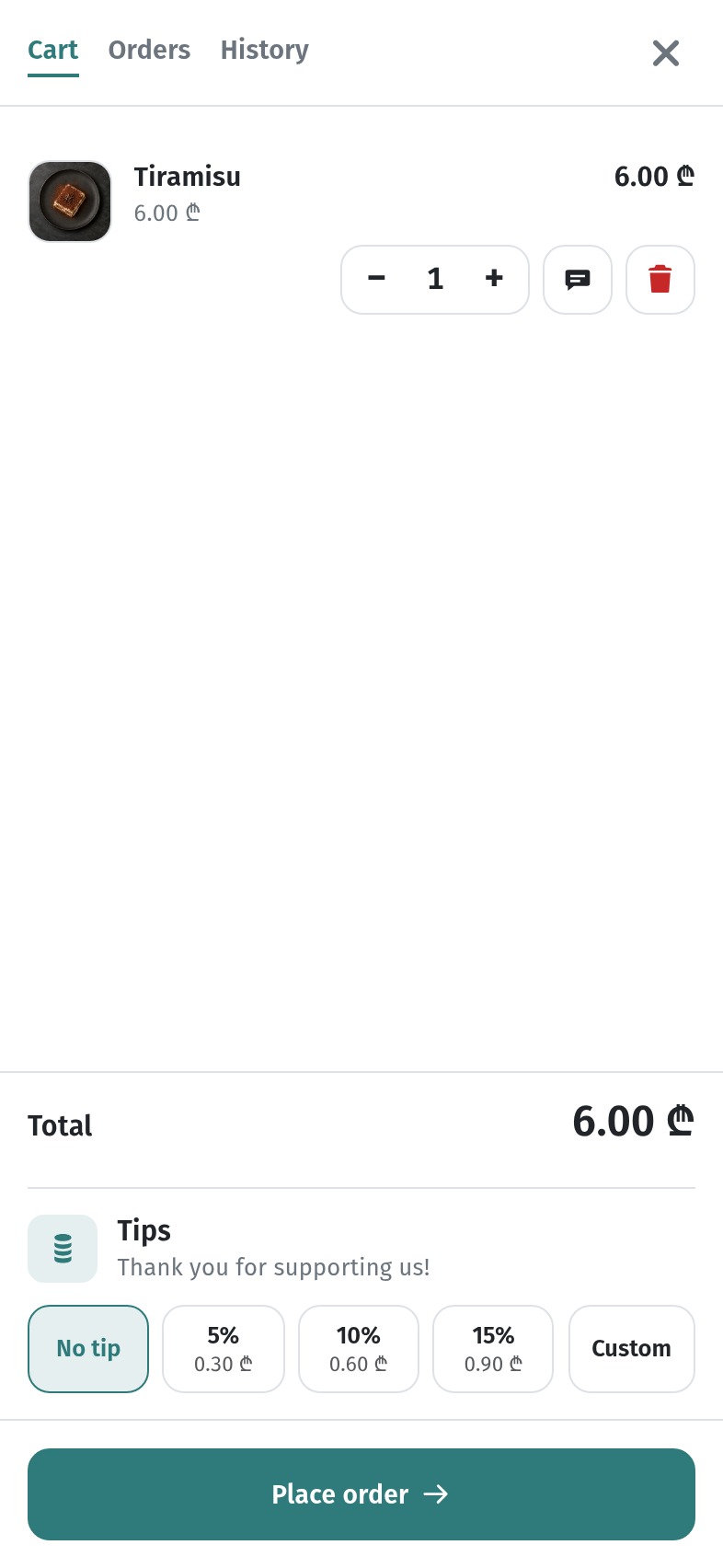
The guest's path. The guest adds a drink or a dessert, opens the cart and presses Place order. The cart also shows the tip choice if you turned it on.
What to watch for.
- Speed. Check that the barista notices new orders right away and that Takeaway and Pickup thresholds match reality.
- Photos. In a coffee shop the photo sells the drink: every card in the first sections should have a working photo.
- Morning menu. If breakfast is served only until a certain hour, switch those dishes to Sold out or Hide afterwards.
How the guest orders through the cart is covered in How a guest orders through the cart in WebQRMenu.
3. Bar
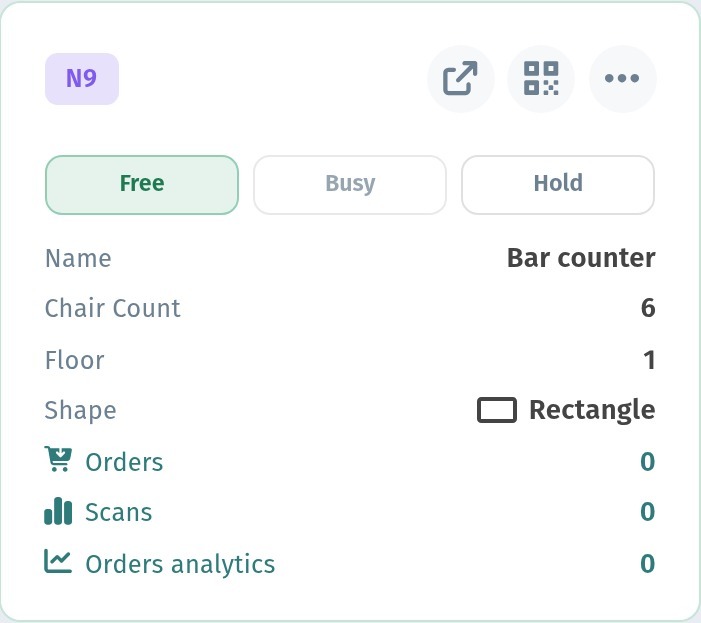
What to turn on. Dine in, Enable in-restaurant ordering, and tables with Enable call waiter. The bar counter can be its own "table": at Aurora Prime we added Bar counter with 6 seats and a rectangle shape. It gets its own QR code and number, and orders from it arrive with the counter filled in.
Sections. By drink type: cocktails, beer, wine, spirits, soft drinks, and food that goes with drinks. Within a section put signature drinks first. Note volumes in the cards (glass, bottle) so guests don't have to ask — details in Drinks and bar menu in a QR menu.
Where to put the QR. On the bar counter (one code every two or three seats), on each table and on the high tables. In a bar it's dark: print the code large enough, with good contrast, and test it in the bar's actual lighting.
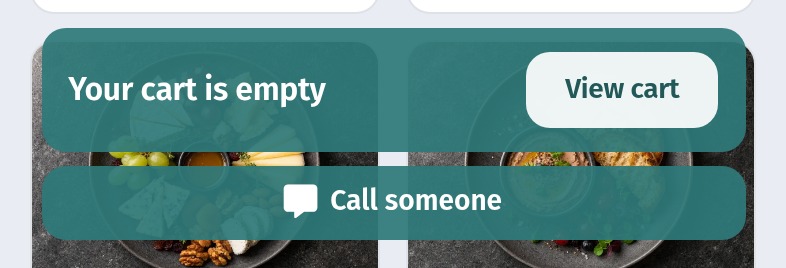
The guest's path. On a table link, the guest's bottom bar has a second button next to the cart: Call someone. The bar is busy, and the guest doesn't have to wave to get attention.
What to watch for.
- One table per spot. If the counter is long, create several "tables" (for example, Bar counter 1 and Bar counter 2) so staff know where to go.
- Second round. The menu stays open on the guest's phone: a well-arranged drinks section makes the next order easy.
- Late hours. Set the real opening hours and check that the time zone is correct, so the menu shows the right status at night.
4. Restaurant
What to turn on. Dine in and Enable in-restaurant ordering, a table with its own QR code for every table, and Enable call waiter. Add Takeaway if you sell dishes to go.
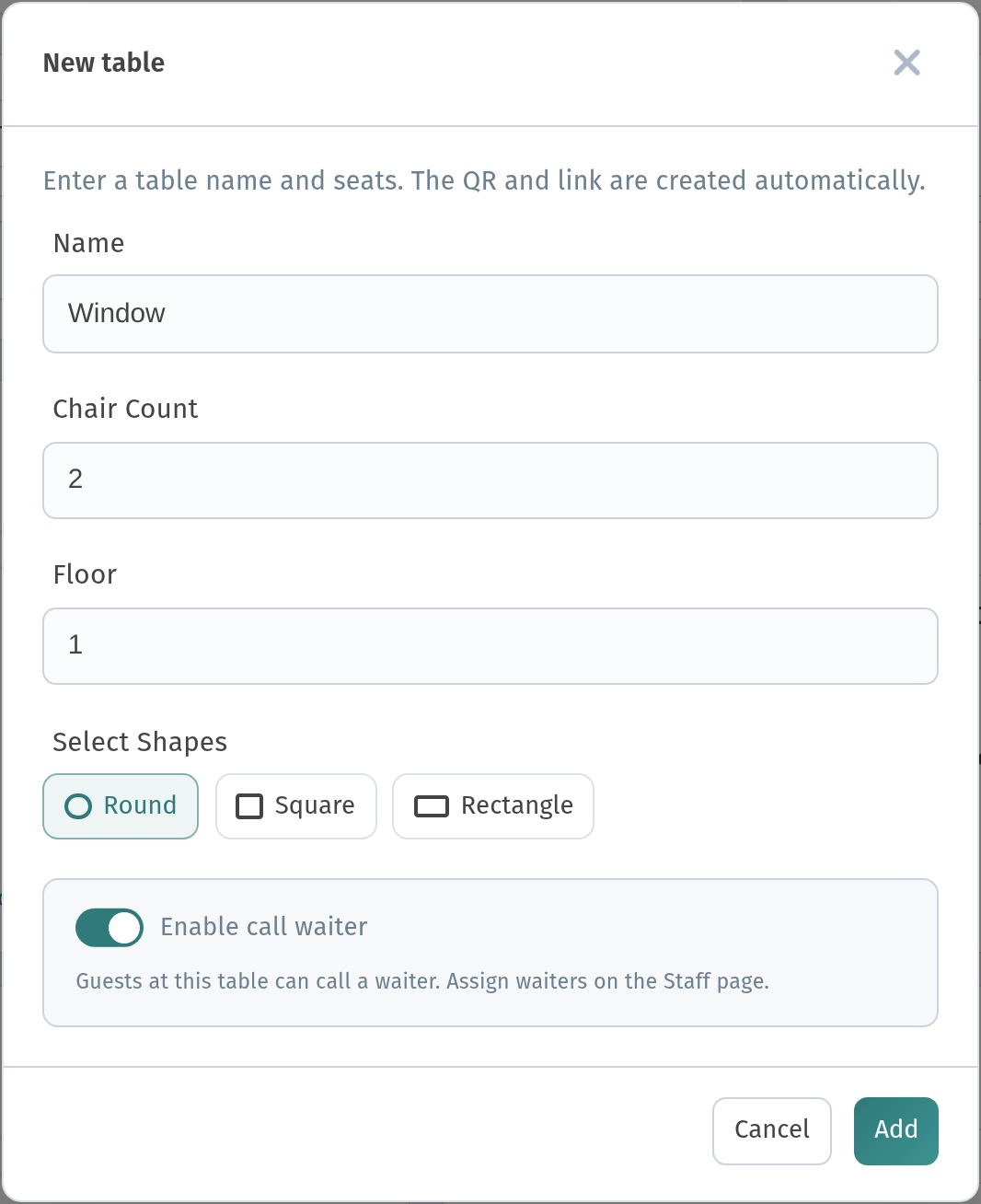
To add a table, open Tables and press Add table. Give it a name that staff will recognise (for example, Window), set Chair Count, Floor and the Shape (round, square or rectangle), and leave Enable call waiter on. The QR code and link are created automatically. You assign waiters to tables on the Staff page.
Sections. In the order of the meal: starters, salads, mains, grill, pizza, desserts, drinks. The guest reads top to bottom, as with a paper menu.
Where to put the QR. On every table, in a stand or as a sticker, plus one by the entrance for guests who want to look at the menu before sitting down. See Where to place QR codes in a restaurant or cafe.
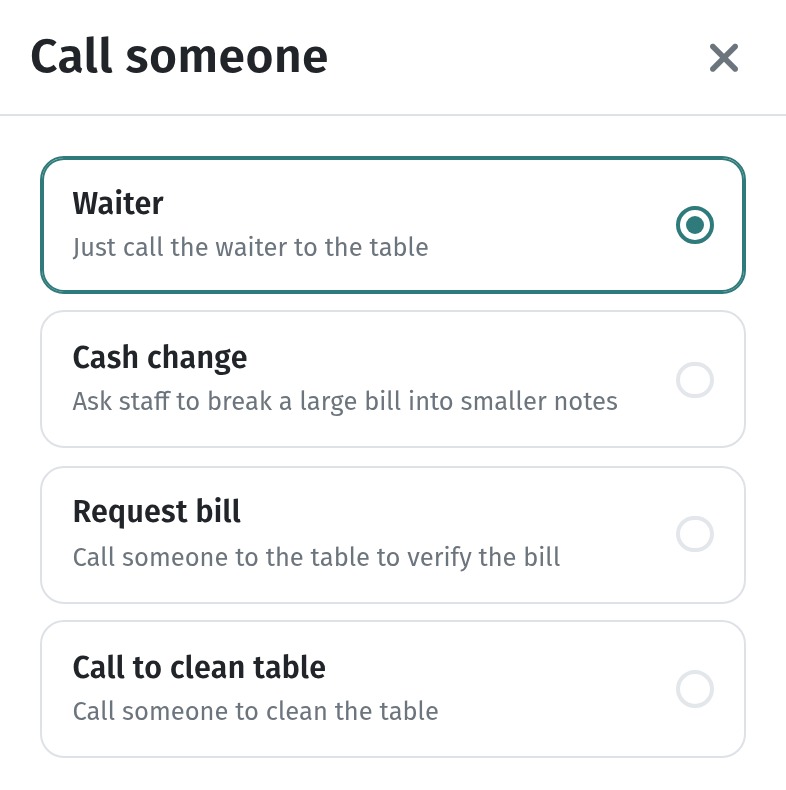
The guest's path. Call someone opens a list of requests: Waiter, Cash change, Request bill and Call to clean table. The guest chooses one and presses Call. These options appear only on table links: the general menu link doesn't show this button.
What to watch for.
- The right code on the right table. Every table has its own QR. After printing, check that the number on the stand matches the table.
- Floors and terraces. Use the Floor field and clear names (Terrace 7) so staff can find the table fast.
- Sold out dishes. Switch them to Sold out during service, so guests don't order what the kitchen no longer has.
Everything about tables, filters, statuses and downloading the codes is in Tables and a separate QR code for every table in WebQRMenu.
5. Hotel and room service
WebQRMenu has no separate "room" type, but table names are free text, so a room can be a table. At Aurora Prime we created Room 101 and Room 102, with 2 seats, floor 1. In the list they can be found by searching for "Room".
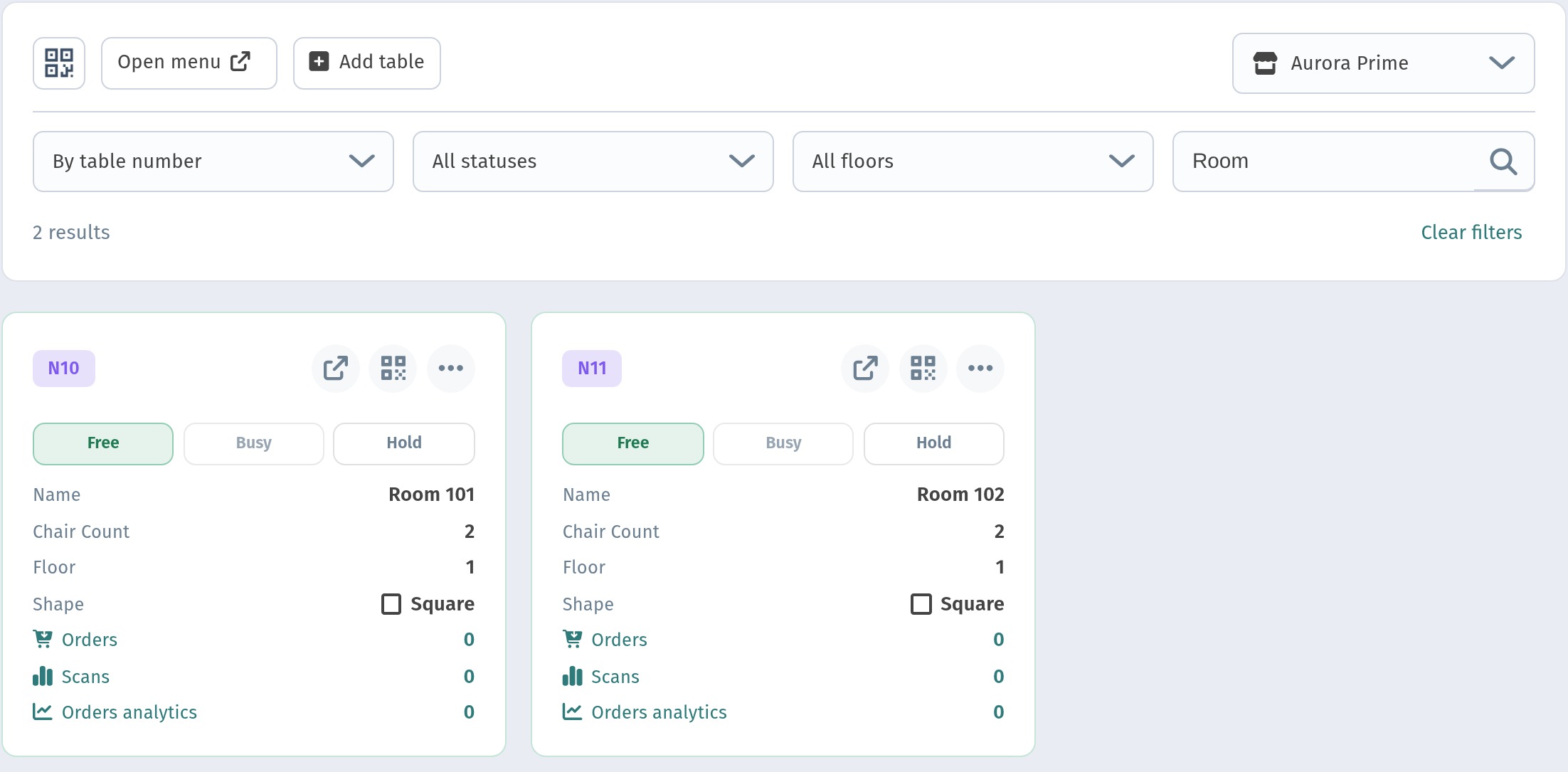
Each room gets its own QR code. Click the QR icon on the card to open it, and Download it for printing.
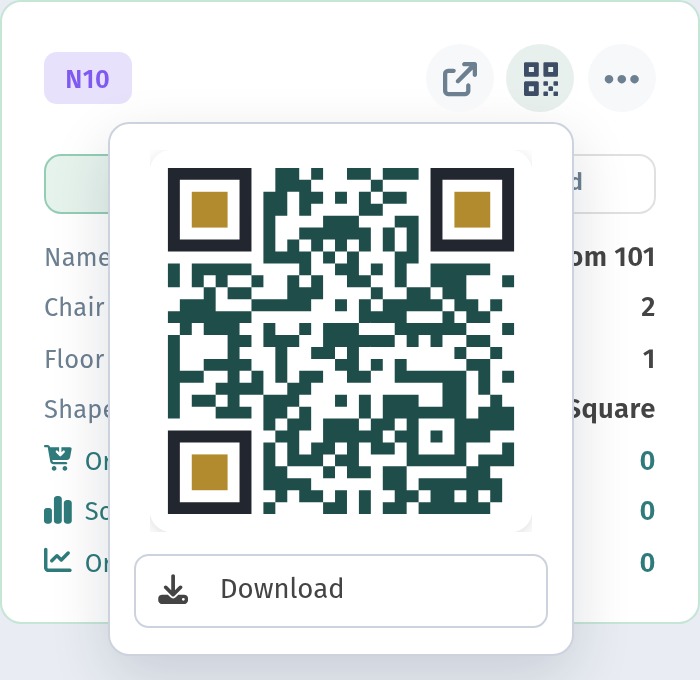
What to turn on. Enable in-restaurant ordering and Dine in: the room's QR code works like a table QR code, so the order arrives tied to that room. Enable guest checkout keeps it simple for the guest: no account needed.
Sections. Shorter than in the restaurant: breakfast, light meals, mains, desserts, drinks. Room service guests want something reliable and quick, not the full menu.
Where to put the QR. In the room: on the desk, by the phone or on the room service card, and in the welcome letter. Restaurant and lobby bar tables keep their own codes.
What to watch for.
- Wording. The call options are written for a table ("call the waiter to the table"). Tell guests on the room card what happens next, for example "Order here, we'll bring it to your room".
- Hours. Opening hours apply to the whole store. If room service works different hours from the restaurant, consider a separate store for room service with its own hours and menu.
- Who receives the orders. Assign the staff who take room service orders to the room "tables" on the Staff page.
- Languages. Hotel guests come from everywhere: translate the menu. See A Menu in Three Languages (RU/EN/KA) on WebQRMenu.
6. Food truck
What to turn on. Enable in-restaurant ordering, Pickup and Takeaway. Tables are usually not needed: one general menu link on the truck is enough. If you don't deliver, turn Delivery off so guests aren't offered it.
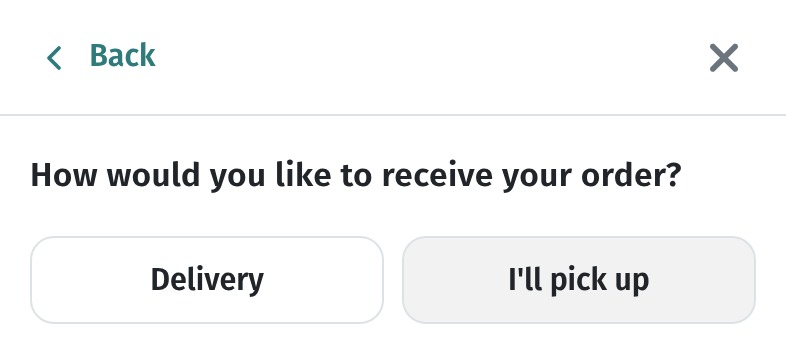
On the general link, after Place order the guest chooses how to receive the order. At Aurora Prime, with all four types on, the question is How would you like to receive your order? with Delivery and I'll pick up.
Sections. As few as possible: main items, sides, drinks. Three or four sections and a short list are easier to read in a queue.
Where to put the QR. Big, on the side of the truck next to the window, at eye level, and on the board with the menu. Put a second one where the queue forms, so people can choose before they reach the window.
What to watch for.
- Location. GPS & order protection (on the Settings tab) has a Require geolocation for orders toggle: orders are accepted only from guests near the store's GPS point. A truck moves, so leave it off unless the point is always where the truck stands.
- Hours. Update the opening hours when your schedule changes, so the menu doesn't show "open" when you've gone home.
- Sold out. Switch items to Sold out as soon as they run out. In a queue, nobody likes to find out at the window.
7. QR design and printing
Whatever the format, the code itself should be easy to scan and look like part of the venue: your colours, your logo and a clear call to action. How to set it up is explained in How to design a QR code in WebQRMenu, and the store's appearance (colours, cover, logo) in Store appearance and settings in WebQRMenu: the complete guide.
Checklist by format
| Format | Order types | Tables and QR | The main thing to watch |
|---|---|---|---|
| Coffee shop | Takeaway, Pickup, Dine in if there are seats | General link at the counter and window, tables optional | Short thresholds, photos, breakfast hours |
| Bar | Dine in | Bar counter as a table, a QR for every table | Contrast in the dark, call button |
| Restaurant | Dine in, Takeaway optional | A QR for every table, call waiter on | The right code on the right table, sold out dishes |
| Hotel | Dine in | Tables named after rooms (Room 101) | Room service hours, who receives the orders |
| Food truck | Pickup, Takeaway | General link on the truck and in the queue | Geolocation off, current hours |
Before launch, open the menu on your own phone from every kind of code (general link and a table link), place a test order and check that it reaches the right person.