

Guest Surveys and Feedback in WebQRMenu
Create a survey with stars, smileys, Yes / No and text answers and translate it into your menu languages. Guests answer via the Survey button in the QR menu; responses are in the dashboard.
How to create a guest survey with stars, smileys, Yes / No and text answers, translate it into your menu languages, where guests find the Survey button, and how to read responses in the dashboard.
Guests rarely leave a review on their own, but they happily tap a couple of stars while waiting for the bill. WebQRMenu has built-in Surveys: you write a few questions, and guests answer them right in the QR menu — no separate forms or links.
In short: Marketing → Surveys → pick a store → Add survey → title, translations and questions → Save → guests tap Survey in the menu → read answers in View responses.
1. The Surveys section
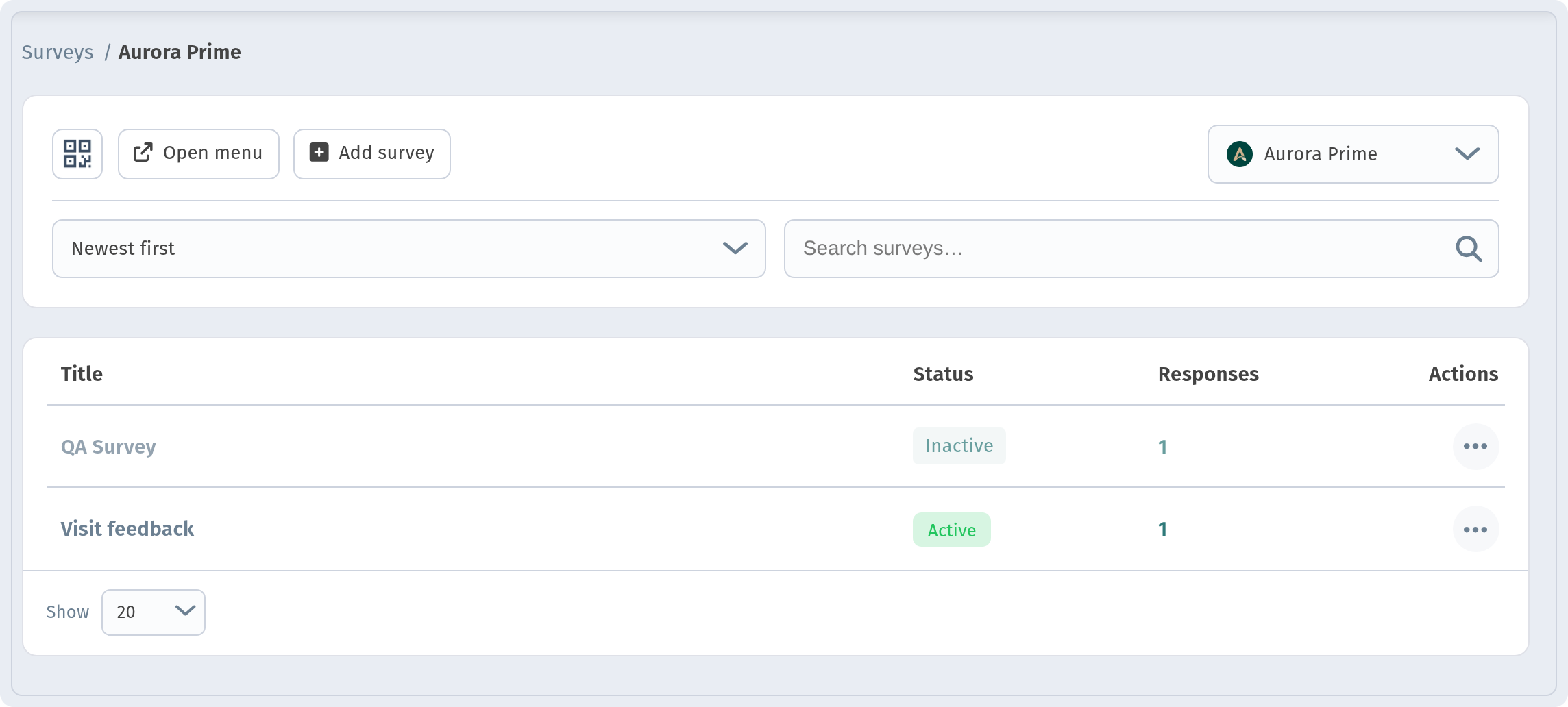
Open Marketing → Surveys in the dashboard sidebar. You first see store cards with the number of surveys in each; the My surveys dropdown and search help when you have many stores.
Pick a store. The breadcrumb changes to "Surveys /
2. Creating a survey: title and translations
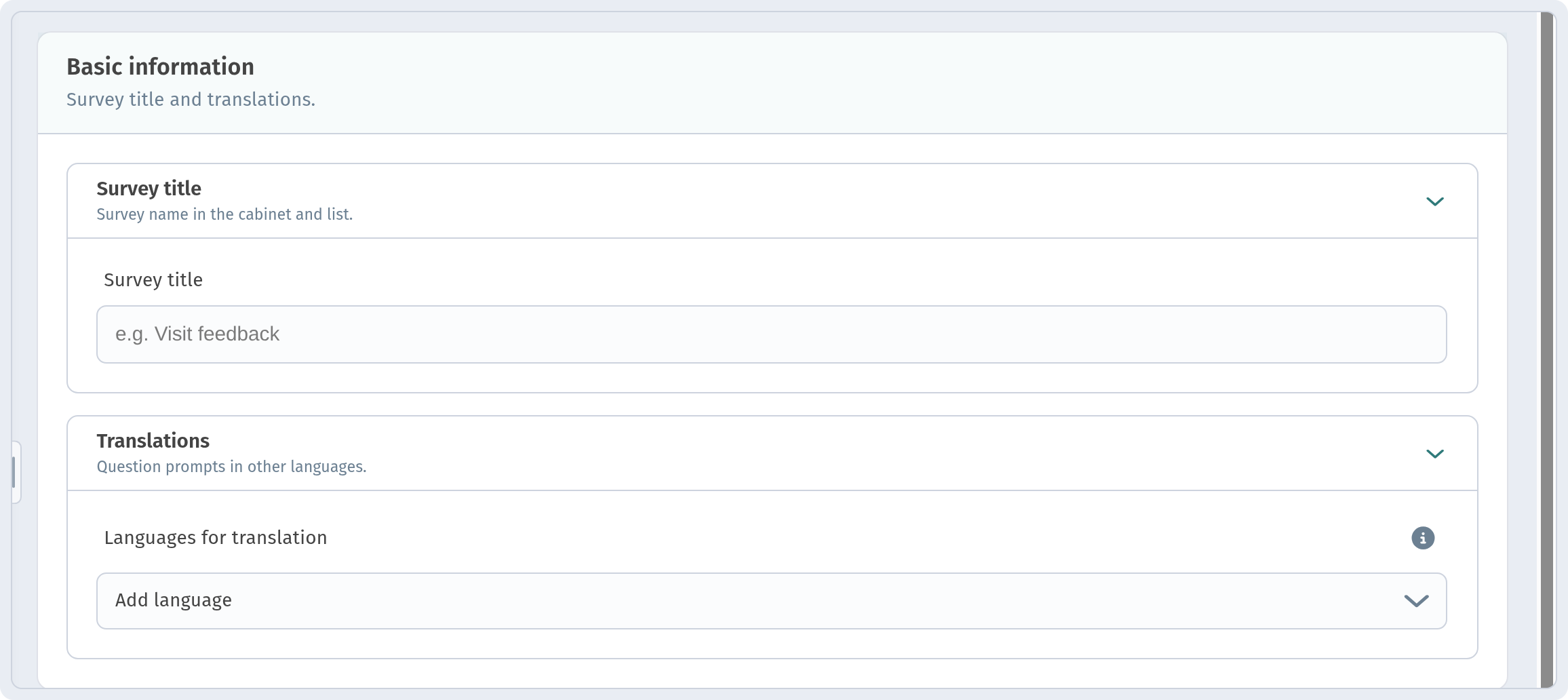
Click Add survey. The Basic information block has two collapsible parts:
- Survey title — the name you'll see in the dashboard and the list, for example "Visit feedback";
- Translations — question prompts in other languages. Choose languages in Languages for translation via Add language.
Only menu page languages other than the primary one appear here. If the list is empty, your store has a single language enabled — add more in Stores → QR & page settings → Page language. How to set up a multilingual menu is described in Menu in three languages.
3. Questions and answer types
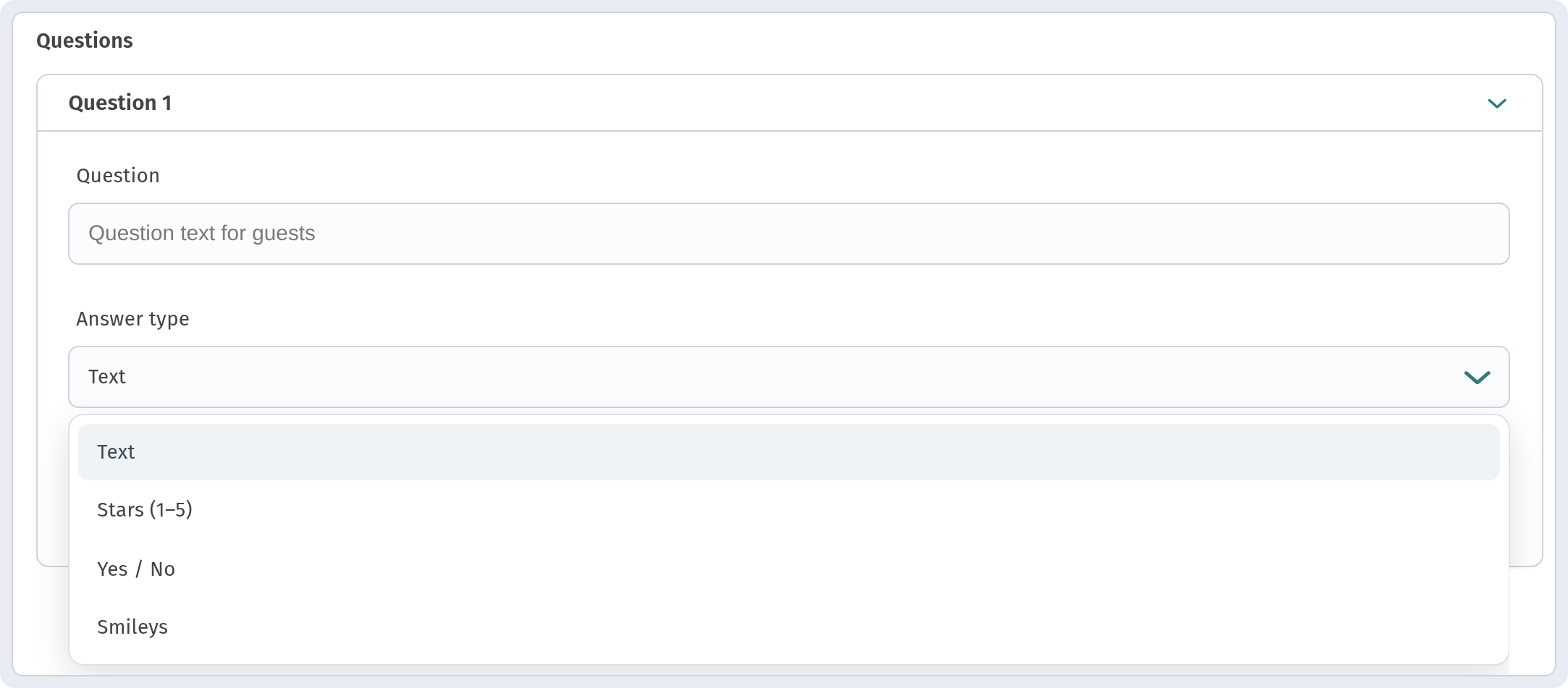
In the Questions block, each question is an accordion ("Question 1", "Question 2"…). For each one, fill in:
- Question — the text guests will see;
- Answer type — Text, Stars (1–5), Yes / No or Smileys;
- Required question — on by default; turn it off for optional questions, such as a free-text "Anything we could do better?".
Use Move up / Move down to reorder questions and Delete to remove one. Add question adds another. When done, click Save.
A good survey is short: two or three quick taps (stars, smileys, Yes / No) and one optional text field.
4. What guests see
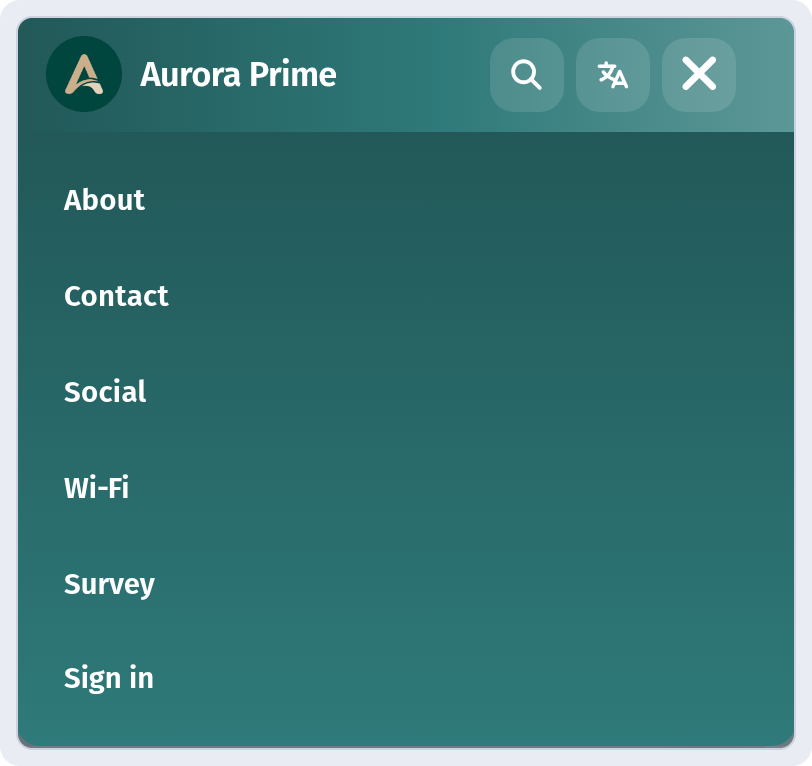
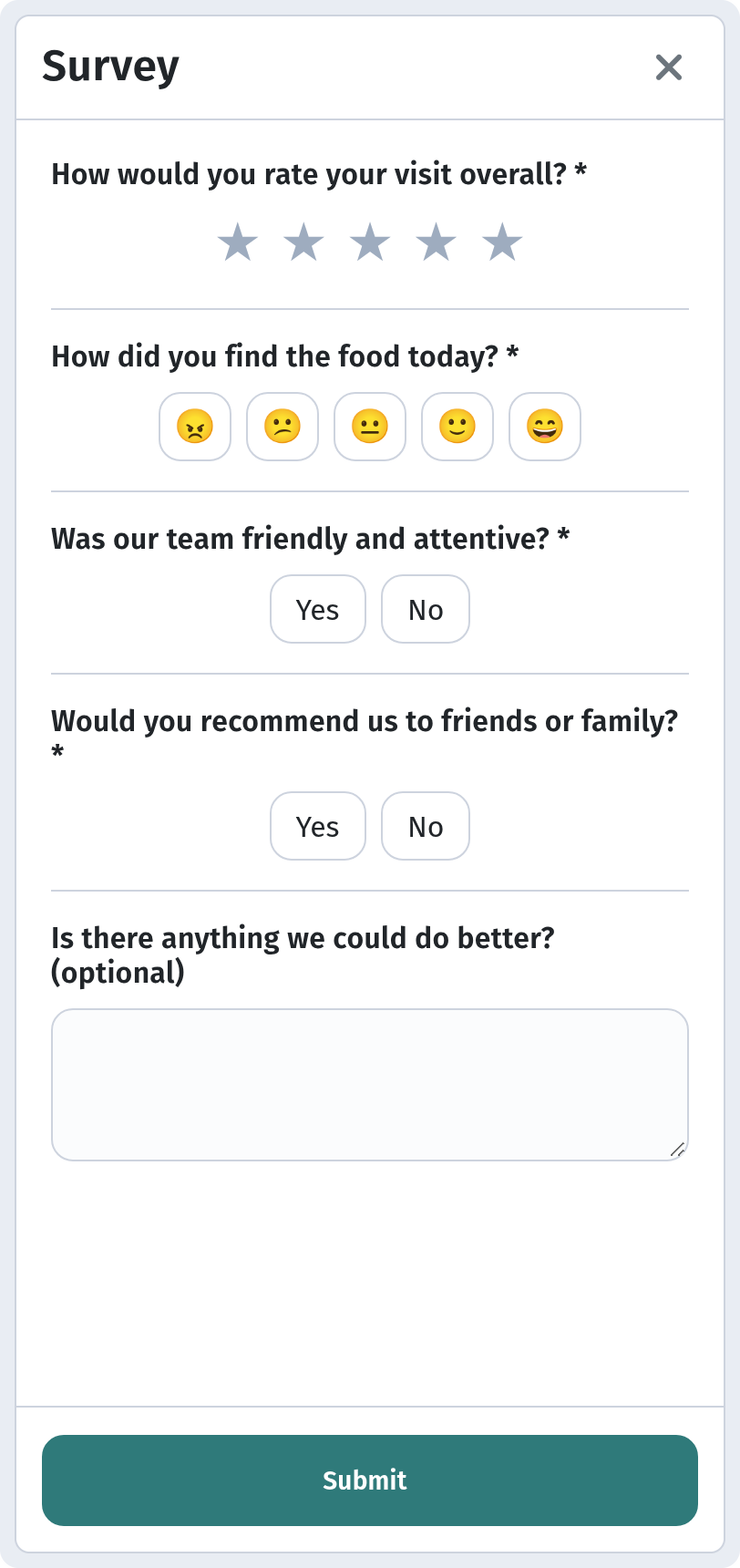
When the survey is active, guests see a Survey button in the menu. On a computer it sits in the top bar, next to About, Contact, Social and Wi‑Fi. On a phone the top bar is collapsed: guests open the menu icon (☰) and find Survey in the list, after Social and Wi‑Fi and before Sign in. Tapping it opens a Survey window with your questions: required ones are marked with an asterisk, and the guest sends answers with Submit.
5. Managing surveys
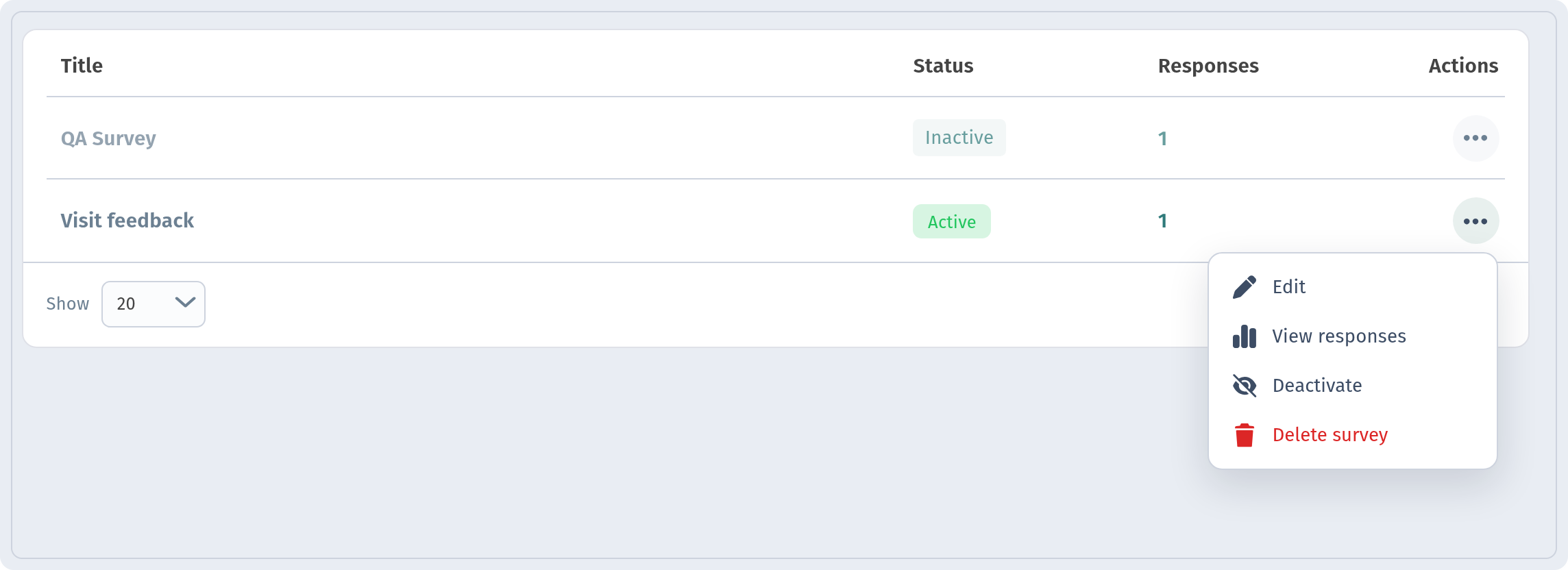
The "..." (Survey actions) menu in each row has:
- Edit — change questions and translations;
- View responses — open the answers;
- Deactivate — hide the survey from guests without deleting it (an inactive survey can be turned back on);
- Delete survey — remove it completely.
6. Reading responses
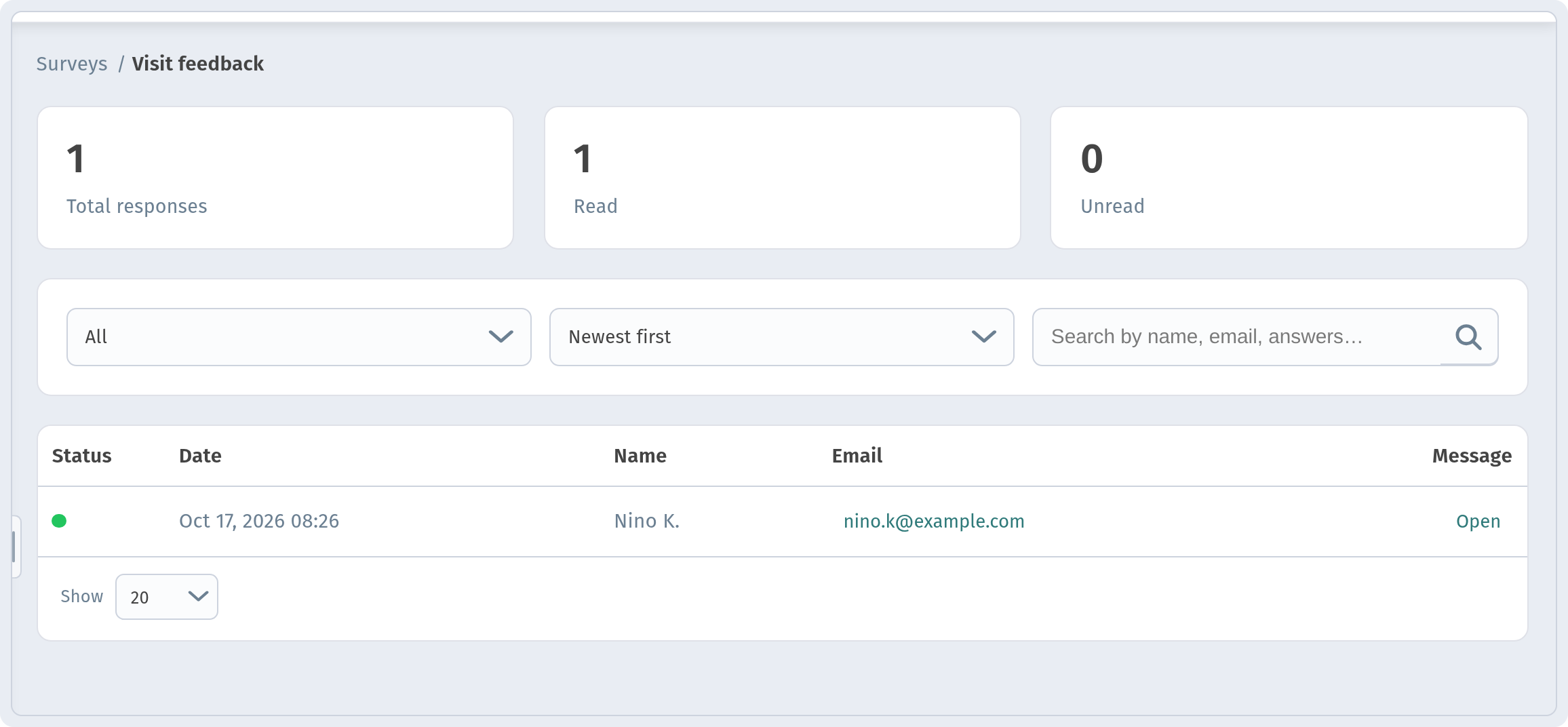
View responses opens the response page. At the top are three counters: Total responses, Read and Unread. Below, a read/unread filter ("All"), sort, search by name, email or answers, and a table with Status (a green dot means read), Date, Name, Email and Message.
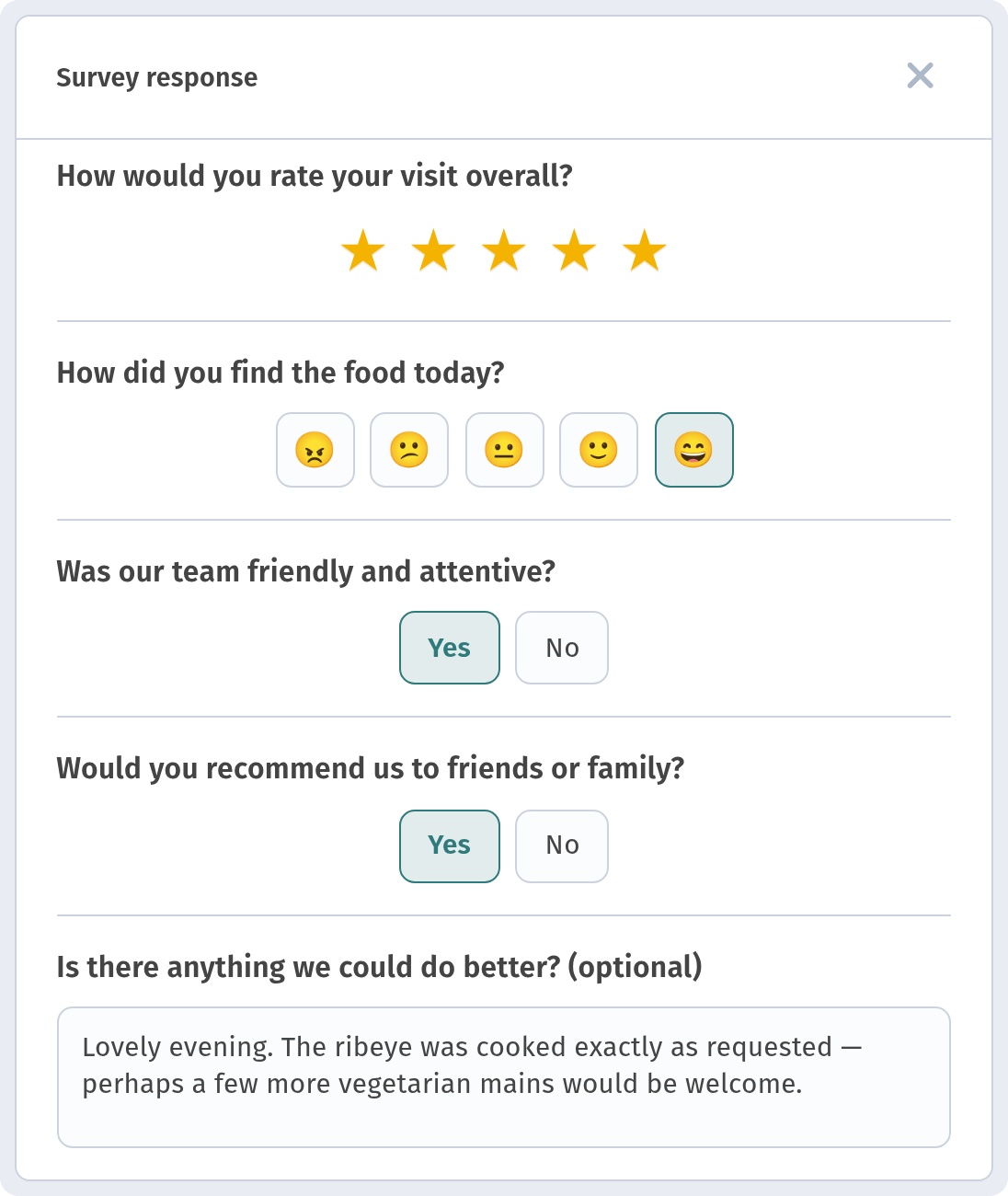
Click Open to see one guest's answers in the Survey response window: each question with the stars, smiley, Yes / No or text the guest chose. Responses are shown as a list — there are no summary charts, so for a quick overview, scan the latest answers regularly.
Want to know who your guests are beyond the survey? See Guest registration and clients, and for scans and orders — Analytics in WebQRMenu.
Why it matters for your restaurant
- Feedback while the visit is fresh. Guests answer right at the table, from the same menu.
- Your own questions. Ask about food, service or anything else that matters to you.
- In the guest's language. Translations follow your menu languages.
Quick checklist
- Open Marketing → Surveys and pick a store.
- Click Add survey and enter a Survey title.
- Add translations under Translations if your menu has several languages.
- Add questions, choose Answer type and set Required question.
- Click Save and make sure the survey is Active.
- Check the Survey button in the guest menu via Open menu.
- Read answers in View responses.