
Tips at Checkout: Should You Turn Them On, and How to Agree with Your Team
How the Tips at checkout setting works in WebQRMenu, what the guest sees in the cart, and which rules to agree with your staff before turning it on.
When a guest orders through the QR menu, the moment of "leaving a tip for the waiter" may simply never happen. In WebQRMenu you can offer a tip right in the cart. Here is how to turn it on and what to decide beforehand.
Where tips are turned on
Store → Stores → your store → the Settings tab → Acceptance and checkout. The Tips at checkout switch shows the tip block in the guest's cart. When it's off, the block is hidden.
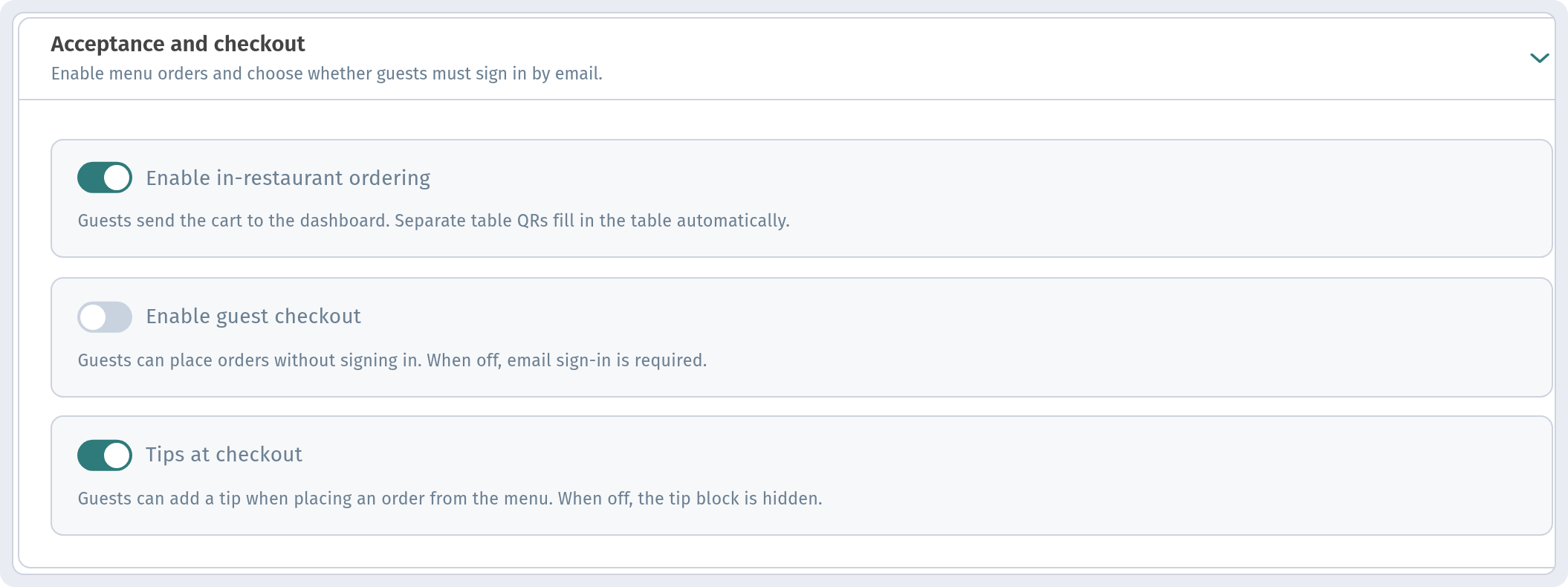
Changes take effect after you click Save.
What the guest sees
A Tips block appears in the cart, with the line "Thank you for supporting us!" and these options: No tip, 5%, 10%, 15% and Custom. The amount is shown right next to each percentage, so the guest doesn't have to do the maths.
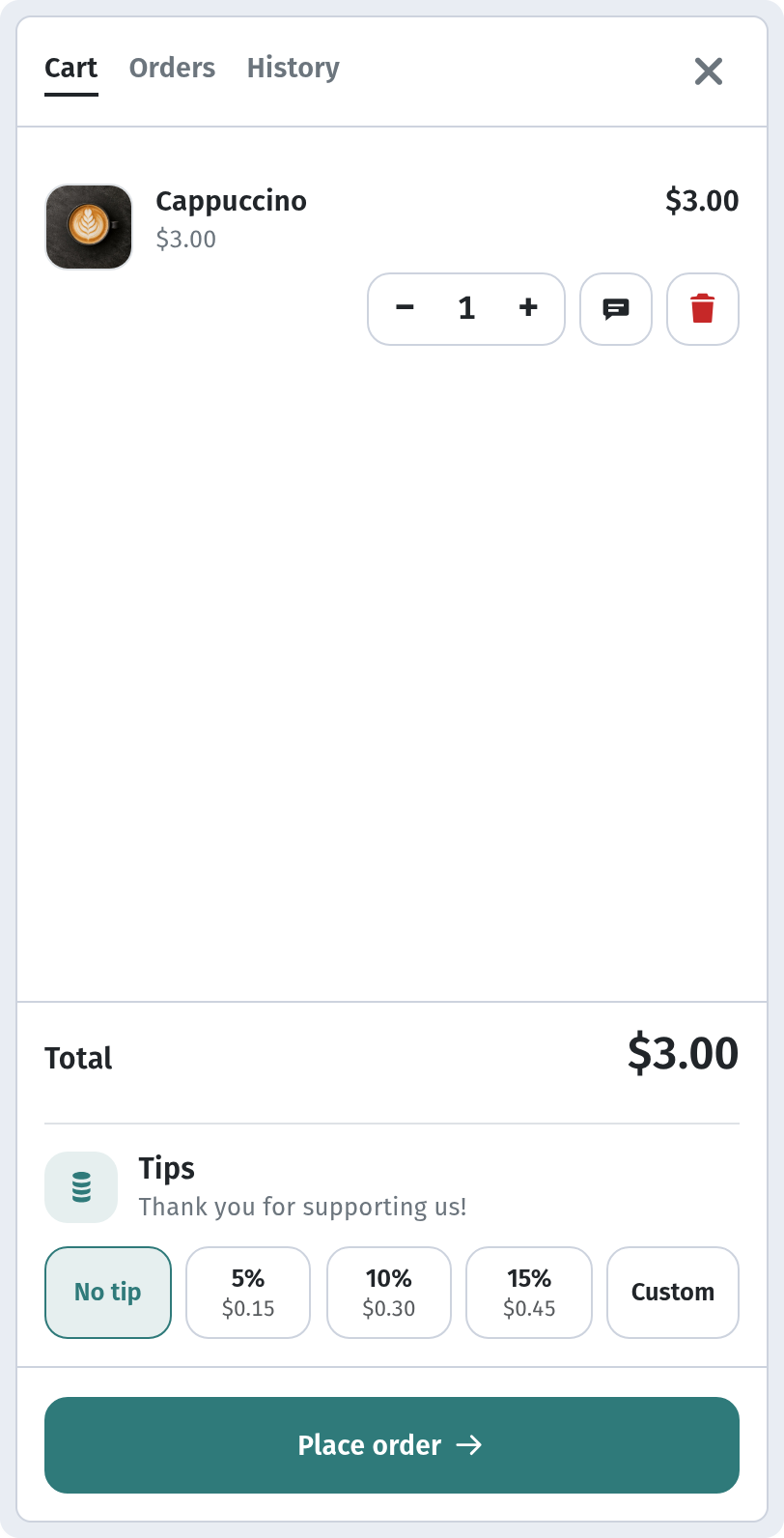
The No tip option is always there, so the guest decides for themselves, without pressure.
Decide before turning it on
Tips are above all an agreement within the team:
- How tips are shared. Equally per shift, by hours, floor staff only or floor and kitchen. Everyone should understand the rule before the first order.
- Who is responsible. Who reconciles the tips at the end of the shift and passes them to the team.
- How to talk to guests. Waiters don't need to remind anyone about tips: the block in the cart does it for them.
When to turn it on, and when not
- Turn it on if you have table service and guests order from the table: that way their thanks reach the team even if they never dealt with a waiter in person.
- You can leave it off if your format is "order at the counter, collect it yourself" and tipping isn't customary.
Try it for a month and compare with the month before: did tips change, and what does the team say?
The guest's whole path through the cart is described in The guest cart and ordering. And for preparing your team to launch a QR menu, read Launching a QR menu: staff and guests.