

Workspaces and Team Members in WebQRMenu
Create a workspace, invite colleagues by email and assign a role: Admin, Editor, Operator or Viewer. No shared passwords — everyone has their own account.
How to create a workspace, invite colleagues by email and choose one of four roles — Admin, Editor, Operator or Viewer — and what you can manage from the Workspaces section.
When more than one person works on a menu — a co-owner, a manager, a marketer — sharing one login is a bad idea. In WebQRMenu, team work is organised through workspaces: a shared space with its own list of members, each invited by email with a role.
In short: Workspaces → All Workspaces → Create workspace (name + optional description) → open the workspace → Members → Invite member (email + role) → Send.
1. The Workspaces section
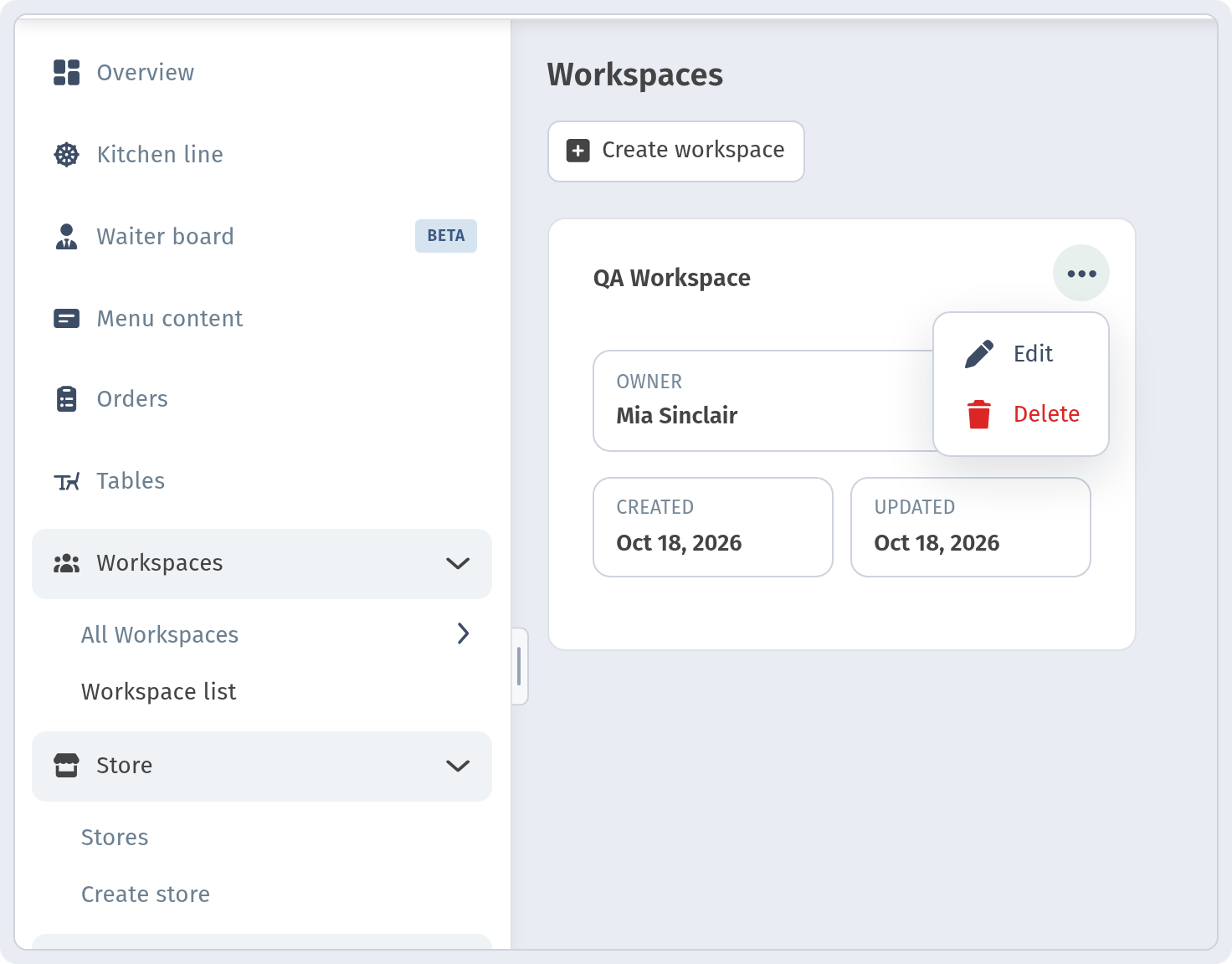
In the dashboard sidebar, find the Workspaces group and open All Workspaces. The page is titled Workspaces and shows a card for each workspace you have.
Each card shows the workspace name and three fields: OWNER (who created it), CREATED and UPDATED dates. The "..." menu on the card has two actions: Edit and Delete. Click the card itself to open the workspace.
2. Creating a workspace
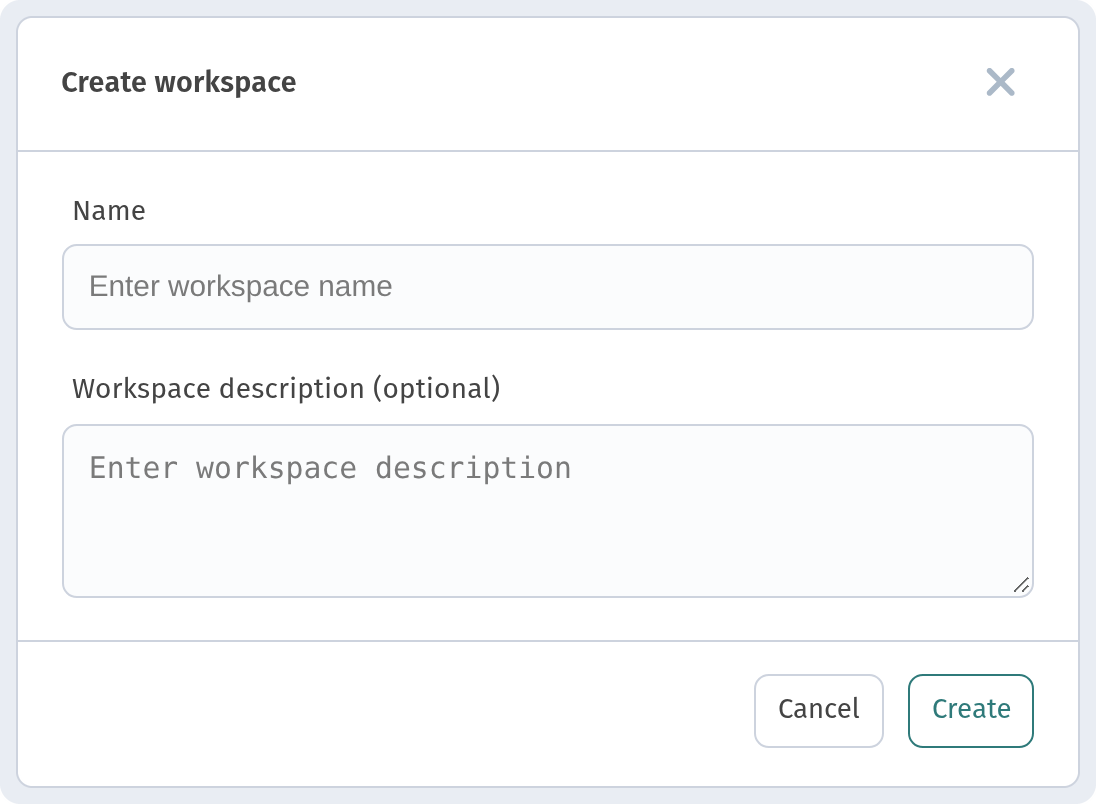
Click Create workspace. The dialog has two fields:
- Name — for example the name of your restaurant group or project;
- Workspace description (optional) — a short note for your team.
Click Create. You can rename the workspace or change its description later via Edit in the card menu.
3. The Members page
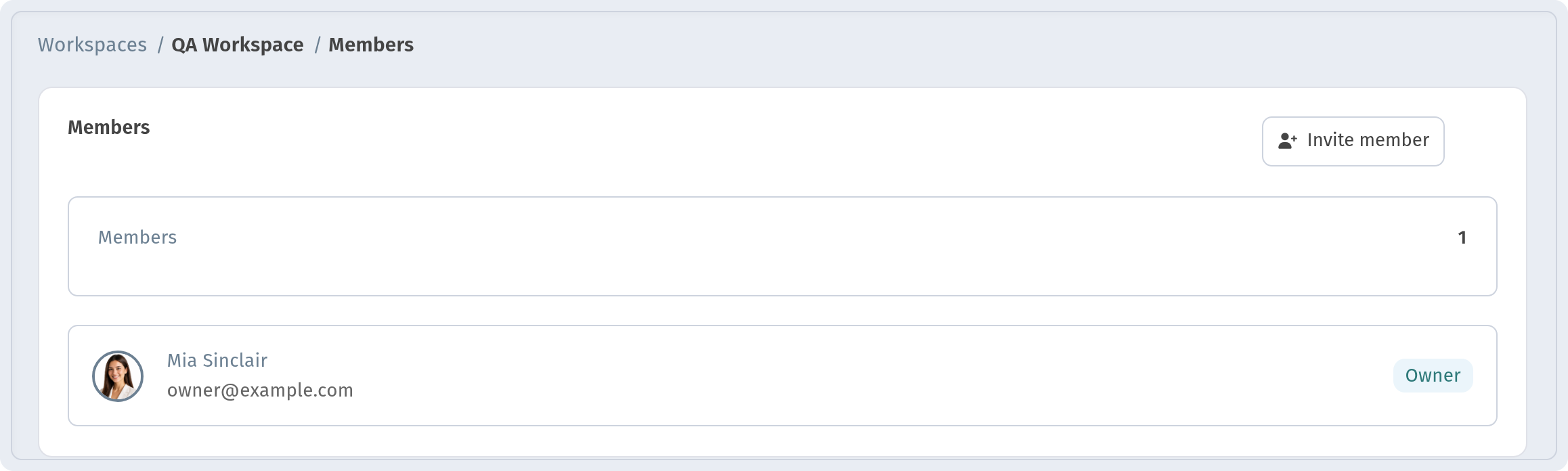
Inside a workspace, the breadcrumb reads "Workspaces /
4. Inviting a member and choosing a role
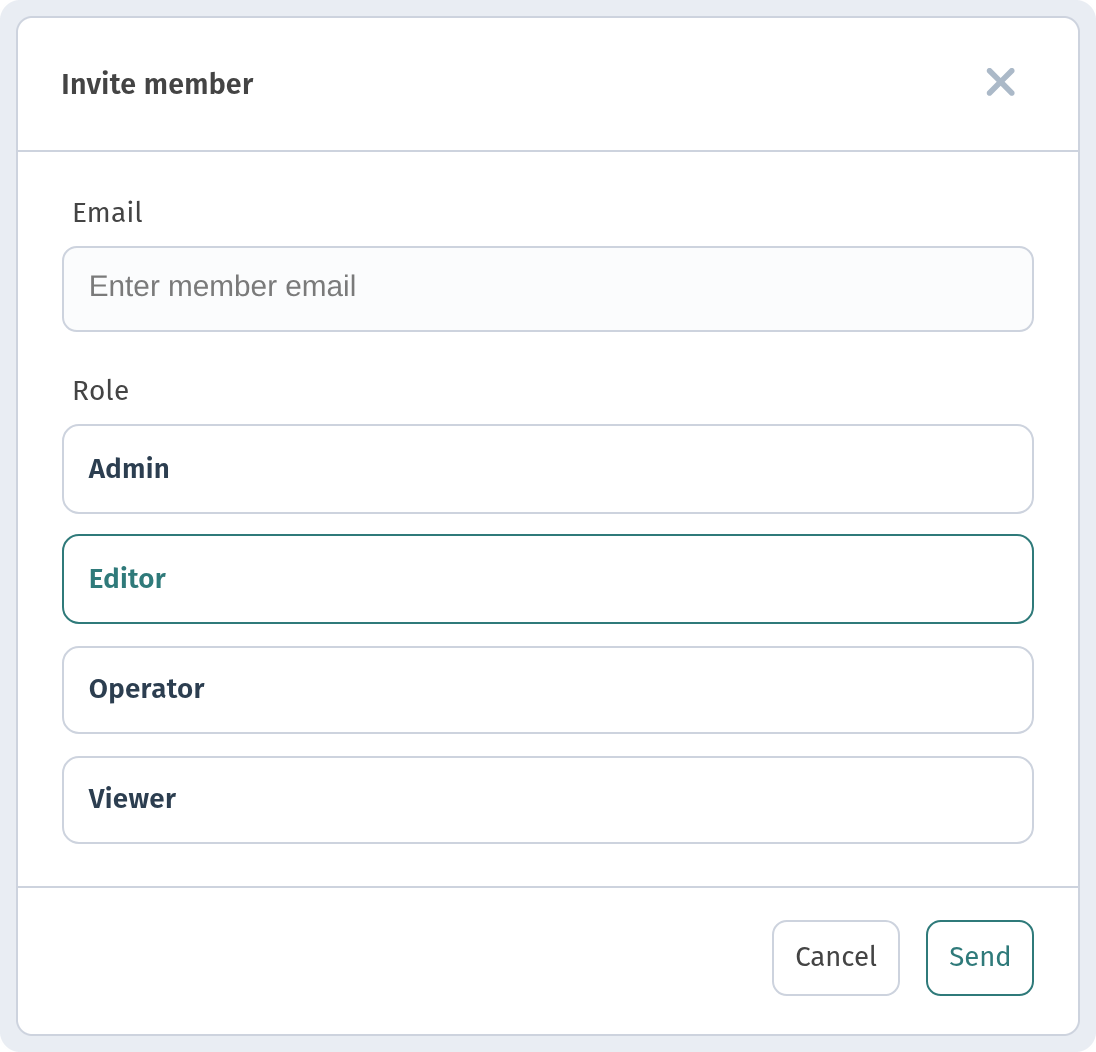
Click Invite member. The dialog is short:
- Email — the address of the person you're inviting;
- Role — one of four options: Admin, Editor, Operator or Viewer. Editor is selected by default.
Click Send to send the invitation.
The dialog shows only the role names, without a description of what each role can do. The names suggest a scale from broad management (Admin) to read-only access (Viewer), but before giving a colleague access, check in practice that the role fits their tasks. If in doubt, start with a narrower role.
5. Workspaces and waiters: what's the difference
Workspace members are your management team working in the dashboard. Floor staff are handled separately: waiters are invited per store in the Staff section and get tables and shifts. That is described in Staff, waiters and shifts in WebQRMenu.
If you're just starting out, first create your QR menu and set up store appearance and settings, then invite your team.
Why it matters for your restaurant
- No shared passwords. Each person signs in with their own account.
- Clear responsibility. Roles show at a glance who does what.
- One place for the team. The member list of a workspace is always visible on one page.
Quick checklist
- Open Workspaces → All Workspaces.
- Click Create workspace, enter a Name and click Create.
- Open the workspace card → Members.
- Click Invite member, enter the Email, choose a Role and click Send.
- Use Edit / Delete in the card's "..." menu to manage the workspace.