
How a guest finds a dish: search, categories and navigation in a QR menu
How guests find dishes in a WebQRMenu QR menu: category chips, live search by name and section across languages — and what to fill in so search works.
A guest who already knows what they want should not scroll through fifty tiles hoping to spot it. After the scan they need a short path: jump to a section, type a word, open the dish and add it to the cart. On WebQRMenu that path is built into the guest menu — category chips, a live search field and the usual dish sheet. This article walks through that path on the Aurora Prime demo, then the dashboard habits that make dishes findable in every language.
Related guides: section order in Menu structure: categories and order, translations in A menu in three languages, wording in How to write dish names and descriptions that sell, photos in Dish photos in WebQRMenu, the dish card in The dish card in WebQRMenu, ordering in How a guest orders through the cart.
In short: translate every dish and section into all menu languages, put guest keywords into descriptions and composition, keep section names short and in a logical order, add clear photos, and hide dishes that are off. Guests then jump by chips, search across languages, and open the dish sheet without hunting.
1. Categories and scrolling the catalog
On the phone Aurora Prime opens with the header (logo, search, language, burger), the cover, then a Food categories row of chips: Starters, Salads, Steaks & grill, Pizza, Desserts and the rest. When the row is wider than the screen, a › control appears so the guest can slide further.
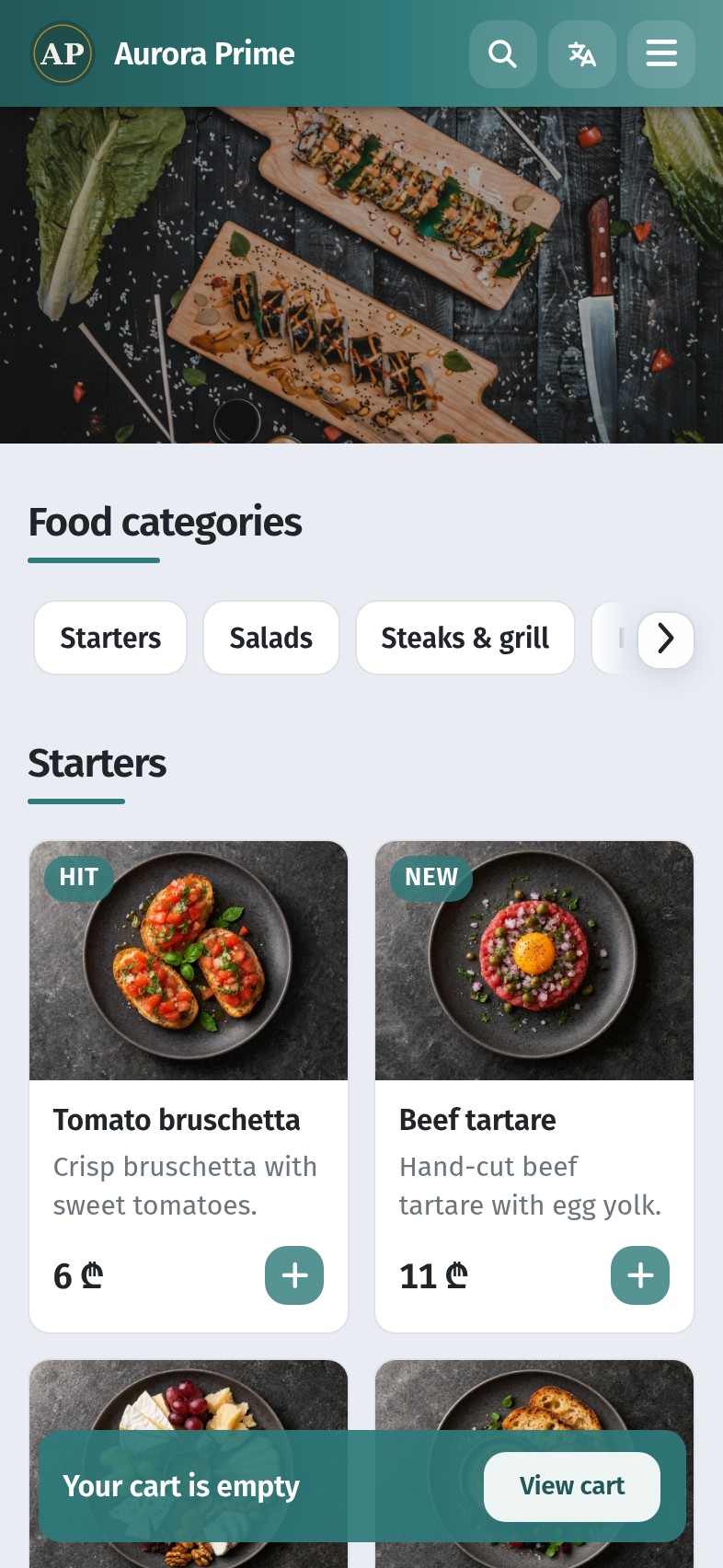
A tap on a chip scrolls to that section heading. Chips are jump links — they do not stick to the top while you scroll, and they do not track which section is on screen. To browse without search, the guest scrolls the catalog: each section has a heading and a grid of tiles with photo, name, short description, price and +. Mid-menu, pizza and steaks sit under their own headings in the same stream.
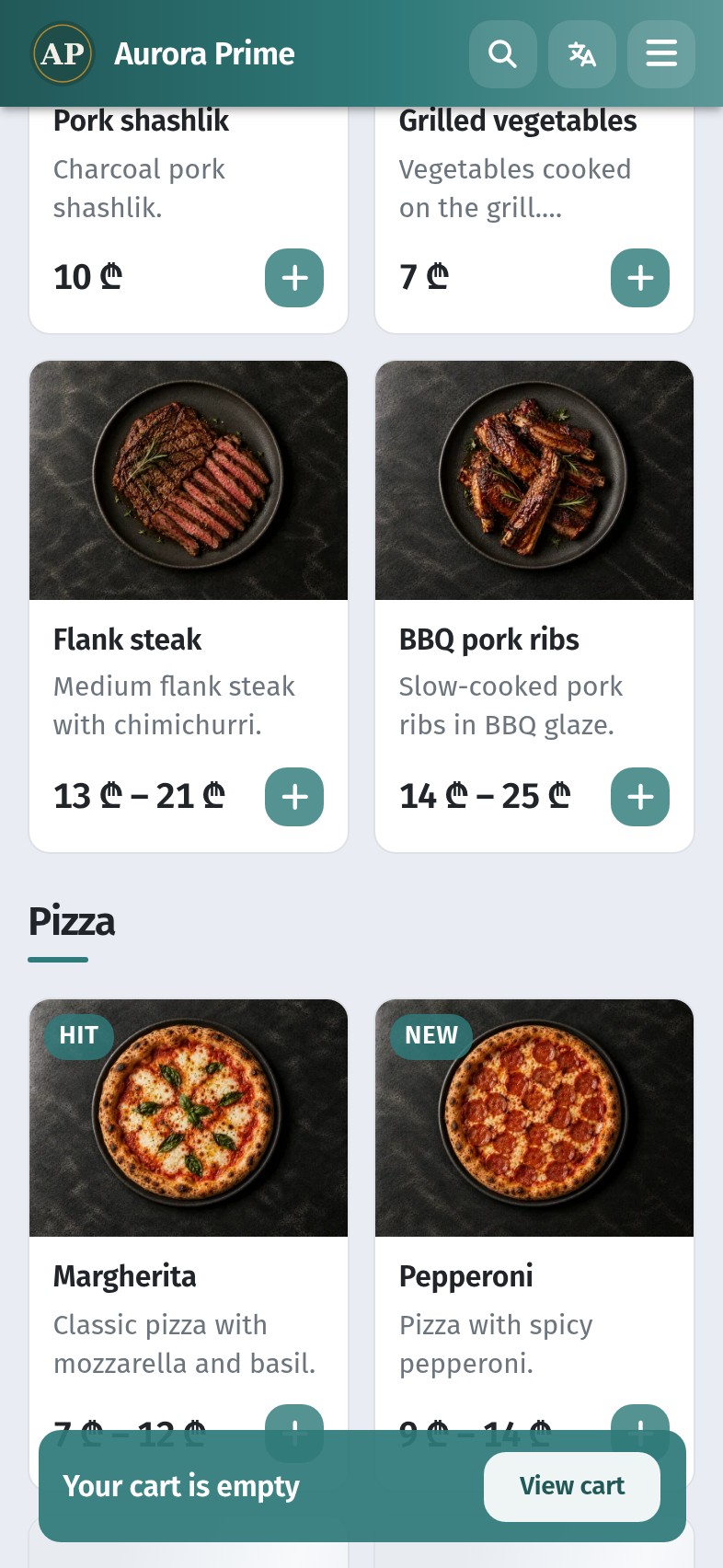
How to order sections so bestsellers sit high: menu structure guide. Short section names fit the chip row better than long phrases.
2. Opening search
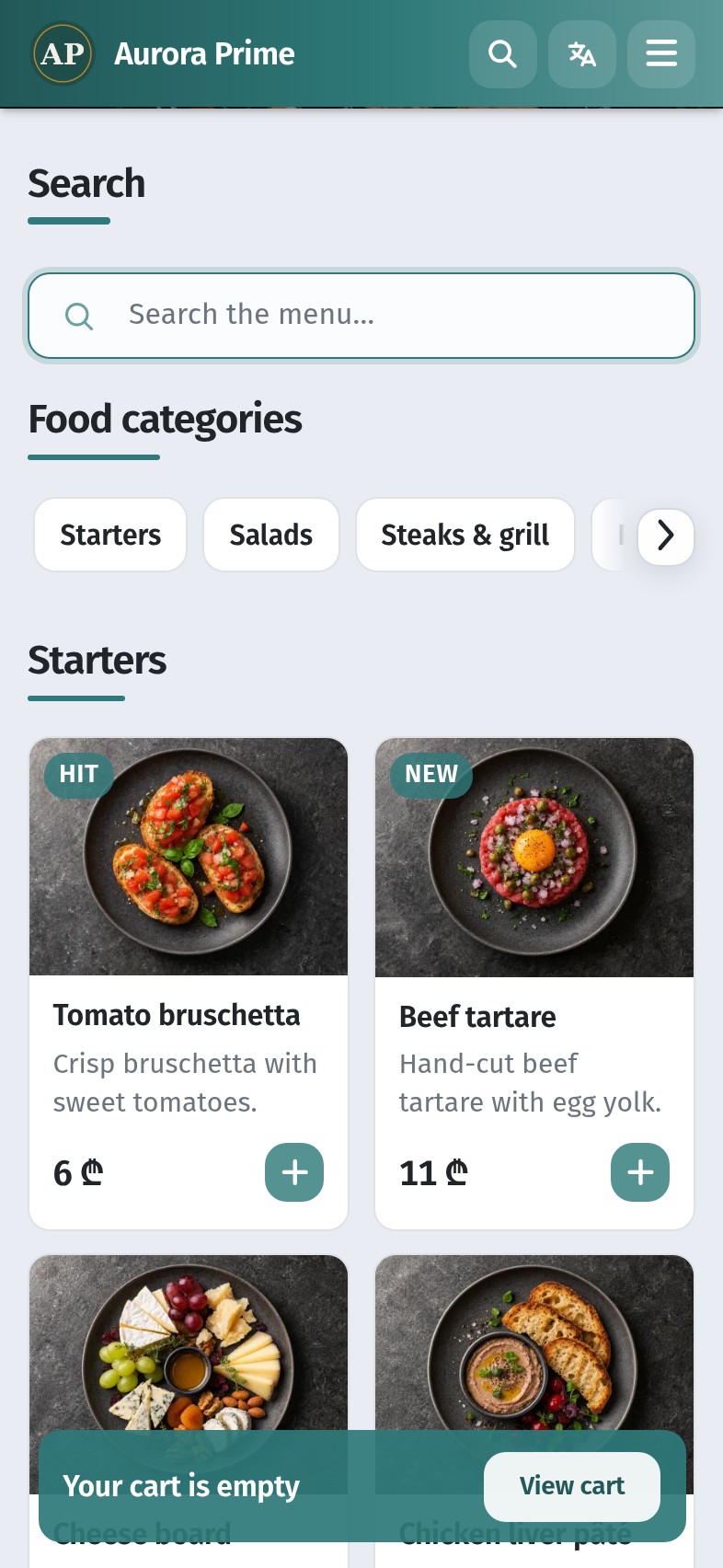
The magnifier in the header opens the search drawer. The field shows a localized placeholder — in English, Search the menu…. Search runs live as the guest types (after a short pause); Enter or the submit magnifier runs it at once.
3. Search by name, description, composition and section
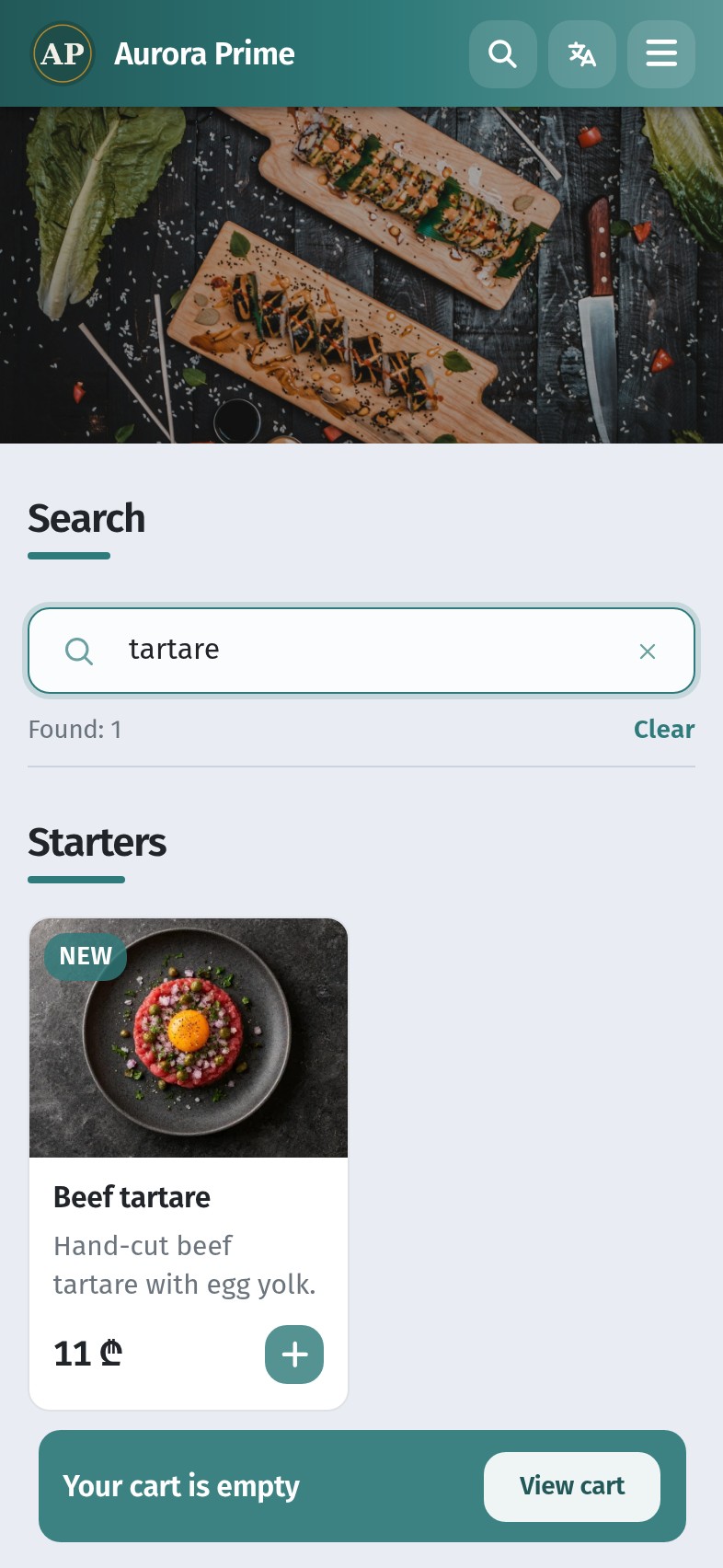
Search looks through a combined text for each dish: name, description, composition / ingredients and the section name, in every language you translated. Matching is case-insensitive and works on partial words. On Aurora Prime, typing tartare in English returns Beef tartare under Starters with Found: 1 and a Clear control.
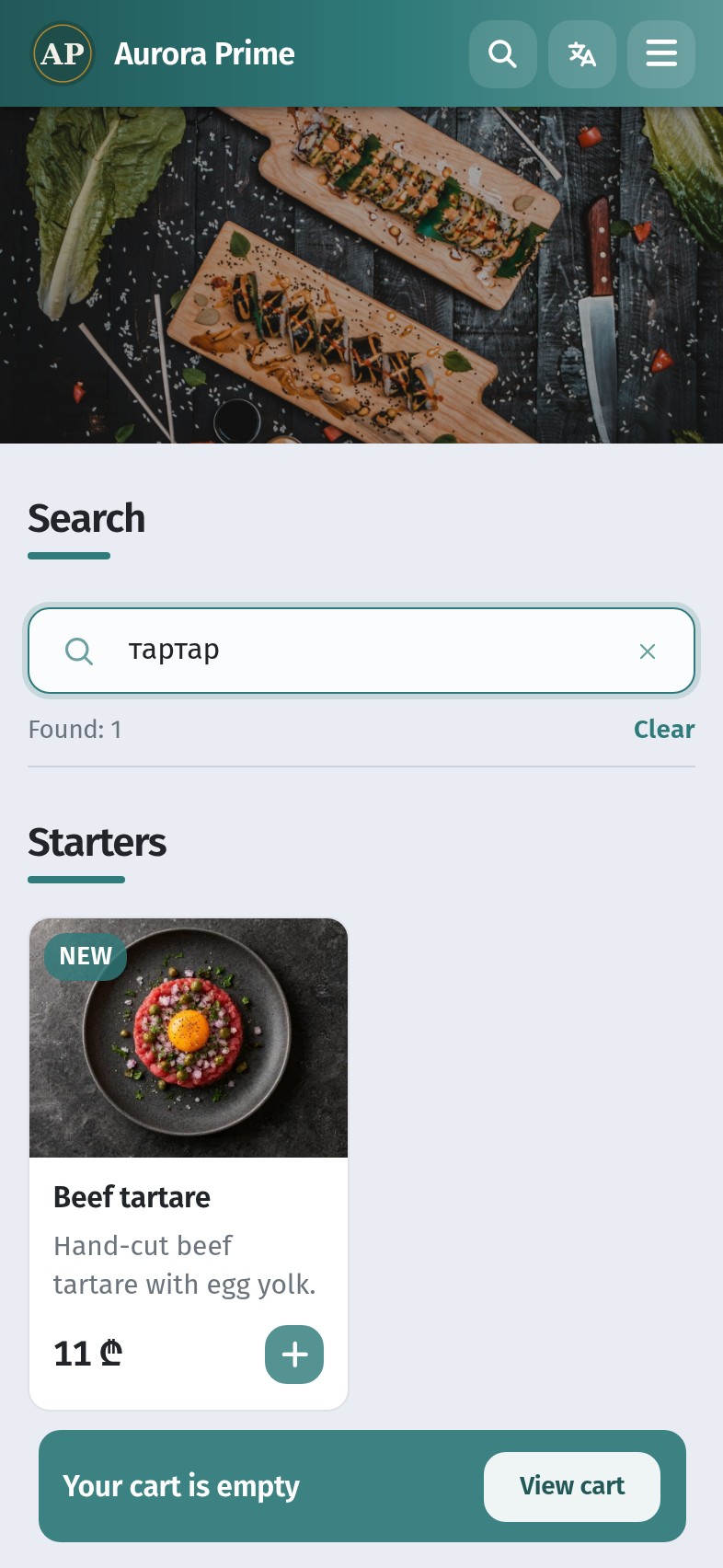
Because translations sit in the same search text, a guest can type a word from another language and still land on the dish. With the English interface open, the Russian query тартар finds the English card Beef tartare. With Russian or Georgian open, the English query tartare finds the local card. That is why every dish and section needs a real translation — not only the language the kitchen uses day to day. See A menu in three languages.
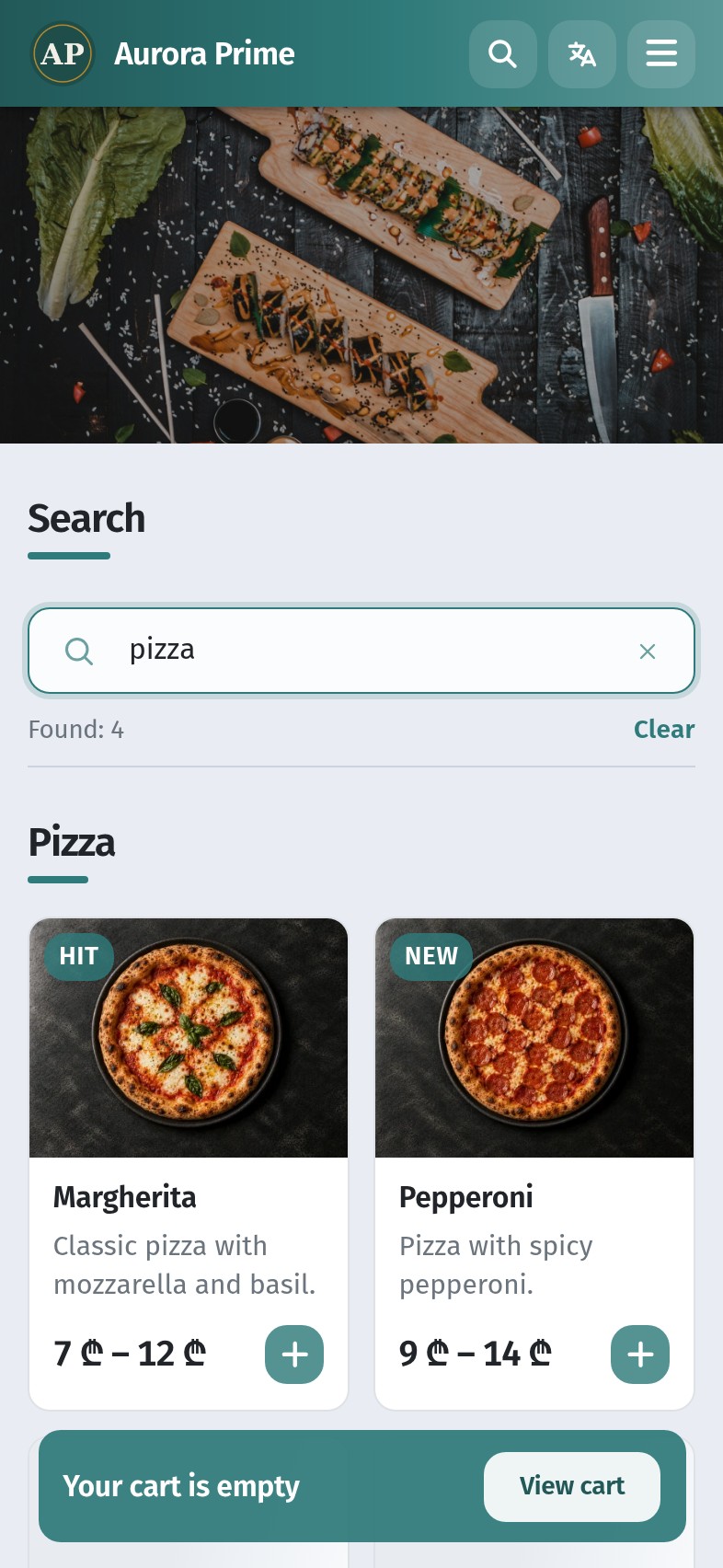
Section names are searchable too. Typing pizza shows the Pizza dishes with Found: 4 — useful when the guest remembers the category but not the title.
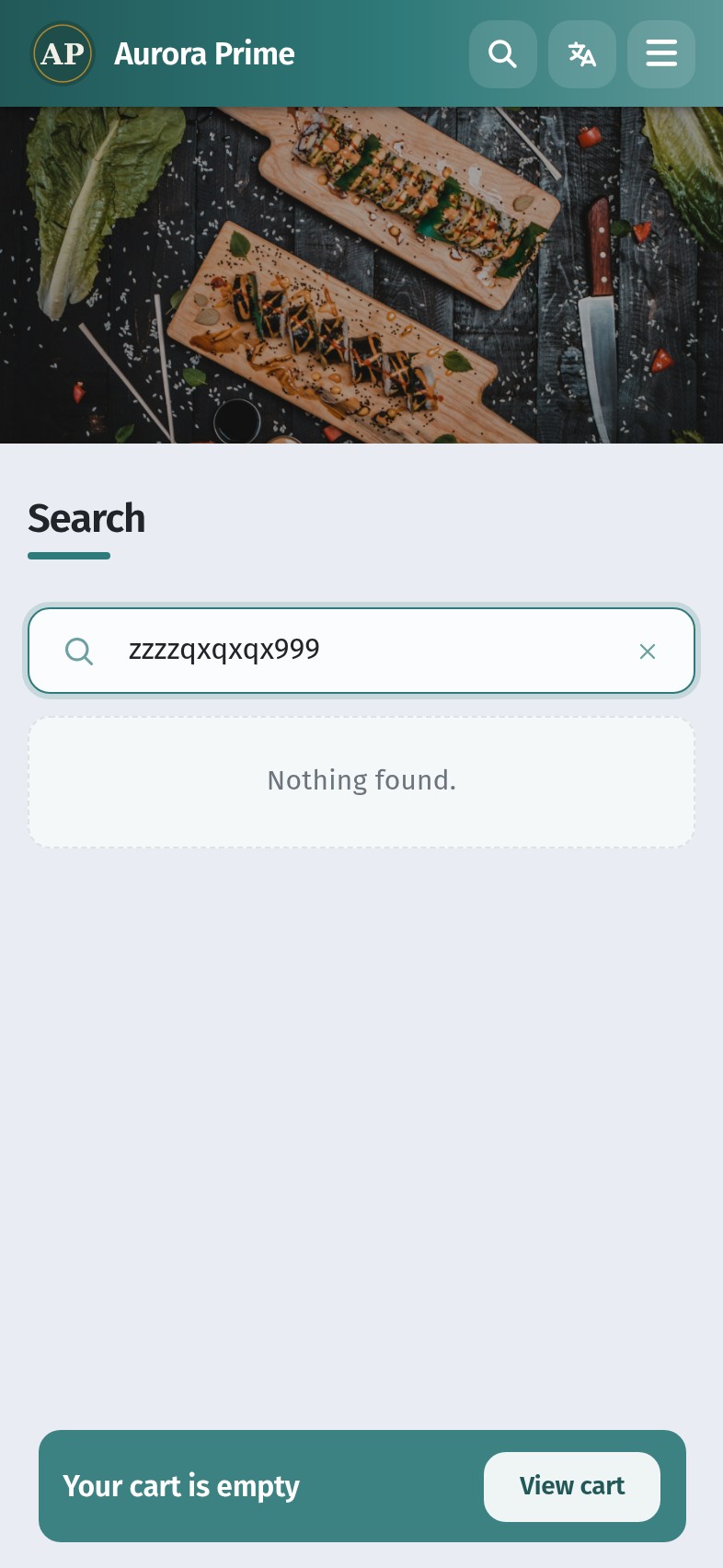
If nothing matches, the guest sees Nothing found. and can clear the query to restore the full menu. The × in the field or Clear does the same.
Practical tip: put words guests actually type into description and composition — “chimichurri”, “espresso”, “mozzarella” — so search hits more than the official name. Craft: dish names and descriptions that sell.
4. From tile to dish sheet
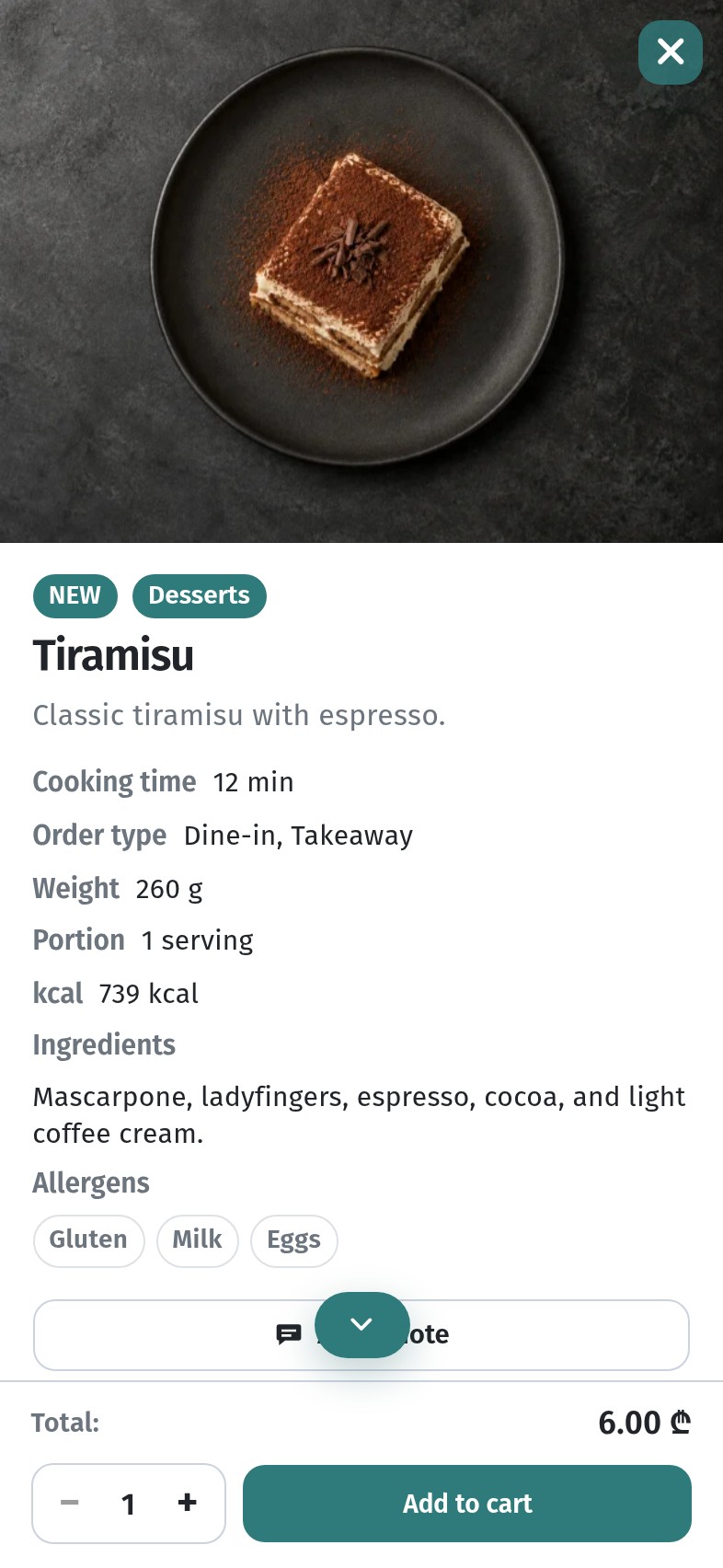
A tap on a tile opens the dish sheet: photo, badges, name, description, cooking time, order types, weight, portion, kcal, ingredients, allergens, optional note, quantity and Add to cart. From here the guest adds the dish; the cart path is in How a guest orders through the cart. Variants, badges and availability: The dish card in WebQRMenu.
While the guest scrolls, a fixed bar at the bottom shows cart status — empty or with items — so the next step stays visible.
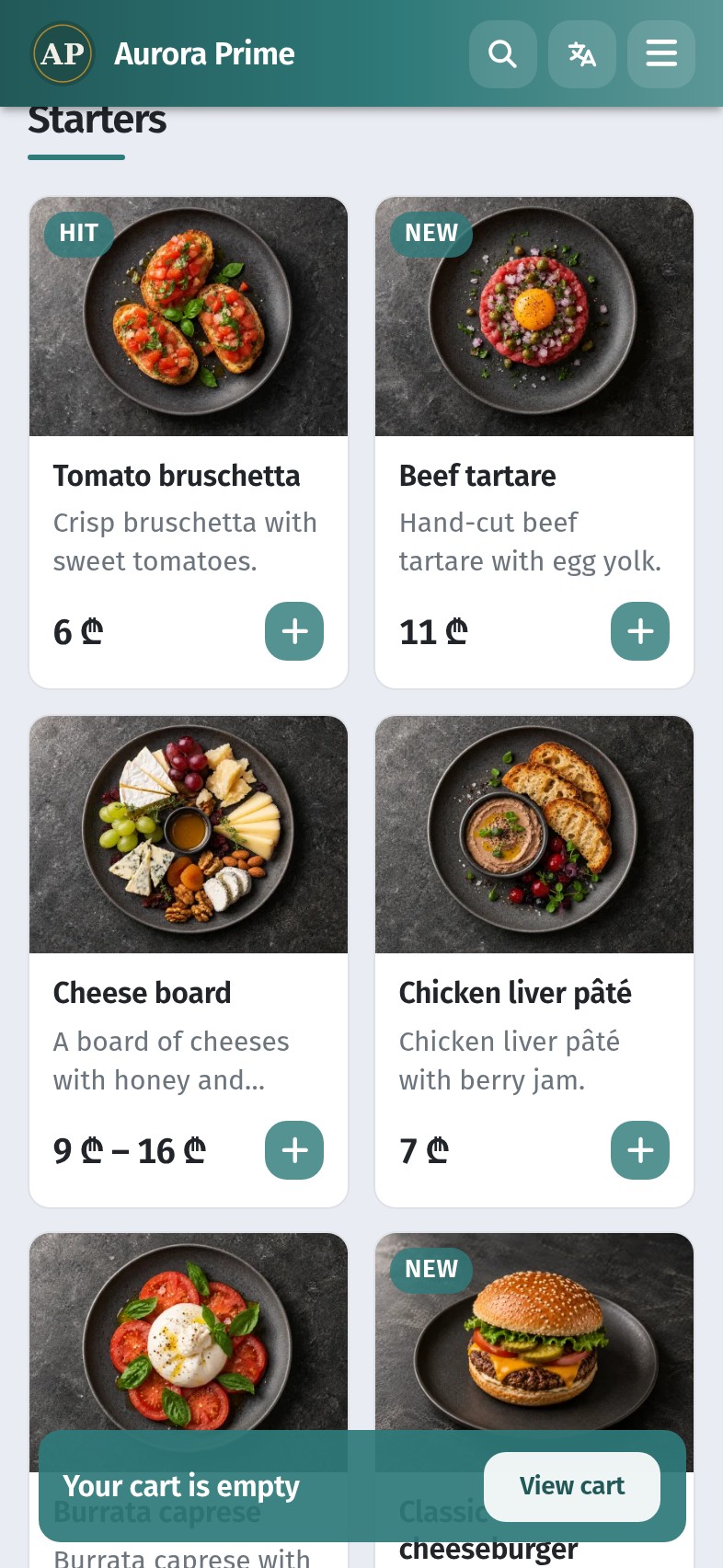
Clear photos make scanning by section faster than reading every line: Dish photos in WebQRMenu.
5. What to set in the dashboard so dishes are found
Findability is mostly content quality:
- Translate every dish and every section into all guest languages. Missing English or Georgian names mean foreign-language queries miss those items.
- Write description and composition with guest keywords — synonyms, main ingredients, cooking style — in each language.
- Keep section order logical for how people order. Chip order follows section order.
- Keep section names short so chips stay readable on a phone.
- Add a photo to every dish guests choose visually.
- Hide unavailable dishes so search does not promise what the kitchen cannot serve. Habits: Stop-list and seasonal menu.
One menu with full translations feeds both the chips and multilingual search — you do not need a second catalog for tourists.
6. Checklist before service
- Every section name translated
- Every dish name, description and composition translated
- Descriptions include words guests type (ingredients, style, synonyms)
- Section order matches how you want people to browse; short chip labels
- Photos on dishes guests choose by sight
- Unavailable dishes hidden so they do not clutter search
- Spot-check on a phone: chip jump, local search, cross-language search, empty state, dish sheet, cart bar
When those boxes are checked, the path is short: scan → chip or search → dish → cart — without reprinting a QR when you rename a section or add a seasonal dessert.