
Stop-List and Seasonal Menu: How to Pull a Dish Quickly and Bring It Back
How to run a stop-list in a QR menu with the Availability field and prepare seasonal dishes in advance without deleting them.
The trout has run out, the fryer is broken, the supplier didn't bring the berries. With a paper menu the waiter apologises for every one of those dishes. In a QR menu you can fix it in a minute, straight from your phone, before a guest picks something you don't have.
Where it is set
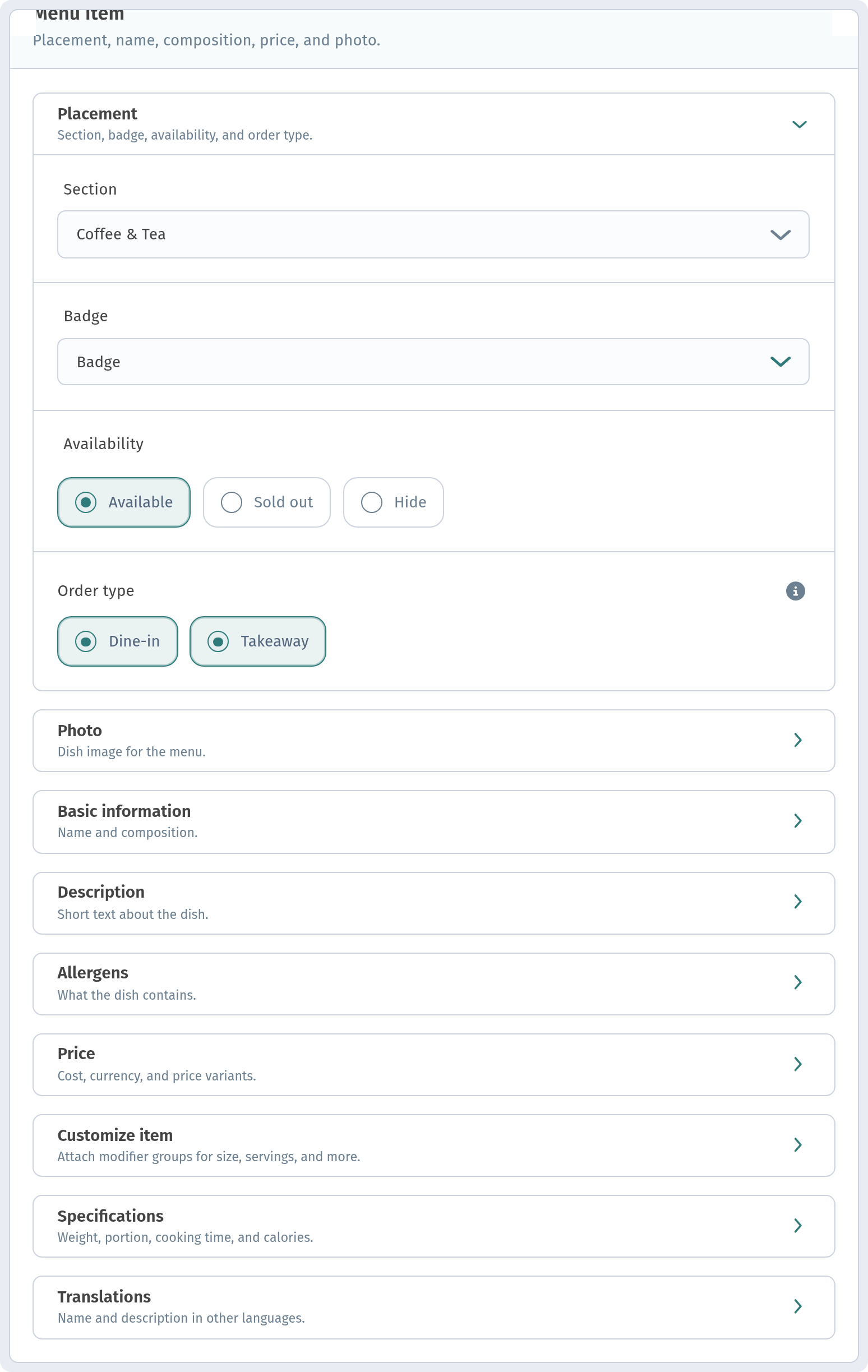
In WebQRMenu every dish has a Placement block: section, badge, availability and order type. The Availability field is your stop-list. It has three options:
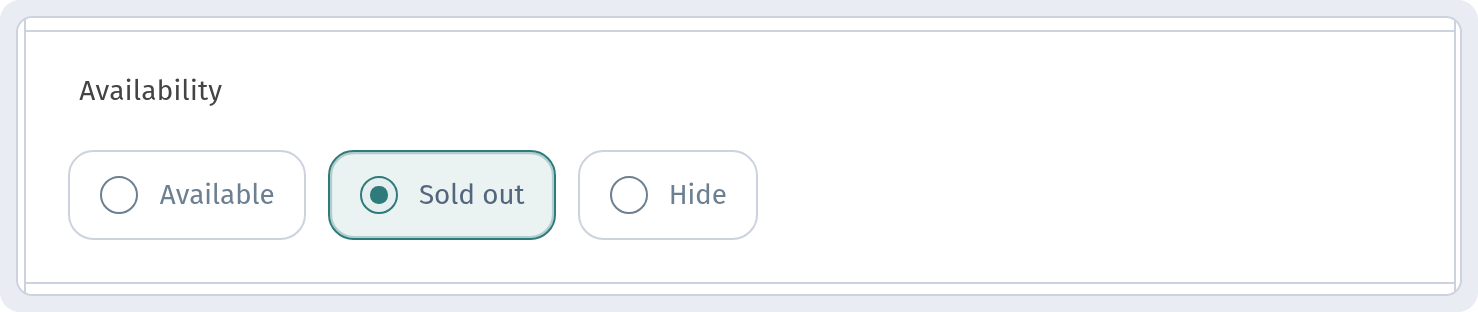
- Available: the dish's normal state;
- Sold out: the dish has run out for now;
- Hide: the dish is out of the guest's sight but stays in your catalogue.
The key point: in none of these cases do you need to delete the dish. The photo, description, translations and price variants are kept, and you bring the item back with one switch.
Sold out or Hide: which one
A simple rule:
- Ran out today, back tomorrow: Sold out. This is the classic stop-list for a shift.
- Gone for weeks: Hide. For example, a summer lemonade in winter, or a dish you are still working on.
The stop-list as a shift routine
Technically it's simple, but a stop-list only works when someone owns it:
- Before opening, the chef or shift lead checks stock and switches whatever is missing.
- During the shift, the kitchen says straight away what has run out, and the menu is updated right then, not "after the rush".
- At the end of the day, set Available again for the items you'll have tomorrow.
That way guests don't order a dish you don't have, and the waiter doesn't have to apologise and suggest a replacement.
A seasonal menu without the rush
Prepare seasonal dishes in advance:
- Create a section for the season, for example "Summer menu", and add the dishes with photos, descriptions and translations.
- Until the season starts, keep them on Hide.
- On launch day, switch them to Available and mark the most interesting ones with a badge.
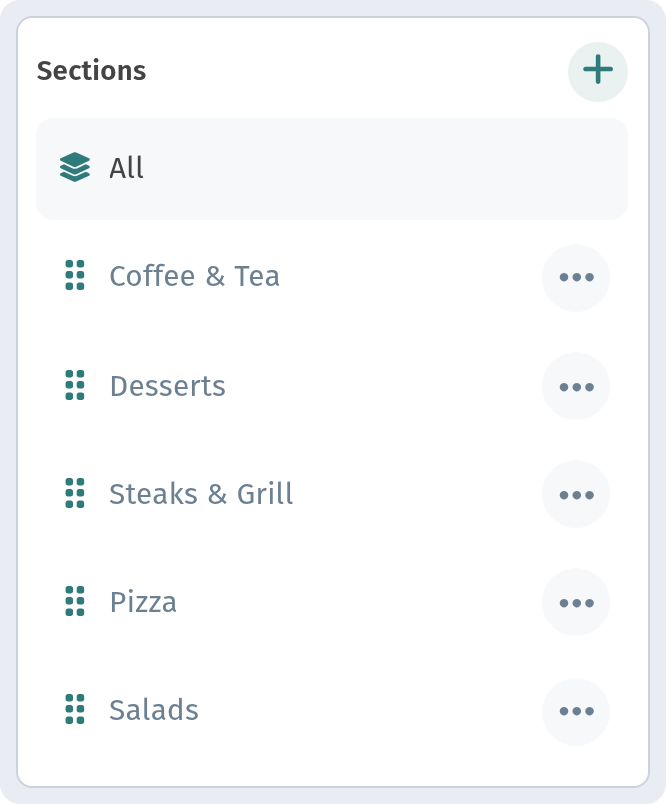
When the season is over, choose Hide again. Next year the dishes will already be there, and you only need to refresh the photos and prices.
To set up the whole dish card, with variants, allergens and badges, read The dish card: variants, allergens and badges. And for where to put a new seasonal section in the menu, see Menu structure: categories and order.
In short
- Out for the day: Sold out.
- Off for a long time: Hide.
- Delete nothing: the description and photo will be useful again.
- Give every shift one person responsible for the stop-list.