
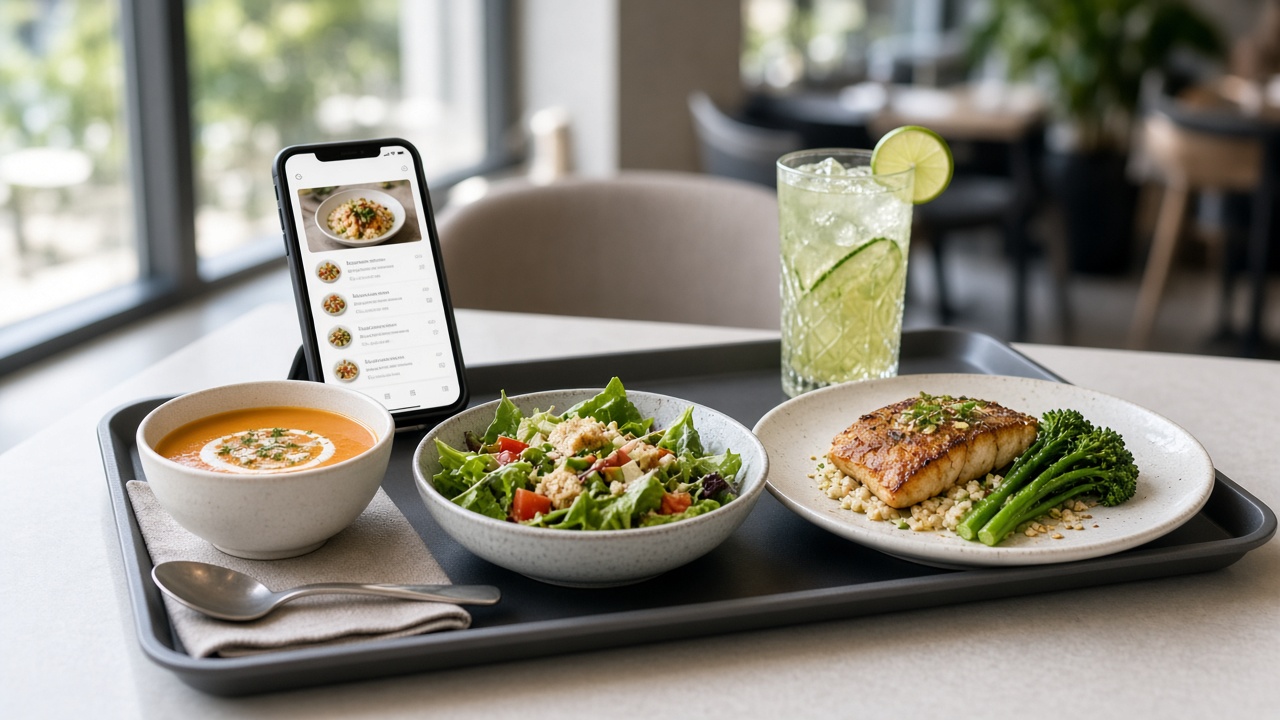
Business lunch and set menus in a QR menu: section, description and one price
How to set up a business lunch in WebQRMenu: a dedicated section with translations, one set dish with a NEW badge, a description that lists the soup options, a fixed price, and how guests leave their soup choice in a note.
Lunch service is a different job from dinner. Guests have 40–50 minutes, they want a clear “soup + main + drink” package and one price — not a treasure hunt through the whole menu. On paper you print a separate lunch insert. In a QR menu you build the same idea from ordinary WebQRMenu tools: a section, a dish with photo and description, a badge and a fixed price. The QR on the table stays the same; only the dashboard content changes.
Here is how we set up a weekday set in the Aurora Prime demo: a Business lunch section, a Business lunch dish at 15 ₾ with a NEW badge, and a description that names the soup options. Guests write which soup they want in Add a note — no separate soup picker on the card. No invented buttons — only what the dashboard and the guest menu actually show.
In short: create a lunch section and translate its name. Inside it, add one (or a few) set dishes with a clear description that lists what is included (including soup options), a fixed price and a NEW badge. Guests can type their soup choice in the note field on the dish card. When lunch season ends, hide or remove the section — the QR code does not change.
1. Why a separate section beats “just another dish”
Guests look for a business lunch the way they look for a paper insert: a clear tab, not a single line lost among steaks. In the digital menu that role belongs to a section in the sidebar. Open the menu, see Business lunch next to breakfasts and grills, and know where to tap.
In Aurora Prime the section is named Бизнес-ланч in Russian. Translation languages English and ქართული are on: English Business lunch, Georgian ბიზნეს-ლანჩი. A dedicated section is easy to promote by daypart: keep it high at noon, move or hide it in the evening, without rebuilding the rest of the catalog. Updating the menu without reprinting the QR is covered in Updating your menu without reprinting.
2. One set dish: placement, photo, description, price
Inside the section we created a single dish with the same name Business lunch. For the guest it reads as “the lunch set”, not a pile of lines to assemble.
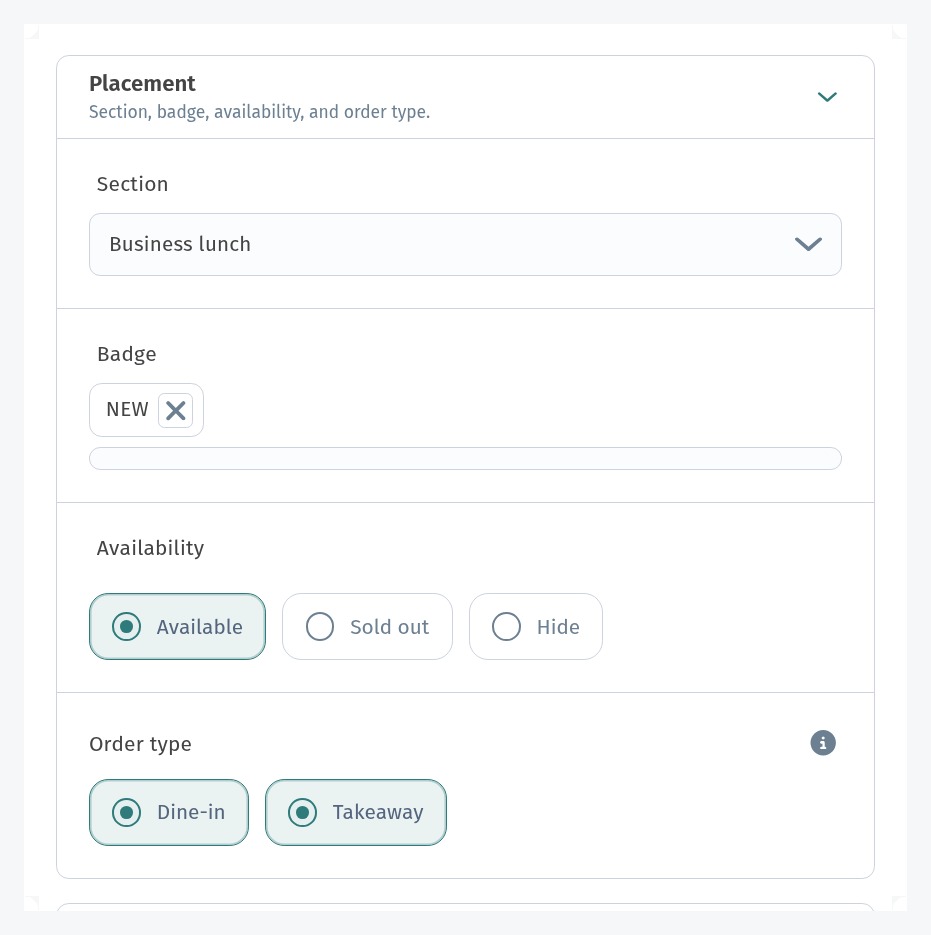
In Placement:
- Section — Business lunch
- Availability — Available
- Order type — Dine-in and Takeaway (handy when some guests take lunch to go)
- badge NEW so the set stands out in the feed
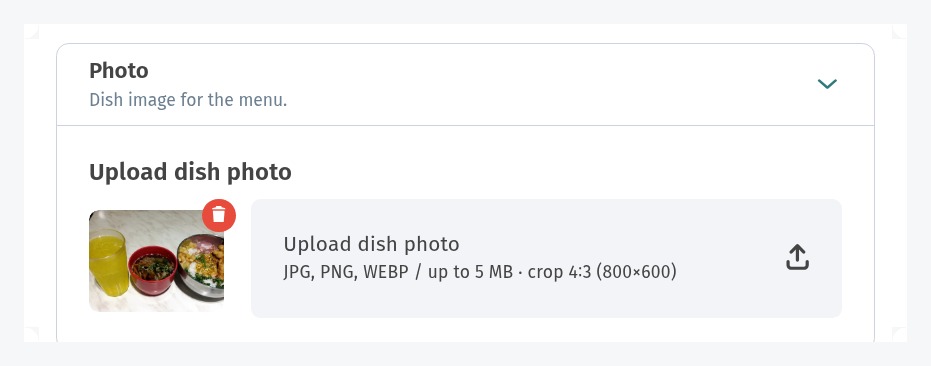
The photo is a real set shot (drink, soup and main on one frame): guests see a combo at a glance. Under Photo, upload JPG/PNG/WEBP up to 5 MB.
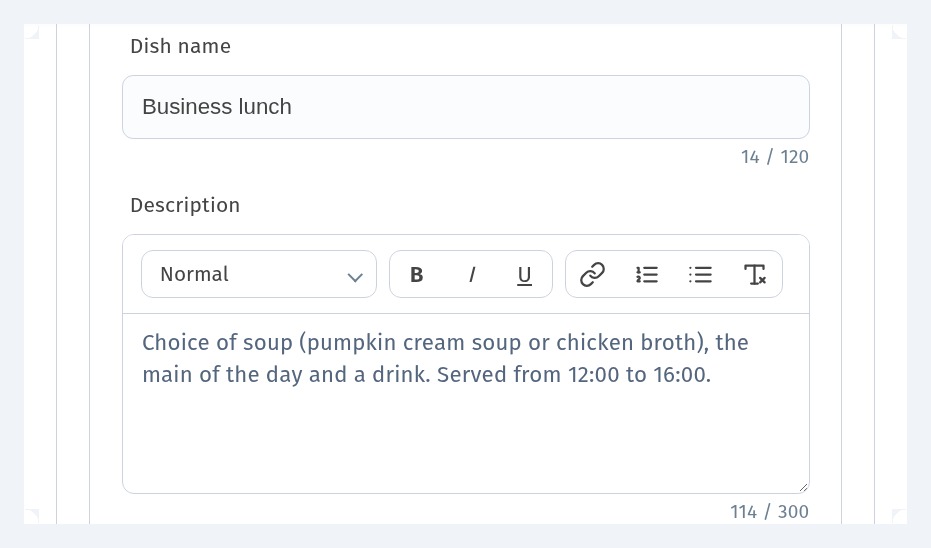
The description does the selling: composition, soup options and serving window in a few seconds. In Aurora Prime the English text reads:
Choice of soup (pumpkin cream soup or chicken broth), the main of the day and a drink. Served from 12:00 to 16:00.
In the English interface the primary description field still shows the Russian source text, so the English copy lives in the Translations row for English — name and description together. That is the natural place to keep the guest-facing English wording in sync.
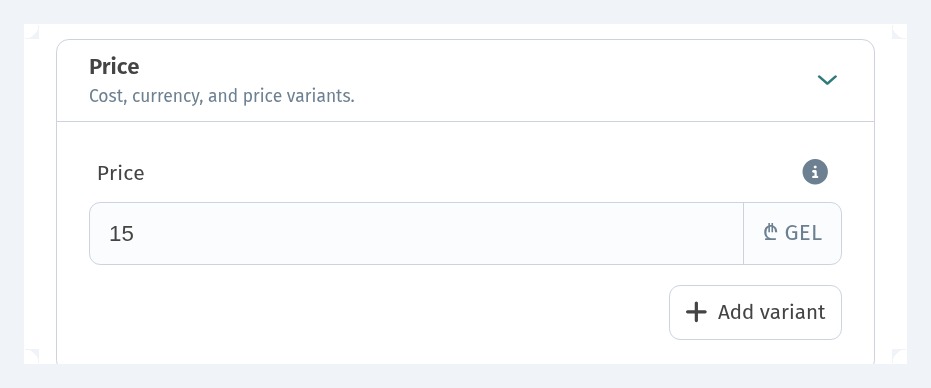
Price is a single fixed amount: 15 ₾. An Add variant control exists if you later need sizes or alternate lunch prices; a simple set needs only one price.
For naming and descriptions that sell, see How to write dish names and descriptions that sell.
3. Dish translations
The section is translated; the dish should be too. In Aurora Prime the Translations card lists the languages for translation and a row per language:
- EN: Business lunch — Choice of soup (pumpkin cream soup or chicken broth), the main of the day and a drink. Served from 12:00 to 16:00.
- KA: ბიზნეს-ლანჩი — სუპი არჩევით (გოგრის კრემ-სუპი ან ქათმის ბულიონი), დღის ცხელი კერძი და სასმელი. მიეწოდება 12:00-დან 16:00-მდე.
- RU (primary): Бизнес-ланч — Суп на выбор (тыквенный крем-суп или куриный бульон), горячее блюдо дня и напиток. Подаём с 12:00 до 16:00.
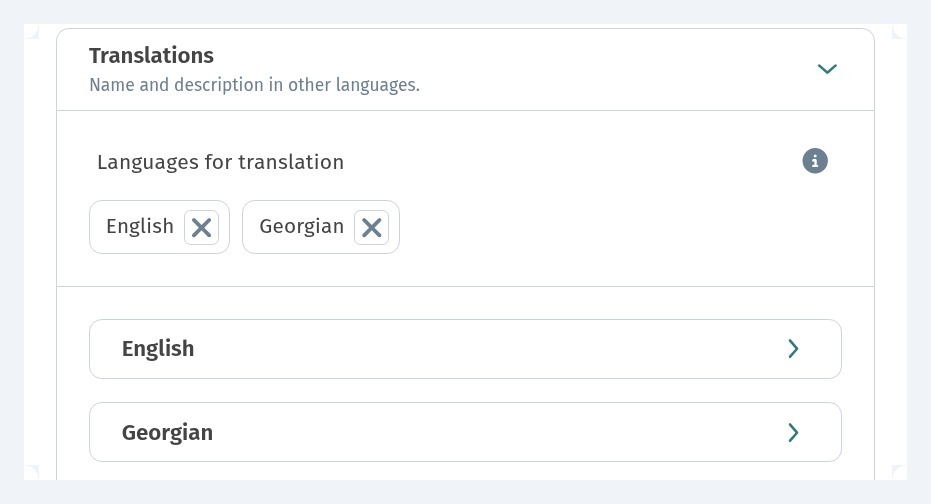
A guest on English or Georgian gets the same set, not a Russian card in the wrong language. More on three-language menus: Menu in three languages.
4. What the guest sees on the phone
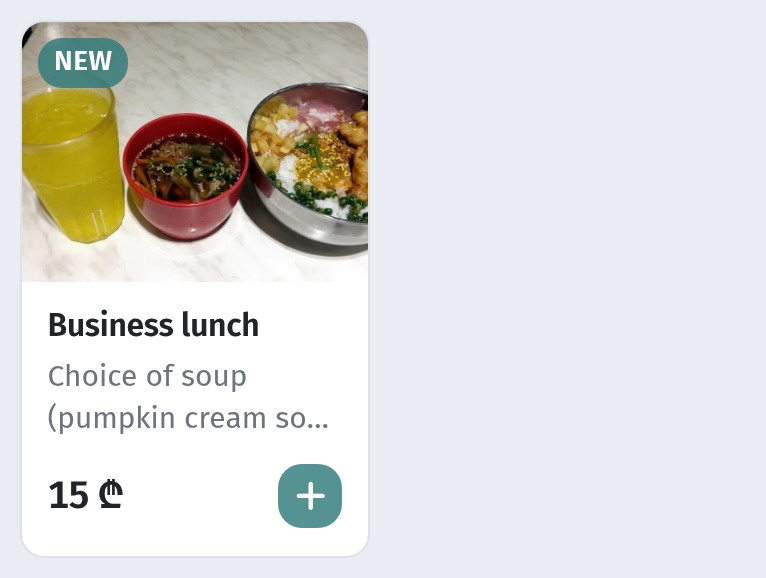
On the Aurora Prime guest menu (yrg18q) the Business lunch section appears in the category list. The set tile shows the dish photo, NEW, a short description and 15 ₾.
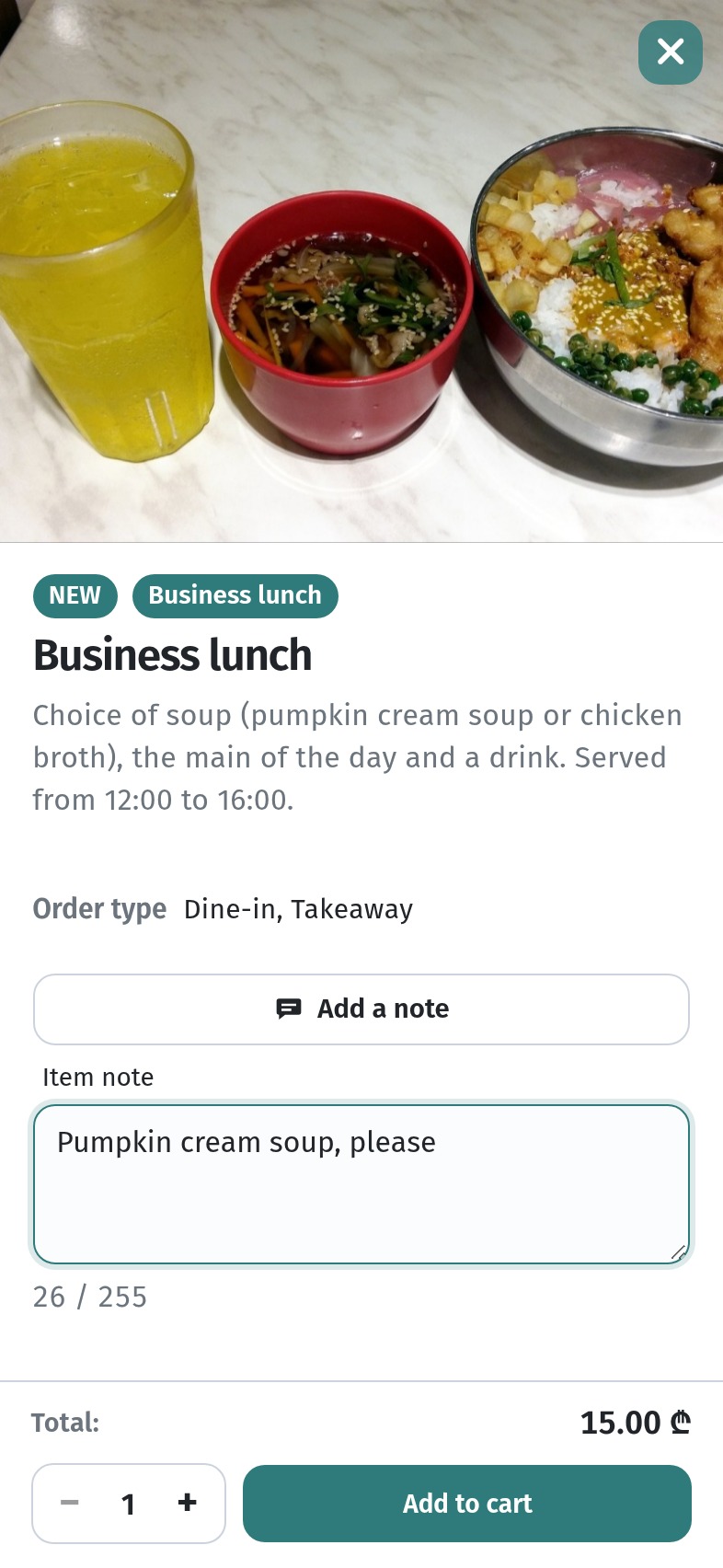
Opening the tile shows the full card: photo, NEW, name, the full description with the soup options and 12:00–16:00 window, order types Dine-in, Takeaway, Add a note, total 15.00 ₾ and Add to cart. There is no separate soup picker on the card — the set is explained in the description.
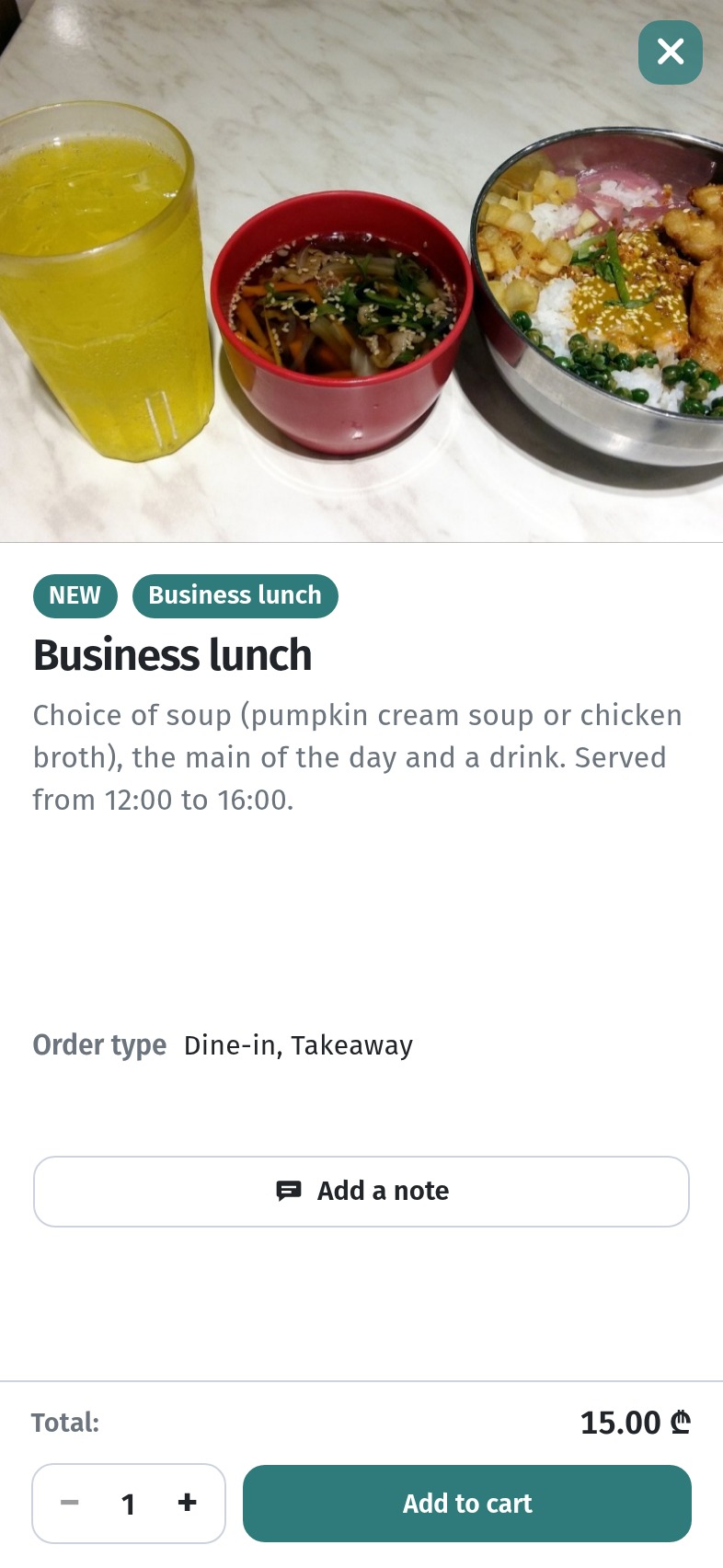
If a guest wants pumpkin cream soup or chicken broth specifically, they tap Add a note and type it — for example Pumpkin cream soup, please. The kitchen sees the note with the order.
Order types on the card match the dish setting — see Order types: dine-in, takeaway, delivery and pickup.
5. Set price and average check
A fixed 15 ₾ for a clear package often beats “just a salad” in a short lunch window. The NEW badge highlights the offer in the feed. Tactics for average check in a QR menu: How a QR menu helps raise the average check.
If Friday’s set differs from Monday’s, change the name, description or photo — no reprint. Opening hours and contacts still live in store settings: Wi‑Fi, opening hours and contacts.
6. Takeaways
- Put the lunch offer in its own section and translate the section name.
- One set dish with photo, NEW, a description that lists soup options and hours, and a fixed price is enough for a clear weekday offer.
- Keep EN/KA copy in Translations so guests never see the wrong language on the card.
- Guests leave a soup preference in Add a note — the description carries the promise; the note carries the choice.
- Hide or remove the section when lunch ends; the table QR stays the same.