
Wi-Fi, opening hours and contacts in your WebQRMenu menu
How to add your phone, email, address, Wi-Fi networks, opening hours and social links to a WebQRMenu store, and how guests see them in the menu.
The first things guests ask after they sit down are usually "What's the Wi-Fi password?" and "How late are you open?". WebQRMenu can answer both straight from the menu. You enter your contacts, address, Wi-Fi networks, opening hours and social links once in the store settings, and they appear in the menu footer on every guest's phone. This guide walks through every setting, using our demo restaurant Aurora Prime as the example.
Before you start: the interface language
The dashboard is available in English, Russian and Georgian. To switch it, open the account menu (the ⋯ button next to your name at the bottom of the sidebar), choose Settings, pick a language under Interface Language and click Save. The screenshots in this guide use the English interface.
Where to find these settings
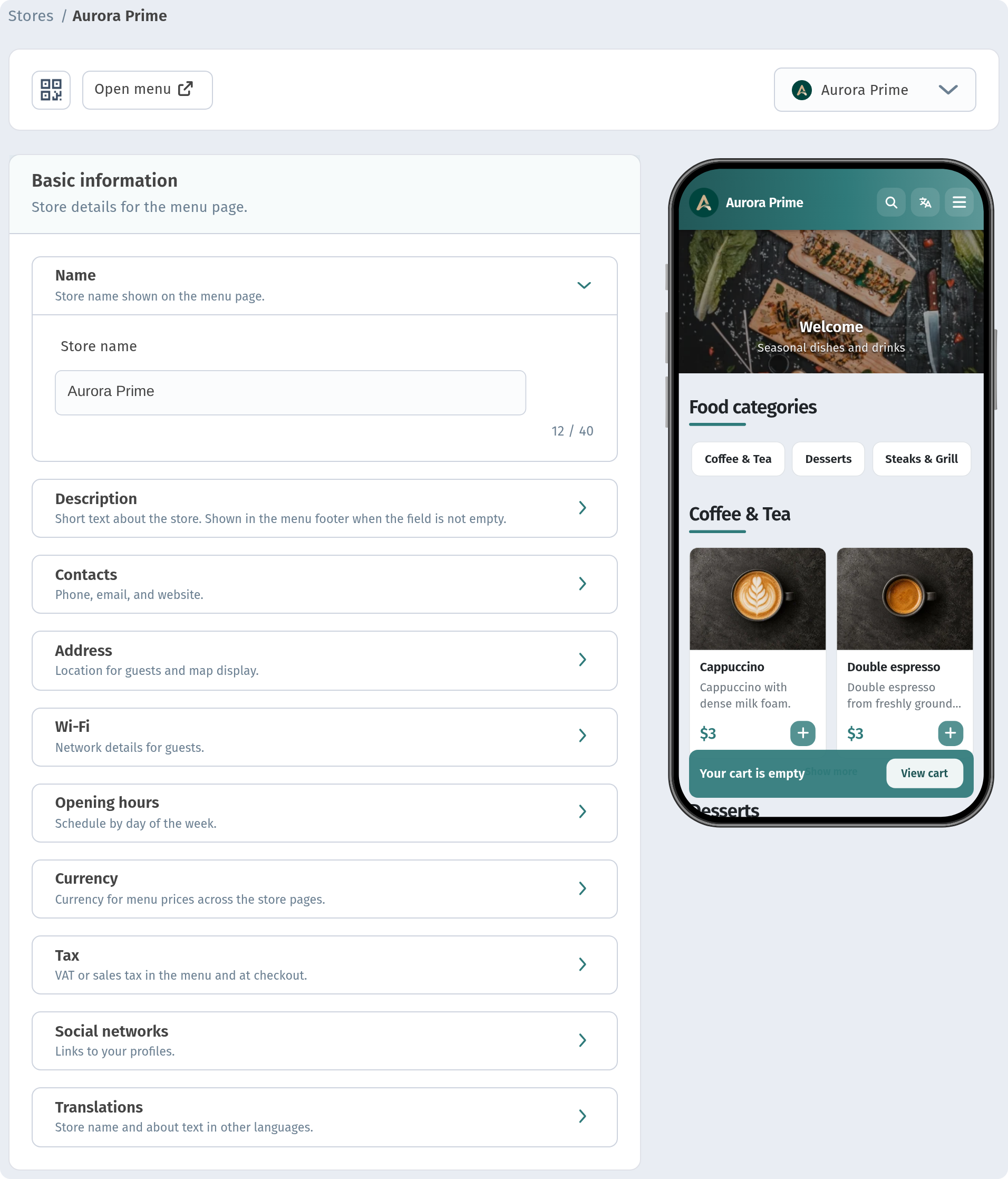
Go to Store → Stores in the sidebar and open your store. The store page has three tabs at the bottom: Information, Page layout and Settings. Everything in this guide lives on the Information tab.
The Basic information block is a list of expandable sections: Name, Description, Contacts, Address, Wi-Fi, Opening hours, Currency, Tax, Social networks and Translations. Click a section to open it. On the right you always see a phone preview of your menu, and the bottom bar holds the Cancel and Save buttons.
Contacts
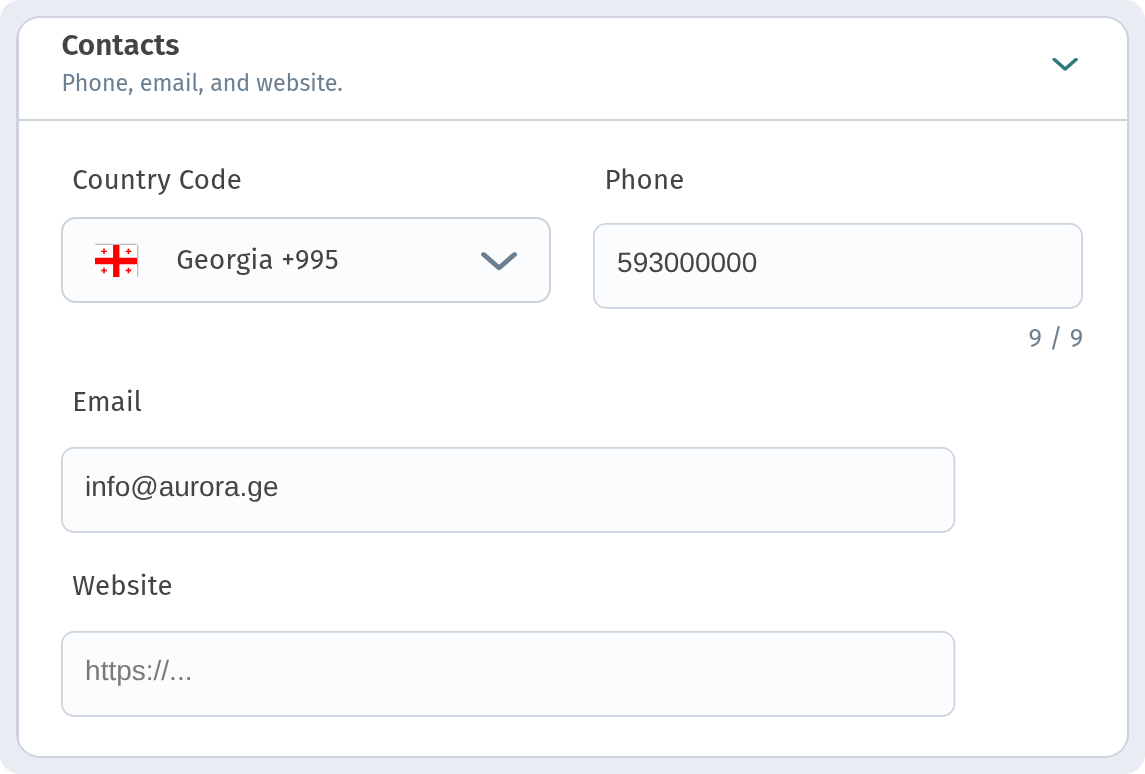
Open Contacts. There are four fields:
- Country Code — choose your country from the list. It sets the dialling prefix, for example Georgia +995.
- Phone — the number without the country code. The counter under the field shows how many digits you have entered.
- Email — the address guests can write to.
- Website — optional. Add it if you have a separate website; leave it empty if you don't.
For Aurora Prime we entered Georgia +995, phone 593 000 000 and the email [email protected]. In the menu the phone number appears in full as +995 593 000 000.
Address
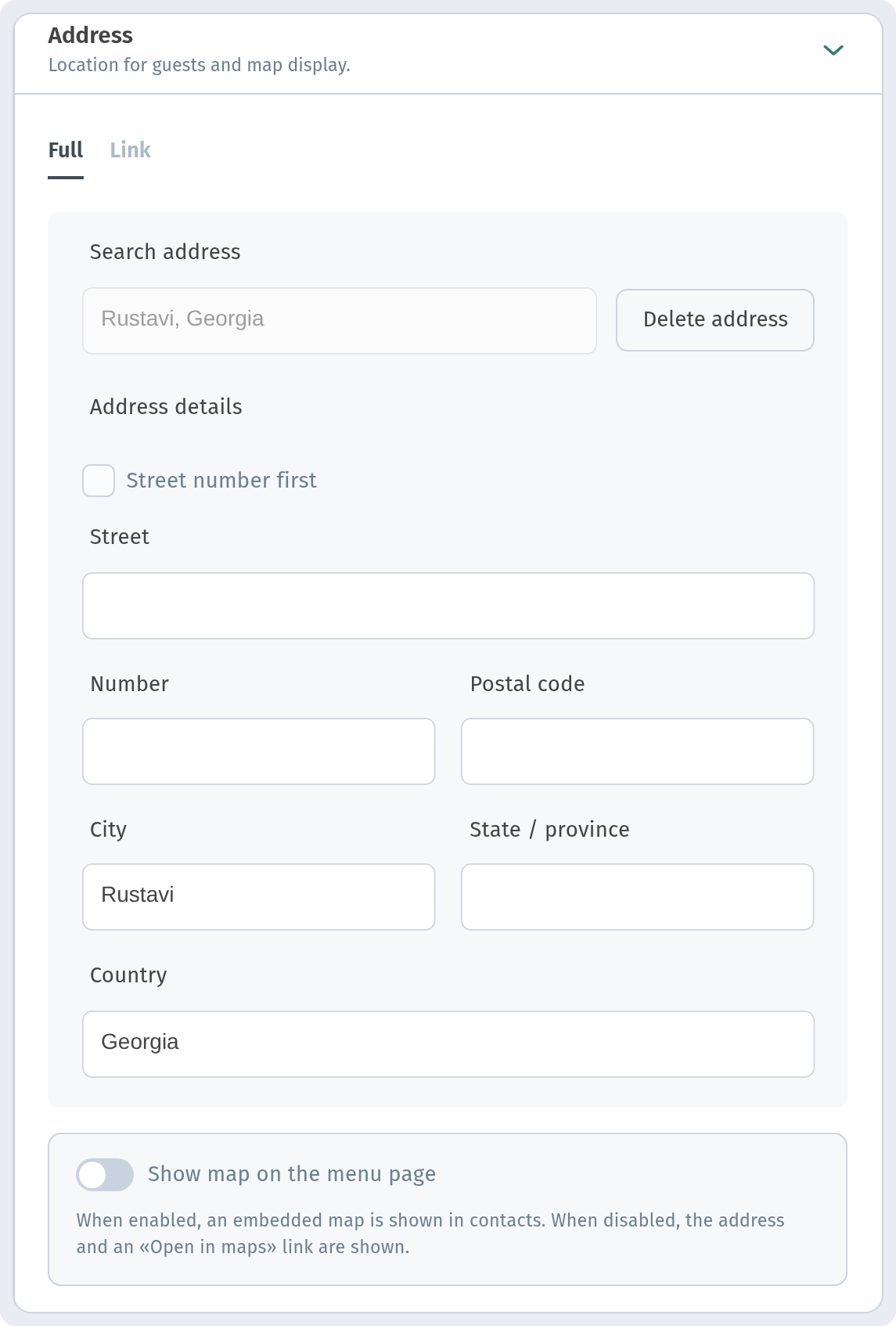
Open Address. At the top there are two tabs: Full (a complete address with separate fields) and Link (if you only want to share a map link). On the Full tab you can search for the address in the search field, or fill in the fields in the Address details block below (Street, Number, Postal code, City, State / province, Country):
- Street number first — tick this if in your country the house number is written before the street name.
- Street, Number, Postal code, City, State / province and Country.
You don't have to fill in every field. For Aurora Prime we entered only the city, Rustavi, and the country, Georgia, and the menu shows "Rustavi, Georgia".
Below the fields is the Show map on the menu page switch. When it is on, an embedded map is shown in the contacts block of the menu. When it is off, guests see the address as text with an Open in maps link, which opens their maps app. We left it off to keep the footer compact.
Wi-Fi
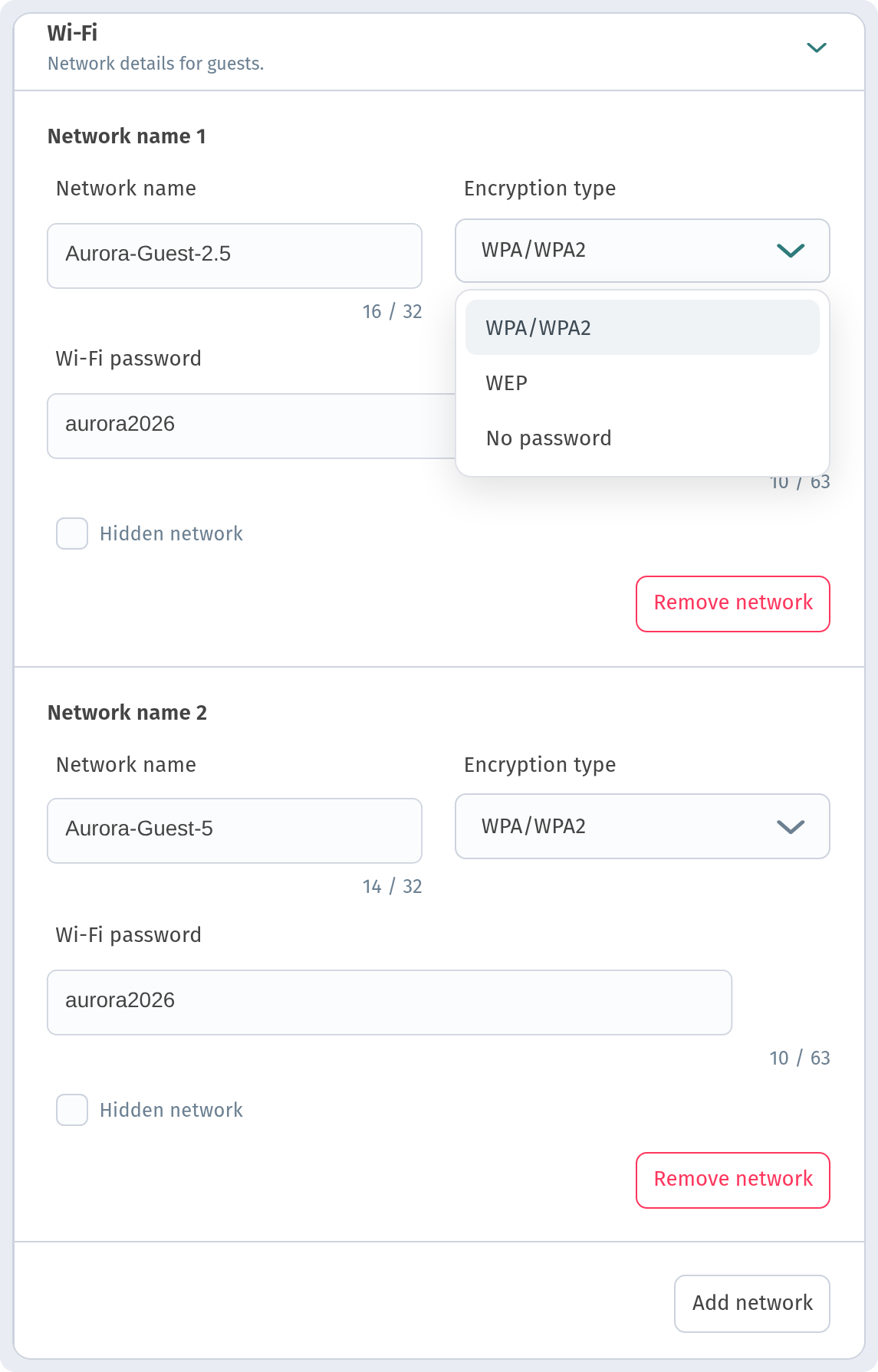
Open Wi-Fi. Each network has its own block (Network name 1, Network name 2 and so on) with these fields:
- Network name — the name exactly as guests see it in their phone's Wi-Fi list (up to 32 characters).
- Encryption type — WPA/WPA2 (the standard for modern routers), WEP (older routers) or No password for an open network.
- Wi-Fi password — the network password (up to 63 characters). It isn't needed for No password.
- Hidden network — tick this if the network doesn't broadcast its name.
- Remove network — deletes this network from the list.
To add another network, click Add network under the last block. Many venues have two bands, so Aurora Prime has two networks: Aurora-Guest-2.5 and Aurora-Guest-5, both WPA/WPA2 with the password aurora2026.
Opening hours
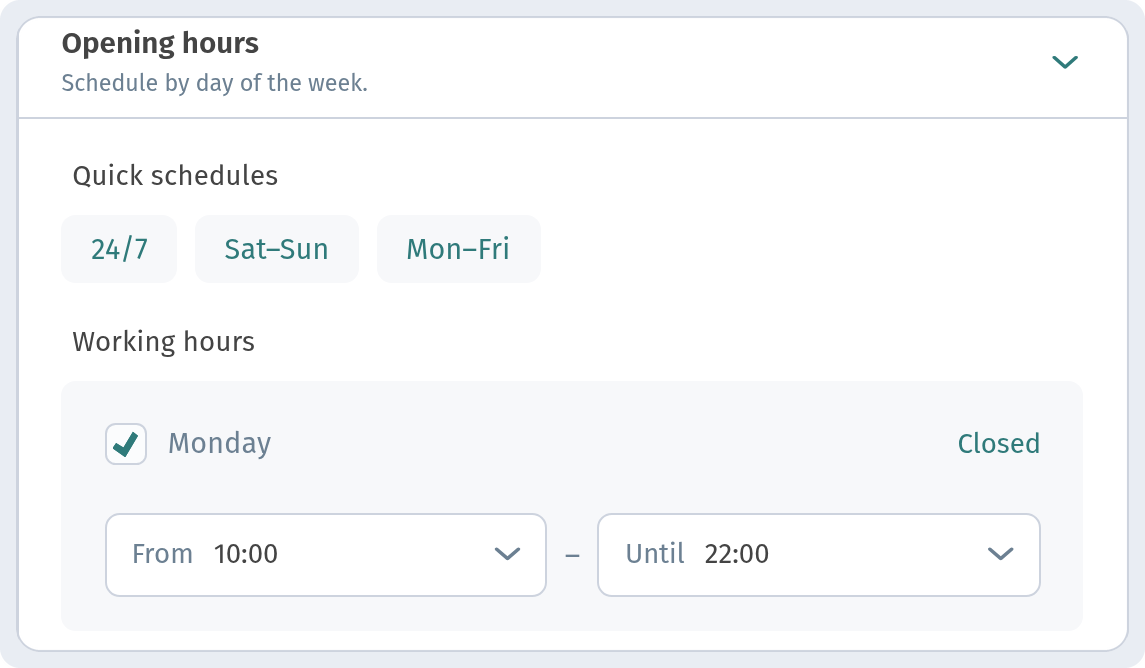
Open Opening hours. At the top are Quick schedules, which fill in the whole week with one click:
- 24/7 — open around the clock every day.
- Sat–Sun — applies to the weekend.
- Mon–Fri — applies to weekdays.
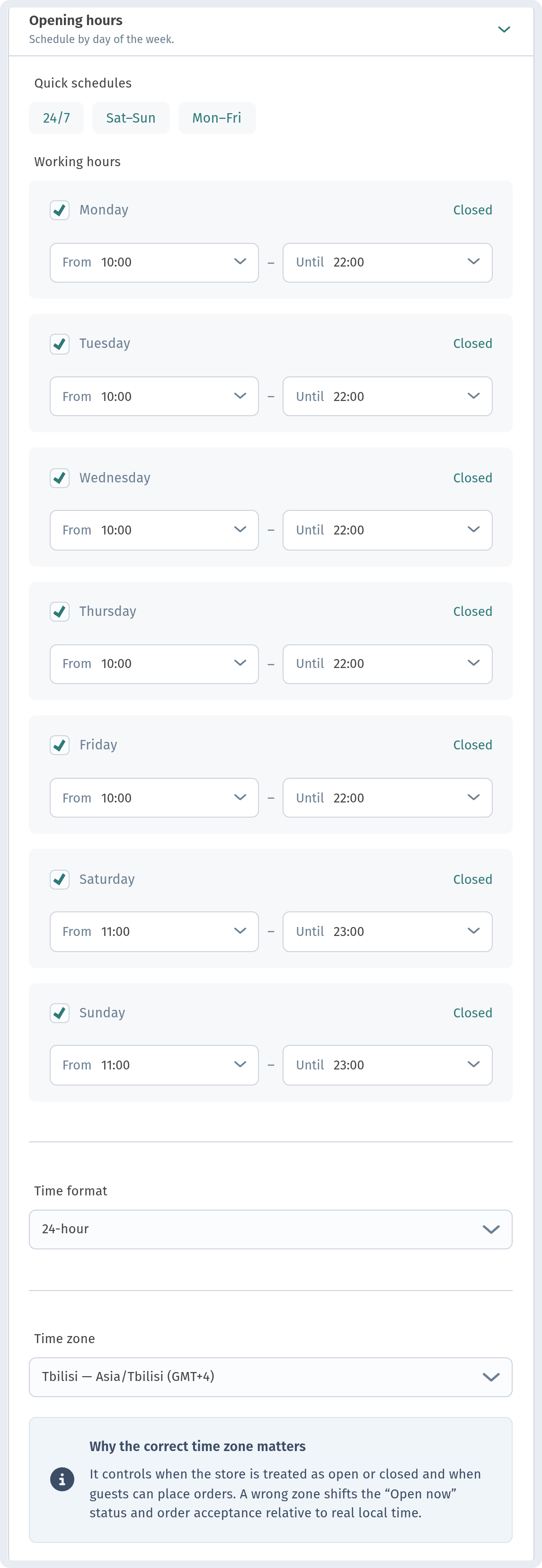
Under Working hours each day of the week has its own row. The tick next to the day name means the venue is open that day. Click Closed to mark the day as a day off. The From and Until fields set the opening and closing times.
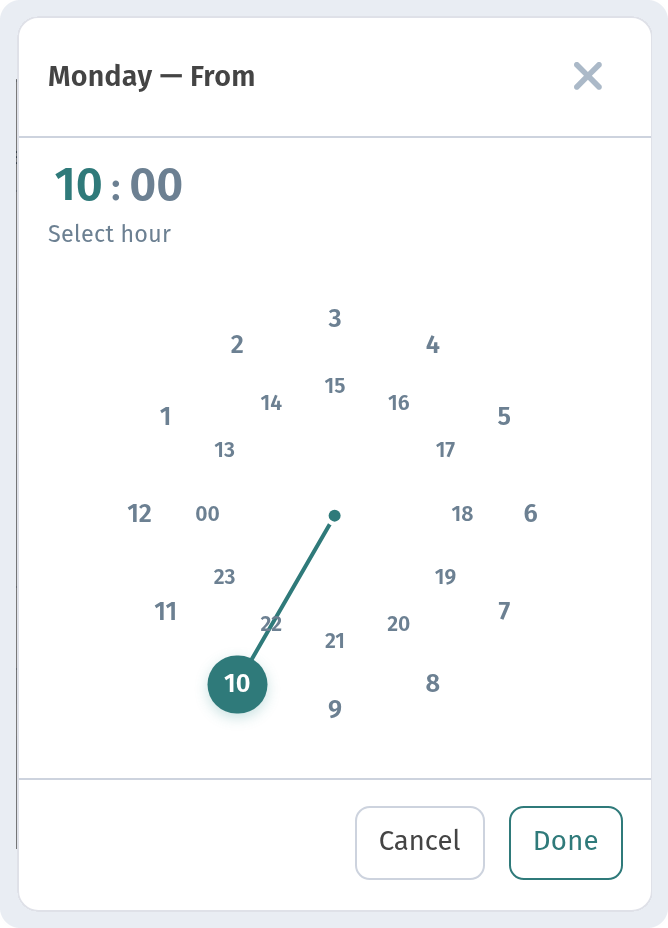
Click a From or Until field and a clock opens. First choose the hour (the hint under the time says Select hour). The outer ring holds the hours 1–12, and the inner ring holds 13–23 and 00 (midnight).
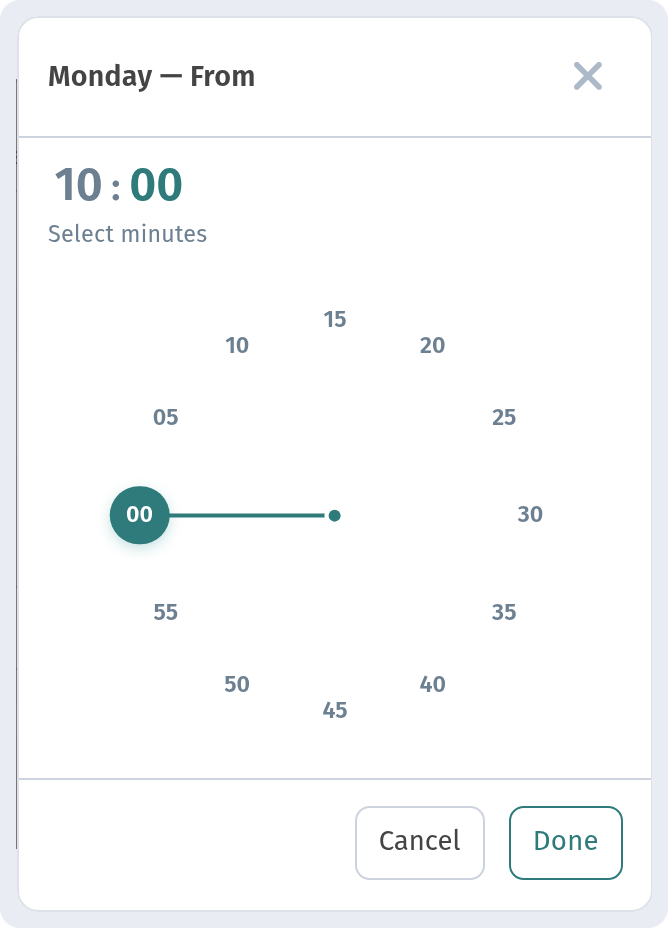
The clock then switches to minutes (Select minutes) in 5-minute steps. Click Done to confirm, or Cancel to close the clock without changes.
Aurora Prime is open Monday to Friday from 10:00 to 22:00, and on Saturday and Sunday from 11:00 to 23:00.
Below the days are two more settings:
- Time format — how times are shown. We use 24-hour (the other option is AM / PM).
- Time zone — the venue's time zone. The menu uses it to work out whether you are open right now, so guests see the correct status wherever they are. Aurora Prime uses Tbilisi time.
Social networks
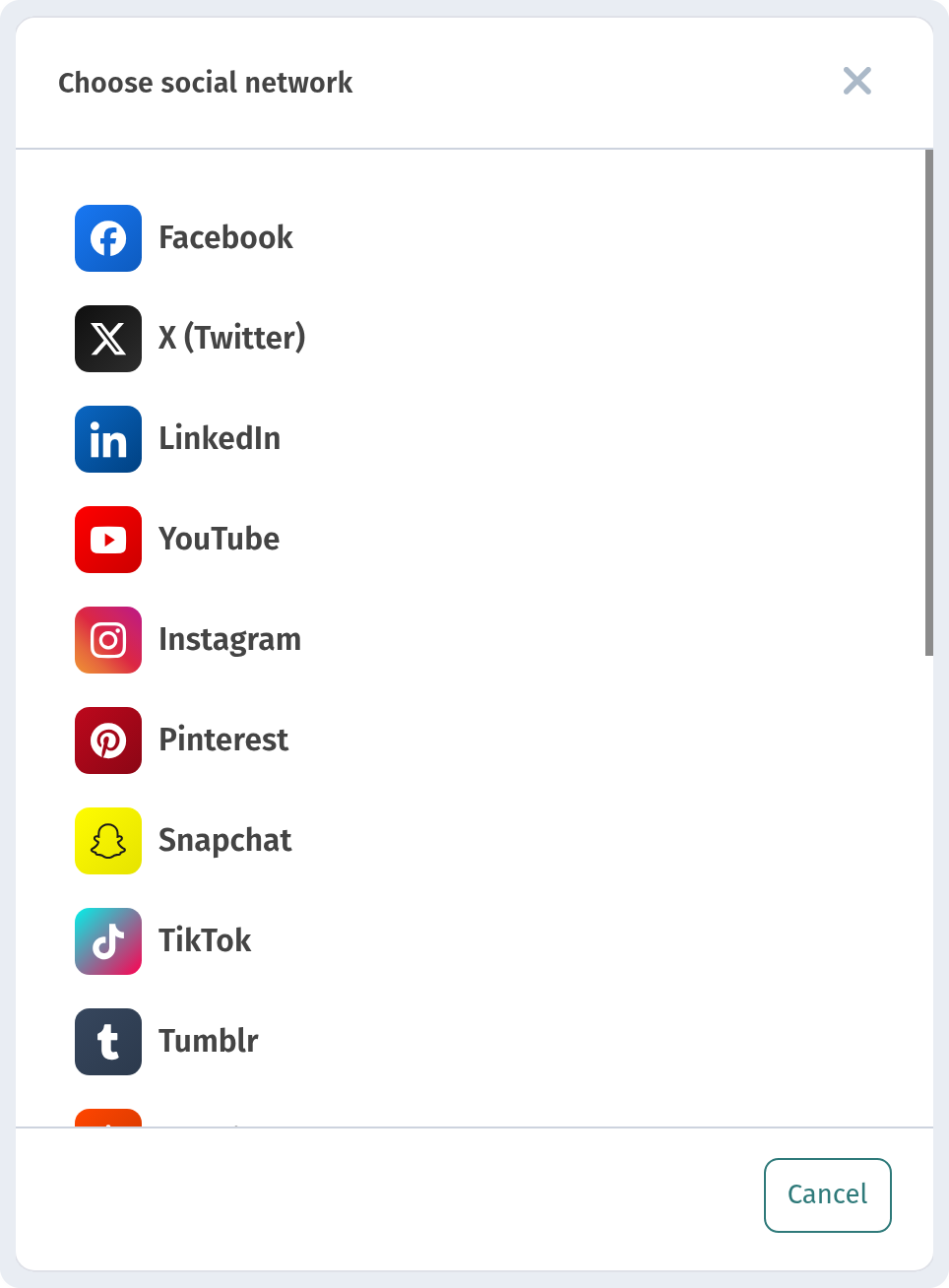
Open Social networks and click Add network (Choose social network). A list opens with Facebook, X (Twitter), LinkedIn, YouTube, Instagram, Pinterest, Snapchat, TikTok, Tumblr and more. Scroll down to see them all.
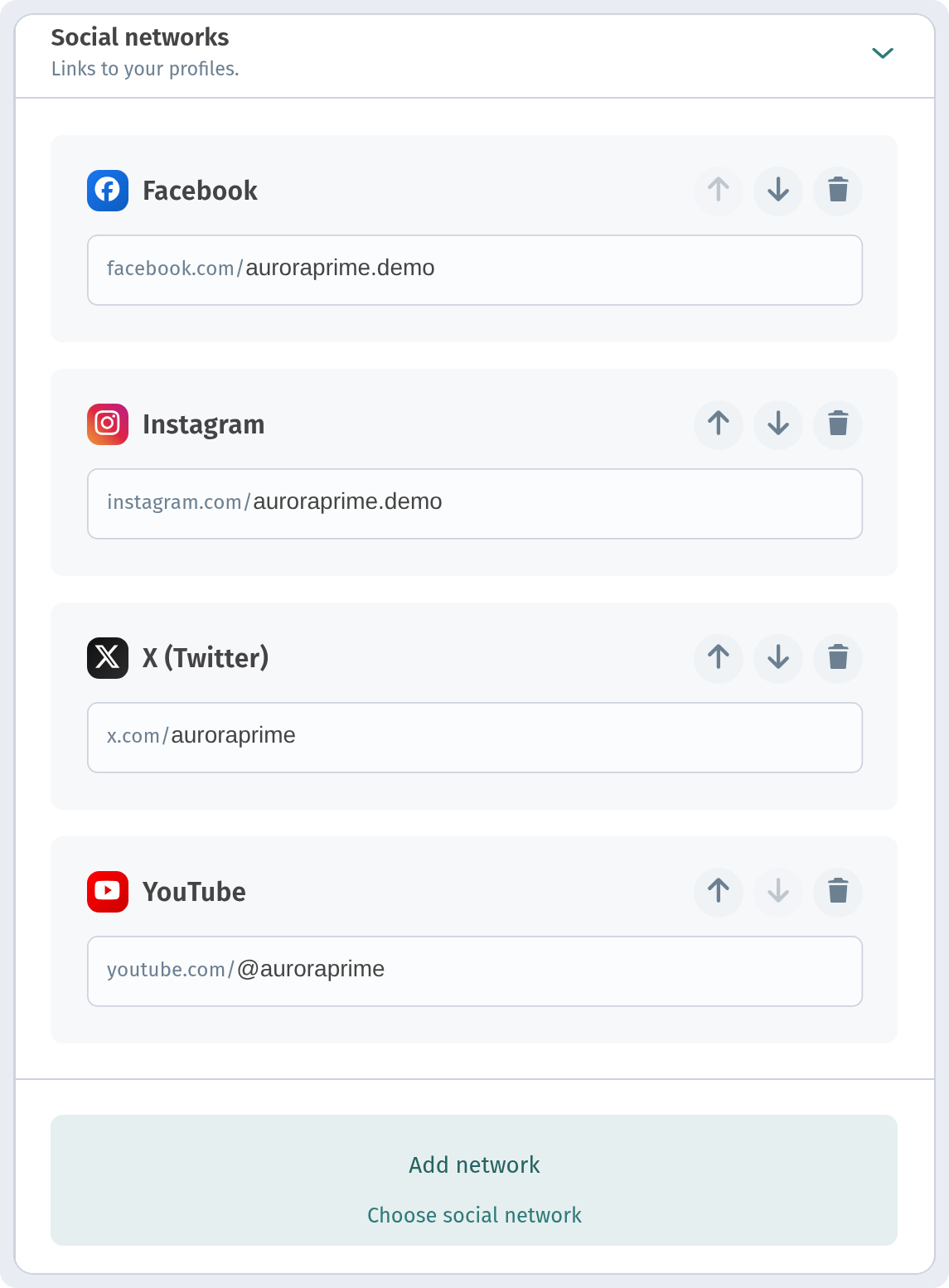
Pick a network and a card appears with the start of the address already filled in, for example facebook.com/. You only need to add your page name. The arrows on a card change the order of the icons in the menu, and the bin icon removes the network. For Aurora Prime we added Facebook, Instagram, X (Twitter) and YouTube, all with the page name auroraprime.demo.
Save your changes
When you've finished, click Save in the bottom right corner of the page. A message confirms that the store has been updated. The phone preview and the public menu update straight away.
What guests see
Now open the menu the way a guest does, by scanning the QR code or following the store link (for Aurora Prime it is webqrmenu.io/7kgmv7). The home screen shows the cover, the categories and the dishes.
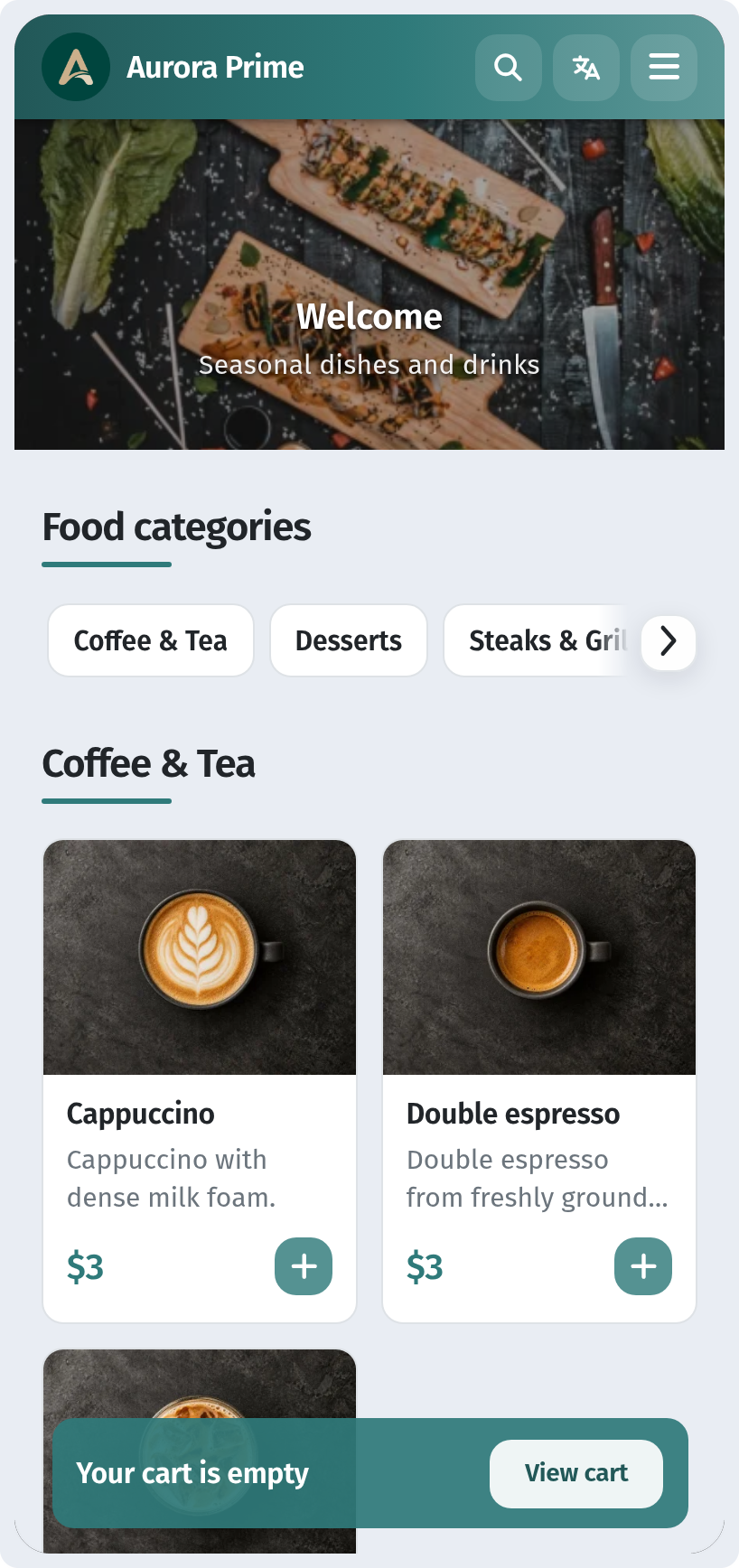
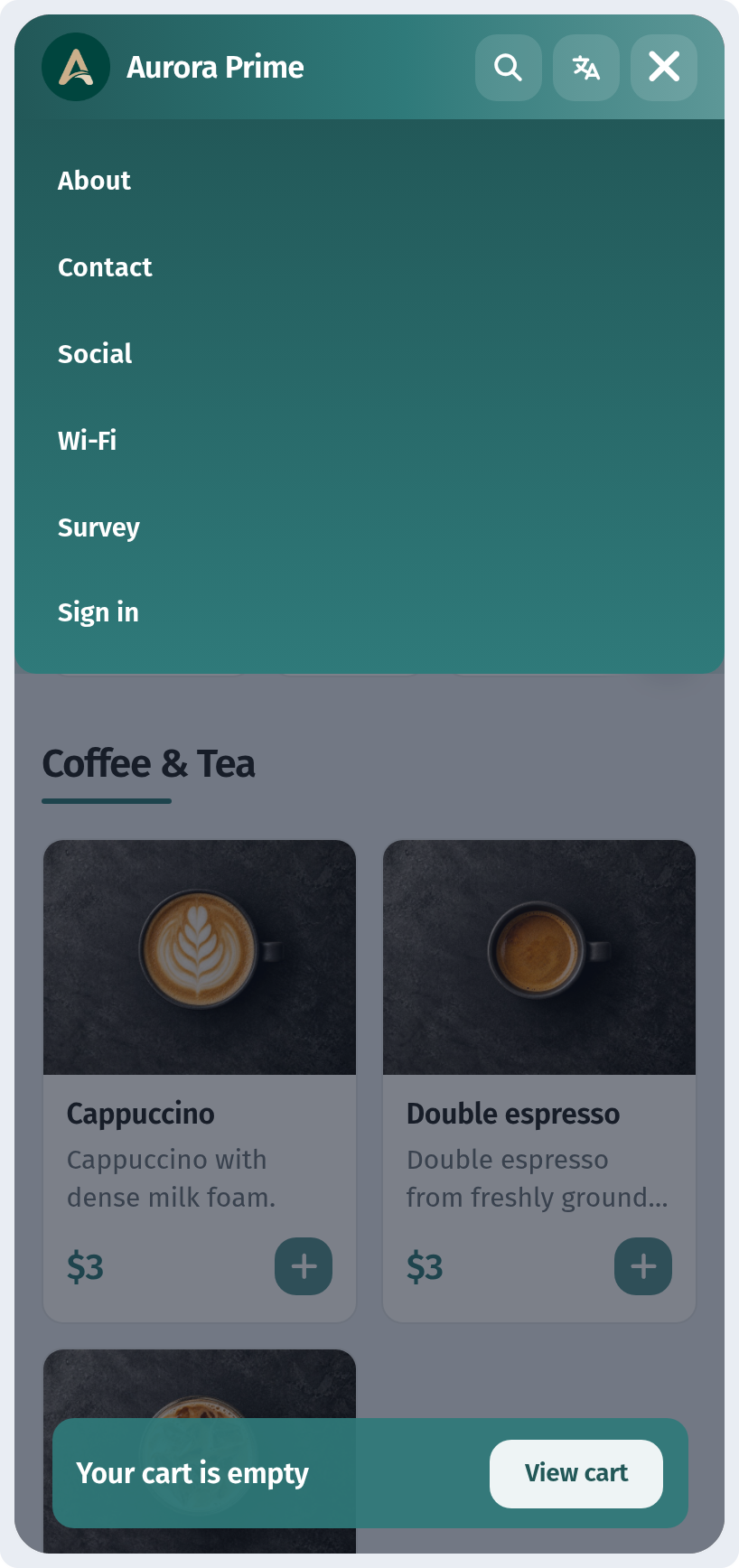
The ☰ button in the top right corner opens the menu with quick links: Contact, Social and Wi-Fi. Each one takes the guest straight to the right part of the footer, so nobody has to scroll past the whole menu. On a computer the same links sit in the header: About, Contact, Social, Wi-Fi and Survey.
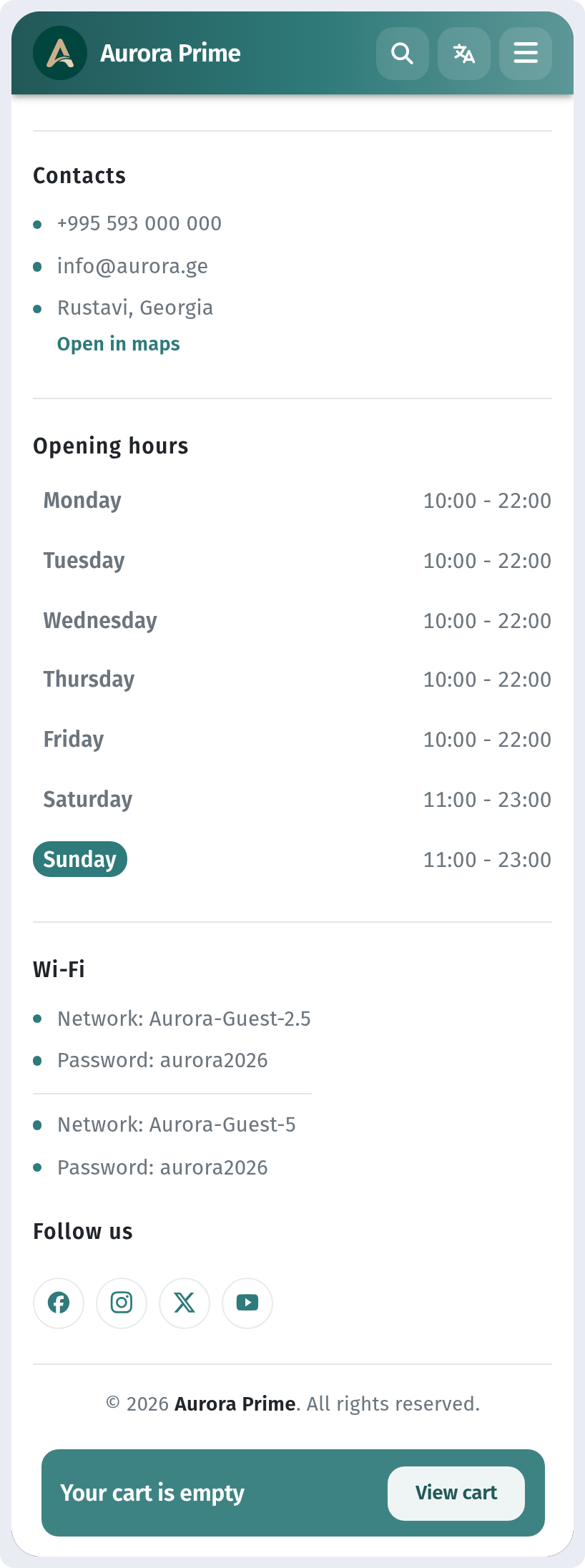
The footer brings together everything you entered:
- Contacts — phone number, email and address. Open in maps opens the address in the guest's maps app.
- Wi-Fi — every network, with Network and Password. The guest can connect in a few seconds without asking the staff.
- Follow us — icons for your social networks.
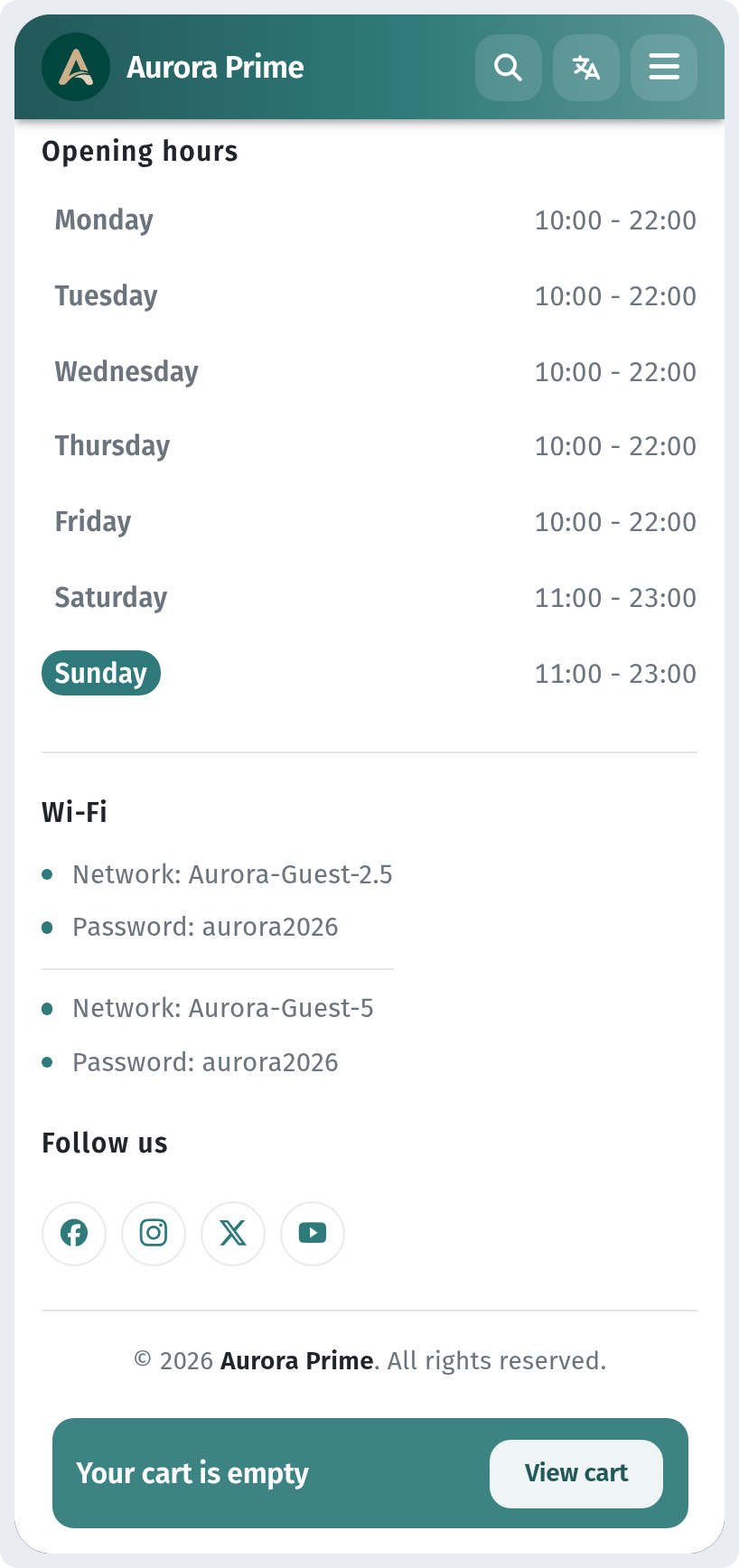
In the middle, between Contacts and Wi-Fi, is the Opening hours block. The weekly schedule is shown with today's day highlighted.
Conclusion
- Open the store and go to the Information tab.
- Fill in Contacts, Address, Wi-Fi, Opening hours and Social networks.
- Click Save.
Guests then get the answers to their most common questions right in the menu, and your staff no longer have to read out the Wi-Fi password at every table. If your hours or password change, edit them in the same place: the printed QR code stays the same.