
Store appearance and settings in WebQRMenu: the complete guide
Every store setting in WebQRMenu explained: name, contacts, currency, tax, colors, logo, welcome screen, order types, notifications and analytics.
Your store page in WebQRMenu decides how the menu looks and how it behaves. It holds the name and contacts guests see, the colors, cover and logo that make the menu look like your place, and the switches that control ordering, notifications and analytics. Most of these you set once, and a few are worth coming back to as your business changes.
This guide goes through every setting in order, using our demo restaurant Aurora Prime as the example. For each one you'll see what it does and when it makes sense to change it.
Where to find the store settings
In the sidebar, go to Store → Stores and open your store. The store page has three tabs at the bottom: Information, Page layout and Settings. Each tab is a list of sections that open with a click. On the right there's a live phone preview of your menu, and the bottom bar holds the Cancel and Save buttons. Changes go live once you click Save.
The Information tab
This tab covers what guests learn about your place: the name, description, contacts and prices.
Name
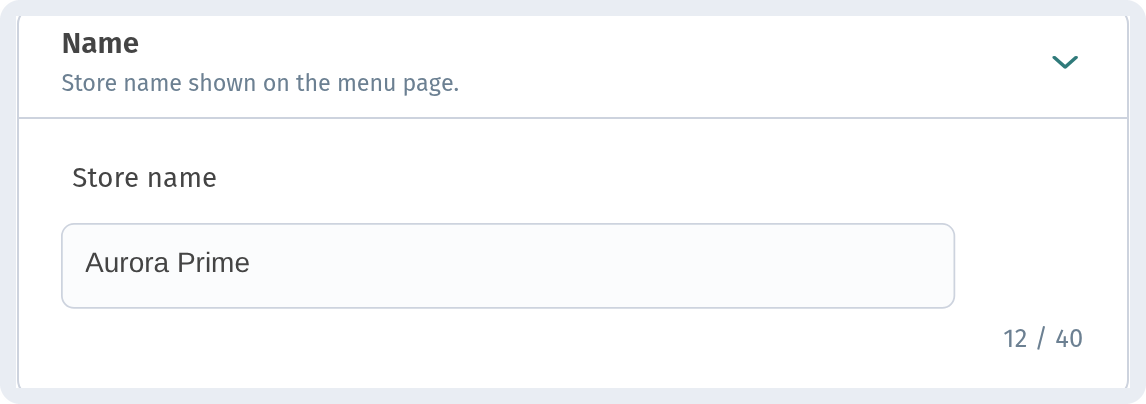
Store name is shown in the menu header next to your logo, and it's how guests recognise you when they open the menu. Keep it the same as on your sign. The limit is 40 characters.
Description
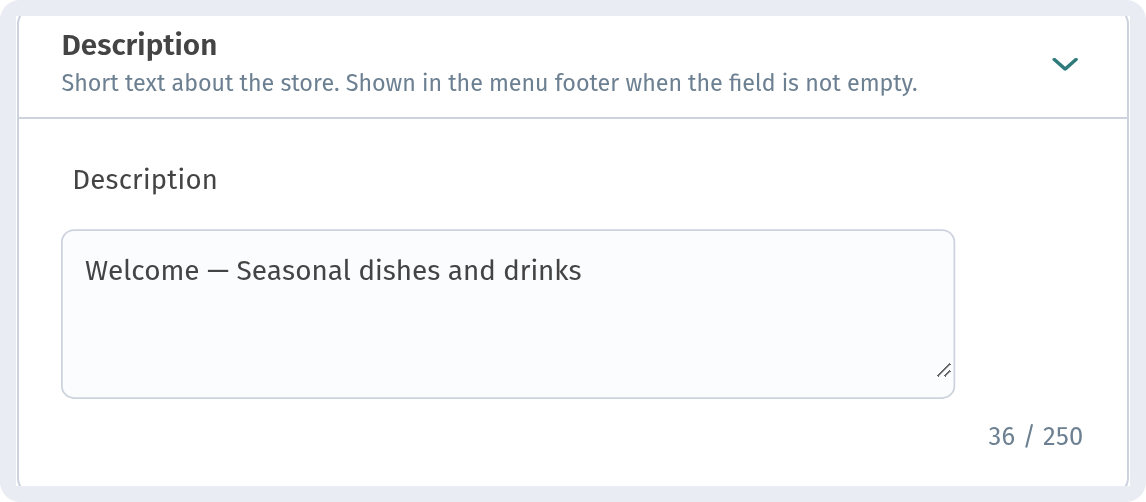
A short text about your place. It appears in the menu footer, and only when the field isn't empty. One or two sentences are enough: your cuisine, a signature dish or what makes you different. You can leave it empty if you have nothing to add.
Contacts
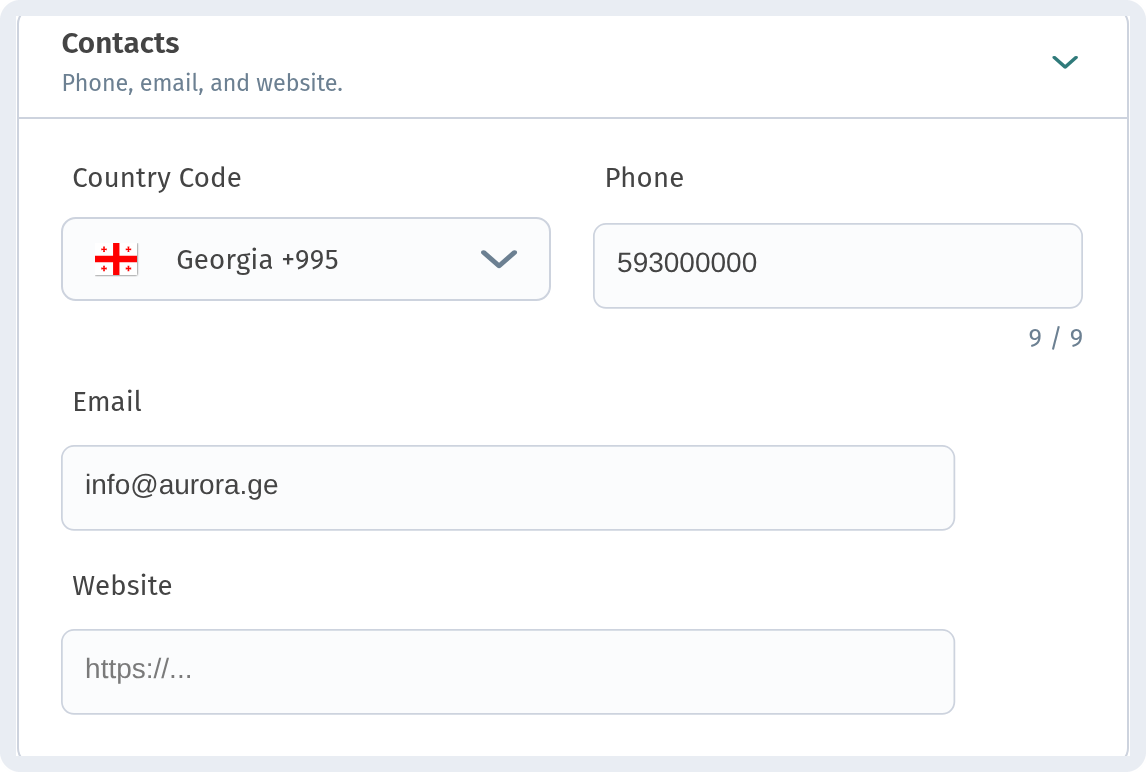
Pick the country code, then enter the phone number, email and, if you have one, a website. Guests see the full number with the country prefix and can call you with one tap.
Address
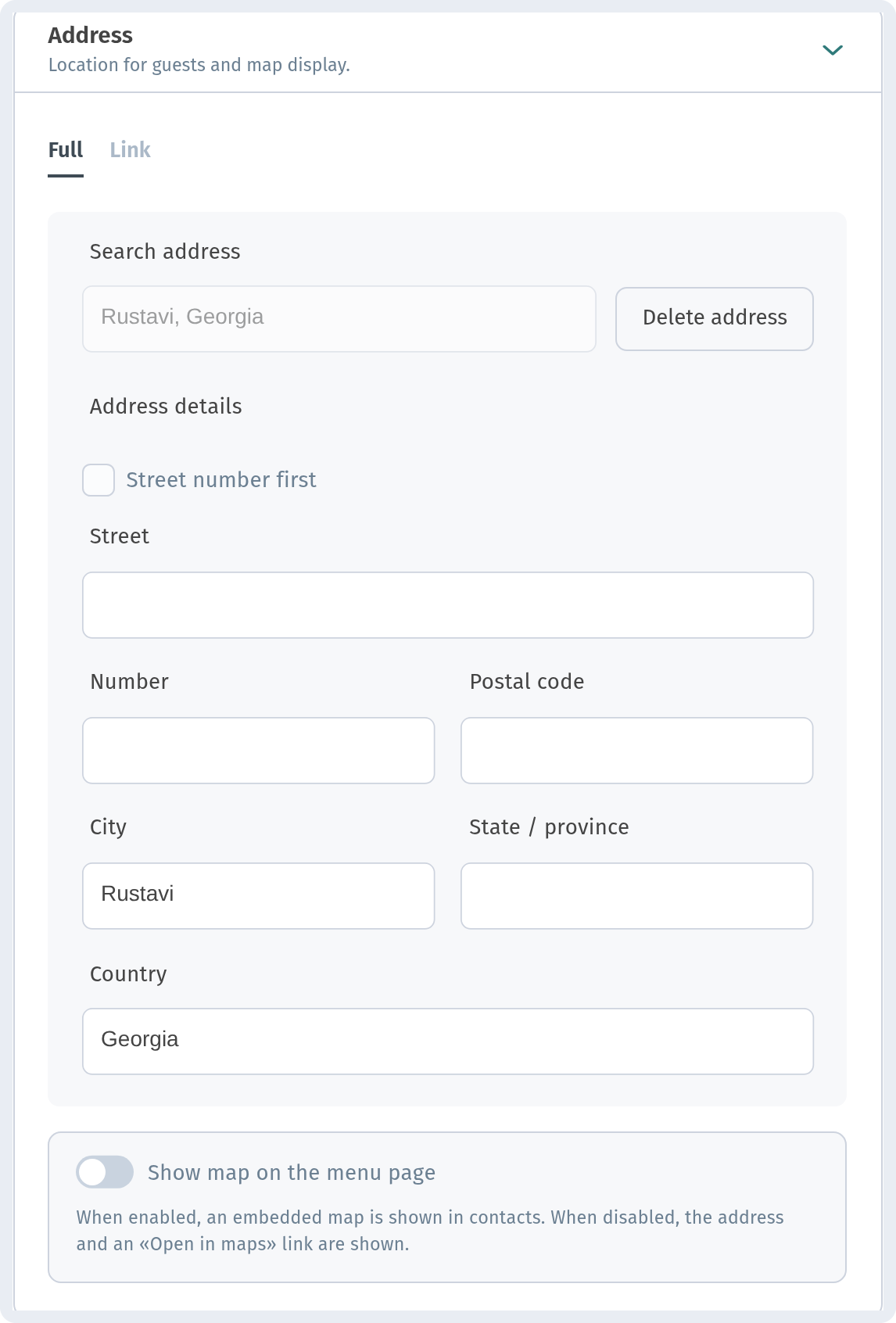
Search for your address or fill in the fields by hand. The Show map on the menu page switch decides whether guests see a map or just the address with an "Open in maps" link.
Wi-Fi
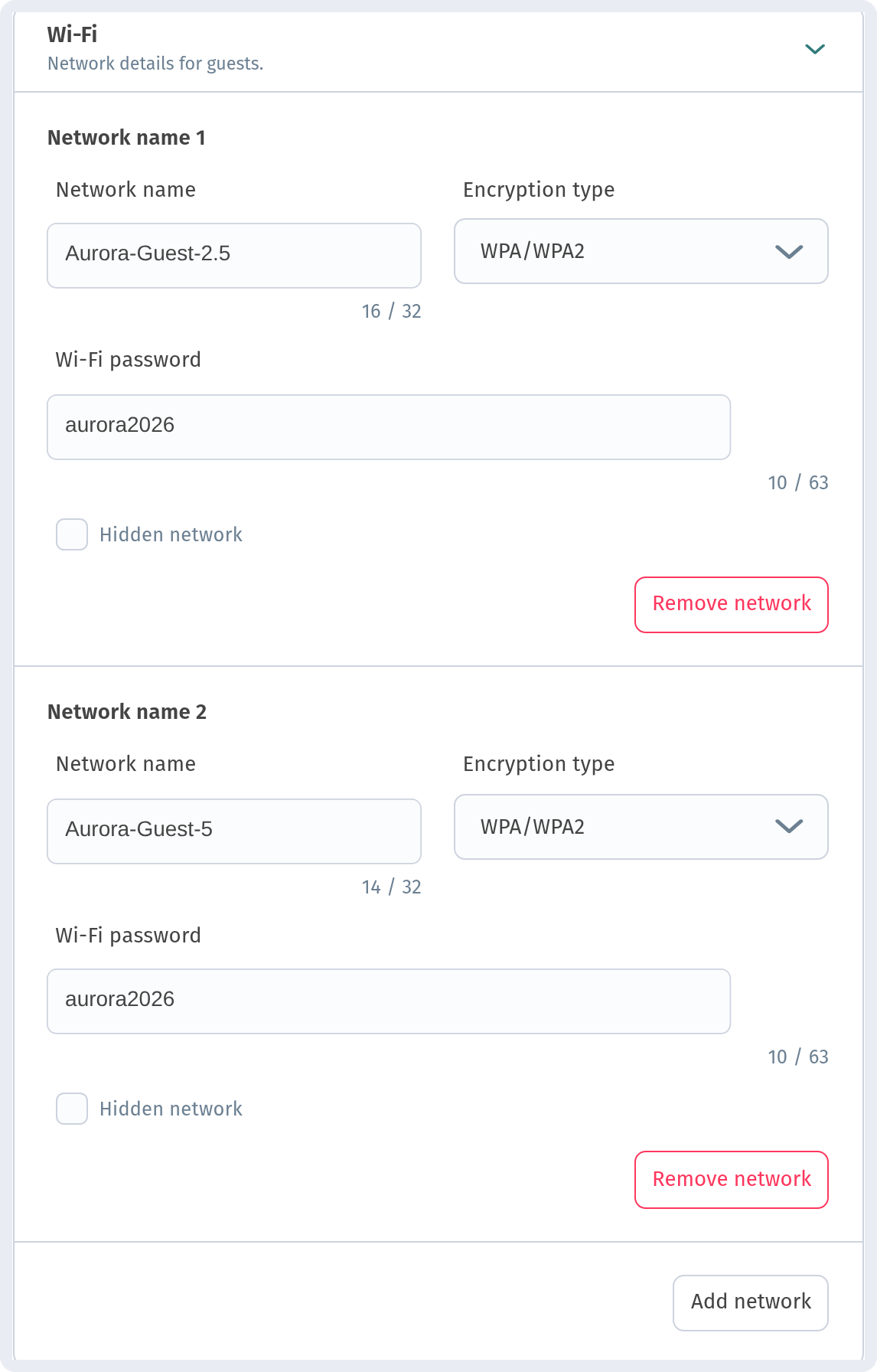
Add your guest network: name, encryption type and password. You can add more than one, for example separate 2.4 GHz and 5 GHz networks, and tick Hidden network if the network doesn't broadcast its name.
Opening hours
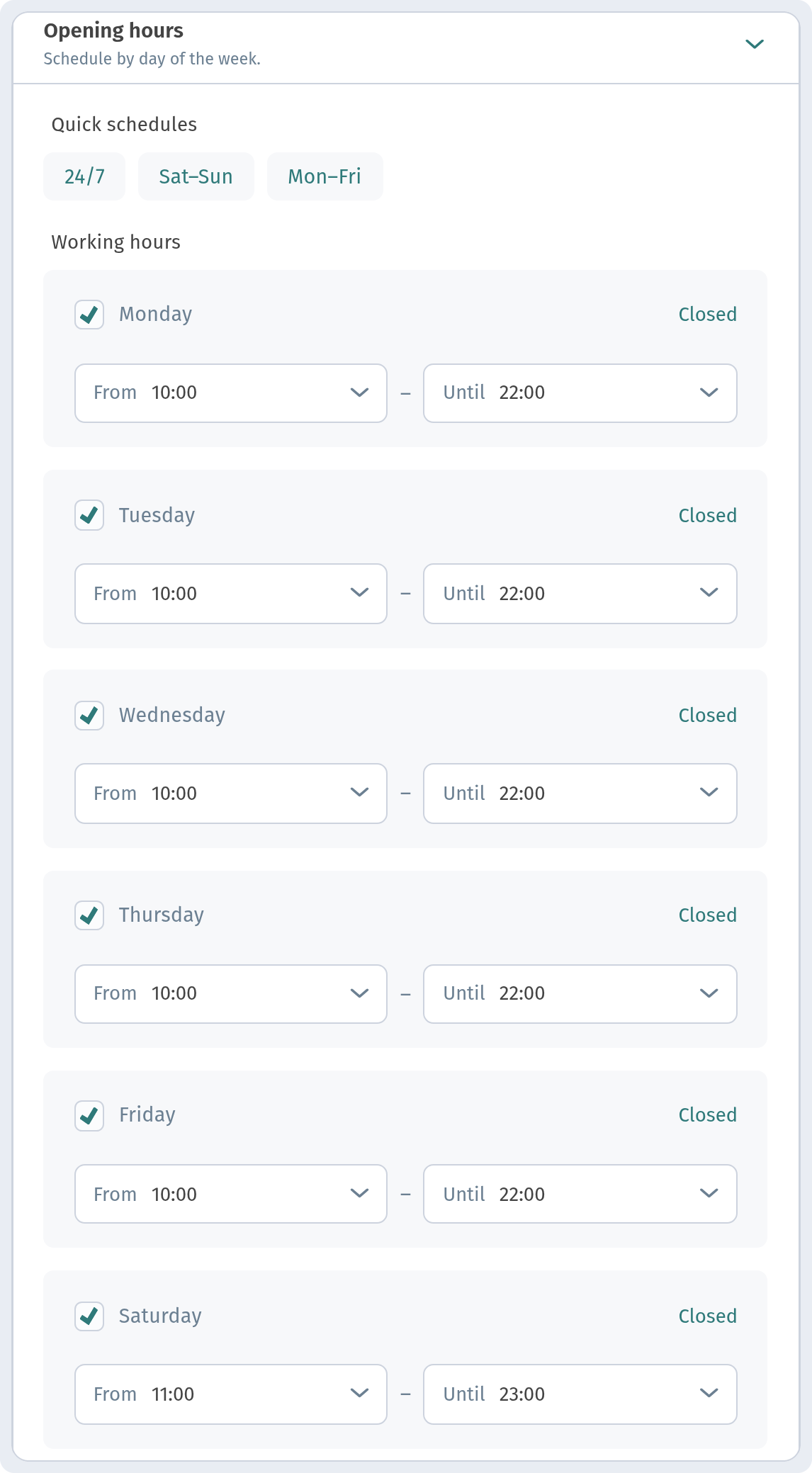
Set the hours for each day of the week, or apply one of the Quick schedules (24/7, Sat–Sun, Mon–Fri) in one click. Mark a day as Closed if you don't work that day.
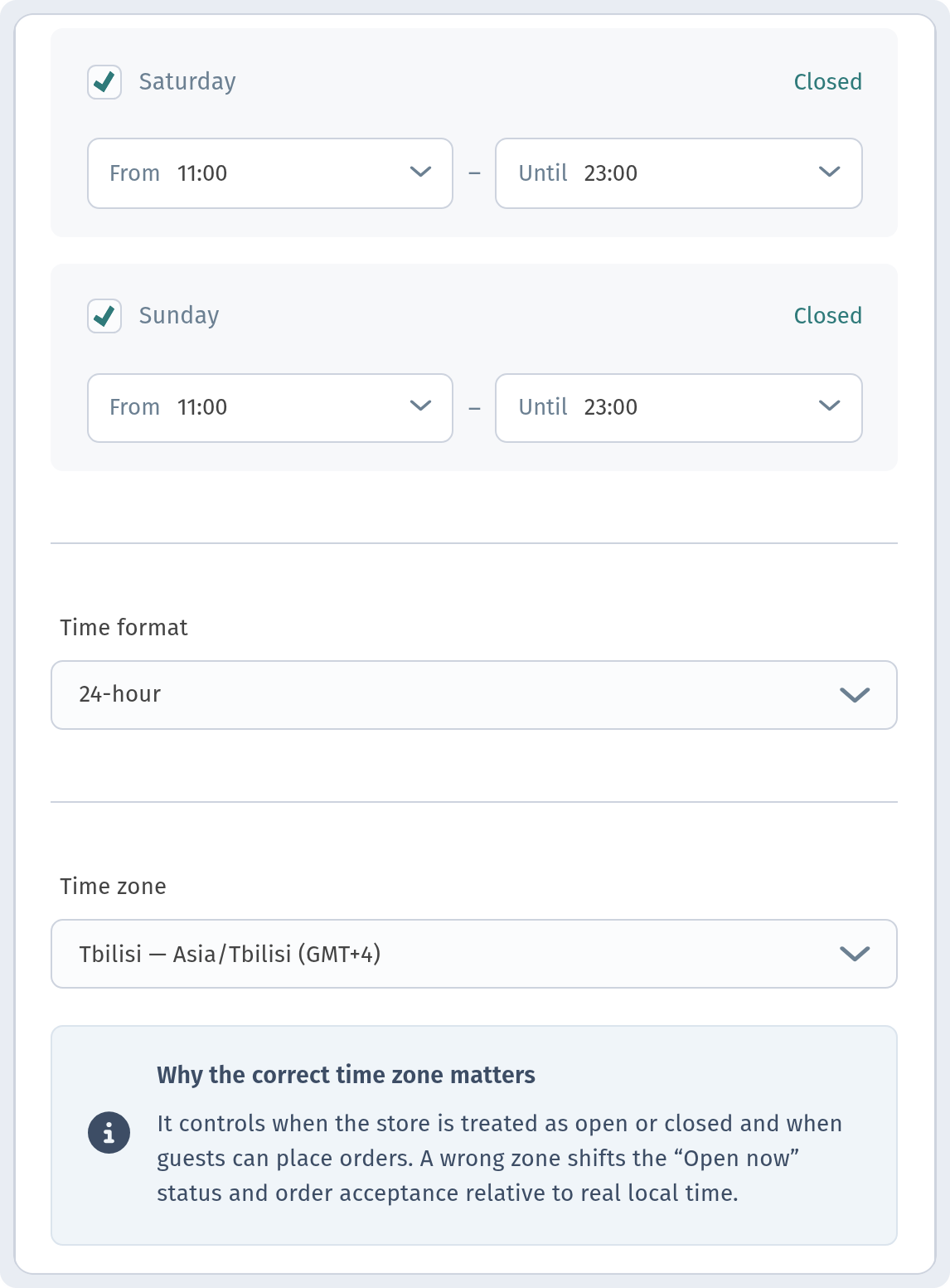
Below the days, choose the time format and, most importantly, the time zone. The store's "open" status and when guests can order both follow this time zone.
Contacts, address, Wi-Fi and opening hours each have a lot of detail, so we covered them step by step in a separate guide: Wi-Fi, opening hours and contacts in your WebQRMenu menu.
Currency
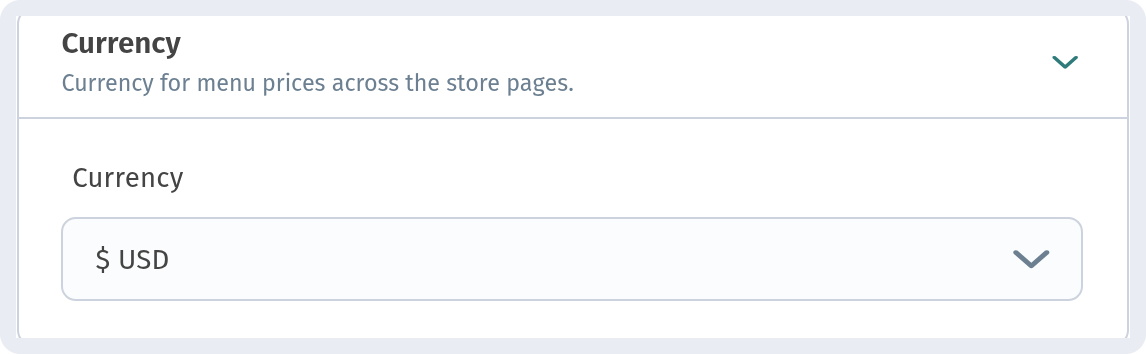
The currency for every price in your menu and on your store pages. Choose it before you add dishes, so that prices make sense from day one. Aurora Prime uses USD.
Tax
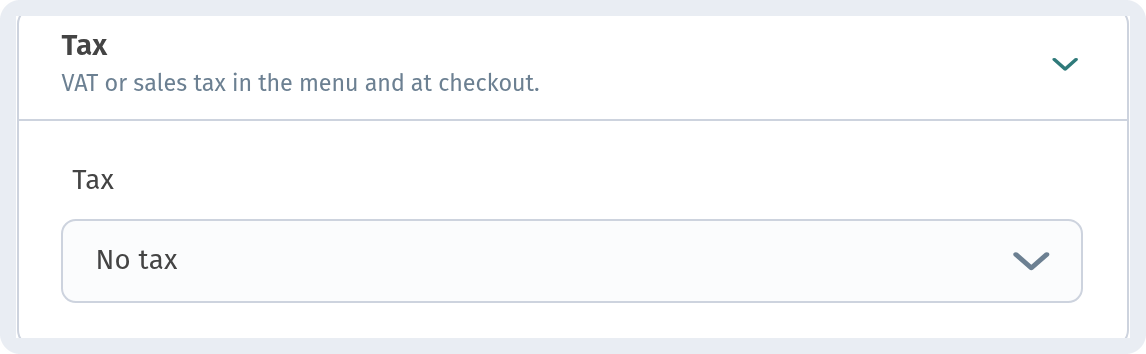
If your prices need VAT or sales tax, pick the right option here, and it will be taken into account in the menu and at checkout. If tax is already included in your prices or doesn't apply, leave it on No tax.
Social networks
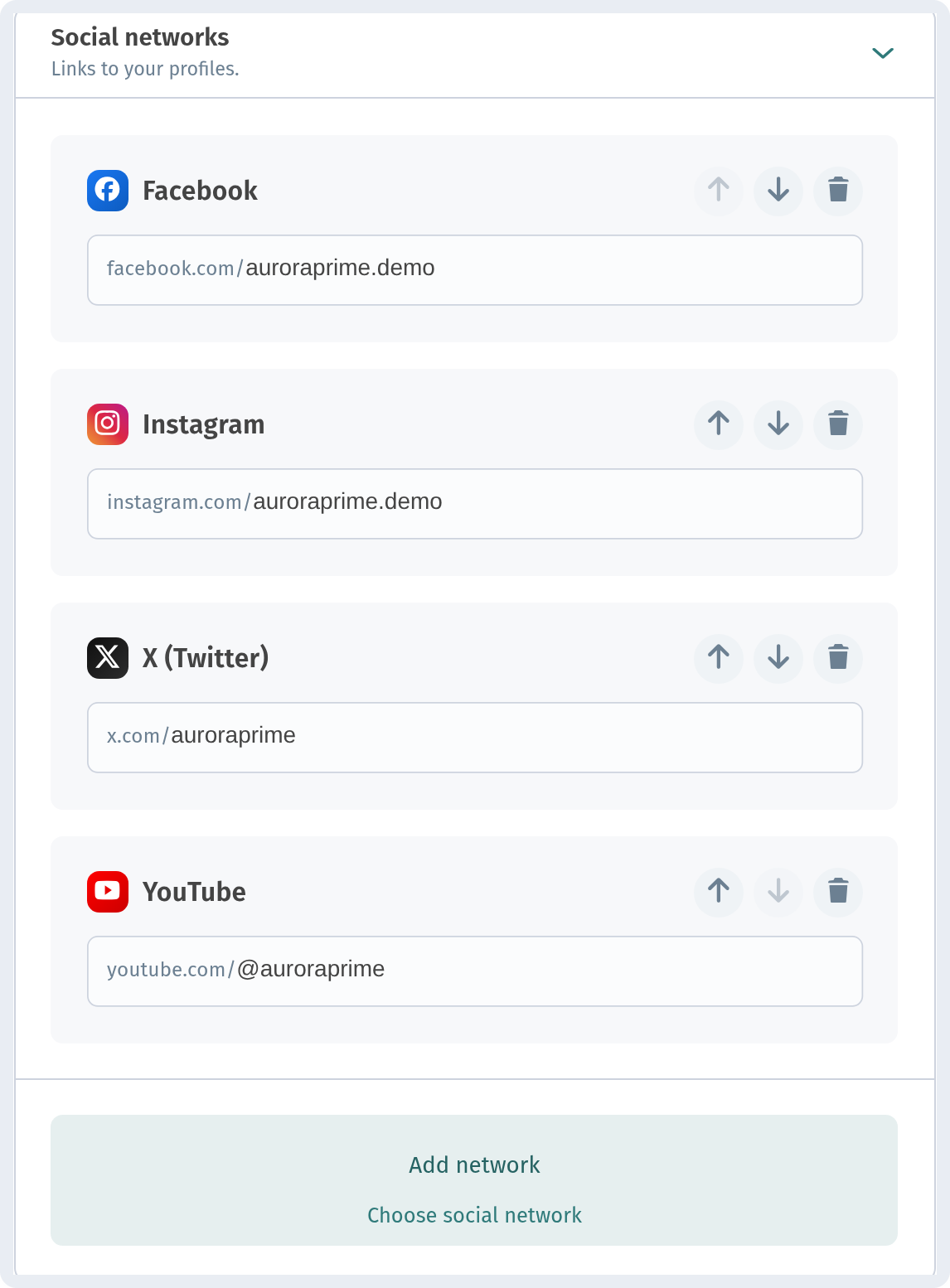
Add links to your profiles. Click Add network, choose the network and type only your username, because the beginning of the address is already filled in. The arrows change the order of the icons in the menu, and the bin icon removes a link.
Translations
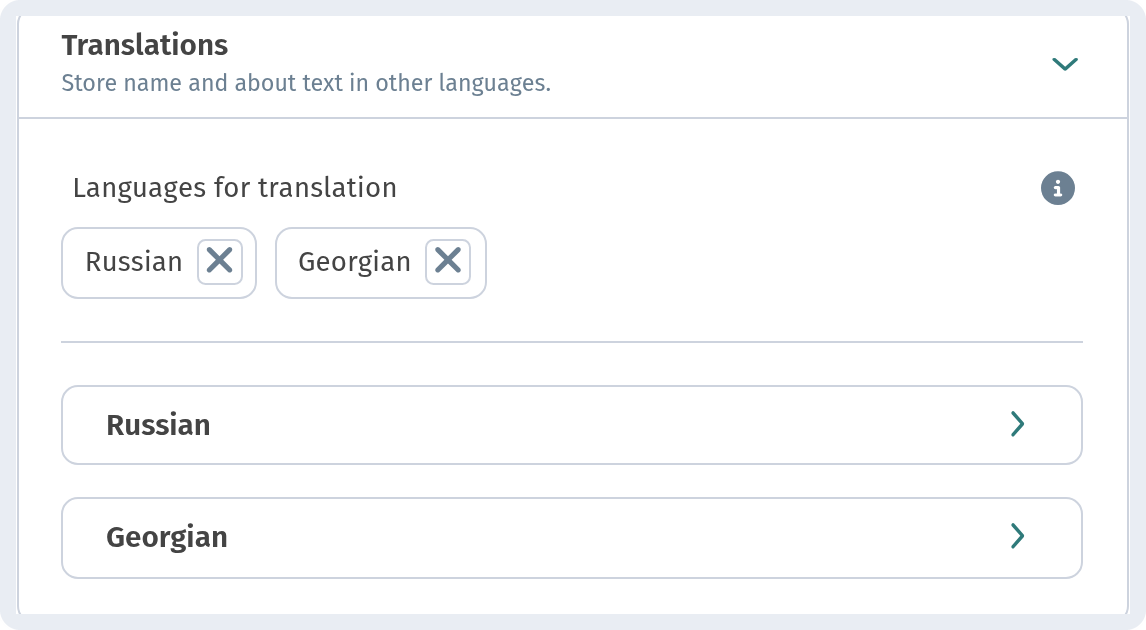
Here you choose the extra languages for your store's name and the "About the restaurant" text, and enter the translations for each language. The full setup of a multilingual menu, including categories and dishes, is in our guide A menu in three languages on WebQRMenu.
The Page layout tab
This tab controls what your menu looks like: the layout, colors, theme, cover, logo and welcome screen.
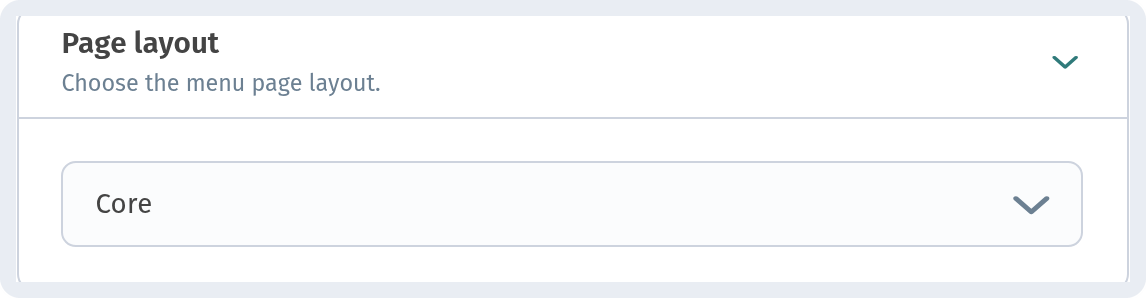
Page layout
The base template for the menu page. Core is the standard layout and works well for most restaurants and cafés. Other layouts are List, Flow, Curve, Panorama and Chip. If you try another layout, check the phone preview on the right before you save.
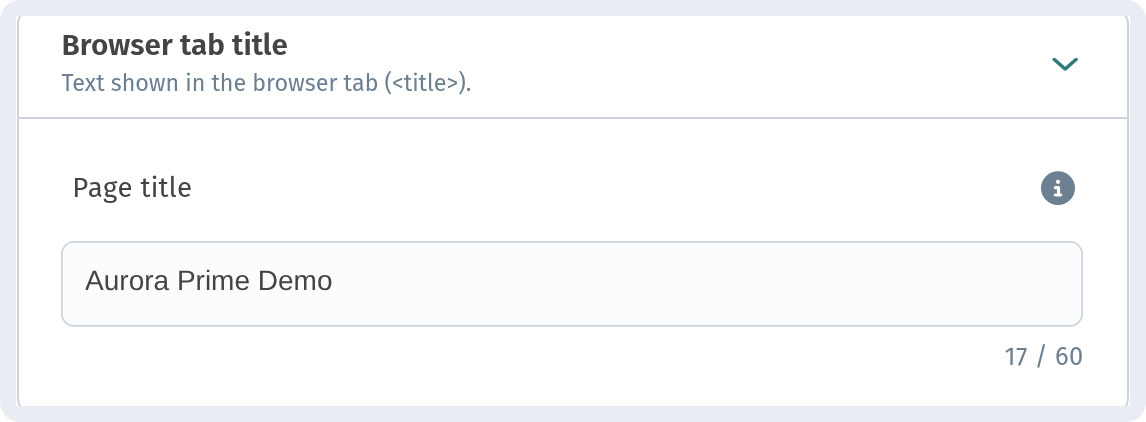
Browser tab title
The text shown on the browser tab and in search results (the page's <title>). By default you'd use the store name, but you can add a word about what you are, for example "Aurora Prime Demo" or "Aurora Prime – restaurant in Tbilisi".
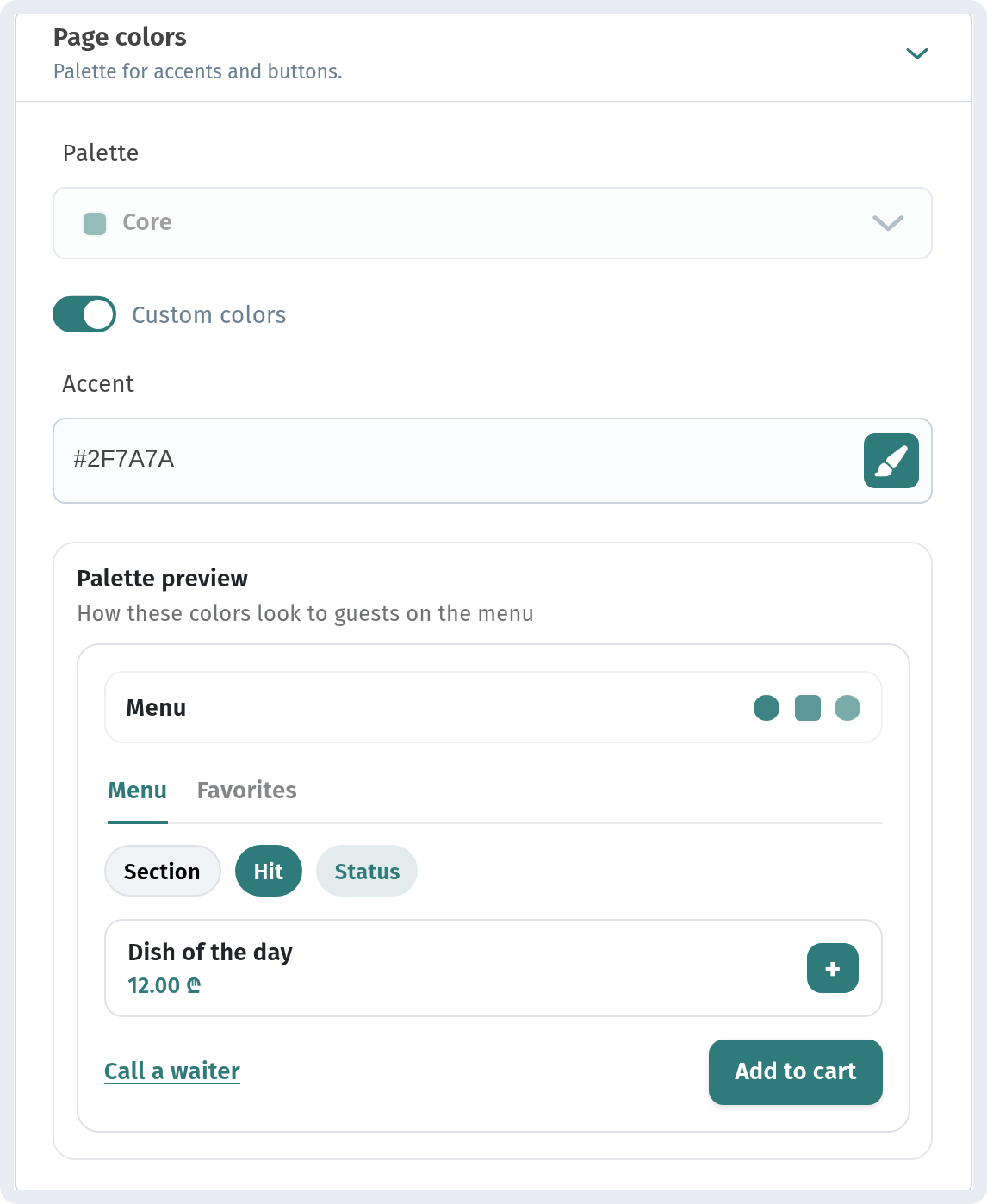
Page colors
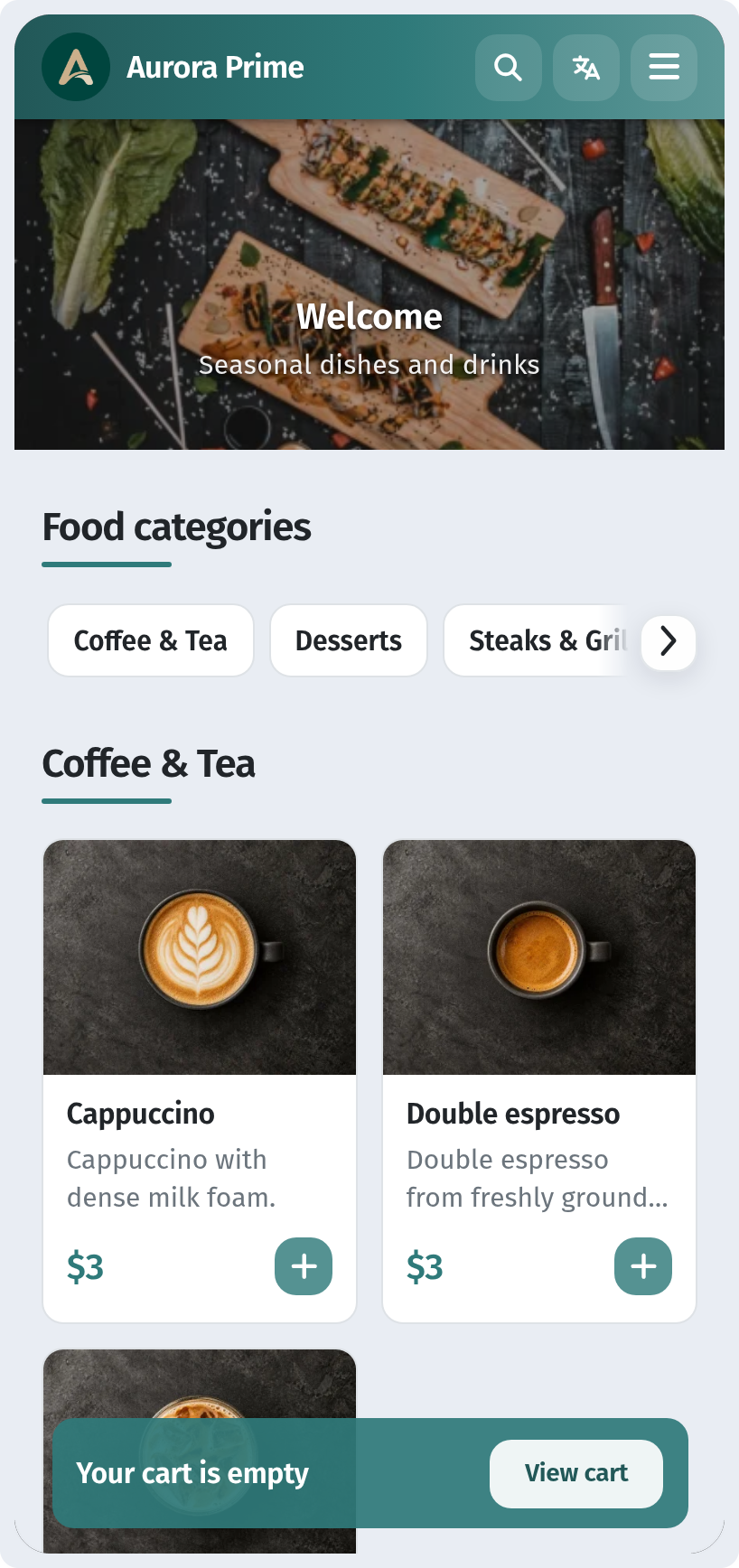
Choose a ready Palette, or turn on Custom colors and enter your brand's accent color as a hex code. The Palette preview below shows right away how buttons, labels and links will look to guests. Calm, muted shades usually read better than bright ones: for Aurora Prime we used a deep teal, #2F7A7A.
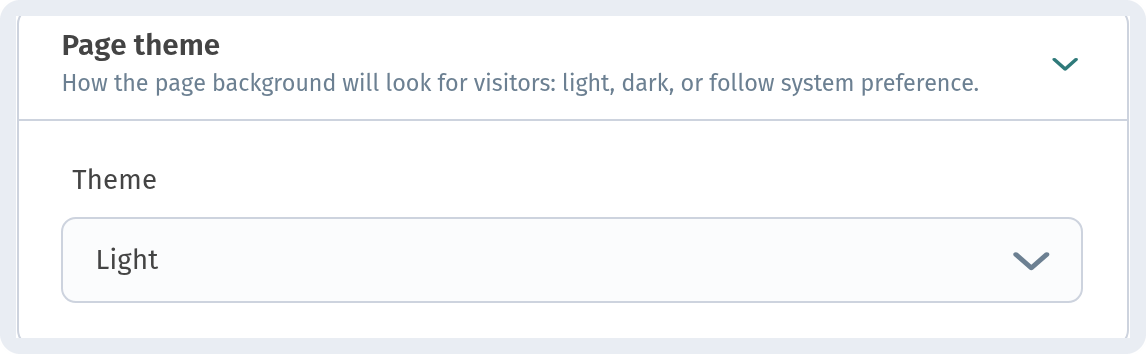
Page theme
Light, Dark or System (follows the guest's phone settings). A light theme is the safest choice for a bright dining room. A dark theme suits bars and evening venues, where a bright screen can be uncomfortable.
Corner radius
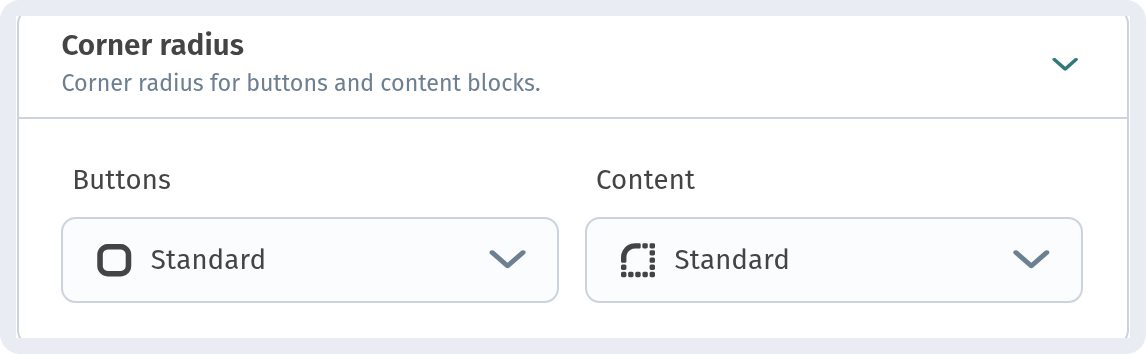
How rounded the corners of Buttons and Content are, set separately. Each has the options Square, Soft, Standard and Pill. Sharp corners look stricter and more formal, while rounded ones look softer and friendlier. Pick what matches your interior and branding.
Cover
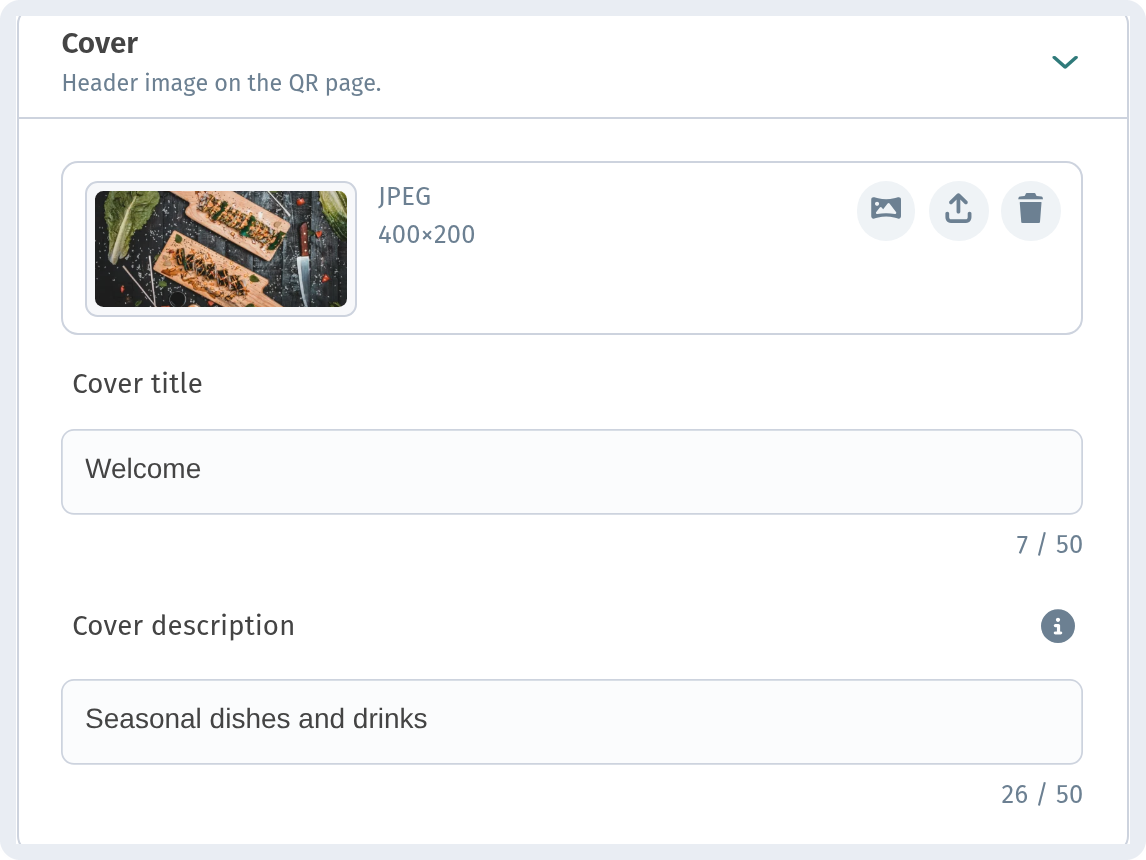
The big image at the top of the menu, with a Cover title and a Cover description over it. Use a wide photo of your dishes or your dining room, and keep the text short: Aurora Prime uses "Welcome" and "Seasonal dishes and drinks". The recommended cover is a JPEG of 400×200 px. The buttons next to the preview let you change, upload or remove the image. The cover description appears only if the cover title is filled in.
Information blocks
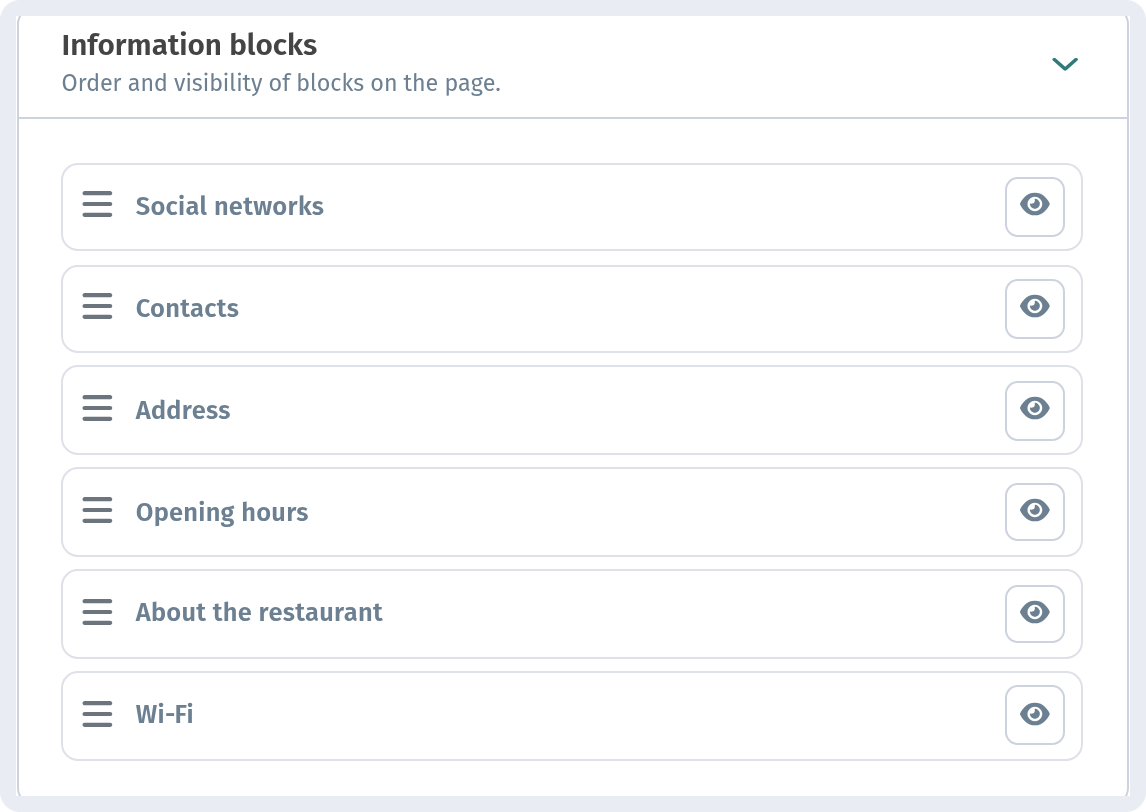
The blocks that appear on the menu page: social networks, contacts, address, opening hours, the "About the restaurant" text and Wi-Fi. Drag a block by its handle to change the order, and click the eye icon to hide a block you don't need. For example, move Wi-Fi to the top if that's what guests ask about most.
Logo
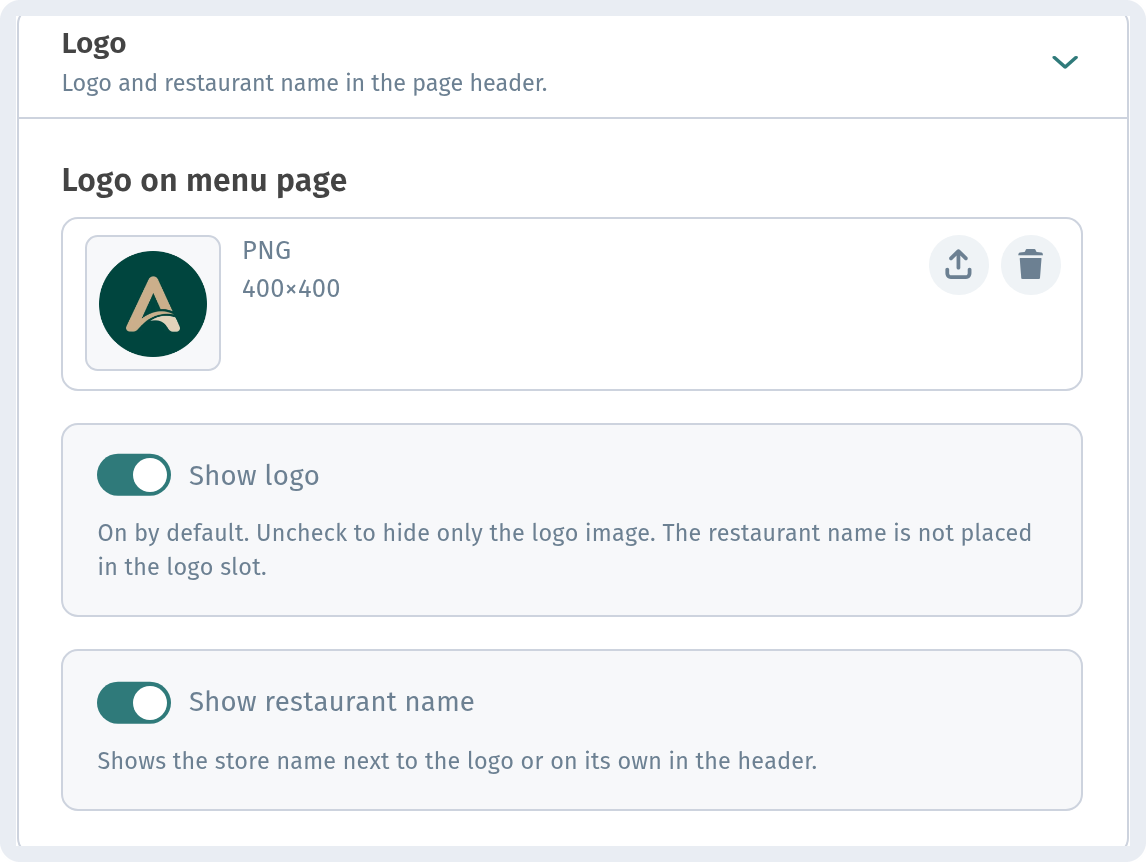
Upload your logo (a square image works best) and choose what to show in the header: Show logo, Show restaurant name, or both. Use a PNG file (400×400 px is a good size). If your logo already contains the name, you can turn the name off to keep the header clean.
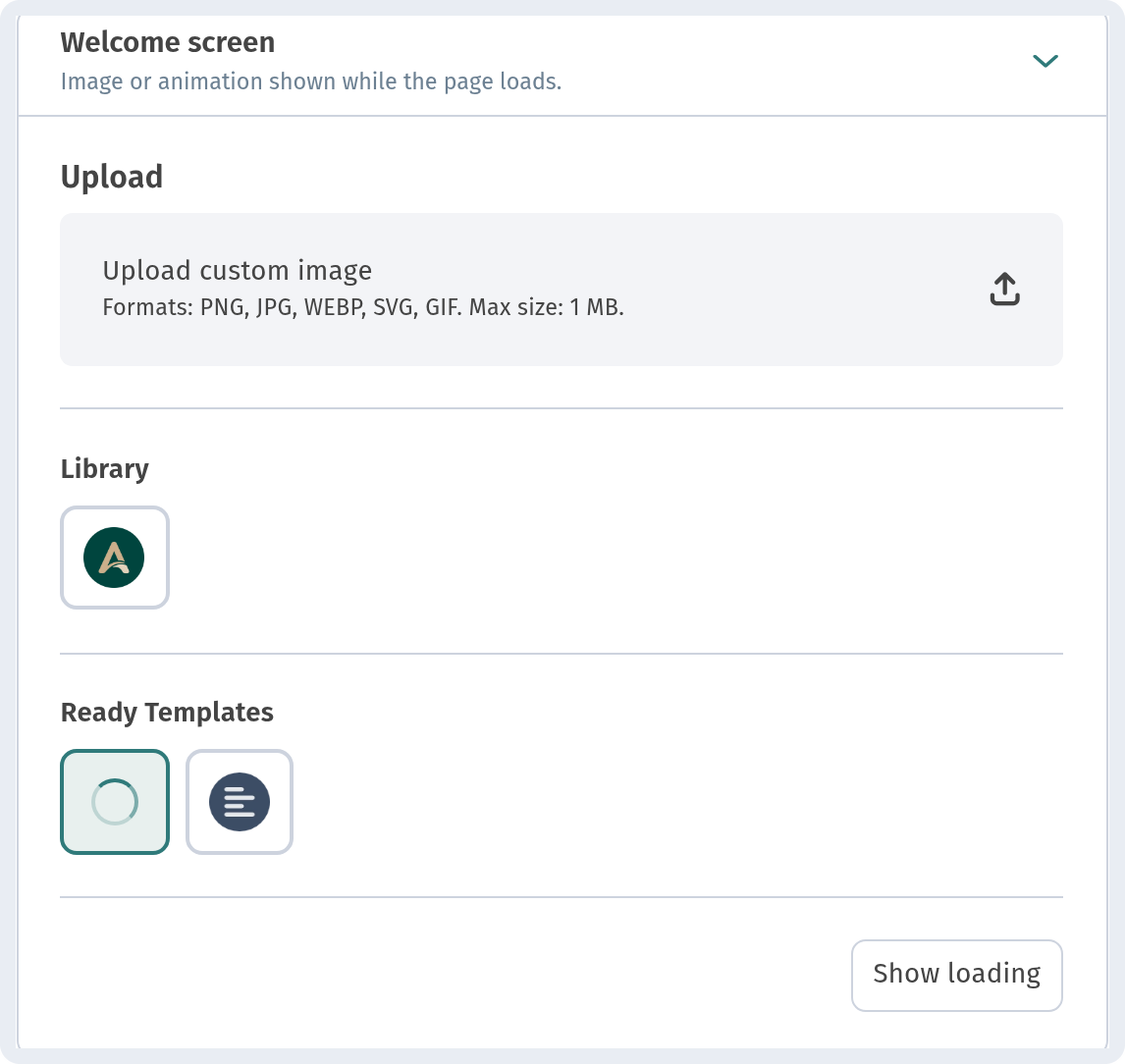
Welcome screen
The image or animation guests see while the menu loads. Upload your own file (PNG, JPG, WEBP, SVG or GIF up to 1 MB), pick one from your Library, or use one of the Ready Templates. Show loading lets you preview the result.
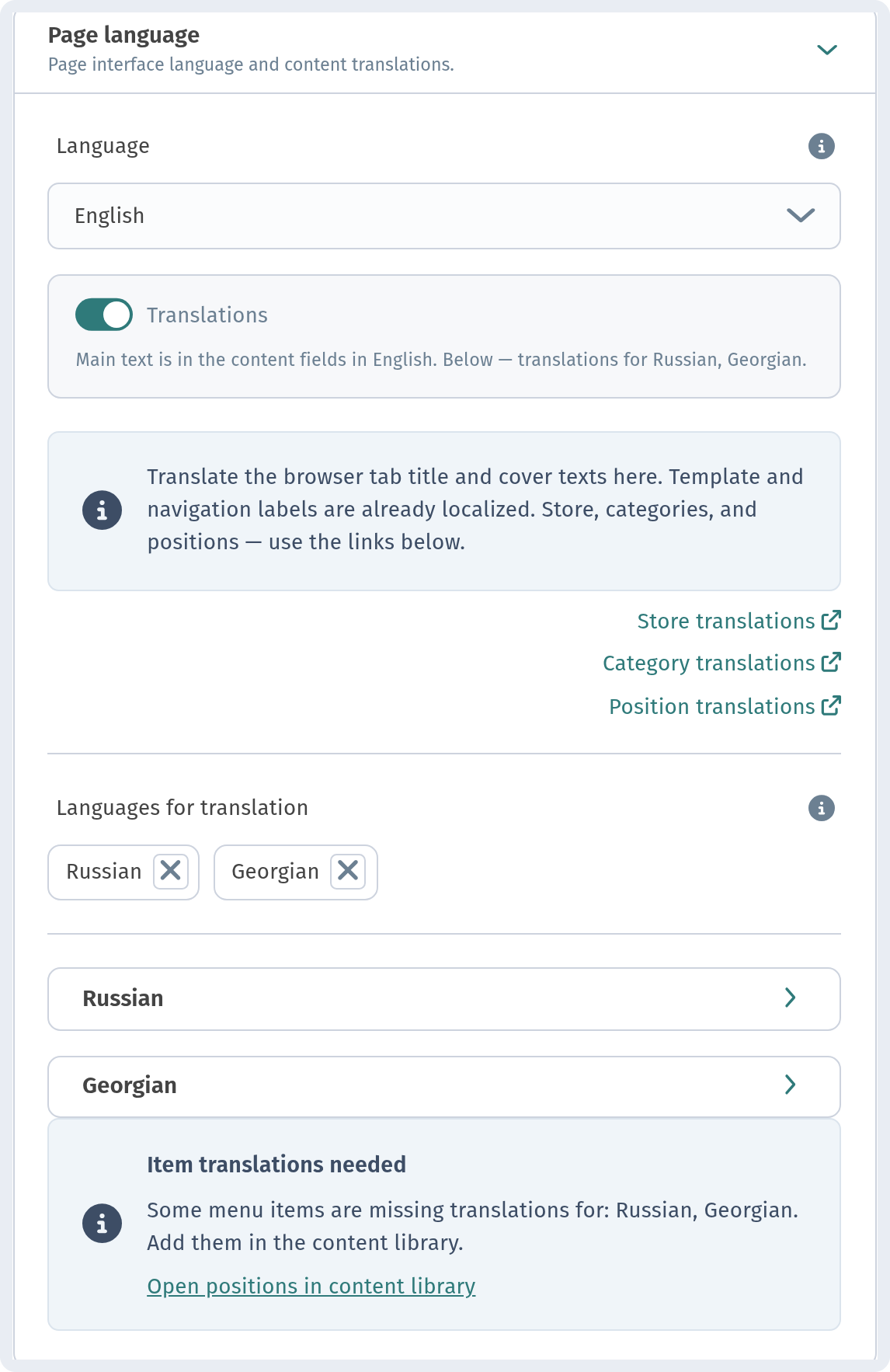
Page language
The main language of the menu page and the switch for content Translations. This is also where you add translation languages and open the translations of the store, categories and dishes through the links. The step-by-step setup is in A menu in three languages on WebQRMenu.
The Settings tab
This tab controls ordering, notifications, analytics and your menu's address.
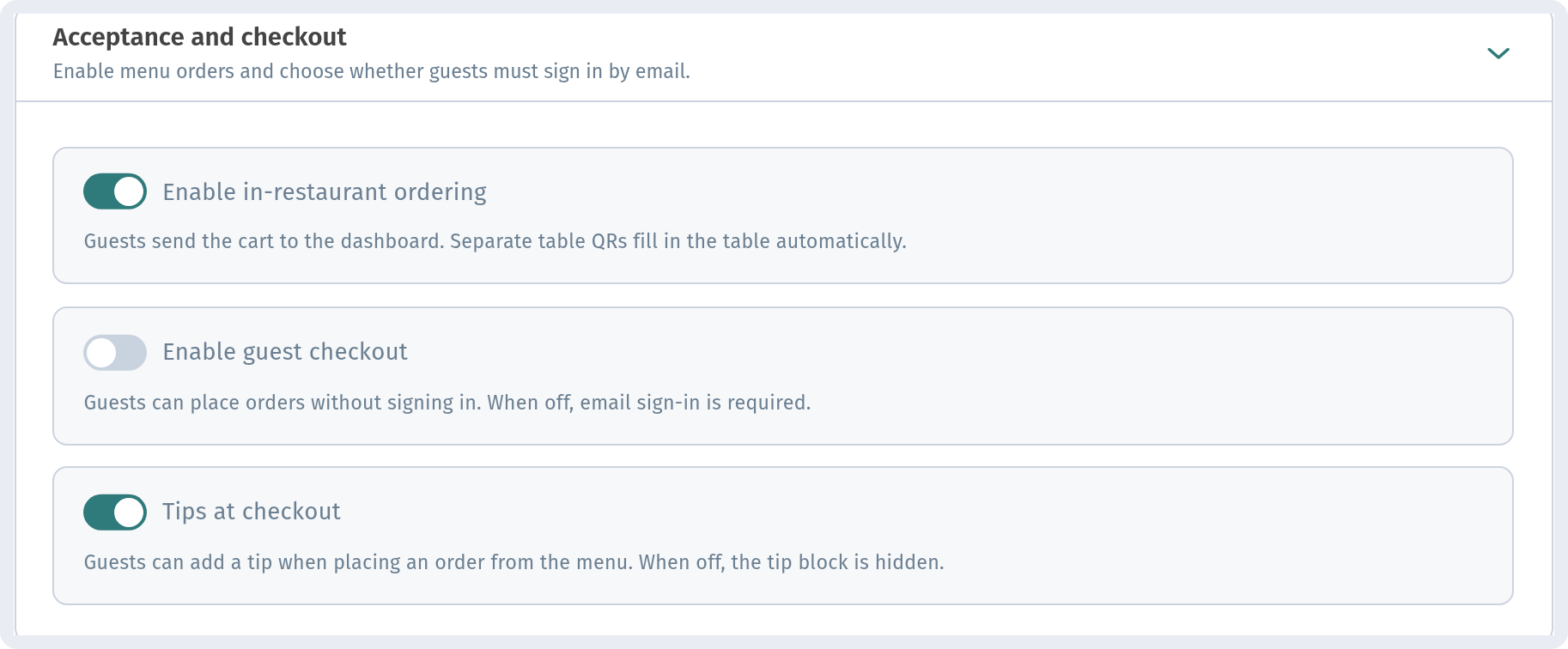
Acceptance and checkout
Enable in-restaurant ordering lets guests send their cart straight to your dashboard. If you've created tables with their own QR codes, the table number is filled in automatically. Enable guest checkout lets guests order without signing in; when it's off, they sign in by email first. Tips at checkout adds a tip option to the order form. If you only want a menu to browse, without ordering, leave ordering off.
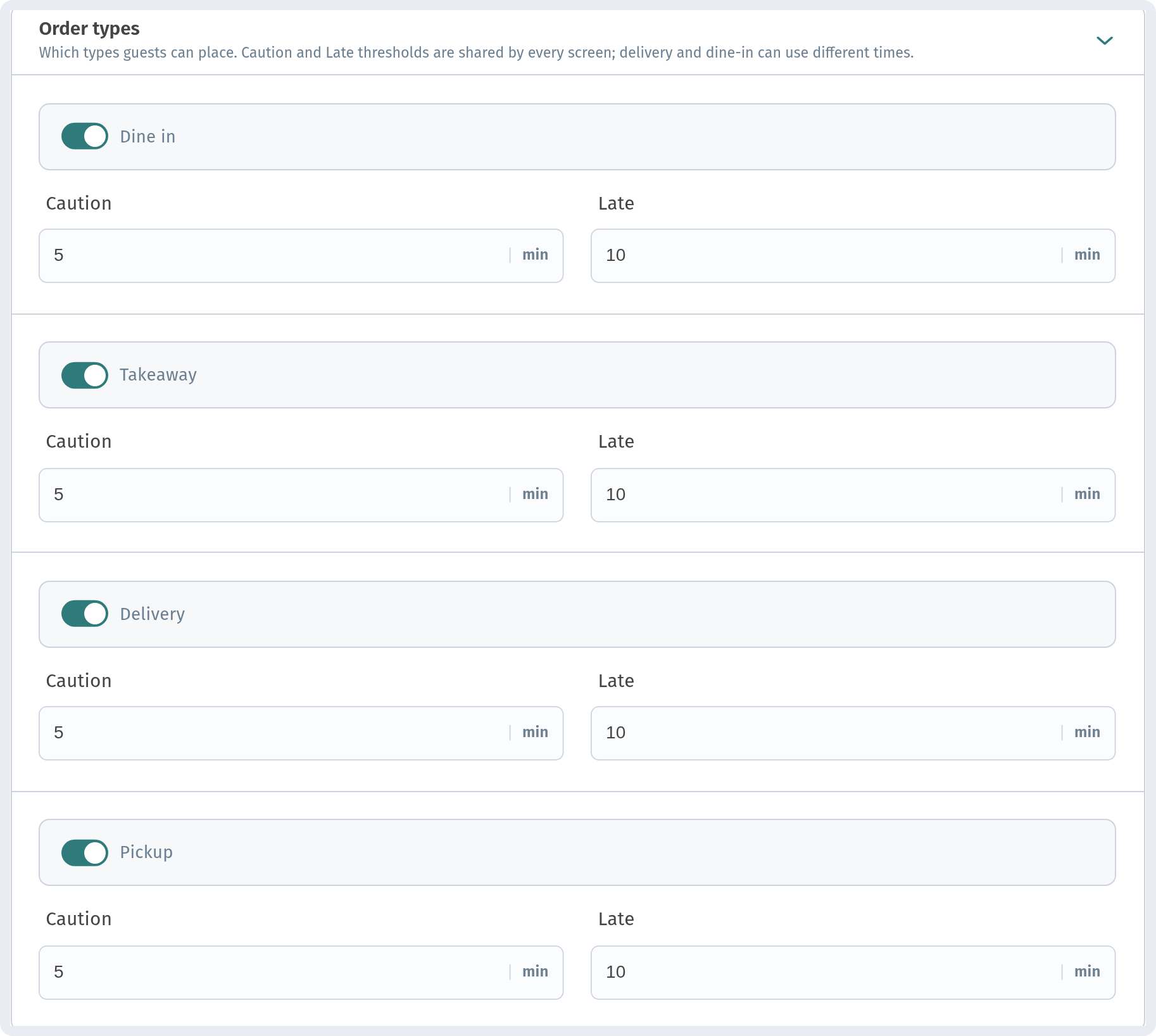
Order types
Turn on the order types you actually offer: Dine in, Takeaway, Delivery and Pickup. For each type you set two timings in minutes. Caution is when an order starts to need attention, and Late is when it counts as late. Staff see this on the order screens, so delays stand out. Delivery usually needs more time than dine-in, so it makes sense to give it different values.
Order notifications
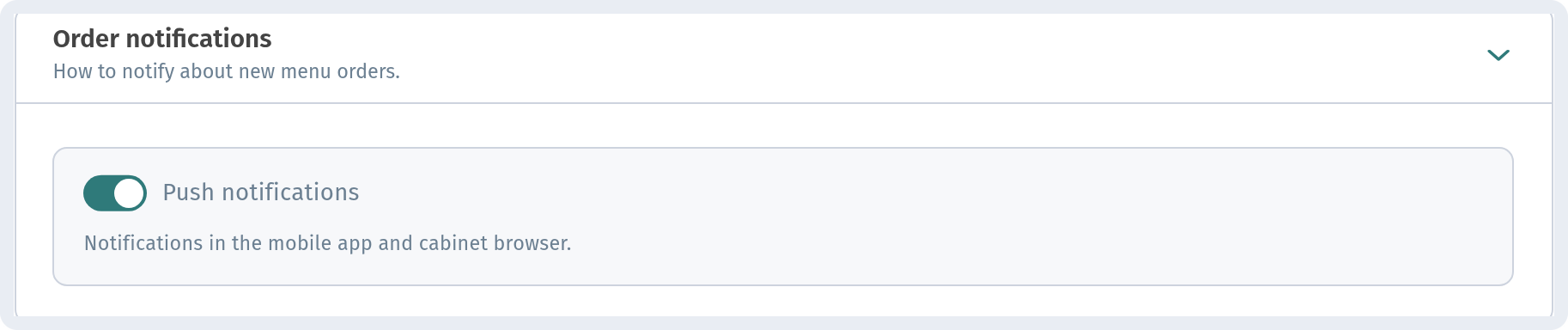
With Push notifications on, staff are alerted about new orders in the mobile app and in the dashboard in the browser. Keep it on if you accept orders, so none are missed.
GPS & order protection
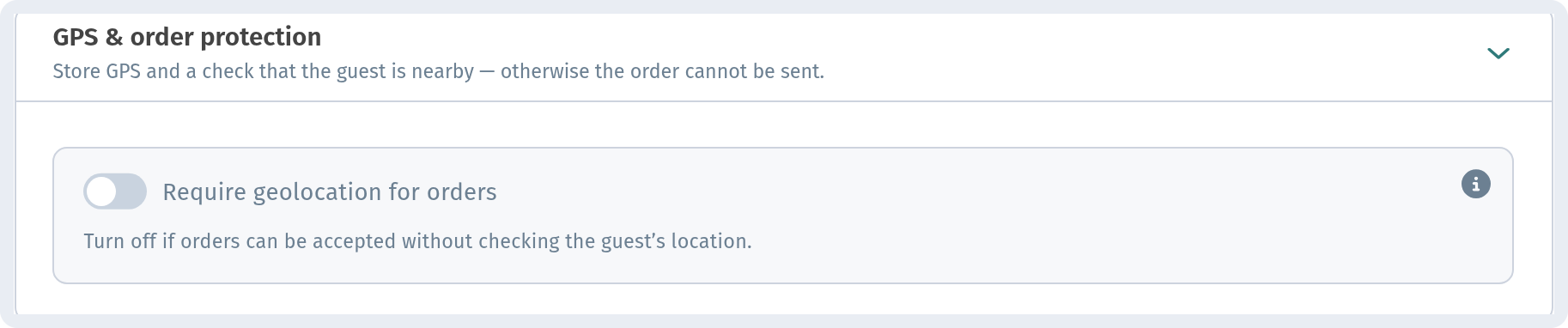
Require geolocation for orders checks that the guest is actually near your venue before the order is sent. This protects you from prank orders placed from a photo of your QR code. Turn it off if you take orders from anywhere, for example for delivery.
Stats
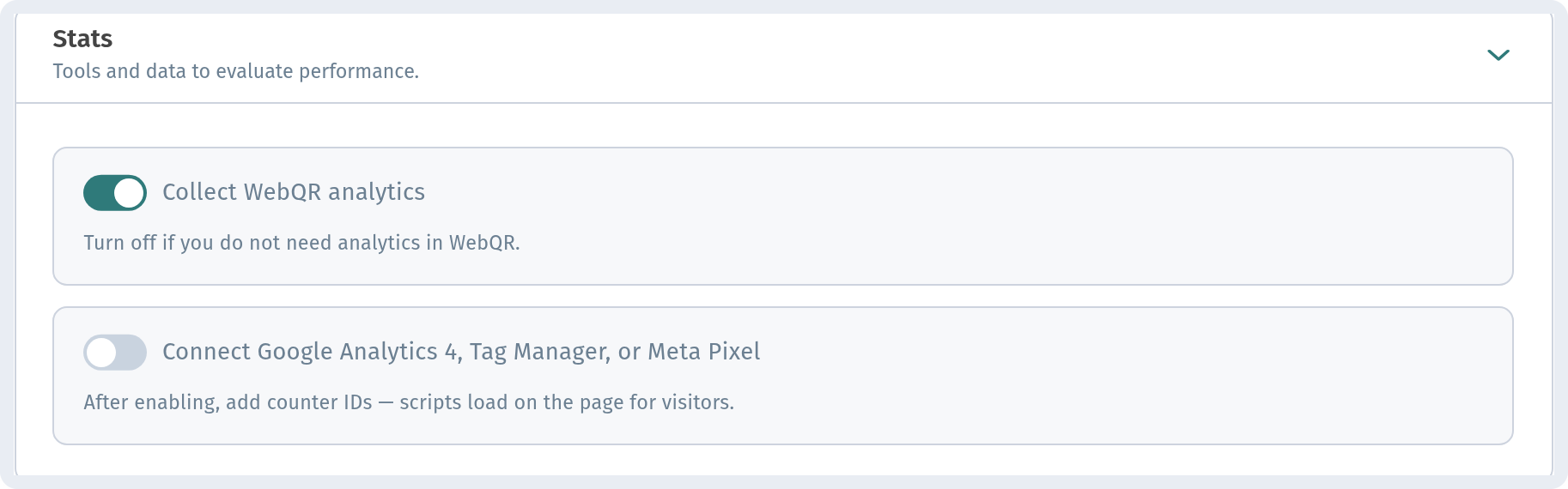
Collect WebQR analytics turns on the built-in statistics for your menu in the dashboard. If you already use your own tools, turn on Connect Google Analytics 4, Tag Manager, or Meta Pixel and enter your IDs, and the scripts will load on the guest page. That's useful for measuring ad campaigns.
Short link
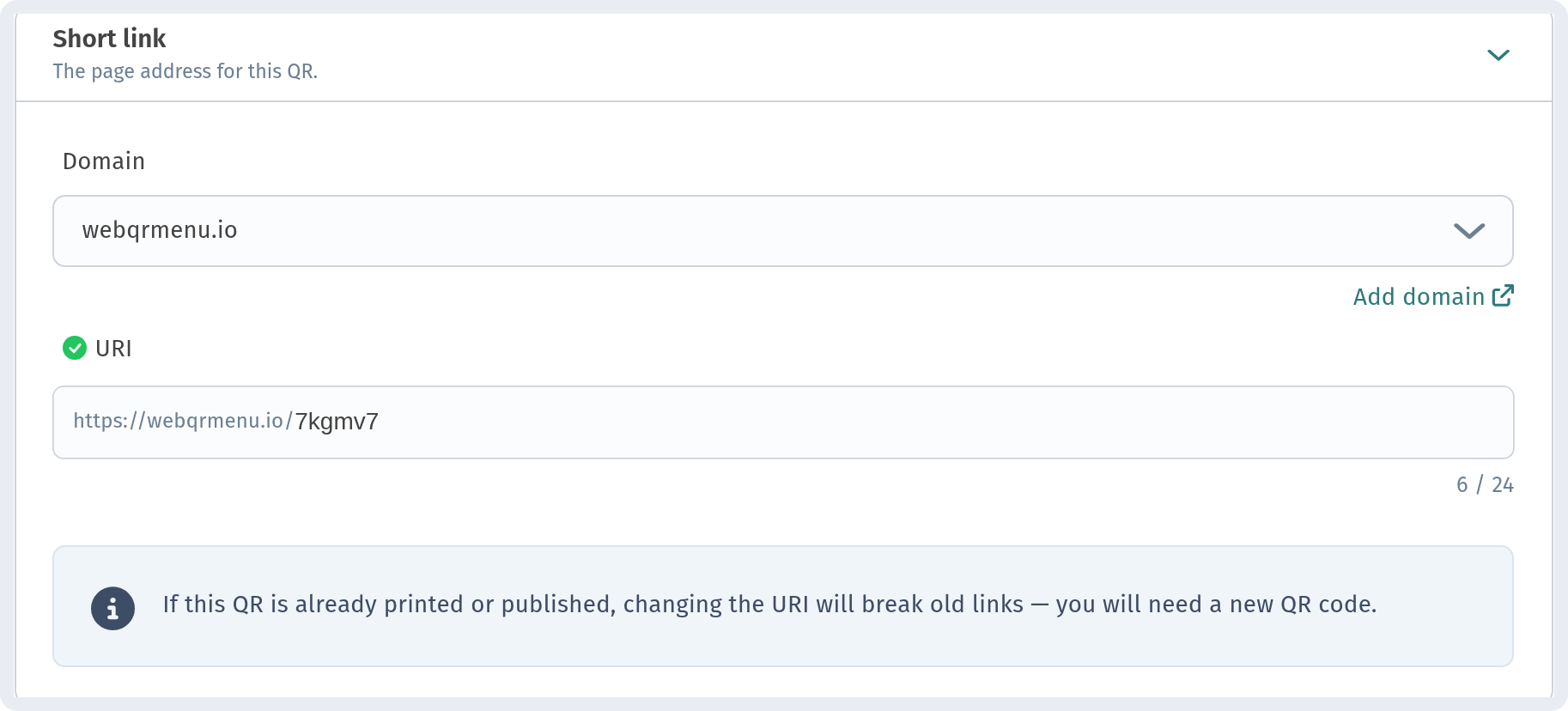
The address your QR code leads to. Choose a Domain (webqrmenu.io or your own, added with Add domain) and the URI, the short code at the end of the link. You can change the URI to something easier to remember, but do it before you print anything. If the QR code is already printed or published, old links stop working after the change and you'll need a new QR code.
Search engine indexing
Allow search engines to index this page lets Google and other search engines show your menu in search results. Turn it on if you want people to find your menu online. Leave it off if the menu is only for guests inside the venue.

What guests see
Here is Aurora Prime's menu on a phone with all these settings applied: the logo and name in the header, the cover with its title, the teal accent on buttons and category headings, the rounded cards and the cart bar at the bottom.
Quick checklist
- Information: name, description, contacts, address, Wi-Fi, opening hours and time zone, currency, tax, social networks.
- Page layout: layout, tab title, colors, theme, corner radius, cover, information blocks, logo, welcome screen, page language.
- Settings: ordering and checkout, order types with timings, notifications, GPS check, analytics, short link, indexing.
- Click Save and check the result in the phone preview or by scanning your QR code.