
Order Management in WebQRMenu: Statuses, Payments, Invoices and Notifications
Orders list and filters, payment and order statuses, the invoice page with PDF and printing, push notifications and kitchen-line sounds in WebQRMenu.
How to work with orders from your QR menu in WebQRMenu: the Orders list and its filters, payment and order statuses, the invoice page with PDF and printing, push notifications and kitchen-line sounds.
When guests order through the QR menu, every order lands in your dashboard. The Orders page is where you track what was ordered, whether it's paid and whether it's done — for one store or for all of them at once.
In short: Orders → filter by table, payment or fulfillment method → change Payment and Status right in the list → Open invoice for details → Download PDF or Print.
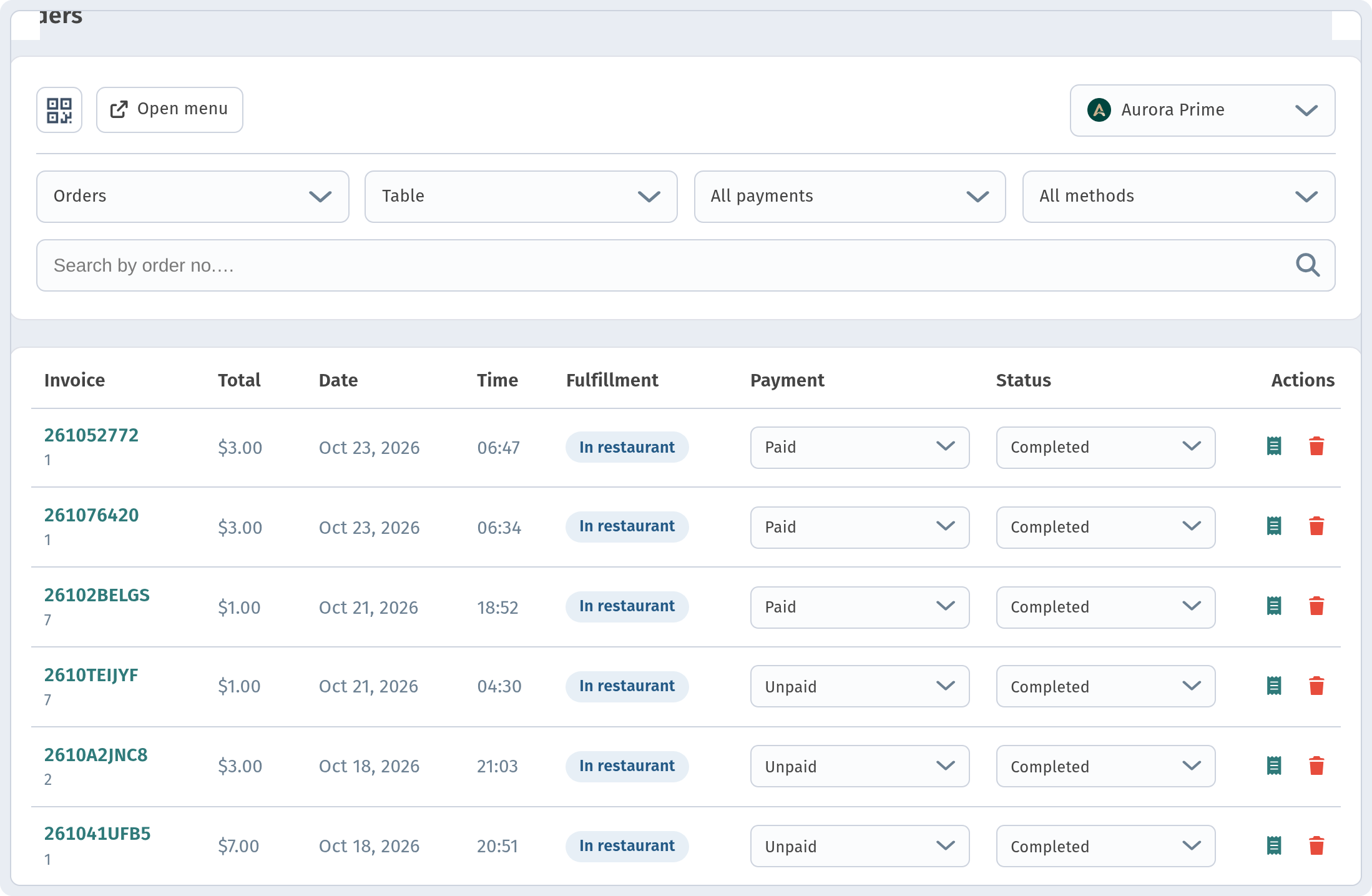
1. The Orders page
Open Orders in the sidebar (/orders). At the top you'll find the Store selector and an Open menu link to your guest menu.
Each row in the table shows:
| Column | What it shows |
|---|---|
| Invoice | Order number (e.g. 2610GXTJJK) and, under it, the table number or a fulfillment label such as Pickup |
| Total | Order amount |
| Date, Time | When the order was placed |
| Fulfillment | In restaurant, Takeaway, Delivery or Pickup |
| Payment | Payment status (dropdown) |
| Status | Order status (dropdown) |
| Actions | Open invoice, Delete |
2. Filters and search
Above the table there are filters:
- Orders — current orders or Deleted ones;
- Table — all tables or a specific one;
- Payment status — All payments, Unpaid or Paid;
- Fulfillment method — All methods, In restaurant, Takeaway, Delivery, Pickup;
- Search by order no. — find an order by its number;
- Show — how many orders per page (20 by default).
Tip: filter by Unpaid at the end of a shift to quickly see which bills are still open.

3. Payment and order statuses
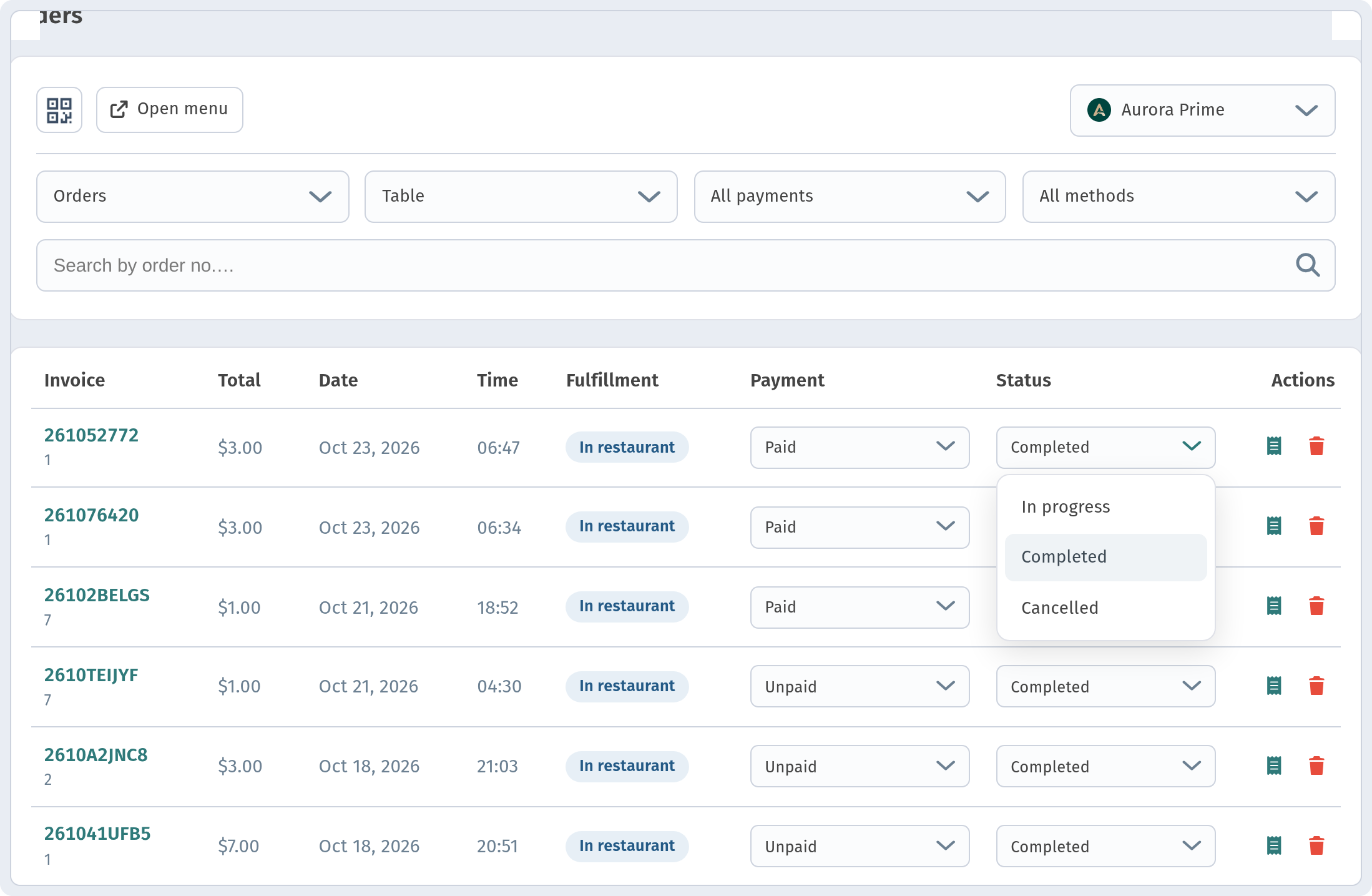
You can update an order without opening it — both statuses are dropdowns right in the row.
Payment: Unpaid or Paid.
Status:
- In progress — the order is being prepared or served;
- Completed — the order is done;
- Cancelled — the order was cancelled.
The Delete action isn't available for orders that are In progress. Deleted orders aren't lost — switch the Orders filter to Deleted to see them.
4. The invoice page
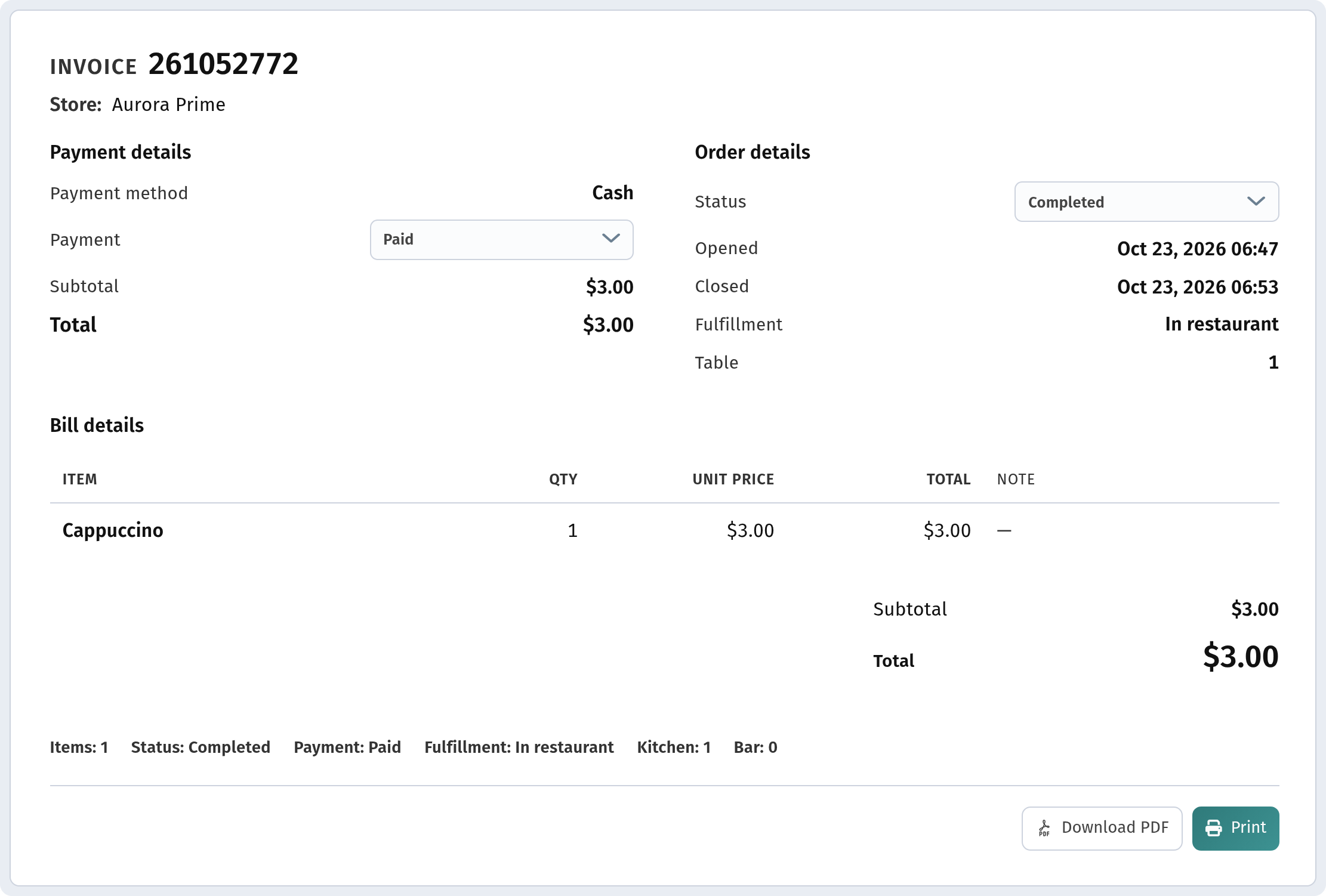
Click Open invoice to open the order page titled INVOICE with the order number. It contains:
- Payment details — payment method (e.g. Cash), the Payment dropdown, Subtotal and Total;
- Order details — the Status dropdown, when the order was opened, fulfillment method and table;
- Bill details — a table with ITEM, QTY, UNIT PRICE, TOTAL and NOTE, so guest notes are visible next to each item;
- a summary line with the number of items, status, payment, fulfillment and how many items go to the kitchen and the bar.
5. PDF and printing
At the bottom of the invoice page there are two buttons: Download PDF saves the invoice as a file, and Print sends it to a printer. Handy for handing the bill to a guest or keeping a paper record.

6. Notifications
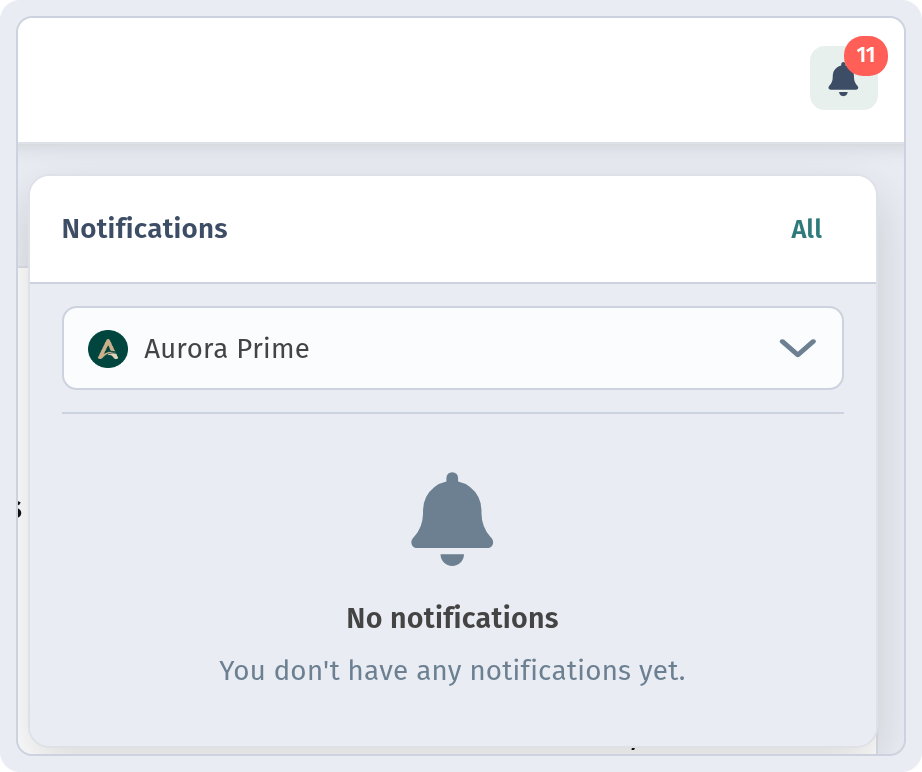
Bell in the dashboard. The bell icon in the top right shows a badge with the number of new notifications. Click it to open the Notifications panel with a store selector and an All link.
Push notifications. In the store settings (Settings tab → Order notifications) you can turn on Push notifications — according to the dashboard, these are "notifications in the mobile app and cabinet browser".

7. Sounds on the kitchen line
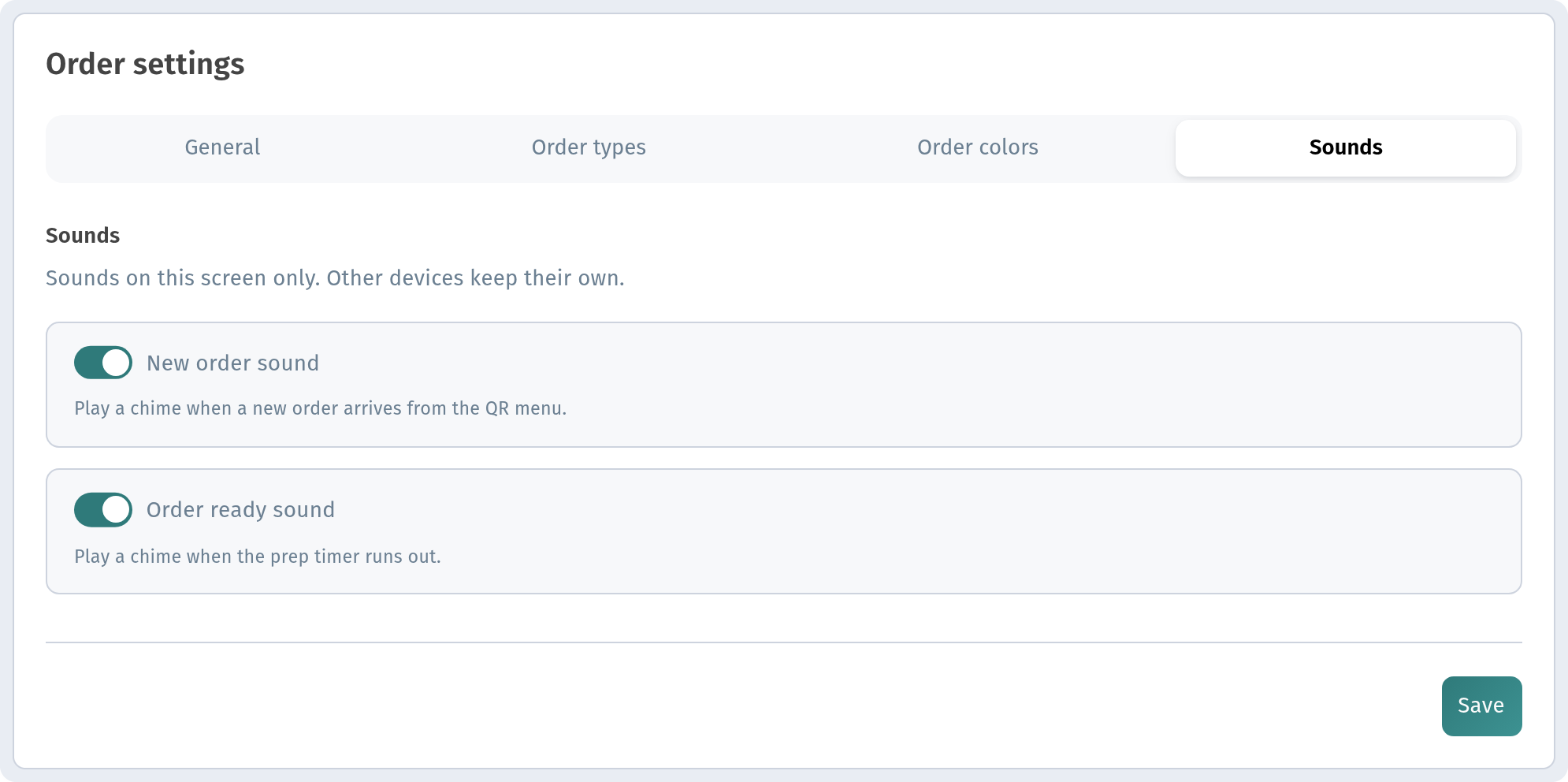
The Kitchen line is a live board for the kitchen with lanes from Prep to Done. Click the settings button to open Order settings and go to the Sounds tab:
- New order sound — plays a chime when a new order arrives from the QR menu;
- Order ready sound — plays a chime when the prep timer runs out.
Sound settings apply to this screen only — other devices keep their own. So you can enable the chime on the kitchen tablet and keep the manager's laptop silent.
Why it matters for your restaurant
- Everything in one list. Orders from all tables and fulfillment methods in one place.
- Fewer missed bills. The Unpaid filter shows what still needs to be paid.
- Fast reaction. Push notifications and the kitchen chime let staff know about new orders right away.
- Paperwork when you need it. Any invoice can be downloaded as PDF or printed.
Quick checklist
- Open Orders and pick a store in Store.
- Use Payment status and Fulfillment method filters.
- Change Payment and Status right in the order row.
- Open invoice → Download PDF or Print.
- Turn on Push notifications in store Settings.
- Enable New order sound on the kitchen-line screen.