
Guest Sign-Up and Your Client Base in WebQRMenu
How guests create an account right inside a WebQRMenu QR menu, what their profile holds, and how to find every client in the dashboard's Clients section with sorting, store selection and search by name, email or phone.
Every guest who orders through your QR menu can become a regular, as long as you know who they are. In WebQRMenu, guests sign up right on the menu page, with no separate app, and their contact details go straight to the Clients section of your dashboard.
This article walks through the whole path: how a guest creates an account and places an order, and what you see on your side afterwards.
In short: the guest opens the ☰ menu → Sign in → creates an account with Google or by email → orders under their own name → their name, email and phone appear in your dashboard under Marketing → Clients.
1. Where guests find sign-in
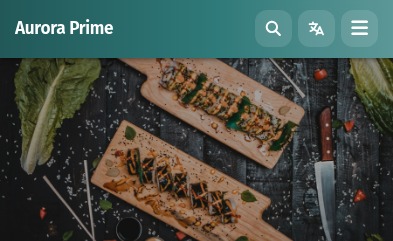
The guest opens your menu from the QR code. At the top right, next to search and the language switcher, there is a ☰ button.
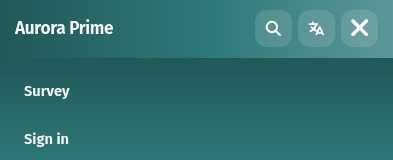
The dropdown has two items: Survey and Sign in. Sign-in is always within reach, but guests never have to register just to browse the dishes.
2. Signing in with an existing account
The Guest sign-in panel offers two ways in: a single Continue with Google button, or Email and Password. Remember me keeps the guest signed in, and Forgot password? helps them get back in.
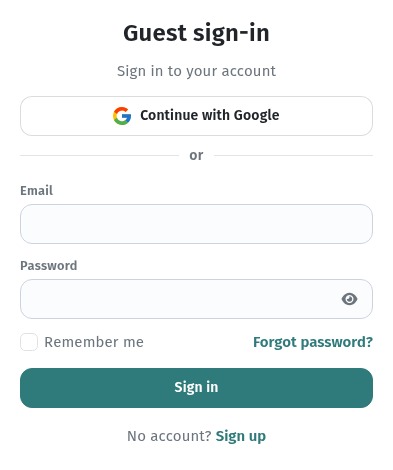
New guests use the link at the bottom: No account? Sign up.
3. Signing up in a minute
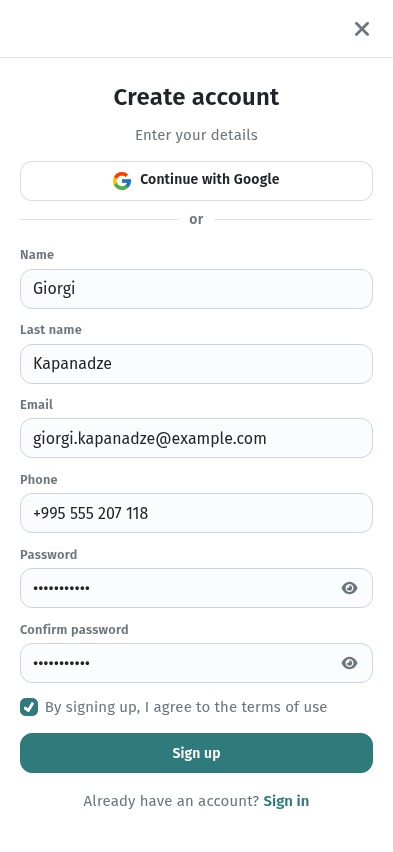
The Create account form is short: Name, Last name, Email, Phone, Password and Confirm password. Guests who don't want to type can use Continue with Google at the top of the form.
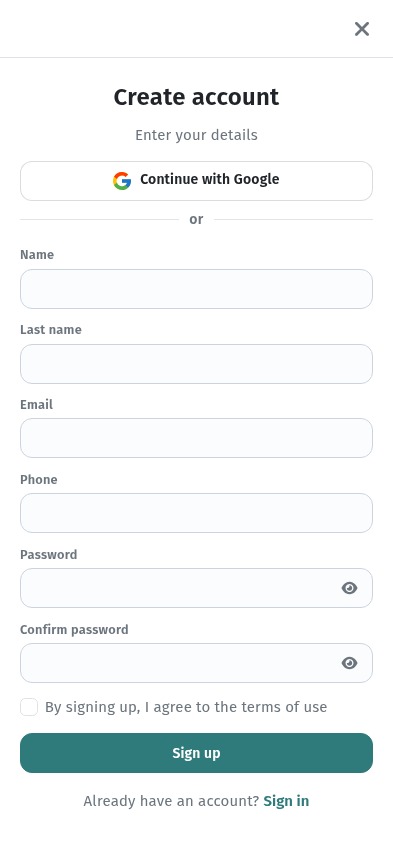
Before submitting, the guest ticks "By signing up, I agree to the terms of use" and taps Sign up. The password is masked with dots; the eye icon on the right reveals it if the guest wants to double-check what they typed.
4. The guest profile
Right after signing up, the guest lands in their Profile: name, last name, email and phone. They can update the details with Edit or leave the account with Sign out at the bottom of the panel.
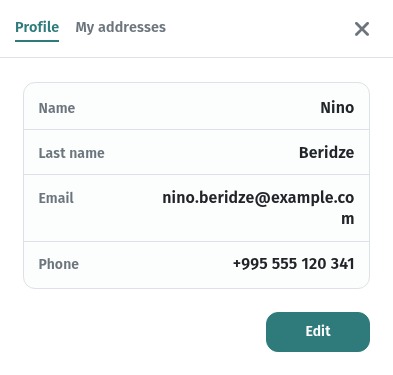
The My addresses tab stores delivery addresses, so the guest doesn't have to type them in for every order.
5. Ordering under their own name
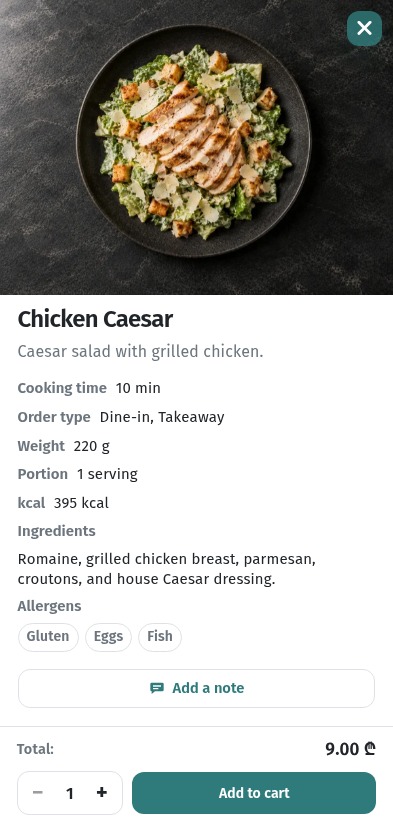
From here everything works as usual. The guest opens a dish card, for example Chicken Caesar, checks the ingredients, weight and allergens, and taps Add to cart.
The cart shows the dishes, the Total and a Tips block with ready-made options: No tip, 5%, 10%, 15% or Custom. Place order then asks how the guest wants to receive it: Delivery or I'll pick up.
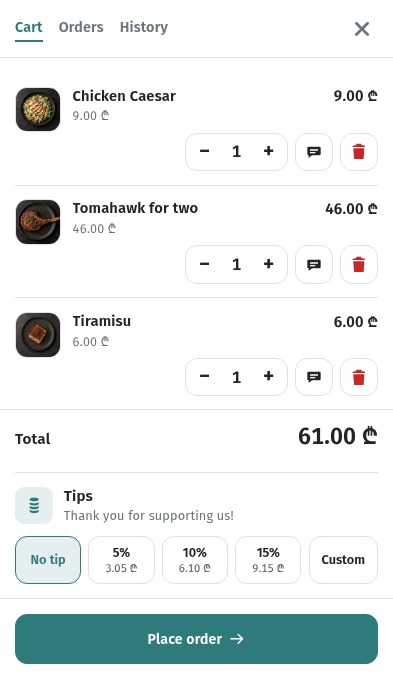
Once placed, the order appears on the Orders tab. The guest sees the invoice number, the items, the total and a progress bar that shows whether the order has been accepted, is being prepared or is ready. Nobody has to call a waiter over just to ask how the order is going.
6. The Clients section in your dashboard
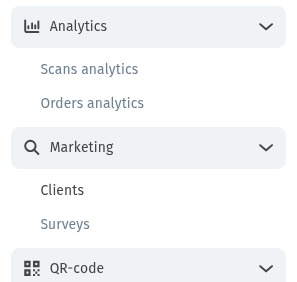
Now let's look from the restaurant's side. In the dashboard, open Marketing → Clients.
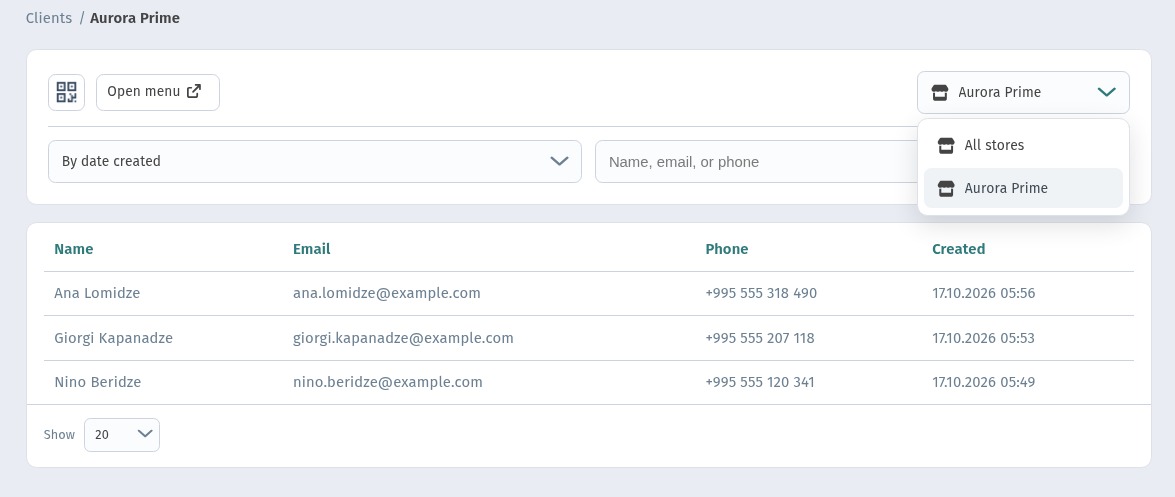
This is where every guest who signed up in your menu ends up. The table has Name, Email, Phone and Created (the sign-up date) columns. At the bottom, Show sets how many rows appear per page.
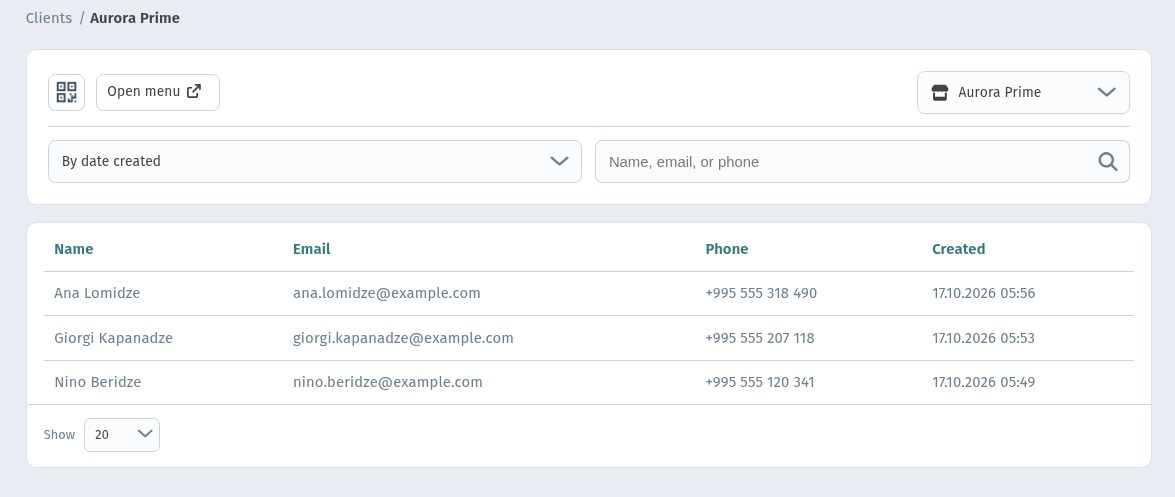
Above the table, the Open menu button lets you check the guest page in a click.
7. Sorting and choosing a store
You can order the list By date created (newest clients first), By name or By email.
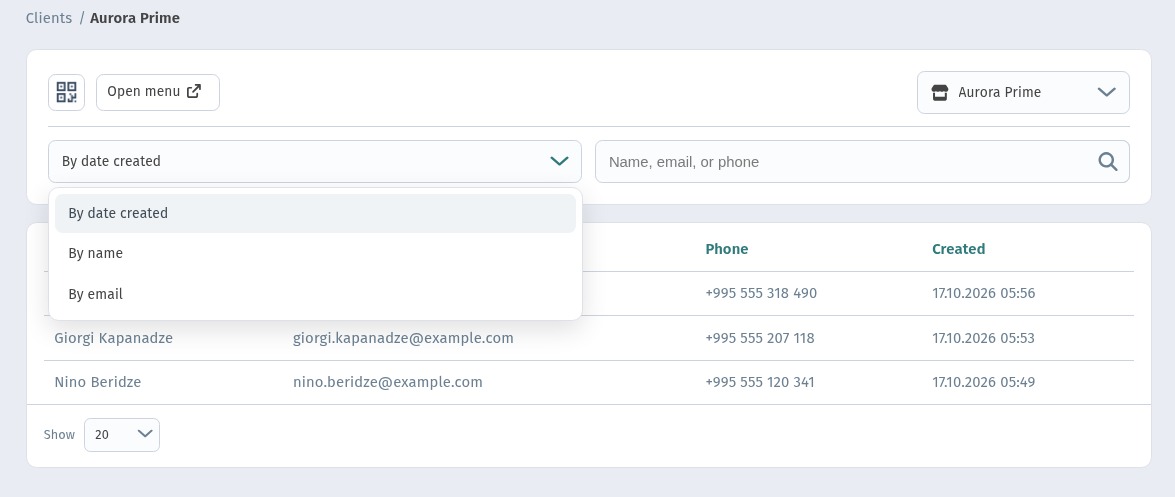
If you run several venues, the selector on the right shows the clients of one store or All stores at once.
8. Finding a client
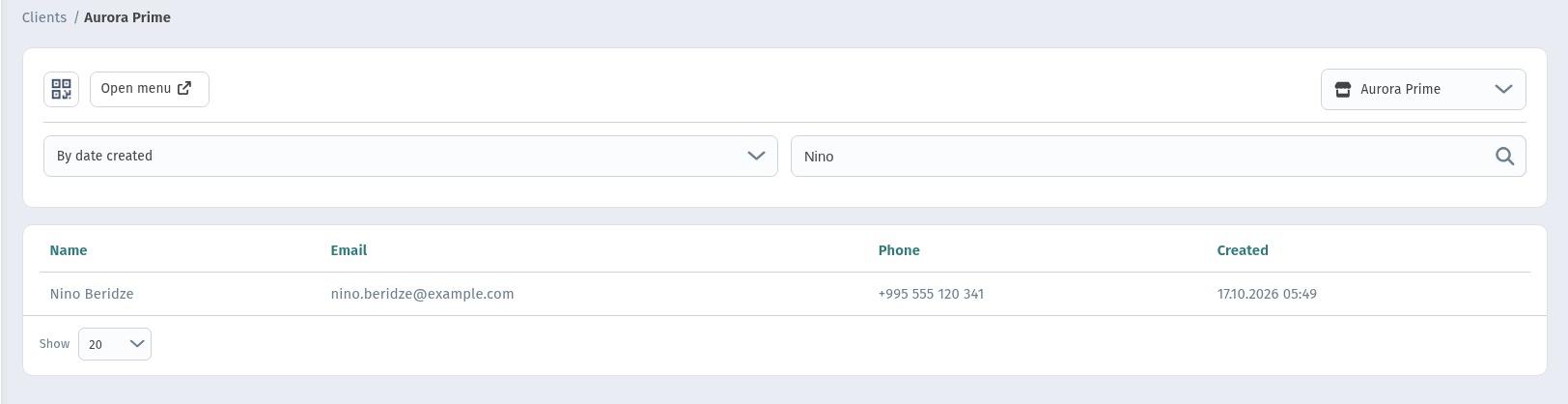
The search field looks up clients by name, email or phone. Type a name, say "Nino", and press Enter: the table narrows down to that guest. A phone number works just as well when a guest calls about an order.
Why it matters for a restaurant
- Your own line to the guest. Names, emails and phone numbers stay with you, not with a delivery aggregator.
- Fewer questions on the floor. Guests follow their order status on their own phones.
- A base for marketing. The client list comes in handy for invitations, promotions and surveys (the Survey item sits in the same menu as sign-in).
Quick checklist
- Make sure the guest menu opens from your QR code.
- Try sign-in yourself: ☰ → Sign in → Sign up.
- Place a test order and follow its status on the Orders tab.
- Open Marketing → Clients and find yourself with search.