
Show map on the menu page: address for guests in WebQRMenu
Set the store address in WebQRMenu, turn on Show map on the menu page, and see what guests get — Contacts with Open in maps, or an embedded Find us map.
The public menu can show where you are as a short address line — or as an embedded map under Find us. That choice lives on one card in the store: Address, with the switch Show map on the menu page. Below: how to fill the address (search or Manual entry), what the Full and Link tabs do, what the guest sees with the map off and on, and when each mode fits.
Related reading: Wi-Fi, opening hours and contacts in your WebQRMenu menu, the wider store panel in Store appearance and settings, and pickup context in Order types: dine-in, takeaway, delivery and pickup.
In short: open the store → Information → Address. Enter the location via Search address or Manual entry. Then use Show map on the menu page: off = Contacts with the address and Open in maps; on = the same contacts block plus Find us with an embedded map. Save and check the guest menu on your phone.
1. Where the Address card lives
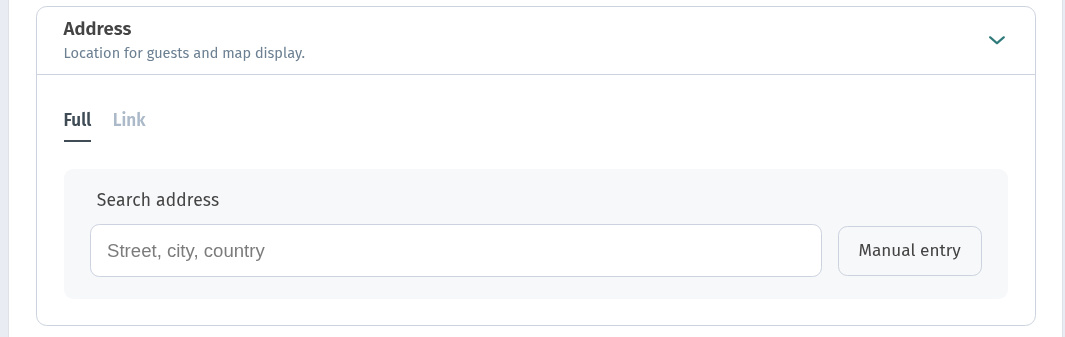
In the dashboard open the store and go to the Information tab (next to Page layout and Settings). Expand Address — subtitle on the card: Location for guests and map display.
Until an address is saved, the card stays compact: tabs Full / Link, Search address (placeholder Street, city, country), and Manual entry. The map switch does not appear yet.
2. Full tab: search or Manual entry
On Full, type a place into Search address, or press Manual entry and fill the fields yourself (street, number, postal code, city, region, country). If search does not return a useful result, use Manual entry — that is the supported way to type the address by hand.
After the address is filled, the switch appears under the fields:
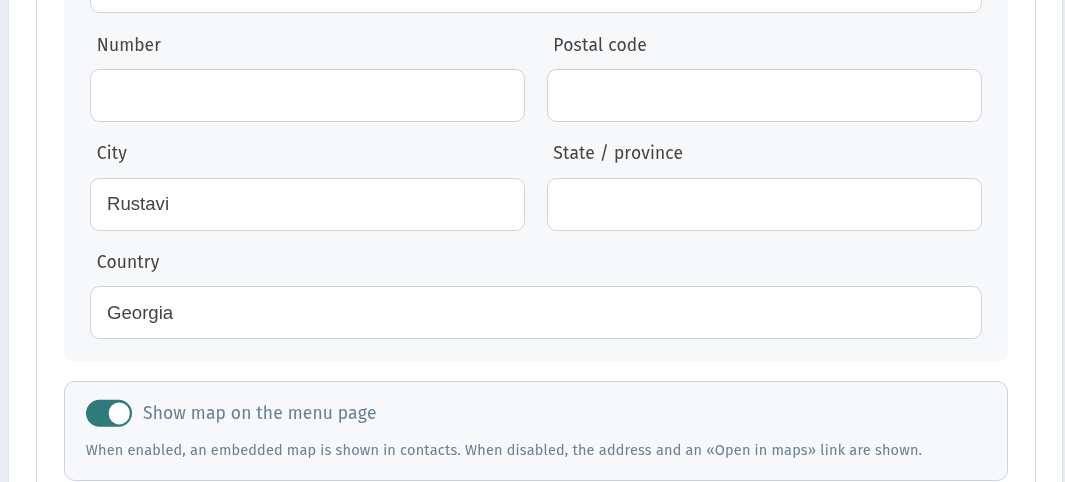
Show map on the menu page. Hint: When enabled, an embedded map is shown in contacts. When disabled, the address and an «Open in maps» link are shown.
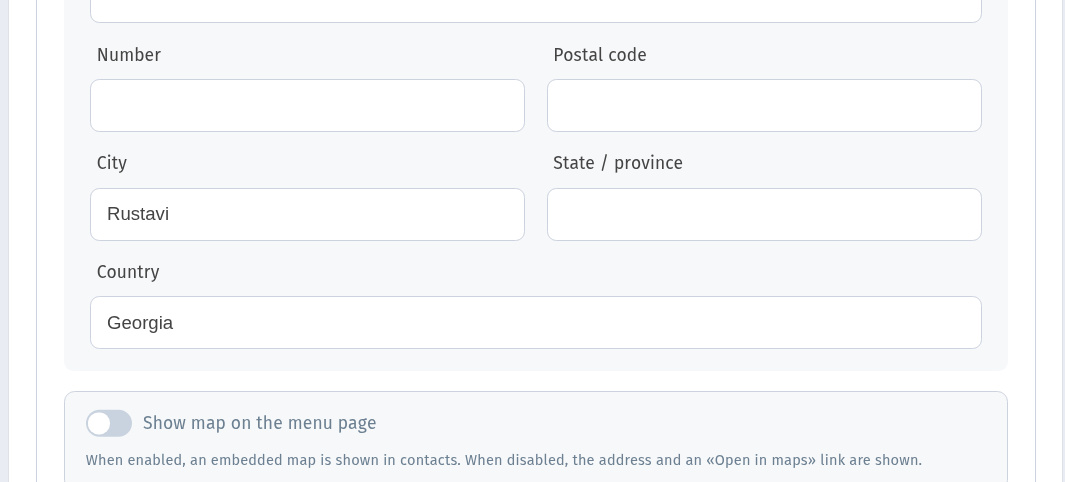
Turn the switch on when you want the embedded map on the guest page.
3. Link tab
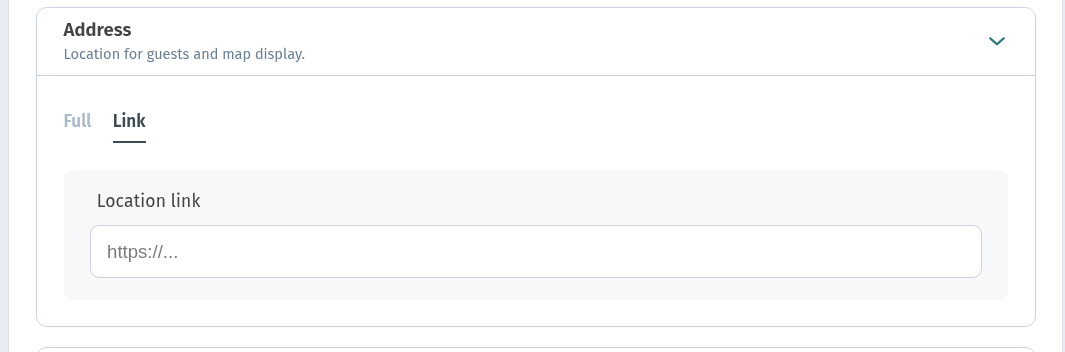
The Link tab holds a single field, Location link (placeholder https://...). Use it when you prefer a custom maps URL instead of (or alongside) the structured Full address. Leave it empty if Full already covers the location.
4. Guest view: map off
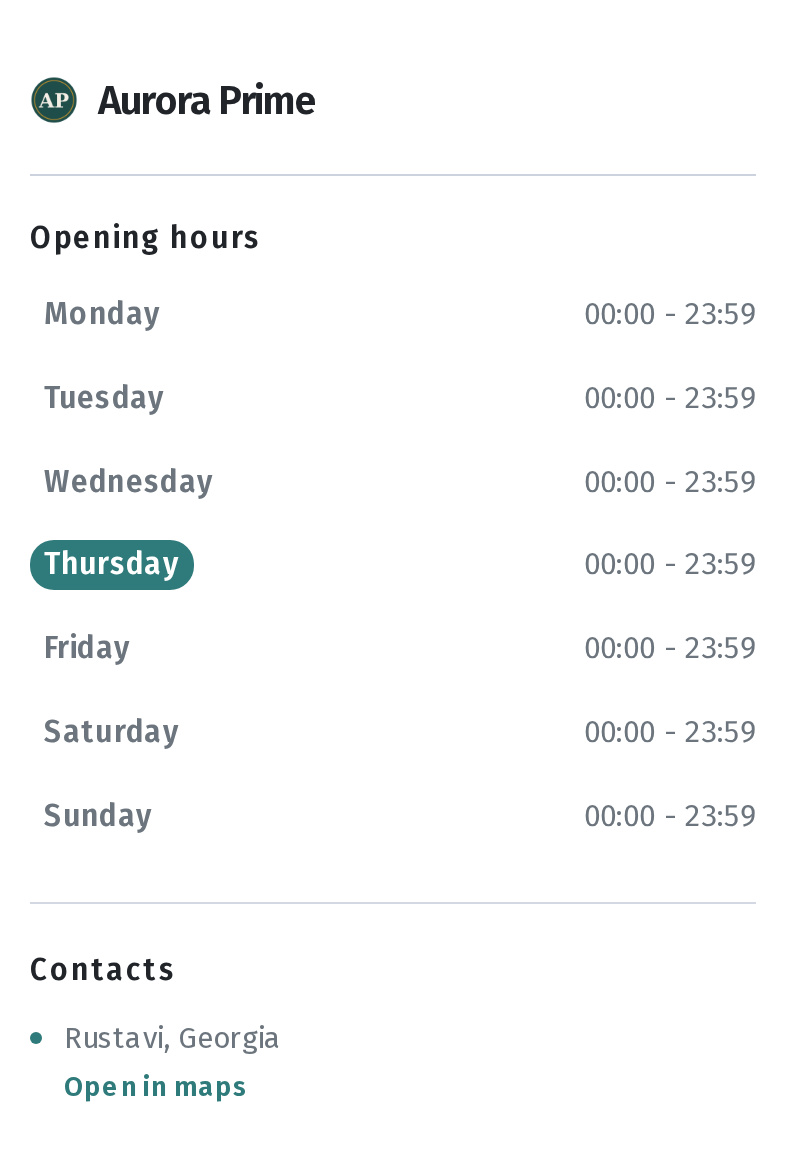
With an address saved and Show map on the menu page off, the guest menu shows a Contacts block: the address text and a teal Open in maps link. There is no embedded map frame.
5. Guest view: map on
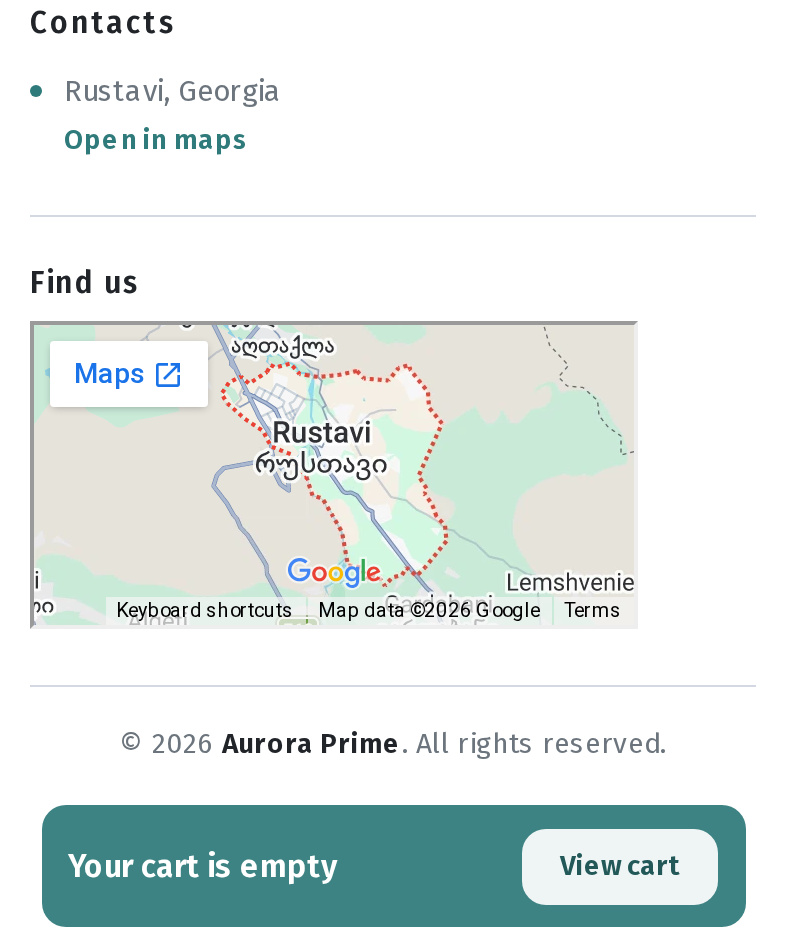
With the same address and the switch on, Contacts stays (address + Open in maps), and a Find us block appears below with the embedded map. Guests can still open the external maps link; the embed is an extra way to see the area without leaving the menu.
6. When to choose which mode
Map off. Compact footer: address line and Open in maps only — useful when the pin is approximate, the venue is easy to find, or you want a shorter contacts block.
Map on. Pickup, delivery handoff, or a new location where guests need a visual pin — turn Show map on the menu page on, Save, and recheck the guest link.
Keep the address fields in sync with the door guests actually use. Broader contacts and hours sit next to Address on Information; see Wi-Fi, opening hours and contacts.
FAQ
Does the map switch show before I enter an address?
No. On an empty Address card you only see Full / Link, search, and Manual entry. The switch appears after location data is filled.
Search address did not find my street?
Prefer Manual entry and type street, city, and country yourself, then Save.
What does the guest see with the map on?
Contacts (address + Open in maps) and Find us with the embedded map.
Can I use only a maps URL?
Use the Link tab (Location link). Full fields still drive the structured address line in Contacts when filled.