
How a guest orders through the cart in WebQRMenu
How a guest orders through the cart in WebQRMenu: notes, tips, delivery or pickup, live status, and where the order appears in your dashboard.
A QR menu becomes much more useful once guests can order from it. They scan the code, pick dishes, add a note for the kitchen and send the order, all from their own phone. No waiting for a waiter and no mix-ups over a hard-to-read handwritten note. Your staff get a clear order in the dashboard with quantities, comments and the receive method already filled in.
In this guide we follow one complete order in our Aurora Prime demo store. First we look at it through the guest's eyes, from opening the menu to tracking the order status. Then we switch to the owner's side: where the order appears, what the order page shows, and which settings turn ordering on.
Part 1. The guest side
Opening the menu
The guest scans the QR code and the store's menu opens straight away in the phone's browser. There is nothing to install and no account to create. At the top they see the store name, buttons for search, language and the menu, and below that the food categories and dishes.
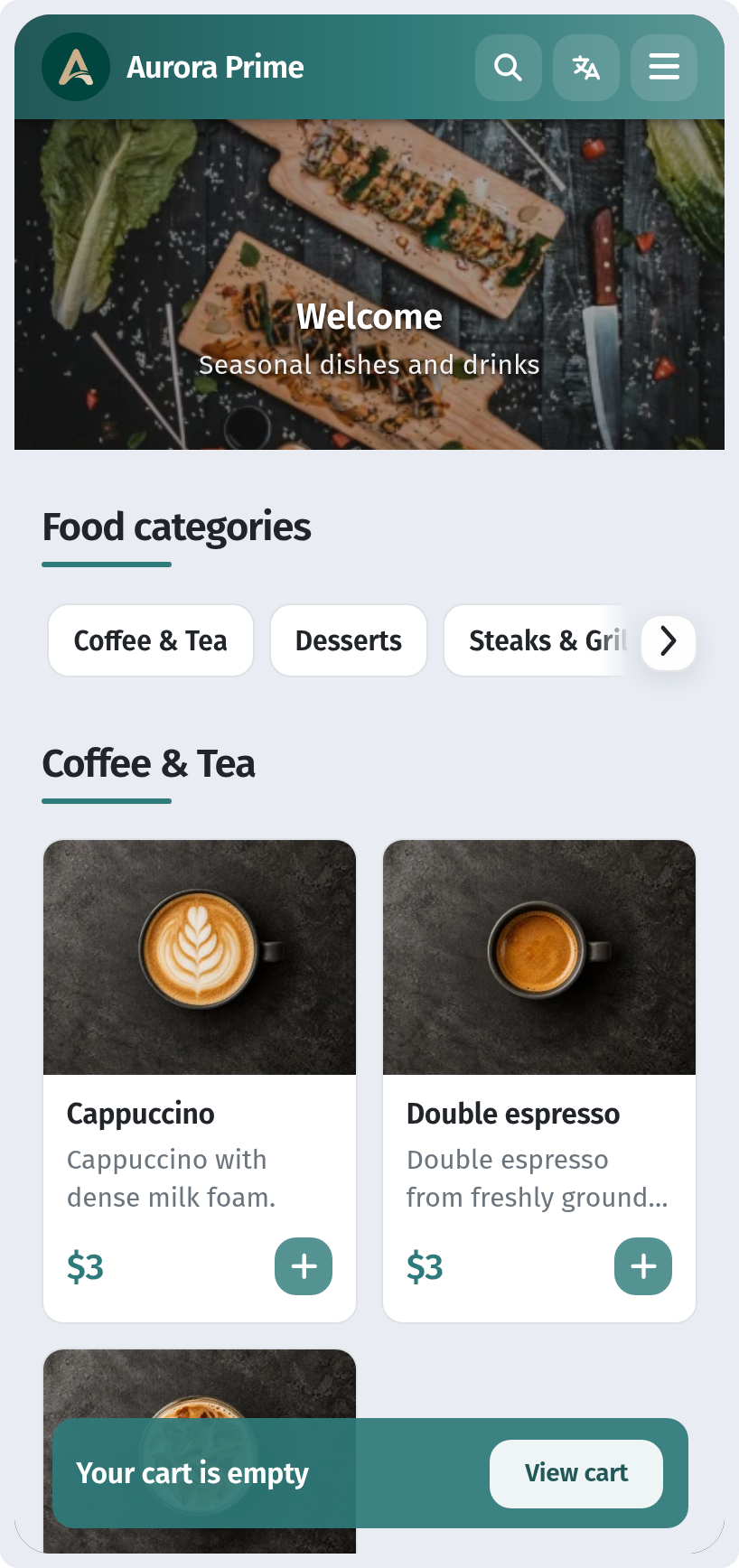
If the guest already has an order in progress, a bar at the bottom shows its number and status, so they can open it at any time with Show order.
Choosing a language
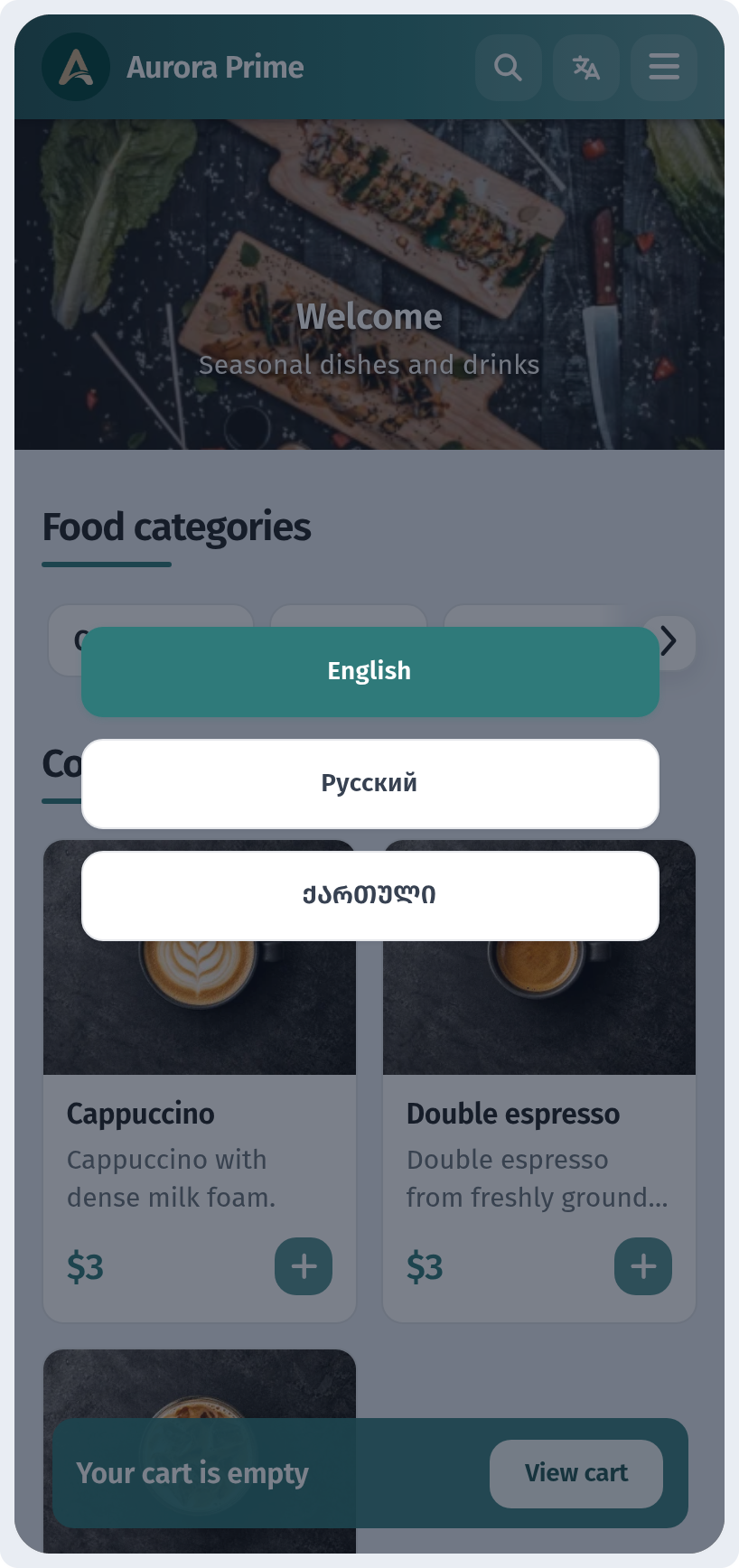
The language button in the header (the icon with the letters) opens a short list of the languages the menu is available in. In our store that is English, Russian and Georgian. The guest taps their language and the whole interface switches over: buttons, headings, the cart and checkout.
Finding a dish
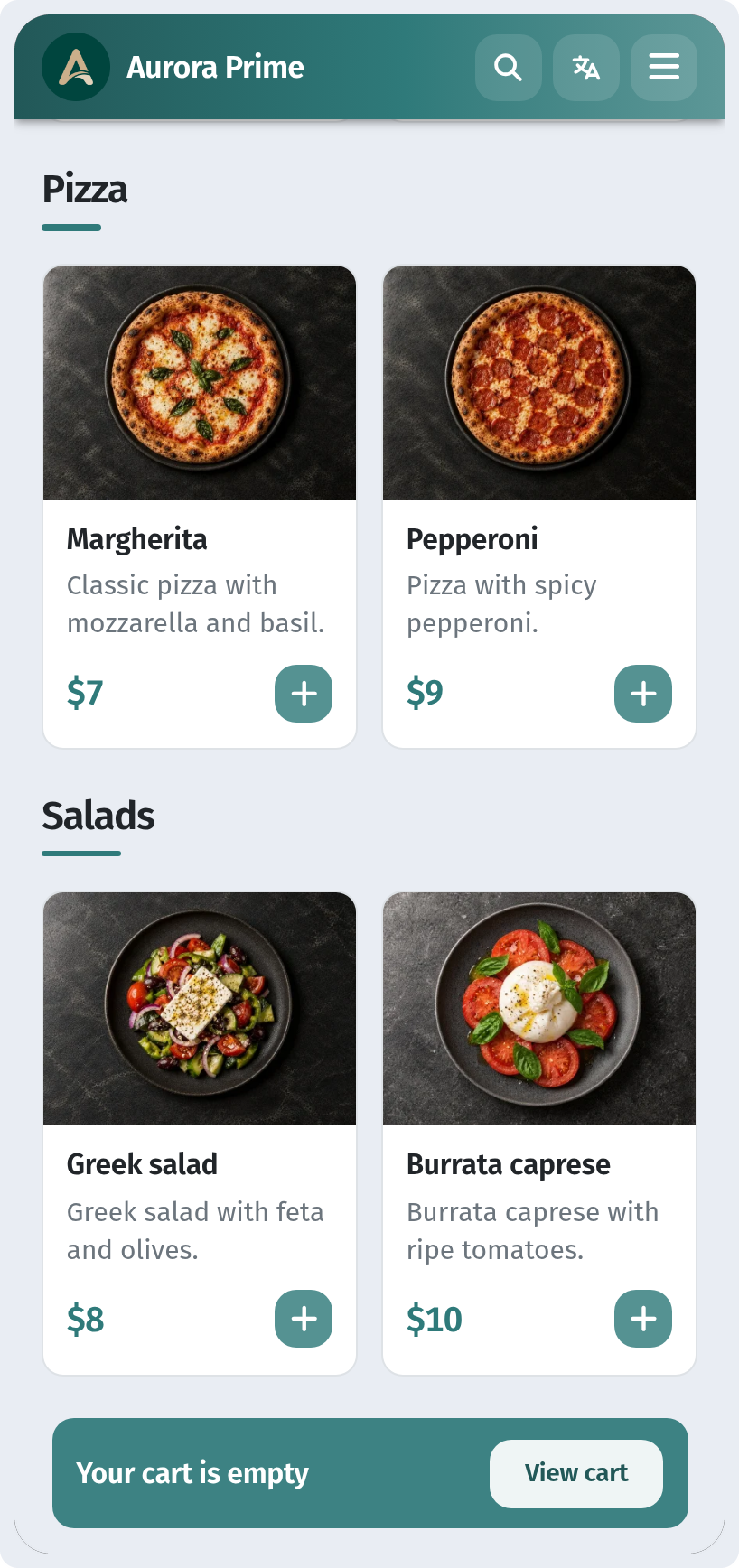
Categories appear as chips under Food categories. A tap on a chip scrolls to that section. You can also simply scroll down the page. Here the guest has opened Salads. Each card shows a photo, a short description, the price and a round + button.
The dish card
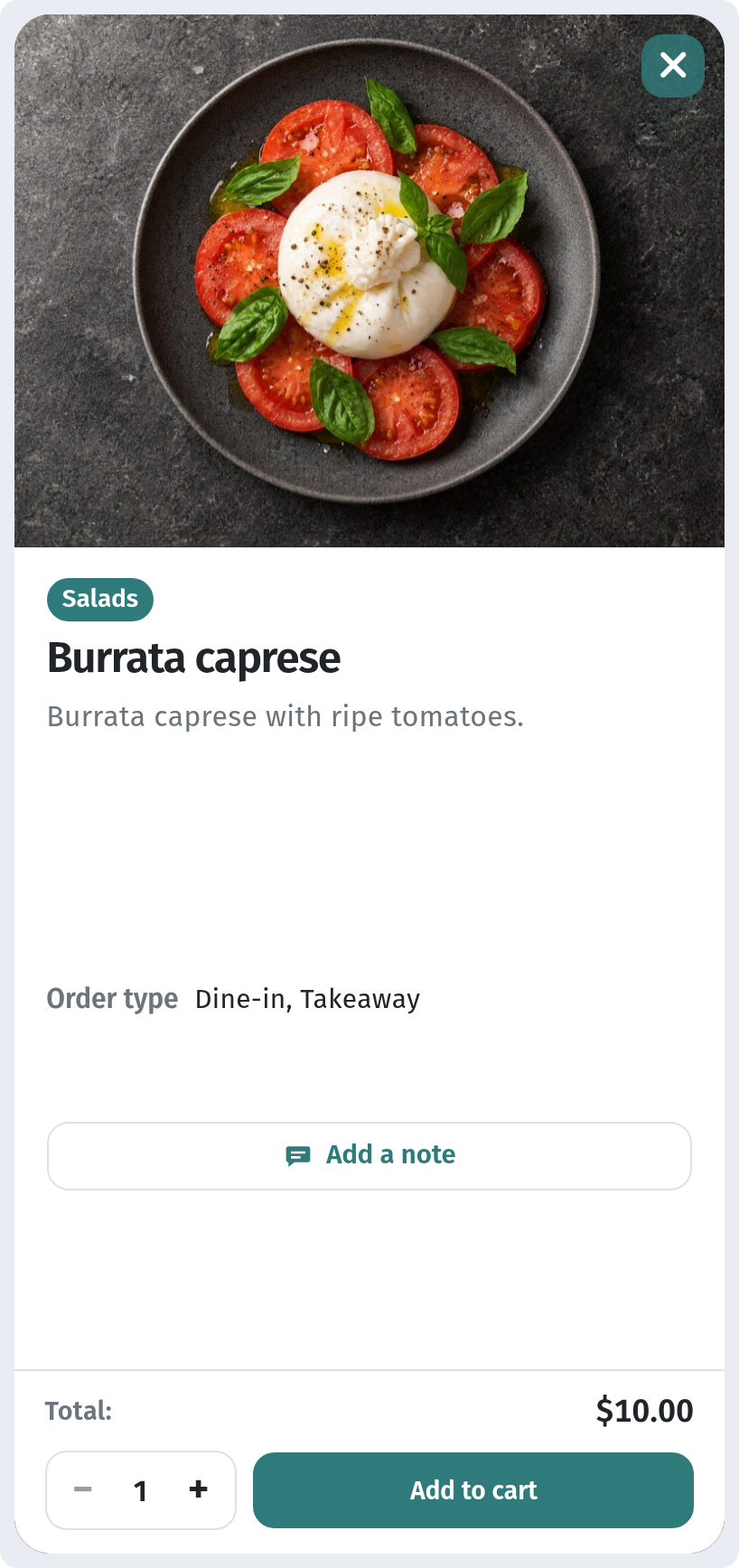
Tapping a dish opens its card. It shows:
- A large photo and the category badge.
- The name and description.
- Order type: how this dish can be ordered, for example Dine-in, Takeaway.
- Add a note: a button that opens a comment field for this item.
- The quantity selector (− and +) with the running Total.
- Add to cart: the main button at the bottom.
Adding a note for the kitchen
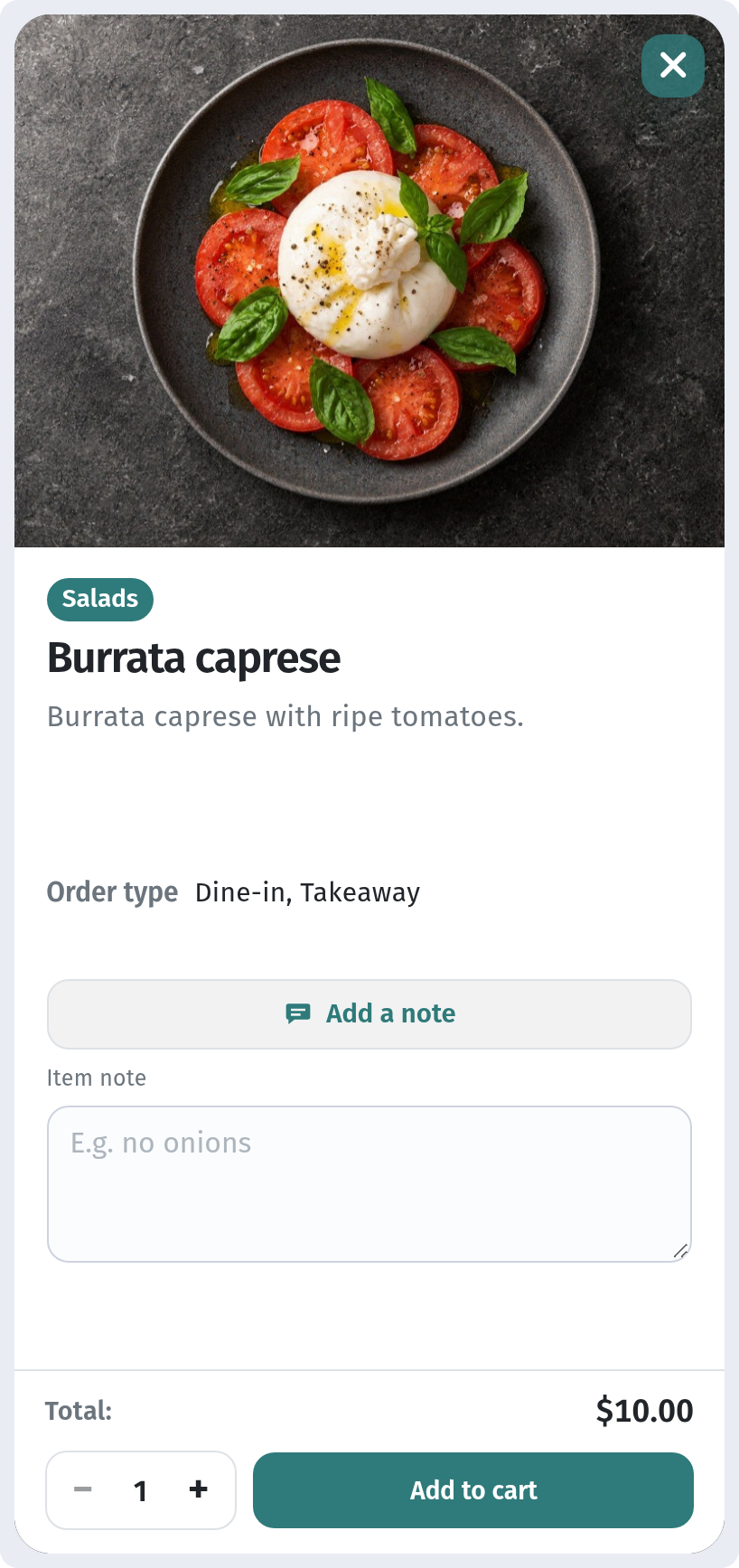
Tap Add a note and an Item note field appears. The hint suggests the kind of thing guests usually write, such as "E.g. no onions".
Choosing the quantity
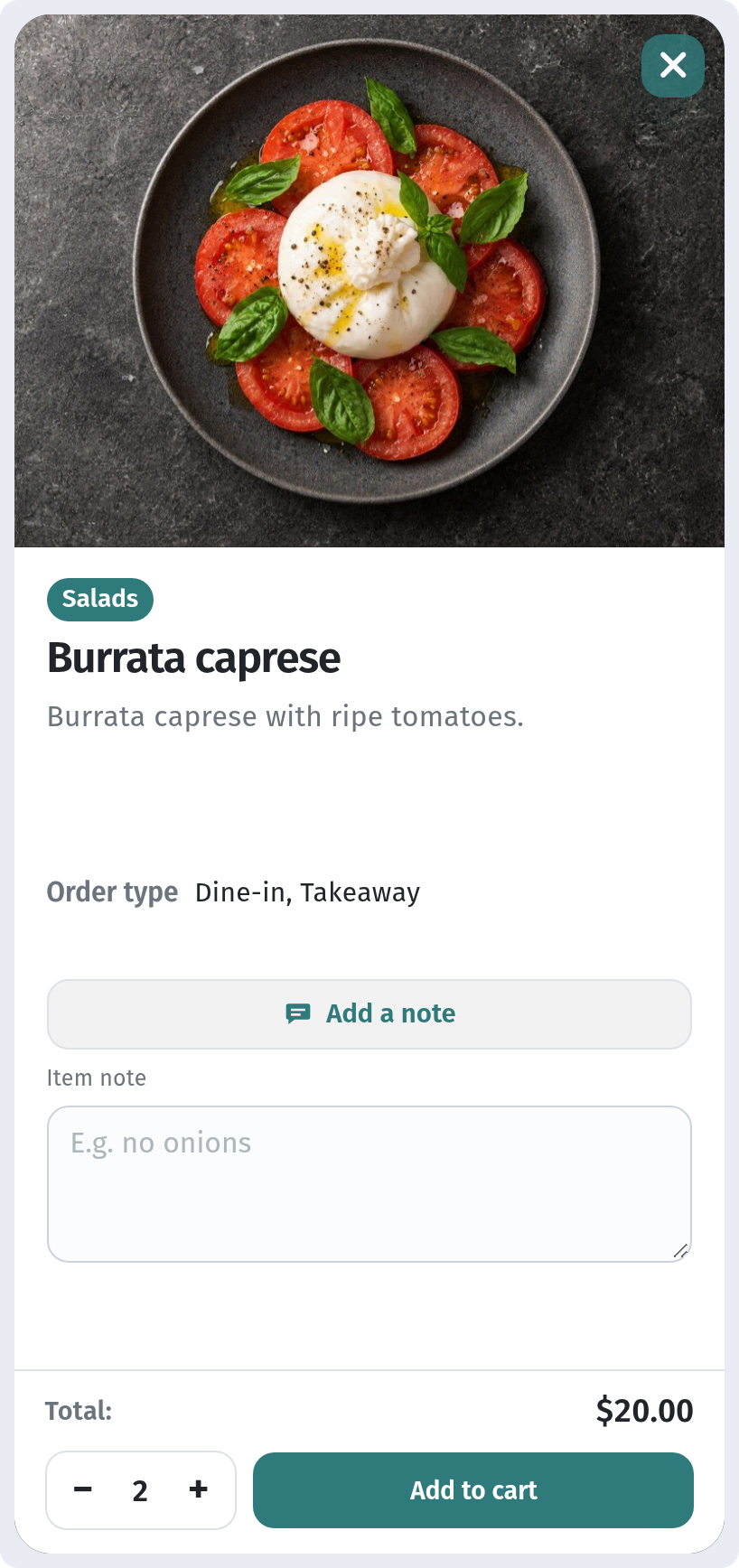
The + and − buttons set how many portions the guest wants. The Total updates immediately: two portions of Burrata caprese come to $20 instead of $10.
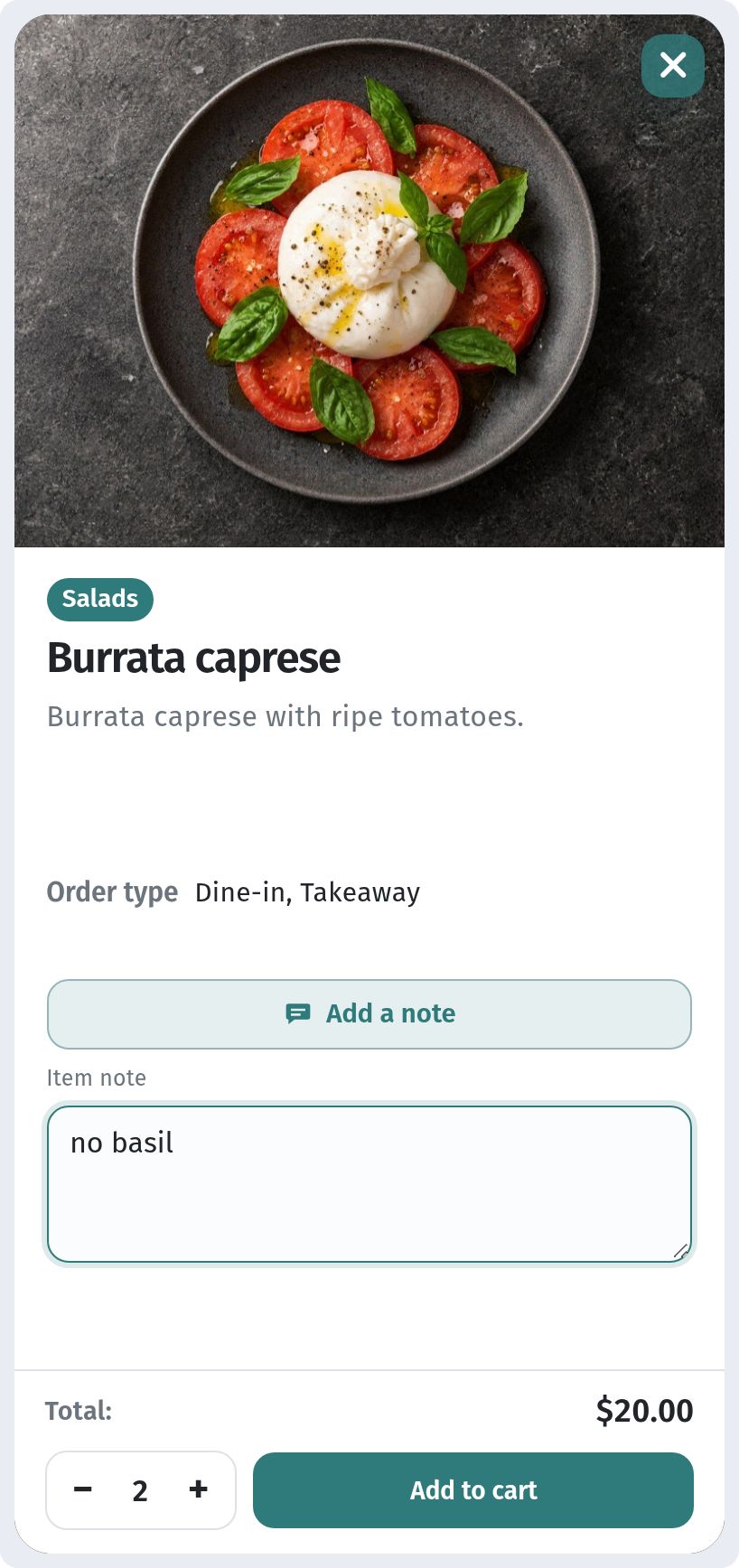
Now the guest types the note. In our example it says "no basil". The note belongs to this item only and goes to the kitchen together with it.
The cart bar
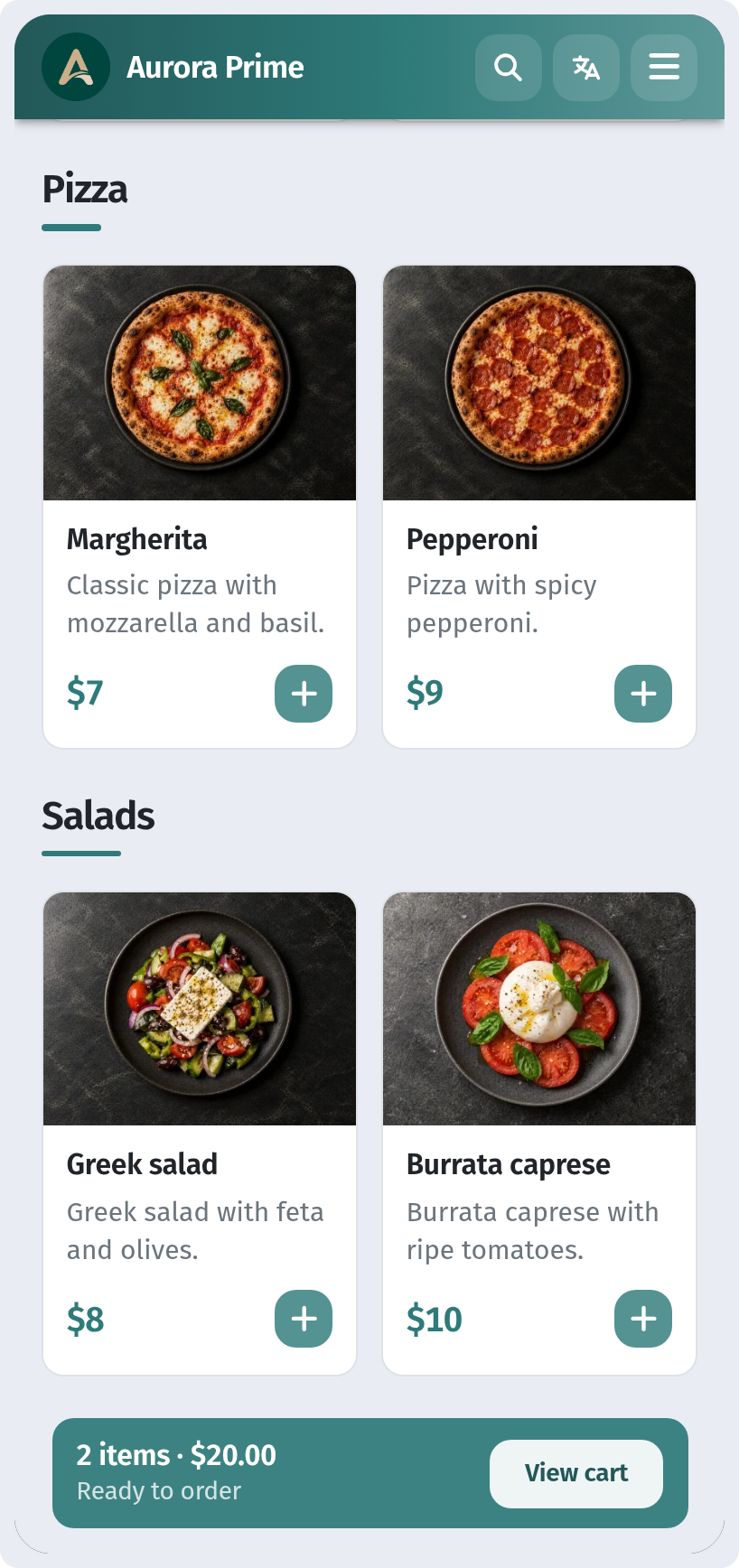
After Add to cart, the card closes and a bar appears at the bottom of the menu. It shows how many items are in the cart and the total, for example 2 items · $20.00, plus a View cart button. The guest can keep browsing and come back to the cart whenever they like.
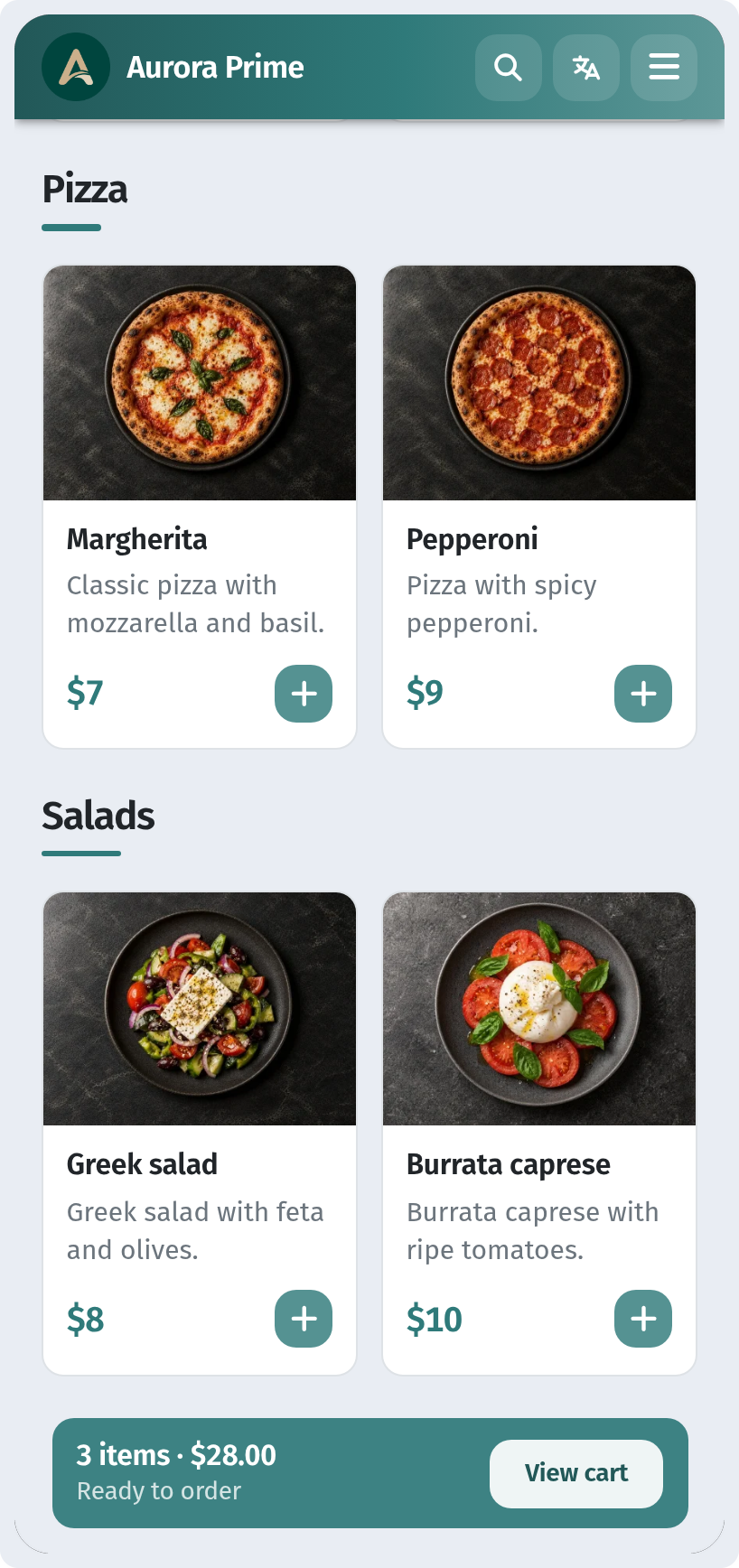
Adding another dish works the same way. Here the guest has added a Greek salad, and the bar now reads 3 items · $28.00.
Inside the cart
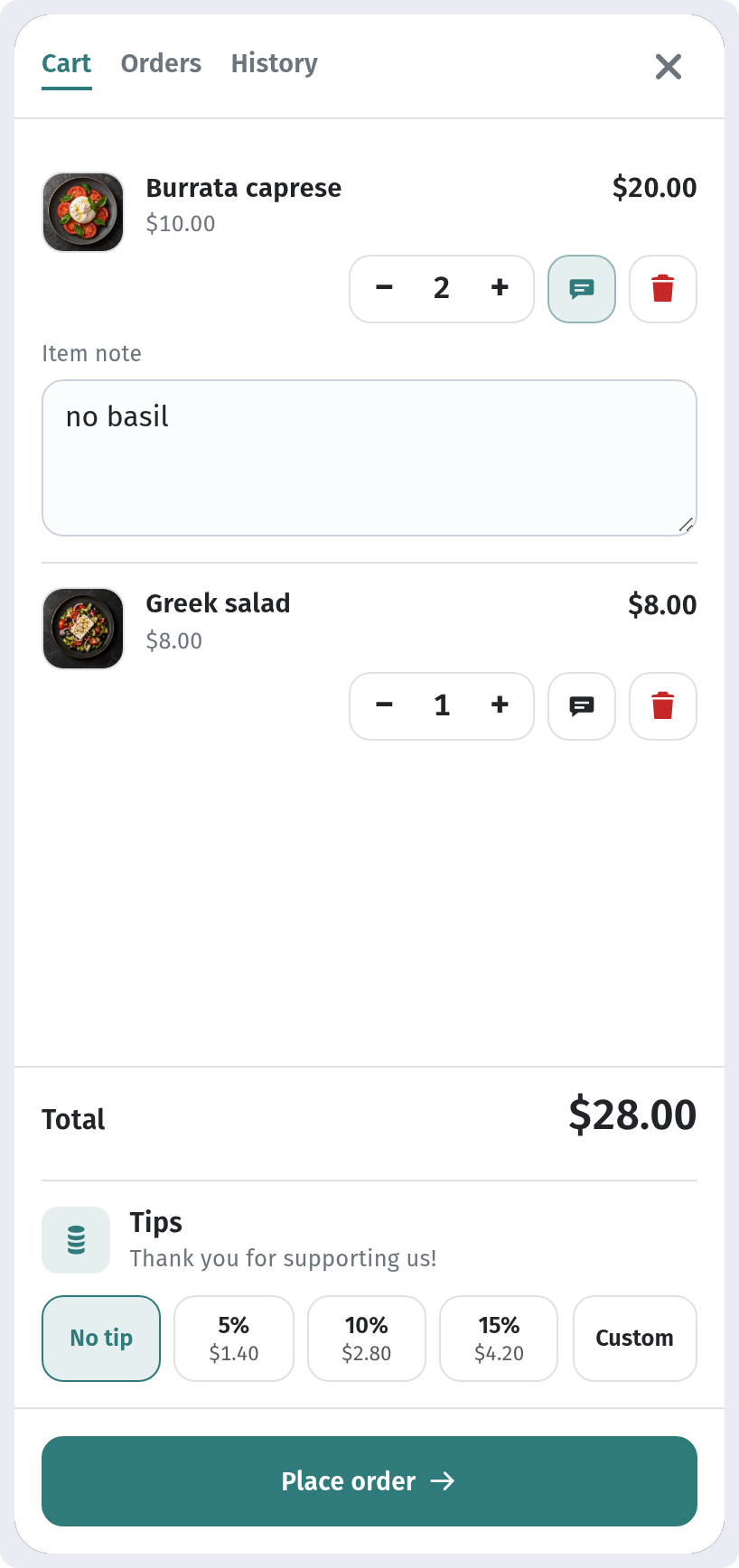
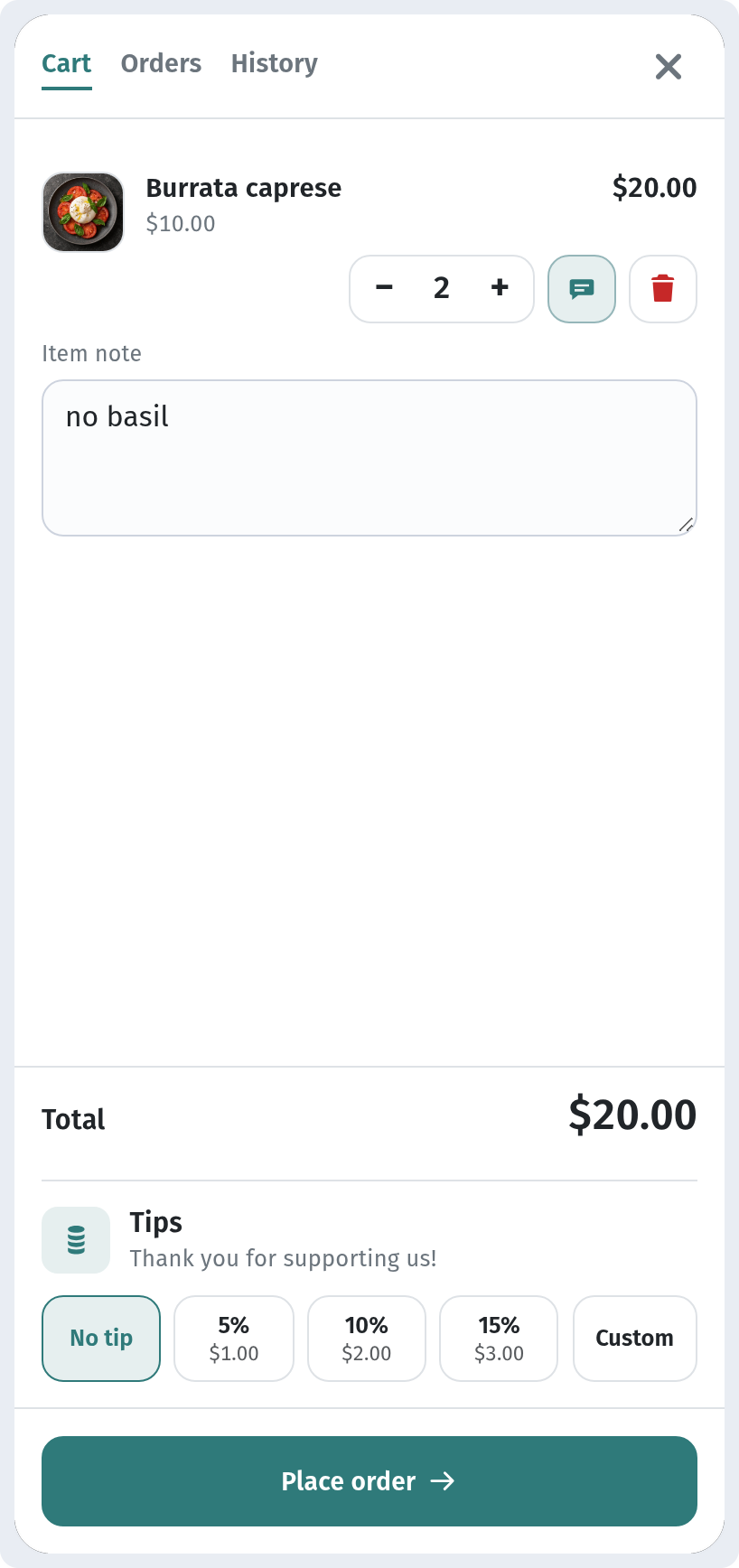
View cart opens the cart. At the top there are three tabs: Cart, Orders and History. On the Cart tab the guest sees:
- Every item with its photo, unit price and line total.
- The − / + buttons for changing the quantity right here.
- The note button (the speech-bubble icon). It shows or hides the item's note, so the guest can check or edit it before ordering. Our Burrata caprese still carries "no basil".
- The red bin button, which removes the item from the cart.
- Total, the sum of the whole order.
- Tips: a block for thanking the staff. The options are No tip, 5%, 10%, 15% and Custom. Each percentage button shows the tip amount next to it, and Custom lets the guest enter their own amount.
- Place order: the button that moves on to checkout.
Changing quantities in the cart
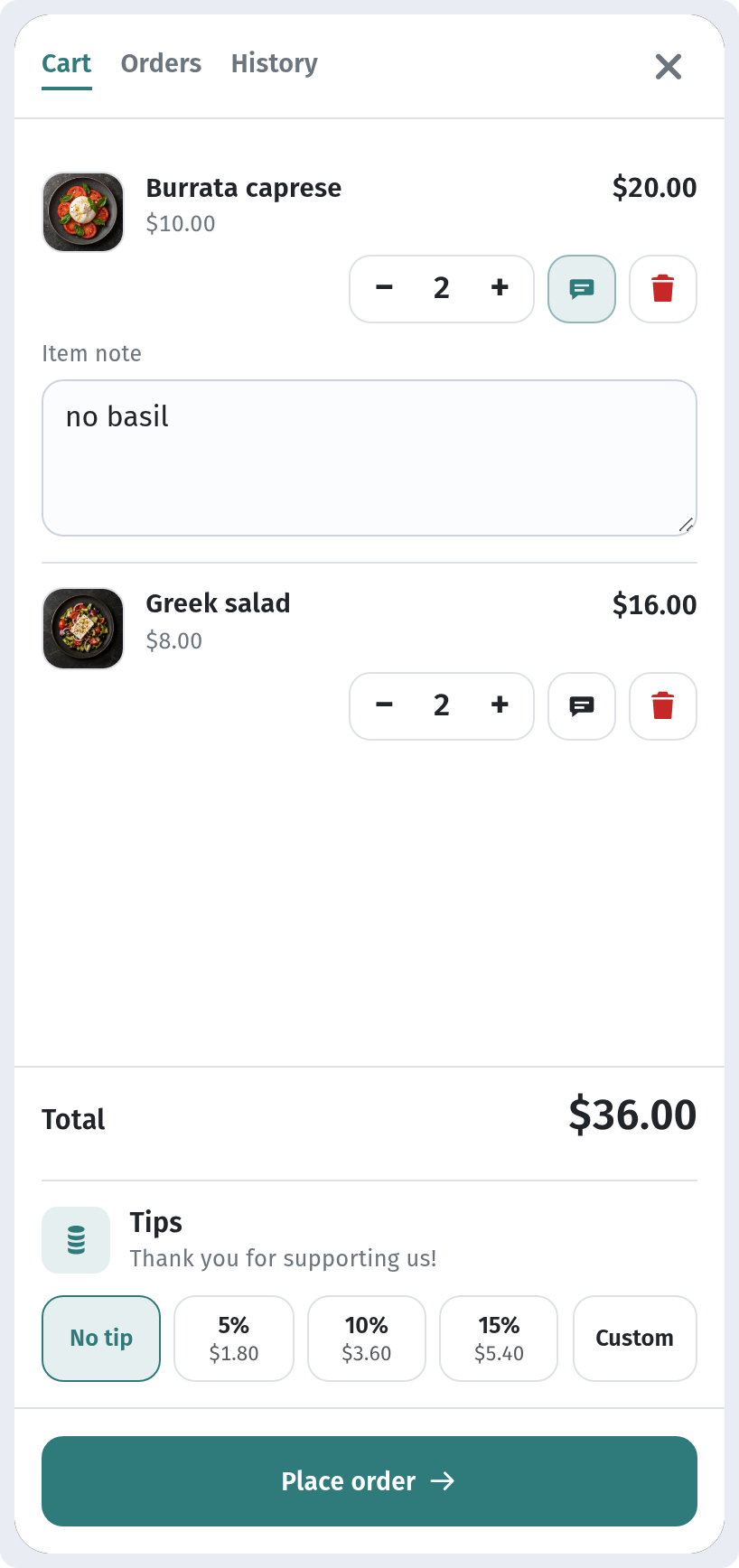
The guest changed their mind and wants two Greek salads. One tap on + in the cart is enough, and the line total and the Total update straight away ($36.00).
Removing an item
The bin button removes a dish completely. After removing the Greek salad, only the two portions of Burrata caprese are left and the total is back to $20.00. The tips are recalculated automatically too.
Delivery or pickup
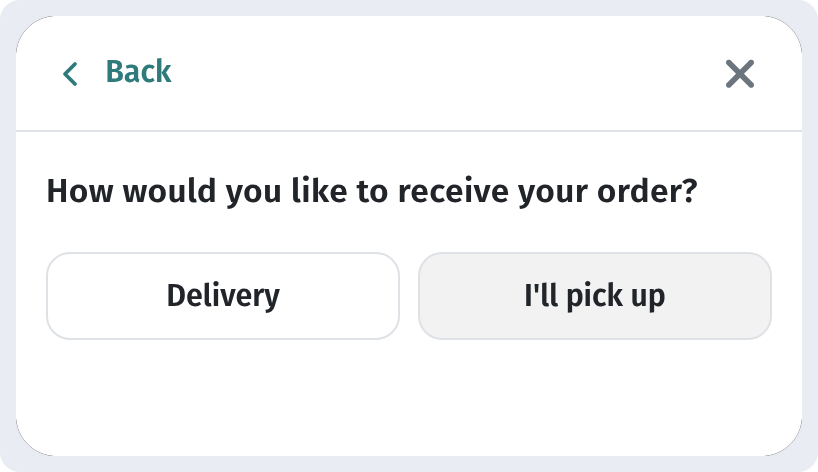
Place order asks one question: How would you like to receive your order? There are two answers:
- Delivery: the order is brought to the guest's address.
- I'll pick up: the guest collects the order themselves.
Which options guests see depends on the store's order types (Settings → Order types: Dine in, Takeaway, Delivery, Pickup).
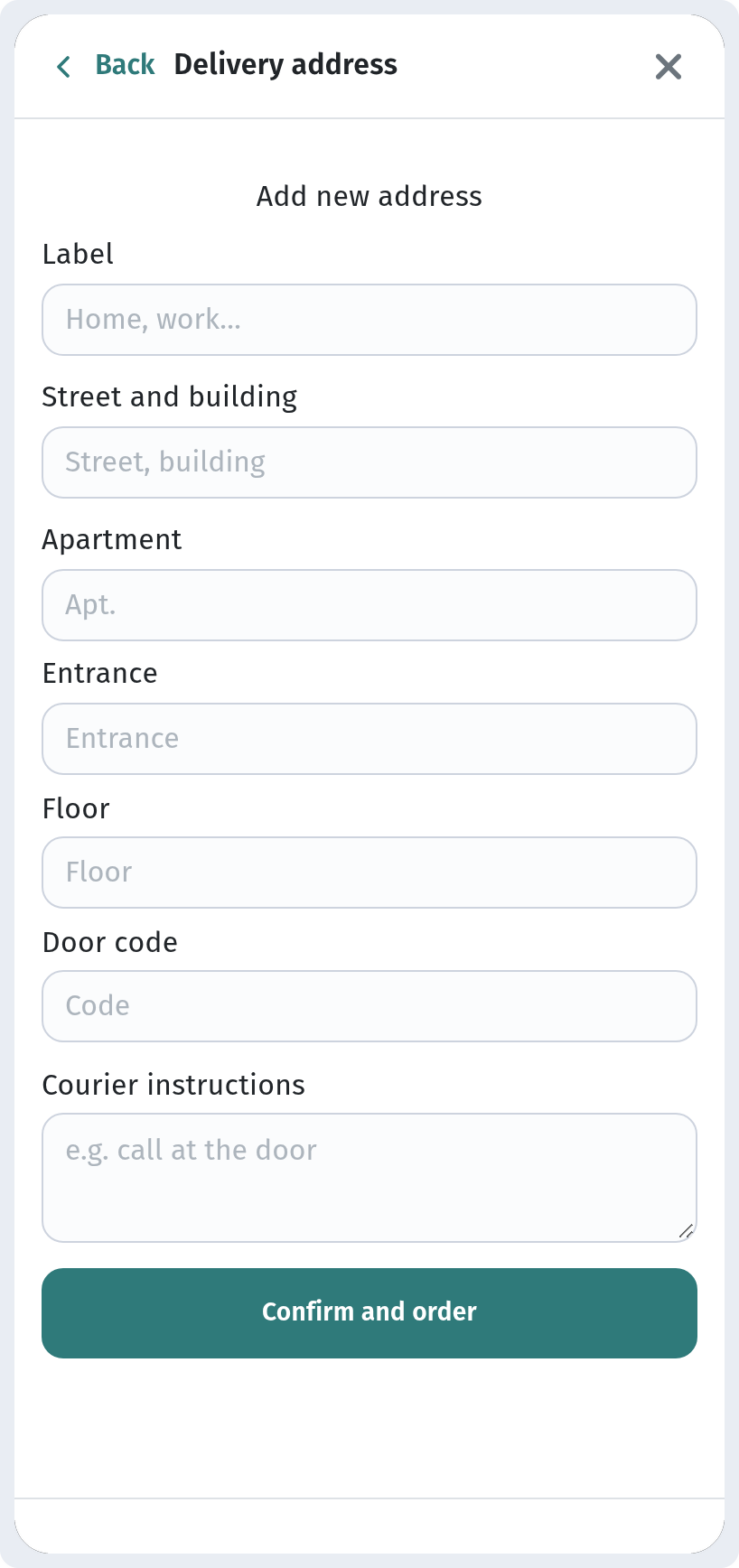
If the guest chooses Delivery, a Delivery address form opens with these fields:
- Label, for example "Home" or "Work", so the address is easy to pick next time.
- Street and building, Apartment, Entrance, Floor and Door code.
- Courier instructions, for example "call at the door".
Confirm and order sends the order with that address. With I'll pick up there is no form, and the order is sent straight away.
The order is sent
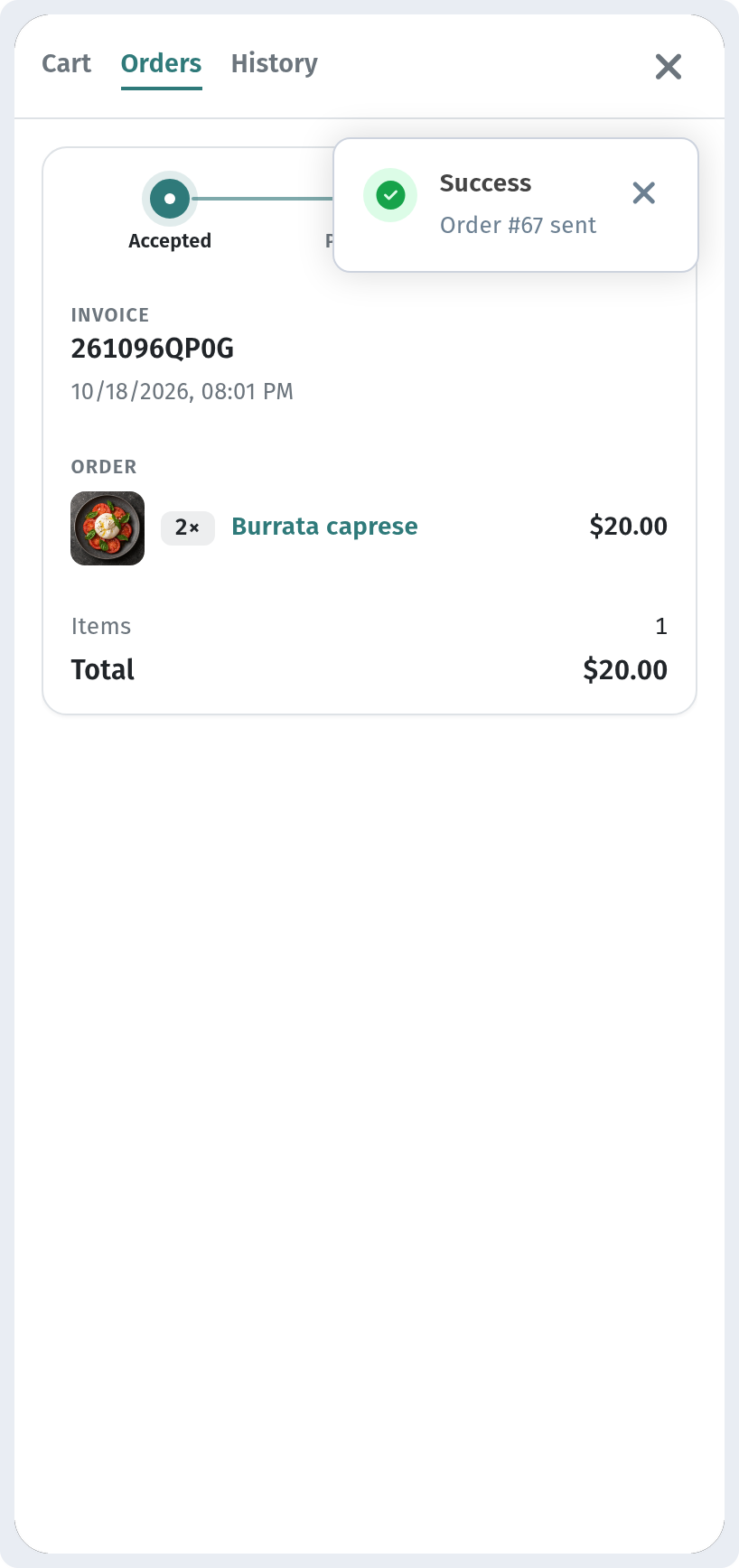
Once the order is accepted, a short Success message pops up with the order number, for example Order #67 sent.
Tracking the status
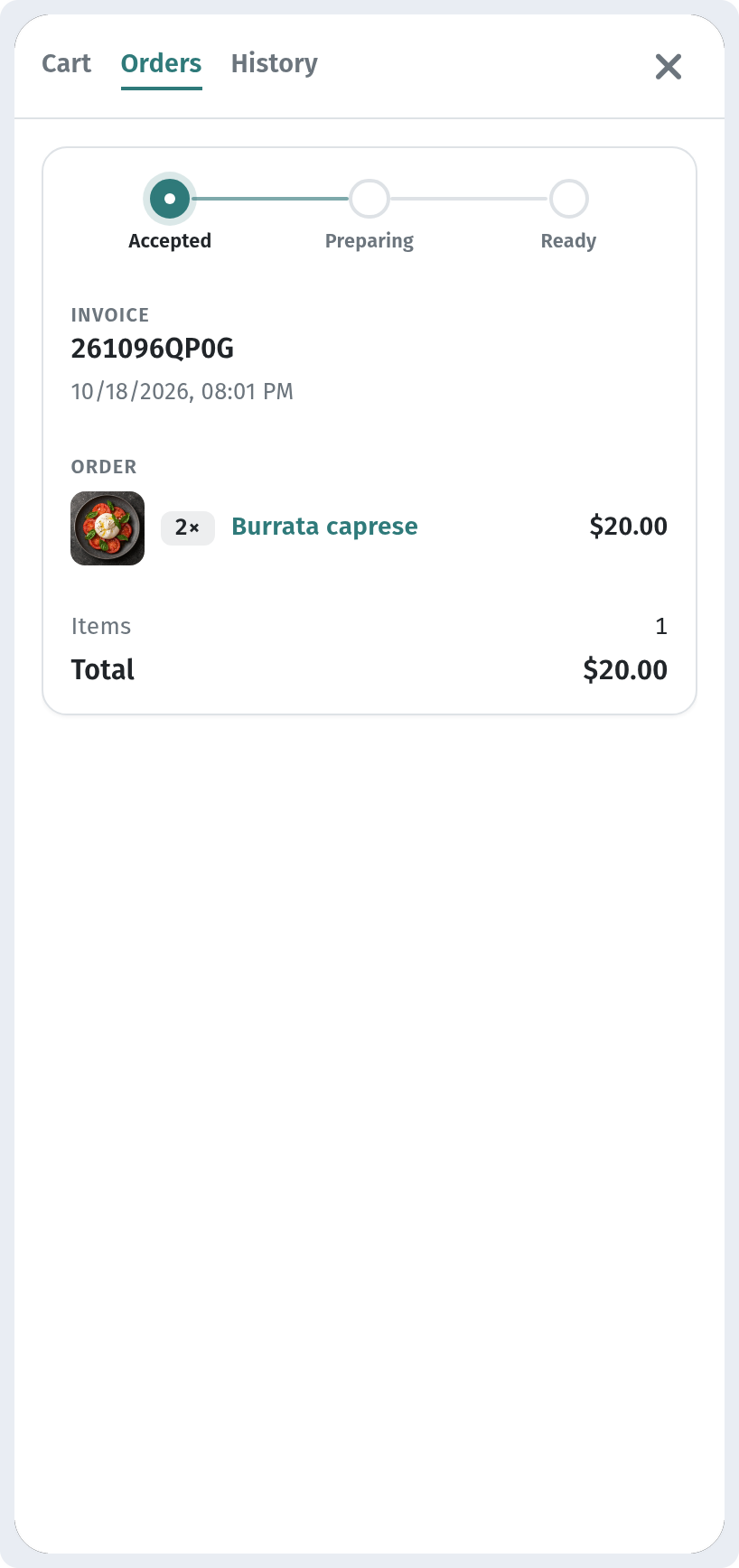
The guest is taken to the Orders tab. Each order has its own card with a progress tracker: Accepted → Preparing → Ready. Below that are the invoice number, the time, the items with quantities, and the total. While the kitchen works on the order, the tracker moves forward, so the guest knows exactly when the food will be ready. Several orders can be shown at once, for example if the guest orders dessert later. Earlier orders can be found on the History tab.
Part 2. The owner side
Where orders appear
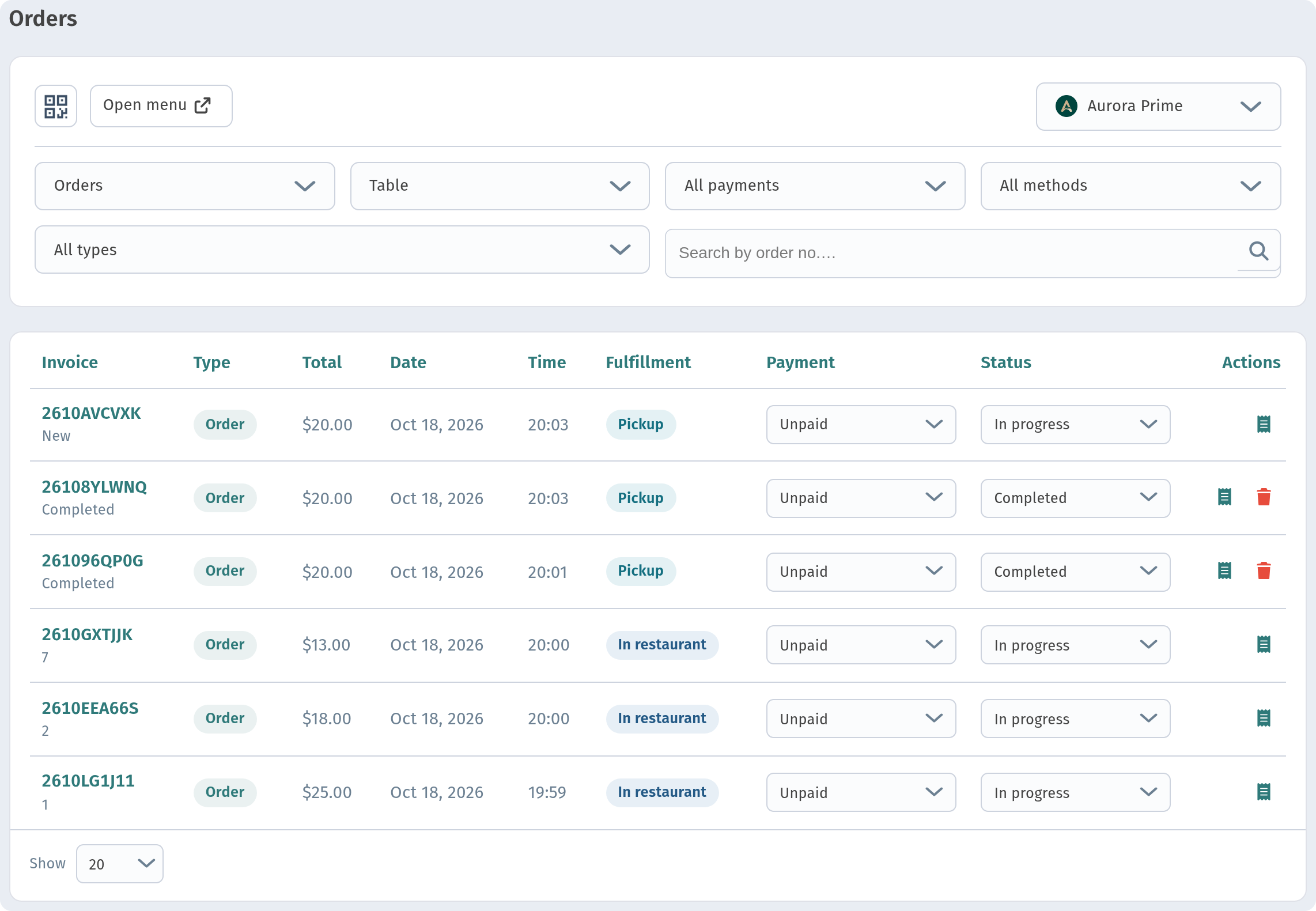
Every new order lands in Orders in the dashboard sidebar. The table shows:
- Invoice: the order number, with a New label on fresh orders.
- Type, Total, Date and Time.
- Fulfillment: how the guest will receive the order, for example Pickup.
- Payment: a drop-down for marking the order as paid.
- Status: a drop-down for moving the order along, for example In progress.
- Actions: a button that opens the order page.
Above the table there are filters for orders, tables, payments, methods and types, plus a search box for order numbers.
The order page
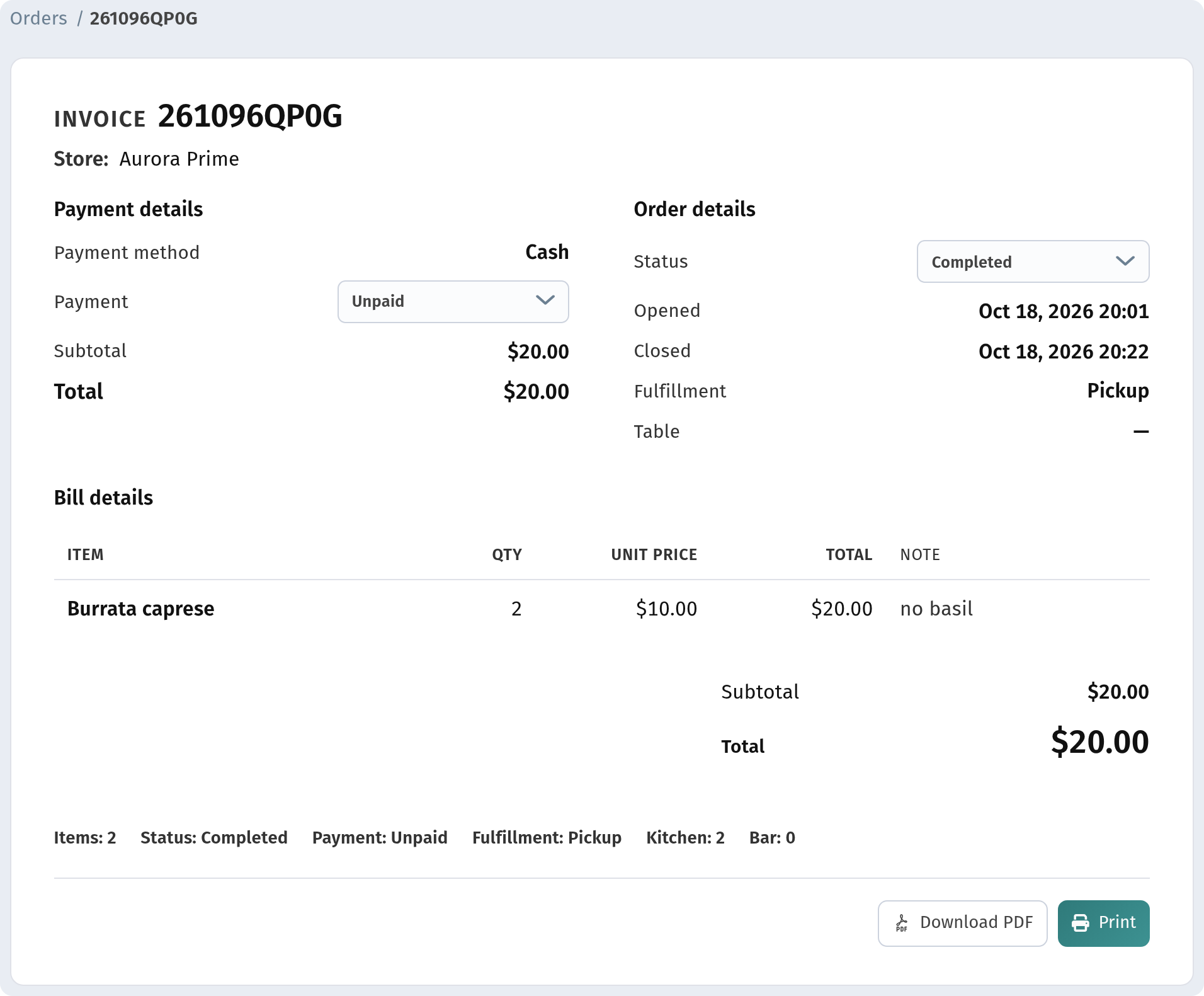
A click on the invoice number opens the full order:
- Payment details: the payment method (Cash in our case), the payment status, the subtotal and the total.
- Order details: the status, when the order was opened, the fulfillment method and the table, if the order came from a table QR code.
- Bill details: every item with its quantity, unit price, line total and the guest's note. The kitchen will see "no basil" right next to the Burrata caprese.
At the bottom are Download PDF and Print buttons, which are handy for the kitchen or for your records.
Settings that turn ordering on
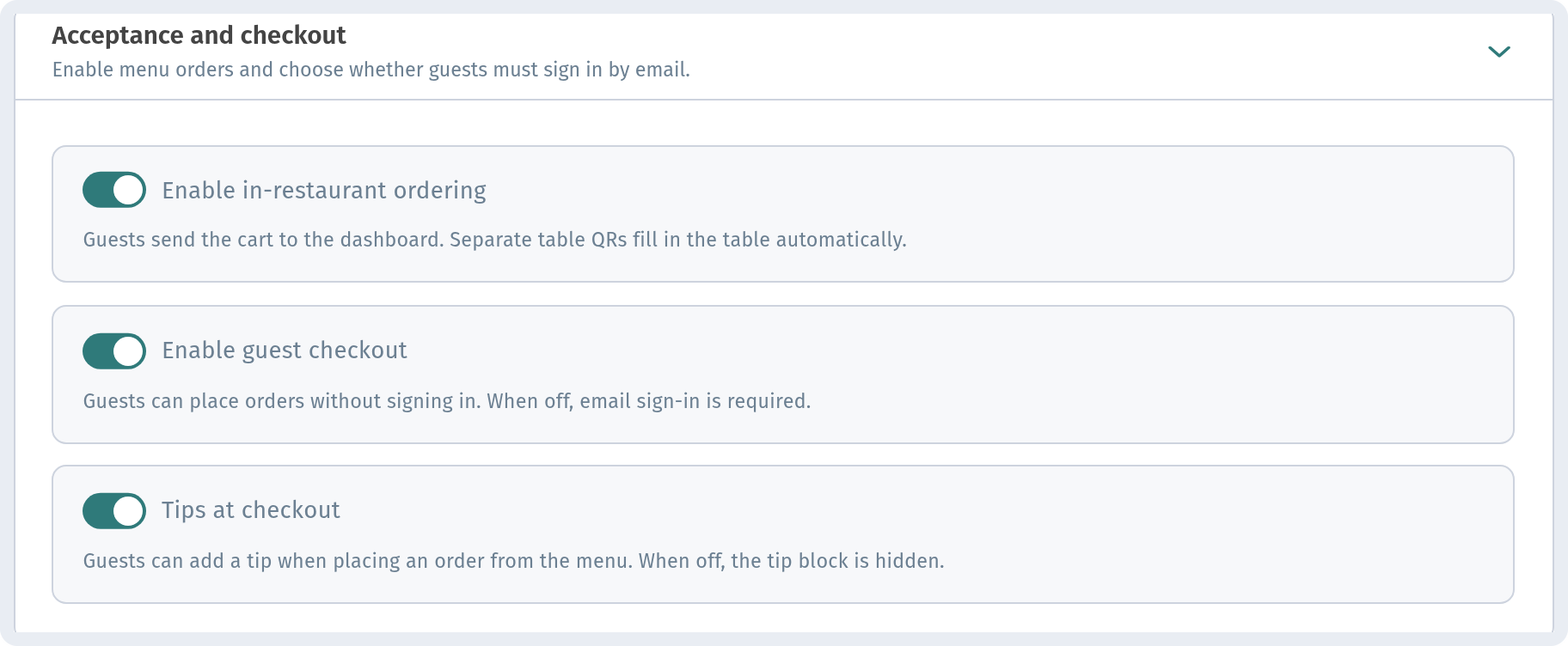
Ordering is set up for each store. Open Stores, choose your store (Aurora Prime for us) and go to the Settings tab. The Acceptance and checkout section has three switches:
- Enable in-restaurant ordering: guests can send their cart to the dashboard. When the menu is opened from a table QR code, the table number is filled in automatically.
- Enable guest checkout: guests can order without signing in. If you turn it off, they will be asked to sign in by email first.
- Tips at checkout: shows the tips block in the cart. If it is off, the block is hidden.
Remember to click Save at the bottom of the page.
Below this section you will also find Order types, Order notifications and GPS & order protection. They let you fine-tune which order types are available, how you get notified about new orders, and whether a guest has to be near the venue to order.
Working hours
Tip: the menu accepts orders only while the store is open. If a guest opens the menu outside your working hours, they can still browse the dishes but cannot send an order. Check your hours before you start taking orders.
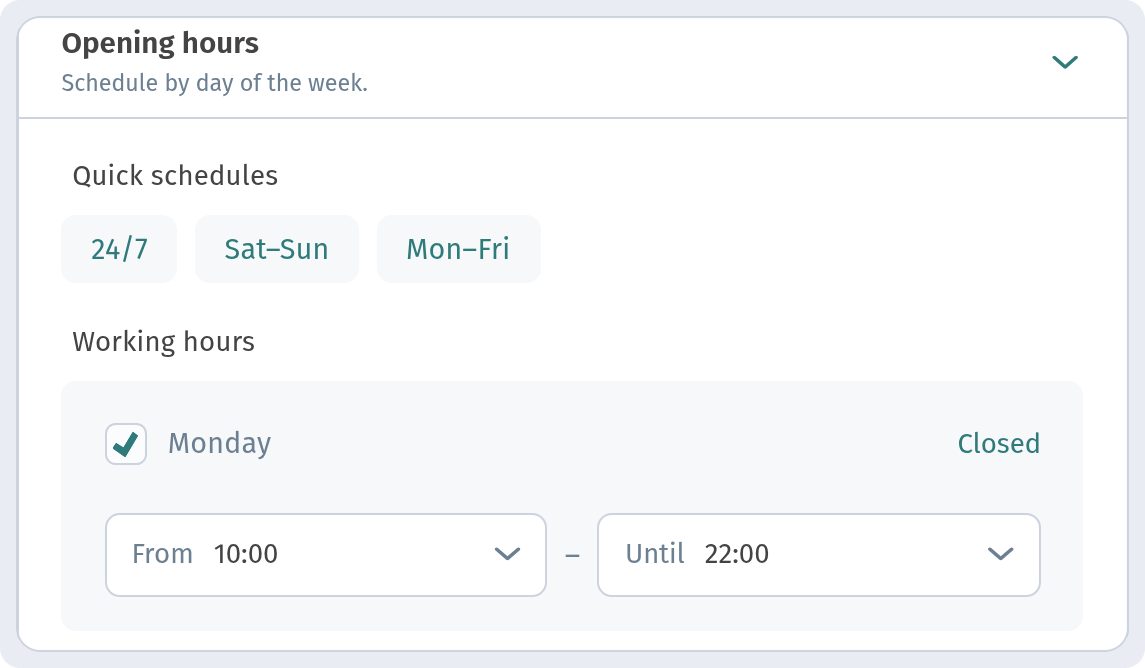
The hours are on the Information tab, under Opening hours. Quick schedules fill in the whole week in one click: 24/7, Sat–Sun or Mon–Fri. Under Working hours you can set your own times for each day using From and Until, untick days you don't work, or mark a day as Closed. In Aurora Prime we set Mon–Fri 10:00–22:00 and Sat–Sun 11:00–23:00.
Menu languages
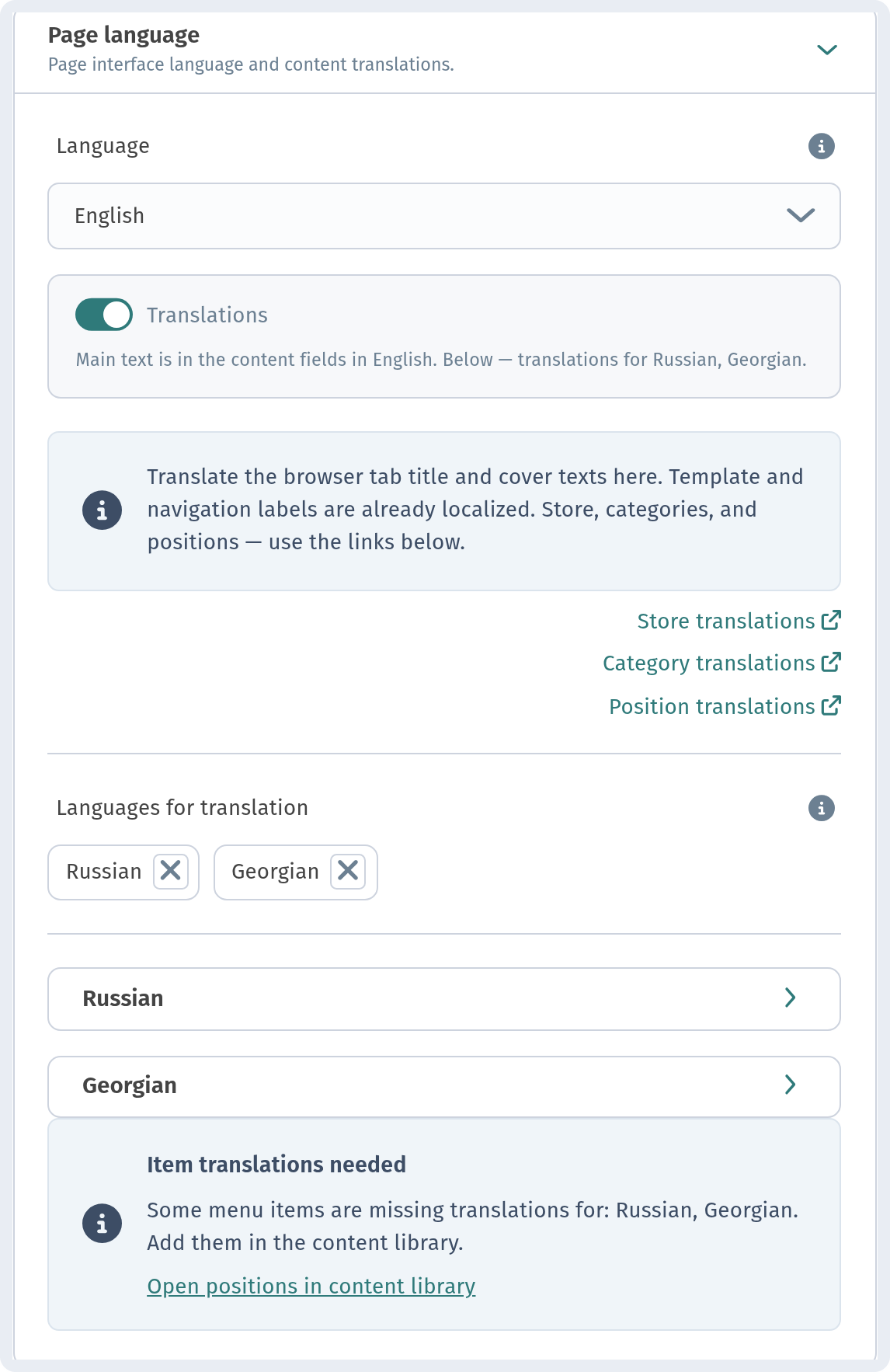
The language list that guests see in the menu is set on the Page layout tab, under Page language:
- Language: the main language of your menu content (English in our store).
- Translations: turn this on to offer the menu in other languages too.
- Languages for translation: add the languages you need. In our store these are Russian and Georgian.
- Store translations, Category translations and Position translations: links to the places where you translate store details, category names and dishes.
Template and navigation labels, such as the buttons, the cart and checkout, are already translated, so you only need to translate your own content.
Summary
- The guest scans the QR code, picks a language and adds dishes to the cart, with notes and the right quantities.
- In the cart they can change quantities, remove items, add a tip, choose delivery or pickup, and place the order.
- The order status is shown on the Orders tab, and the order itself appears straight away in Orders in your dashboard, with every note included.
- To make it all work, turn on ordering and guest checkout under Settings → Acceptance and checkout, make sure your working hours are set, and add the menu languages your guests need.