
Dish photos in WebQRMenu: uploading and making them look good
How to upload dish photos in WebQRMenu, crop them to 4:3, replace them, and shoot food photos that make guests want to order.
Guests choose with their eyes first. A dish with a good photo gets noticed, opened and ordered far more often than a line of text, and a menu where every photo has the same style feels like a real restaurant brand. This guide shows where photos live in WebQRMenu, how to upload and crop them, how to replace them, and how to take dish photos that look appetising on a phone screen.
Where dish photos live
Photos belong to dishes, so you add them in the menu itself. Open Menu content in the sidebar and choose the set you are working on. A set holds your menu sections, such as Starters, Salads or Desserts.
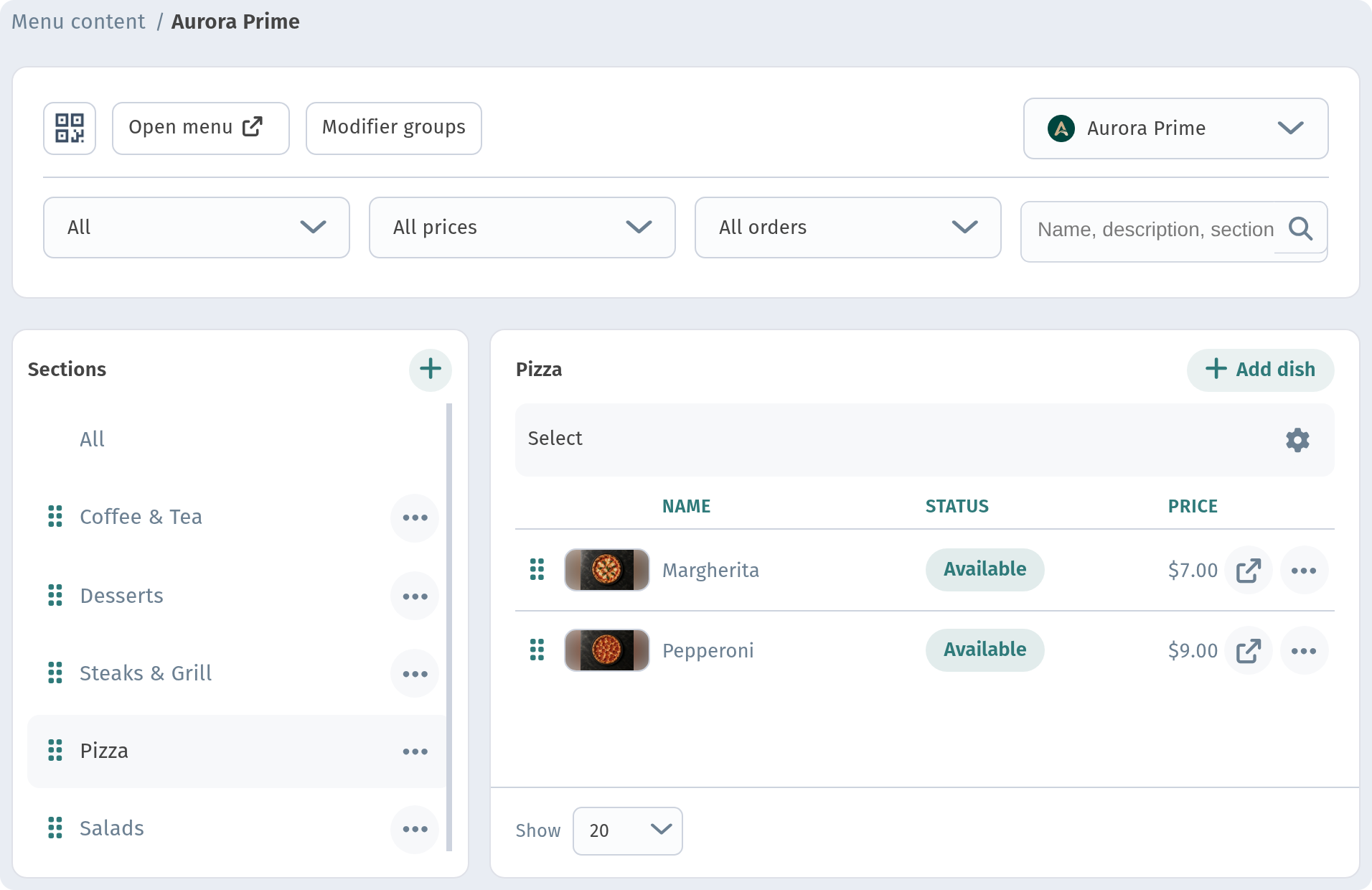
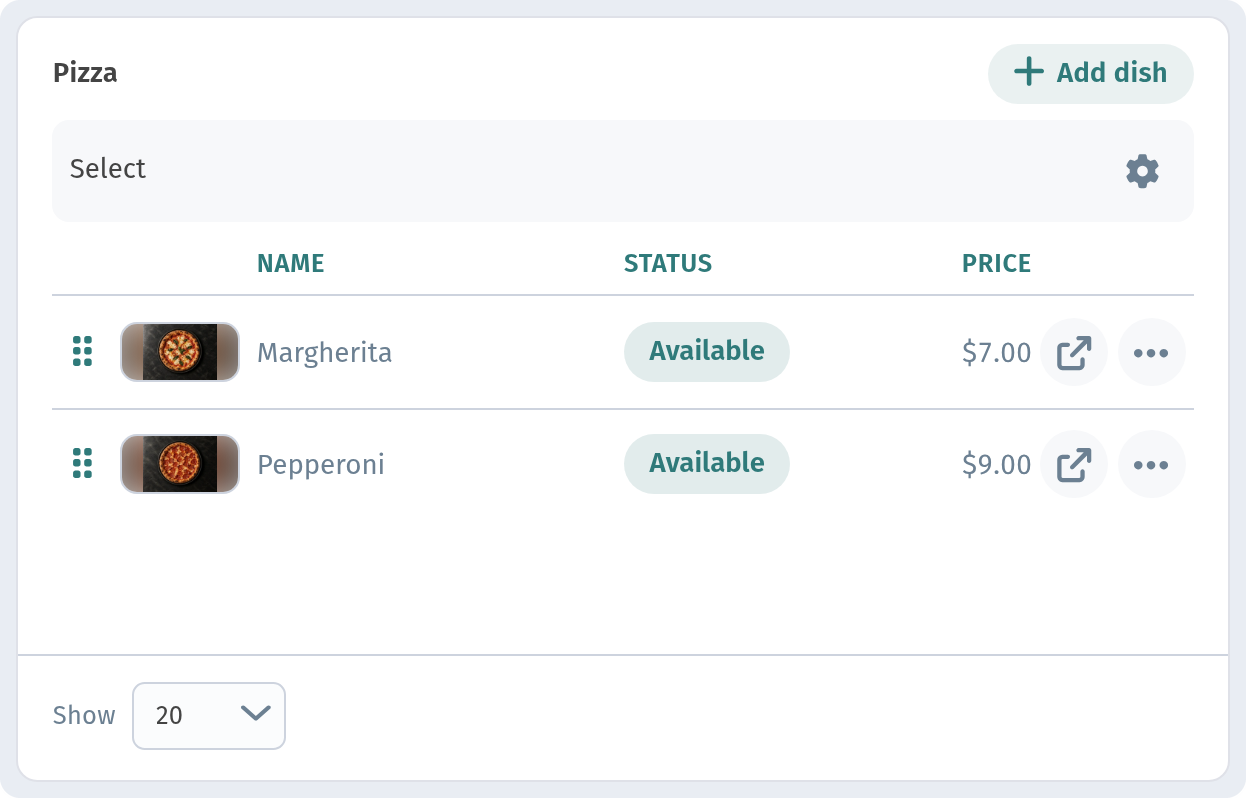
Click a section to see its dishes. Each dish is listed with its name, status, number of orders and price, and the Add dish button sits at the top of the list.
Adding a dish with a photo
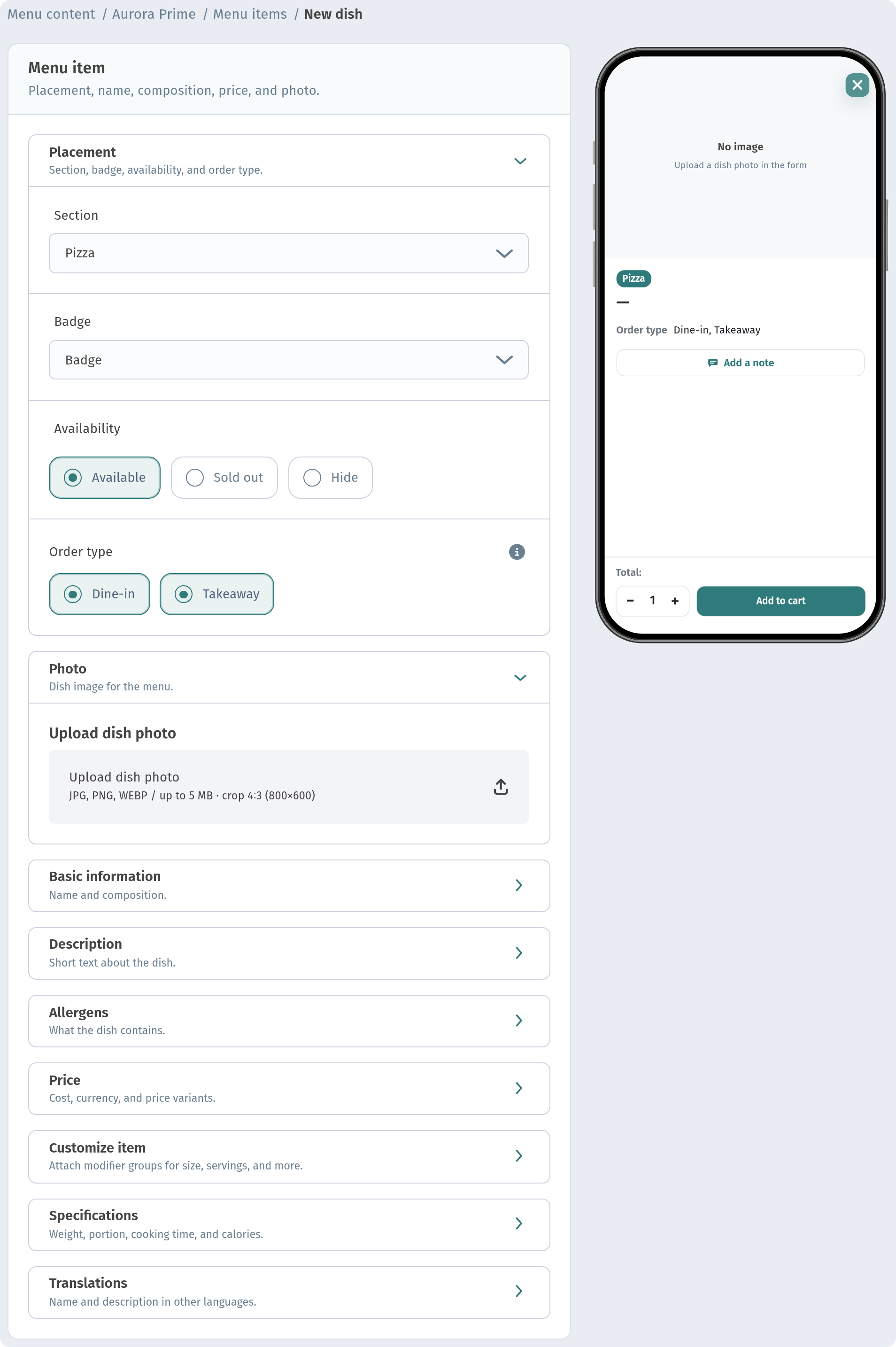
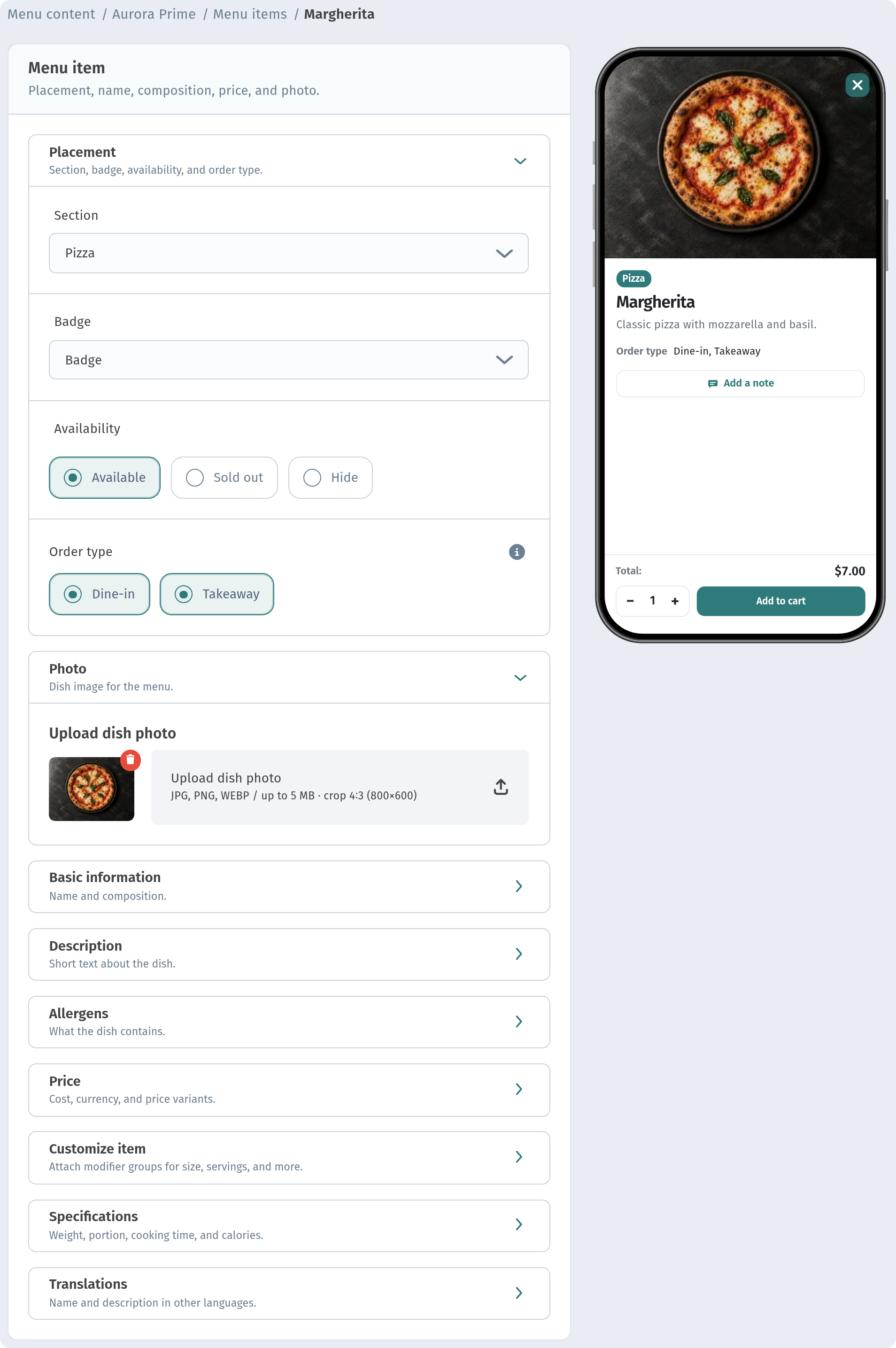
Click Add dish. A full page opens with all the dish settings, grouped into blocks:
- Placement: the section, badge, availability and order types.
- Photo: the dish picture.
- Basic information: the name and composition of the dish.
- Description: a short text about the dish.
- Allergens: what the dish contains, which guests with allergies need to know.
- Price: the cost, currency and price variants, such as sizes.
- Customize item: attach modifier groups for size, servings and extras.
- Specifications: weight / volume, portion, cooking time and calories.
- Translations: the dish in your other menu languages.
On the right, a phone preview shows the dish exactly as a guest will see it, and it updates as you type.
Uploading the photo
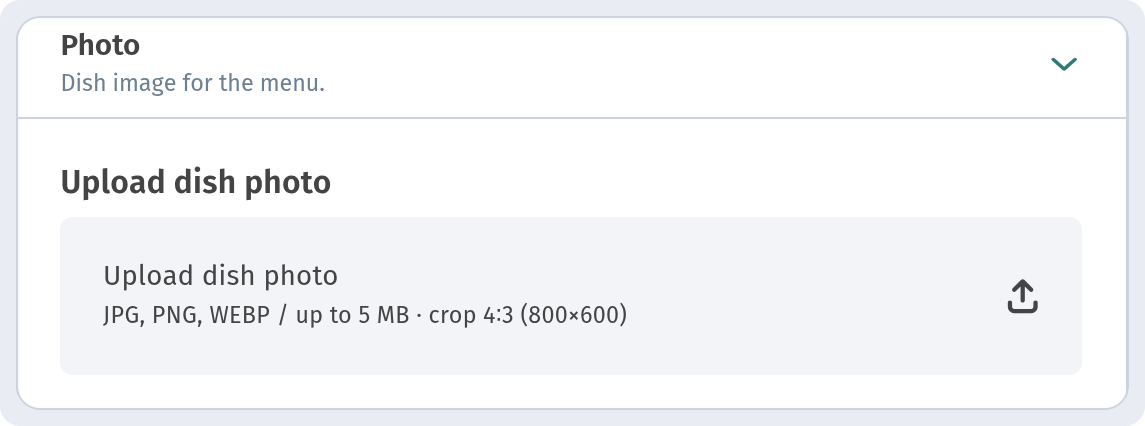
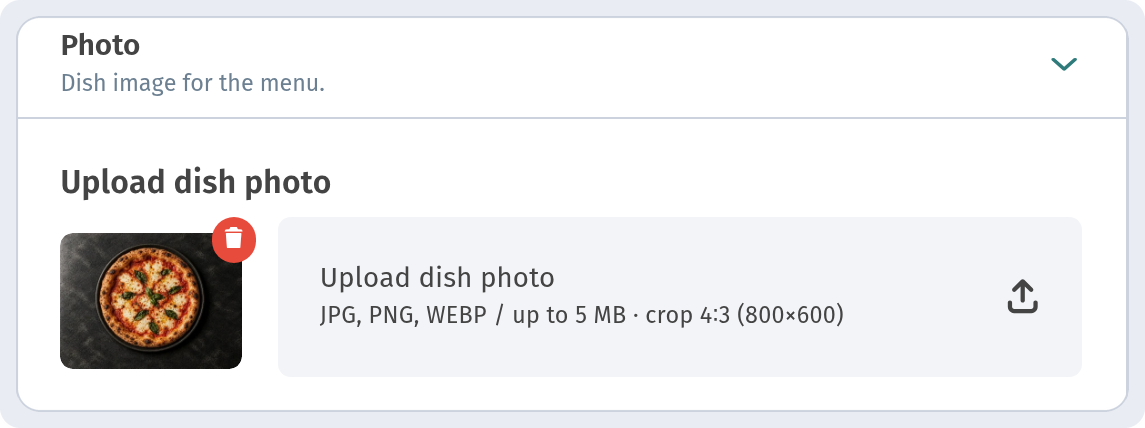
Expand the Photo block (Dish image for the menu). Inside it is the Upload dish photo zone with a short hint: JPG, PNG, WEBP / up to 5 MB · crop 4:3 (800×600). That tells you everything about the file:
- Formats: JPG, PNG or WEBP. For photos, JPG is usually the best choice.
- Size: up to 5 MB per file.
- Shape: the photo is cropped to 4:3 and saved at 800×600, which is the shape of every dish card in the guest menu.
Click Upload dish photo and choose a photo from your computer or phone.
Cropping to 4:3
As soon as you choose a file, a crop window opens with a short reminder: Crop the photo to 4:3 (800 × 600). Drag the frame, then click Apply before saving. Your photo is shown with a dashed frame on top. Everything inside the frame becomes the dish photo; everything outside it is cut off.
The frame always keeps the 4:3 shape, so the photo can never end up stretched or squashed. For a sharp result, use a source photo that is at least 360 pixels on its short side. Larger is better. If the photo is smaller, WebQRMenu warns you: “Image too small for a sharp card”.
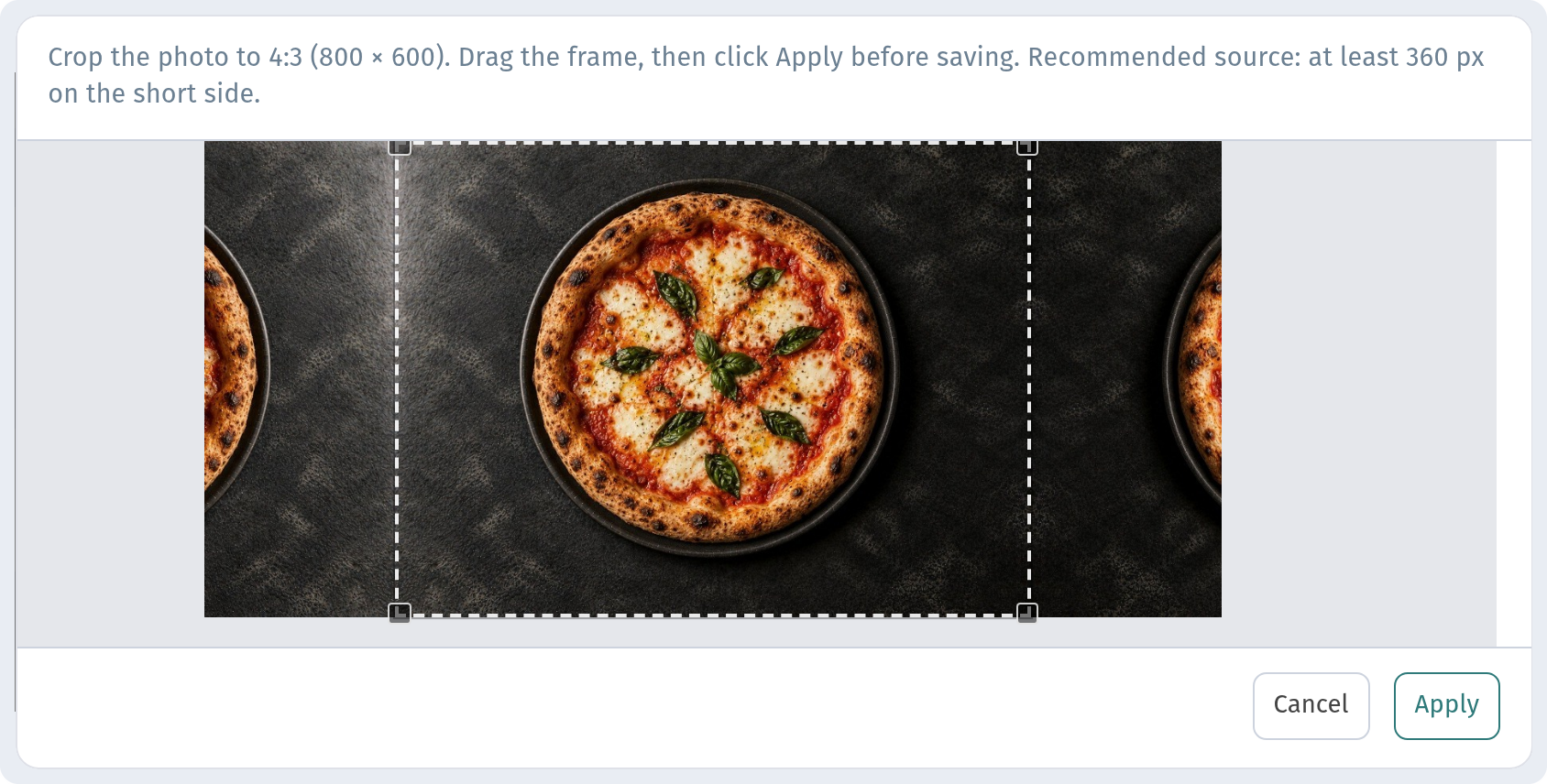
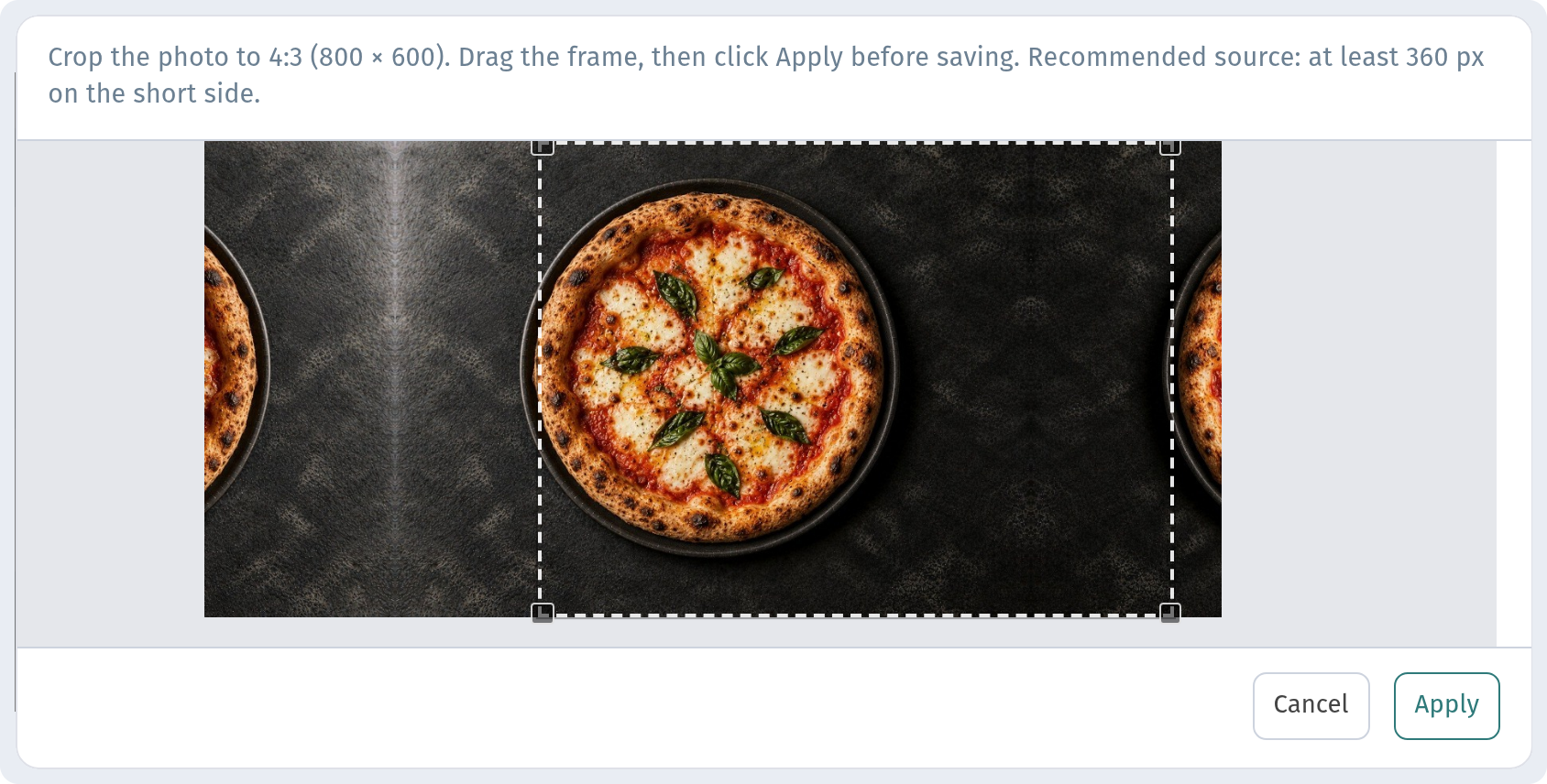
Move the frame to place the dish where you want it, and drag its corners to make it bigger or smaller. A few tips:
- Keep the whole plate, or at least its most attractive part, inside the frame.
- Leave a little air around the dish so it doesn't touch the edges.
- Put the dish in the centre, or slightly off-centre if there is a nice garnish or drink beside it.
When you are happy with the frame, click Apply. Cancel closes the window without changing anything. Remember to click Apply before you save the dish.
Checking the result
After Apply, a thumbnail of the cropped photo appears in the Photo block, and the phone preview on the right updates straight away. This is the moment to check how the dish really looks on a small screen: is it recognisable, bright enough and nicely framed?
Fill in the rest of the dish details and click Save.
Replacing a photo
To change the photo of an existing dish, open it from the section list with ⋯ → Edit and expand the Photo block. The current photo is shown as a thumbnail, and next to it is the Delete button. Click it to remove the photo, then upload the new one and crop it in the same way. Save the dish, and the new photo appears in the guest menu at once. There is no need to reprint any QR codes.
How guests see your photos
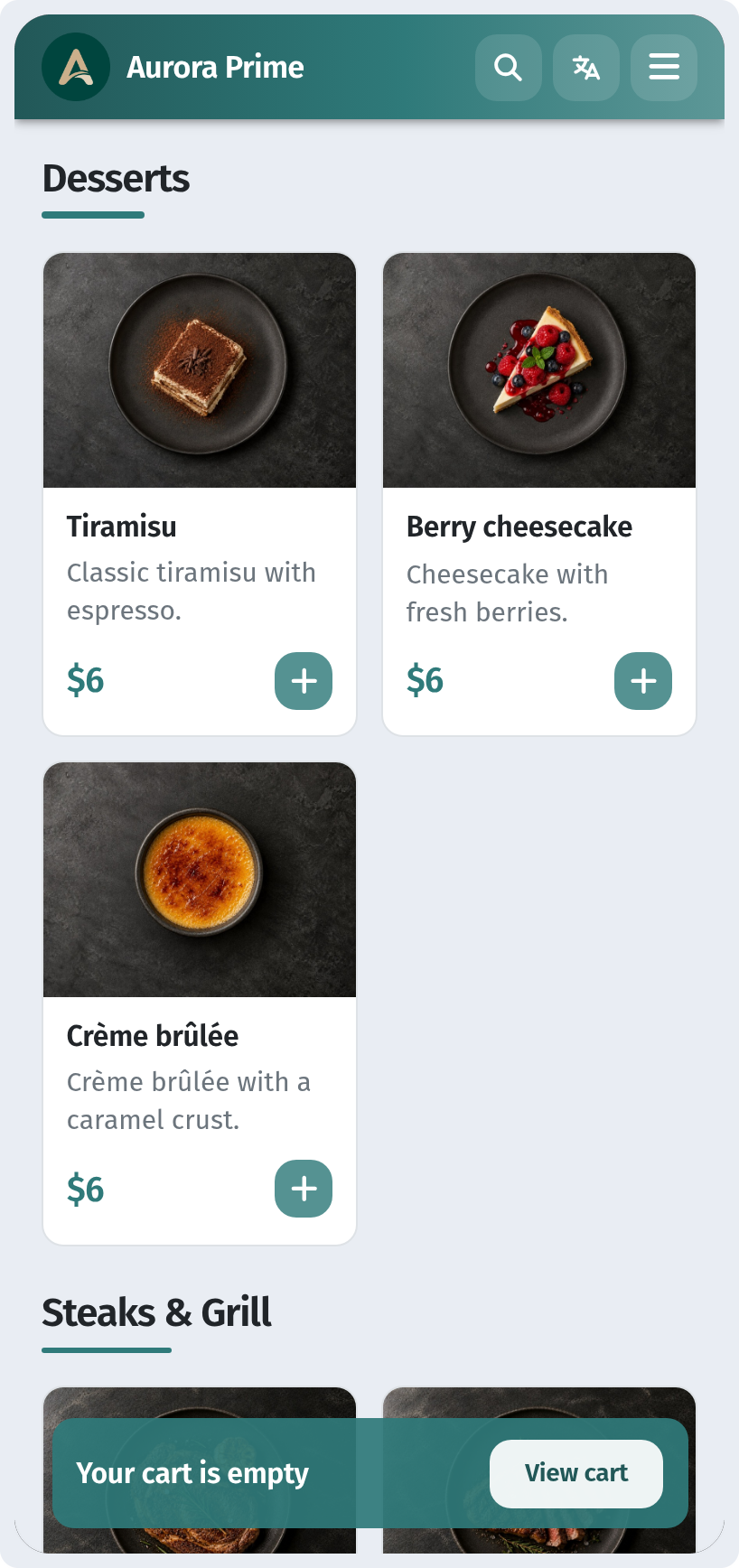
Open the menu on a phone, the way your guests do. Dishes appear as cards with the photo on top, which is why the 4:3 shape matters: it fills the card neatly in every section.
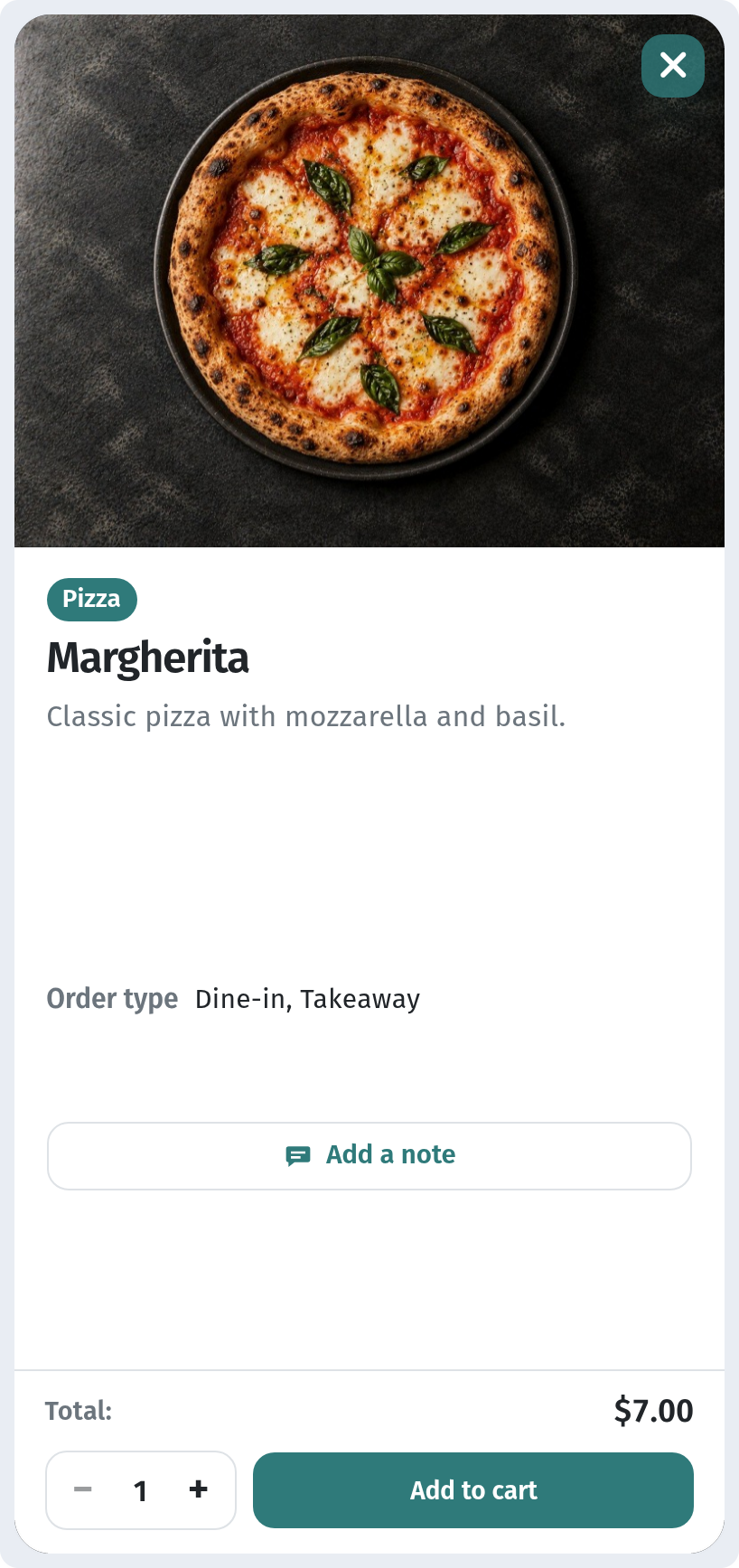
When a guest taps a dish, the photo is shown larger, together with the description, ingredients and price. A sharp, well-lit photo really pays off here.
In the menu, the guest scrolls through each category card by card. When all photos have the same light, angle and background, the category looks calm and professional instead of patchy.
How to shoot dish photos that sell
You don't need a studio. A modern phone and a few simple rules are enough.
Light. Shoot by a window in daylight, with the light coming from the side or slightly from behind the plate. Turn off the flash and avoid mixing daylight with warm ceiling lamps. If the light is too harsh, hang a thin white curtain or put a sheet of baking paper in front of the window.
Angle. Flat dishes such as pizza, salads, bowls and boards look best from directly above. Tall dishes such as burgers, cakes and drinks look best from the side, at roughly 30–45 degrees. Pick one angle for each type of dish and stick to it.
Background. Use a calm, neutral surface: wood, stone, linen or a plain table. Remove extra objects, napkins and phones. One small prop, such as cutlery, herbs or a glass, is enough.
Consistent style. Use the same plates, the same surface and the same time of day for the whole menu. Consistency matters more than any single perfect photo.
Leave space for the 4:3 crop. Frame the shot a little wider than you need, with some space around the plate. Then you can move the crop frame freely without cutting off part of the dish. Shooting in landscape orientation helps.
Fresh food. Photograph dishes immediately after plating. A drop of oil makes salads and grilled food look fresh, and a little steam or a fresh garnish adds life.
Honest photos. Show the real portion and the real plating. Guests should receive what they saw in the menu.
File size. Modern phones produce large files, often over 5 MB, especially PNG or HEIC. Before uploading, export or convert the photo to JPG and reduce it to around 1600–2000 pixels on the long side. The file will easily fit under 5 MB and still be perfectly sharp after cropping to 800×600. Any free image editor or online compressor can do this.
A photo for your logo too
Your venue's logo is uploaded separately: open your store, go to the Page layout tab and find the Logo block. The logo is uploaded as a PNG; a square image of about 400×400 px works best. A logo with a transparent background (PNG) looks best on the menu header.
Conclusion
Good photos are one of the easiest ways to make a QR menu sell more. Upload each photo in the dish's Photo block, frame it in the 4:3 crop window, click Apply, and check the phone preview before saving. Shoot all dishes in the same light and style, leave room for the crop, and keep files under 5 MB. Your menu will look appetising and consistent on every guest's phone.