
Analytics in WebQRMenu: QR scans, guests and orders
How to read WebQRMenu analytics: QR code scans and unique guests, periods and charts, geography, devices, CSV export, timezone settings and order analytics.
A QR menu does more than replace paper. Every time a guest points a phone at your code, WebQRMenu records the scan, so you can see how many people open your menu, when they do it, where they are and what devices they use. This guide walks through every analytics screen, filter and setting, and ends with practical ways to turn the numbers into decisions.
A quick look on the Overview
The first numbers are waiting on the Overview page. Its activity section has two blocks: Orders and QR code scans. Each one shows Today, Yesterday, 7 days and 30 days with a small chart. Today and Yesterday are drawn hour by hour, 7 and 30 days day by day, and the note under each block tells you when the figures were last updated.
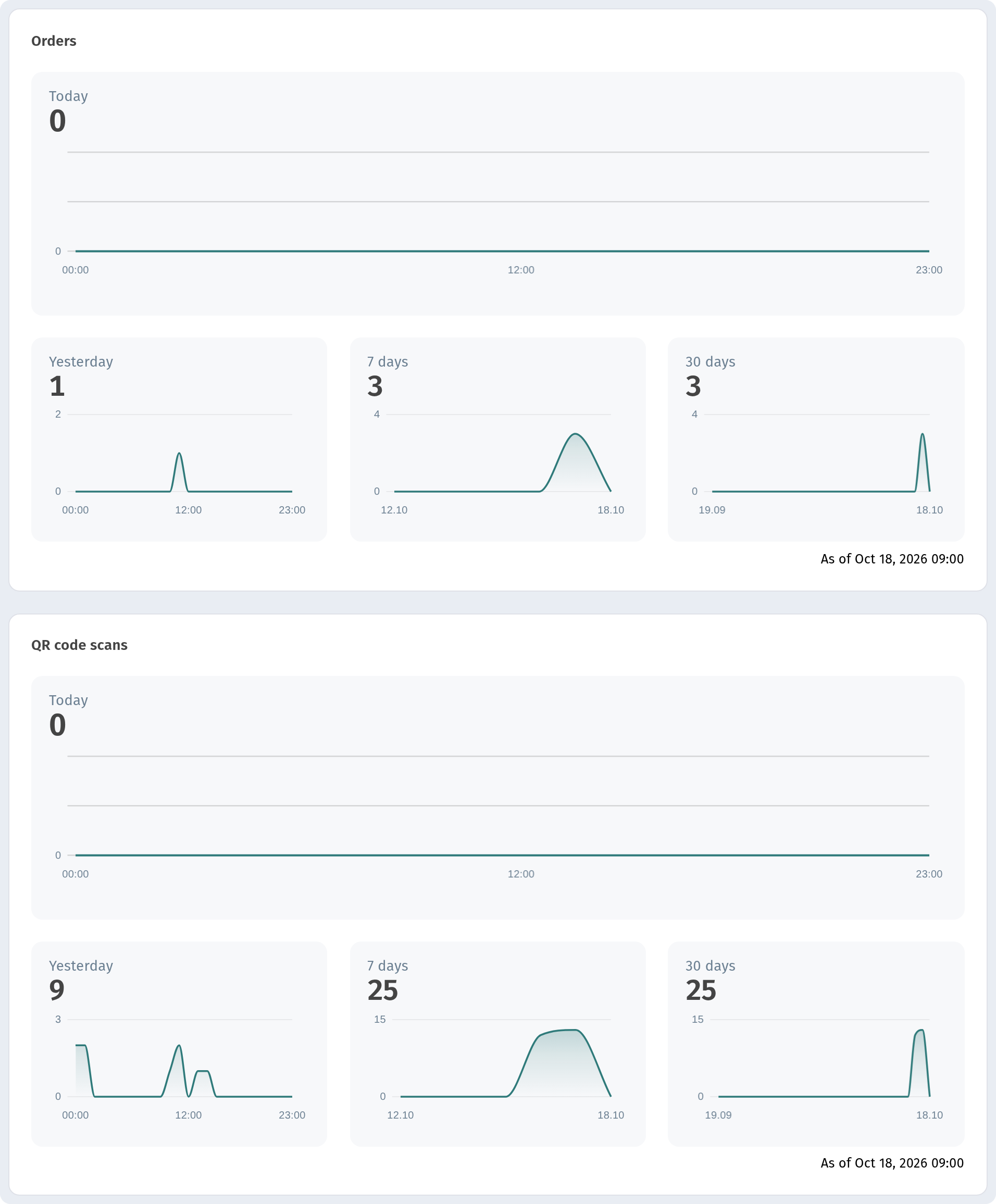
Seeing orders and scans together is the quickest way to tell whether guests who open the menu also end up ordering. For details, go to the full reports.
Scans analytics: the main report
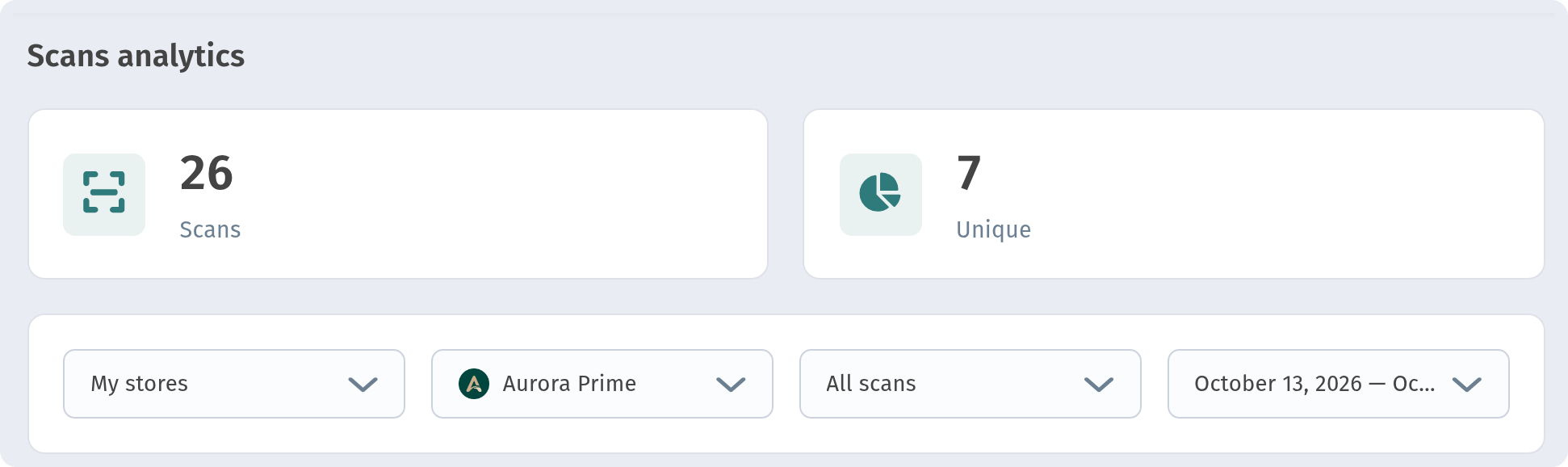
Open Analytics → Scans analytics in the sidebar. At the top are two totals for the selected period:
- Scans: how many times your QR codes were scanned.
- Unique: how many different guests (devices) did it. If one guest opens the menu three times, that is three scans but one unique guest.
Below the totals are three filters: the store, the scan source and the date range. Every block on the page follows them.
Choosing the period
The period field is on the right. Click it to pick one of the ready options: Last 7 days, Last 12 months, All time or Custom range. Every block on the page, the totals, the chart, the table, geography and devices, follows the period you choose.
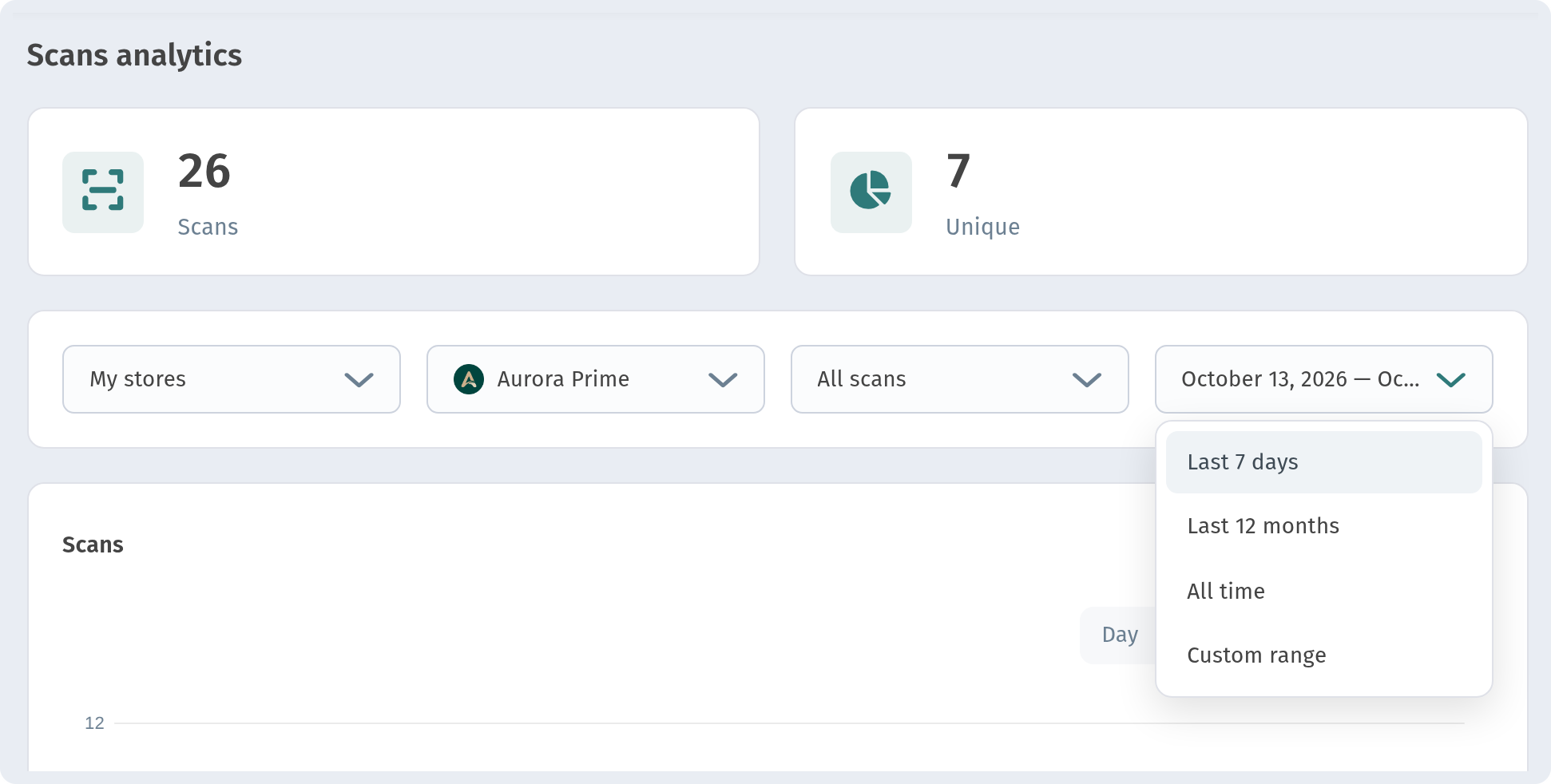
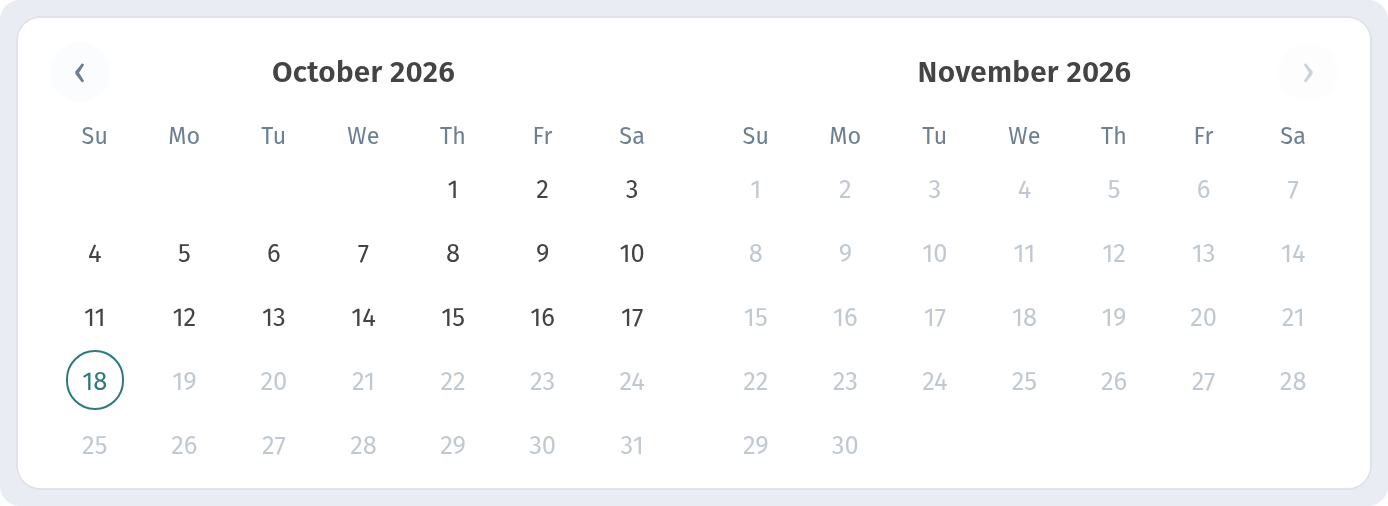
Custom range opens a calendar with two months side by side. Click the first day, then the last day of the range, and apply it. This is how you look at a specific week, a holiday weekend or the days after an event.
Scan source: main link or table QR codes
The field on the left chooses which scans to count:
- All scans: everything together.
- Main: scans of your store's main QR code and menu link, for example the code at the entrance, on flyers or on your website.
- Tables: scans of the QR codes placed on individual tables.
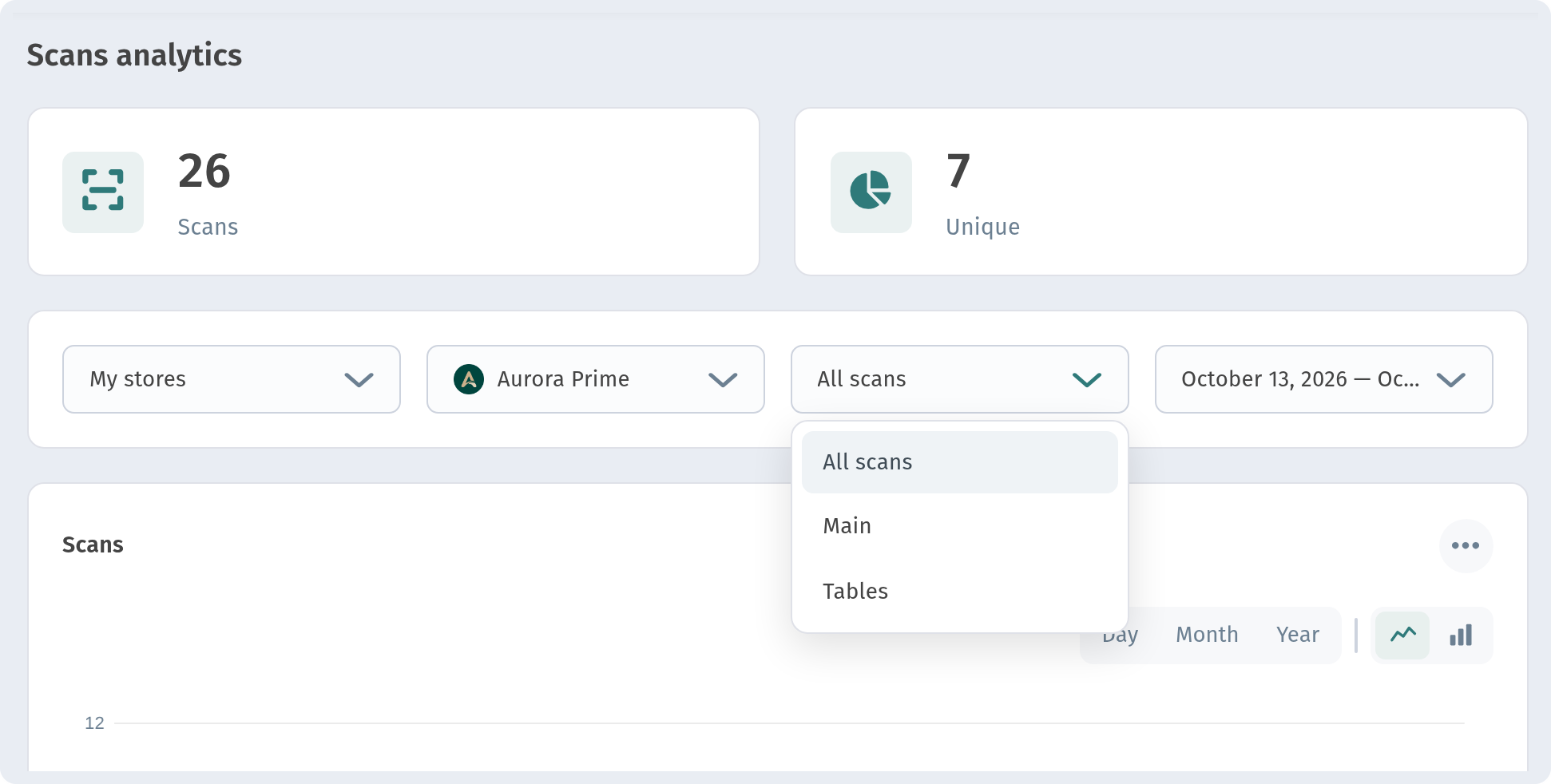
Switch to Tables to see how many guests open the menu right at the table, and to Main to see how well your other placements work. The totals, the chart and all the breakdowns below update for the selected source.
Timezone: make the days line up with your opening hours
Analytics is grouped by days and hours, so it matters which timezone the system counts in. If you haven't confirmed one yet, a banner above the chart says "You can set a timezone" and shows the current one, for example GMT+4 (Tbilisi, Dubai, Baku). Click Accept if it is right, or Change to open Settings and choose another one.
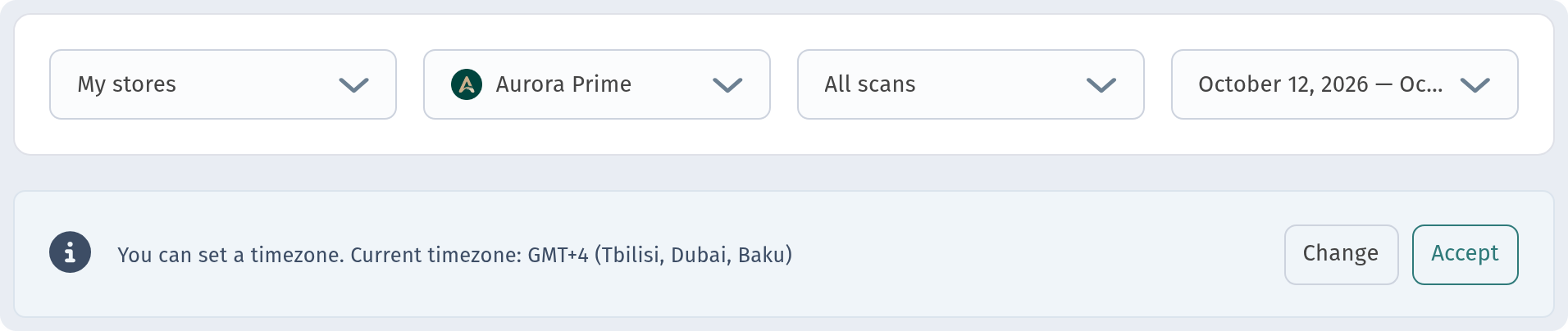
Choose the timezone where your venue is. Then a late-evening scan counts towards the right day, and the hourly charts match your real working hours.
The scans chart
The chart shows how scans change over time. Two sets of controls sit above it.
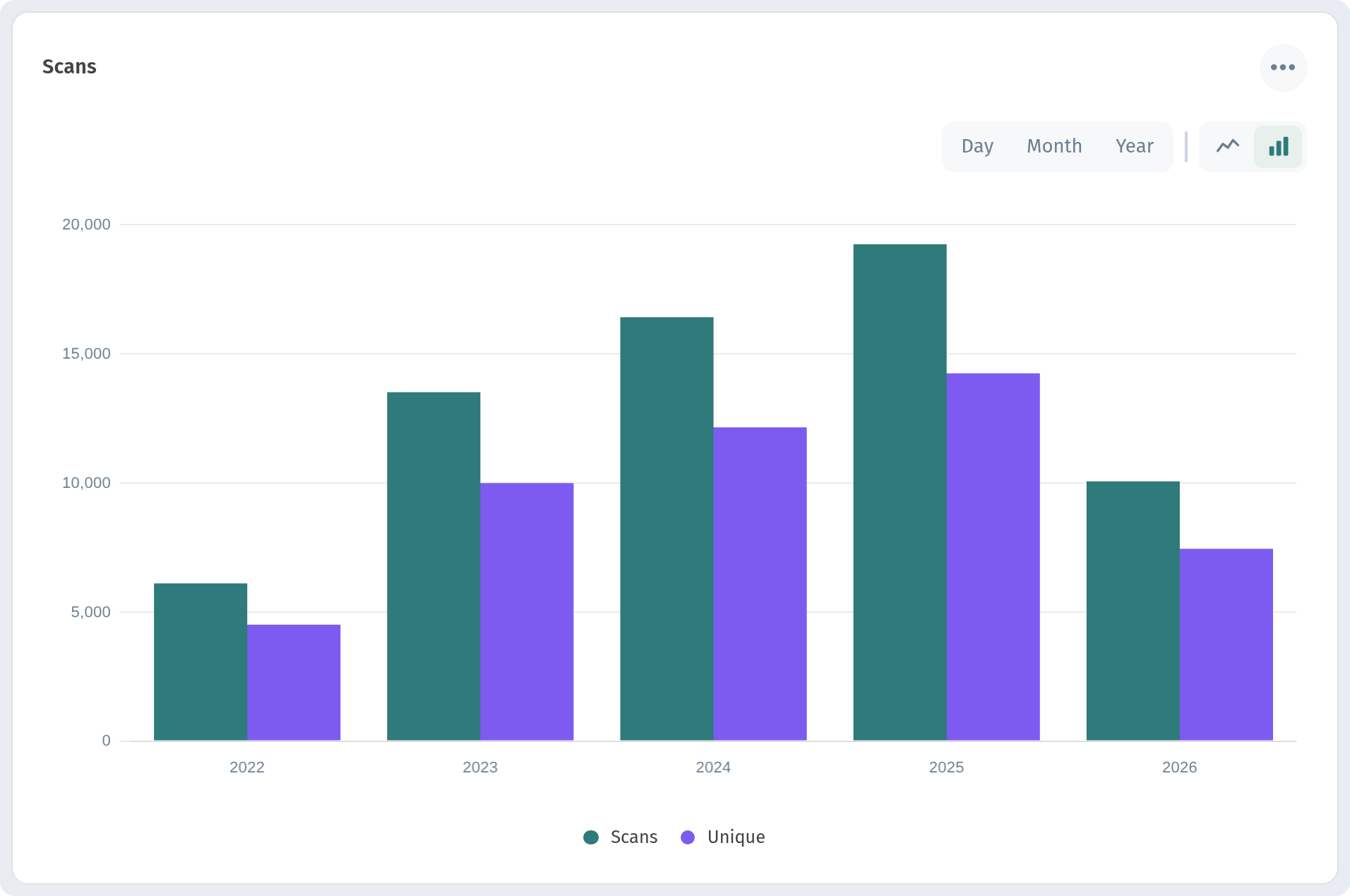
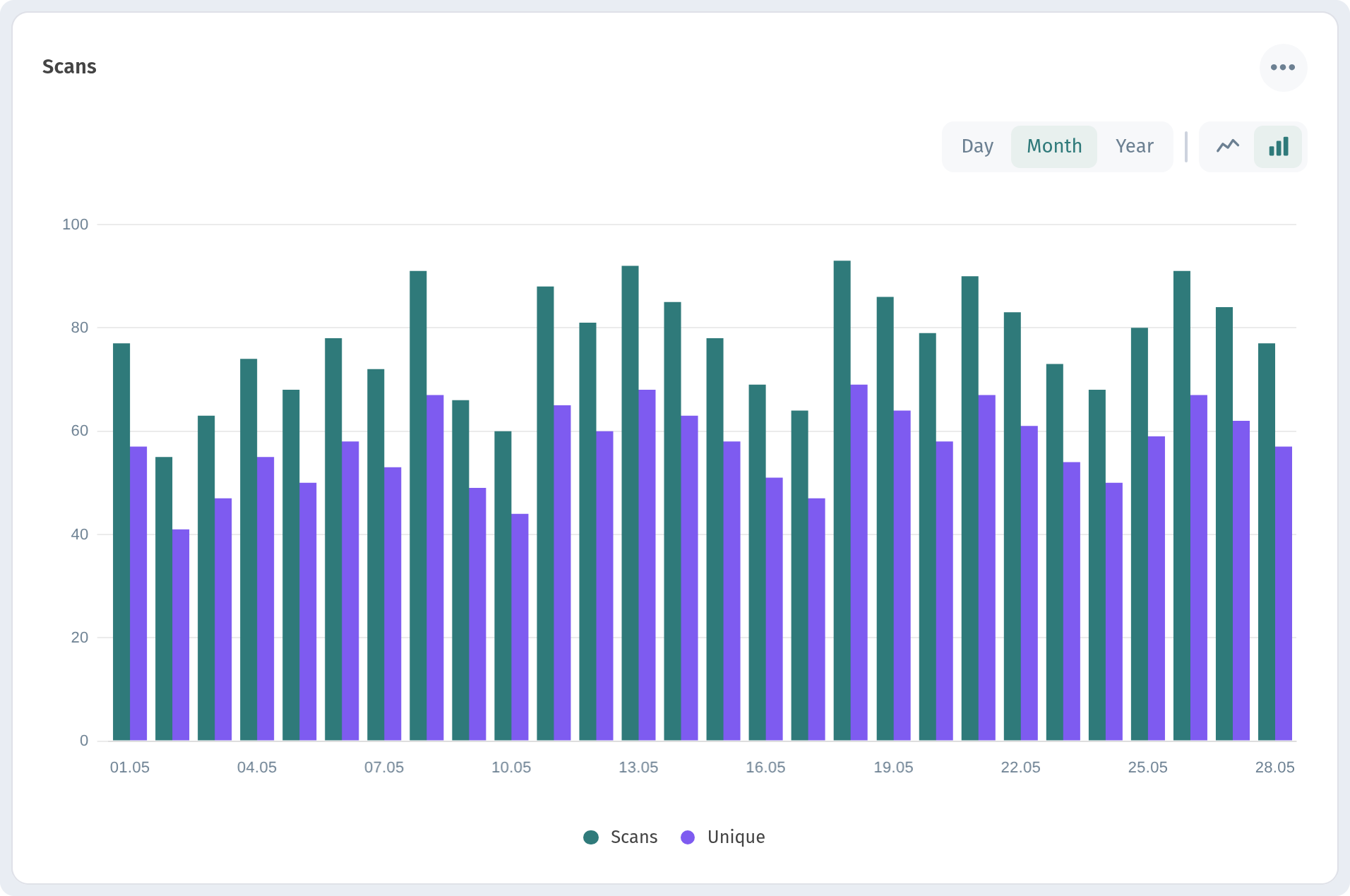
Day, Month and Year set how the data is grouped. Day is best for a week or a month, when you want to see each day separately. Month and Year suit long periods such as Last 12 months or All time.
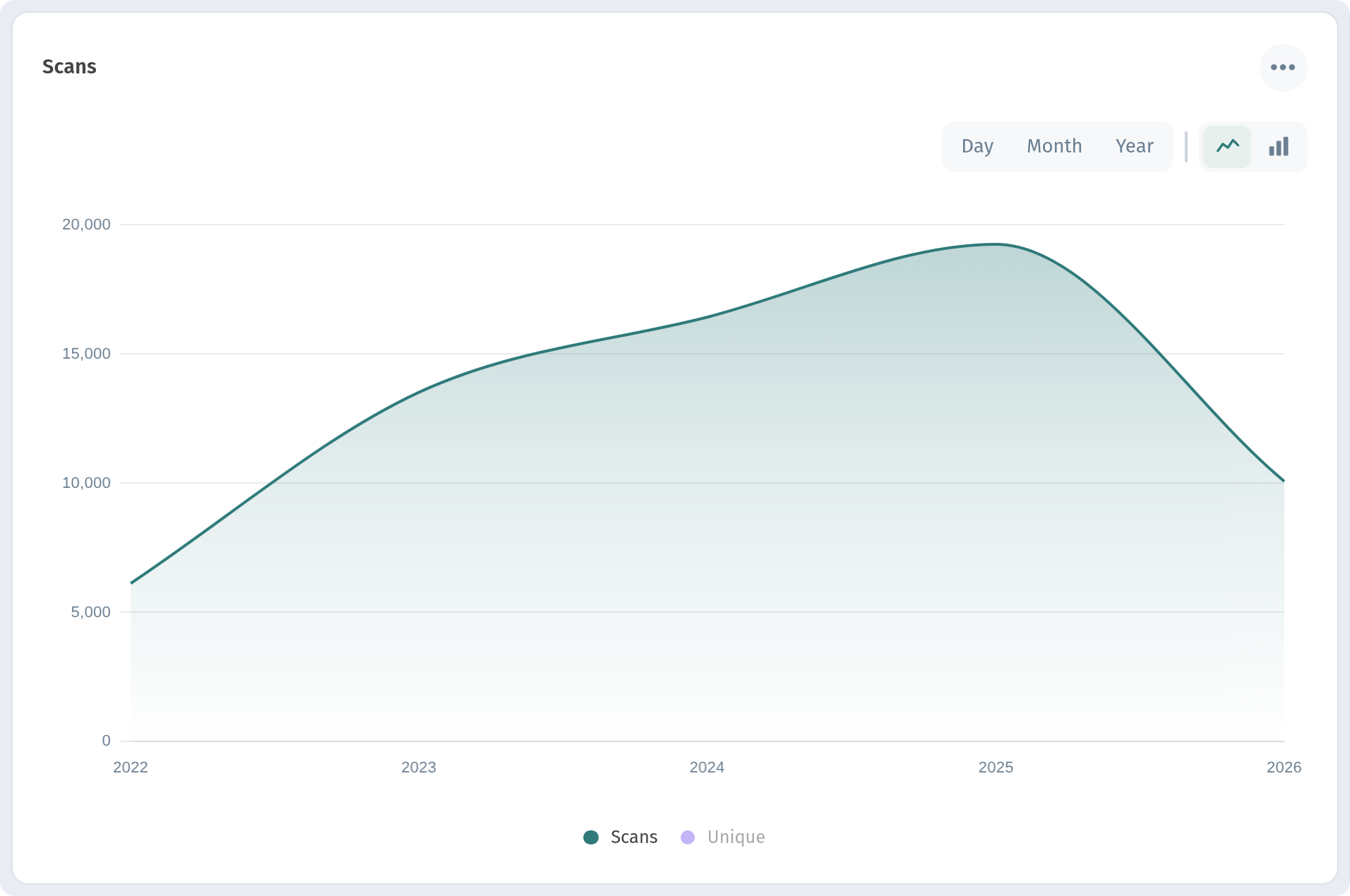
The two icons on the right switch the chart type: Lines shows a smooth trend and is good for spotting growth or decline.
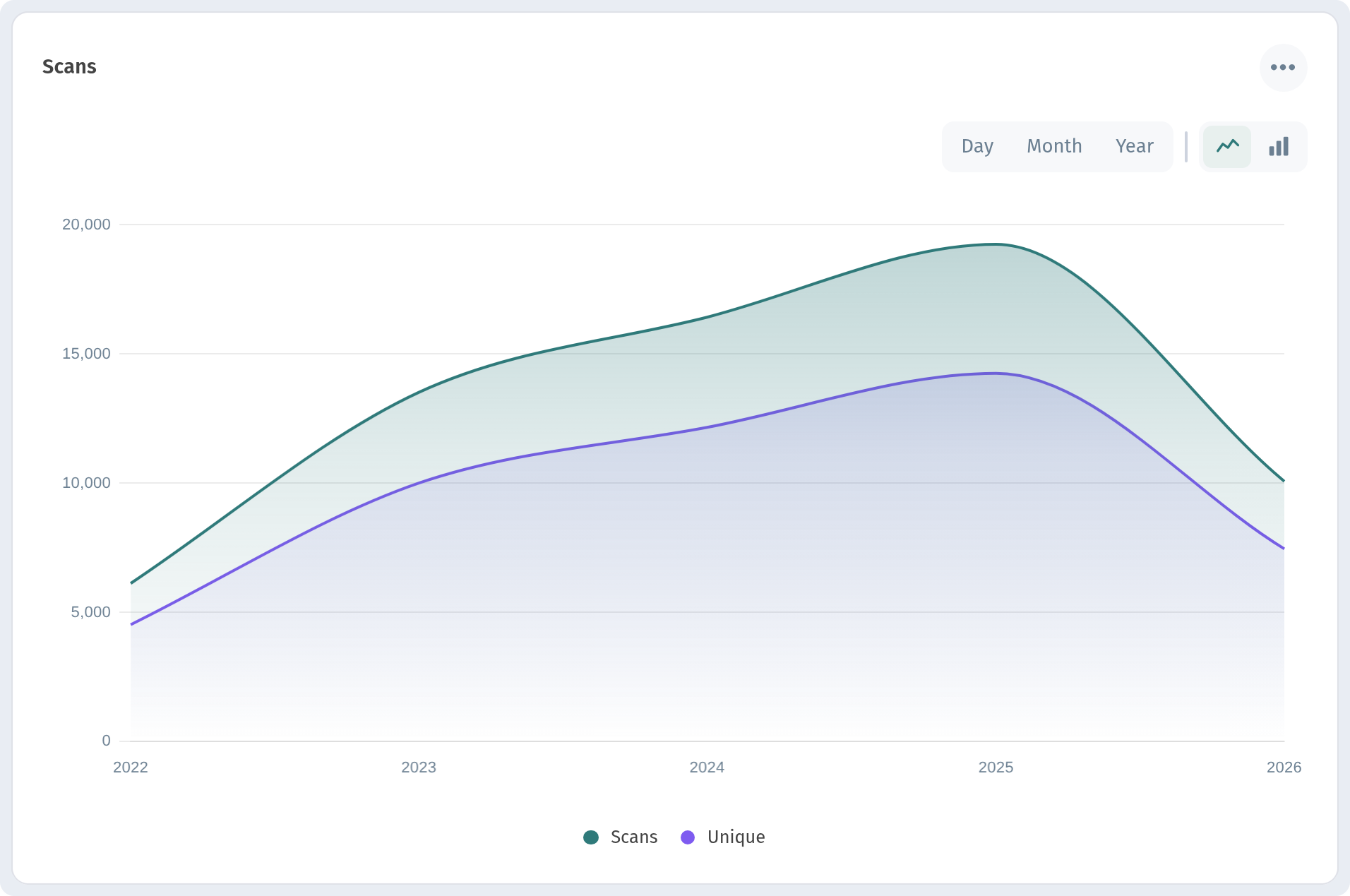
Bars shows each day or month as a separate column, which makes it easier to compare individual days with each other.
Here is the same data grouped by Month:
Showing or hiding Scans and Unique
The chart has two series: Scans and Unique. Click a series name in the legend under the chart to hide it, and click again to bring it back. A hidden series turns grey. This helps when one line covers the other or when you want to focus on one number only.
The ⋯ button in the chart corner opens a menu with SVG Download, PNG Download and CSV Download, so you can save the chart or its data and add it to a report or a presentation.
Detailed Statistics and CSV export
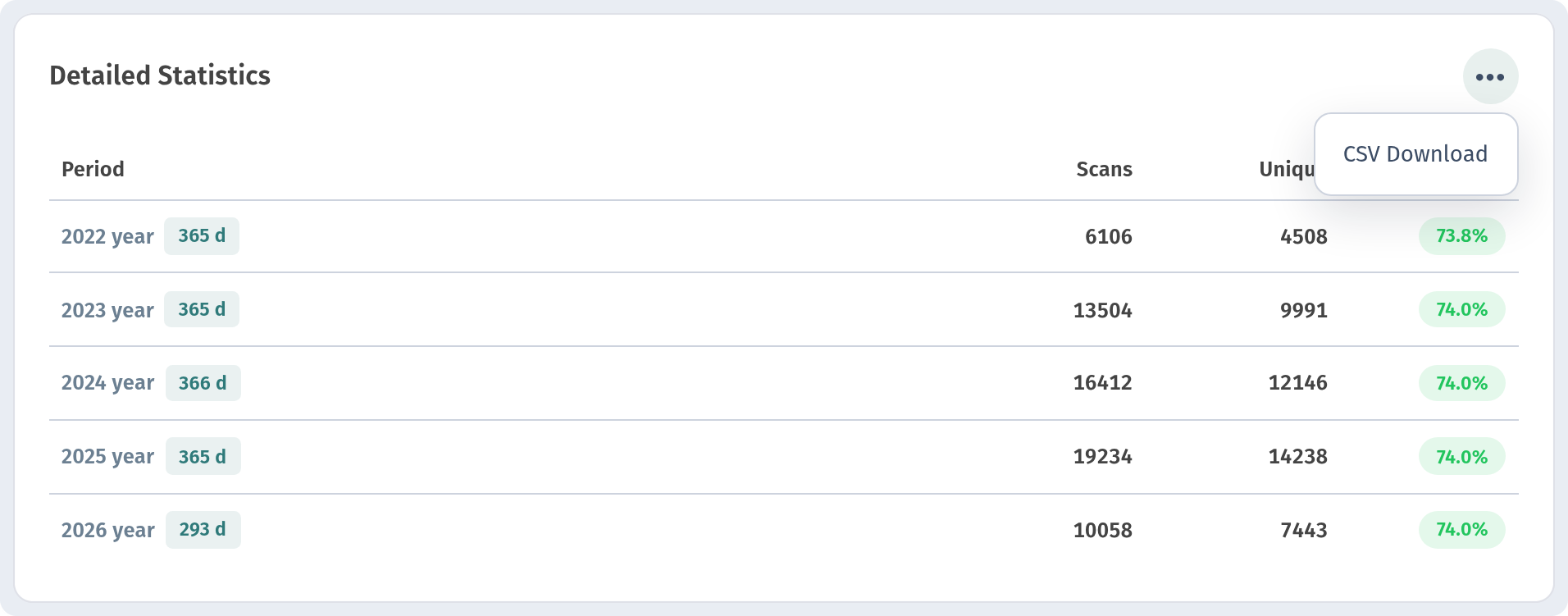
Under the chart, Detailed Statistics shows the same data as a table: Period, Scans, Unique and Conversion.
Conversion is the share of unique guests among all scans (Unique ÷ Scans). The closer it is to 100%, the more of your scans come from different people. A low value means the same guests open the menu again and again, for example to check prices before ordering a second round.
To work with the numbers in Excel or Google Sheets, click ⋯ next to the table title and choose CSV Download. CSV export is available on the Premium plan and above. Starter keeps 7 days of analytics history and has no CSV export.
Geography: where your guests are
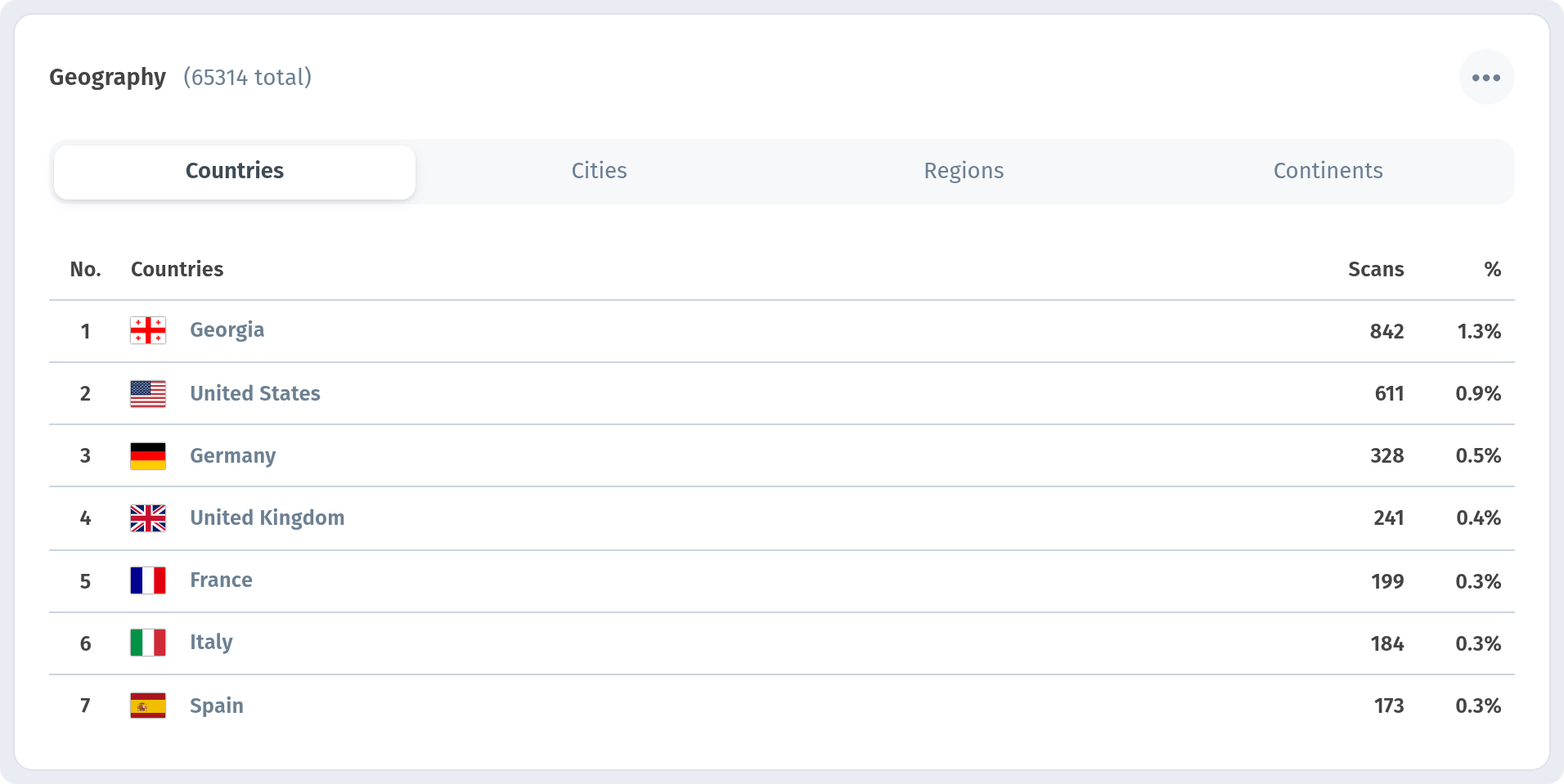
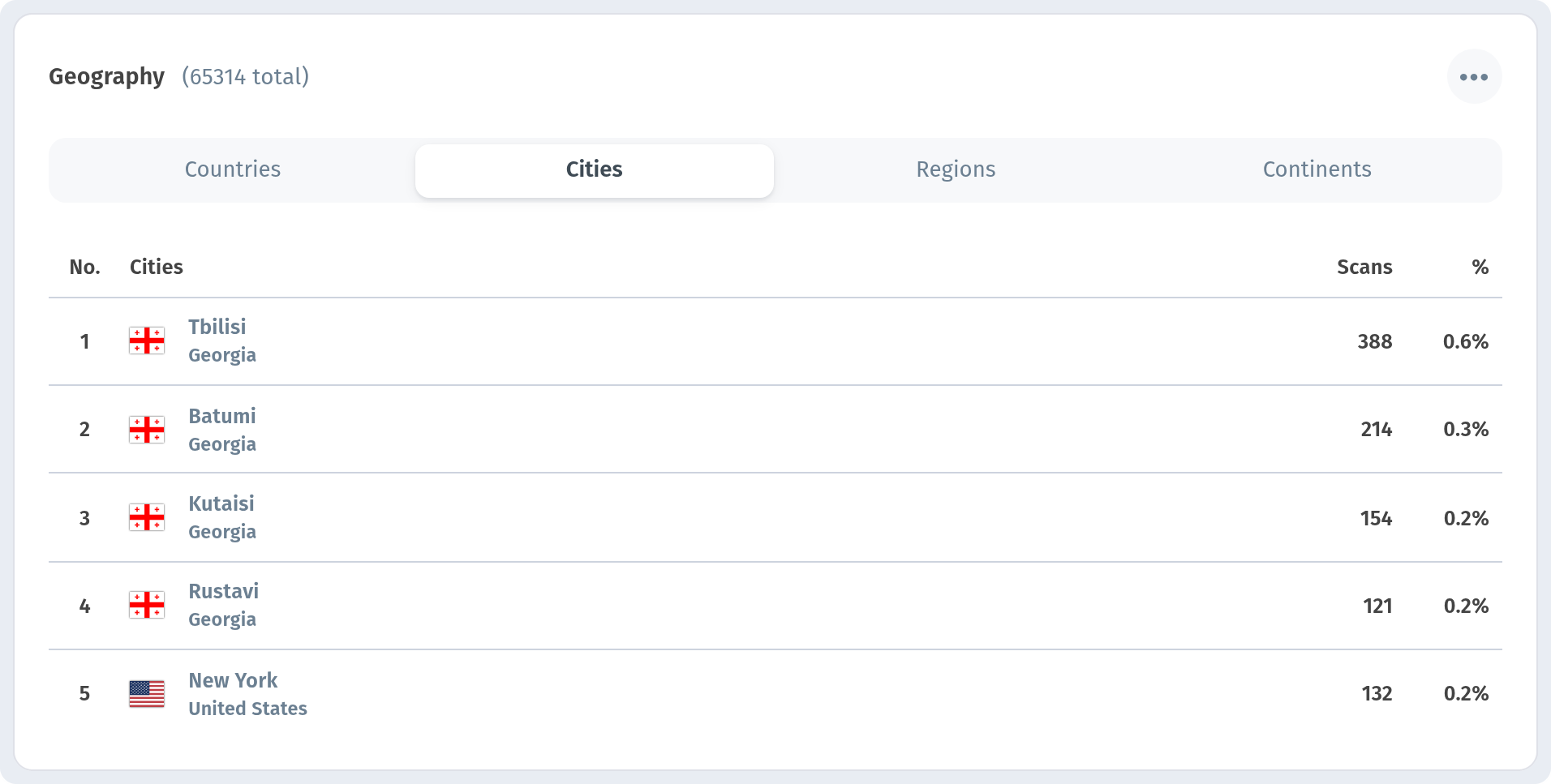
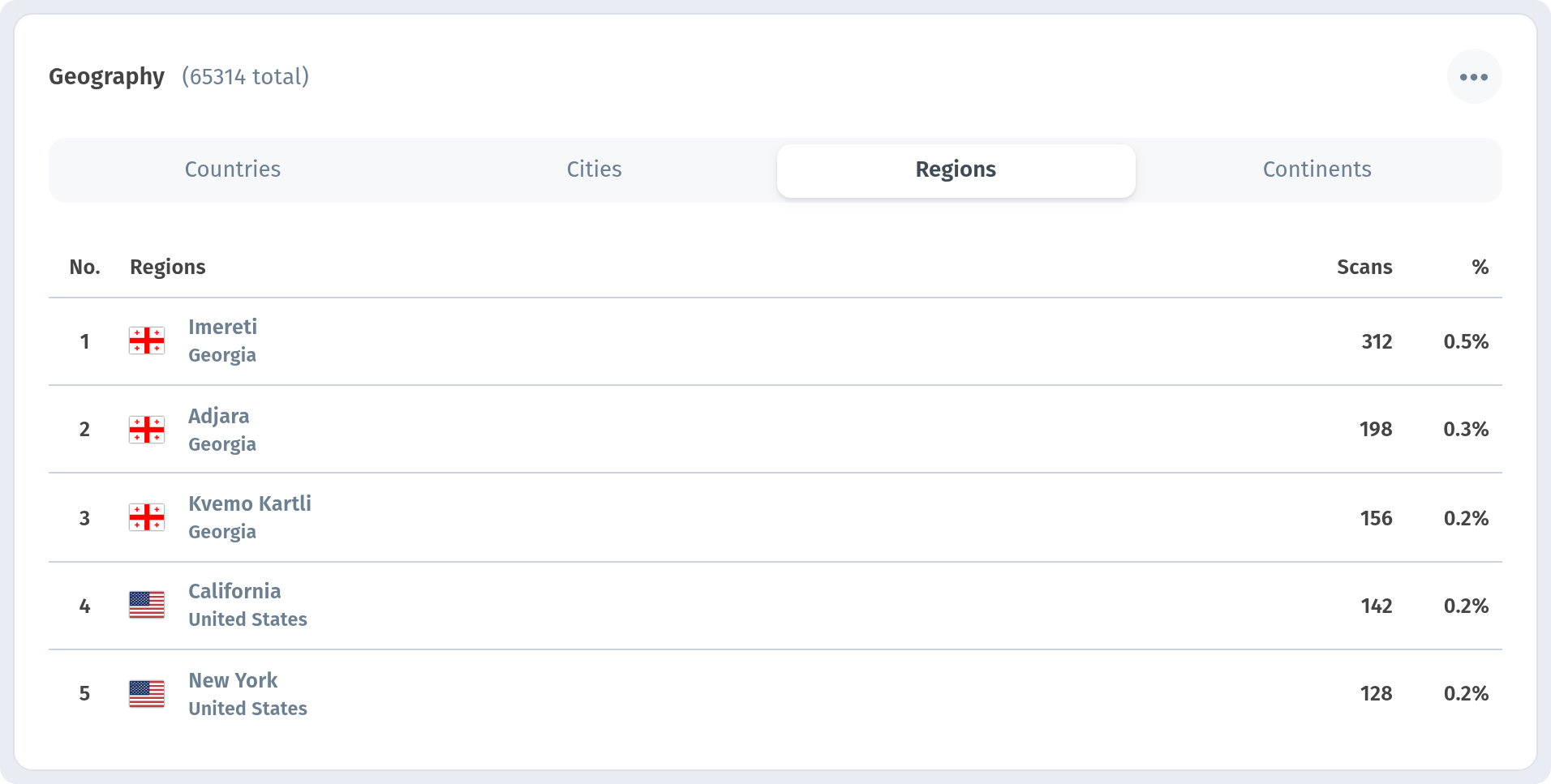
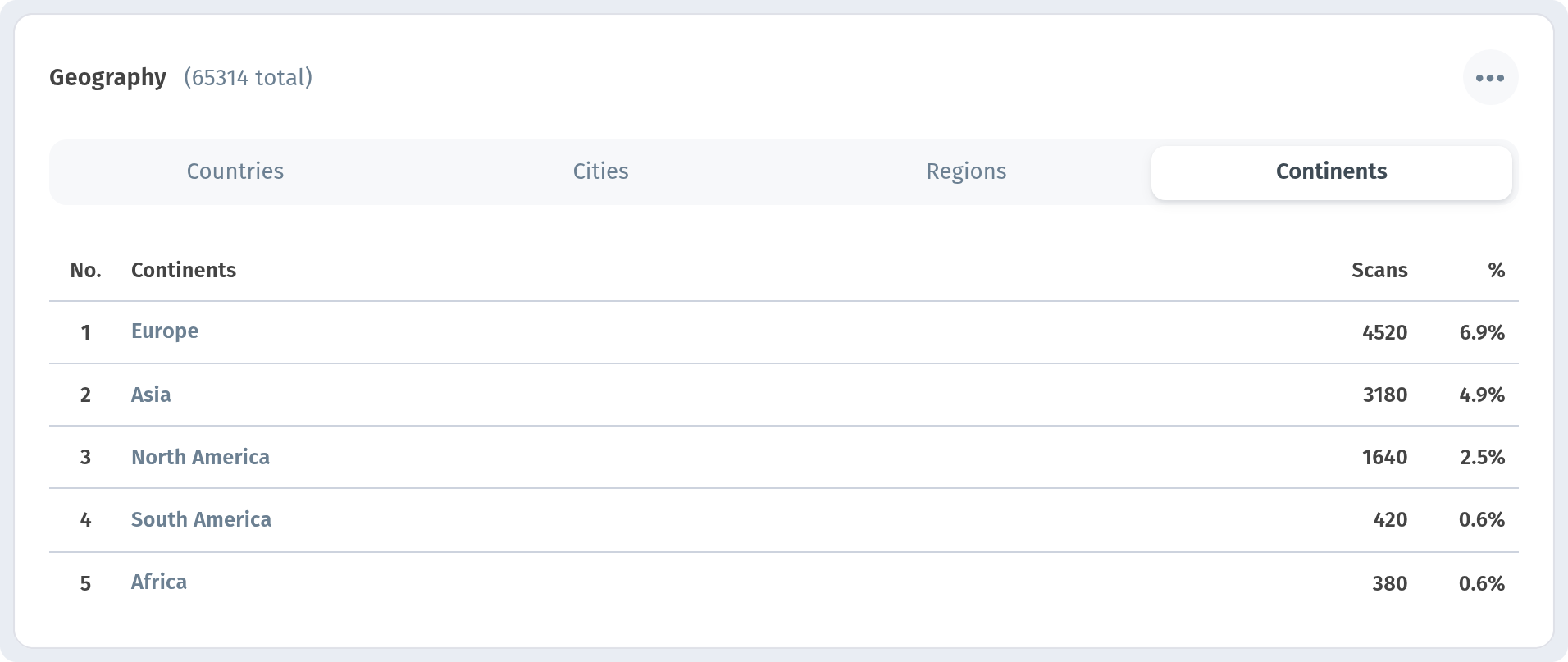
The Geography block shows where scans come from. It has four tabs, each with the number of scans and their share:
- Countries: useful if you serve tourists or have venues in several countries.
- Cities: shows which city each scan came from. With several branches, this is a quick way to compare them.
- Regions: the same view one level up, by region.
- Continents: the widest view, handy for tourist destinations.
Devices, OS & browsers
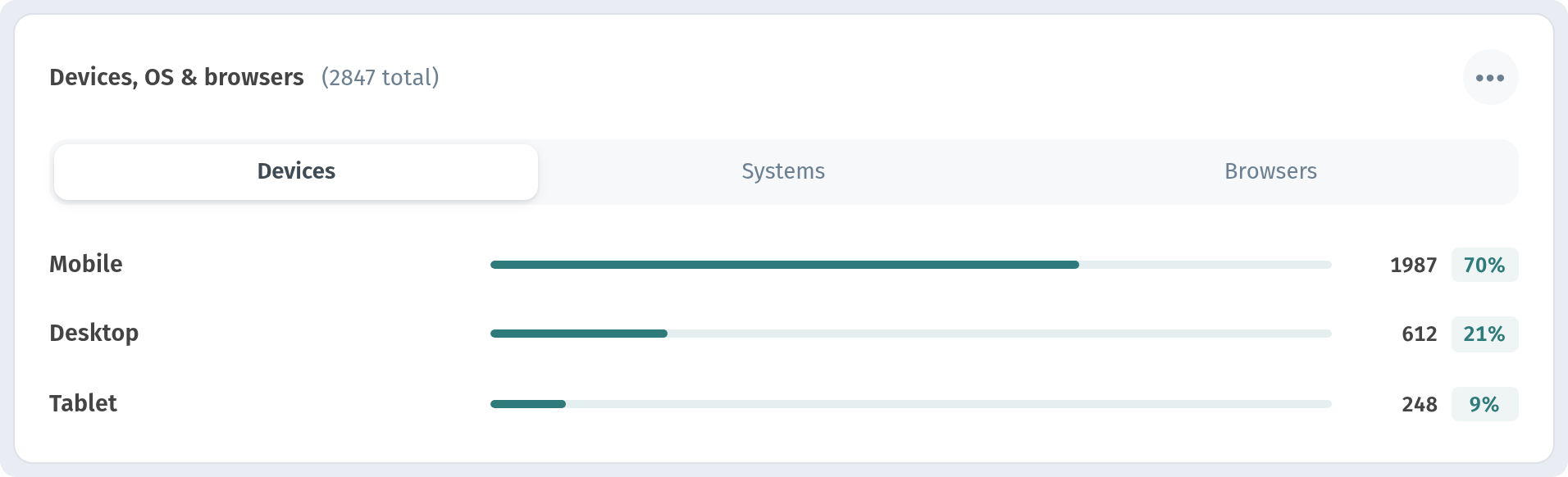
The Devices, OS & browsers block tells you what guests scan with. It also has tabs.
Devices splits scans into mobile and desktop. Most scans in a venue come from phones at the table. Desktop visits usually mean people opened your menu link on a computer, for example from your website or social media, before they visit.
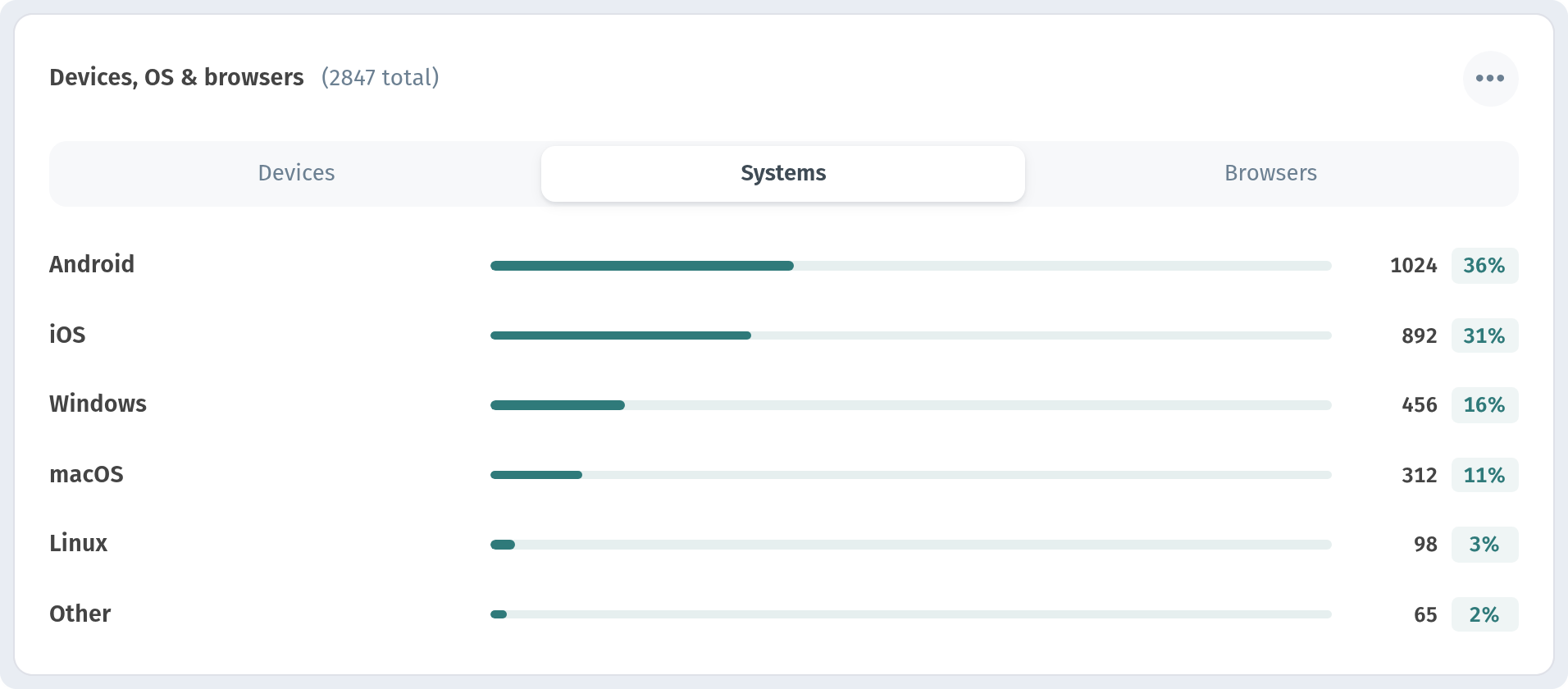
Systems shows the operating systems: Android, iOS and others. If one system clearly dominates, check your menu on a phone with that system first after every big update.
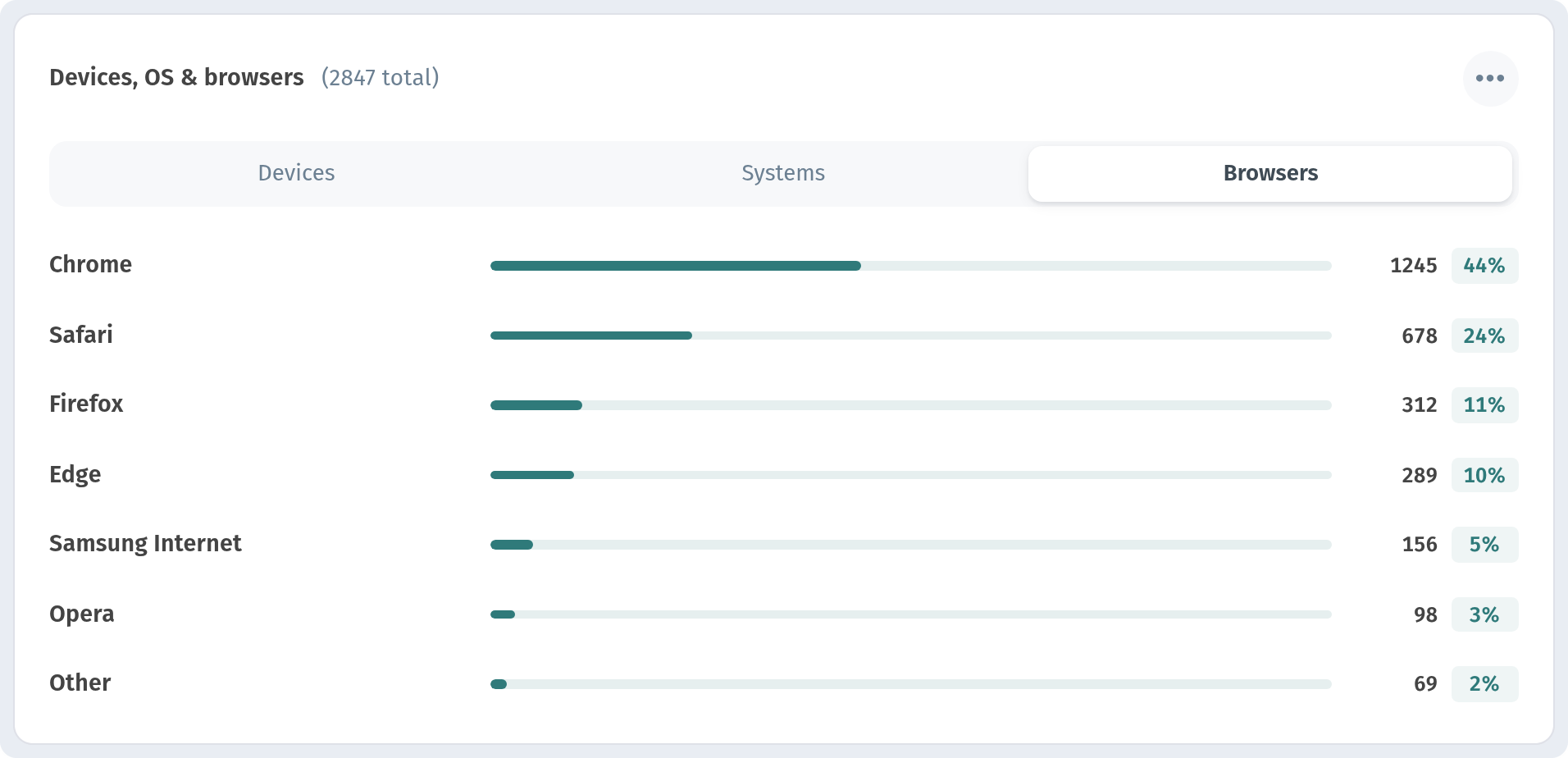
Browsers shows which browsers opened the menu, most often Chrome and Safari. That tells you where to test your menu so it looks right for most of your guests.
Orders analytics
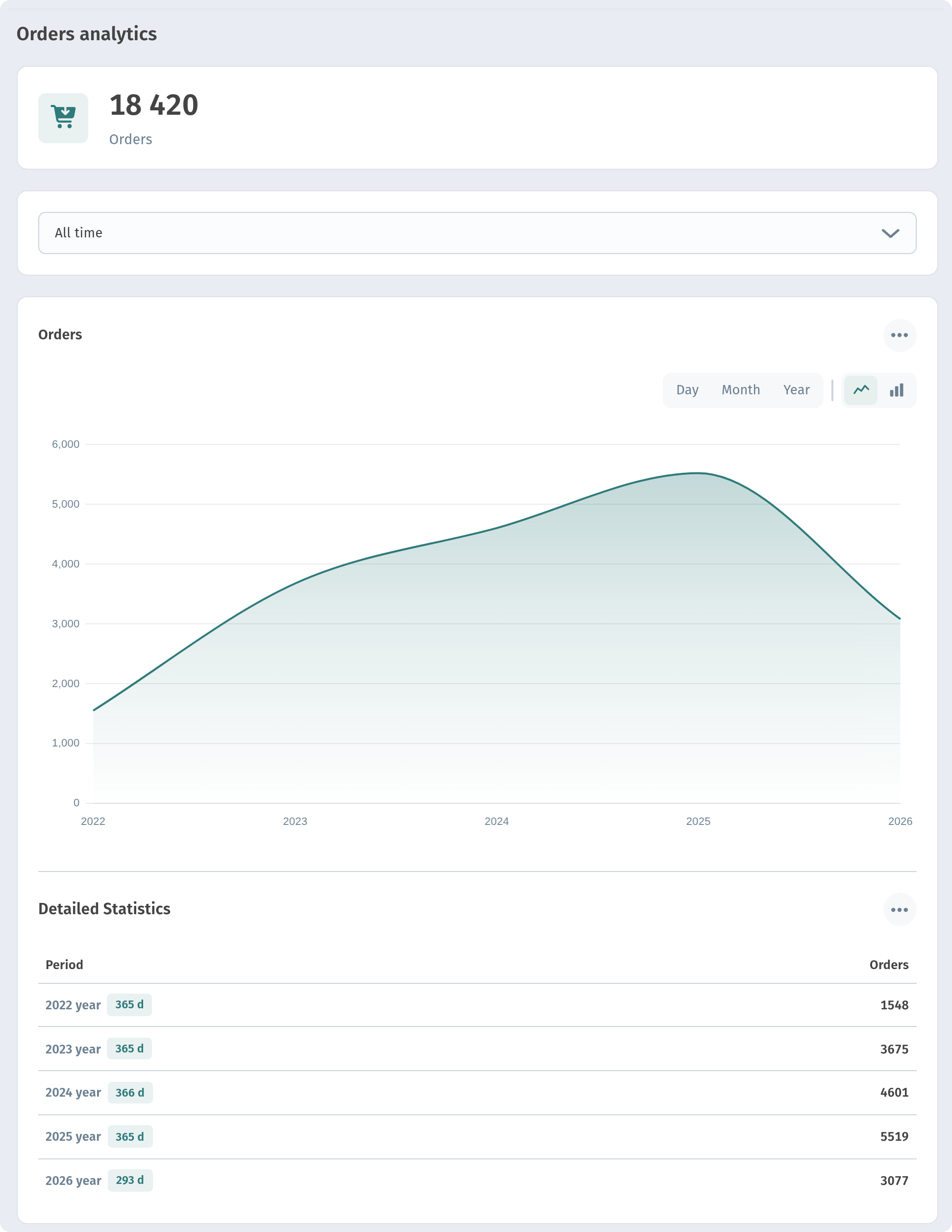
If guests order through WebQRMenu, open Analytics → Orders analytics. It works the same way as scans analytics: filters for the store, the source (All orders or Tables) and the date range, an Orders chart with Day/Month/Year grouping and Lines/Bars modes, and a Detailed Statistics table with the number of orders for every day of the period.
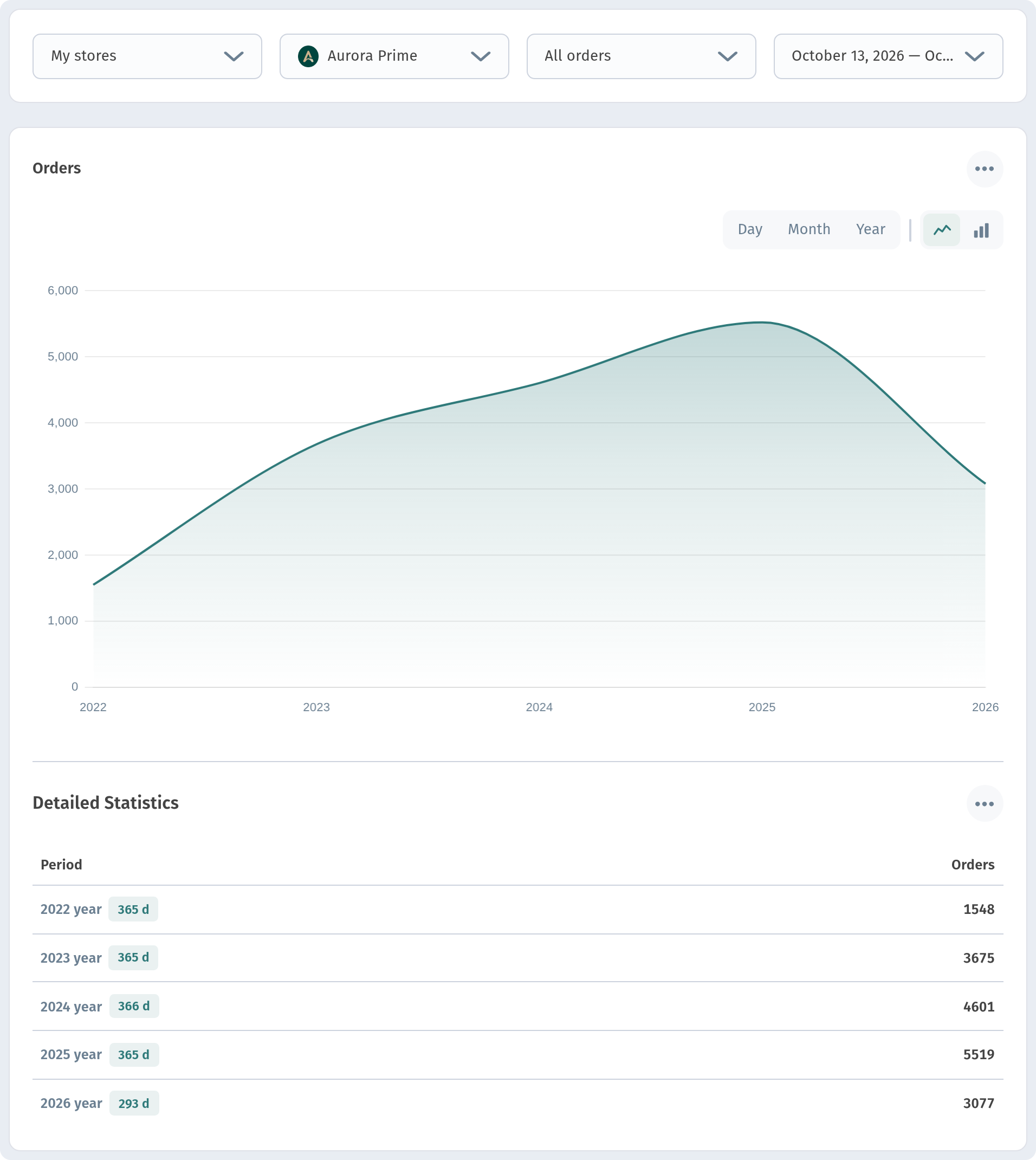
Put this chart next to the scans chart for the same period. If scans grow but orders don't, guests are looking at the menu without ordering, which is a good moment to review prices, photos or how easy it is to place an order.
Want to see what the report looks like for a busy venue? While a store has no orders yet, the report offers an Open demo link. It fills the page with sample data: the total number of orders, the period and a chart over several years.
Timezone in Settings
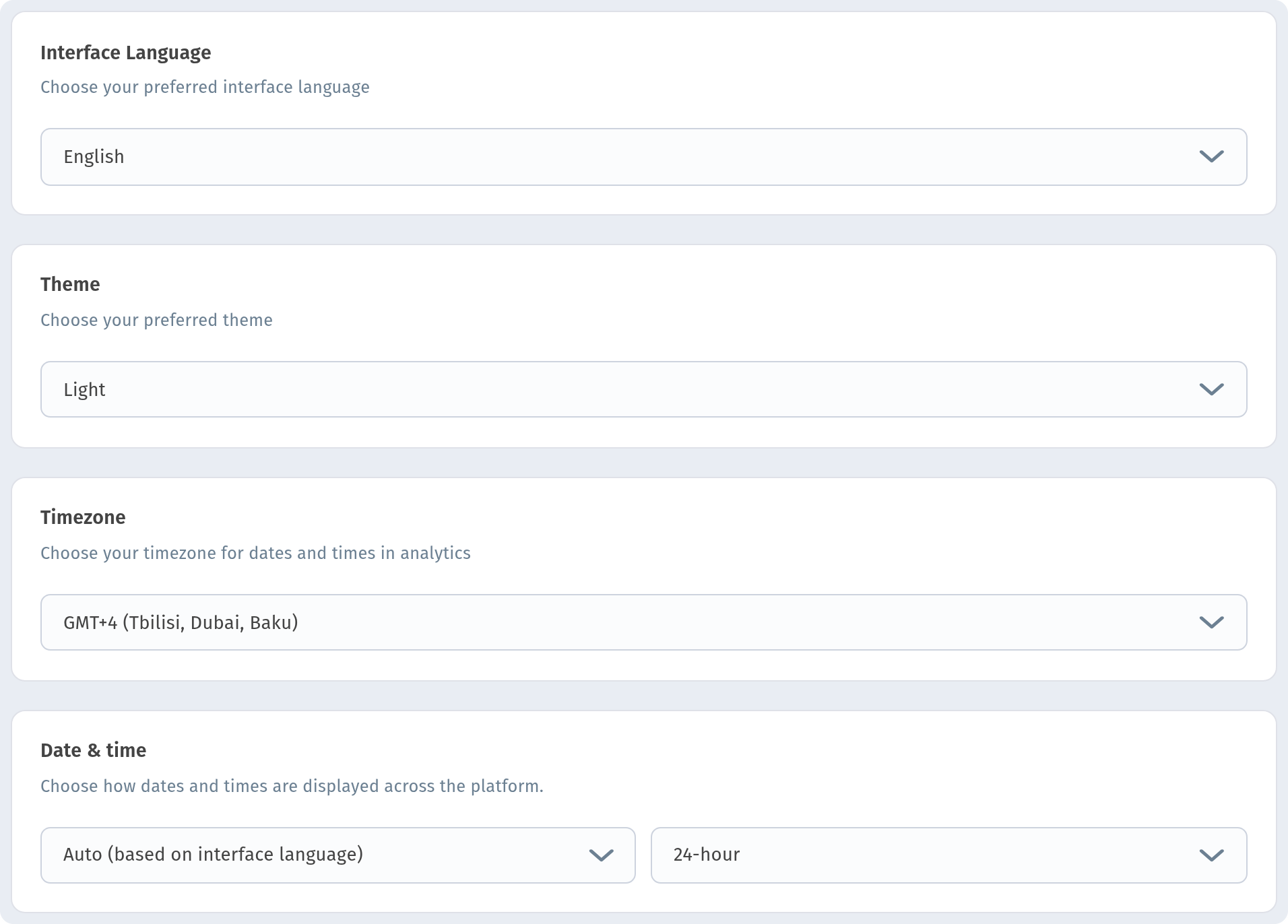
You can change the timezone at any time in Settings. The Timezone block (Choose your timezone for dates and times in analytics) sets the timezone used across all analytics. Next to it are the Interface Language and Date & time.
Practical tips
Compare weekdays. Pick a custom range of three or four weeks, group by Day and switch to Bars. You will quickly see which days are busy and which are quiet. Use this for staff scheduling and for timing promotions on slow days.
Place QR codes and watch the scans. When you add codes in a new spot, such as table tents, the bar counter, the entrance or the terrace, note the date and compare scans before and after with Custom range. Use the Main and Tables filter to see which kind of code brings more guests. If the numbers barely change, the code may be hard to notice: try a bigger size, a better spot or a short call to action like "Scan for the menu".
Read the device mix. A high share of mobile is what you want inside the venue. A growing share of desktop means people look at your menu online before they come, so keep prices and photos up to date. Use the Systems and Browsers tabs to decide which phones and browsers to test on.
Watch conversion. If Conversion drops while scans grow, many scans come from the same guests. That is not a bad sign in itself, but it can mean the menu is hard to navigate and guests reopen it often.
Check the same period every time. Compare a week with a week and a month with a month, ideally with the same weekdays. That way, the changes you see are real, not just a difference in the calendar.
Export monthly. Download the CSV at the end of every month. Over time you'll have your own history to compare seasons and the effect of menu changes.
Analytics in WebQRMenu answers simple but important questions: how many guests open your menu, when, where from and on what. Check it once a week, and every change in the venue, from a new QR code spot to a new opening time, gets a clear result you can measure.