
Updating your menu without reprinting: seasonal dishes, stop-list and price changes in WebQRMenu
How to put a dish on the stop-list in a minute, change a price or price variants, add a seasonal section and remove it when the season ends in WebQRMenu. The QR code stays the same and guests see the changes right away. Step by step, with dashboard screenshots and the menu on a phone.
A printed menu goes out of date the day it comes back from the printer. The tiramisu runs out and the waiter apologises at every table. Your supplier raises the price of beef and you either reprint the whole run or start using stickers. Autumn arrives and the seasonal dishes live on a separate sheet that keeps getting lost.
With a QR menu, each of these takes a minute in the dashboard. In this article we show the three most common updates in WebQRMenu: the stop-list, a price change and a seasonal section, and how each one looks on the guest's phone.
In short: the QR code on the table never changes. You edit the menu in the dashboard, press Save, and the guest sees the new version the next time they open the menu. The stop-list is the dish status (Available, Sold out, Hide), prices live in the Price block, and a seasonal menu is a separate section you delete when the season is over.
The full dish card (variants, allergens, badges) is covered in The dish card in WebQRMenu. Here we focus on updates.
1. Why a QR menu never needs reprinting
The QR code on the table is just a link to your menu. The code itself stores no dishes and no prices: all of that lives in your WebQRMenu dashboard. That means:
- the same QR code works forever. Stickers, table tents and business cards are printed once;
- changes are live as soon as you save. The next guest who opens the menu sees the new price or the new section. If the menu is already open on their phone, a page refresh is enough;
- there are no "old versions". Nobody can put last year's menu on a table by mistake: there is one version, and it's the current one.
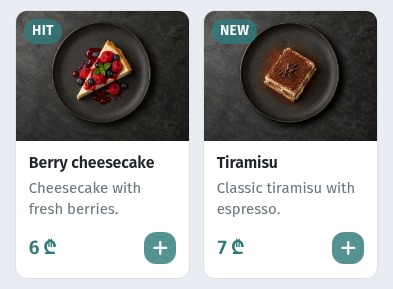
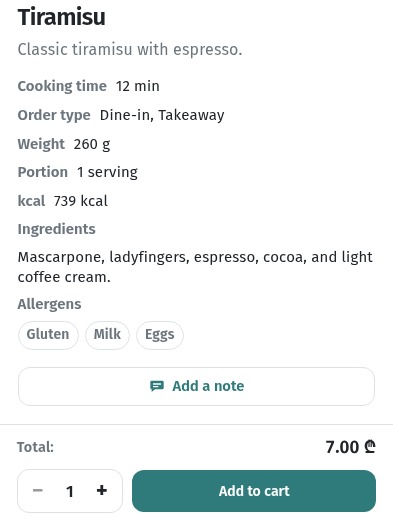
This is how a guest sees the desserts. The tiramisu already shows its new price, 7 ₾: we changed it in the dashboard in half a minute and nothing had to be printed.
2. The stop-list: taking a dish off and bringing it back
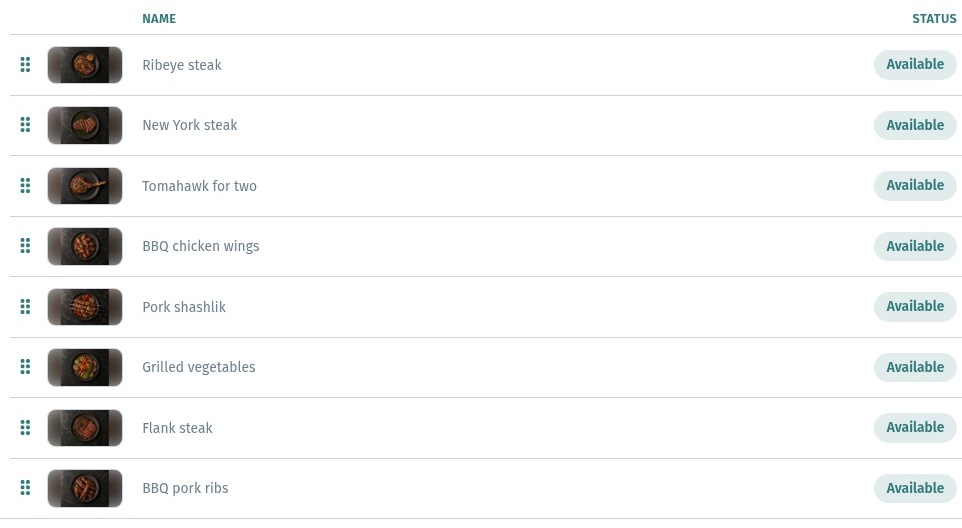
The kitchen has run out, a delivery didn't arrive, the only cook who makes it is off sick: the dish has to come off sale without being deleted. That's what the dish status is for. You can see it right in the dish list: Menu content → the section you need, Status column.
Click a dish's status and the Status window opens with three options:
- Available: the dish is on sale as usual;
- Sold out: the dish stays in the menu, the guest sees its photo, description and price, but can't order it;
- Hide: the dish disappears from the guest menu completely, as if it didn't exist.
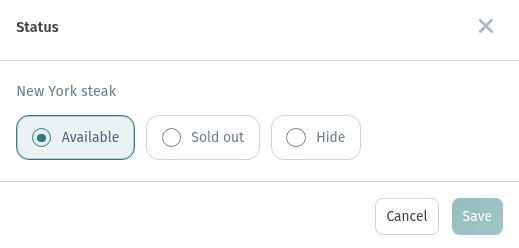
Pick the option and press Save. To bring the dish back, open the same window and choose Available.
The same choice is inside the dish editor too: Placement block → Availability. Handy when you already have the dish open, for example to change its price.
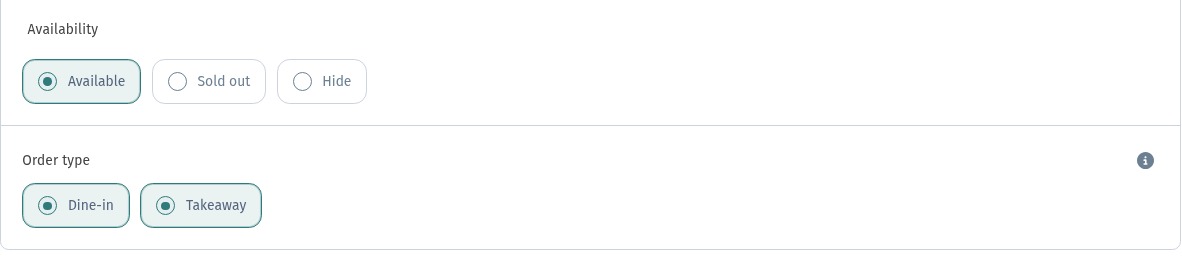
What the guest sees
- With Sold out, the dish card opens as usual, but instead of the Add to cart button there's a grey, inactive sold-out button at the bottom.
- With Hide, the dish isn't in the tiles or in search results.
Sold out or Hide?
| Situation | Status |
|---|---|
| Ran out today, back tomorrow | Sold out |
| Only served at weekends or until noon | Sold out |
| Off the menu for a long time, or a new dish still in preparation | Hide |
| Seasonal dish, the season is over | Hide, or delete it along with its section |
The rule of thumb: Sold out is for a day, Hide is for a long time. A grey button honestly tells the guest "not today" and shows that you do serve the dish. A hidden dish doesn't get in the way when it won't be back for a while.
3. Changing a price
You change the price in the dish editor, in the Price block. Open the dish (via ⋯ → edit in the list, or by clicking the dish), expand the block, type the new amount and press Save at the bottom of the page. We raised the tiramisu from 6 to 7 ₾:
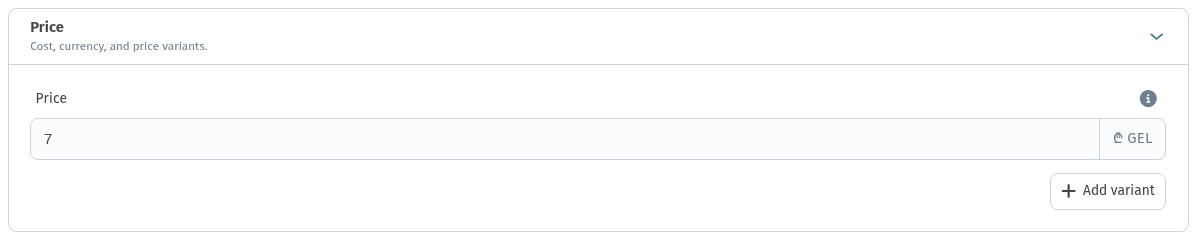
The new price shows up for the guest straight away, both on the tile and in the dish card:
Price variants
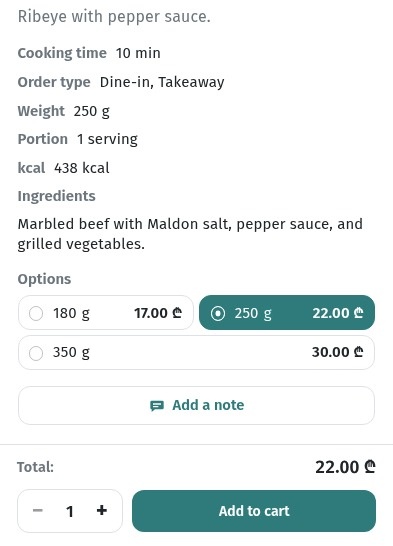
When a dish comes in sizes, each size has its own price. Our ribeye, for example, comes in three weights: 180 g for 17 ₾, 250 g for 22 ₾ and 350 g for 30 ₾. Each variant is its own row in the Price block, with a name and a price. To change the price of one size, edit only that row. Add a new size with Add variant; remove one with the red bin on the right.
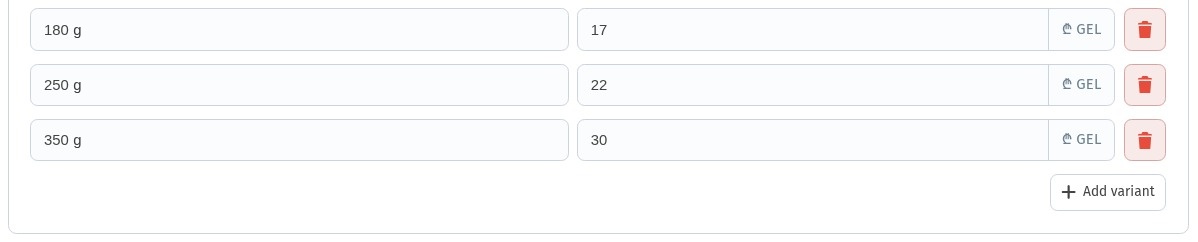
The guest sees the variants in the card, picks one, and the total updates by itself. The tile shows a "from–to" range, which updates automatically too.
For more on variants, and when to use them instead of separate dishes, see The dish card in WebQRMenu.
Price tips
- Keep each price in one place. If a dish comes in several sizes, use variants rather than three separate dishes: when costs go up, you edit one screen.
- Check the range on the tile. After changing one variant, look at the tile: the "17 ₾ – 30 ₾" range should match what you expect.
- Don't forget promotions. If you've lowered a price for a while, set yourself a reminder to put it back.
4. Seasonal dishes: a section for the season
Seasonal dishes are easiest to manage in a section of their own: "Autumn menu", "Summer lemonades", "New Year specials". Guests see at once what's new, and when the season ends the section goes away in one step.
Create the section
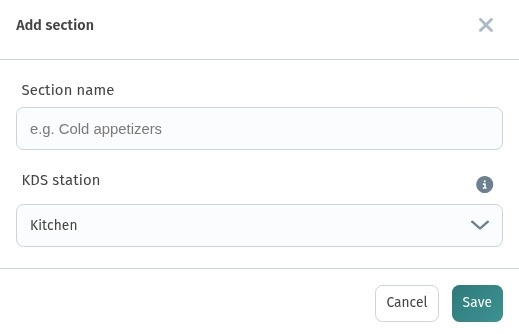
In Menu content, press + next to the Sections heading. In the Add section window, type the Section name and, if you need to, set the KDS station: the kitchen screen that receives orders from this section. Press Save and the section appears in the section list.
You can reorder sections by dragging the handle to the left of the name. It's worth moving a seasonal section up so guests see it first.
Fill the section
There are two ways:
- Move an existing dish. Open the dish, choose the seasonal section in the Section field of the Placement block, and save. The dish moves with all its photos, prices and translations. That's how we moved our chocolate fondant into the autumn menu.
- Add a new dish. Inside the section, press Add dish and fill in the card: photo, name, description, price. Don't forget the translations: in the Translations block, choose the languages and fill in the name and description for each one. The details are in A menu in three languages.
Remove the section when the season ends
When the season is over:
- Move the dishes that stay on the menu back to your regular sections (Placement → Section). Dishes that will come back next year can be set to Hide, so you won't have to redo the cards and translations.
- Open the ⋯ menu next to the seasonal section and choose to delete the section.
- Confirm. If there are no dishes left in the section, the confirmation says so plainly: there are no dishes in this category, so only the category itself will be deleted.
An empty section can be deleted without side effects: the dishes you moved out earlier stay where they are.
5. Practical tips
When to update
- Before the shift. The chef or manager checks the prep and sets anything that won't be available today to Sold out. Five minutes in the morning saves dozens of awkward "sorry, we've run out" moments.
- During the shift. A dish runs out, you change the status right away. It's faster than telling every waiter.
- At the start of the season. Create the seasonal section in advance, fill in the cards and translations, and switch the dishes to Available on launch day.
- After supplier price changes. Review your prices the same day, before your purchasing and your menu drift apart.
- At the end of the season. Remove the seasonal section before guests start ordering things you no longer have.
Who on the team does it
| Task | Who |
|---|---|
| The stop-list during the day | Chef or shift manager |
| Prices and price variants | Owner or general manager |
| Seasonal sections and new dishes | Chef together with the manager |
| Translations for new dishes | Whoever adds the dish, right when they create it |
Agree on who is responsible for what, and give those people access to the dashboard. Running the stop-list doesn't require knowing the whole menu: it's enough to know where the Status column is.
Check the menu through a guest's eyes
After every change, open the menu on a phone (scan the QR code on the nearest table, for example) and check that:
- the new price shows on both the tile and the card;
- a Sold out dish shows the grey button, and a hidden dish isn't visible at all;
- the seasonal section is where you want it, and the new dishes have photos;
- the translations are in place: switch the menu language and look at the seasonal dishes in English and Georgian.
Menu update checklist
- Leave the QR codes on the tables alone: one code for good.
- Ran out for today → Sold out. Off the menu for a while → Hide. Back again → Available.
- New price → Price block → Save. Use variants for sizes.
- New season → new section; move dishes in via Placement → Section, or add new ones with translations.
- End of season → dishes back to their sections or set to Hide; delete the empty section.
- After every change, check the menu on a phone.