
Choosing a QR Menu Layout in WebQRMenu: Templates, Colors, Theme and Corner Radius
The six menu page layouts — Core, List, Flow, Curve, Panorama and Chip — and when to choose each. Plus palette, theme, corner radius, information blocks and the welcome screen.
Six menu layouts, and how to pick the one that fits your venue. Plus how colors, theme, corner radius, information blocks and the welcome screen work together.
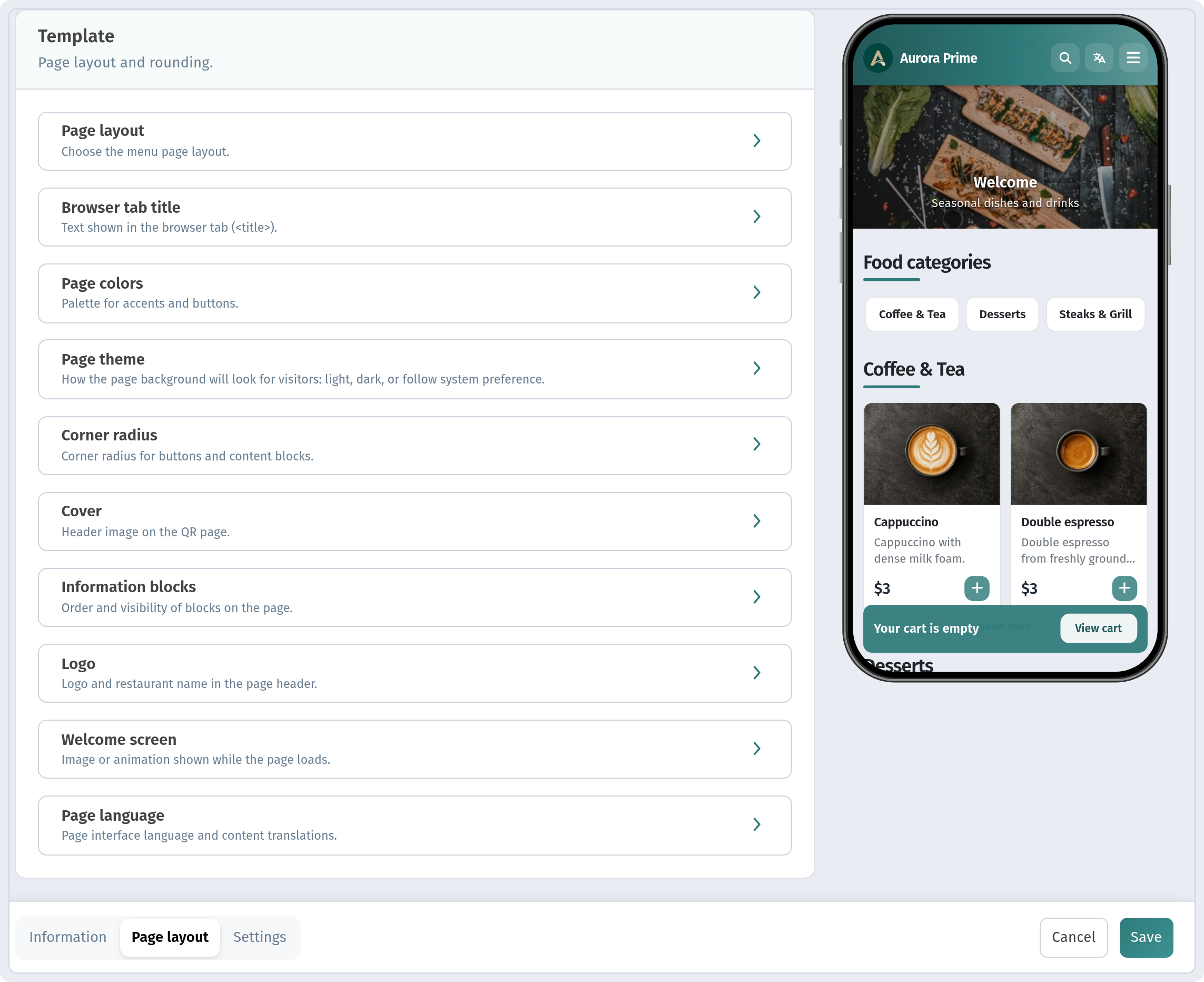
All of this lives in the store's Page layout tab, in the Template card ("Page layout and rounding."). For a quick tour of every store setting, see Store appearance and settings: the complete guide. This article goes deeper into design: what each layout looks like to guests and which venues it suits.
In short: Stores → your store → Page layout → try layouts in the phone preview → adjust colors, theme and radius → Save.
1. Where to find it
In the sidebar, open Store → Stores and pick your store. Switch to the Page layout tab (the URL ends with ?tab=layout). The settings are collapsible sections, and you can keep several open at once. On the right, a phone preview shows the menu as guests will see it. Nothing changes for guests until you click Save, and Cancel discards your edits.
2. Six layouts and when to choose each
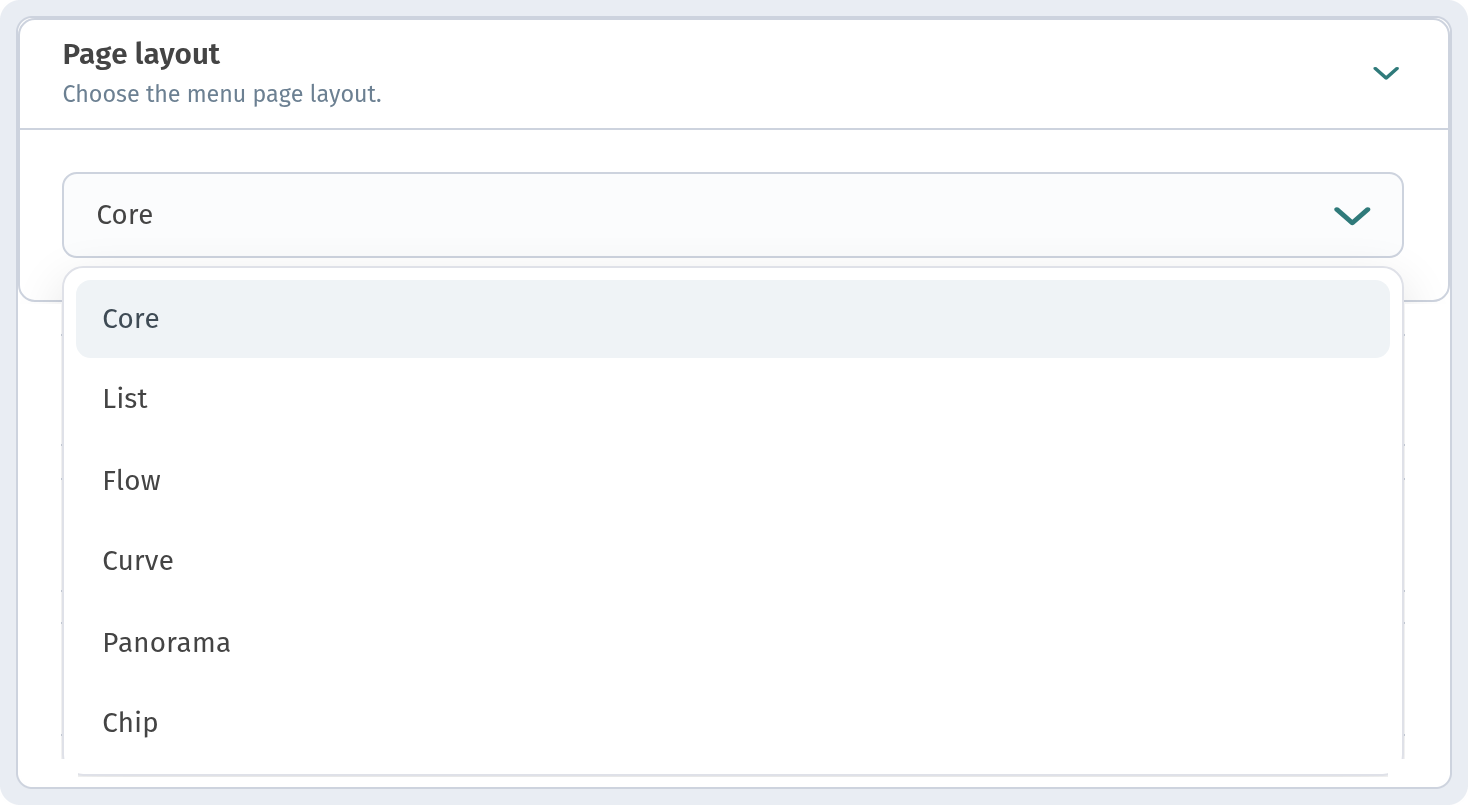
Open Page layout ("Choose the menu page layout."). The category chips and the cover stay the same in every layout. What changes is how the dish cards look.
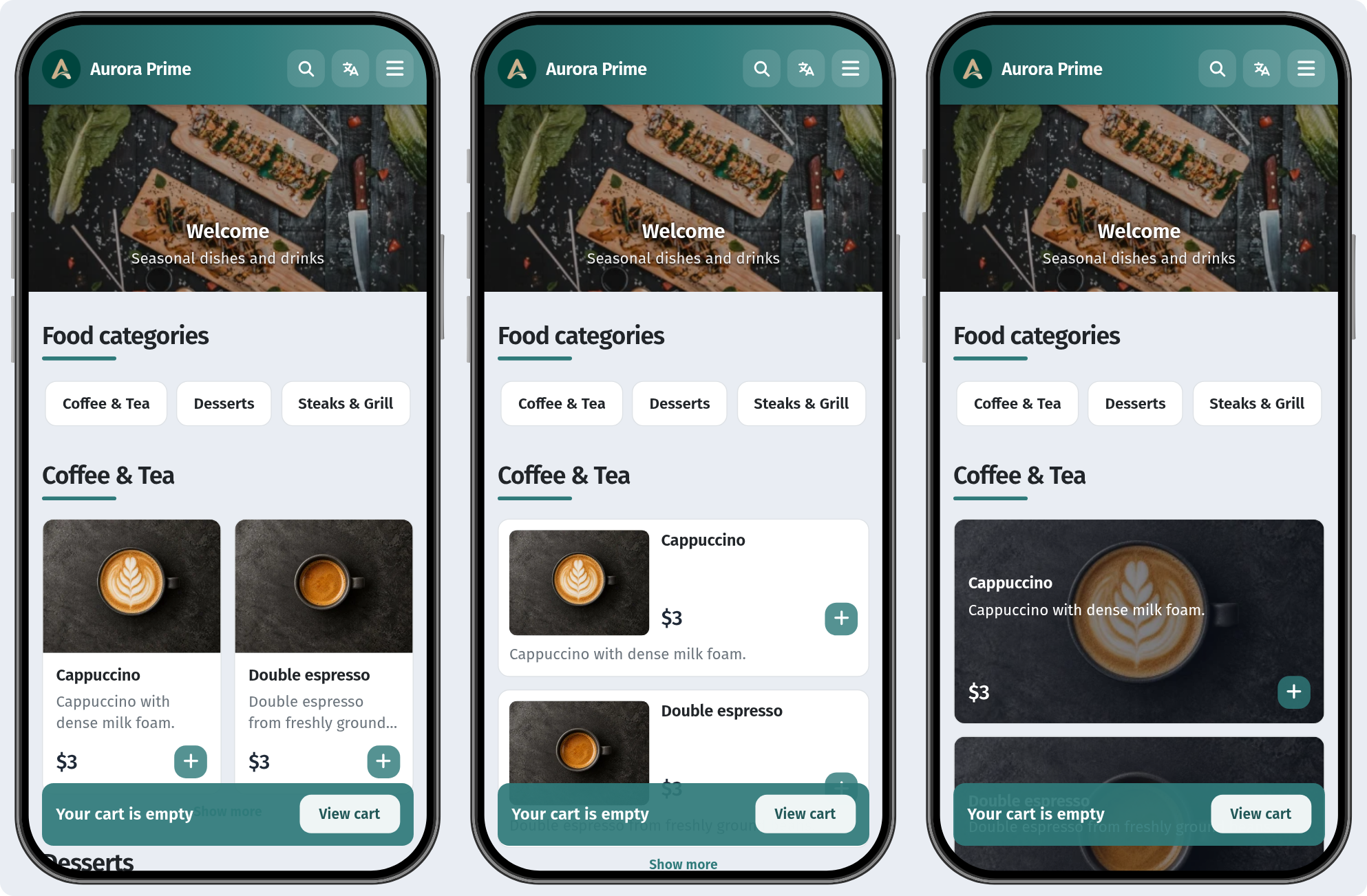
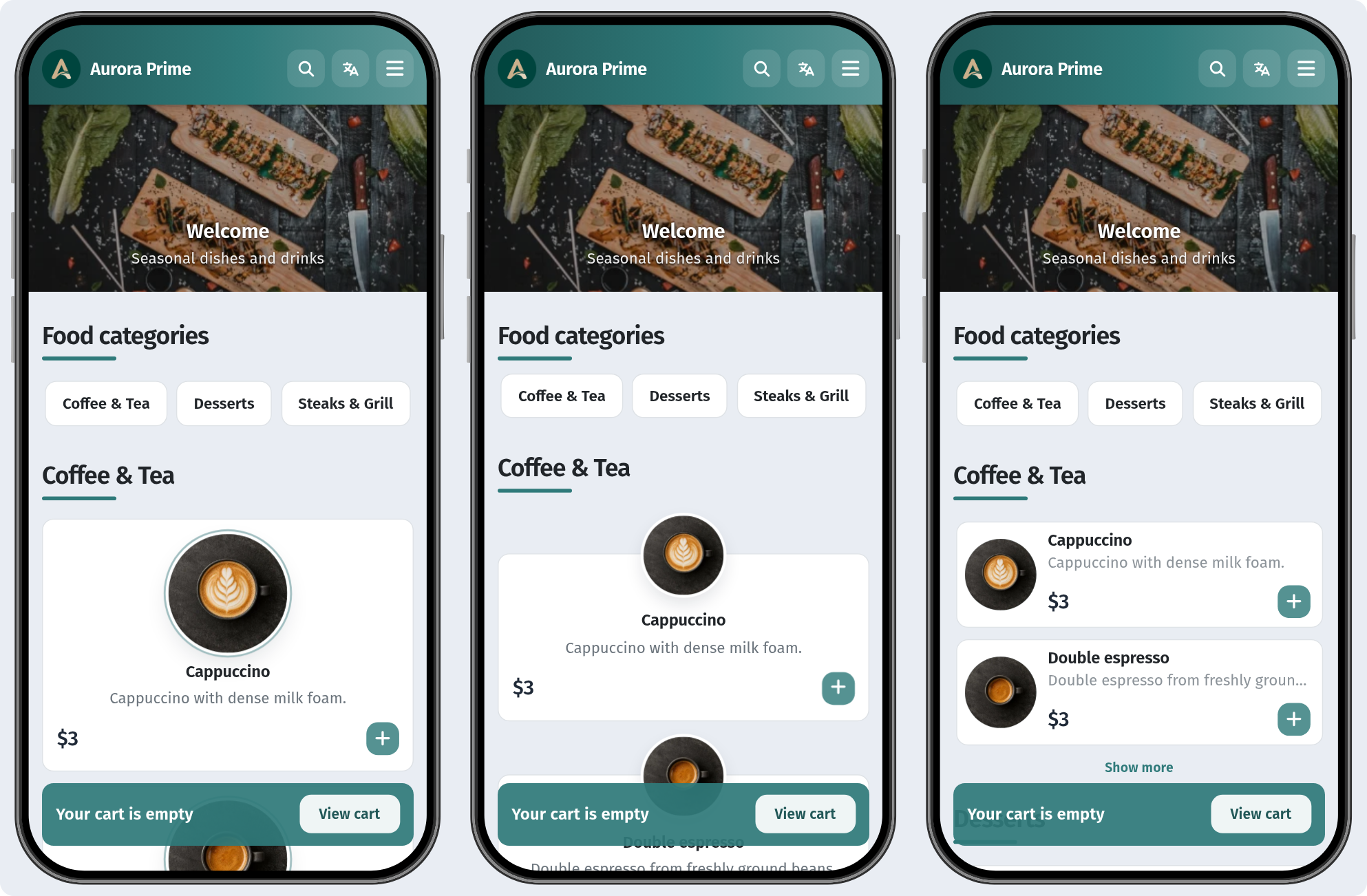
Core. A two-column grid of cards: photo on top, then name, description, price and a round "+" button. It's balanced and familiar, a safe default for most cafés and restaurants with decent photos of most dishes.
List. One column of compact rows: a square thumbnail on the left, name, price and "+" on the right, description underneath. Guests see more dishes per screen, so it suits long menus, bars and coffee shops where people scan prices quickly.
Flow. One column, with a large round photo centered at the top of each card, a centered name and description, and price and "+" at the bottom. Each dish gets the spotlight. Choose it for a short signature menu with strong, consistent photography.
Curve. Similar to Flow but more compact: a smaller round photo and soft, curved cards. It's a friendly, light look for bakeries, dessert spots and family cafés, when you want photos without very long scrolling.
Panorama. A full-width card with the dish photo as a dark background, and the name, description, price and "+" laid over the image. It's the most atmospheric option, for fine dining, steakhouses and cocktail bars. Use it only if every dish has a good photo, because the text sits on top of the image.
Chip. The most compact layout: small round thumbnails, name, a one-line description, price and "+", with a "Show more" link after a couple of rows. It's ideal for very large menus (sushi, pizza, drinks lists) where guests already know what they want.
Tip: open each layout in the preview with your real menu before saving. A layout that looks great with photos can look empty with only a few images.
3. Page colors
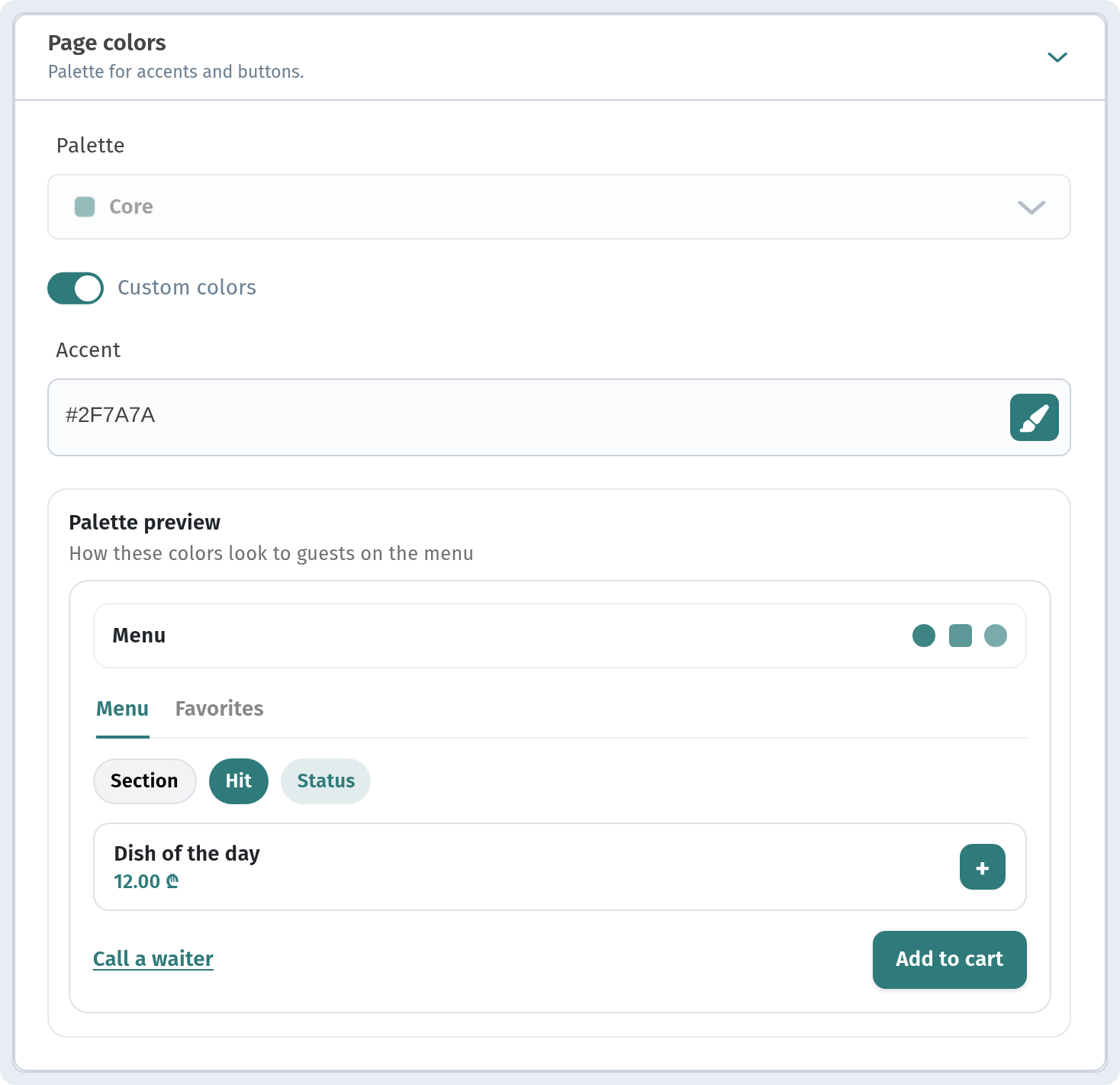
Page colors sets the "Palette for accents and buttons." Pick a ready-made Palette (for example Core), or turn on Custom colors and set your own Accent as a hex value, such as #2F7A7A. The Palette preview block shows "How these colors look to guests on the menu."
Use your brand color as the accent, but keep it calm: muted tones read better on buttons and price labels than neon ones. Make sure white text on the accent stays readable.
4. Page theme
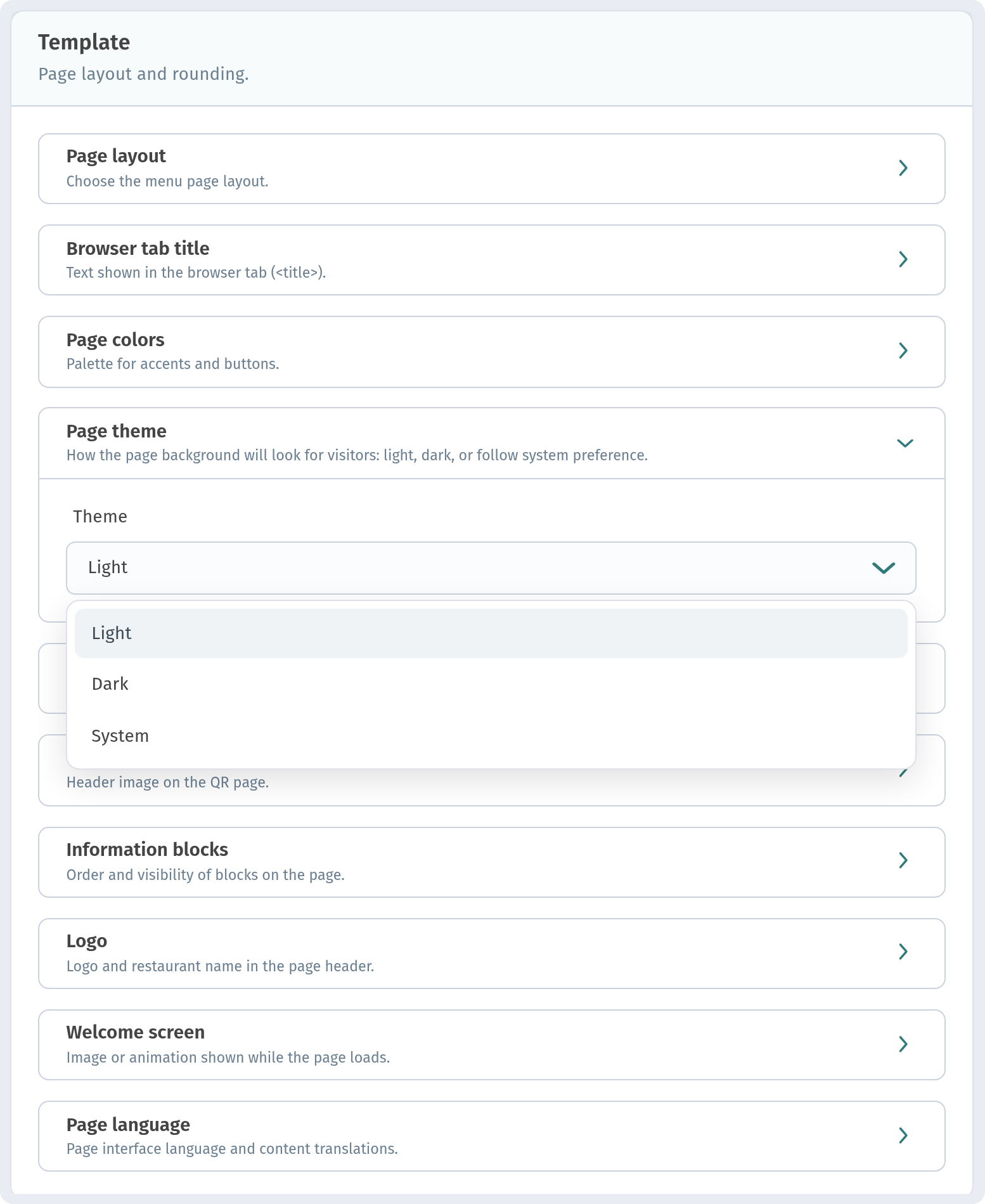
Page theme controls "How the page background will look for visitors". In Theme, choose Light, Dark or System (follows the guest's phone setting).
- Light works best in bright, daytime venues and for menus with lots of photos.
- Dark suits bars, lounges and evening venues, where a bright screen glares in a dim room. It also pairs well with Panorama.
- System respects each guest's preference. Check your accent color in both light and dark before choosing it.
5. Corner radius
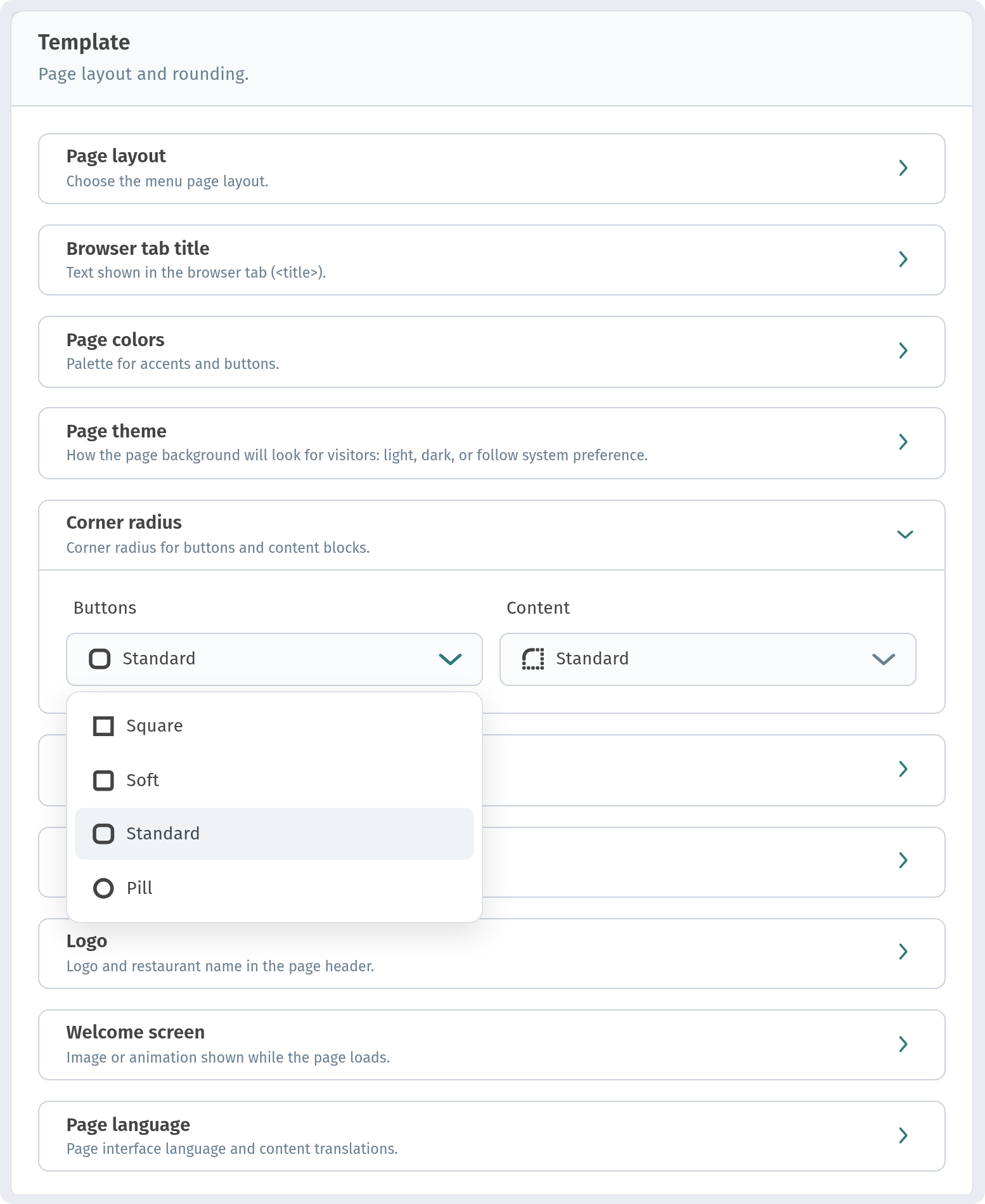
Corner radius is set separately for Buttons and Content: Square, Soft, Standard (default) or Pill, each shown with a shape icon.
- Square looks strict and modern (fine dining, minimalist interiors).
- Soft and Standard are neutral and work almost everywhere.
- Pill on buttons with Standard content gives a friendly, app-like feel (cafés, bakeries).
Match the radius to your printed materials and signage, so the menu feels like part of the venue.
6. Information blocks
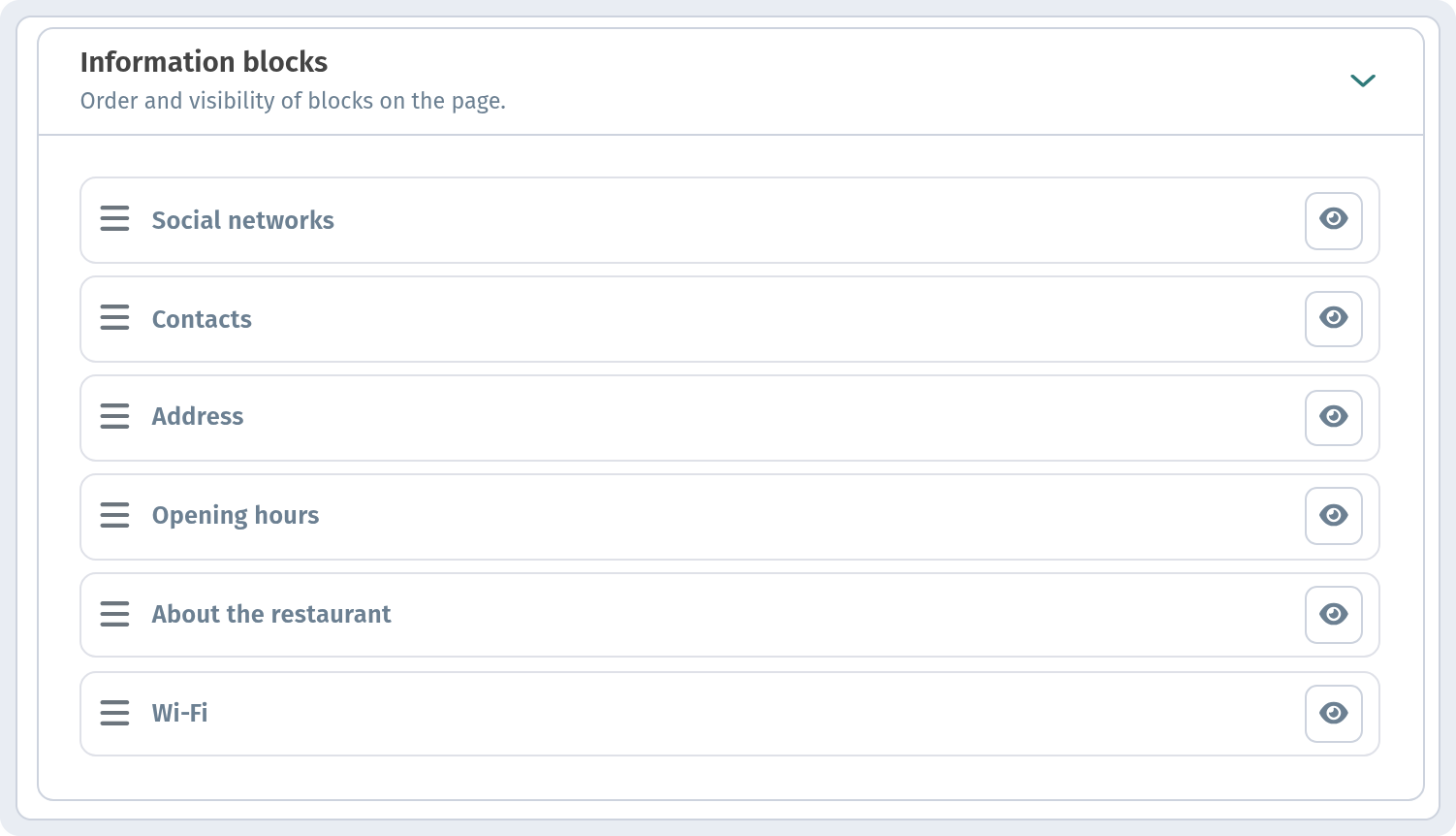
Information blocks set the "Order and visibility of blocks on the page": Social networks, Contacts, Address, Opening hours, About the restaurant and Wi‑Fi. Drag a row by its handle on the left to reorder it, and click the eye icon on the right to show or hide it.
Order the blocks by what guests ask about most. In a café that's usually Wi‑Fi first. A delivery-focused venue might put Contacts and Opening hours on top. Hide blocks you haven't filled in. The content itself is edited on the Information tab (Wi-Fi, opening hours and contacts).
7. Welcome screen
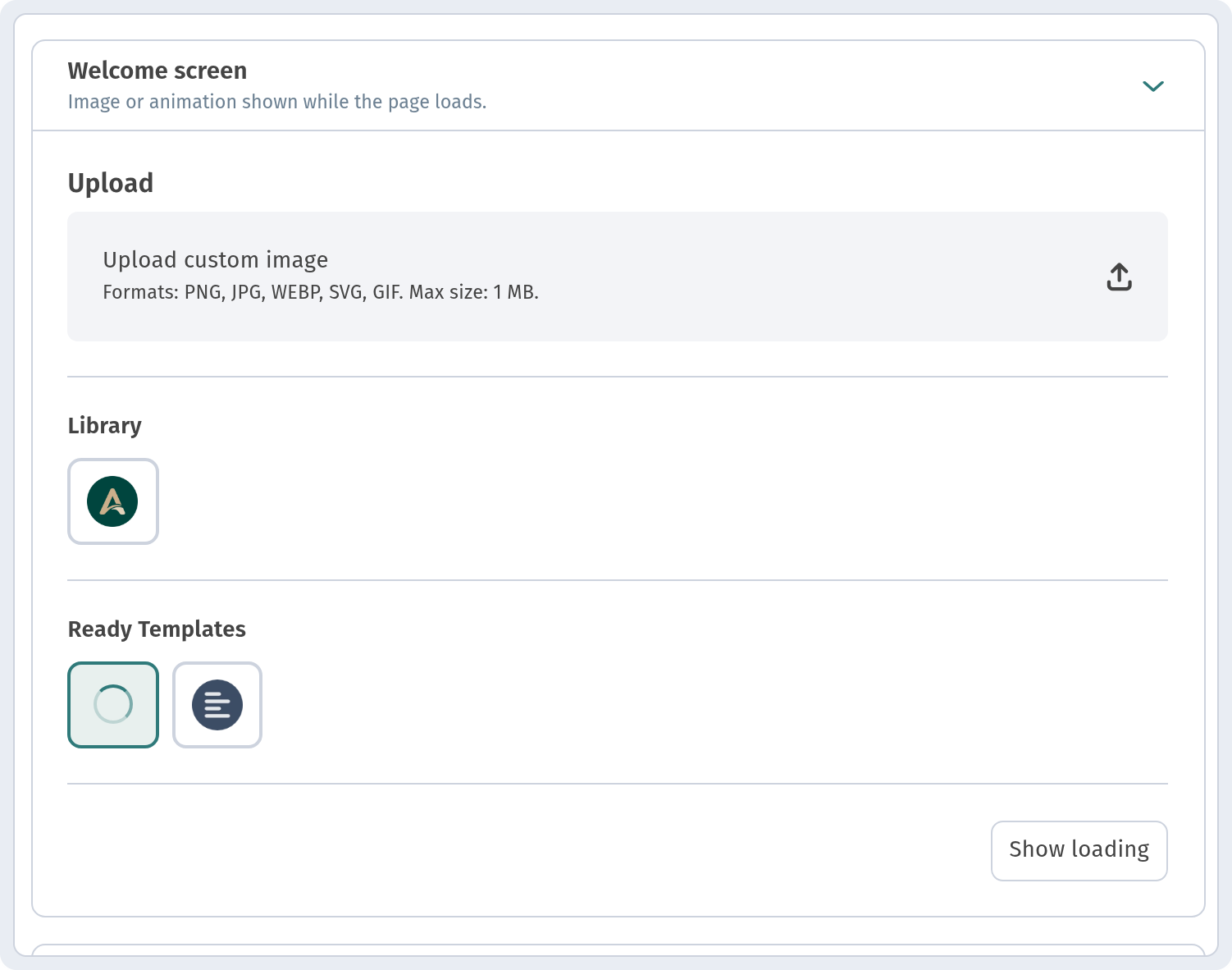
The Welcome screen is the "Image or animation shown while the page loads." There are three options:
- Upload custom image: your own file (PNG, JPG, WEBP, SVG or GIF, max 1 MB). An animated logo GIF or SVG works nicely.
- Library: images you've already uploaded.
- Ready Templates: built-in loaders.
The Show loading button plays the loading screen in the phone preview for a couple of seconds, so you can check it without opening the menu. It's only a preview and doesn't turn the welcome screen on or off. Keep the file light: a heavy animation delays the first impression it's meant to improve.
8. Cover, logo, title and language in brief
- Cover: the header image, with an optional Cover title and Cover description (50 characters each). The current image shows as JPEG 400×200.
- Logo: shown as PNG 400×400, with the Show logo and Show restaurant name checkboxes.
- Browser tab title: the Page title shown in the browser tab (up to 60 characters).
- Page language: the main Language and Translations, with links to Store, Category and Position translations. If dishes lack translations, you'll see "Item translations needed". See Menu in three languages.
These are covered in more detail in the complete settings guide.
Click Save, then Open menu and check the result on your phone.
Quick picks
- Lots of photos, regular restaurant: Core, Light, Standard.
- Long menu, bar or coffee shop: List or Chip.
- Short signature menu: Flow or Curve.
- Evening venue or fine dining: Panorama, Dark, Square.
Quick checklist
- Stores → your store → Page layout.
- Compare all six layouts in the preview with your real menu.
- Set the accent color and theme, and check both light and dark.
- Choose the corner radius for buttons and content.
- Order and hide the information blocks.
- Set up the welcome screen and check it with Show loading.
- Save, then check the menu on your phone.