
Guest Order History and Reorder in WebQRMenu
Guests track order status, browse past orders in History and repeat them with Reorder or Repeat last order, right in the WebQRMenu QR menu.
How a signed-in guest tracks the current order, finds past orders in the History tab and repeats a favourite order in one tap, right inside the WebQRMenu QR menu.
Regulars often order the same thing: the same coffee, the same salad, the same dessert. In WebQRMenu they don't have to build the cart from scratch every time. Every order is saved to the guest's profile, and a past order can be repeated with one button.
Important: order history works for guests with an account. We covered how guests sign up in the menu in Guest Sign-Up and Your Client Base in WebQRMenu.
In short: the guest signs in → places an order → taps Show order on the bottom bar → sees the status in the Orders tab, past orders with a Reorder button in History, and a Repeat last order button in Cart.
1. The guest signs in
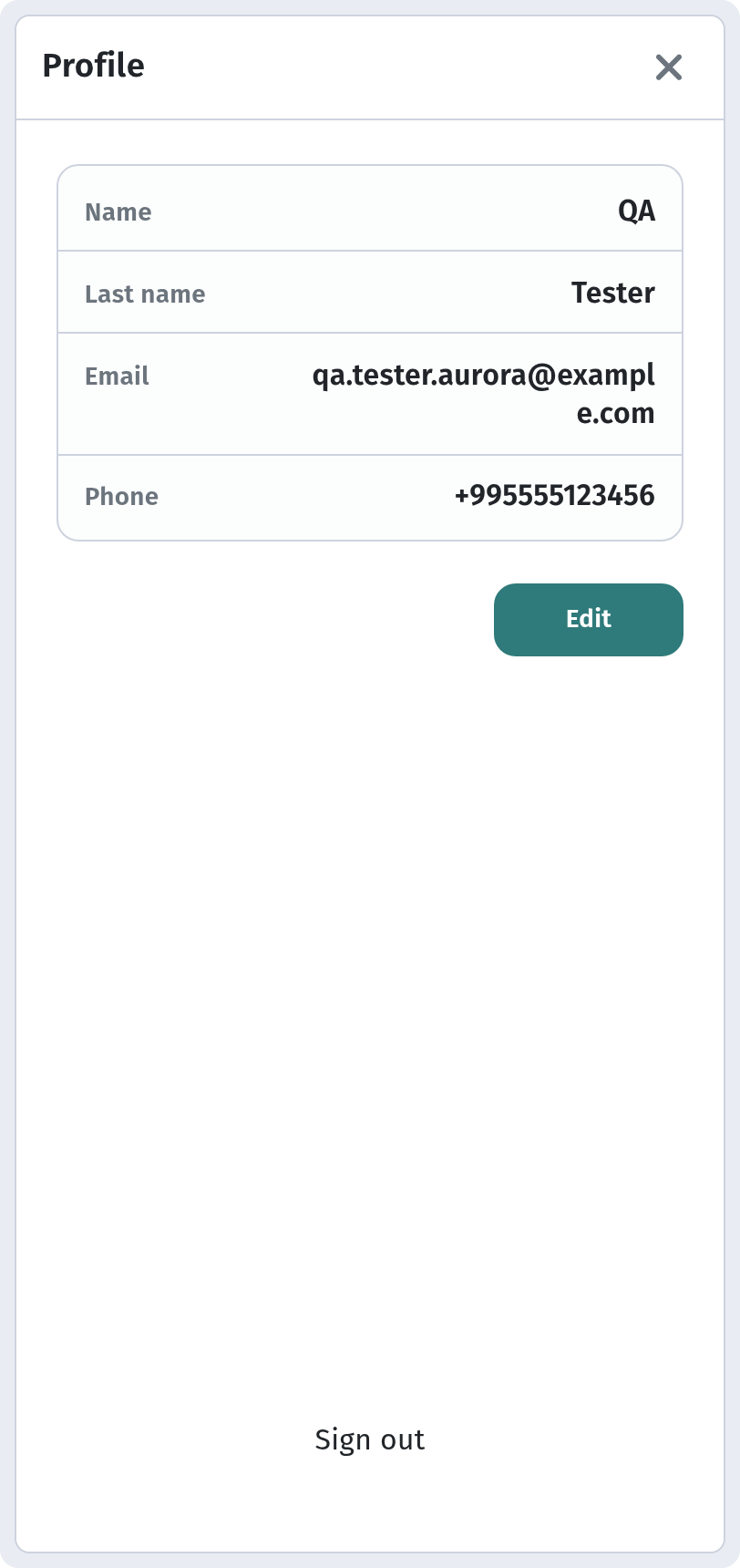
Once signed in, the guest's avatar with their initials, for example "QT", appears at the top right of the menu. Tapping it opens the Profile: name, last name, email and phone, plus Edit and Sign out buttons.
All of the guest's orders are tied to this profile.

2. The "Show order" button
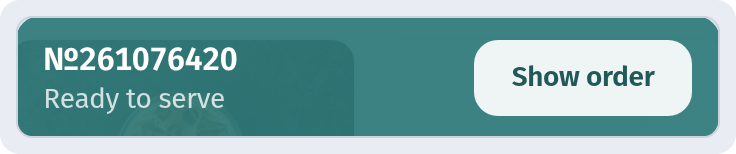
When the guest has an active order, the bottom bar shows its number and status, for example "№2610A2JNC8 Confirmed, being prepared", and a Show order button. It opens a drawer on the right with three tabs: Cart, Orders and History.
3. The Orders tab: where's my order?
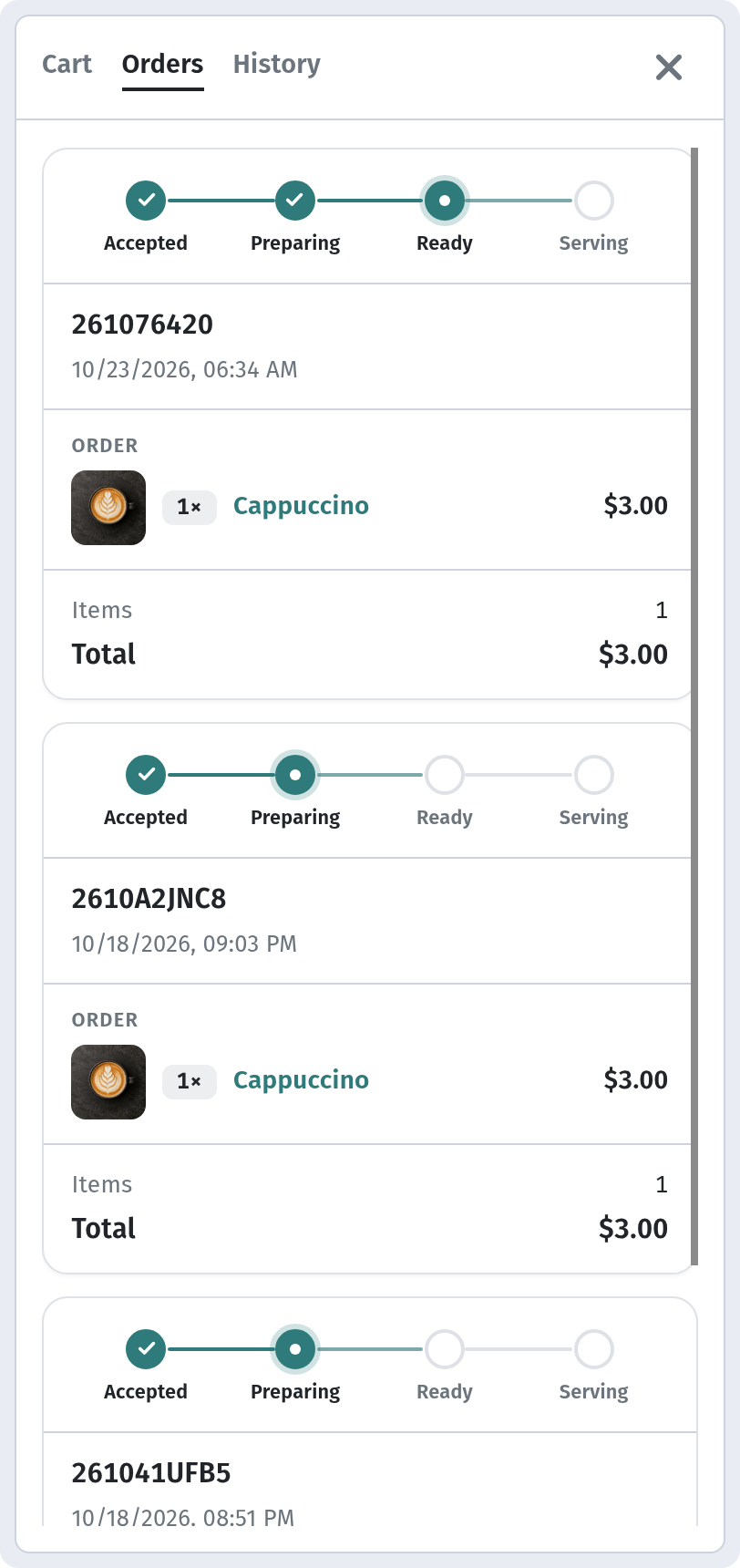
The Orders tab holds active orders. Each one shows the number, date, items, item count and total, with a four-step progress tracker on top: Accepted → Preparing → Ready → Serving.
Guests don't need to call a waiter to find out how long they'll wait. With no active orders, the tab suggests placing one from the menu.
4. The History tab: past orders
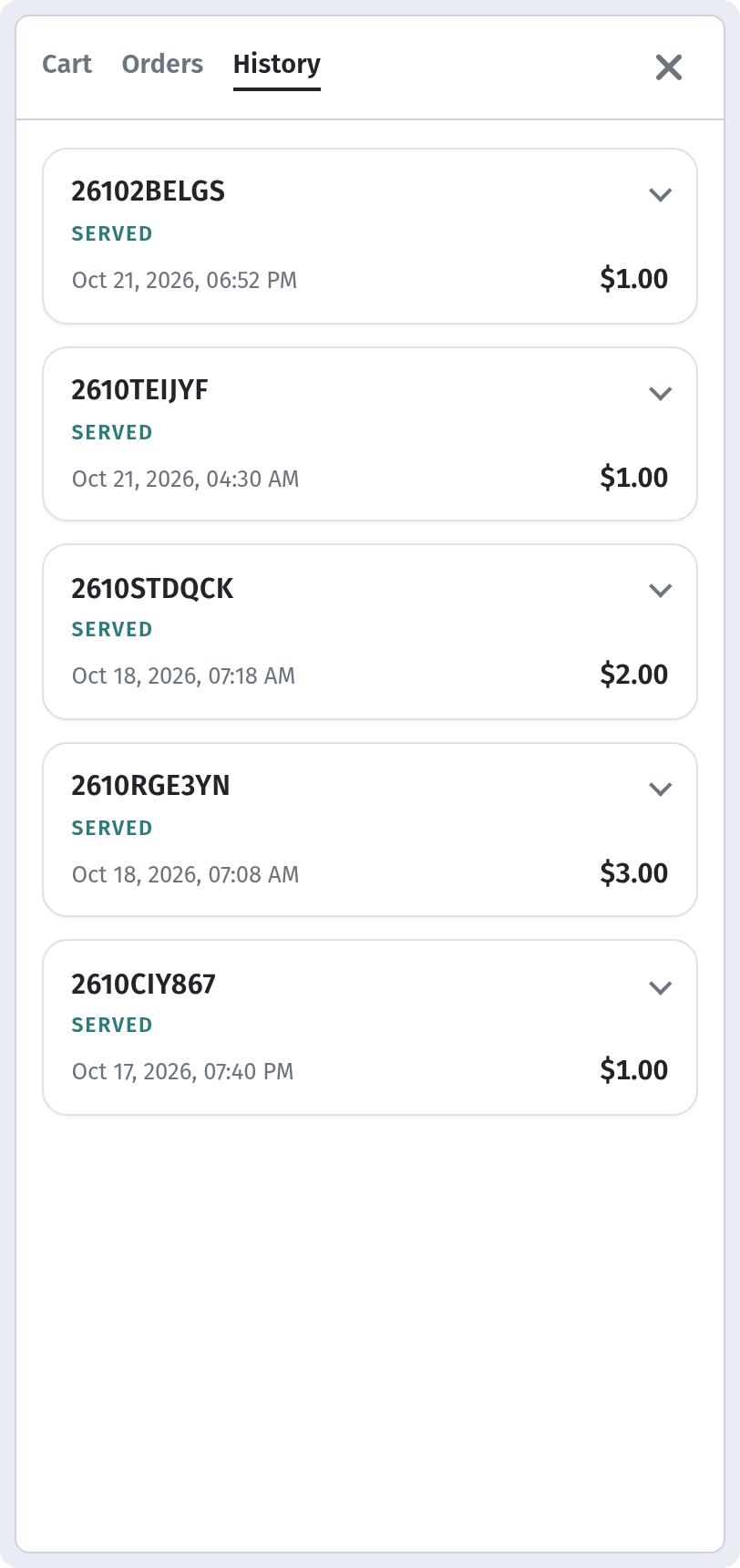
Once an order is completed, it moves to History. Each row shows the order number, a SERVED label, date and time, total and a chevron to expand it.
While history is empty, the guest sees: "No completed orders yet. Completed orders are saved here. You can repeat them anytime."
5. Repeat with "Reorder"
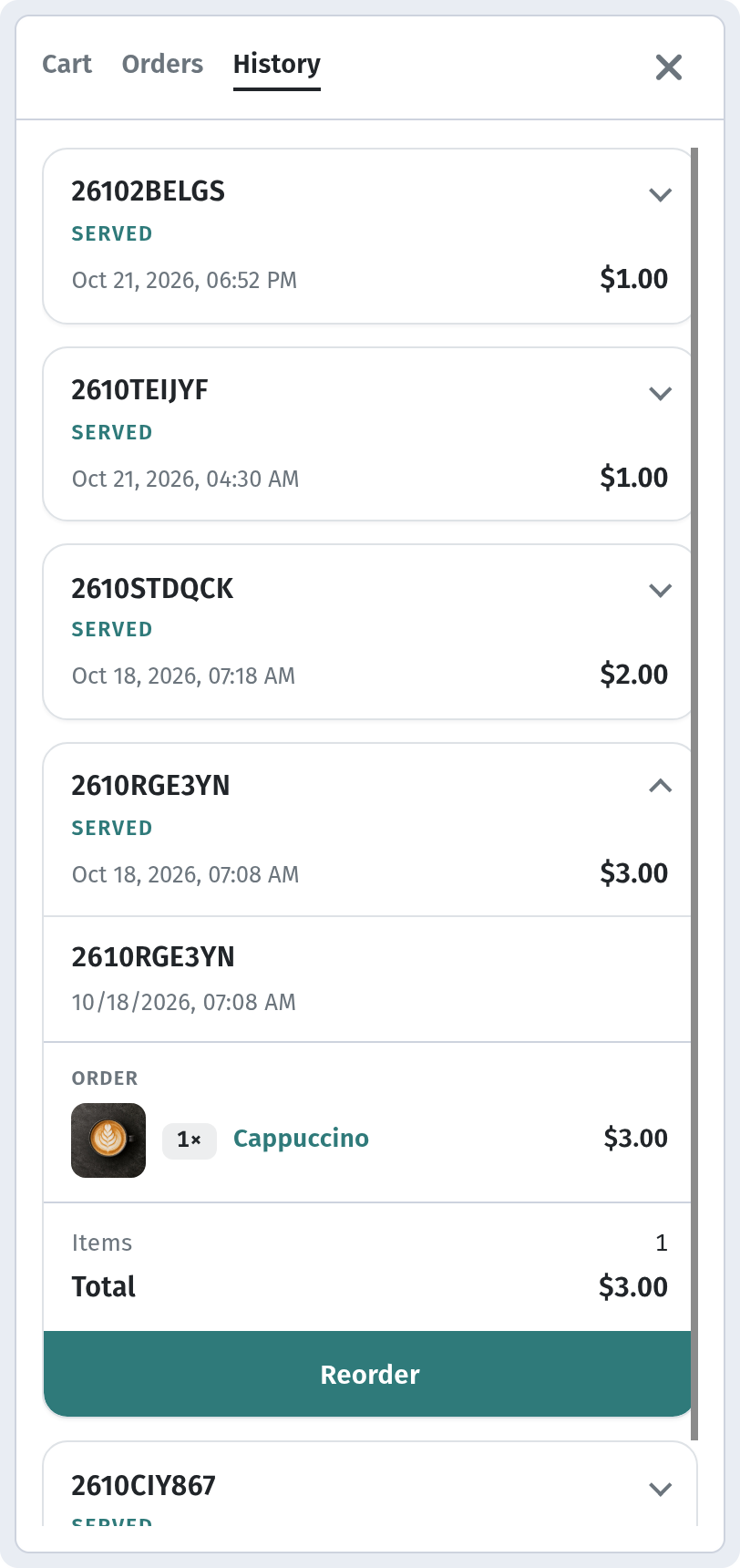
Expand an order in History to see its contents — each dish with quantity and price — the item count, the total and a green Reorder button. One tap, and the same dishes are ready to order again.
6. "Repeat last order" in the Cart
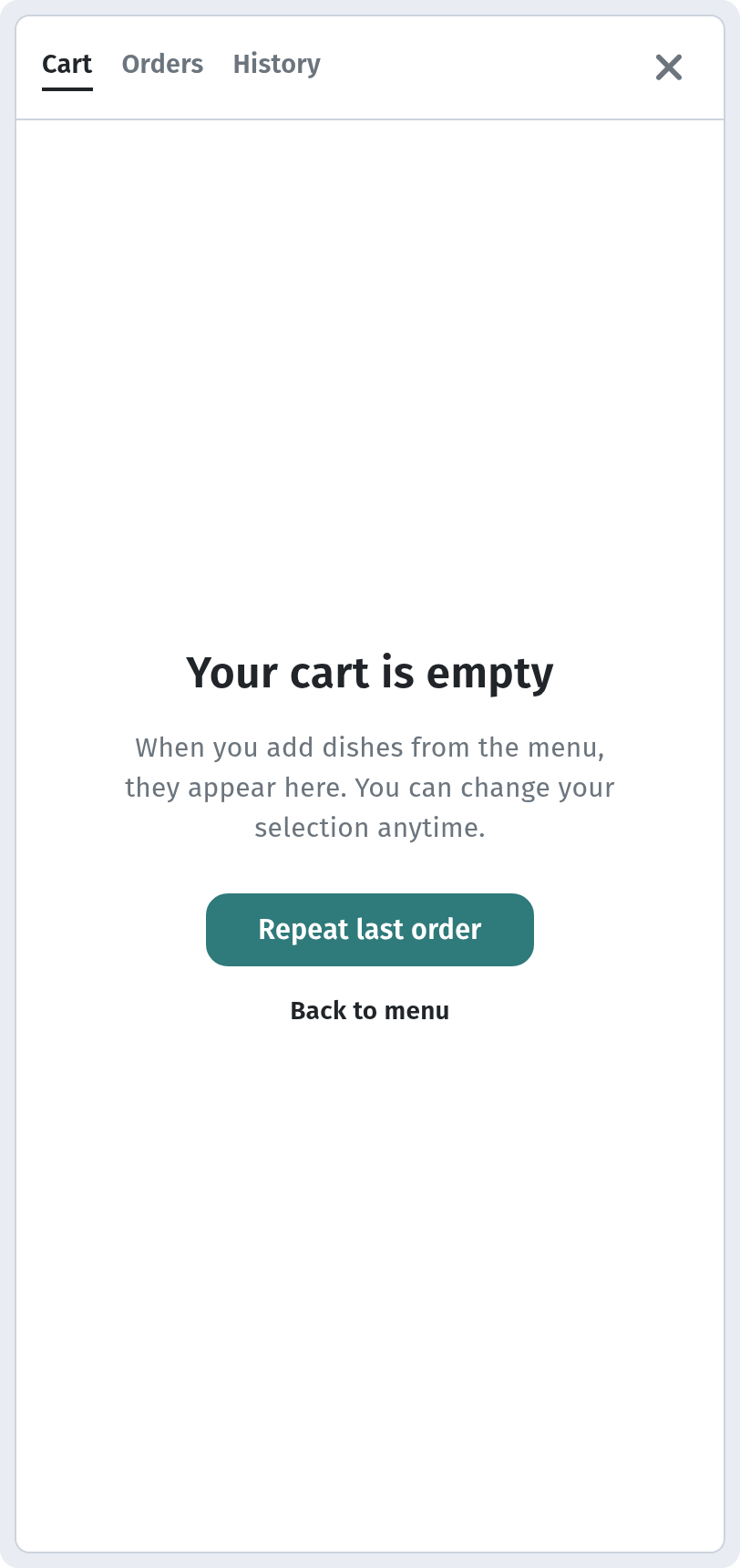
There's an even faster path. The Cart tab has a Repeat last order button that repeats the guest's most recent order without opening History. Next to it, Back to menu returns to the dishes.
If the store is closed right now, the cart says so and shows when it opens, so the order can be placed during opening hours.
7. Checkout as usual
After repeating, the order can be reviewed and adjusted: the cart shows the dishes, Clear all, the total and the tip block (No tip, 5%, 10%, 15% or Custom). Then the guest taps Place order, and the new order appears in the Orders tab.
What the restaurant sees
A repeated order is just a regular new order. It lands in the dashboard Orders list with invoice number, total, date and time, fulfillment, payment and status. And the guest, once registered, is listed in Clients with name, email and phone.
Why it matters for your restaurant
- Faster for regulars. A favourite order in one tap.
- Fewer questions for staff. Guests see the order status on their own phone.
- A reason to sign up. History and reorder give guests a clear benefit of having an account.
Quick checklist
- Sign in to the menu as a guest (see the sign-up article).
- Place a test order and open Show order.
- Follow the status in the Orders tab.
- Once served, find the order in History and tap Reorder.
- Check the Repeat last order button in Cart.