

Choice-of-soup modifier group in WebQRMenu
A business lunch often lets the guest pick a soup — or skip it. In WebQRMenu that is a modifier group: a list of options with required/optional and single/multiple rules, attached to a dish. Guests see the group title and radio options in the dish sheet.
Related reading: The dish card, Menu structure.
In short: Menu content → Modifiers — create a group with Optional and Single choice, add the options, then translate their names. On the dish card under Dish customization tick the group. On a phone open the dish and tap an option — you do not need Add to cart just to check the choice.
1. Translate option names
Open the modifier group, then edit an option. In the translation panel pick English (and Georgian if you offer it), expand the language, and fill Name — for example Pumpkin cream soup. Save and repeat for every option in the group (in Aurora Prime: pumpkin cream soup and chicken broth).
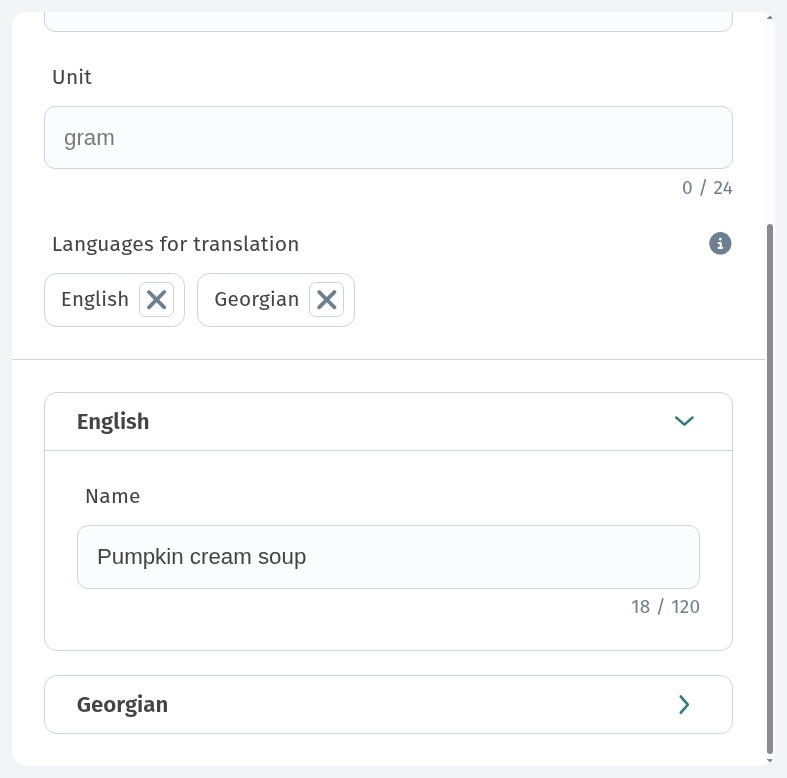
The guest never sees the base-language row title when the active menu language has a filled translation. The unit field can stay empty or hold a short label when you need it for that option.
2. Attach the group to the dish
On the dish card (for example Business lunch) expand Dish customization. Tick the soup group. The row shows whether it is optional and how many options it has. Manage modifier groups jumps back to the groups list. The phone preview on the right already shows the group heading and the option controls.
3. What the guest sees: options with none selected
Open the public menu on a phone and open Business lunch. Under the description you get Choice of soup and two options with empty radios — nothing selected yet. The footer shows Total (here 15.00 ₾); both options cost +0.00, so the total stays the same.
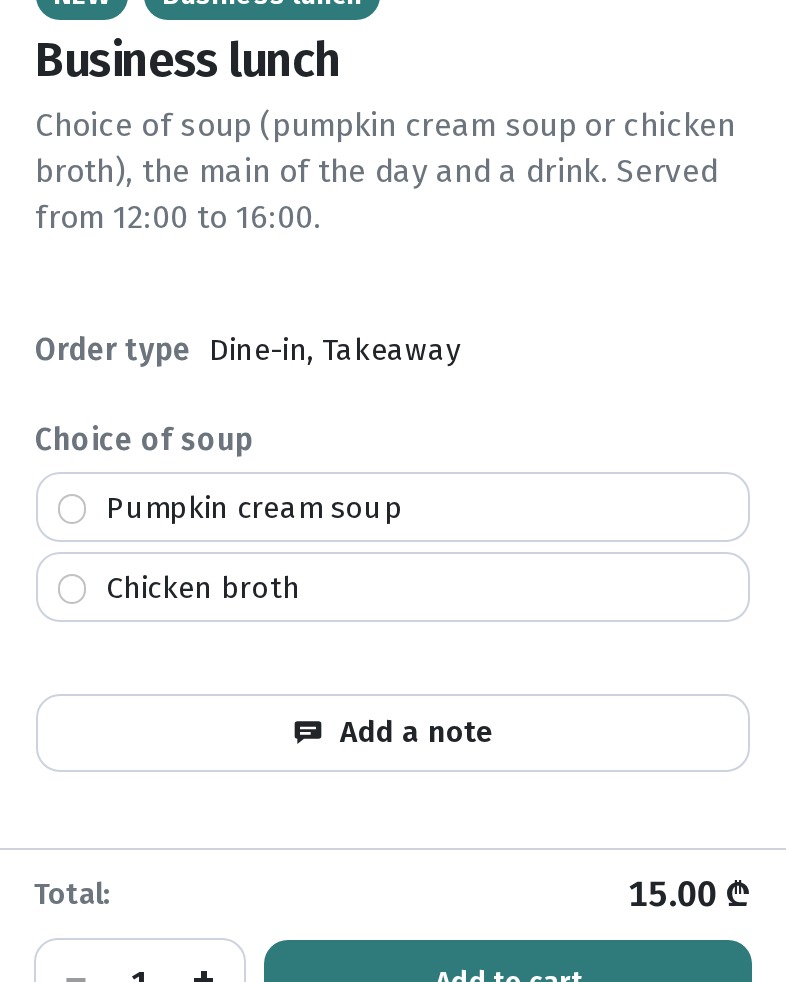
Because the group is optional, the guest can continue without picking a soup. To verify the UI you only need to open the dish sheet — no Add to cart tap is required.
4. Select the first option
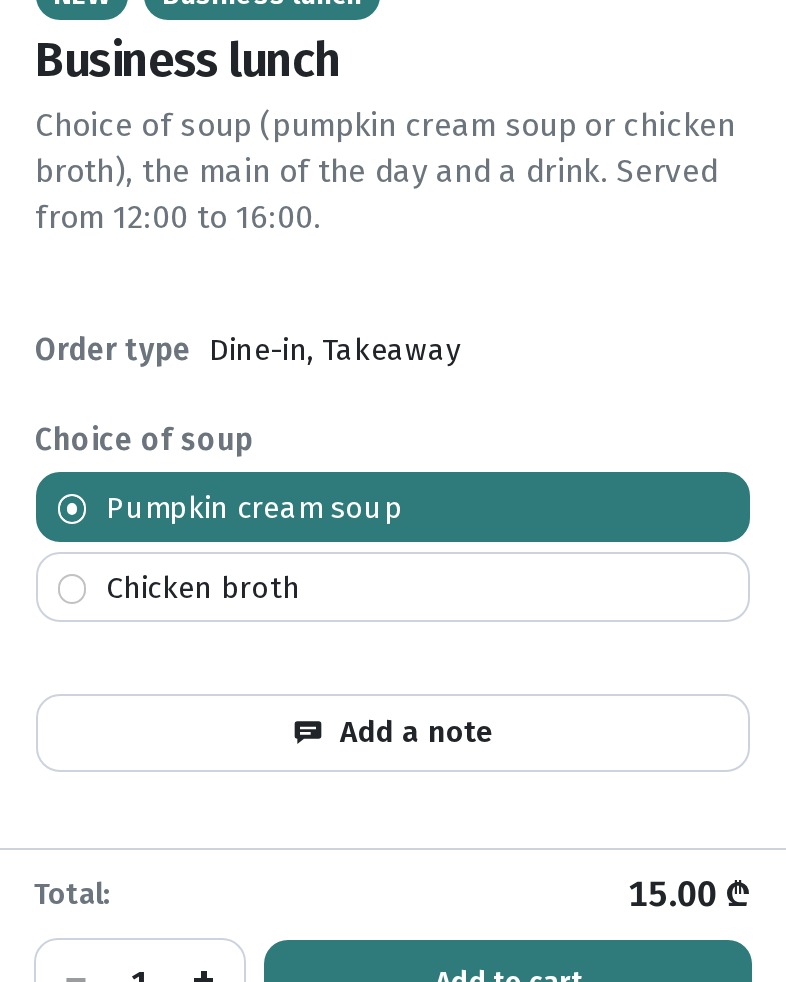
Tap Pumpkin cream soup — the row highlights and the radio fills. The second option stays free.
5. Switch to the other option
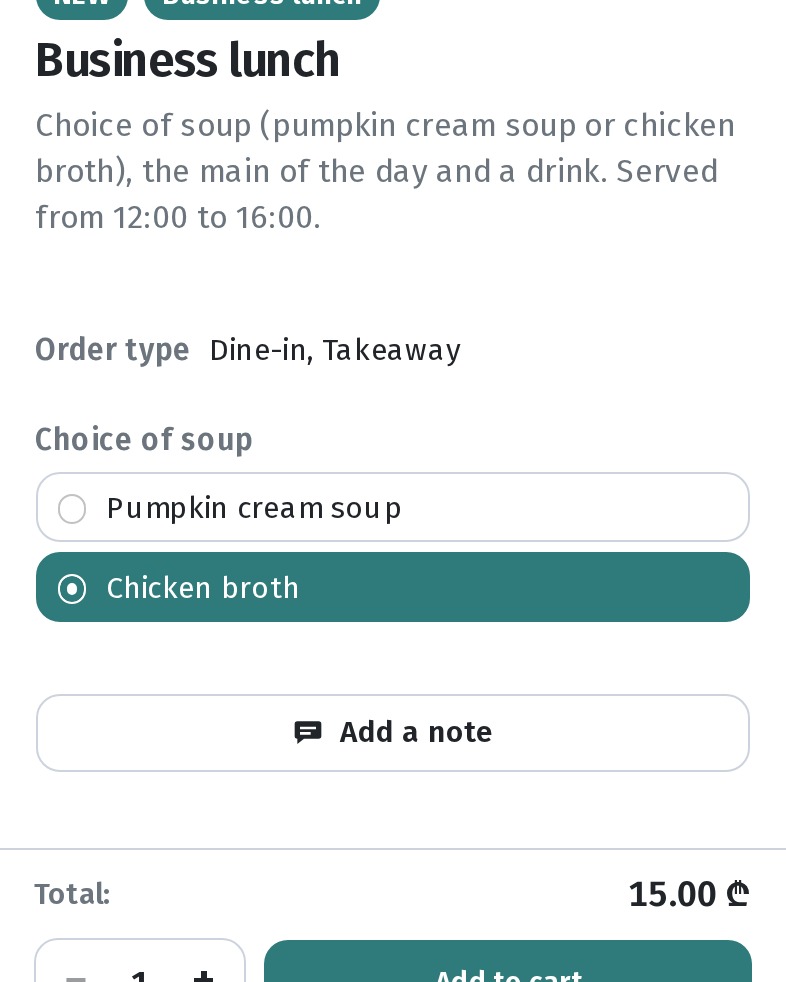
Tap Chicken broth — the selection moves; only the second option stays active. That is how Single choice behaves.
6. Practical tips
- Optional + single choice fits “pick one soup, or skip”.
- Translate every option name for each language you offer.
- After linking a group, check the public link on a phone in every language.
- Checking the soup choice does not require adding the dish to the cart — open the sheet and switch options.
Checklist
- Translate every option name in the modifier group.
- Dish card → Dish customization → enable the group.
- Guest menu → open the dish → confirm options start unselected.
- Select the first option, then switch to the second.
- Verify EN / RU / KA on a phone.