
Account Settings: Interface Language, Time Zone and Notifications
What you can set in your WebQRMenu account: dashboard language, theme, time zone, date and time format, uploads to the library and email newsletters.
Besides the store settings, WebQRMenu has account settings. They aren't about the guest menu but about how the dashboard looks and works for you personally. It's worth checking them once, on day one.
Interface language
The first block is Interface Language ("Choose your preferred interface language"), the language of the dashboard itself: menus, buttons, hints. This block has its own Save button. After you click it, a short confirmation appears that the language has been changed.

Don't mix them up: the dashboard language and the guest menu languages are different things. You can work in the dashboard in English and show guests the menu in Georgian and Russian. To set up the menu languages, read A menu in three languages.
If some of your team prefer another language, each person can choose their own in their own account.
Theme
The Theme block sets the look of the dashboard itself: a light theme, a dark theme or following your device's system setting. It's a matter of taste, but if the dashboard stays open on a tablet at the counter all day, pick the one your staff find easiest for reading orders.
Time zone and date format
The Timezone block has its own hint: "Choose your timezone for dates and times in analytics". So the time zone affects only how dates and times are shown in analytics. Choose the one where your venue operates, for example "GMT+4 (Tbilisi, Dubai, Baku)", so that the analytics days and hours match your shifts.
Next to it is Date & time ("Choose how dates and times are displayed across the platform"), with the format, for example "Auto (based on interface language)", and the clock, for example "24-hour".
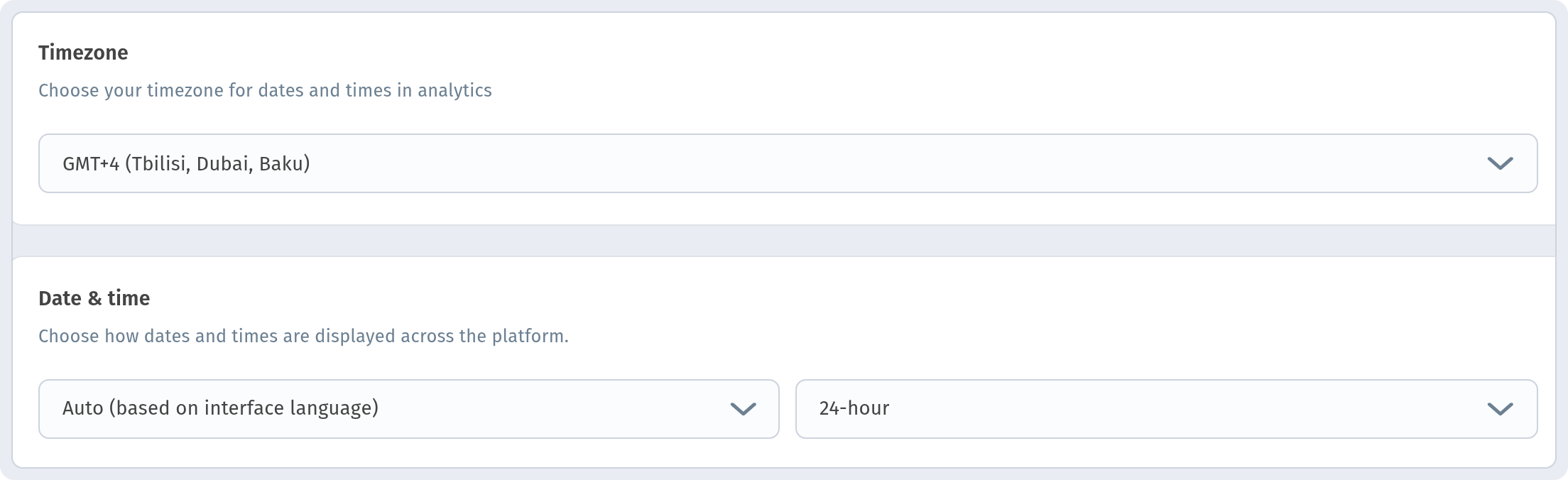
If you are setting up the dashboard from another country or while travelling, check the time zone: for analytics it should match where the venue operates, not where you are right now.
Uploads to library
A separate setting covers uploads to the image library, where your photos go. Check it before you upload dish photos in bulk.
Email notifications
The Notifications block has two email subscriptions: "Sales emails and coupons" and "Newsletter". Turn on whichever you're interested in. New-order notifications are set not here but in the store settings.

Working with several stores is described in Several stores in one account.
In short
- The dashboard language is saved with its own button.
- Time zone: where your venue operates; it affects dates and times in analytics.
- Turn on the email subscriptions only if you want them.