
Currency and Tax in WebQRMenu: Set Up Menu Prices for Your Store
Choose from 154 currencies and a tax mode (No tax, Included in prices, Added on top) for each store in WebQRMenu, and see how prices look to guests.
How to choose the currency for your menu prices and set the tax mode in WebQRMenu — No tax, Included in prices or Added on top — and how prices look to guests in the QR menu.
Guests should see prices in the currency they pay in, and your menu should handle VAT or sales tax the way your business does. In WebQRMenu both are set per store, so each venue can have its own currency and tax mode.
In short: Stores → edit the store → Information → Currency → Tax → save.
1. Where to find the settings
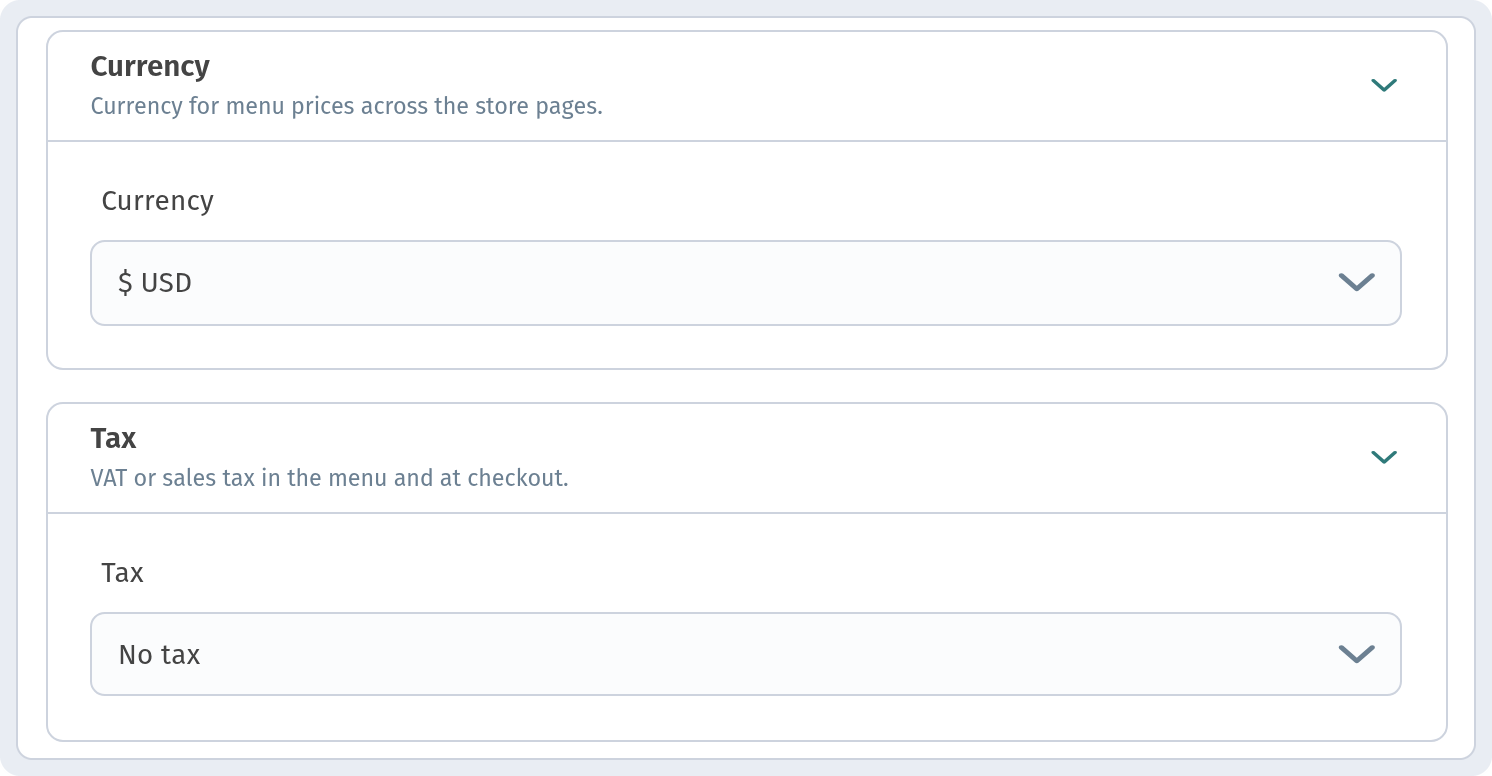
Open your store for editing (or create a new one with Create store) and go to the Information tab. Currency and Tax are separate sections there, below opening hours.
Both settings belong to the store, not to the account — if you run several venues, set them for each one. See Multiple stores in WebQRMenu.
2. Choosing the currency
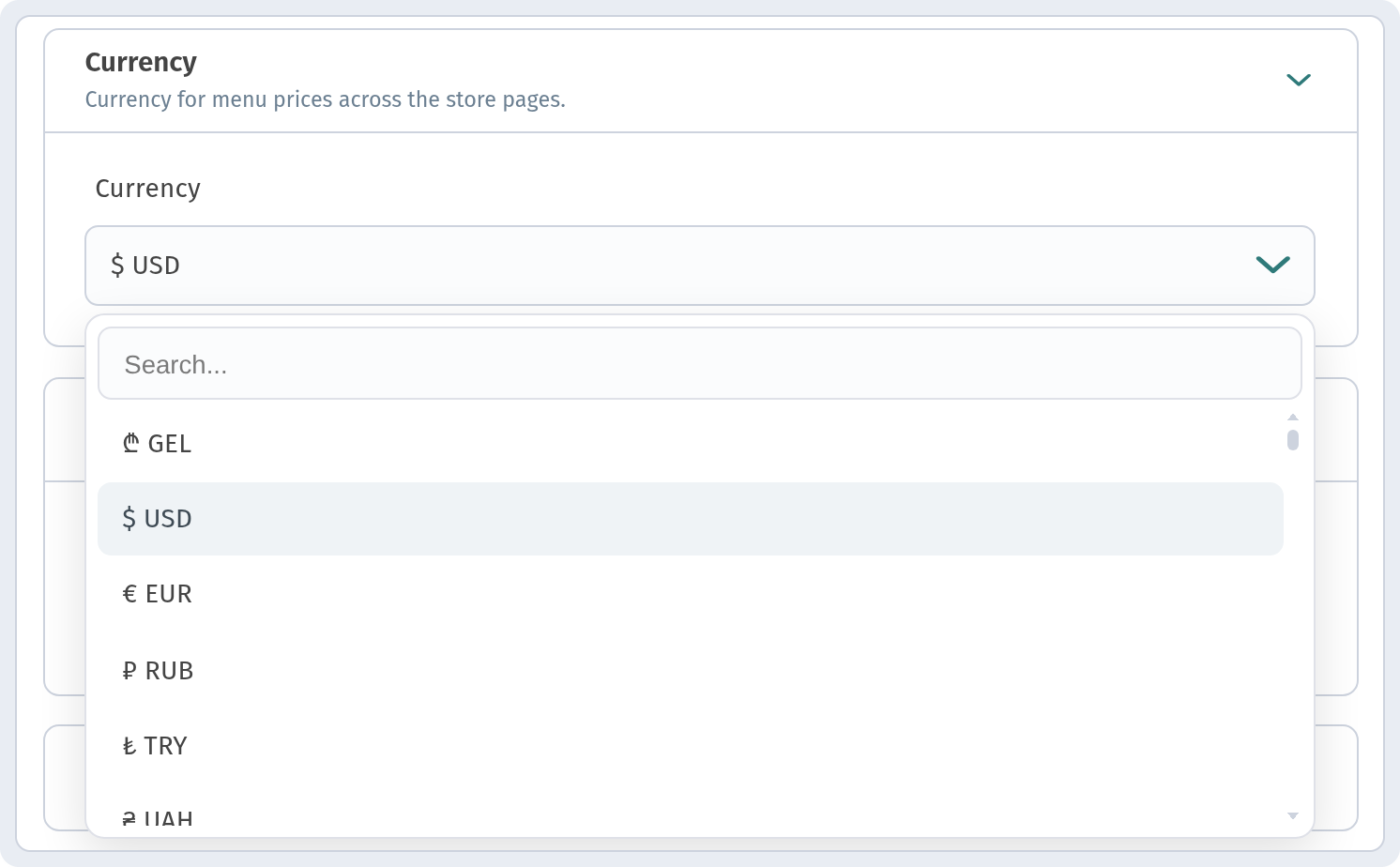
Currency is described in the dashboard as "Currency for menu prices across the store pages". Pick it from the dropdown — there are 154 currencies to choose from, including:
- ₾ GEL, $ USD, € EUR, £ GBP, CHF;
- ₽ RUB, ₴ UAH, ₺ TRY, zł PLN;
- ֏ AMD, ₼ AZN, ₸ KZT and many more.
New stores use ₾ GEL by default. Each currency is shown with its symbol, and that symbol appears next to prices in your menu.
3. Tax modes
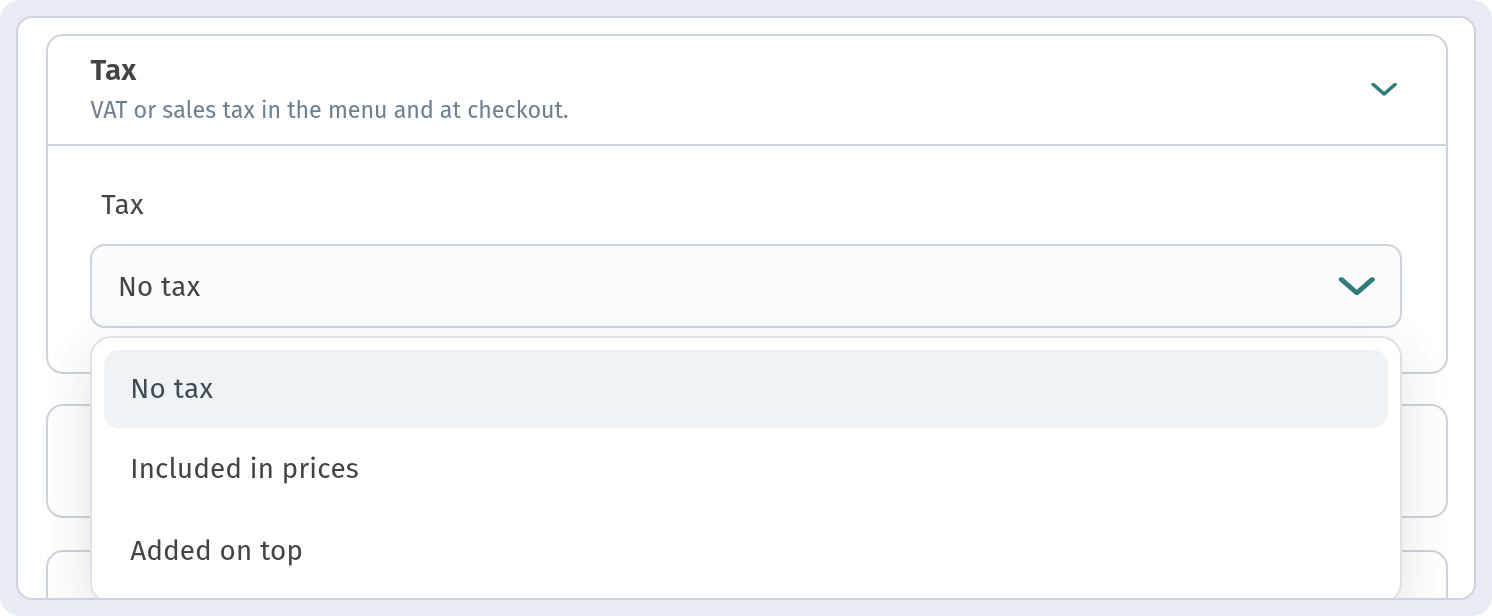
Tax is described as "VAT or sales tax in the menu and at checkout". There are three options:
| Mode | When to use it |
|---|---|
| No tax | You don't show tax separately in the menu (the default for new stores) |
| Included in prices | Your menu prices already include VAT or sales tax |
| Added on top | Tax is added on top of the menu prices |
Choose the mode that matches how you price your menu and how you're required to show tax in your country. If you're not sure, check with your accountant before changing it.
4. How prices look to guests
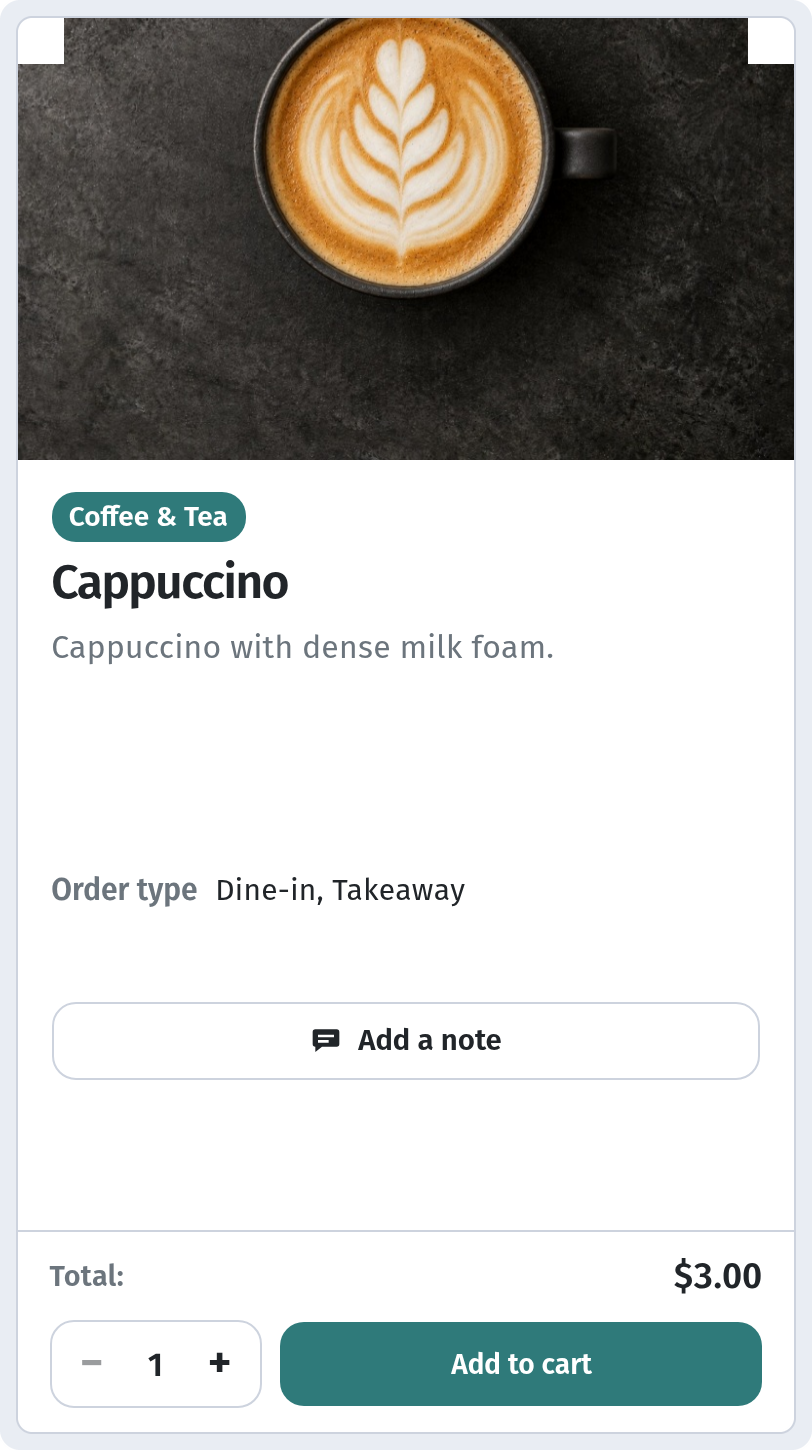
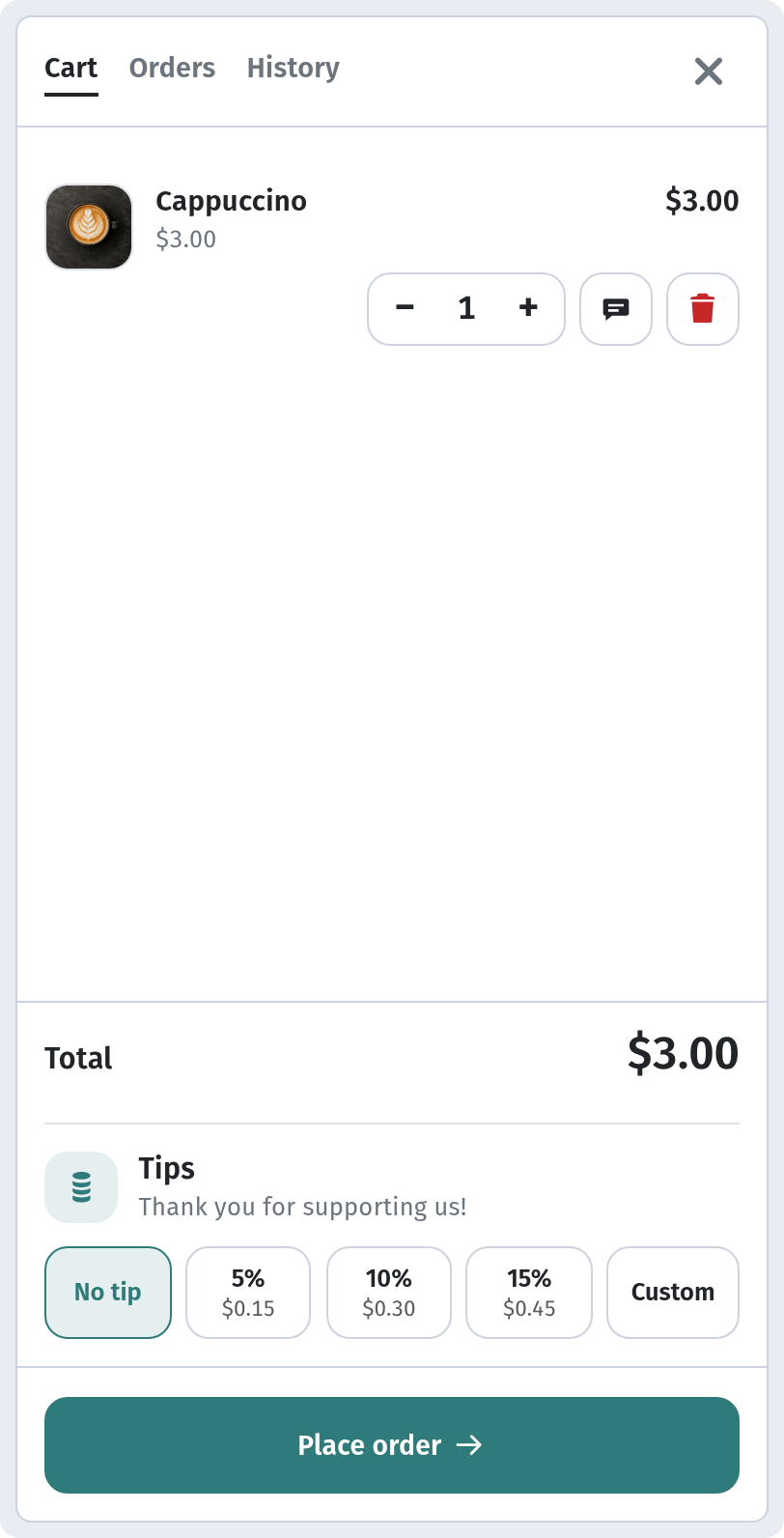
Here's an example from a store with $ USD and No tax:
- in the menu list, prices are shown in short form — "$3", "$17";
- in the dish card, the total is shown with cents — "Total: $3.00" — next to the quantity, note and Add to cart button;
- the bar at the bottom shows "1 items · $3.00" and View cart;
- in the cart, guests see the total, can choose a tip (No tip, 5%, 10%, 15% or a custom amount) and place the order.
With No tax there's no separate tax line, and in the dashboard the order shows Subtotal and Total.
Why it matters for your restaurant
- Clear prices. Guests see the familiar currency symbol and no surprises.
- Local rules. Choose how VAT or sales tax is handled in the menu and at checkout.
- Every venue on its own terms. Different stores can use different currencies and tax modes.
- Consistent everywhere. The currency applies across all of the store's pages.
Quick checklist
- Open the store → Information.
- Choose Currency (154 options, ₾ GEL by default).
- Choose Tax: No tax, Included in prices or Added on top.
- Save and open the guest menu to check how prices look.