
How to reorder dishes inside a section in WebQRMenu
Guests scroll a QR menu section from top to bottom. The first cards get the most attention: a bestseller, a high-margin dish, or this week’s special belongs at the top. In WebQRMenu you change the order inside a section by dragging rows in Menu content — no extra settings screen and no reprinting the QR code.
Related reading: The dish card, Menu structure and sections.
In short: open Menu content → select a section → drag a row by the six-dot handle → check the public menu link on a phone. Reordering sections and reordering dishes inside a section are different actions — this article is only about dishes in one section.
1. Open the section in Menu content
In the dashboard open your store and go to Menu content. On the left are Sections; on the right are the items in the selected section. Pick the section you need (in the example — Pizza with four dishes). The table shows the drag handle, photo, name, status, orders and price.
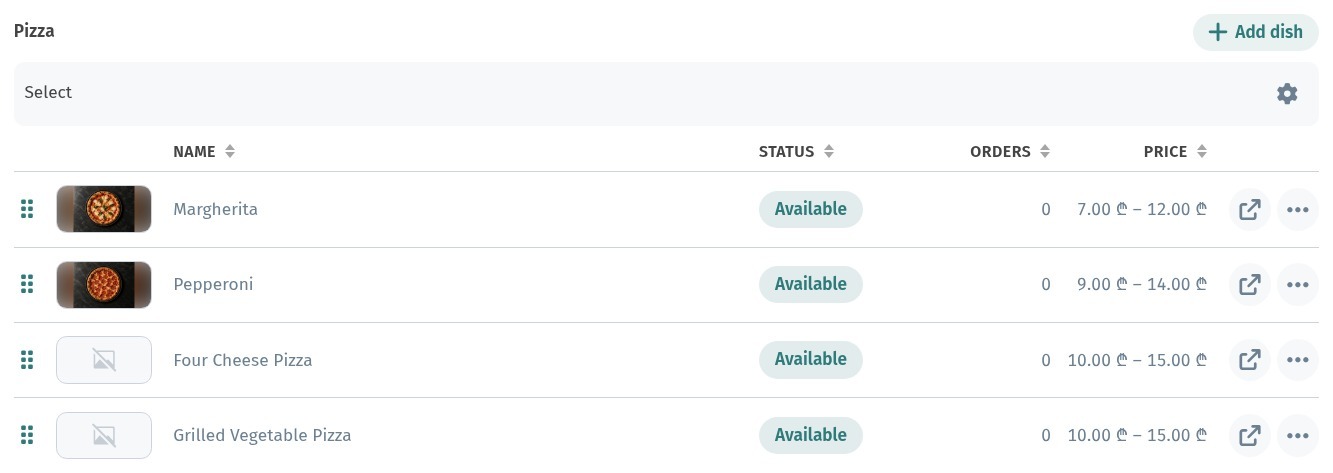
Starting order in the example: Margherita, Pepperoni, Four Cheese Pizza, Grilled Vegetable Pizza.
2. Drag a dish by the handle
Each row has a six-dot handle on the left. Press and hold it, drag the row to the new place, and release. In the example Pepperoni moves above Margherita: the list becomes Pepperoni → Margherita → Four Cheese Pizza → Grilled Vegetable Pizza.
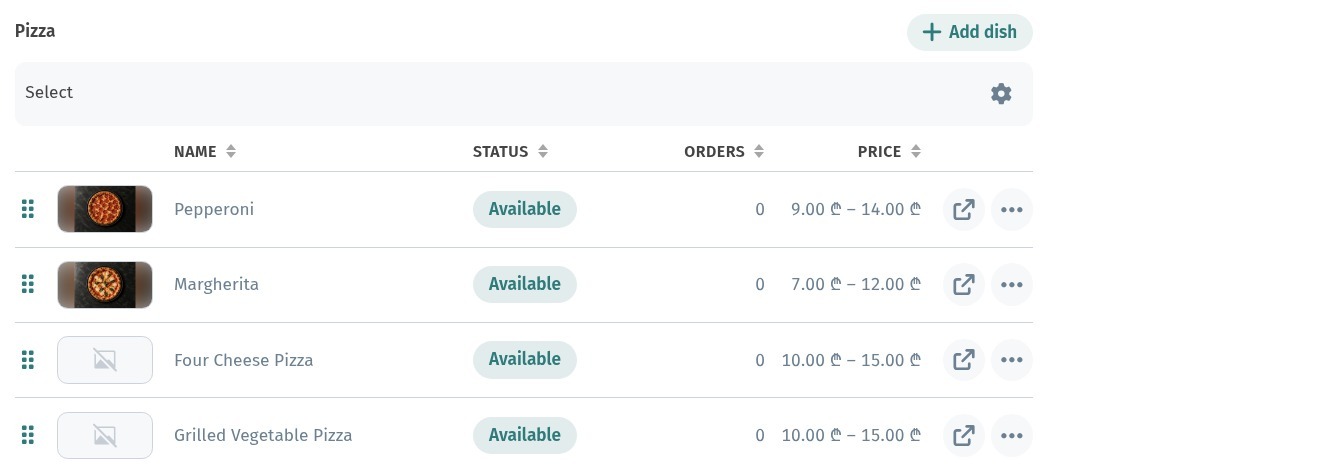
The same way you can push a seasonal dish down or gather hits at the top of the section. Other sections stay as they are.
3. What the guest sees before and after
Open the public menu from the general link or Open menu and scroll to the same section. On a phone the cards follow the same order as the rows in the dashboard.
Before the move the guest sees Margherita first:
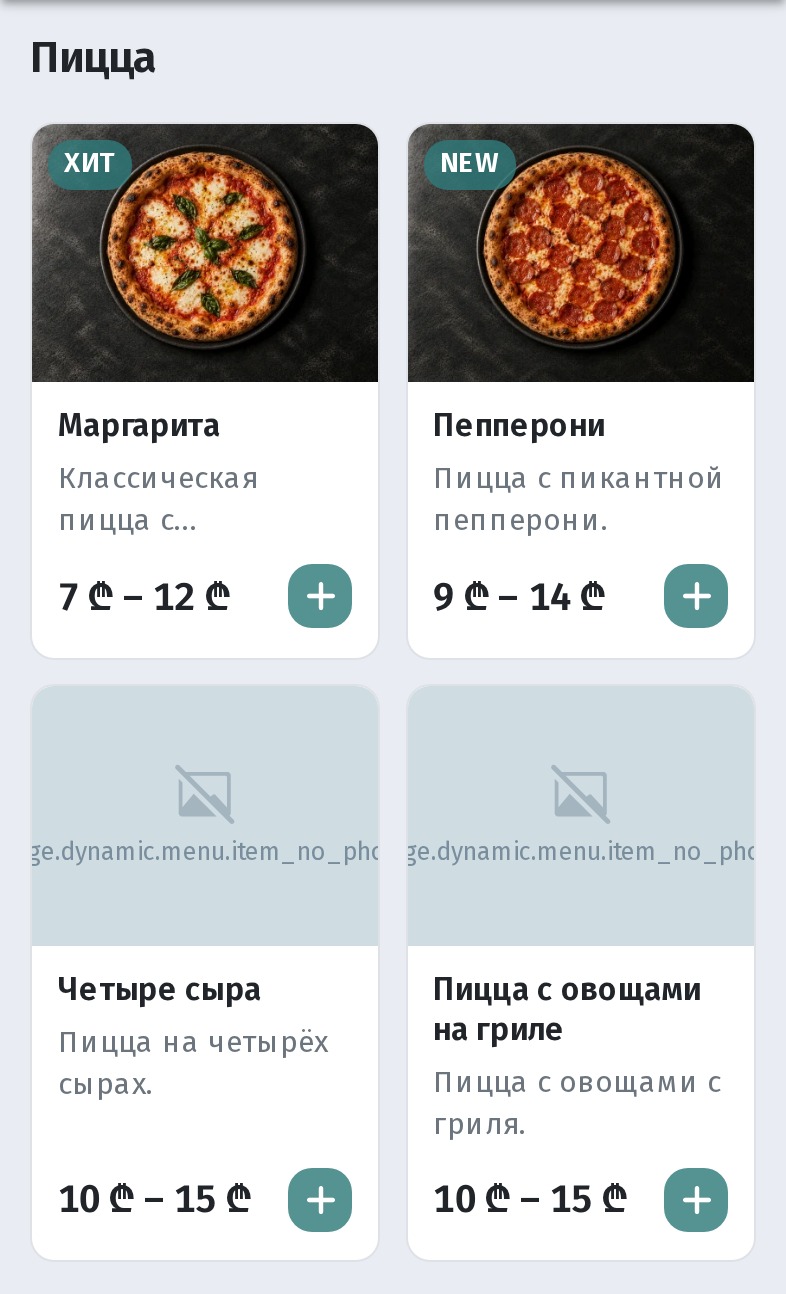
After the move Pepperoni is first:
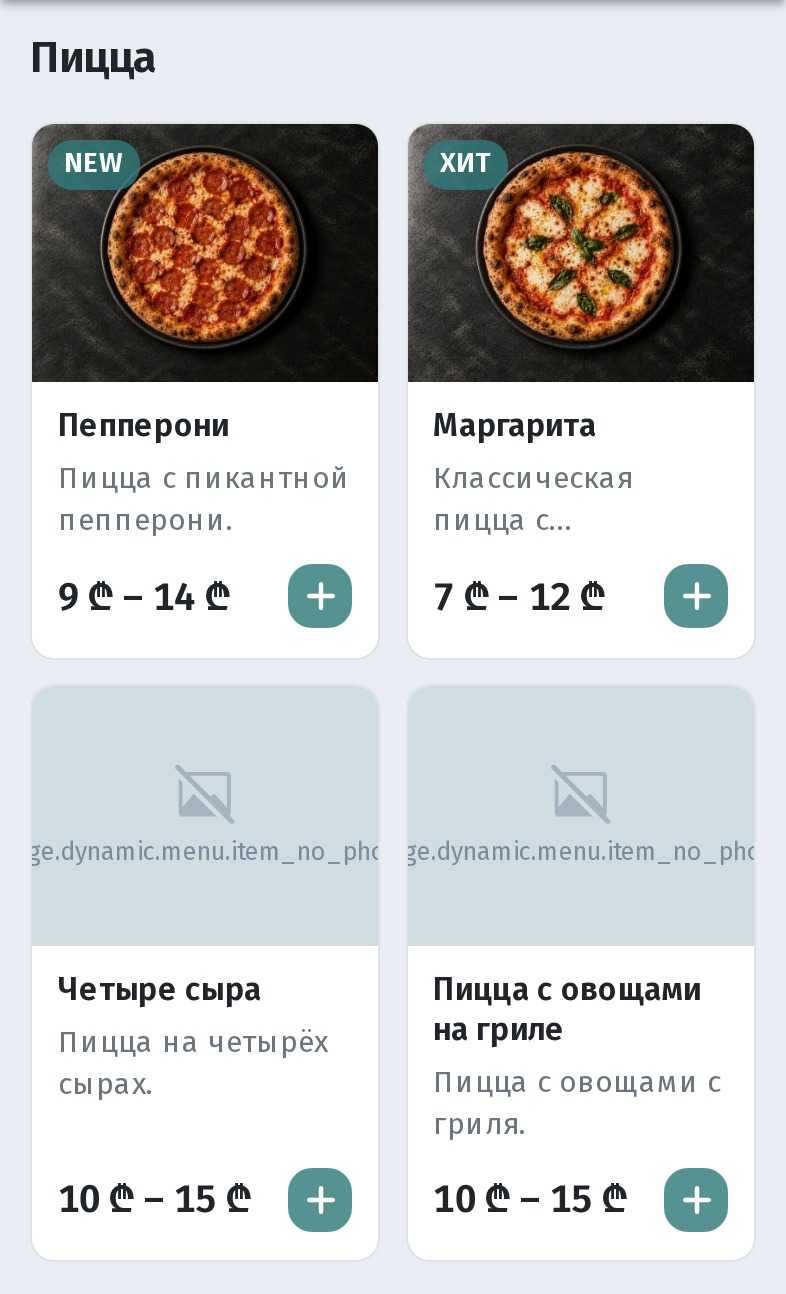
If the menu was already open on the phone, refresh the page to load the new order.
4. Practical tips
- Reorder inside one section: use the handles on dish rows, not the section list on the left.
- Put first what you want guests to notice: a hit, a new item, or a high-margin dish.
- After dragging, open the public link on a phone and check that section.
- If the menu is translated, check RU / KA as well — guests see translated names, the order is the same.
- To undo, drag the rows back to the previous sequence.
Checklist
- Menu content → the section you need.
- Drag a row by the six-dot handle.
- Confirm the table order updated.
- Open the public menu on a phone and check the section.
- With translations, glance at RU and KA too.