

Menu Content Sets: One Menu for Several Venues
What a content set is in WebQRMenu, how to create one, connect it to a venue and keep things tidy when you run several locations.
In WebQRMenu the menu isn't stored inside the venue but separately, in a content set: the sections and dishes that are then connected to a venue. It sounds like an extra step, but this is exactly what makes it easy to run several locations, prepare a new menu in advance and never mix up versions.
Where to find content sets
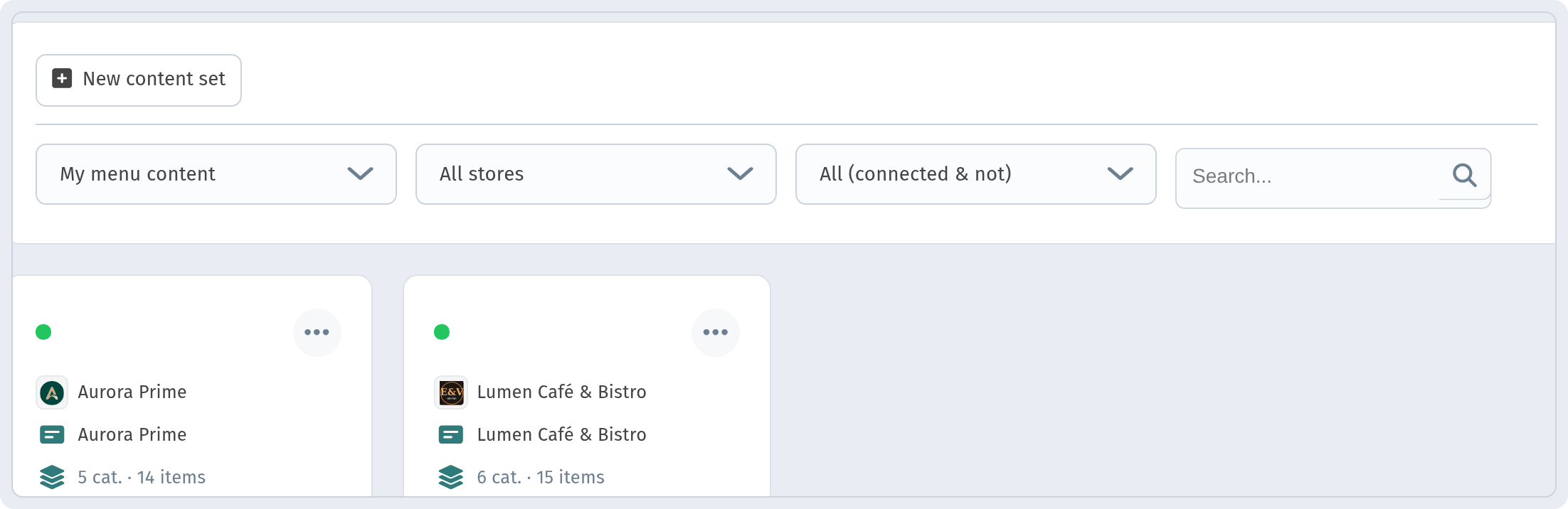
Open Menu content in the dashboard menu. All your sets are there. At the top is the New content set button and filters: only your sets or all of them, across all stores, connected and not connected.
Each set's card shows how many sections and items it contains, for example "Aurora Prime: 5 cat · 14 items".
How to create a set
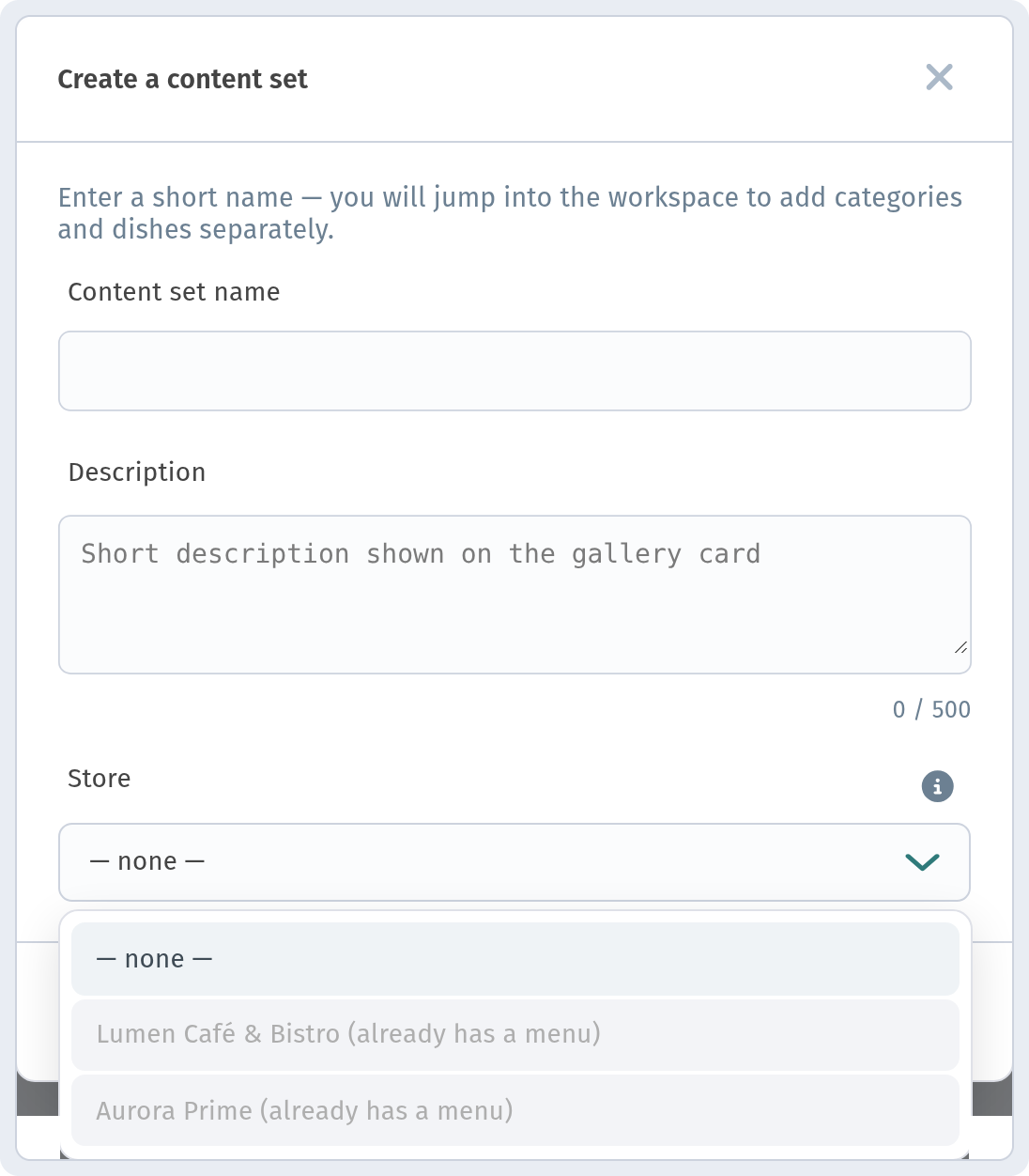
Click New content set. The dialog has three fields:
- Content set name: an internal name that only you and your team see. Make it clear: "Main menu", "Summer menu 2026", "Bar".
- Description: up to 500 characters. A good place to note what the set is for and who owns it.
- Store: which location to connect the set to. You can leave "— none —" and connect it later. Stores that already have a menu are marked "(already has a menu)".
Why a set without a store
A set that isn't connected to any location is a draft. Guests don't see it, and you can calmly build the sections, dishes, photos and translations. For example, you can prepare a new autumn menu over a couple of weeks and simply connect it to the venue on launch day.
Several locations
If you have two coffee shops, or a restaurant and a bar, each venue has its own menu and its own set. The page filters help you find the right one fast, and the category and item counter on the card shows at once where something is missing. For how the venues themselves work, their cards and the switcher between them, read Several stores in one account.
Inside a set
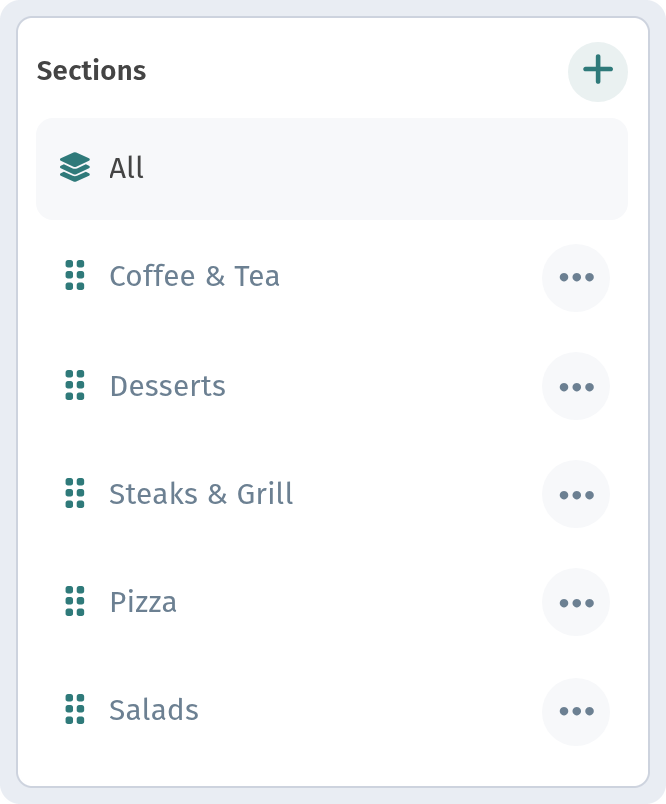
Open a set to see its sections and dishes. This is where you work on the menu: section order, dish cards, availability.
If your menu is in several languages, the translations are stored in the set too. More in A menu in three languages.
In short
- The menu lives in a content set, not in the venue.
- Give sets clear names and say in the description what they are for.
- Prepare a new menu in a separate set with no store.
- One set per location.