
Menu for browsing or with orders: how to turn on order acceptance
Turn on in-restaurant ordering in WebQRMenu, choose guest checkout or email sign-in, and tips — browse-only menu vs cart, and when each mode fits.
A public QR menu can be a quiet price list — or the way guests send a cart to your dashboard. In WebQRMenu that choice sits on one card: Acceptance and checkout. Three switches decide whether the guest only browses, whether they can place an order without an account, and whether a tips block appears at checkout. Below: what each switch does (verbatim hints), what the guest sees in each mode, Cash on the payments page, and when to pick which setup.
Related reading: the wider store panel in Store appearance and settings, the cart path in How a guest orders through the cart, tips in Tips at checkout, guest accounts in Guest sign-up and your client base, and fulfillment choices in Order types: dine-in, takeaway, delivery and pickup.
In short: open Store → Settings → Acceptance and checkout. Turn on Enable in-restaurant ordering when you want a cart; leave it off for a browse-only menu. With ordering on, use Enable guest checkout for orders without an account, or leave it off so Place order asks for email sign-in. Tips at checkout shows or hides the tips block. While ordering is off, the other two switches stay inactive. Save, then check the guest link on your phone.
1. Where the three switches live
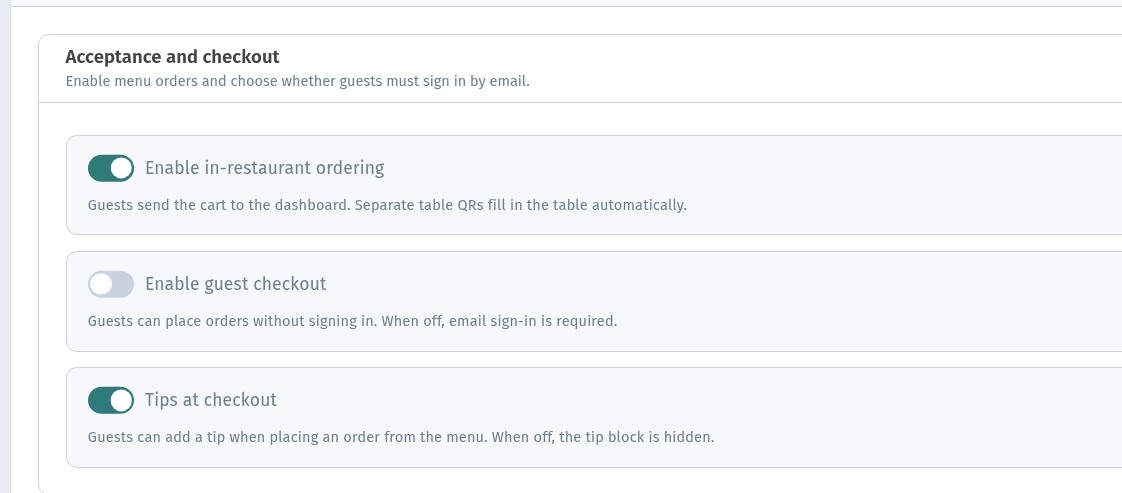
In the dashboard open the store and go to the Settings tab (next to Information and Page layout). The page lists blocks for orders and the QR page. Expand Acceptance and checkout — hint on the card: Enable menu orders and choose whether guests must sign in by email.
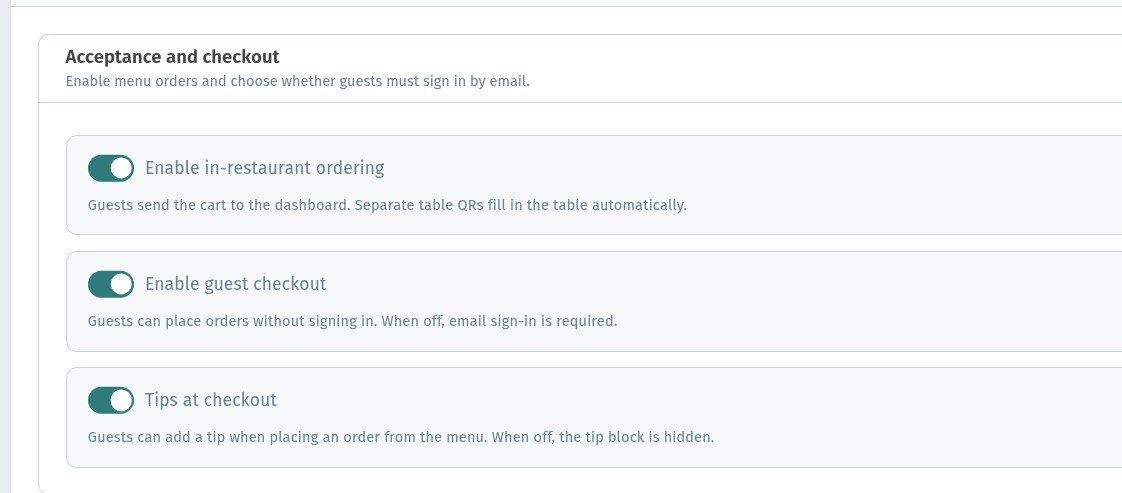
Everything for browse vs order, guest checkout and tips sits in that one card. You do not need a separate “menu mode” product.
2. What each switch does
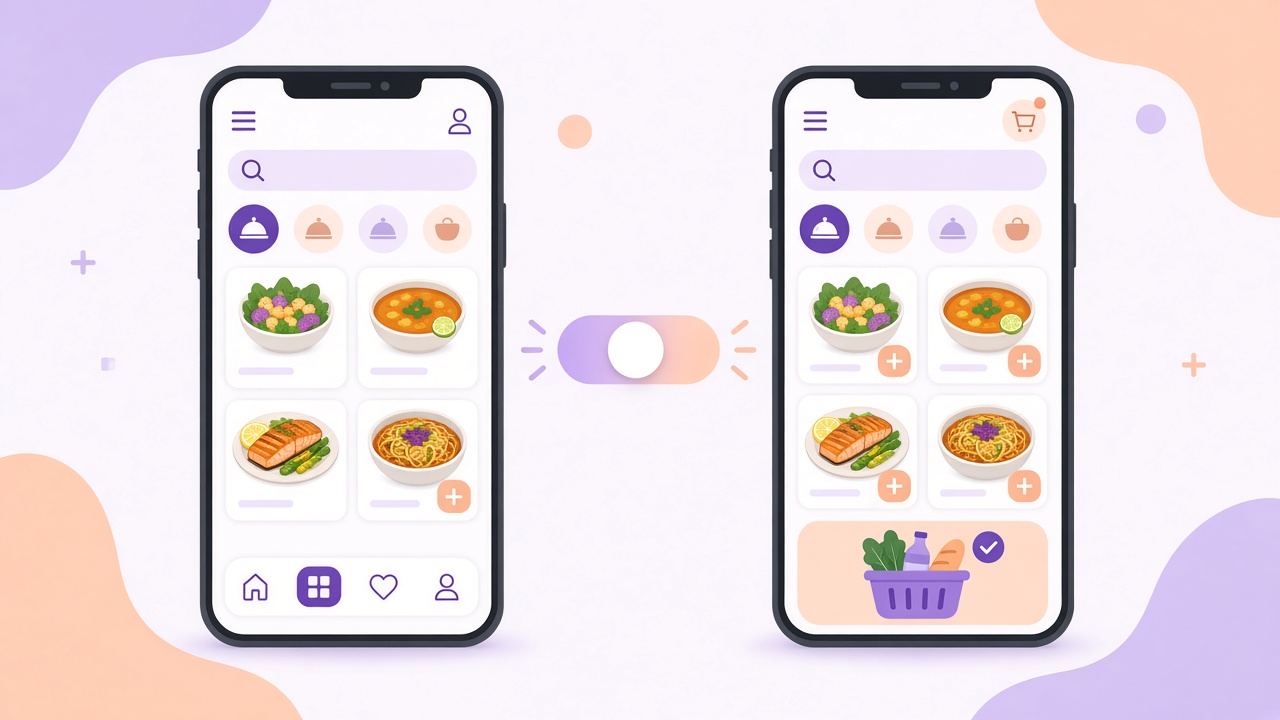
Enable in-restaurant ordering. Hint: Guests send the cart to the dashboard. Separate table QRs fill in the table automatically. When this is on, dish tiles show a +, the bottom cart bar appears, and the guest can build a cart and press Place order. When it is off, the menu stays browse-only: no + on tiles, no cart bar, and Sign in is not offered in the guest menu chrome.
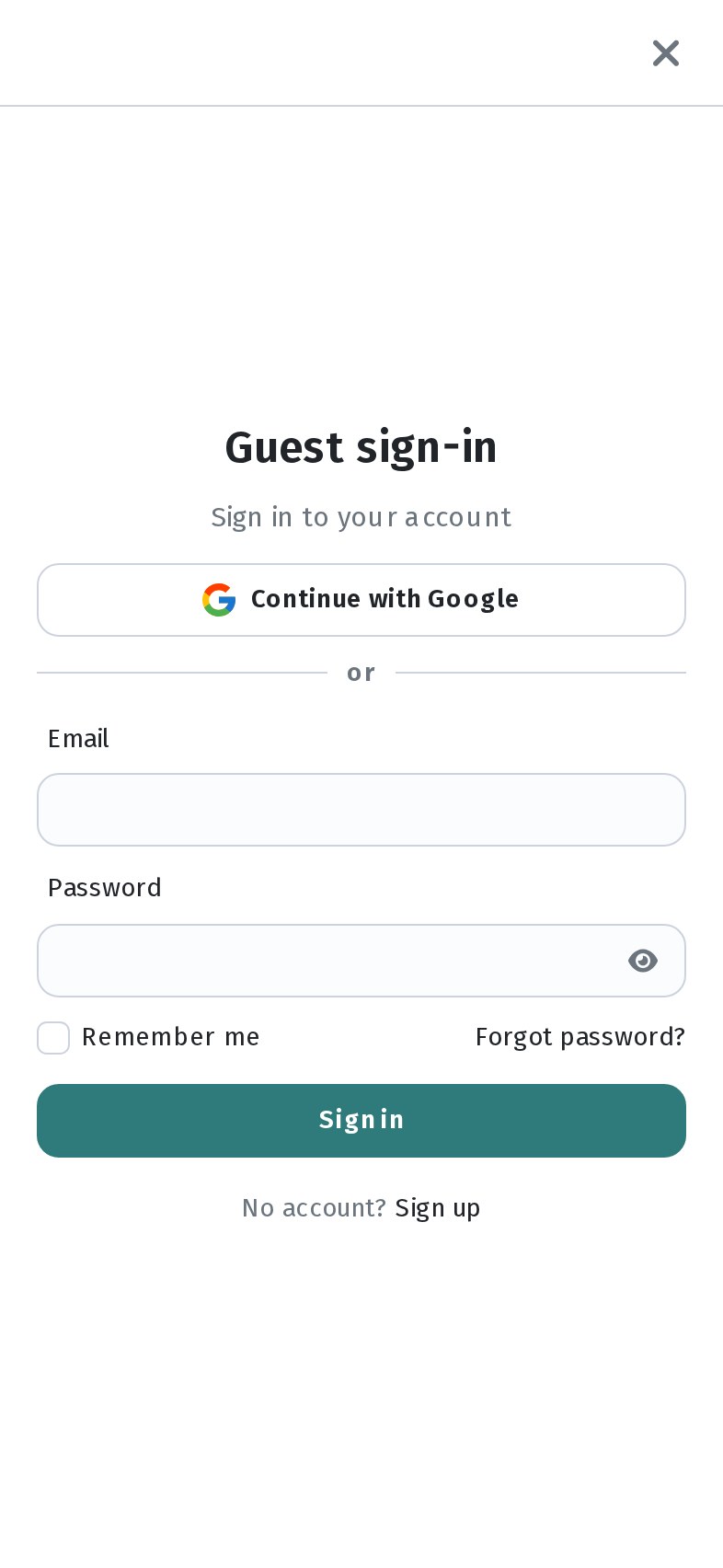
Enable guest checkout. Hint: Guests can place orders without signing in. When off, email sign-in is required. With ordering on and this on, the guest finishes the cart without an account. With this off, Place order opens the guest sign-in sheet instead of the next checkout step.
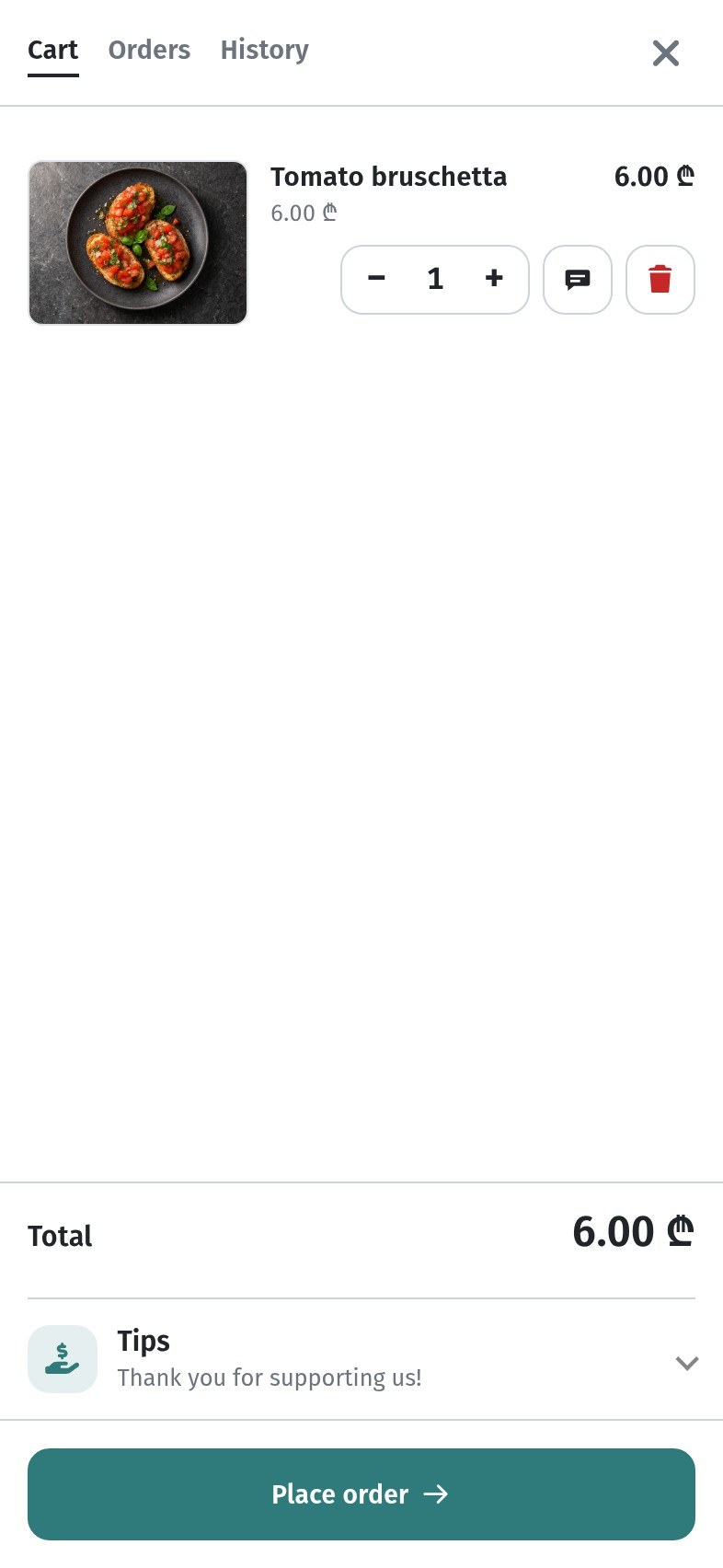
Tips at checkout. Hint: Guests can add a tip when placing an order from the menu. When off, the tip block is hidden. When on, the cart shows a Tips row (for example Thank you for supporting us!) and the confirm step can list a tip line. When off, that block does not appear.
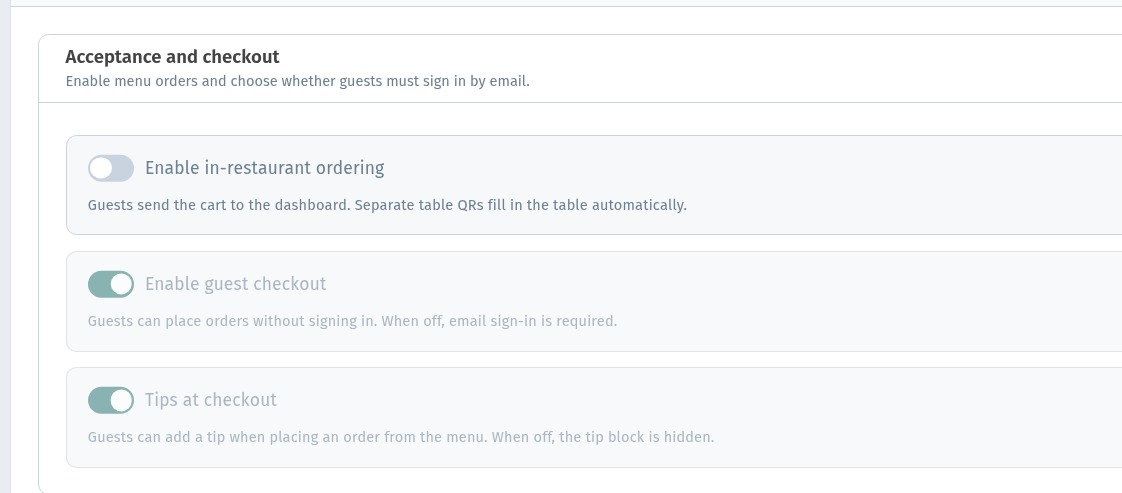
Dependency: while Enable in-restaurant ordering is off, the guest-checkout and tips switches stay inactive (they keep their last values but you cannot change them until ordering is on again).
3. Cash on the payments page
Orders still need a way to mark how the guest pays in the hall. On Integrations → Payments, the Cash card is the live option for that. Verbatim description: On: a guest can place an order and pay at the table. Off: an unpaid order is refused. The switch label: Accept cash orders.
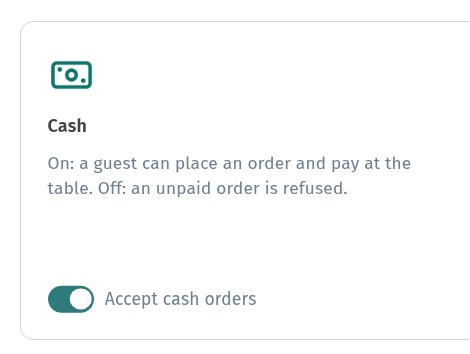
Leave Cash on when payment happens at the table or counter after the cart arrives. Pair it with clear order types.
4. What the guest sees: browse only
With ordering off, the public menu looks like a catalog. Prices and badges stay. Category chips and dish sheets still open. What disappears:
- the circular + on tiles
- the bottom cart bar
- Sign in in the guest menu navigation
Use the top of the menu (tiles and chips) to check the mode — not a dish sheet alone.
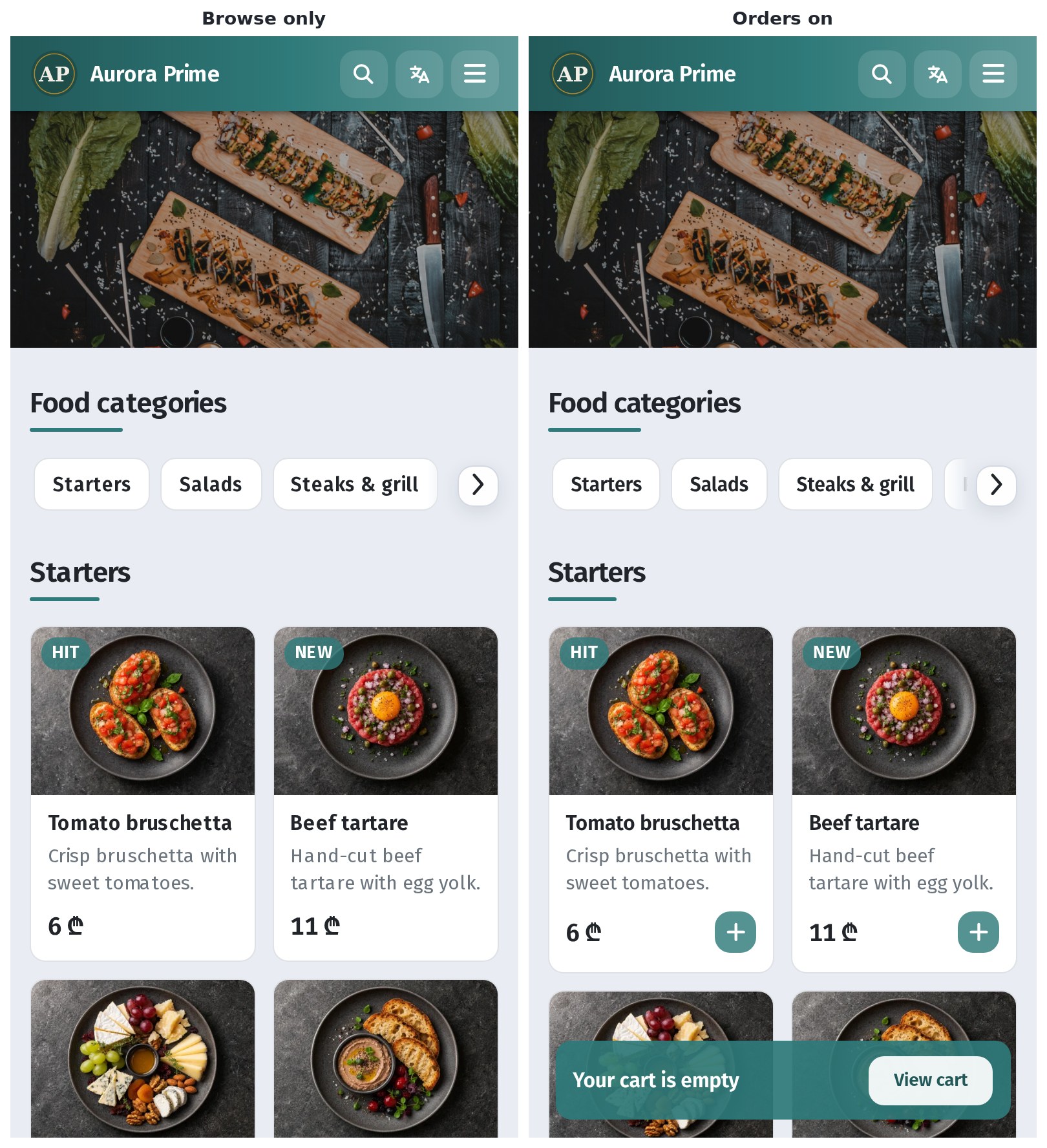
Left: browse only. Right: ordering on — + on tiles and the cart bar (Your cart is empty / View cart).
5. Ordering on: guest checkout vs email sign-in
With Enable in-restaurant ordering on and Enable guest checkout on, the guest adds dishes, opens the cart, and continues without an account. That is the usual table and terrace flow when you do not need an email before the ticket.
If you turn Enable guest checkout off (ordering still on), the cart still opens and tips can still show, but Place order brings up Guest sign-in: Sign in to your account, Continue with Google, email and password, Sign in, and No account? Sign up. No order is sent until the guest signs in or registers. Use this when you want guest emails; more on that in Guest sign-up and your client base.
6. Tips block in the cart and on confirm
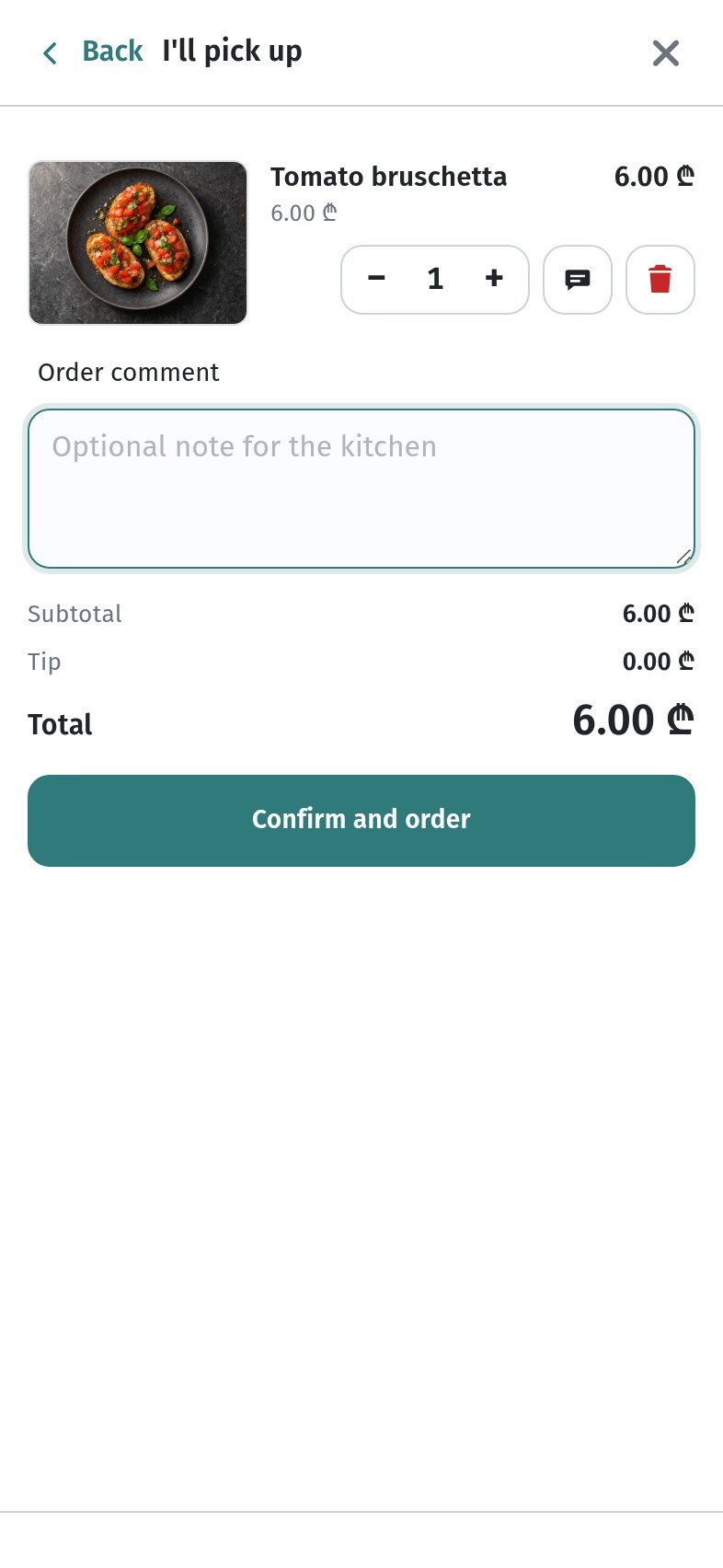
With Tips at checkout on, the cart shows a Tips block under the total. On the confirm step a tip line appears in the summary before Confirm and order. Details and team habits: Tips at checkout.
7. When to choose which mode
Browse only (ordering off). Price list and allergens without a cart — hotel room menus, showcase venues, or a soft launch before the kitchen takes QR tickets.
Ordering on + guest checkout on. Table QR and terrace service where speed matters and you do not need an email before the order lands in the dashboard.
Ordering on + guest checkout off. You want carts, but every order goes through email sign-in (or Google) so you collect guest contacts — quieter venues, membership-style cafés, or when marketing needs the address.
Tips on or off. On when the room already tips digitally; off when tips are cash-only or you do not want the block in the cart.
8. Checklist before service
- Store → Settings → Acceptance and checkout opened
- Enable in-restaurant ordering on for carts, or off for browse only
- With ordering on: Enable guest checkout on (no account) or off (email sign-in)
- Tips at checkout on or off as agreed with the team
- Cash → Accept cash orders set on Integrations → Payments
- Guest link checked on a phone: tiles / cart bar / Place order match the mode
- Order types and table QR reviewed if you use them
Save after every change, then refresh the guest link once on your phone.