

Custom Domain in WebQRMenu: Your Own Domain for QR Codes and Short Links
Connect your own domain or subdomain for dynamic QR codes and short links: CNAME and TXT records, Cloudflare DNS only, DNS checks and removal.
How to connect your own domain or subdomain, such as menu.example.com, to WebQRMenu for dynamic QR codes and short links: hostname format, the CNAME and TXT records, Cloudflare settings, DNS checks and removing a domain.
A short link on your own domain looks more trustworthy to guests than a generic one and reinforces your brand on every table tent. In WebQRMenu you can add your own domain in My domains. It is account-wide: according to the dashboard, it's used "for dynamic QR codes and short links across all workspaces".
In short: My domains → Add a domain → enter Hostname → Add → create the CNAME and TXT records at your DNS provider → Check DNS → wait for verification.
1. The My domains page
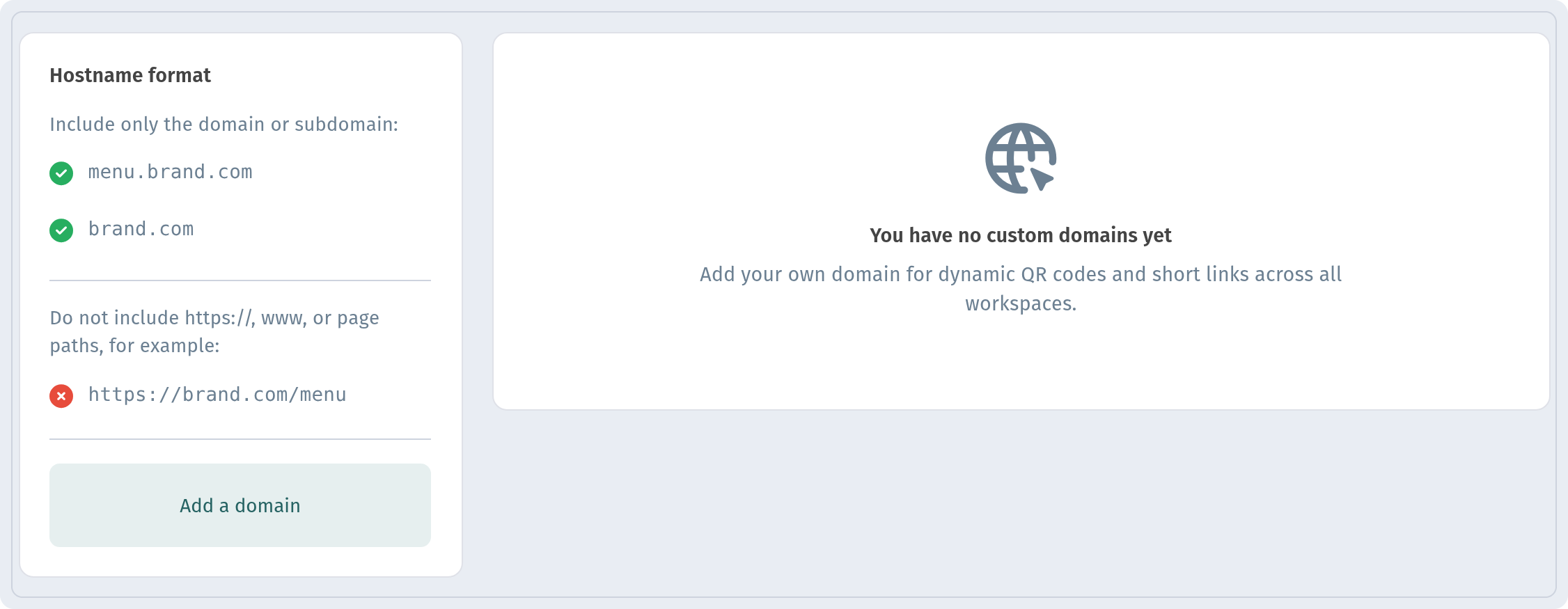
Open My domains (in the Integrations group, /domains). On the left is a Hostname format card, on the right the list of your domains. While it's empty, you'll see "You have no custom domains yet".
The hostname format matters:
- include only the domain or subdomain, for example
menu.example.comorexample.com; - do not include
https://,wwwor page paths —https://example.com/menuwon't work.
A subdomain like menu.example.com is usually the most convenient choice: your main website stays untouched.
2. Adding a domain
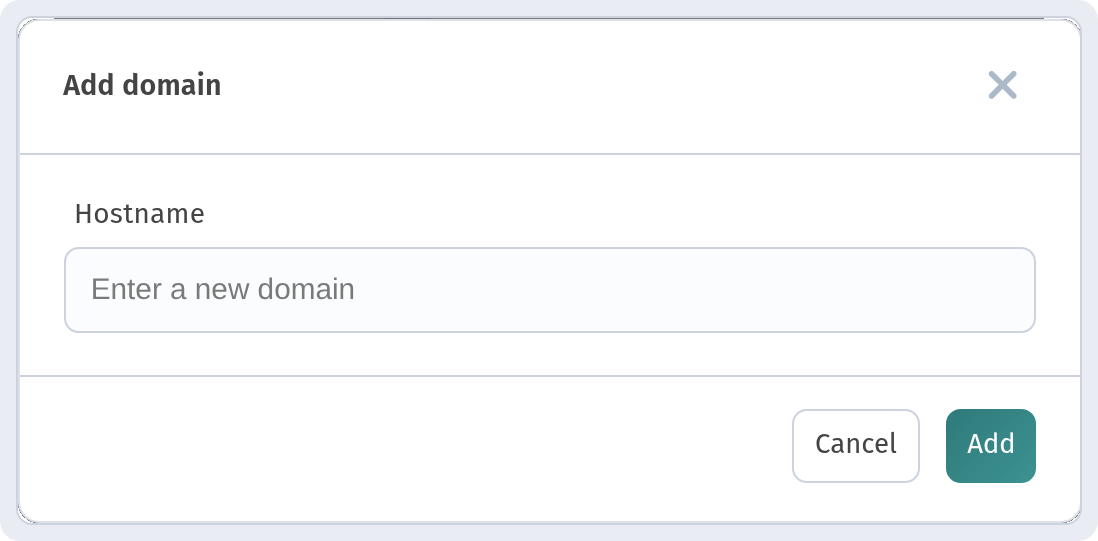
Click Add a domain. In the Add domain dialog, enter the Hostname (for example menu.example.com) and click Add. A "Domain added — configure DNS and verify" message appears, and the domain shows up in the list with the DNS setup block expanded.
3. DNS setup: CNAME and TXT
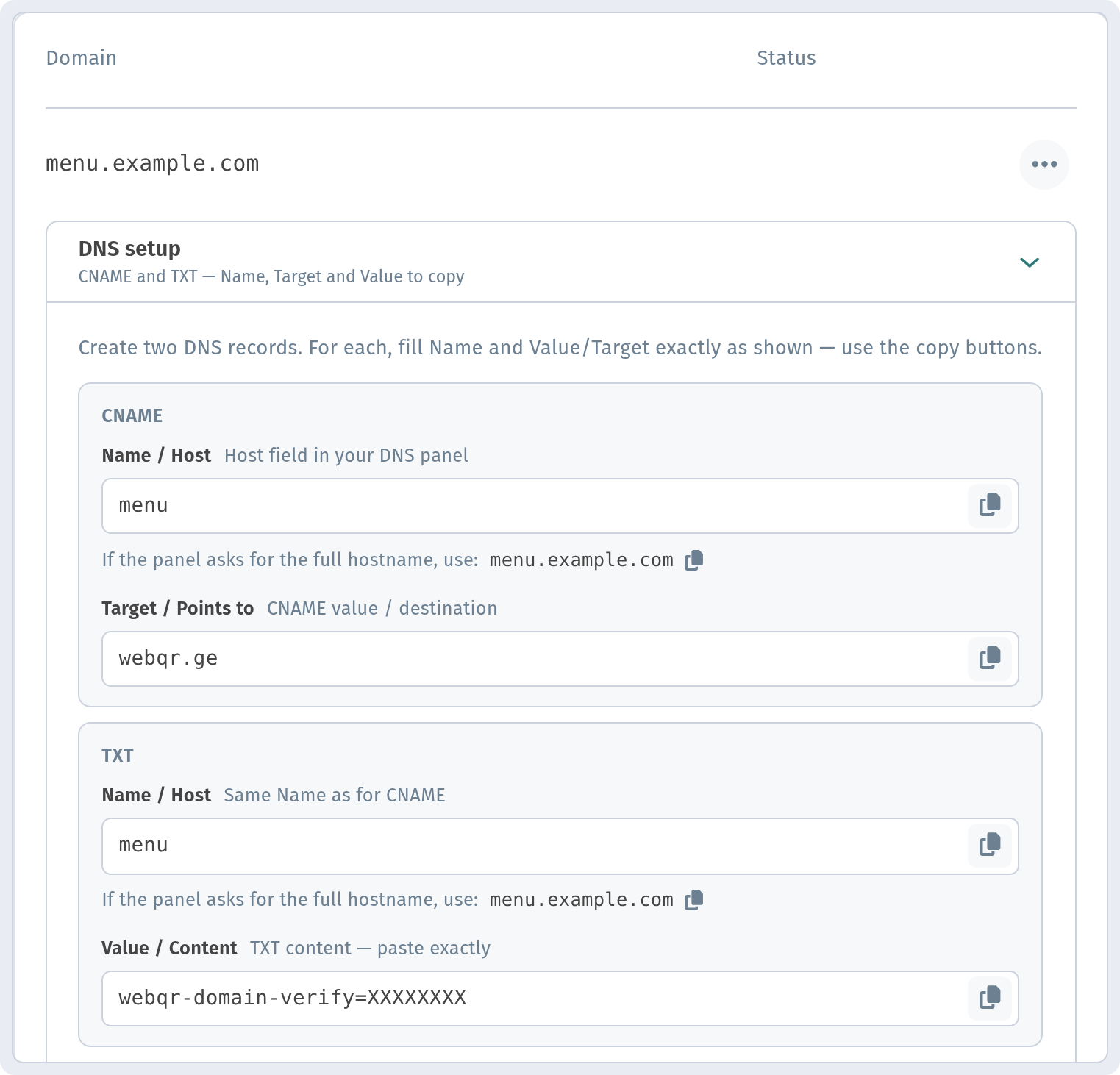
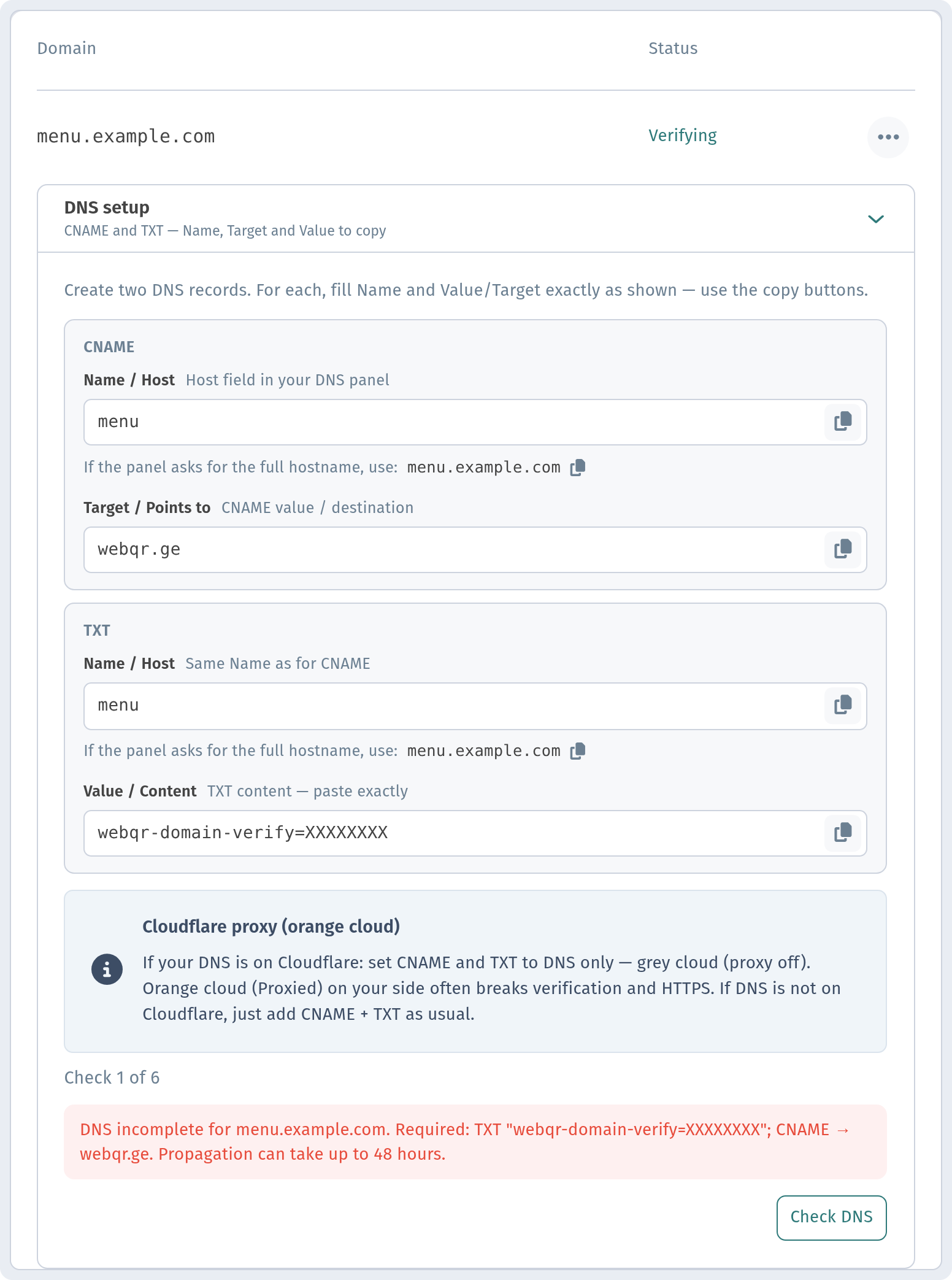
The dashboard asks you to create two DNS records at your domain registrar or DNS provider. Fill in Name and Value/Target exactly as shown — every value has a copy button.
| Type | Name / Host | Target / Value |
|---|---|---|
| CNAME | menu |
webqr.ge |
| TXT | menu (same as for CNAME) |
webqr-domain-verify=… — your personal code from the dashboard |
The TXT code is unique to your domain: copy it from the dashboard and paste it exactly. If your DNS panel asks for the full hostname instead of the short name, use the full one, e.g. menu.example.com — the dashboard shows it under each Name field.
4. If your DNS is on Cloudflare
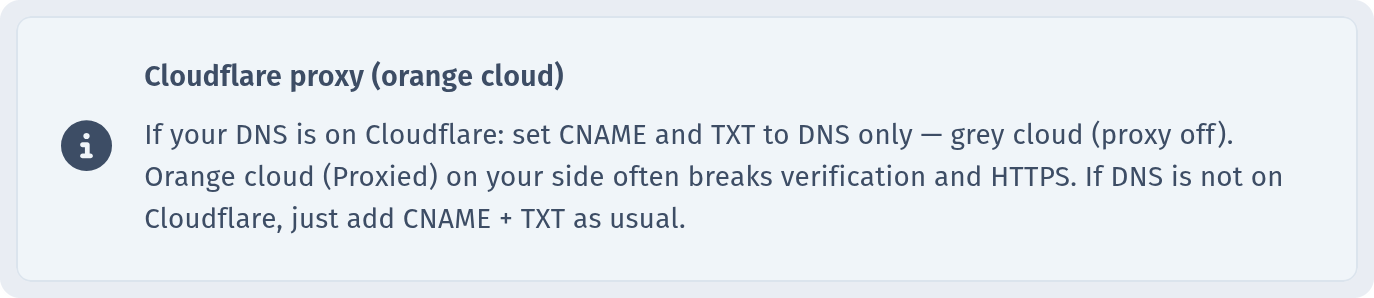
If your domain uses Cloudflare, set both the CNAME and TXT records to DNS only — the grey cloud, proxy off. According to the dashboard, the orange cloud (Proxied) often breaks verification and HTTPS. If your DNS isn't on Cloudflare, just add the two records as usual.
5. Checking DNS and the Verifying status
After adding the records, click Check DNS. While checks are running, the domain's Status is Verifying.
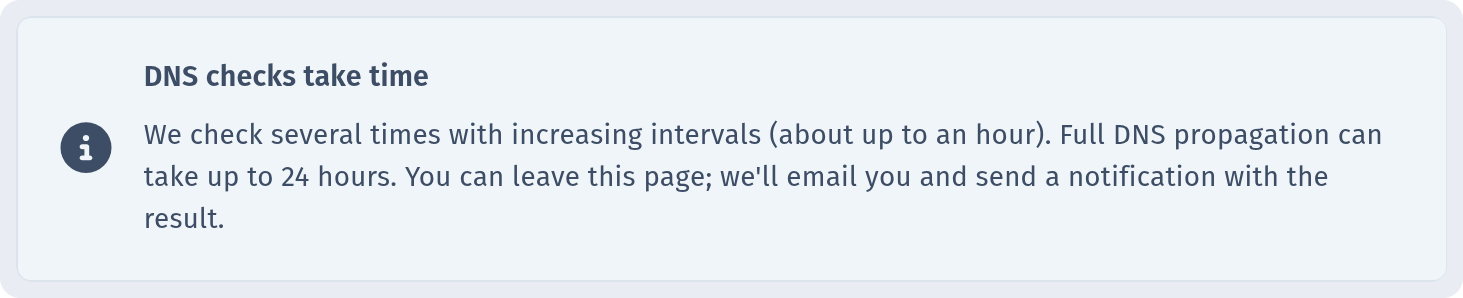
Don't worry if it doesn't work instantly. WebQRMenu checks several times with increasing intervals — up to about an hour — and full DNS propagation can take 24–48 hours. You can leave the page: you'll get an email and a notification with the result.
If the records aren't visible yet, the check shows a message like "DNS incomplete for menu.example.com" listing what's required (the TXT record and CNAME → webqr.ge) and an attempt counter (e.g. "Check 2 of 6"). The red DNS message comes from the server and is shown in English in every interface language. Double-check the records and wait.
6. Removing a domain
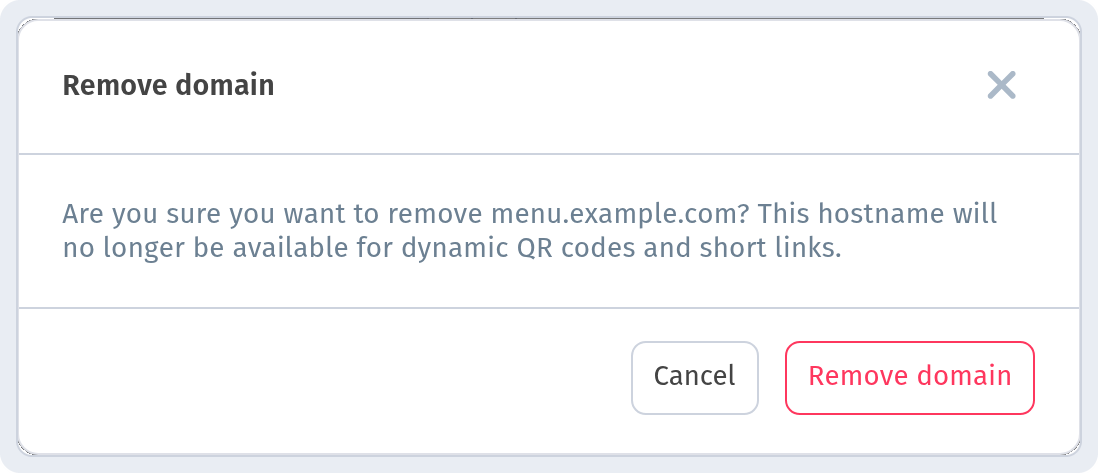
The "..." menu in the domain row has one action: Remove. Confirm in the Remove domain dialog with Remove domain. Keep in mind: after removal, this hostname will no longer be available for dynamic QR codes and short links.
For more on QR codes, see How to design a QR code and Tables and QR codes per table.
Why it matters for your restaurant
- Your brand in every link. Guests see your domain, not a generic one.
- More trust. A familiar address is more likely to be opened.
- One domain for the whole account. It works across all your workspaces.
Quick checklist
- Choose a subdomain, e.g.
menu.example.com. - Open My domains → Add a domain, enter Hostname, click Add.
- Create CNAME →
webqr.geand the TXT record with your code from the dashboard. - On Cloudflare, set both records to DNS only (grey cloud).
- Click Check DNS and wait for the email or notification.