
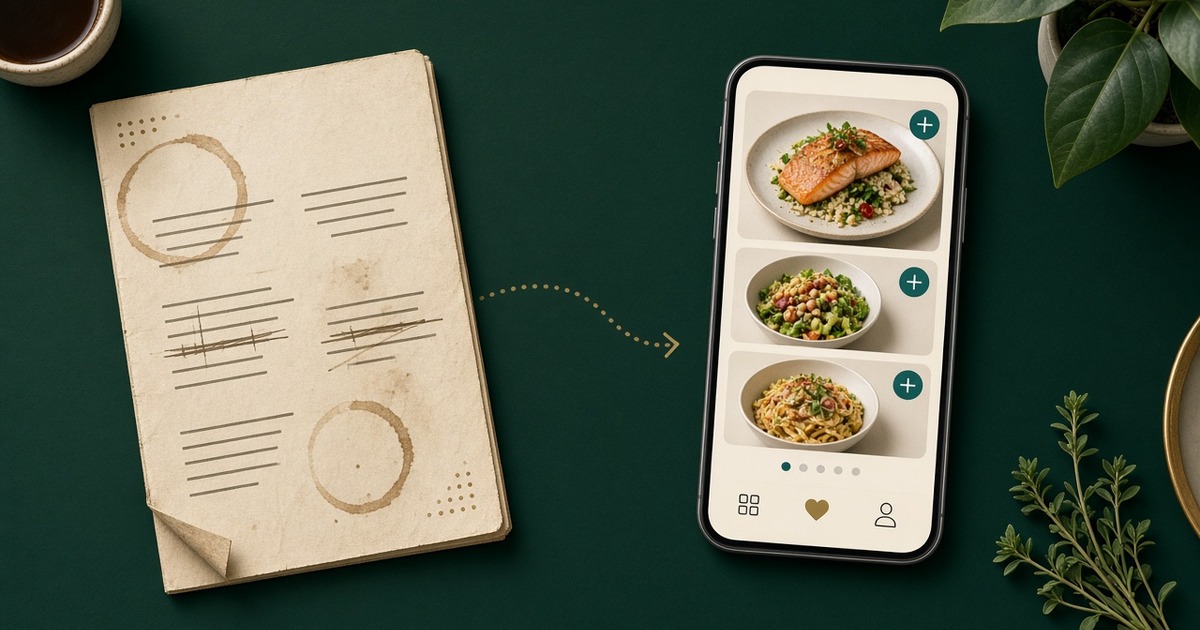
What Is a QR Menu and How Does It Compare to a Paper Menu?
What a QR menu is, how it works for guests and restaurants, and how it compares to a paper menu on cost, updates, languages, ordering and analytics.
Every restaurant, café and bar has to answer the same question at some point: keep printing menus, or move to a QR menu? A paper menu is familiar, it feels nice in the hand and it needs no explanation. But each time a price changes, a dish runs out or a tourist asks for an English version, the printed menu starts to cost money and time. In this article we explain what a QR menu is, how it works on the guest's side and in the dashboard, and compare it honestly with paper point by point. We use Aurora Prime, a demo restaurant built in WebQRMenu, and every screenshot comes from a real menu.
In short: a QR menu is a web page with your menu that a guest opens by scanning a code on the table with a phone camera. You edit it in a dashboard, and the changes show up for guests right away, with no reprints.
1. What a QR menu is
A QR menu is your restaurant's menu published as a mobile web page. A QR code that leads to that page is placed on the table, the counter, the door or a flyer. The guest points a phone camera at it and the menu opens in the browser. There is no app to install and no account to create.
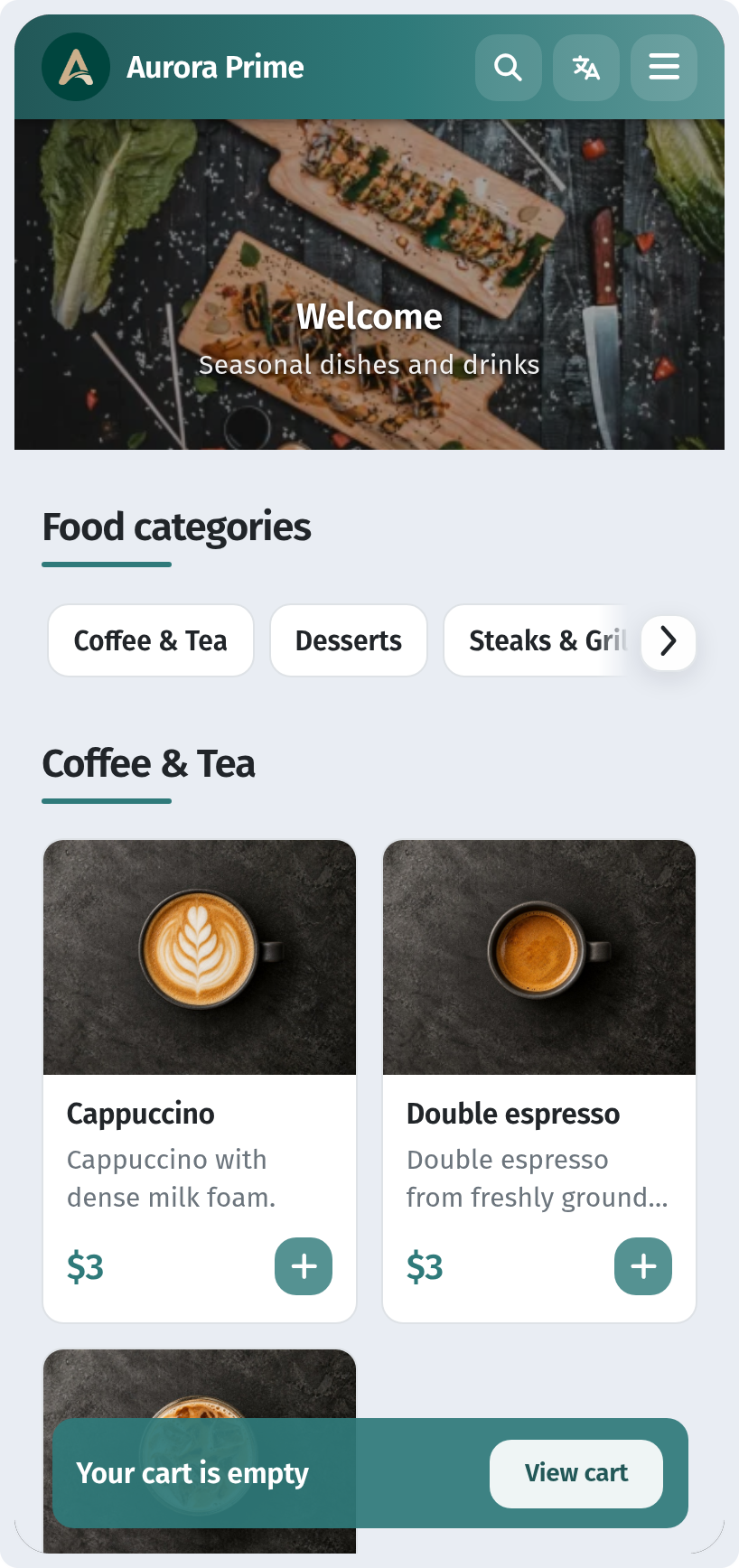
On the screen the guest sees the restaurant's name, a cover photo, dish categories and dish cards with a photo, a short description and a price. Search, a language switch and the main menu sit at the top. The + button on a card adds the dish to the order.
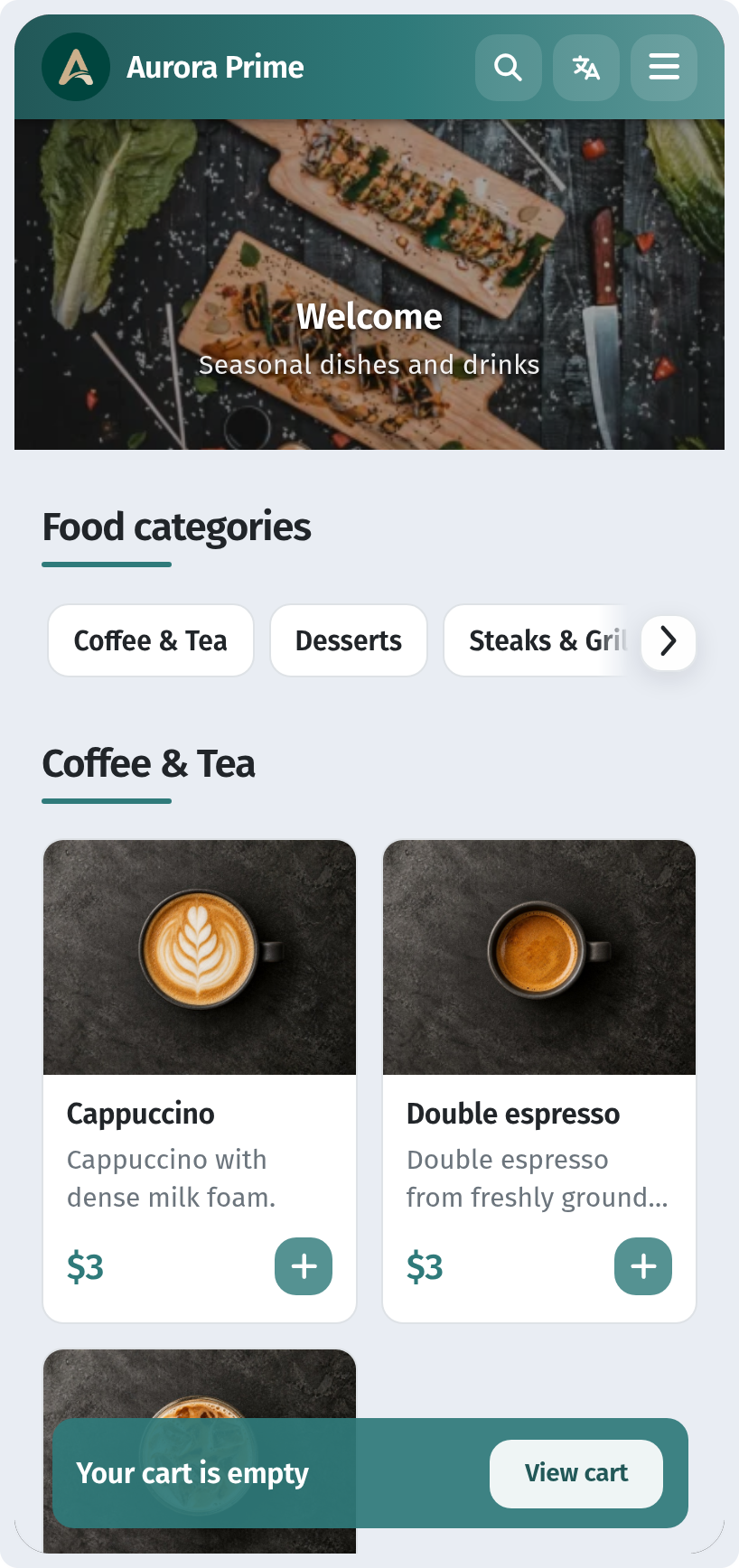
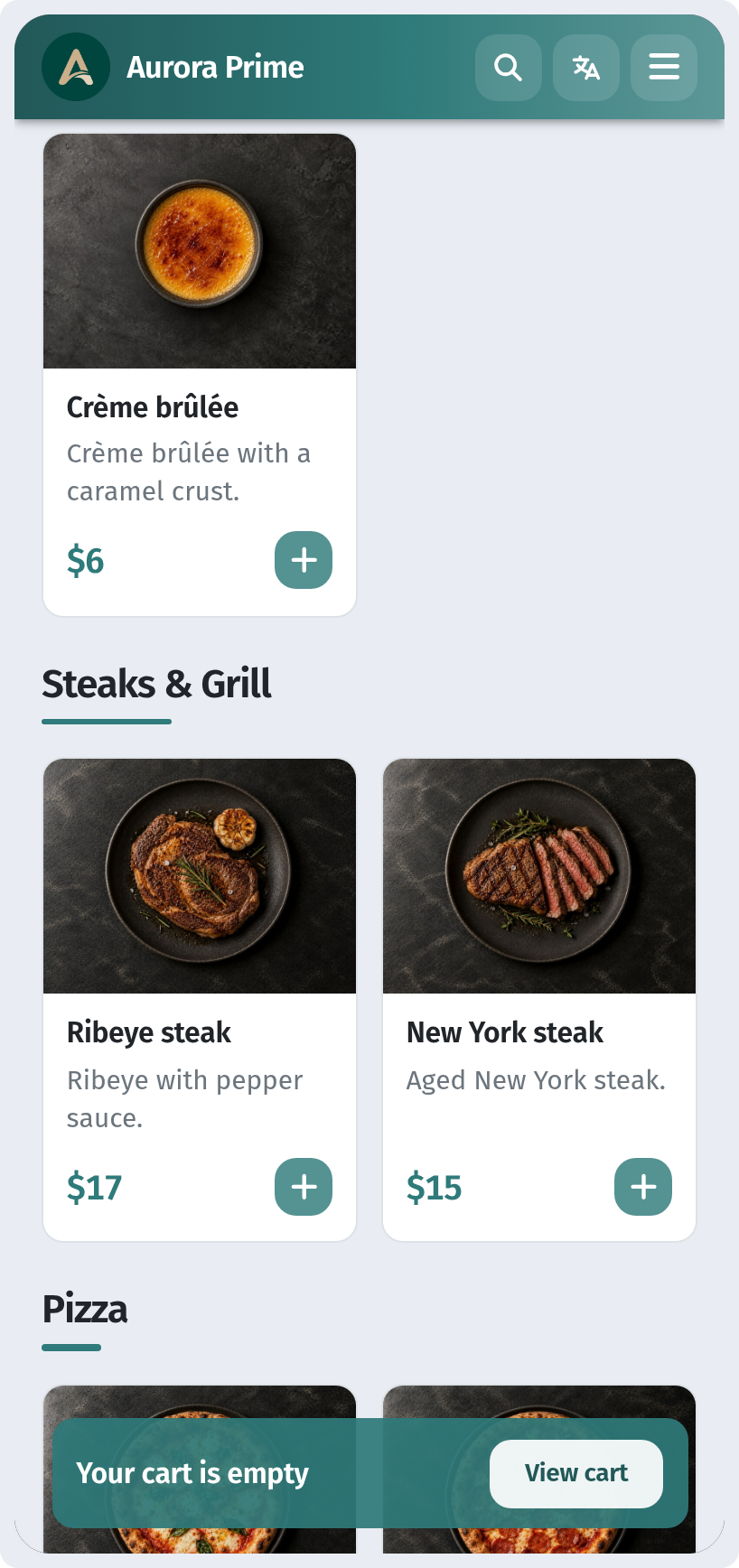
Guests scroll through the menu like any feed on their phone. Dishes are grouped by section, each with its own photo, a short description and a price.
The main difference from paper is simple. A paper menu is fixed the moment it comes off the press. A QR menu is a live page, and whatever you change in the dashboard is what the guest sees the next time the page opens.
2. How a QR menu works for the restaurant
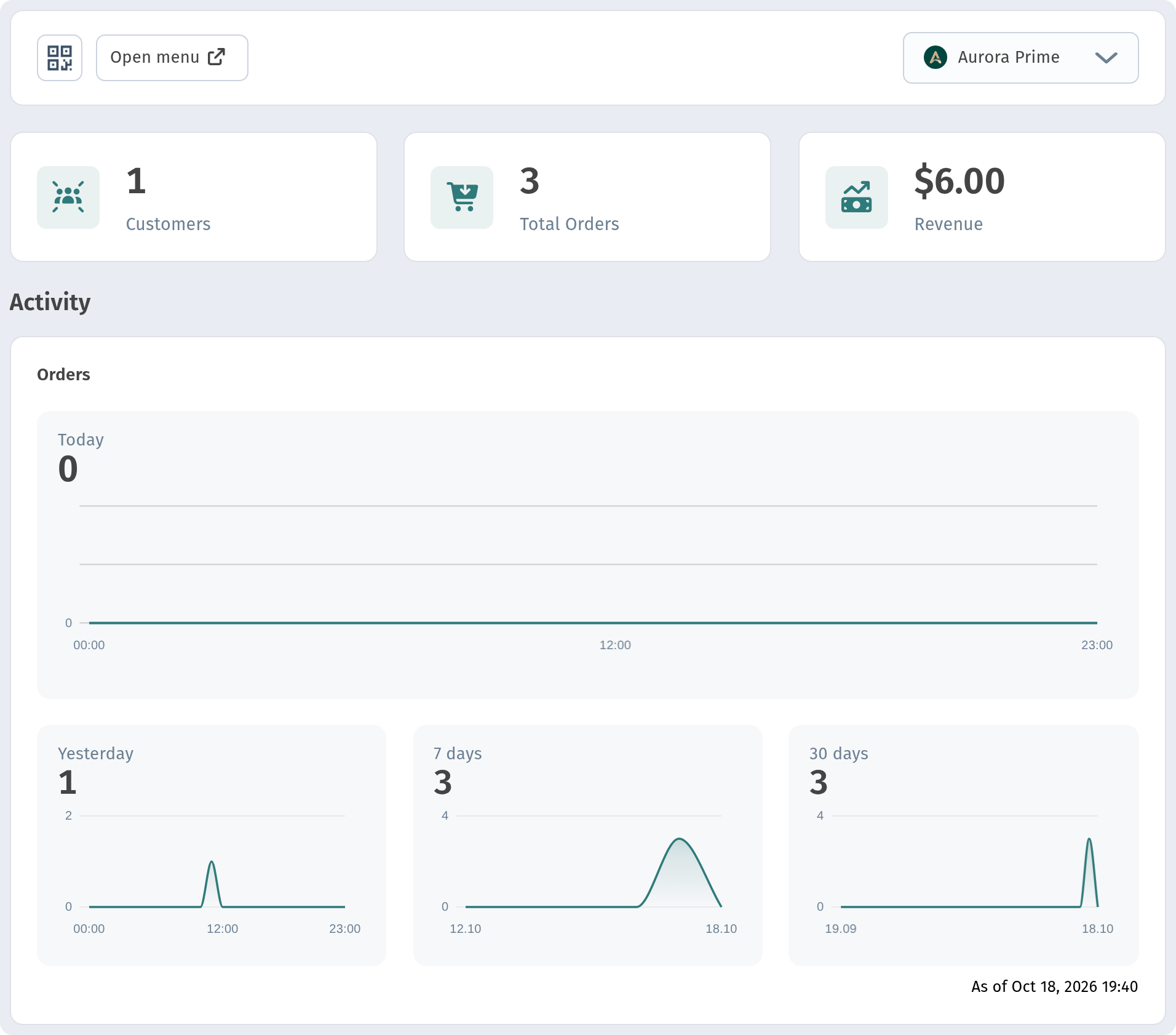
Everything is managed from the WebQRMenu dashboard. The store overview shows the main figures at a glance (customers, total orders and revenue) along with activity charts for today, yesterday, 7 days and 30 days. The Open menu button opens your public menu just as guests see it.
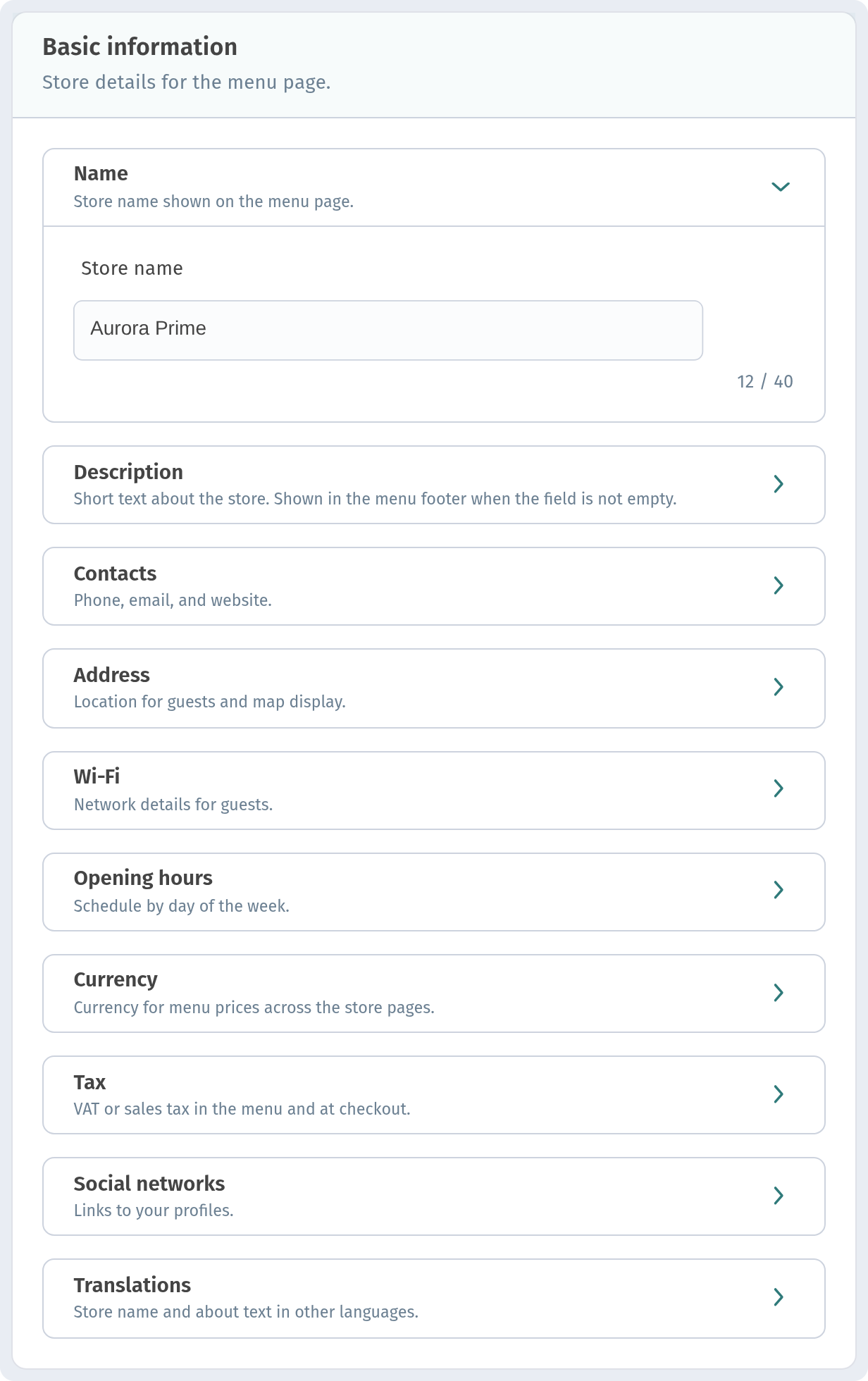
The store card holds the information that a paper menu usually prints on the back page, or leaves out entirely: the name, a description, contacts, the address, the Wi‑Fi details, opening hours, the currency and tax. Fill it in once and guests can always find it in the menu.
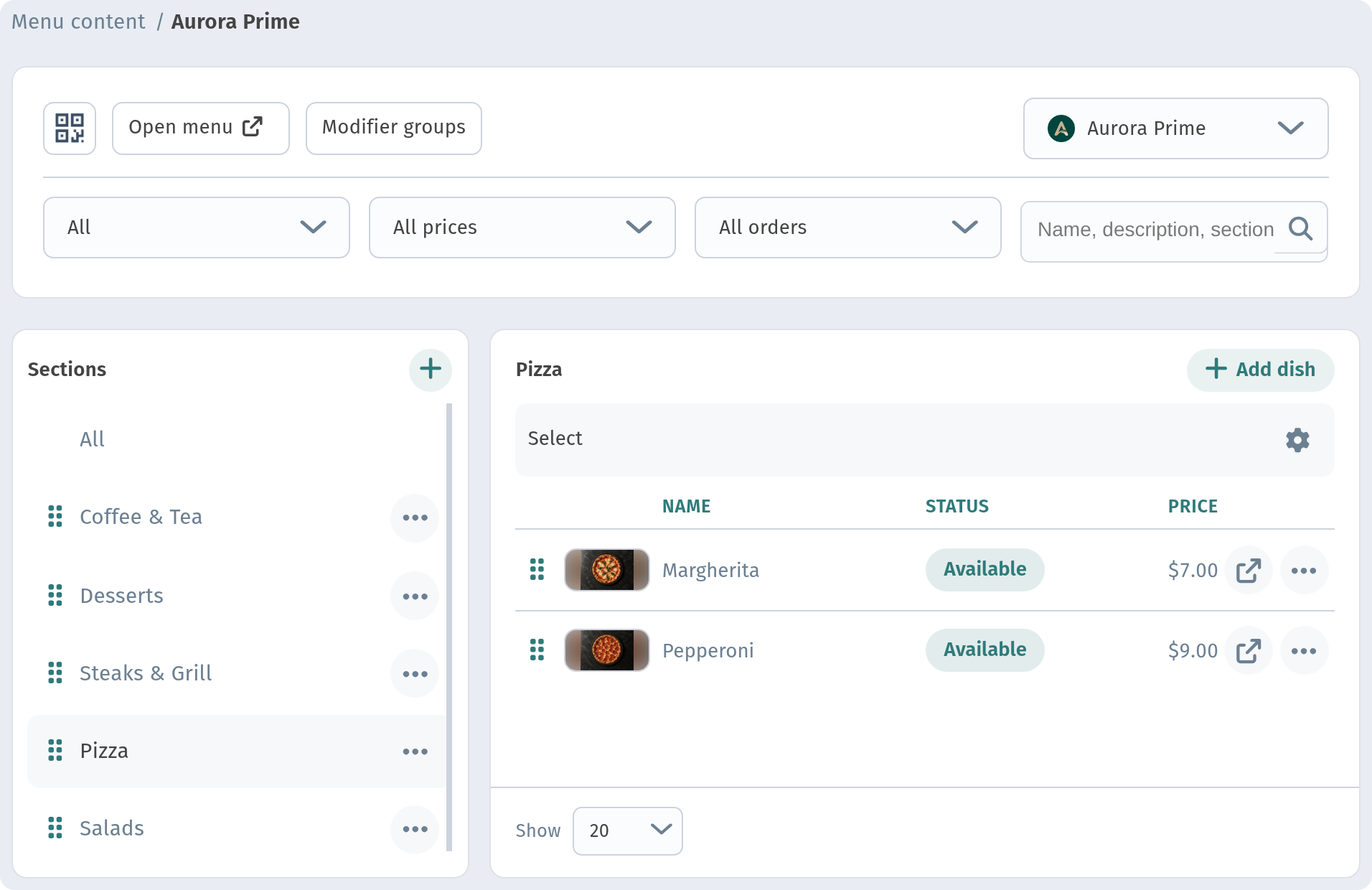
The dishes live in Menu content. On the left are the sections (Coffee & Tea, Desserts, Steaks & Grill, Pizza, Salads). On the right is the list of dishes with status, number of orders and price. Sections can be reordered with the Reorder button, and dishes can be filtered by status, price and orders or found through search.
3. Photos and dish details: what paper can't fit
A paper menu always fights for space. Add a photo to every dish and the menu becomes a magazine. List the weight, calories and allergens and the text gets too small to read. A QR menu has no such limits, because each dish gets its own card.
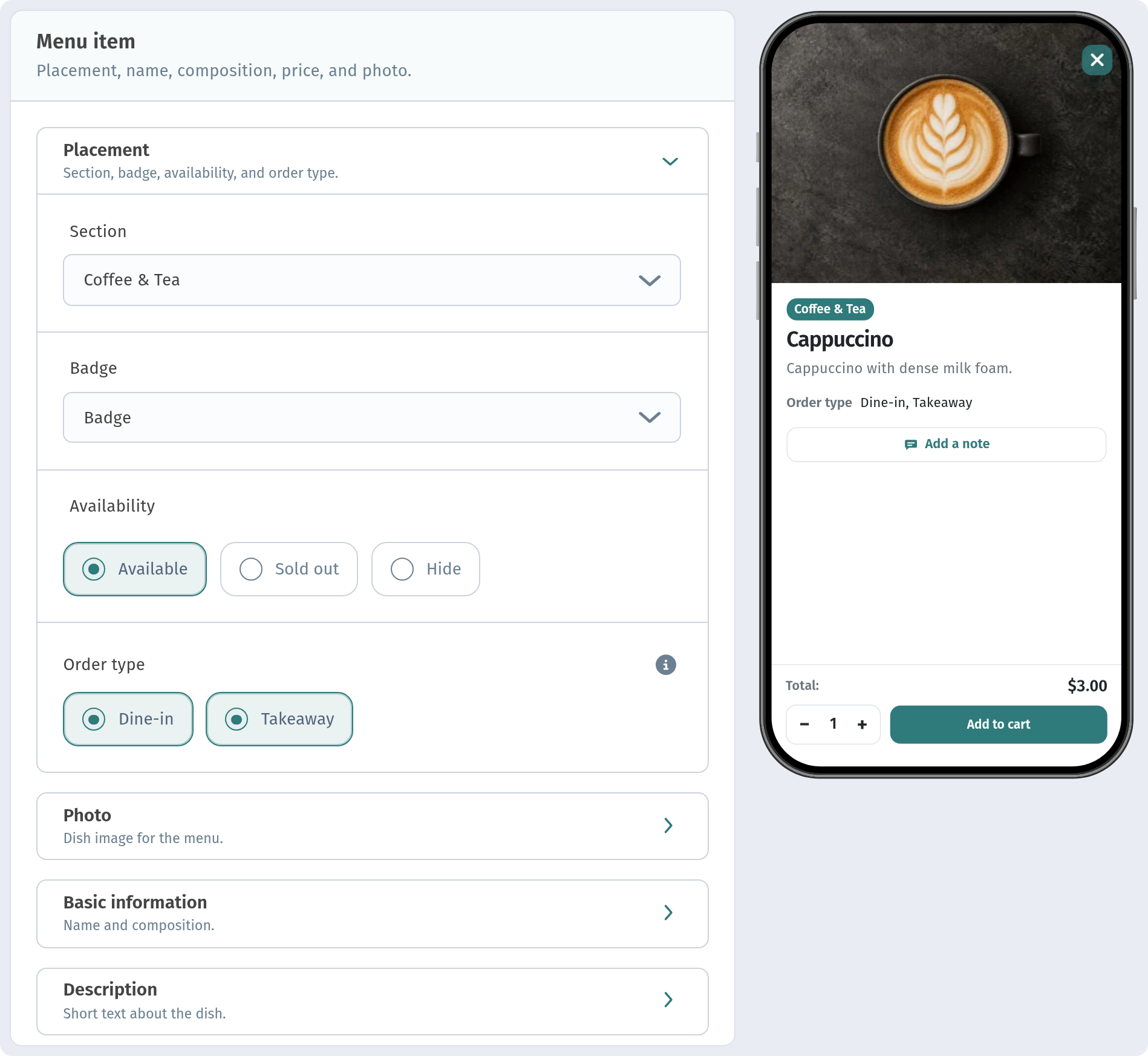
In the dish form you set the section, a badge (for example Hit), availability (Available, Sold out or Hide) and the order type (Dine-in, Takeaway). On the right, a preview shows how the card will look to the guest.
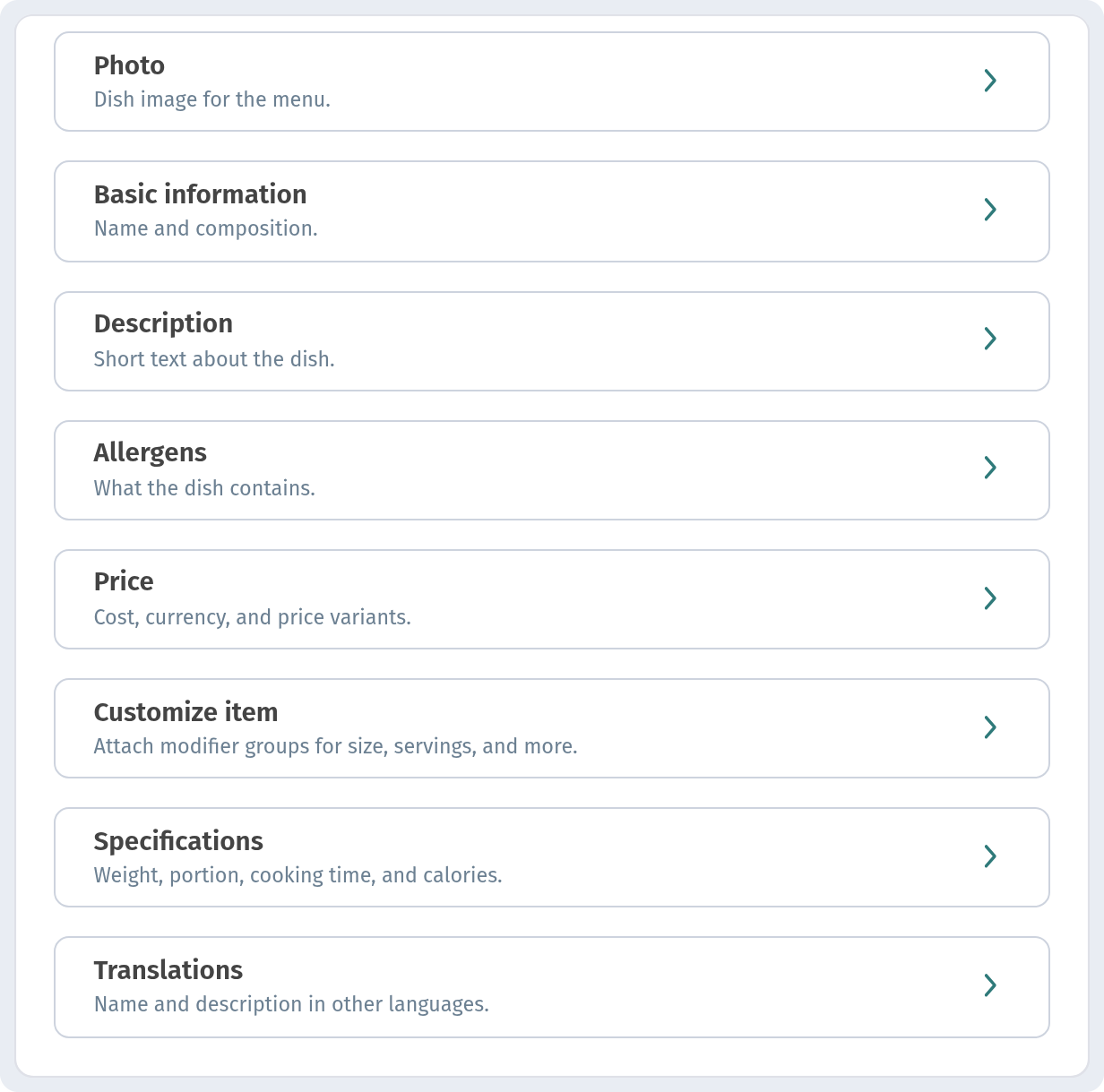
The form also has blocks for the photo, basic information (the name), description, allergens, price and variants, item customisation (Customize item: modifier groups such as size, servings and extras), specifications (weight, portion, cooking time and calories) and translations into other languages.
This is what the guest sees on opening the Tomato bruschetta: a large photo, the Hit and Starters badges, cooking time of 10 minutes, the order type, a weight of 220 g, one serving, 309 kcal, the ingredients and the Gluten allergen. To fit this much detail on paper you would need a separate book. Here it's one tap away.
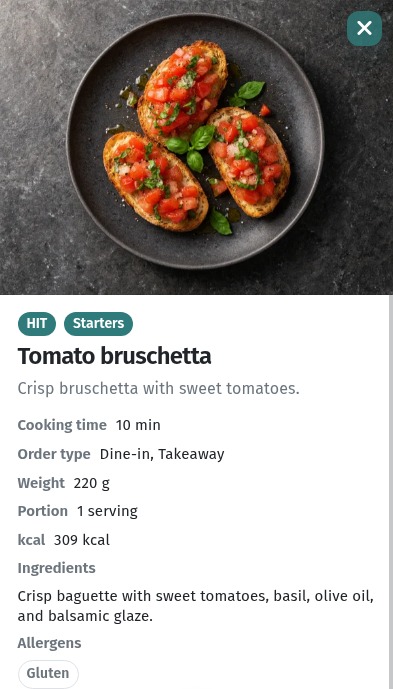
For guests with allergies or special diets this is more than a convenience. They can check what's in a dish themselves, without asking the waiter again about every item.
4. Instant updates instead of reprints
This is where a QR menu wins most clearly. Prices go up, suppliers change, a seasonal dish comes and goes, a dessert runs out by evening. With paper, each of these means either a reprint, a sticker over the old price or a waiter saying "sorry, we don't have that today".
In WebQRMenu you open the dish, change the price in the Price block and save. As an example, we raised the price of the bruschetta from $6 to $7. After saving, the dashboard confirms that the dish has been updated.
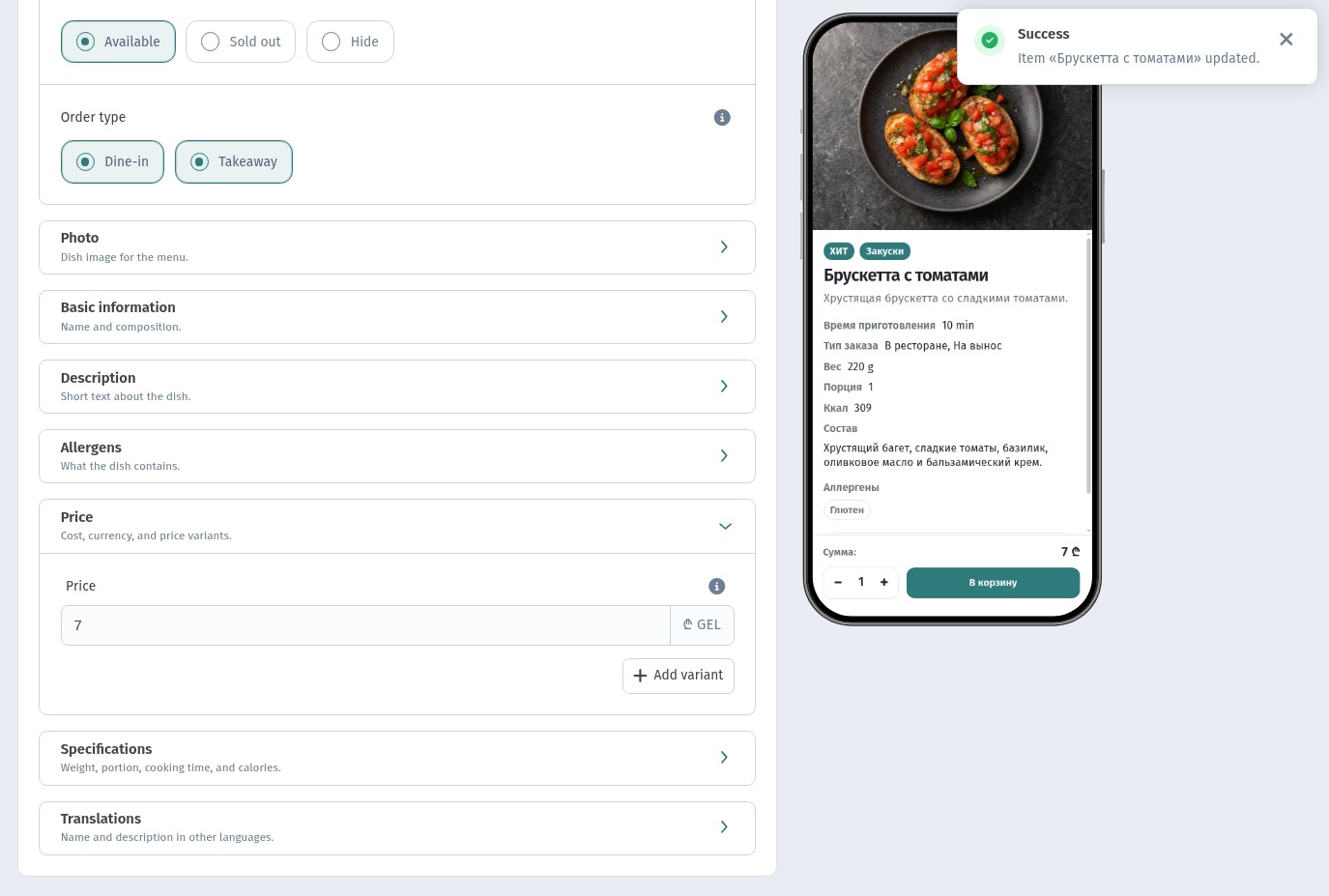
Open the public menu and the guest already sees the new price. The QR code on the table stayed the same, and nothing had to be printed.
When a dish runs out, just switch it to Sold out, or hide it with Hide, and switch it back the next day.
That's why a QR menu is also handy for daily specials, a lunch menu or a happy hour. Changing the menu takes a minute, not a trip to the print shop.
5. Cost: printing versus a subscription
A paper menu looks free only until you count the costs: design, printing, lamination, replacing worn or stained copies and, most of all, reprinting after every price change. If the menu is in several languages, multiply all of that by the number of versions.
With a QR menu you print only the code. That can be one sticker per table or a stand by the entrance, and the code doesn't change when the menu changes. You pay for the service itself. According to the WebQRMenu pricing page there is a free Starter plan with one store and basic limits. Paid plans add stores, tables, staff and analytics history. Our demo restaurant is on Business ($40 per month): up to 8 stores, 16 menu content sets, 40 tables per store, unlimited online orders and up to 5 custom domains. The subscription page shows the current plan, the renewal date and how much of each limit you're using.
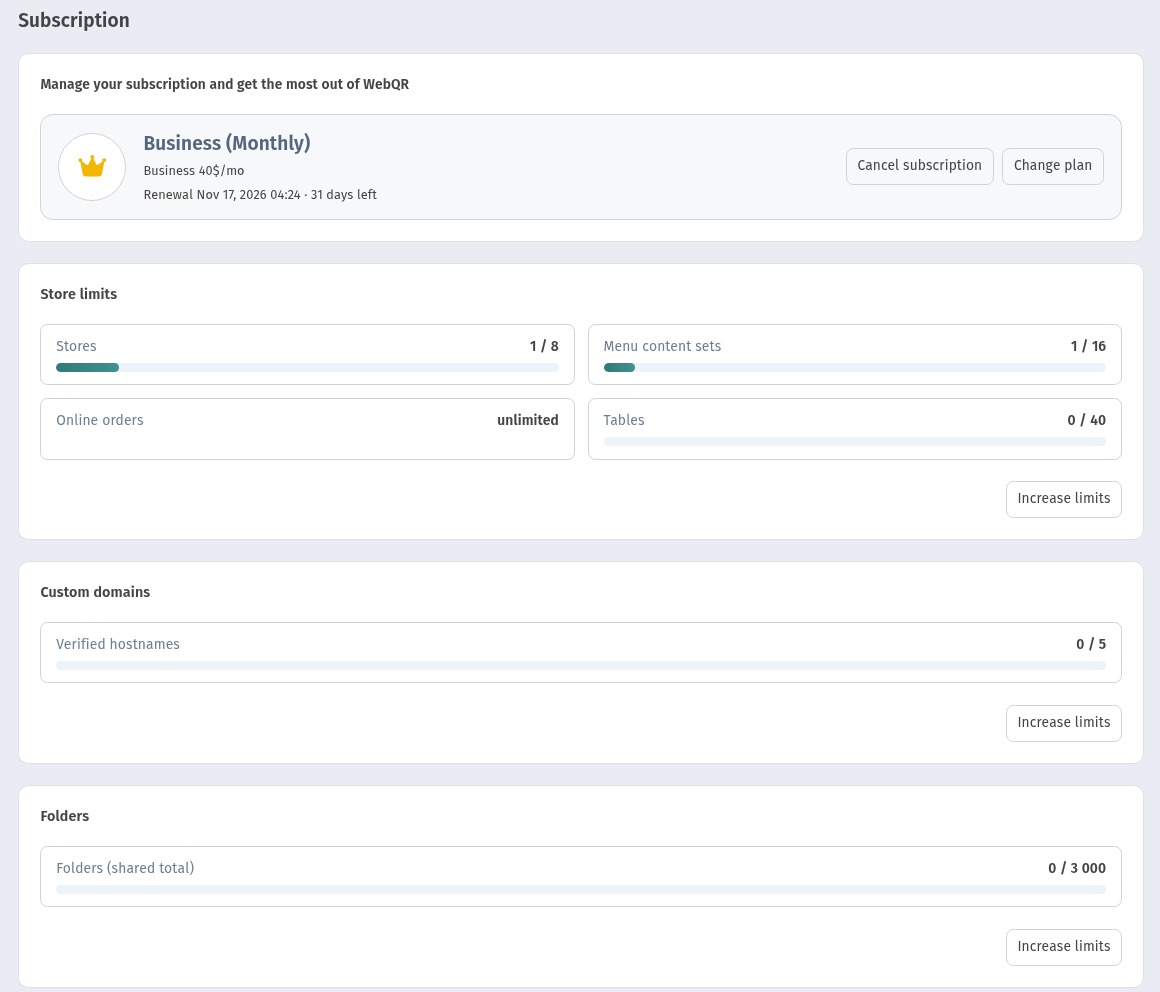
For many places a single menu reprint already costs more than several months of the service, and with a QR menu you don't have to reprint at all.
6. Languages: one menu for every guest
A paper menu in three languages is either three separate print runs or one cramped page with three lines of text under every dish. A QR menu works differently. Each dish has a Translations block, and the guest chooses the language with a single button at the top of the menu: English, Русский or ქართული.
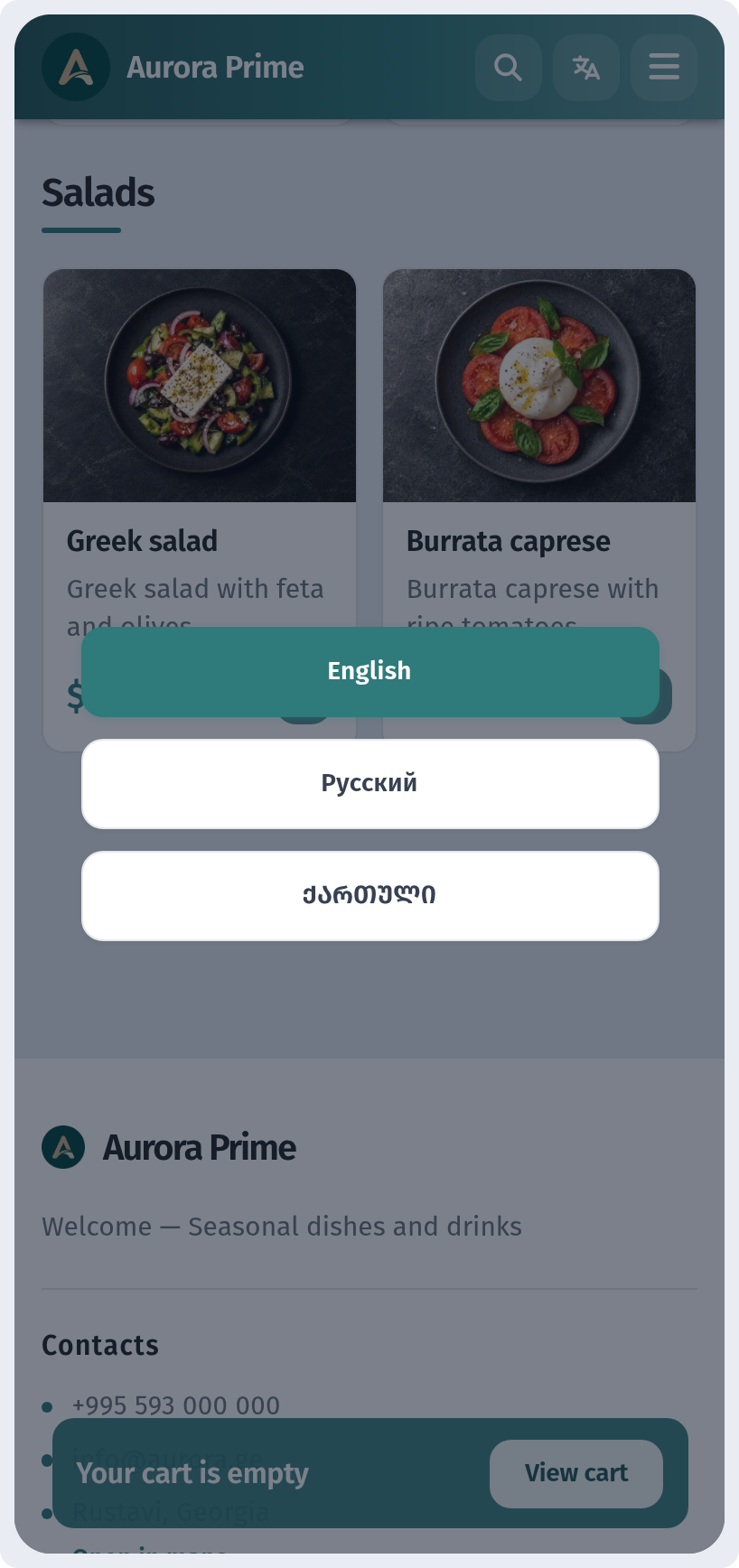
The dashboard itself can also be switched to a different language, so the team works in the language that suits them, whatever language the guest menu uses. For cities with lots of tourists, like Tbilisi and Batumi, this is one of the biggest practical advantages over paper.
7. Ordering, tables and orders
A paper menu only tells guests what's available. They still have to call the waiter, wait and order out loud. A QR menu can go further. Guests add dishes with the + button, and the order type (dine-in or takeaway) is set for each dish.
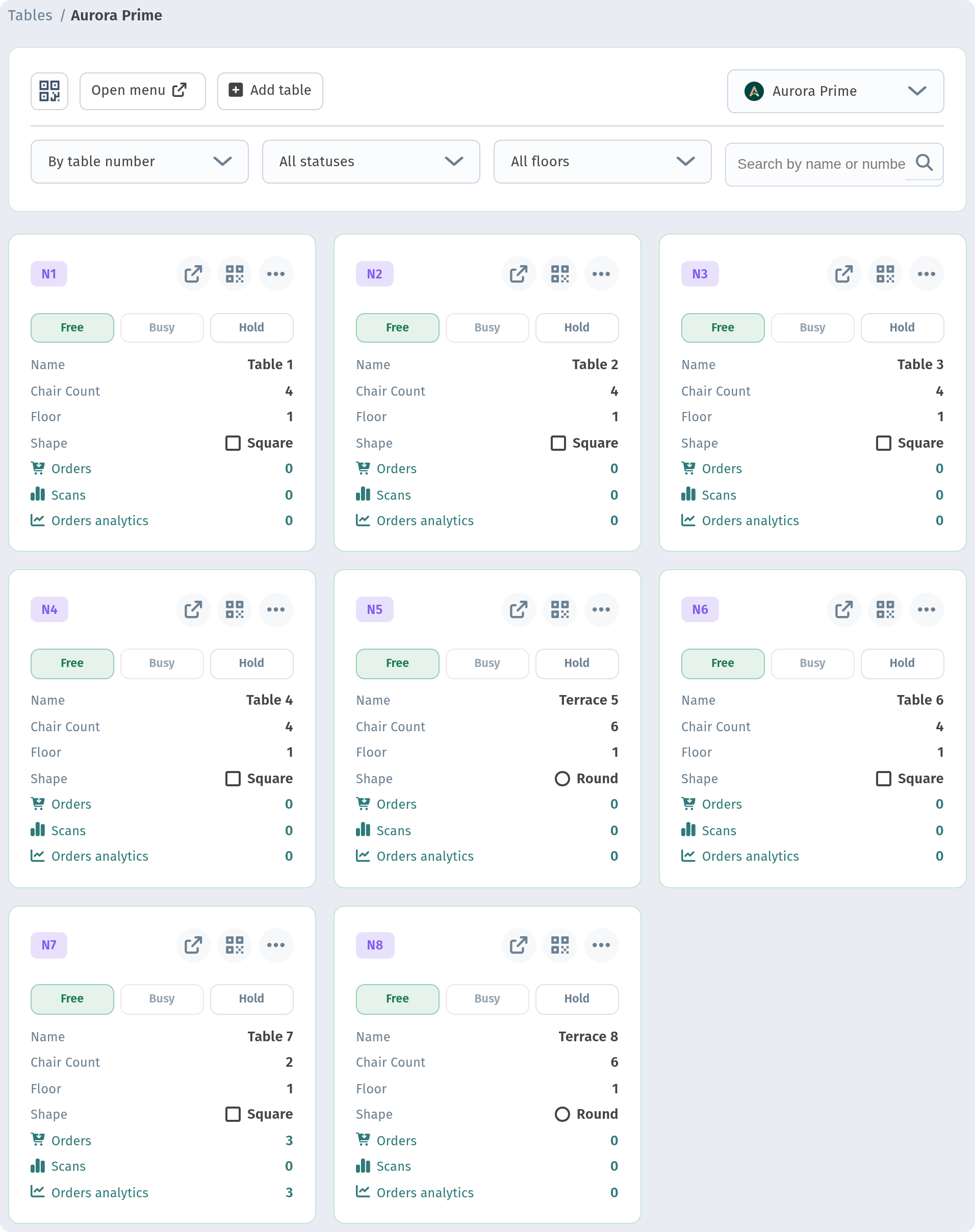
Tables get a section of their own in WebQRMenu. When you create a table with a name and number of seats, it gets its own QR code and link, and you can filter tables by number, status and floor. In our example the restaurant has 8 tables: six regular ones (Table 1–4, Table 6 and Table 7) and two on the terrace (Terrace 5 and Terrace 8). The regular tables have 4 seats each (Table 7 has 2), the terrace tables 6 seats and a round shape. Every card shows the table's status (Free, Busy or Hold), its floor and shape, counters for orders, scans and order analytics, and buttons for its link and QR code. At a glance you can see that all eight tables are free right now. That way the restaurant always knows which table an order came from.
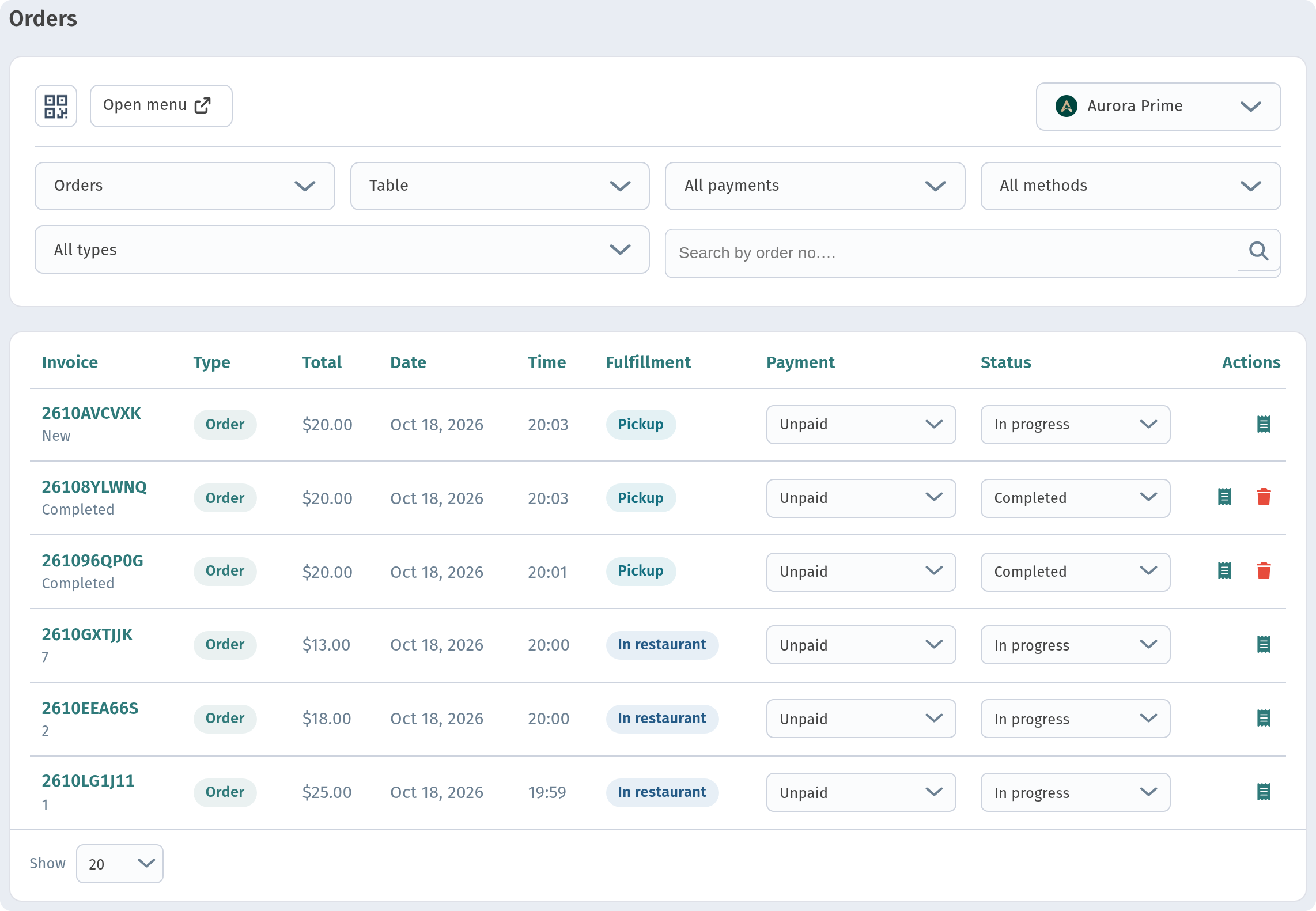
Every order goes to the Orders section. Here we have six orders placed in a few minutes. Three are dine-in orders from tables 1, 2 and 7, and three are pickup orders to take away. For each order you see the invoice number (with the table underneath), the total, date and time, how it will be served, the payment state and the status, which you can change right in the list. Filters cover orders, tables, payments, methods and order types, and you can search by order number. Completed and cancelled orders stay here too, which is handy at the end of a shift. The side menu also has a kitchen line and a waiter board, so the order goes straight to the people preparing and serving it.
8. The QR code itself: design and print
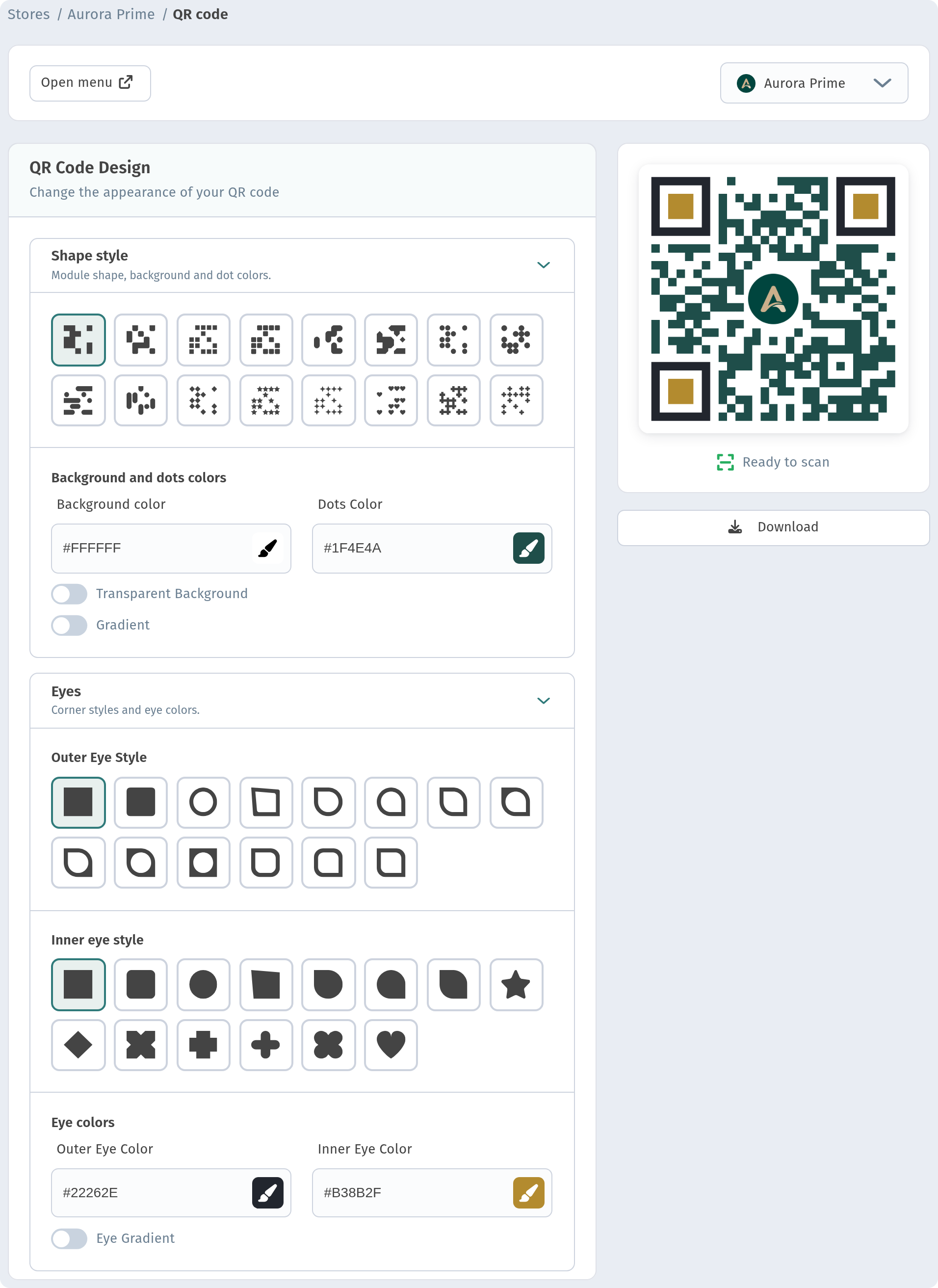
You don't need a designer for the code itself. In the QR code section you choose the shape of the modules and the eyes, set the code and background colours (or a transparent background), and the preview updates right away. For Aurora Prime we chose calm brand colours: deep green dots on a white background, dark outer eyes and gold inner eyes, with the gold "A" logo in the centre. The code stays clean, with no frame around it, and the preview confirms that it is ready to scan.
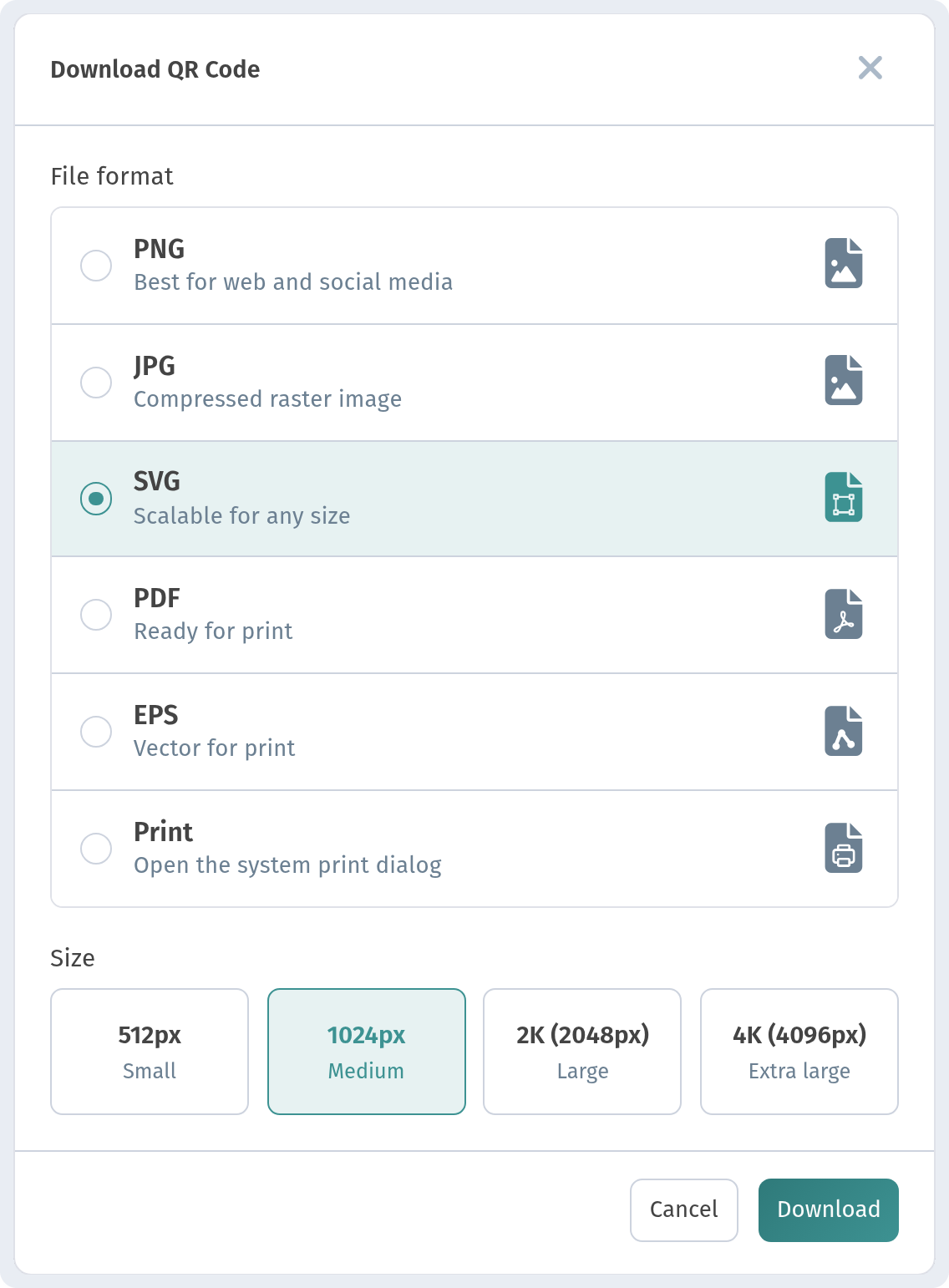
Then click Download and pick the format you need: PNG for the web and social media, JPG as a compressed image, SVG to scale to any size without losing quality, PDF ready for print, EPS as a vector for print, or Print to open the system print dialog straight away. Sizes run from 512 px (Small) and 1024 px (Medium) to 2K (2048 px) and 4K (4096 px), so the code stays sharp on a table sticker and on a big poster alike.
9. Hygiene
A paper or laminated menu passes through dozens of hands a day, and it has to be wiped, replaced and kept clean. With a QR menu the guest browses on their own phone, and the table holds only a sticker or a small stand with the code. That's less handling, less cleaning and no stained or torn copies to bring to the next table.
10. Analytics: what paper can't tell you
A paper menu never says how many people looked at it. A QR menu does. The Scans analytics section shows the number of scans and unique scans for a chosen period, a chart by day, month or year and the timezone the statistics are counted in. The side menu also has separate order analytics.
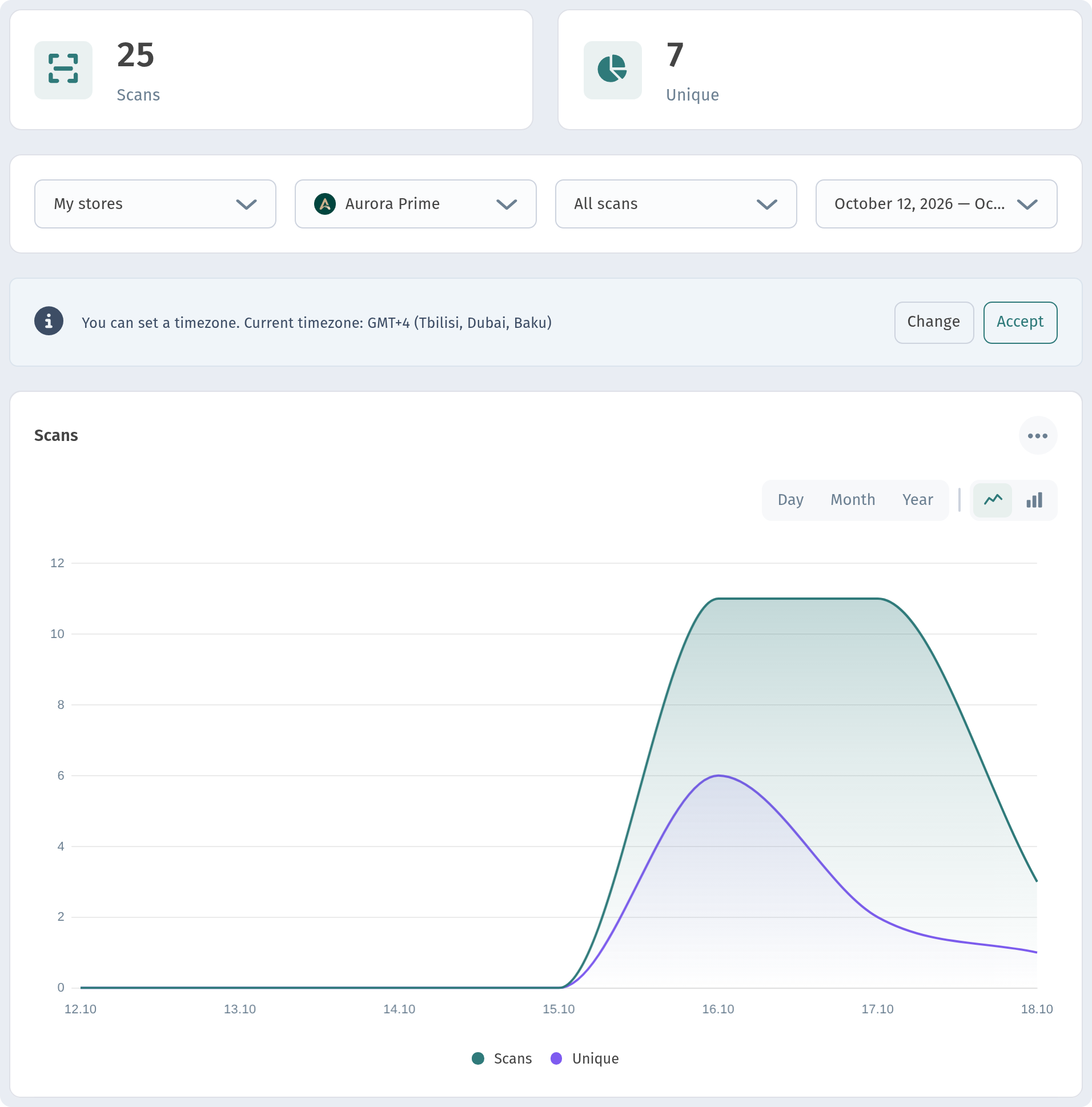
These numbers help you see which days bring more guests, whether a new code at the entrance is working and how a promotion is doing. With paper you can only guess.
11. QR menu vs paper menu: comparison table
| Criterion | Paper menu | QR menu (WebQRMenu) |
|---|---|---|
| Changing a price | Reprint or sticker | A minute in the dashboard, the code stays the same |
| Out-of-stock dish | The waiter warns the guest | Sold out or Hide status |
| Dish photos | Expensive and space-hungry | A photo in every card |
| Weight, kcal, allergens | Rarely fit | Specifications and allergens for each dish |
| Languages | Separate print runs | Translations and a language switch in one menu |
| Ordering | Only through the waiter | Add to order, tables with their own QR, an orders section |
| Hygiene | Passed from hand to hand | The guest's own phone |
| Analytics | None | Scans, unique visitors, orders |
| Costs | Design, printing, reprints | Code printing and a subscription |
| Needs | Nothing | A phone with a camera and internet access |
12. When a paper menu still makes sense
To be fair, paper hasn't disappeared, and there are good reasons for that:
- An audience that prefers paper. Some guests, often older ones, simply find a printed menu more comfortable.
- Poor connectivity. If mobile signal in the room is weak and there is no Wi‑Fi for guests, a QR menu will load slowly.
- Atmosphere and format. A fine-dining restaurant with a short, rarely changing tasting menu may treat the paper menu as part of the experience.
- A phone with no charge. It happens, and a guest shouldn't be left without a menu because of it.
The most sensible approach is often a combination. The QR menu becomes the main working menu, always up to date, multilingual and with photos, while one or two printed copies stay on hand for guests who ask for them. It's best to print these from the same current menu, as a backup rather than the main menu.
Conclusion
A QR menu doesn't replace hospitality. It takes the routine off the menu itself. Prices change in a minute, dishes come with photos, weight, calories and allergens, guests read the menu in their own language and can order from the table, and the restaurant sees scans and orders in its analytics. Paper still has its place, but more and more as a backup rather than the main tool.
If you'd like to try it, create a store in WebQRMenu, add a few dishes, download the QR code and put it on the table.