
The dish card in WebQRMenu: sizes and price variants, allergens, badges, availability and characteristics
How to set up a dish card in WebQRMenu: price variants for different sizes, allergens, Hit and NEW badges, availability and sold-out status, order type, weight, portion, cooking time, calories and translations.
A dish card is more than a name, a photo and a price. Guests want to know how big the portion is, how long it takes to cook, whether it contains anything they are allergic to, and whether they can take it away. You want to highlight bestsellers and stop orders for a dish that has run out without deleting it. All of this is set up in one place in WebQRMenu: the dish editor.
In this guide we go through the editor block by block using a dish from our demo restaurant Aurora Prime: a ribeye steak with three sizes (180 g, 250 g and 350 g), the Hit badge, two allergens and a full set of characteristics. At the end we show what the guest sees on their phone.
Where to find the dishes
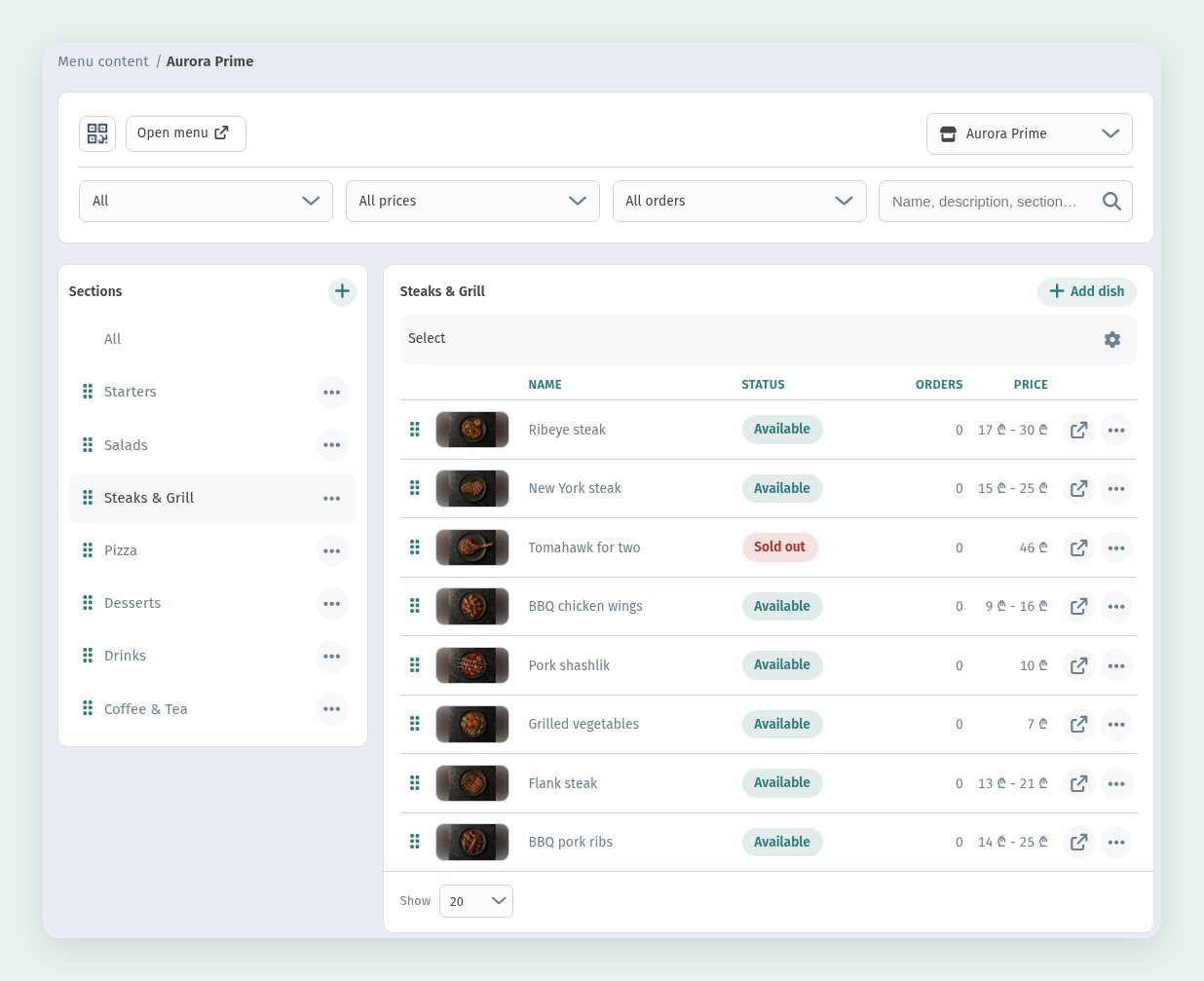
Open Menu content and choose a section on the left, for example Steaks & Grill. The list on the right shows every dish in the section with its photo and the NAME, STATUS, ORDERS and PRICE columns. The filters above the list (All, All prices, All orders) and the search box help you find a dish quickly in a long menu.
Look at the price column: Ribeye steak shows a range, 17 ₾ - 30 ₾, because it has three price variants. Tomahawk for two is marked Sold out in red. Click a dish name to open its editor.
Menu item: the structure of the editor
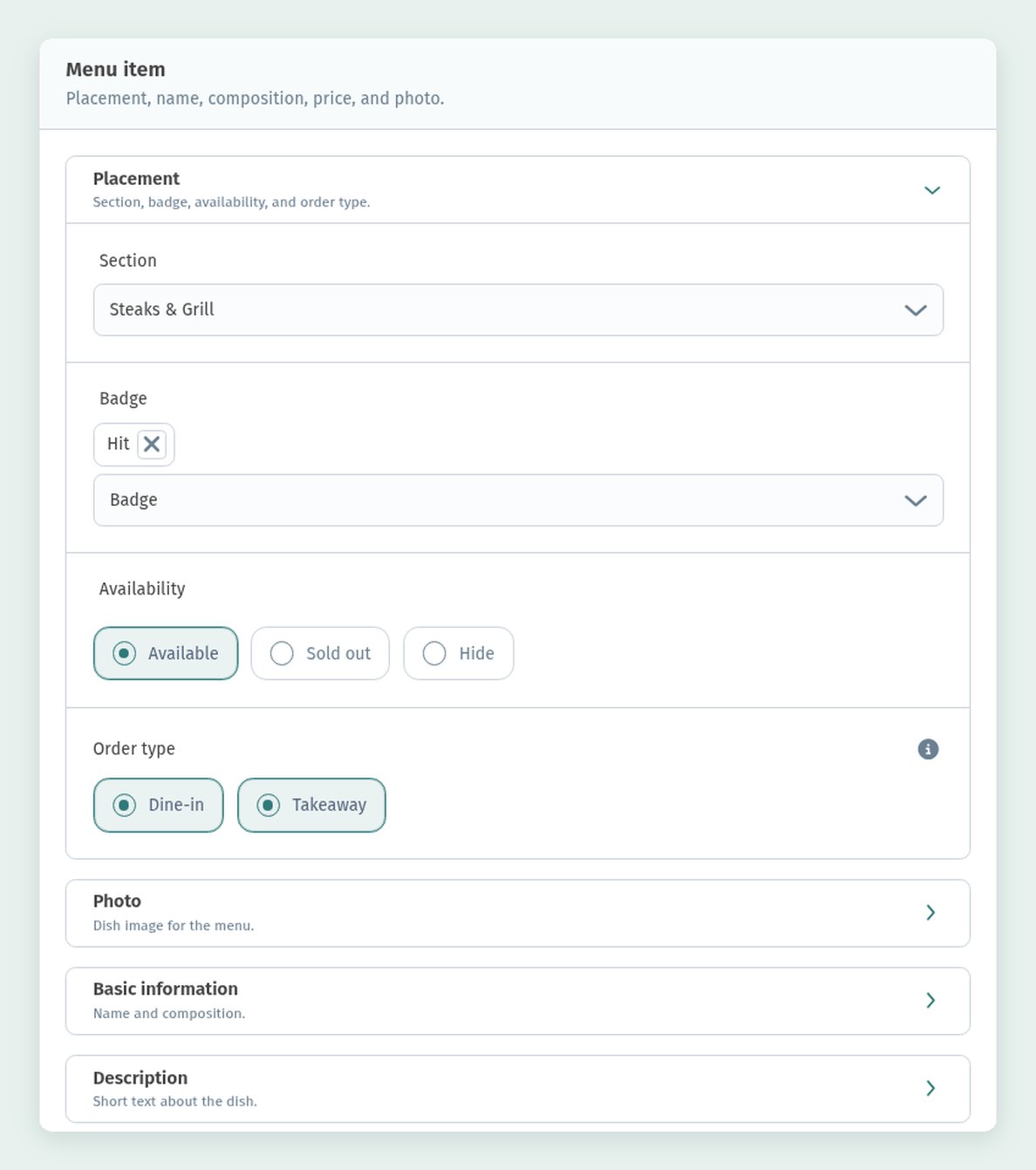
The editor opens with the Menu item card. Its blocks fold and unfold, so you only see what you are working on:
- Placement: section, badge, availability and order type;
- Photo: the dish image for the menu;
- Basic information: name and composition;
- Description: a short text about the dish;
- Allergens: what the dish contains;
- Price: cost, currency and price variants;
- Specifications: weight, portion, cooking time and calories;
- Translations: name and description in other languages.
The Placement block is open by default. Section decides where the dish appears in the menu; here it is Steaks & Grill.
Badges: Hit, NEW and others
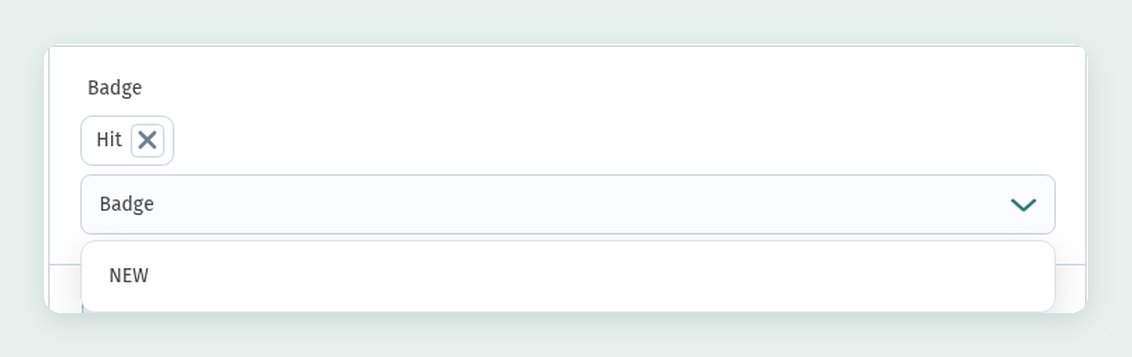
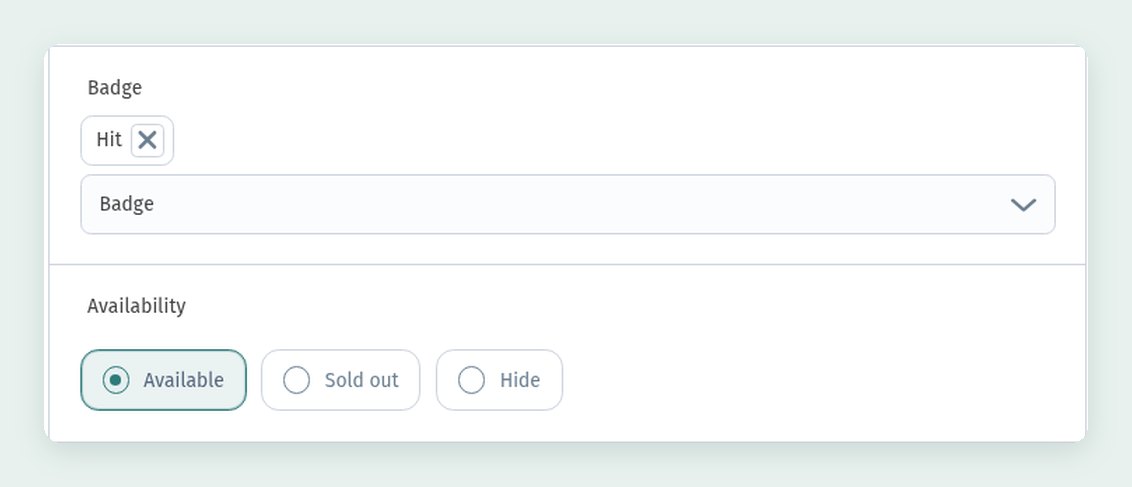
A badge is a small label on the dish card that catches the guest's eye. Open the Badge dropdown and pick one or more labels from the list, for example:
- Hit for bestsellers and dishes you want to push;
- NEW for dishes that have just appeared on the menu.
The list shows the badges you can still add; a badge already selected for the dish isn't repeated in it. The selected badge appears as a chip above the dropdown. To remove it, click the cross on the chip. Our ribeye has the Hit badge, and guests will see it as HIT on the card.
Use badges sparingly. If half the menu is marked as a hit, the label stops meaning anything. Two or three highlighted dishes per section work best.
Availability: available, sold out or hidden
The Availability field has three options:
- Available: the dish is shown in the menu and can be ordered;
- Sold out: the dish stays in the menu, but guests can't order it. The card is greyed out and has no add button;
- Hide: the dish disappears from the guest menu completely but stays in your dashboard with all its settings.
Sold out is handy when a dish has run out for the evening: guests can still see that you serve it, and you don't have to recreate it tomorrow. Hide suits seasonal dishes or items you are still preparing.
Order type: dine-in and takeaway
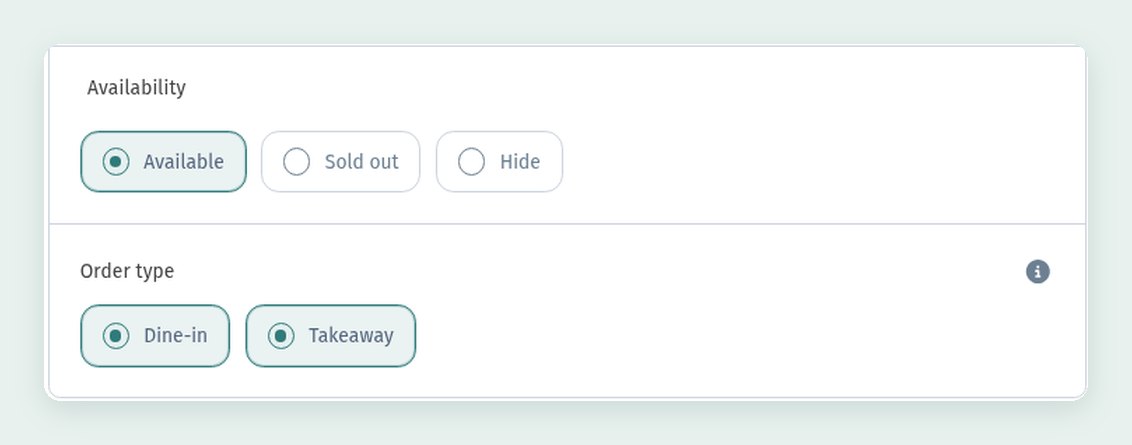
Order type decides where the dish can be ordered: Dine-in shows it in the QR menu at the tables, and Takeaway shows it on the website for takeaway orders. The info icon next to the field opens a hint that explains it: the item will be displayed on the dine-in QR menu or the website for takeaway orders, and you may choose both options.
Our ribeye is available both ways. For dishes that don't travel well (a soufflé, a flambé dessert), leave only Dine-in.
Allergens
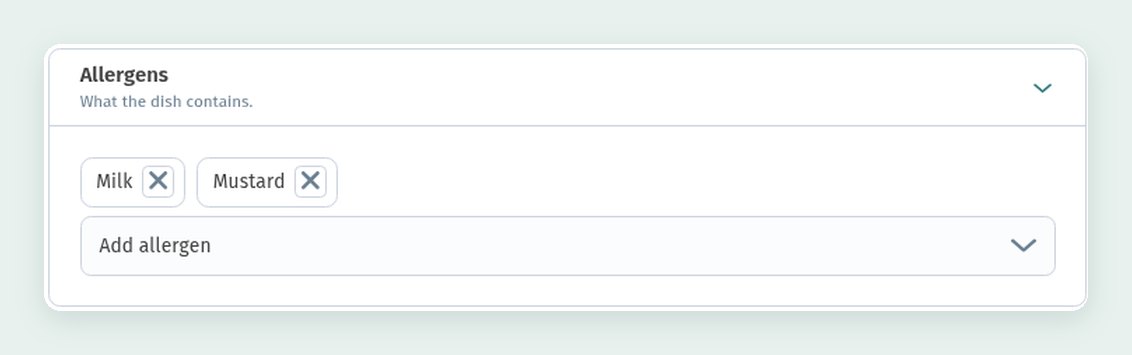
Open the Allergens block. The allergens you've already added are shown as chips; our ribeye contains Milk and Mustard. To remove one, click the cross on its chip.
To add another, open the Add allergen dropdown below the chips. It lists the common allergens (tree nuts, peanuts, soy, fish, shellfish, sesame and more) and has a search box for finding the right one quickly. Guests will see the allergens on the dish card, so they don't have to ask a waiter.
Keep the allergen list accurate and update it when the recipe changes. For many guests this is a health question, not a matter of taste.
Price variants: sizes and portions
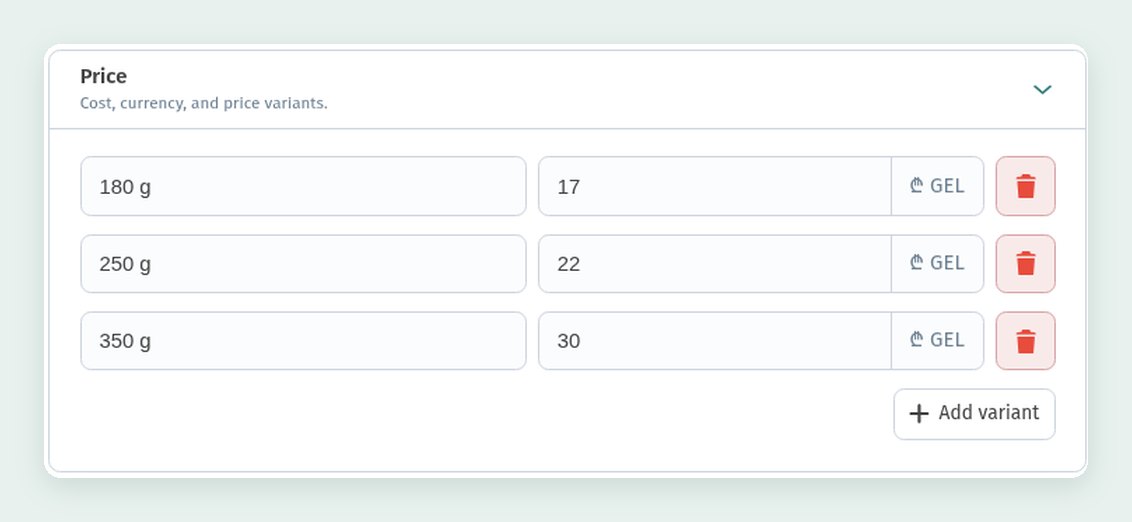
If a dish comes in several sizes, you don't need to create a separate dish for each one. Open the Price block and add a row for every variant: a name and a price in GEL. Use Add variant for a new row and the red button to delete one.
Our ribeye has three variants:
- 180 g: 17 ₾;
- 250 g: 22 ₾;
- 350 g: 30 ₾.
The same approach works for any sizes: 0.33 l / 0.5 l for drinks, 30 cm / 40 cm for pizza, a half or a full portion. In the dish list and in the guest menu the price is shown as a range, from the cheapest to the most expensive variant, and the guest chooses the size on the dish card.
Specifications: weight, portion, cooking time, calories
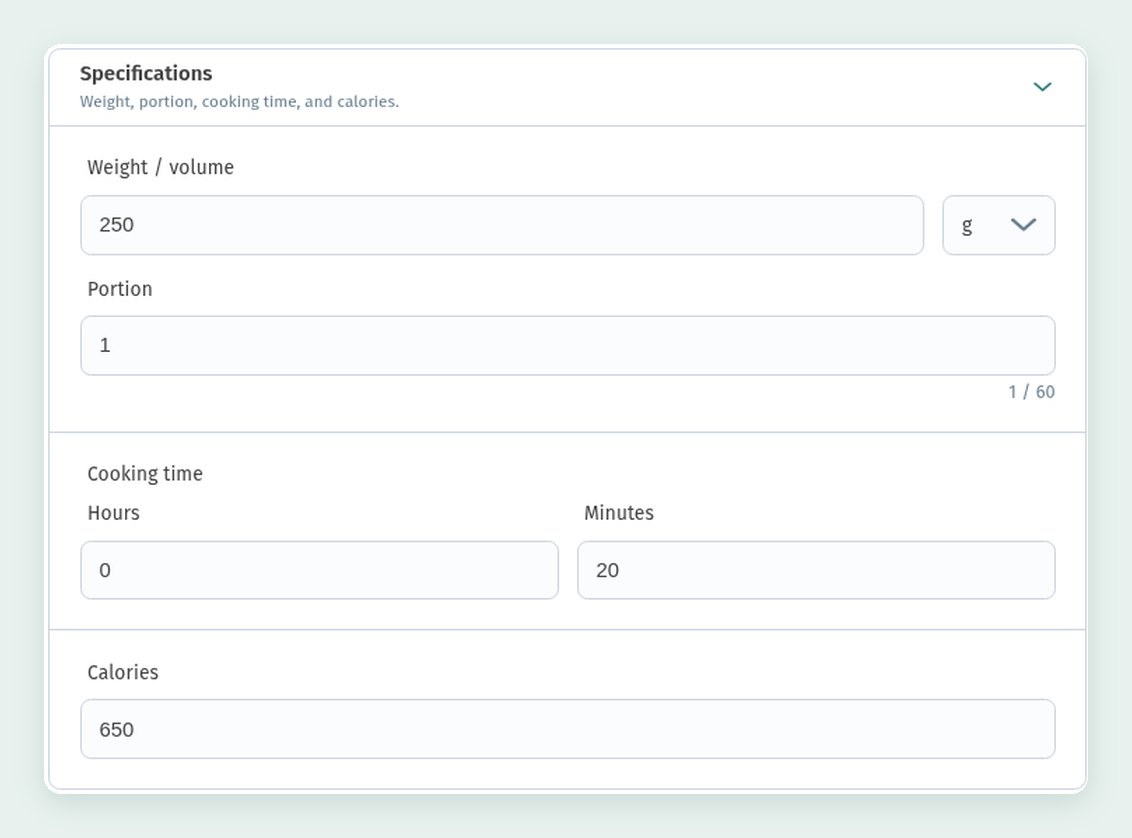
The Specifications block holds the details guests often ask about:
- Weight / volume: a number and a unit (g for our ribeye, 250);
- Portion: how many servings it is, here 1;
- Cooking time: hours and minutes, here 0 h 20 min;
- Calories: 650 kcal.
Cooking time is especially useful: a guest in a hurry immediately sees that the steak takes 20 minutes and can plan their order.
Translations
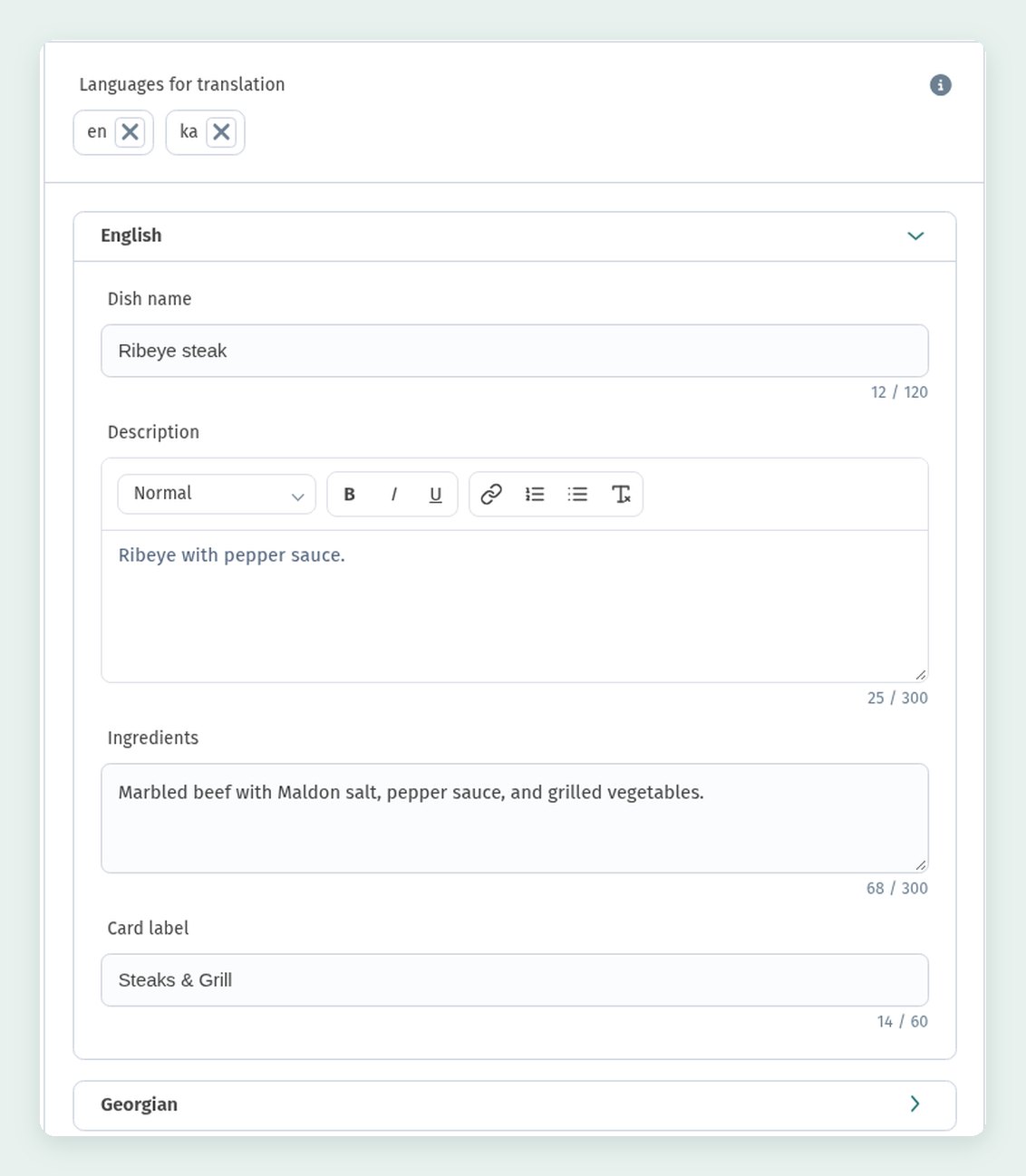
In Translations, pick the Languages for translation: here en and ka are added. Each language gets its own block with the fields Dish name, Description, Ingredients and Card label. The card label is the short text on the dish card, here the section name Steaks & Grill.
Guests see the menu in the language they choose, so fill in every language you've added. Otherwise part of the menu will look half-finished.
Saving changes
When everything is filled in, click Save in the bottom bar to save your changes. After that, the guest menu shows the updated dish. Cancel discards the changes you haven't saved.
Changing the status from the list
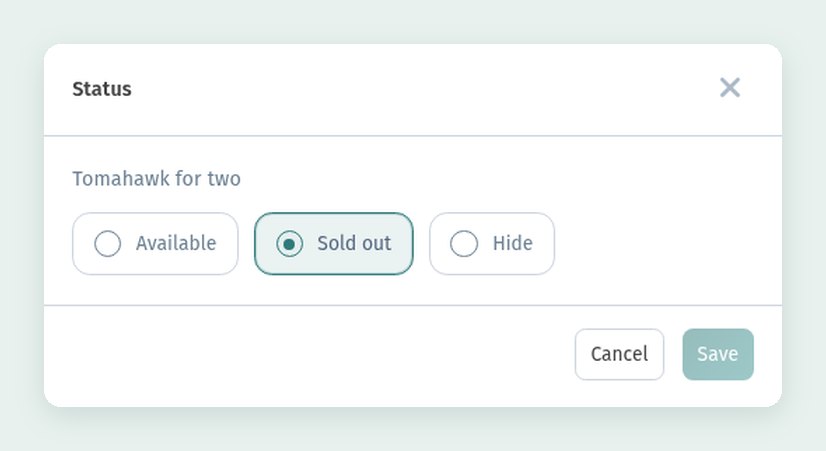
You don't have to open the full editor to stop orders for a dish. A small status window is available right in the dish list: it shows the dish name and the same three options, Available, Sold out and Hide. Here we mark Tomahawk for two as Sold out and save.
What the guest sees
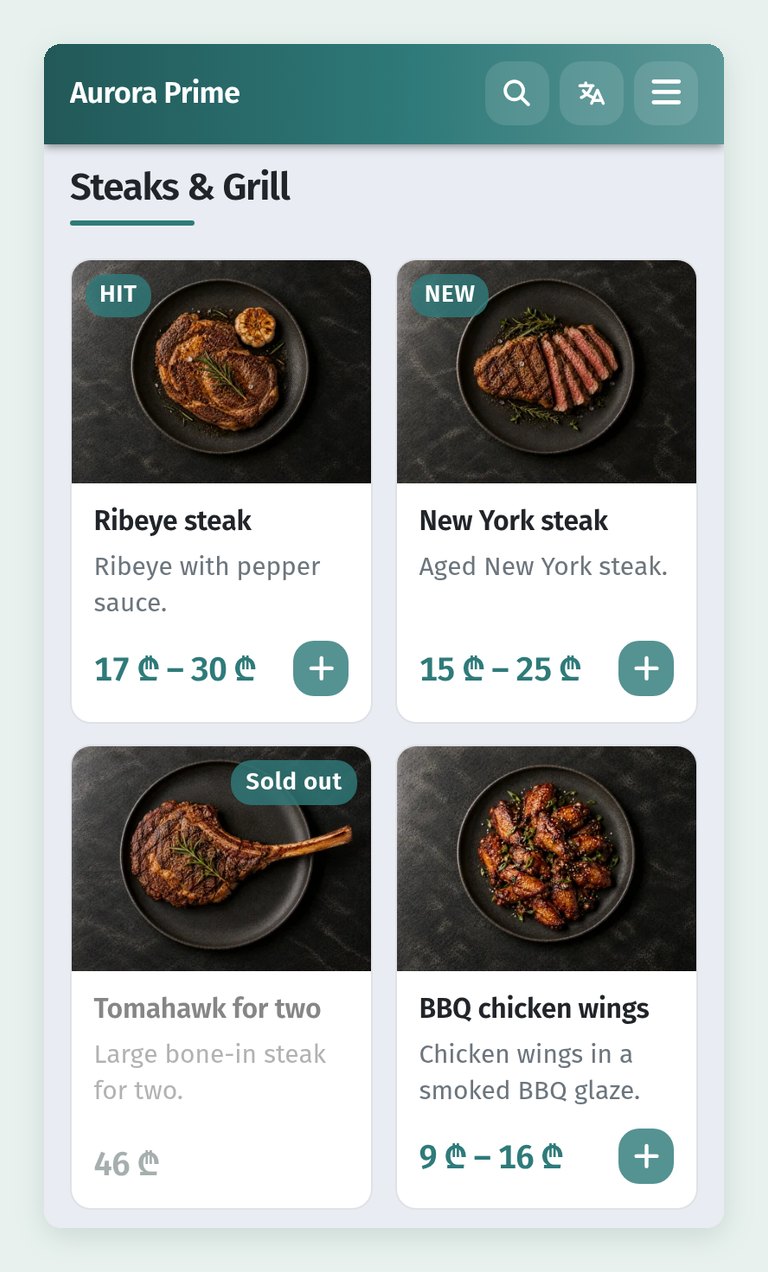
In the guest menu, the Steaks & Grill section lists the dishes with photos, descriptions and prices. The ribeye carries the HIT badge, and its price is shown as a range, 17–30 ₾.
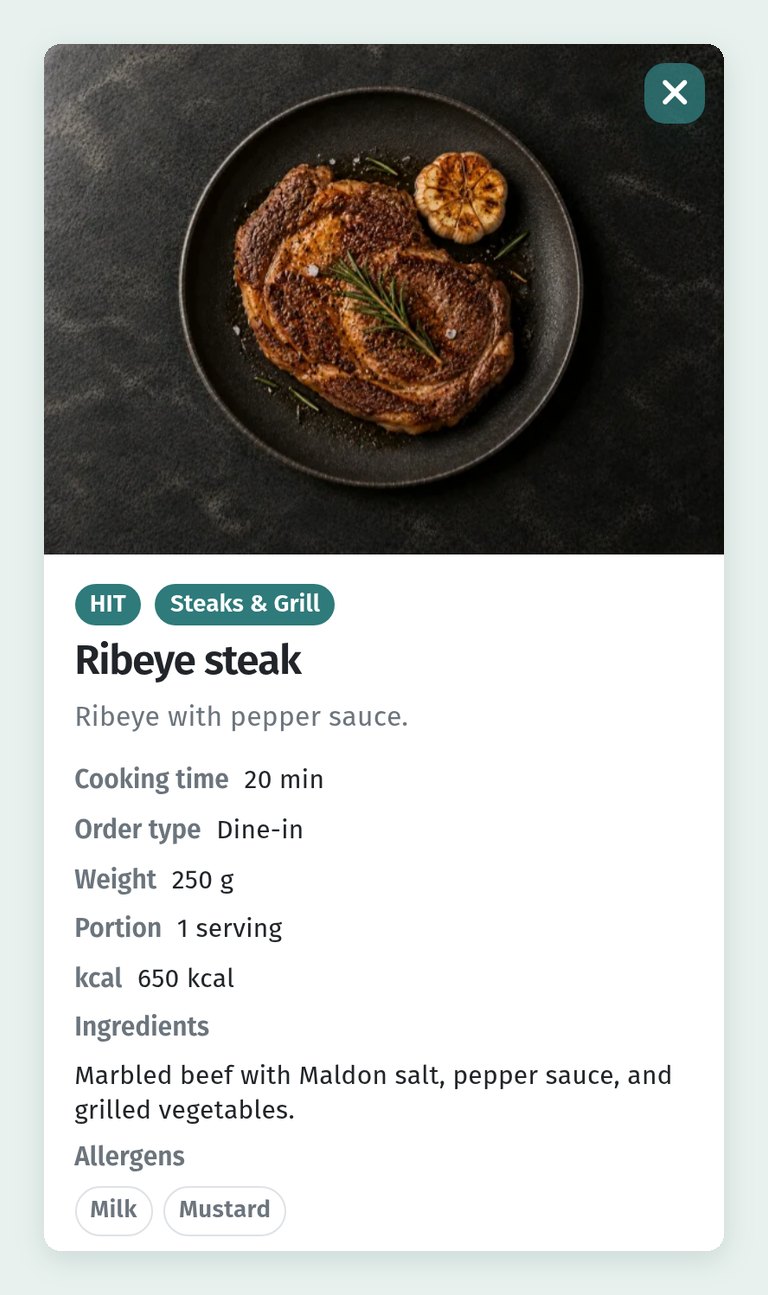
When the guest opens the ribeye, the card shows everything you entered in the editor: cooking time (20 min), order type (Dine-in), weight, portion, calories (650 kcal), ingredients and allergens (Milk, Mustard).
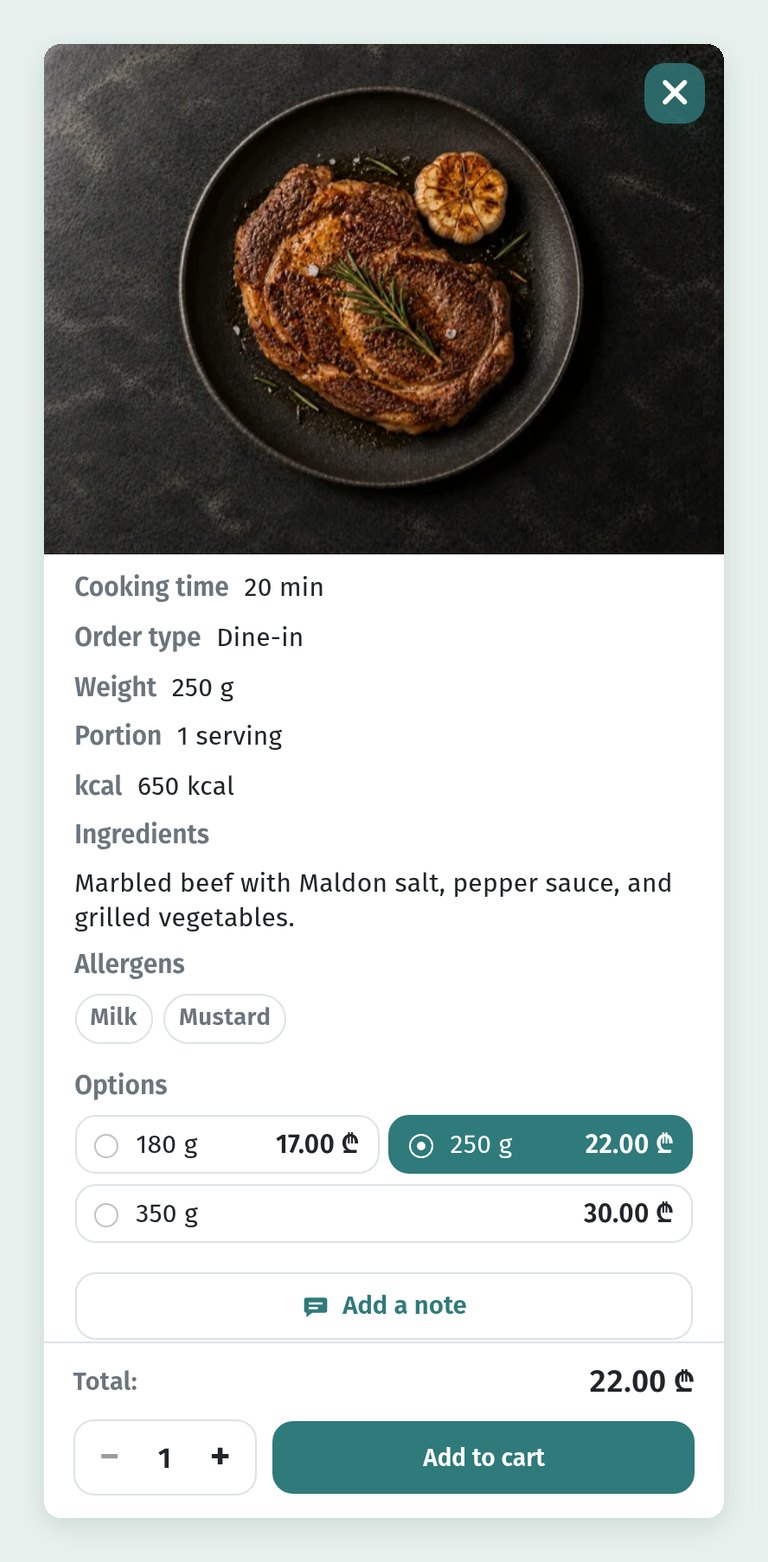
Scroll the card down to see the sizes, 180 g, 250 g and 350 g, each with its own price, and below them the “Add a note” button for leaving a comment for the kitchen, the total and the “Add to cart” button. When the guest picks another size, the total changes.
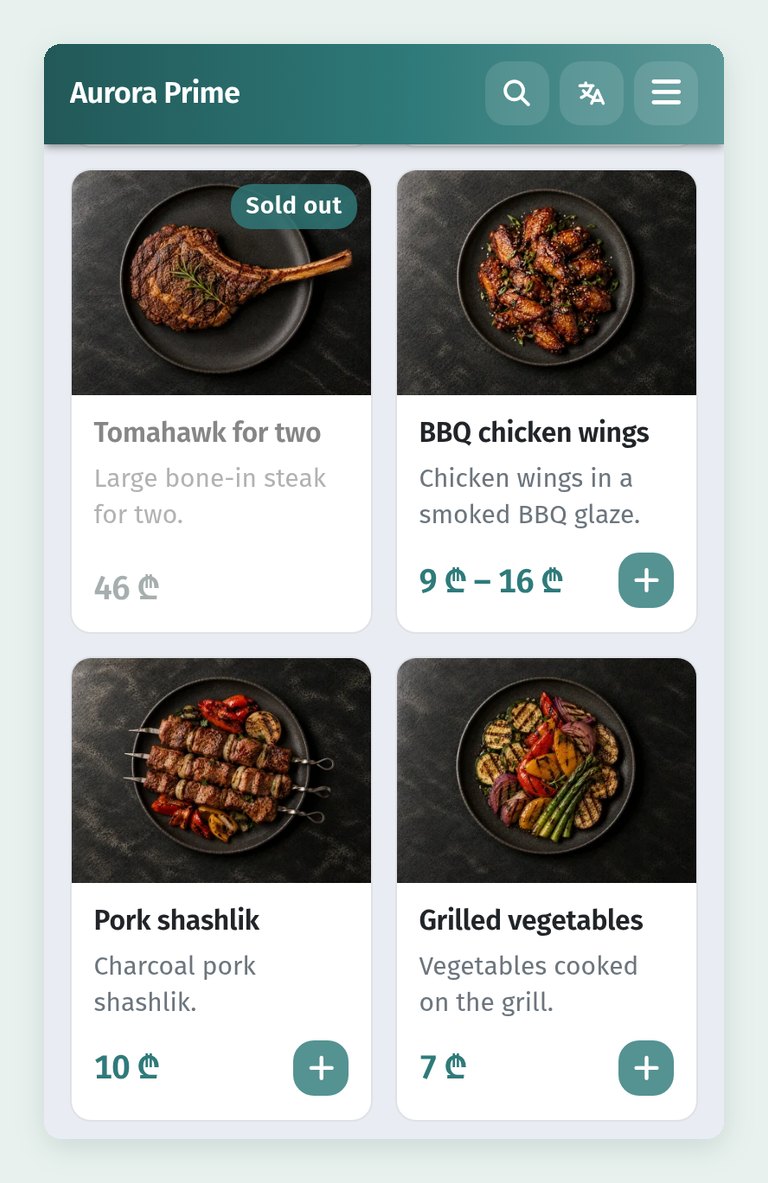
A dish marked Sold out stays in the list but is greyed out and has no + button, so the guest can see it but can't add it to an order. Tomahawk for two looks like this.
Checklist for a good dish card
- The dish is in the right Section.
- A badge only where it matters, for example Hit for bestsellers and NEW for new dishes.
- Availability is up to date: Sold out for what has run out, Hide for what isn't served now.
- Order type is set: dine-in, takeaway or both.
- Allergens are complete and match the recipe.
- Sizes are set up as price variants instead of separate dishes.
- Weight, portion, cooking time and calories are filled in.
- Translations are done for every language you've added.
- The changes are saved with Save.