
Phone preview and saving store settings in WebQRMenu
Phone preview on the Page layout tab in WebQRMenu: what updates instantly, when guests see changes, the Leave dialog, and Save confirmation.
On store tabs a phone preview sits on the right — a live mock of the guest menu. A switch or color updates in the preview at once, but guests still see the previous version until you press Save. Below is the preview → save / cancel → check-on-phone ritual, using the Show logo switch as the example.
Related reading: Choosing a QR menu layout, Store appearance and settings.
In short: open the store → Page layout. Change a setting and watch the preview on the right. Guests see nothing new until Save (a confirmation message appears). Cancel or leaving the page with unsaved edits opens Stay / Leave. After saving, open the menu on a phone and check RU/EN/KA if you use translations.
1. Where the layout settings and bottom bar live
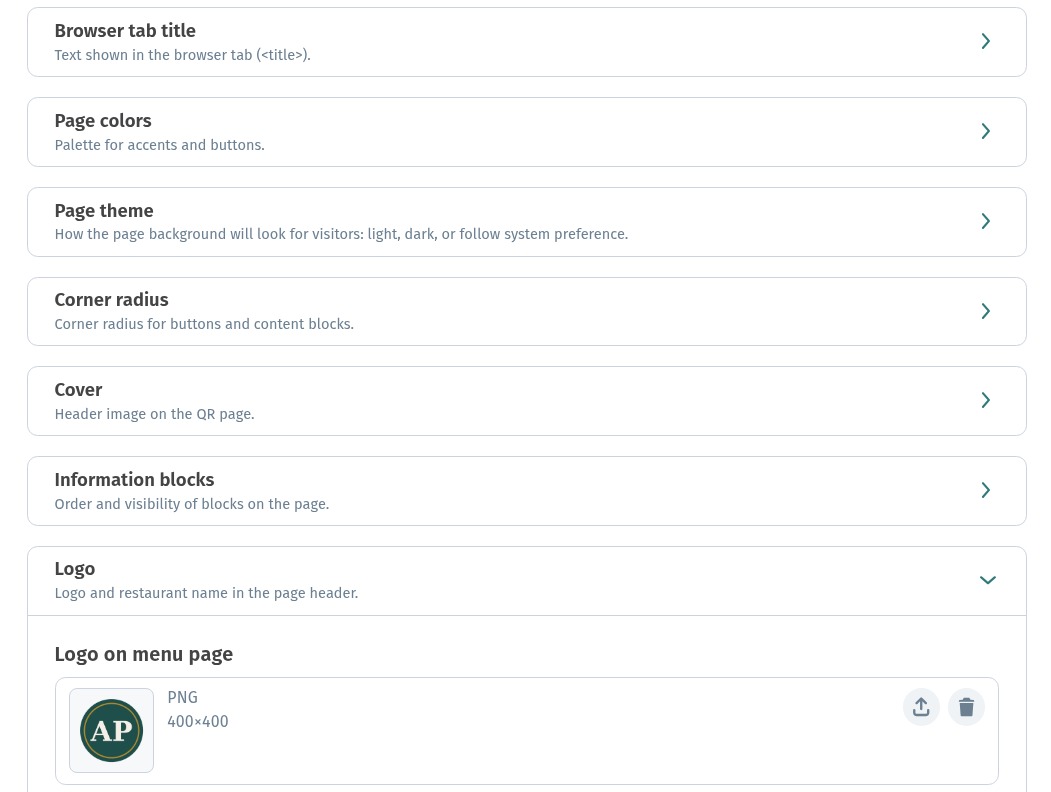
In the dashboard open your store. At the bottom: tabs Information, Page layout, Settings, plus Cancel and Save. The sidebar has Overview. On Page layout the left column lists layout cards — colors, cover, information blocks, logo, and more.

2. Preview updates immediately — guests wait for Save
Expand the Logo card. Show logo is on by default. Hint: On by default. Uncheck to hide only the logo image. The restaurant name is not placed in the logo slot.
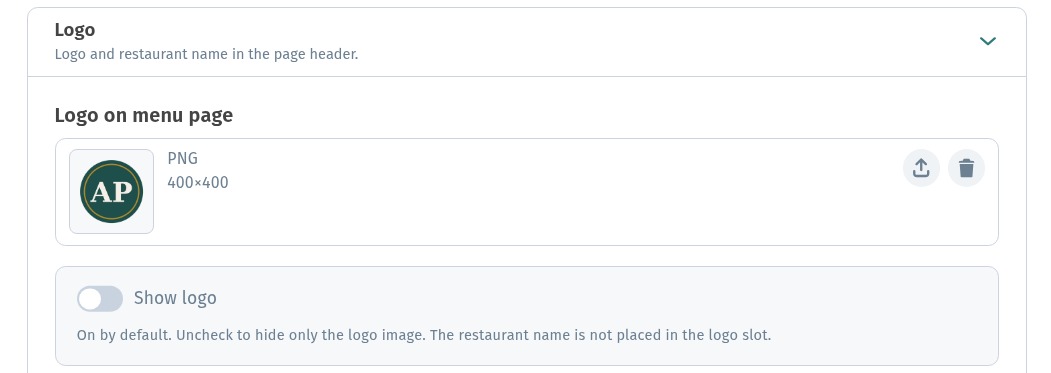
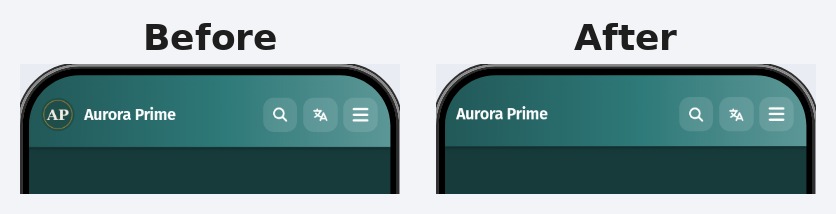
Turn the switch off. In the preview the logo disappears from the header at once — the name stays. That is a draft: the public menu link still shows the last saved look.
3. Unsaved changes: Stay or Leave
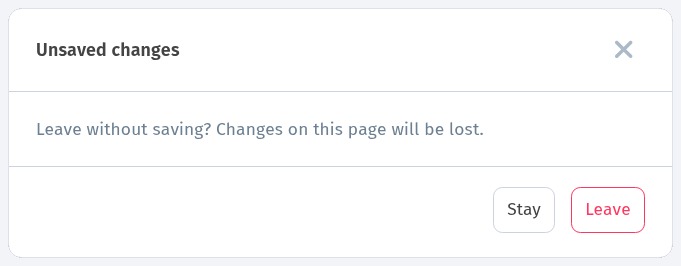
If you leave the page or press Cancel with unsaved edits, the dialog Unsaved changes appears: Leave without saving? Changes on this page will be lost. Buttons Stay and Leave. Cancel on the bottom bar goes through the same dialog: Leave discards edits and exits; Stay returns you to editing.
4. Save and confirmation
Return to the edit (if you left — turn logo off again) and press Save. A confirmation message appears when the draft is written. After a reload the switch stays off and the preview has no logo.
5. What the guest sees after Save
Open the public menu on a phone (Open menu or your QR link). The header has no logo image; the name remains — matching the preview after Show logo was turned off.
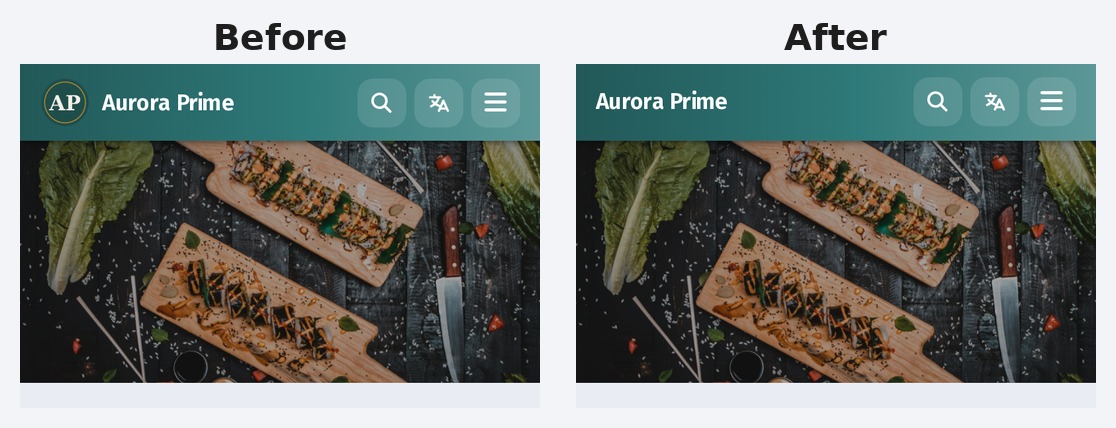
To bring the logo back for guests: turn the switch on → Save → check the phone again.
6. Practical tips
- Change one setting at a time, watch the preview, then Save or Cancel.
- Preview ≠ guest page: until you save and see the confirmation, guests still see the last saved version.
- After saving, check the guest view in RU / EN / KA if the menu is translated.
- Bottom tabs Information, Page layout, Settings — switching with dirty edits triggers Stay / Leave again.
- Final QA always on a real phone, not only in the preview column.
Checklist
- Store → Page layout → make a change (for example Show logo).
- Confirm the preview on the right updated immediately.
- Save → confirmation message, or Cancel / leave → Stay / Leave dialog.
- Open the menu on a phone and match the header to the preview.
- With translations, repeat the check in RU, EN and KA.