

Information blocks on the menu page: order and visibility in WebQRMenu
Reorder and hide Opening hours, Contacts, Address and Wi-Fi on the Page layout tab in WebQRMenu — and see how the guest footer follows your list.
The bottom of a QR menu is where guests look for hours, a phone number, Wi-Fi and how to open the map. In WebQRMenu those pieces are Information blocks on the store’s Page layout tab: one list with a drag handle and an eye on every row. Fill the matching fields on the Information tab first; then decide order and visibility here, save, and check the guest link on your phone.
Related reading: how to fill Wi-Fi, opening hours and contacts, the wider store appearance and settings guide, and layouts and theme in Choosing a QR menu layout.
In short: open the store → Page layout → Information blocks. Drag rows to set order, use the eye to hide a block, then Save. A block appears in this list only after its content is filled on Information. On the guest page the address line and maps link sit under Contacts, so turning the eye off on Address alone does not remove that row.
1. Where to find Information blocks
In the dashboard open your store. Open the Page layout tab (next to Information and Settings). Expand Information blocks — subtitle: Order and visibility of blocks on the page.
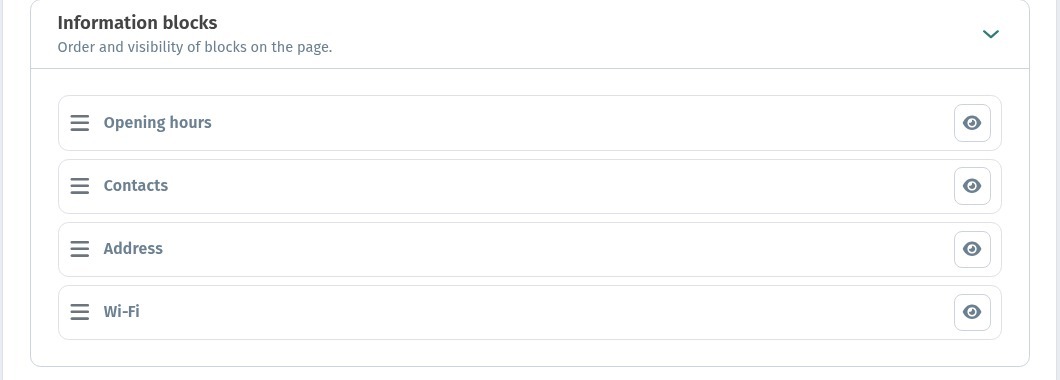
Each row is one guest footer block. On the left: a drag handle. On the right: an eye that shows or hides the block. Typical names when content is filled: Opening hours, Contacts, Address, Wi‑Fi.

2. A block appears after you fill its content
The list is not a fixed checklist of empty stubs. A row shows up once the matching data exists on the Information tab — for example Wi‑Fi after you save a network, Address after the address is saved, Opening hours after hours are set, Contacts after a phone or similar contact field is filled. Empty blocks stay out of the way until you need them. How to enter Wi-Fi, hours and contacts is covered in the Wi-Fi, opening hours and contacts article; address fields and the map switch live on the Information → Address card in the store.
3. Drag to reorder, eye to hide, then Save
Pull a row by the handle to change order — for example put Wi‑Fi first and leave Opening hours lower, or the other way around. Click the eye to hide a block you do not want on the menu (the row stays in the list, dimmed, with a crossed eye). Click again to show it.
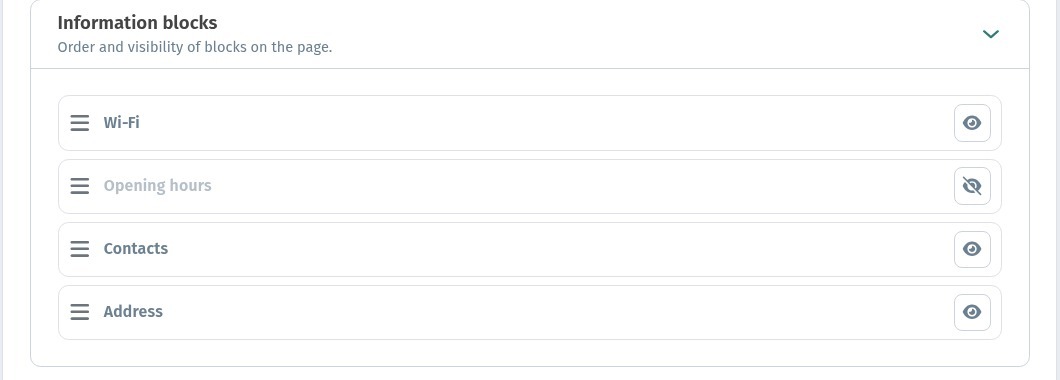
Nothing changes for guests until you press Save on the store page. Cancel discards unsaved edits. After saving, open the public menu on your phone and scroll to the footer.
4. What the guest sees
The guest footer follows the visible rows, top to bottom. With the default order and all eyes open, guests typically see Opening hours, then Contacts, then Wi‑Fi (and the address line as described below).
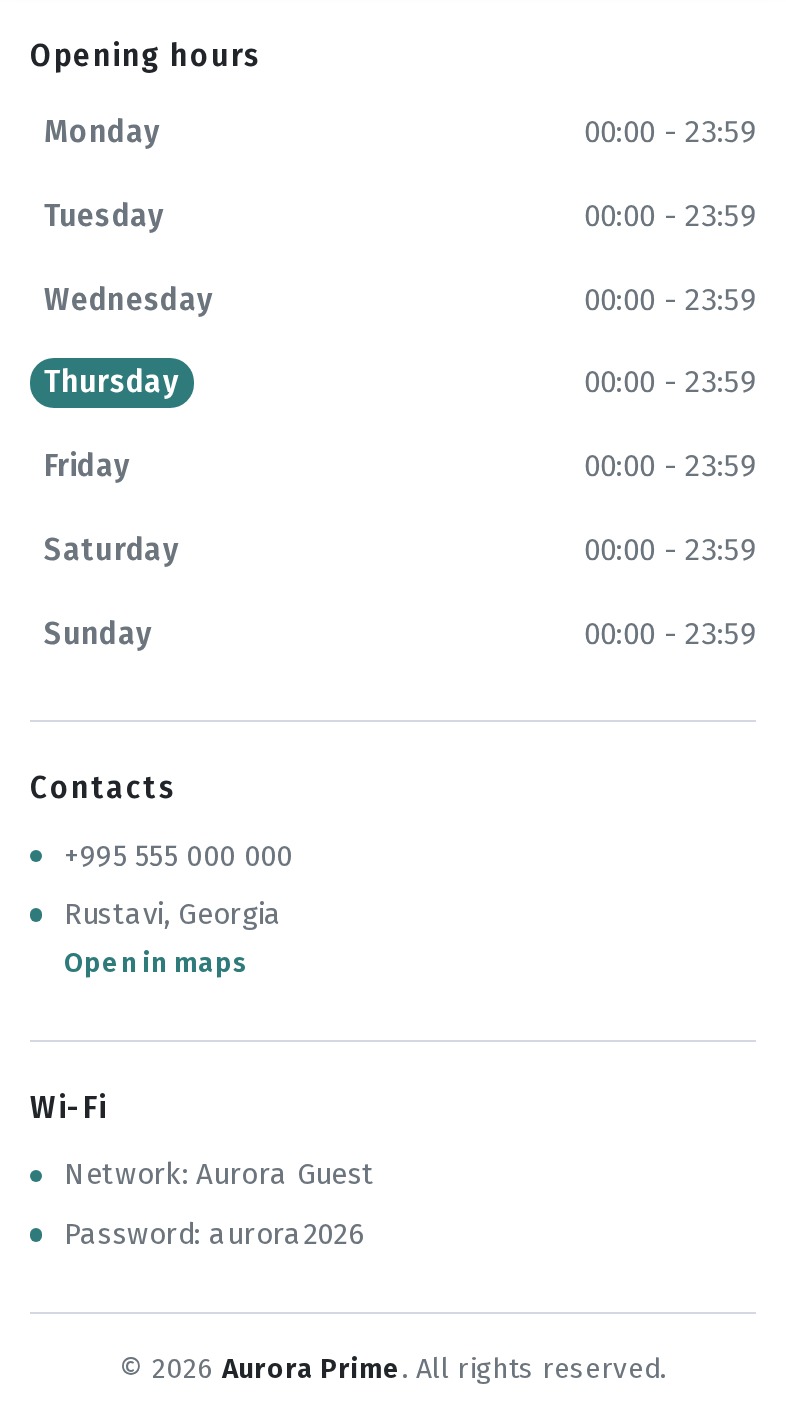
After you move Wi‑Fi up and hide Opening hours, the footer starts with Wi-Fi and skips the week schedule.
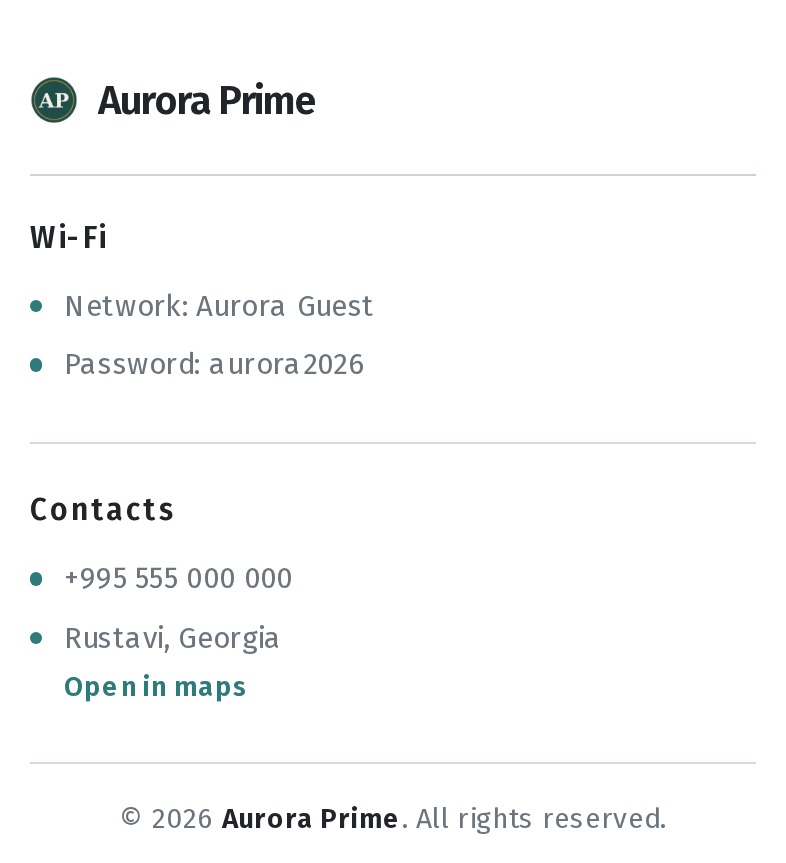
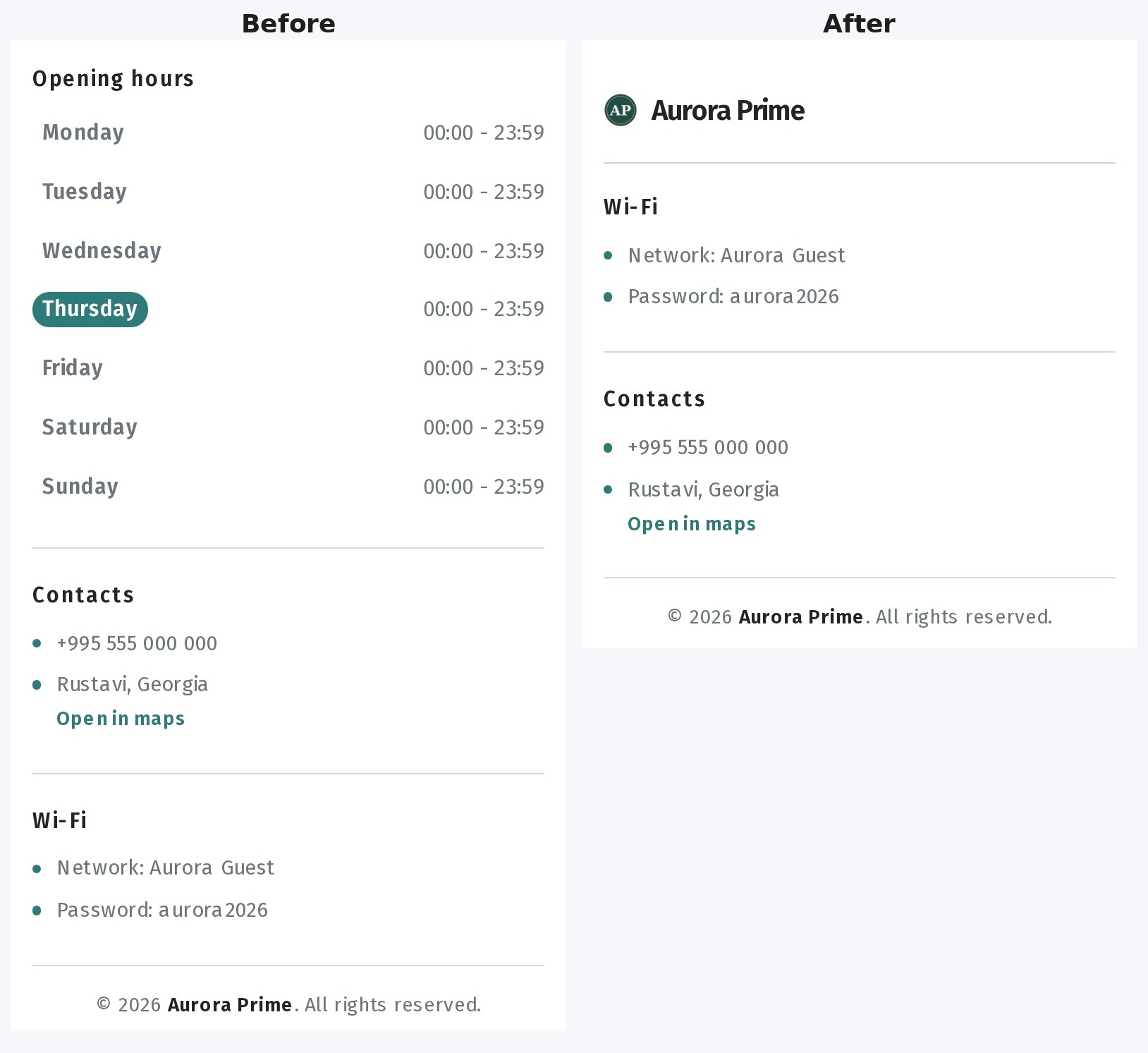
Address and Contacts on the guest page. In the public menu the street line and the maps link (Open in maps) appear as a row under the Contacts heading, together with the phone. The dashboard still has a separate Address row in Information blocks for order and visibility. Hiding Address with the eye does not remove that address row from under Contacts — the guest layout keeps the address with the contact block. Use the Information tab if you need to change or clear the address text itself; use the map switch on the Address card if you want an embedded map instead of the link.
5. Practical tips
- Café / coworking: put Wi‑Fi first so the network and password are the first thing under the brand.
- 24/7 or always-open hours: hide Opening hours if the schedule adds little, and keep Contacts and Wi‑Fi visible.
- Delivery-heavy venues: keep Contacts (and the address row under it) high so the phone and maps link are easy to find.
- Hide blocks you have not filled yet — or fill them on Information so they appear in the list only when ready.
- After every change: Save, then check the guest link in RU/EN/KA if you use translations.
Checklist
- Store → Page layout → Information blocks.
- Confirm each needed block is in the list (content filled on Information).
- Drag into the order guests should see.
- Use the eye to hide what should not appear.
- Save and scroll the guest menu footer on a phone.