
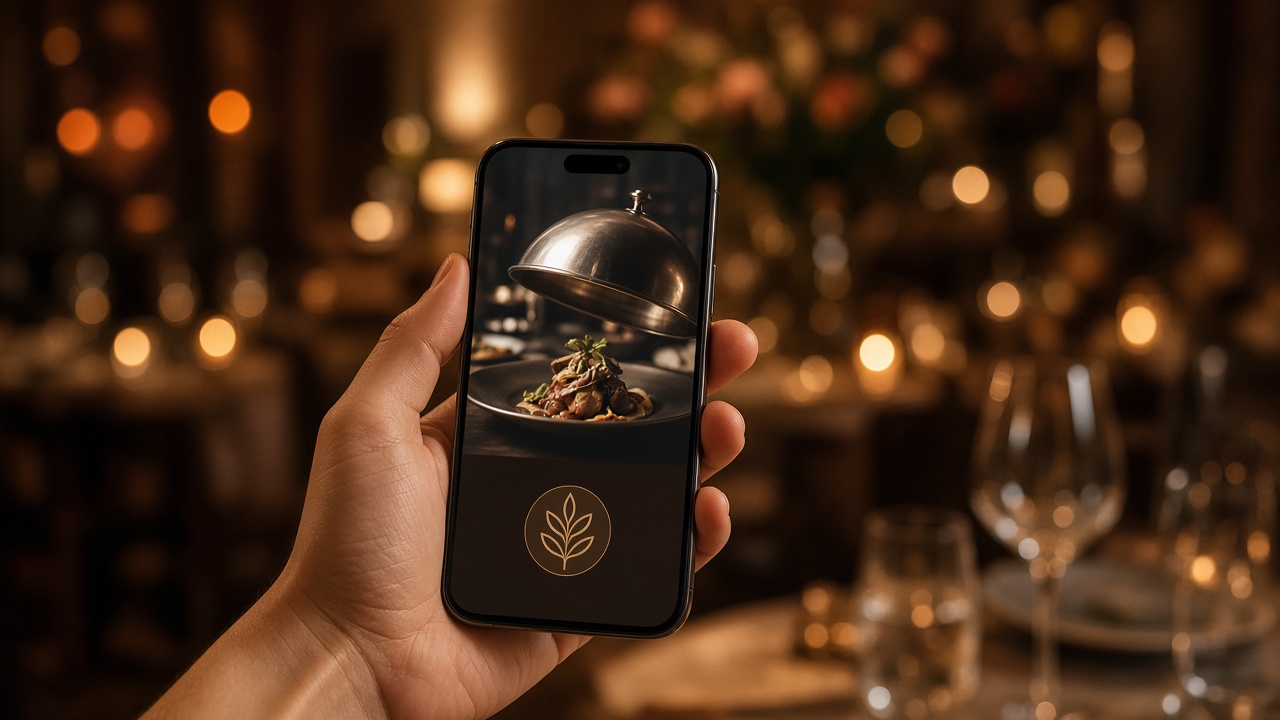
First screen of a QR menu: cover, logo, welcome and theme
What a guest sees after scanning a WebQRMenu QR: welcome screen, logo, cover and theme — and how to set each block on the Page layout tab.
A guest does not open your full catalog first. After the scan they see a short chain: a welcome (loading) image, then the header with logo and name, then the cover with a title and a short line of text, on a light or dark page. That first screen decides whether the place feels finished before anyone taps a dish.
This article walks through that guest path in the Aurora Prime demo, then the matching settings on the store Page layout tab. Deeper tours of every layout option and every store tab stay in the existing guides: Store appearance and settings and Choosing a QR menu layout. Here we stay on the first screen.
In short: upload a light welcome image (transparent PNG works on light and dark), turn on logo and name, fill cover title and description (≤50 characters each; description only shows if the title is filled), set Page theme to Light, Dark or System, and translate cover texts under Page language. Save once — the table QR does not change.
1. What the guest sees in the first seconds
On a phone the Aurora Prime menu opens with a full-screen welcome: a pale grey background and a small centered AP mark.

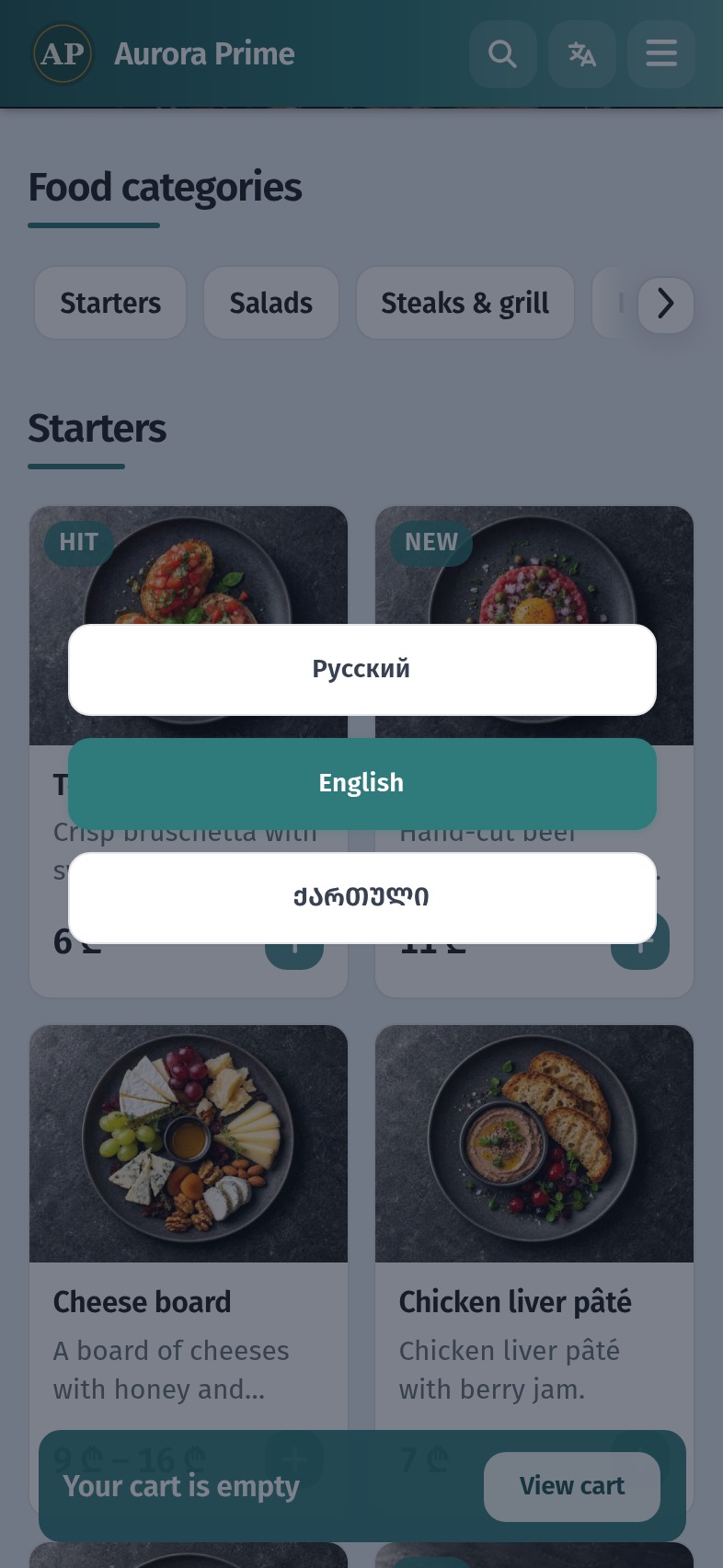
When loading finishes, the first screen shows the header (logo + Aurora Prime), the cover photo with title and description, category chips and the top dishes.
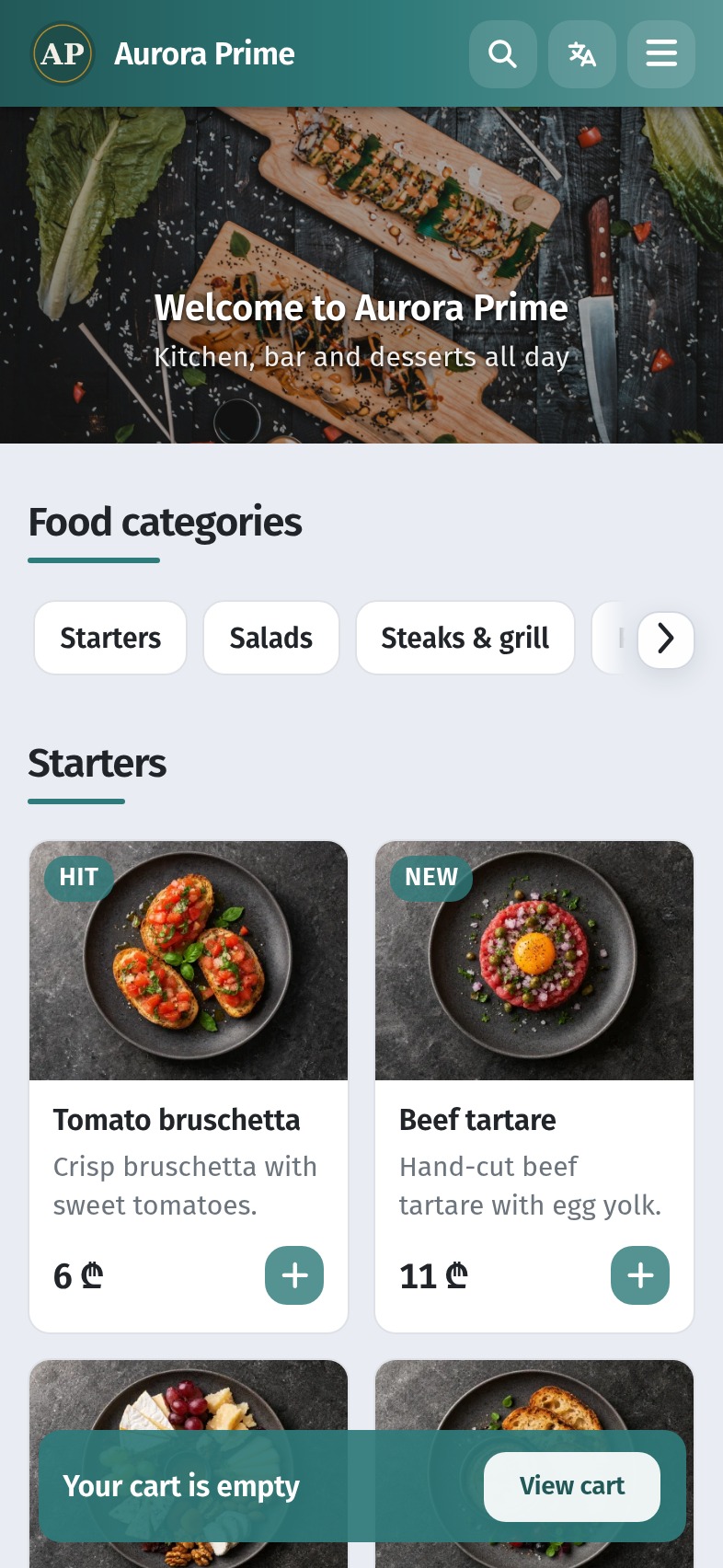
Before cover texts and logo were set, the top looked unfinished: store name only, no welcome line on the photo.
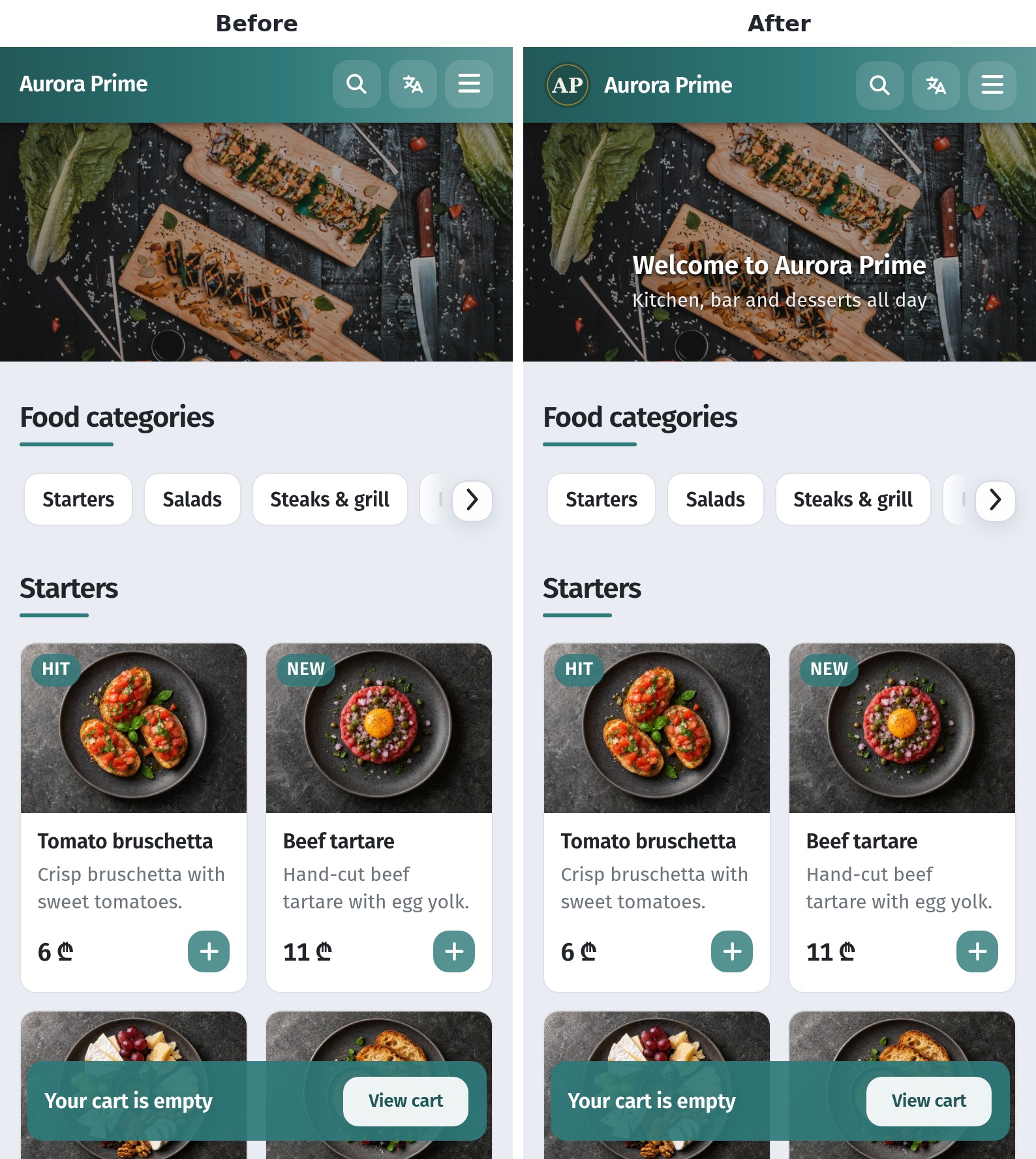
Switching Page theme to Dark keeps the same cover and logo; the page background and chrome go dark so evening service can match the room.
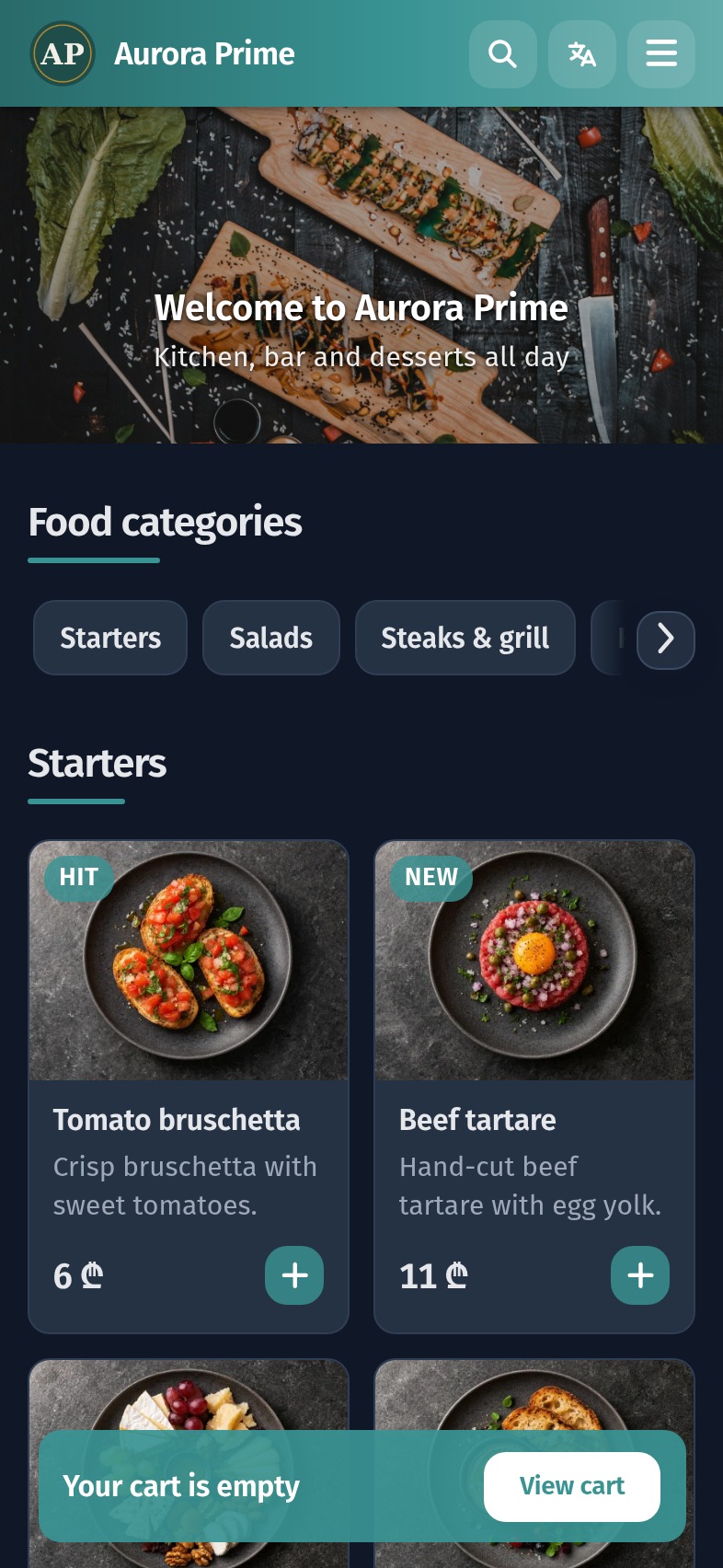
Guests change language from the header control; cover title and description follow the active language when translations are filled.
2. Where to edit: Page layout
In the dashboard open the store → Page layout. The left column is a stack of cards (template, colors, theme, corner radius, cover, logo, welcome, page language). The right side is a live phone preview.
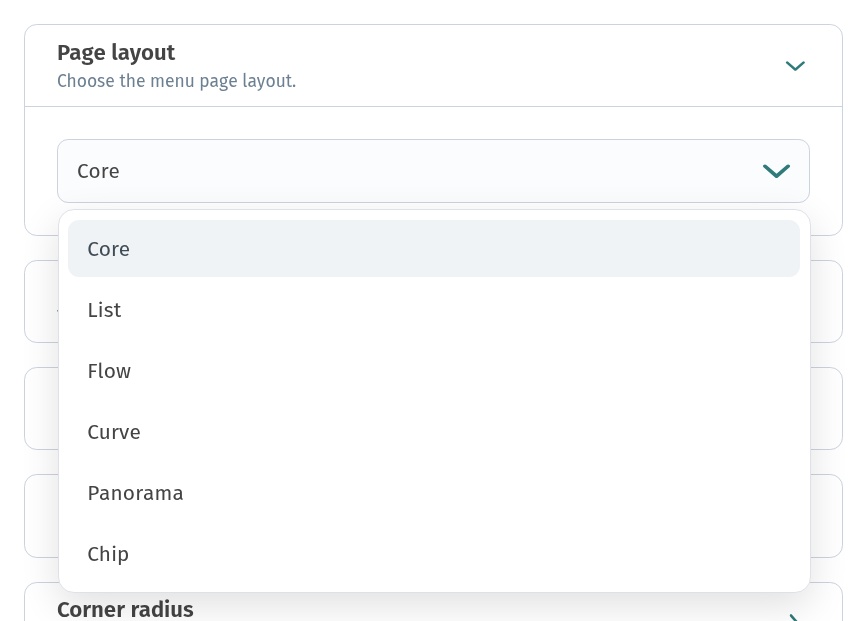
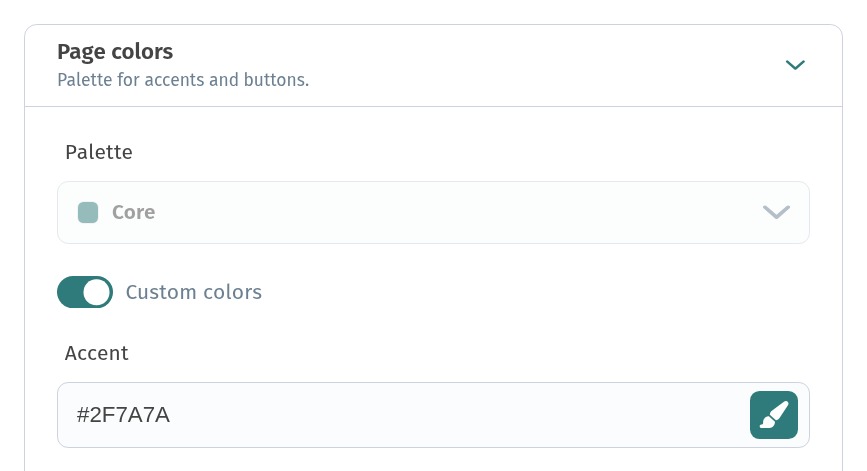
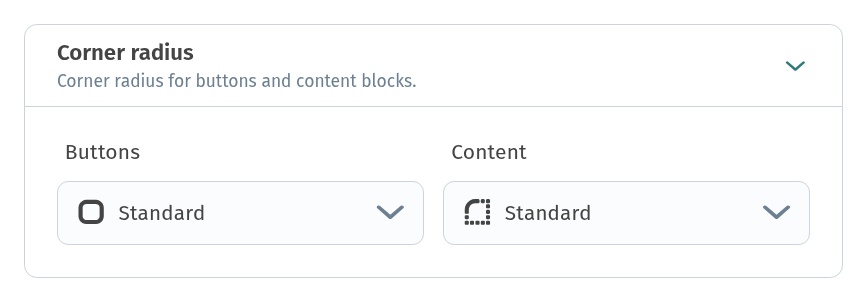
Layout templates (Core, List, Flow, Curve, Panorama, Chip), palette and corner radius shape the catalog cards. They matter, but they are not the first-screen story — see the layout guide linked above. Below we only name them briefly, then focus on cover, logo, welcome and theme.
3. Cover: title, description and limits
Open Cover for the header photo (a wide JPEG works well). The main-language cover title and description are typed in that cover block — each up to 50 characters. The description is shown to guests only when the title is filled.
For the English guest line, open Page language and expand the English panel. Fill Cover title and Cover description there (and Page title for the browser tab, ≤60 characters). Do not leave English guests on the primary-language cover string.
In Aurora Prime the English panel reads:
- Cover title: Welcome to Aurora Prime
- Cover description: Kitchen, bar and desserts all day
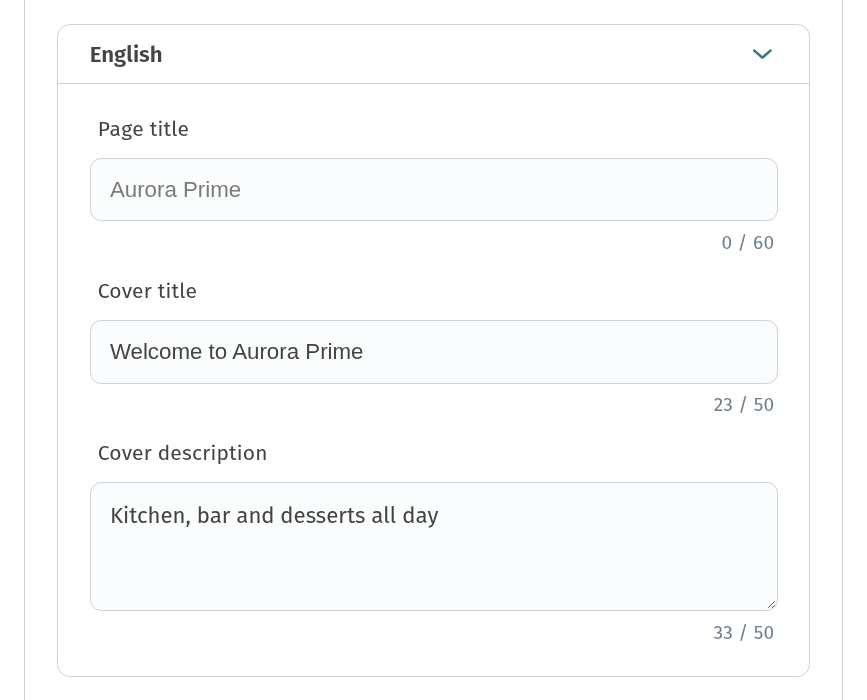
Practical cover lines (examples):
| Cover title | Cover description | |
|---|---|---|
| EN | Welcome to Aurora Prime | Kitchen, bar and desserts all day |
| EN | Lunch from 12:00 | Soup, main and a drink |
| RU | Добро пожаловать в Aurora Prime | Кухня, бар и десерты весь день |
| KA | კეთილი იყოს თქვენი მობრძანება Aurora Prime-ში | სამზარეულო, ბარი და დესერტები მთელი დღე |
Keep one idea per line. Avoid stuffing the full address into the cover — contacts belong in Information blocks.
4. Logo: file, Show logo, Show restaurant name
Open Logo. Upload PNG, JPG, WEBP, SVG or GIF up to 5 MB (Aurora uses a PNG 400×400 mark). Two toggles control the header:
- Show logo — on by default; turn off to hide only the image
- Show restaurant name — shows the store name next to the logo or alone in the header
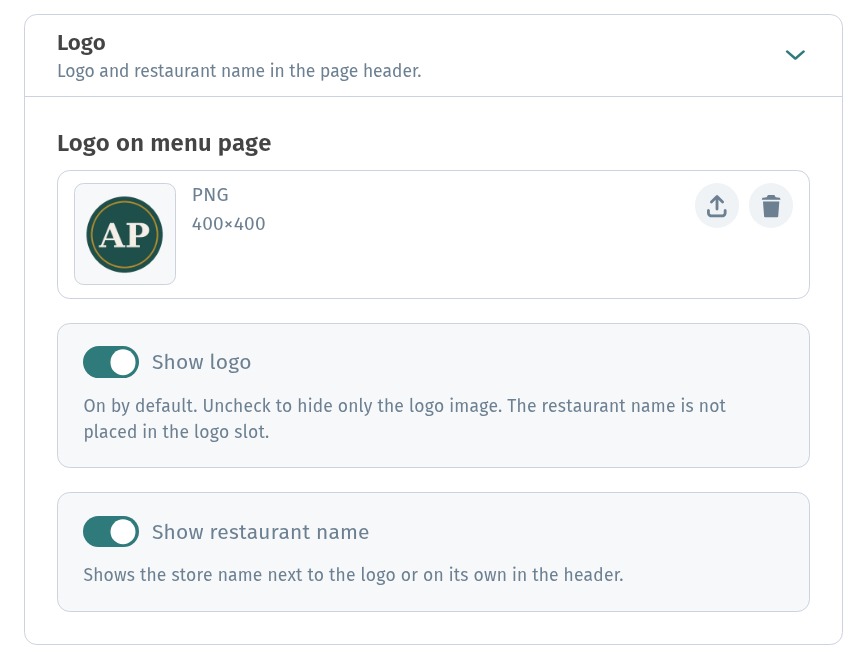
A transparent PNG logo sits cleanly on both light and dark themes — useful if you switch theme for dinner service without replacing the file.
5. Welcome screen: image while the page loads
Open Welcome screen. Formats: PNG, JPG, WEBP, SVG, GIF, max 1 MB. Three sources:
- Upload custom image
- Library — save with To library, then select the tile
- Ready Templates — built-in loaders
Use Show loading to preview without leaving the tab. In Aurora Prime the library holds a transparent AP circle on a light grey welcome background.
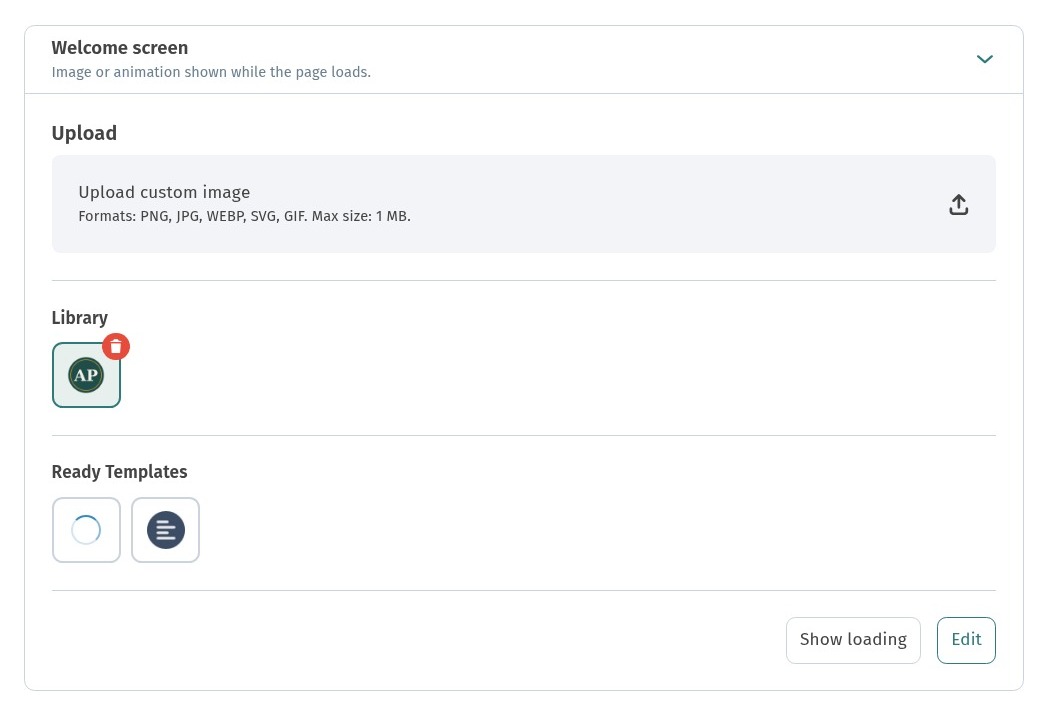
Tip: keep the file light and the mark small and centered — guests see it for a moment, not as a poster.
6. Page theme: Light, Dark, System
Open Page theme. The Theme dropdown offers Light, Dark and System (follow the device).
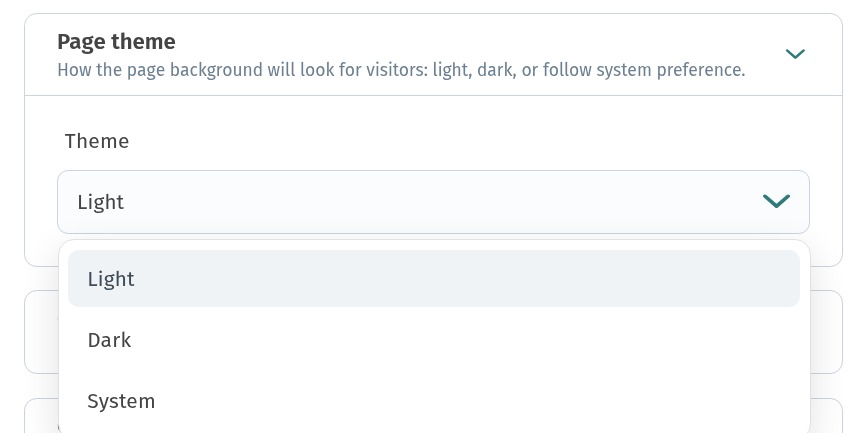
Light is the daytime default. Dark suits dim rooms and bar service. System follows the guest phone. This is the guest page theme — not the dashboard account theme under account settings.
7. Page language and cover translations
Under Page language, turn translations on and open the English / Georgian panels. Fill Page title, Cover title and Cover description for each language. Category and dish names are translated elsewhere in the content library — the info box on the card links there.
Without these fields, a guest on English still sees the primary cover line. Fill them once; the language control on the guest header does the rest.
8. Checklist
- Welcome image ≤1 MB; preview with Show loading
- Logo ≤5 MB; Show logo and Show restaurant name as needed
- Cover title ≤50; description ≤50; description only if title is set
- Browser / page title ≤60 where you use it
- Page theme set for the room (Light / Dark / System)
- Cover texts translated in Page language panels
- Spot-check the phone preview and a real guest link after Save
The first screen is a few blocks, not a redesign of the whole store. Set welcome, logo, cover and theme carefully; leave templates, palette and corner radius to the layout guide when you are ready to go deeper.